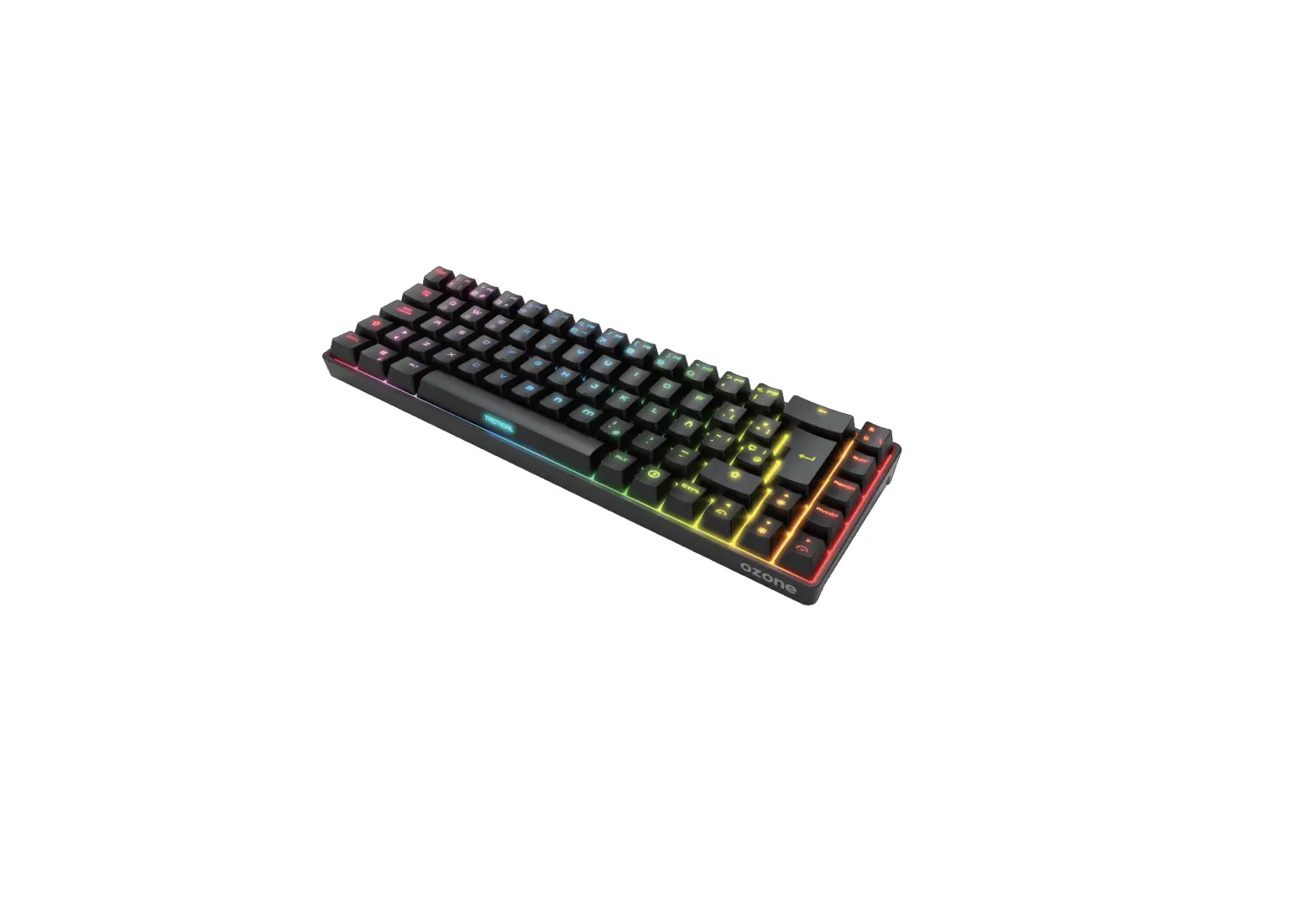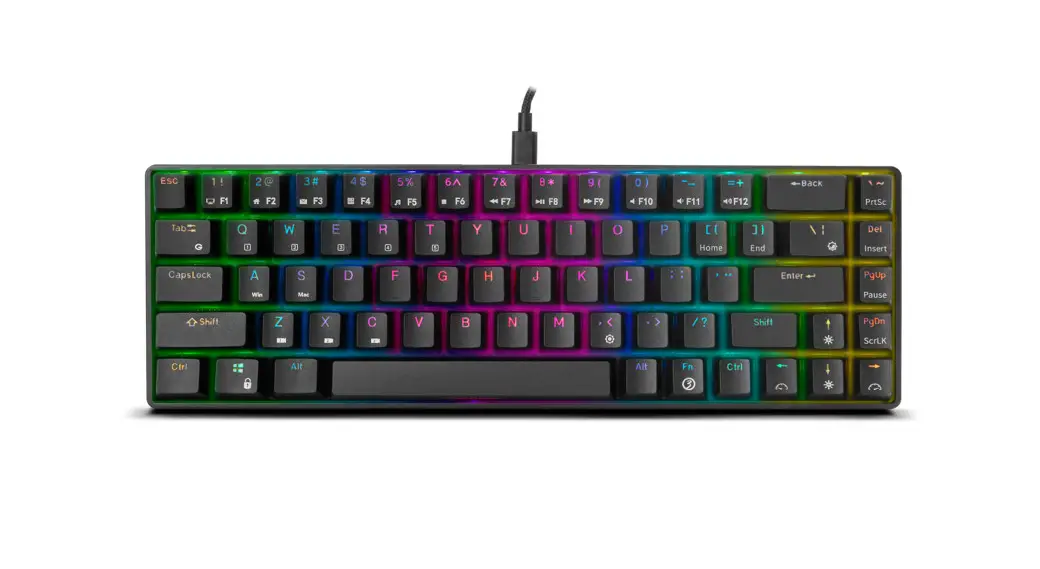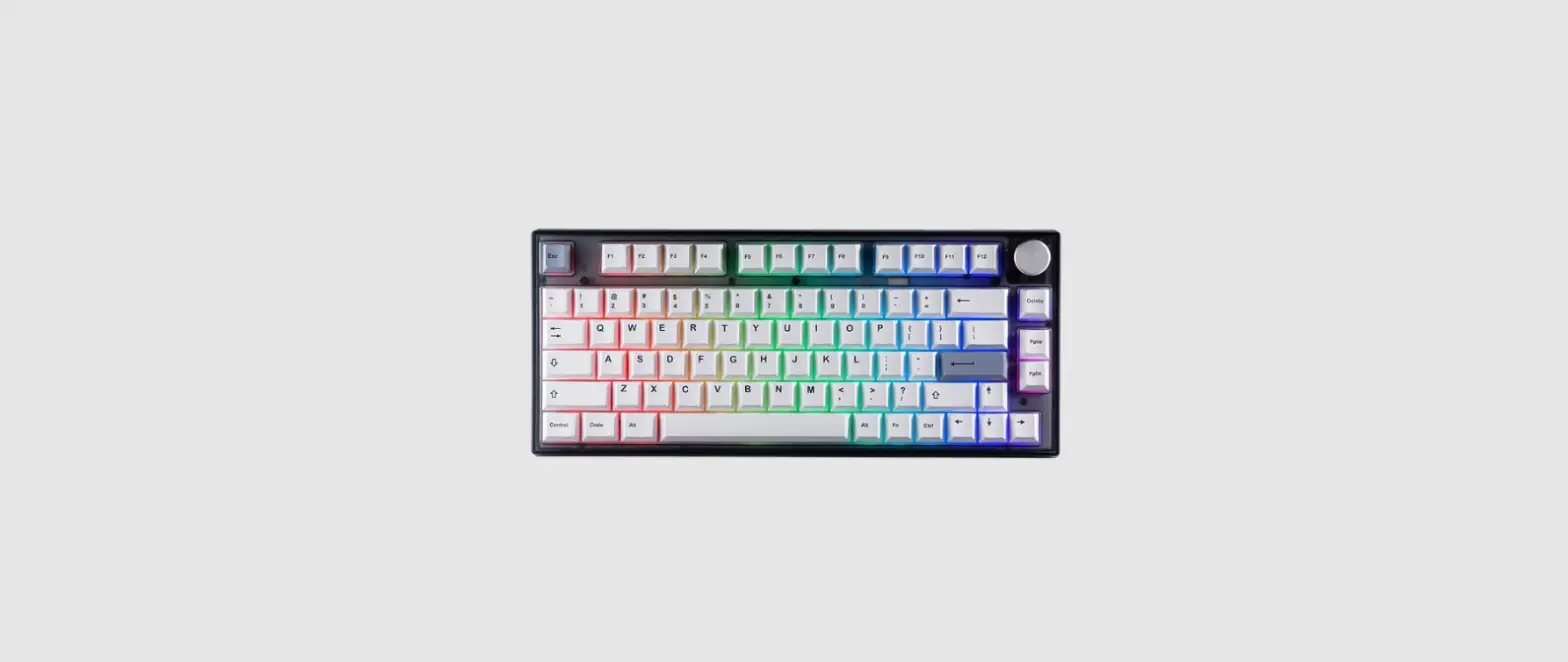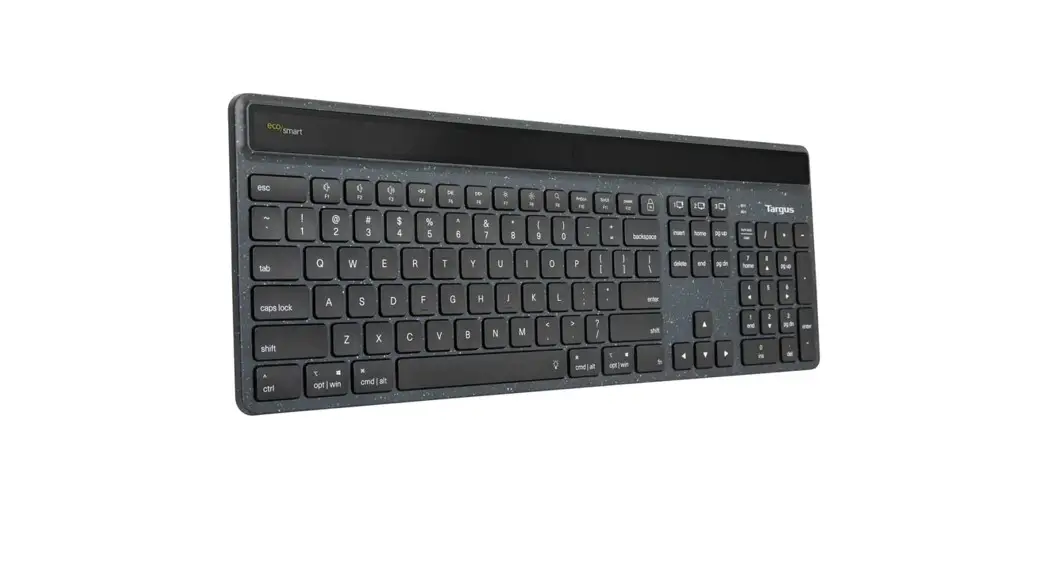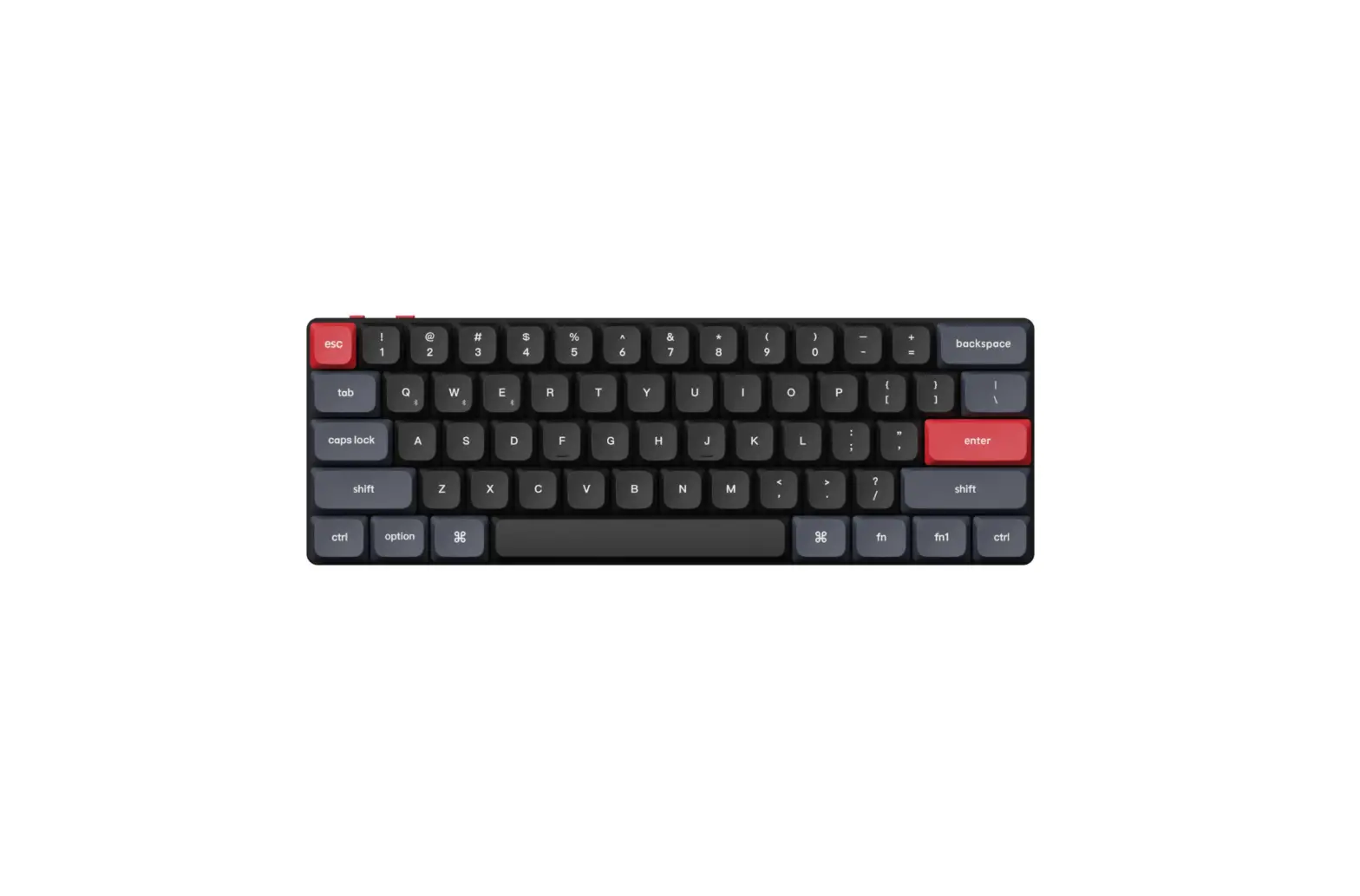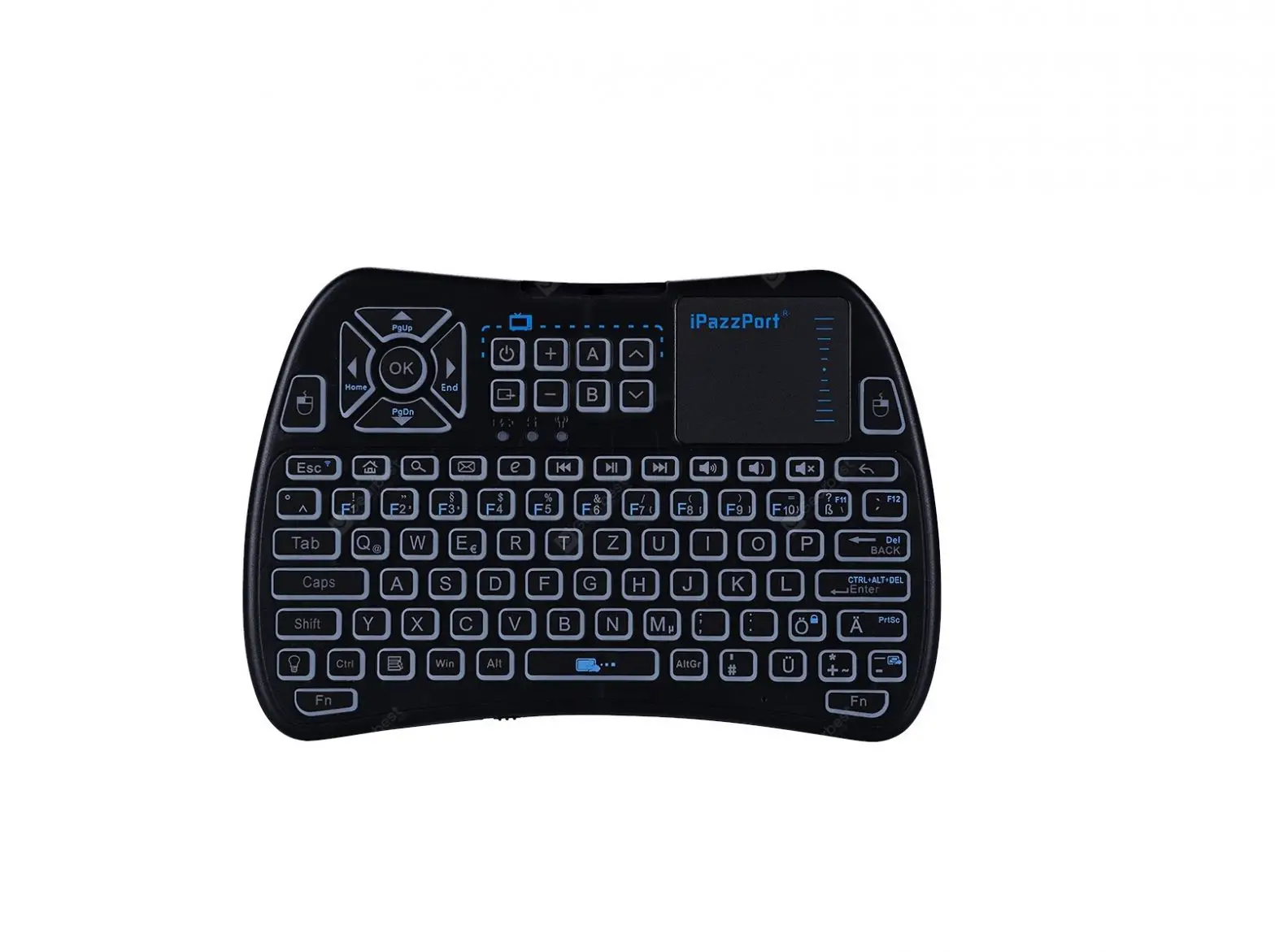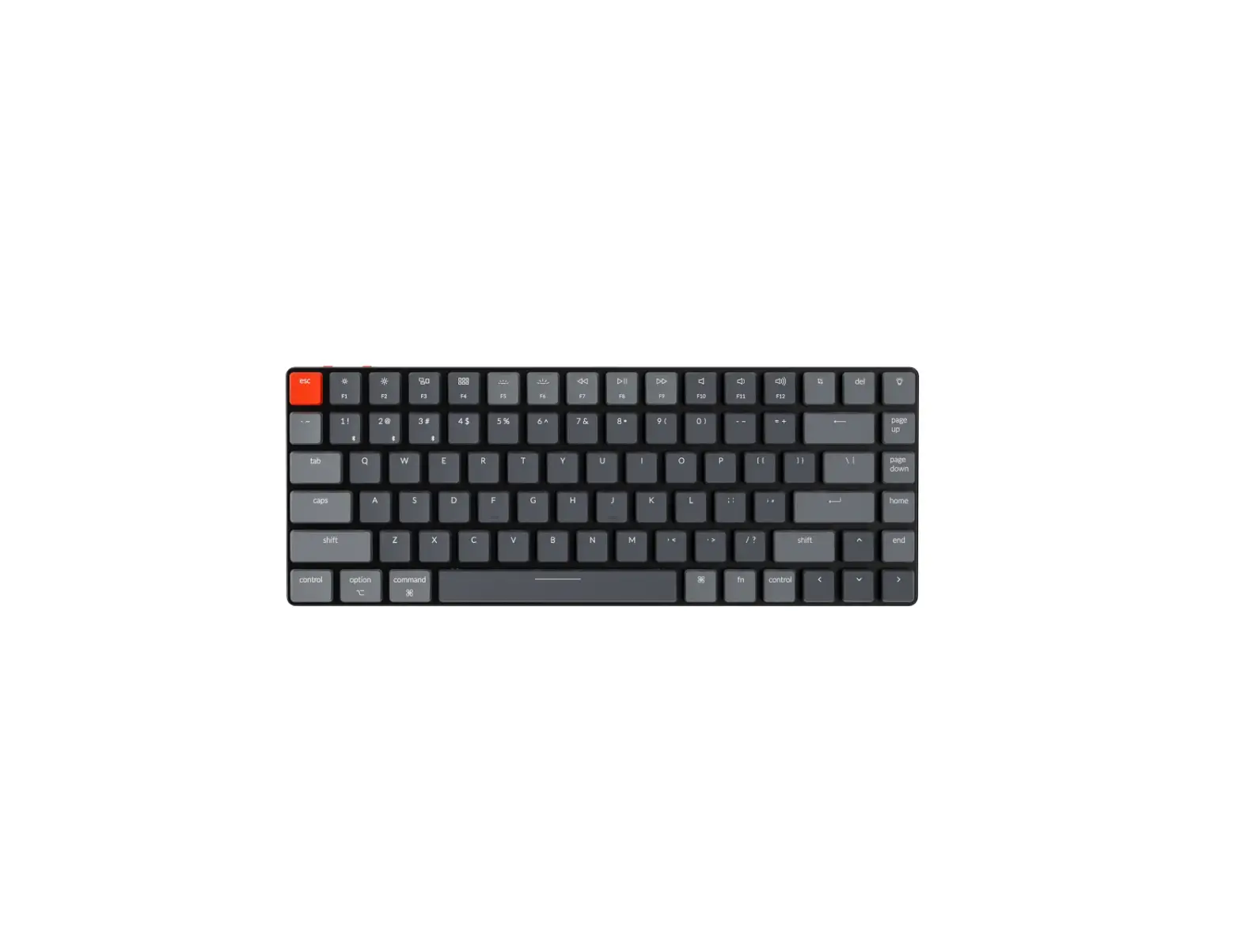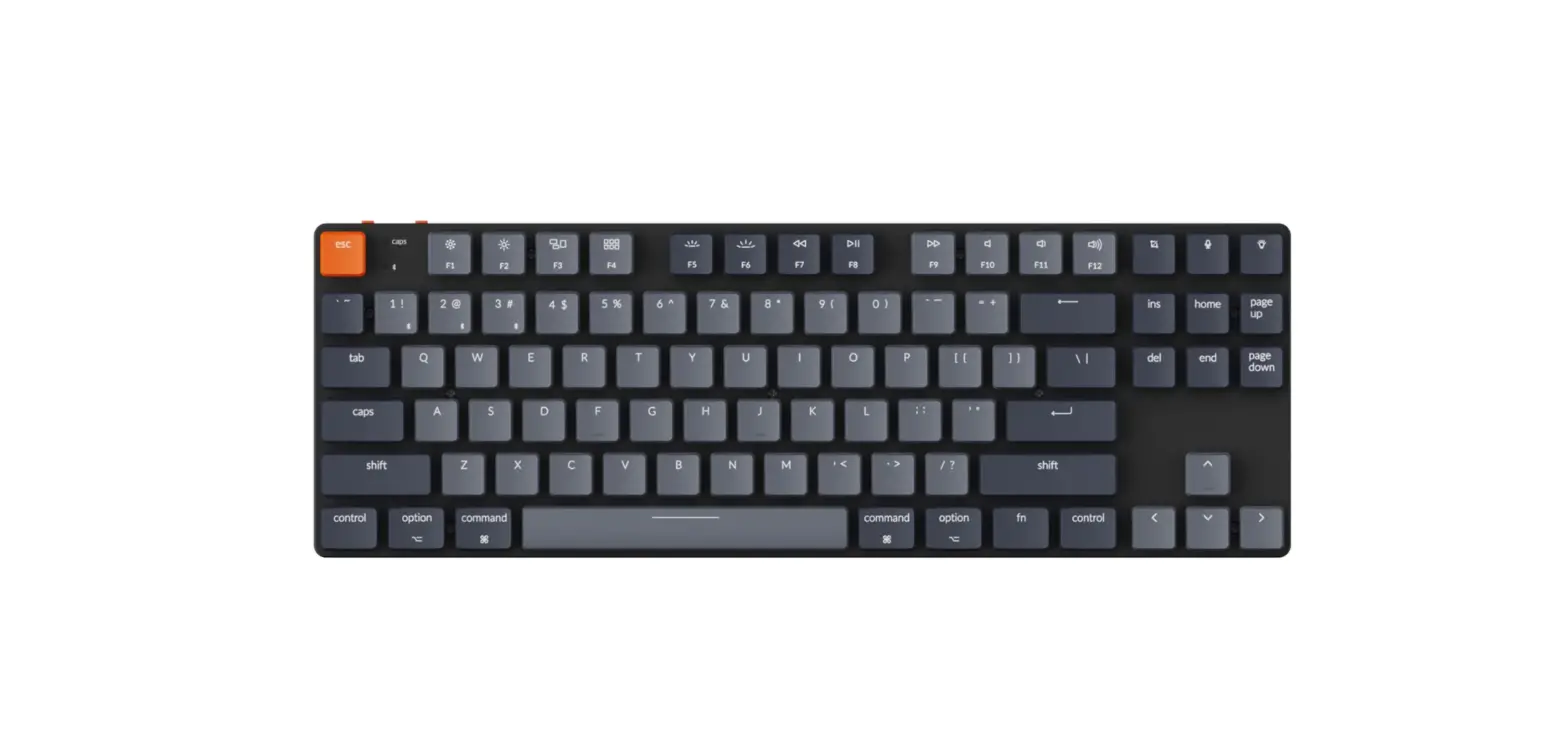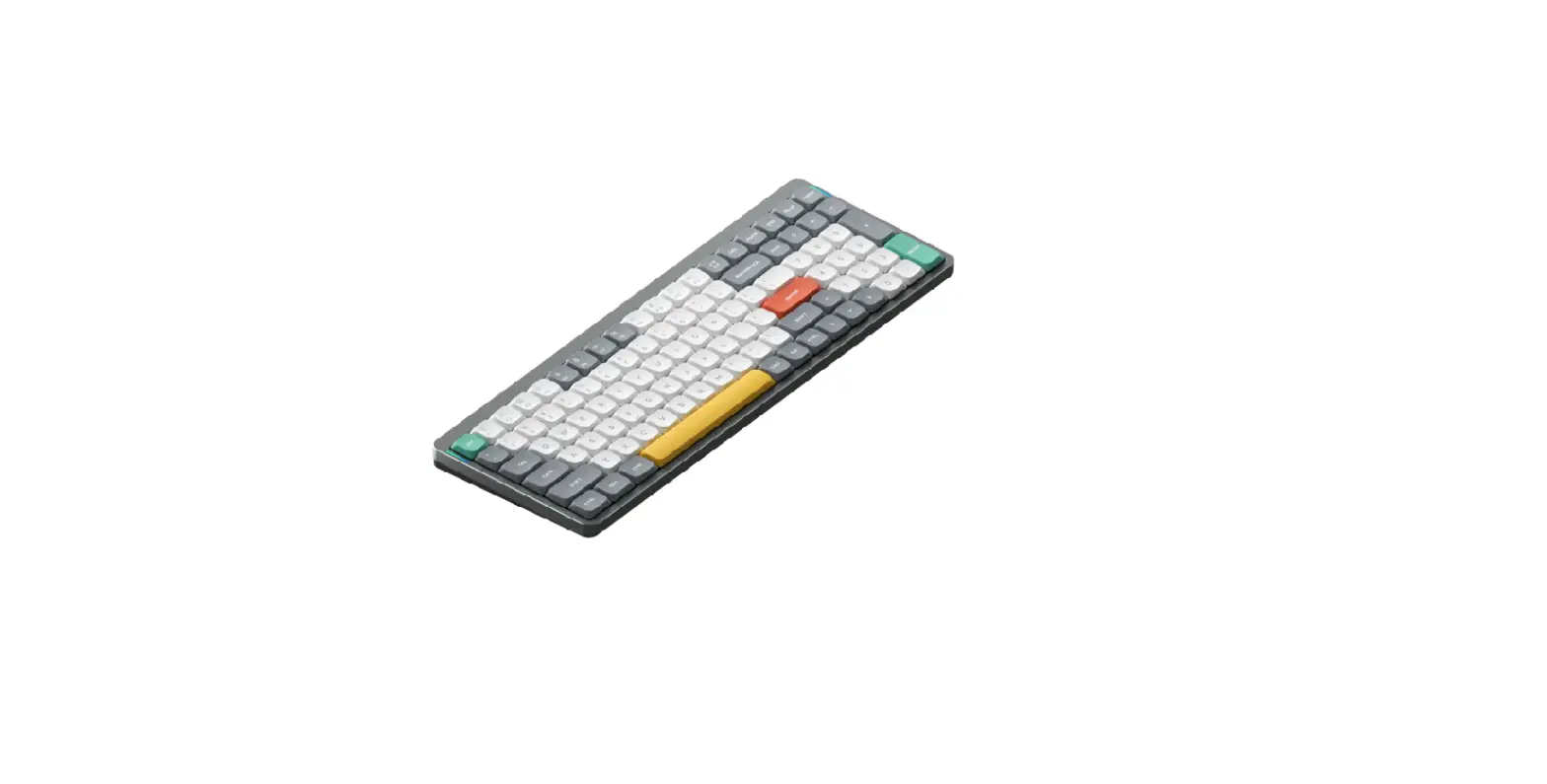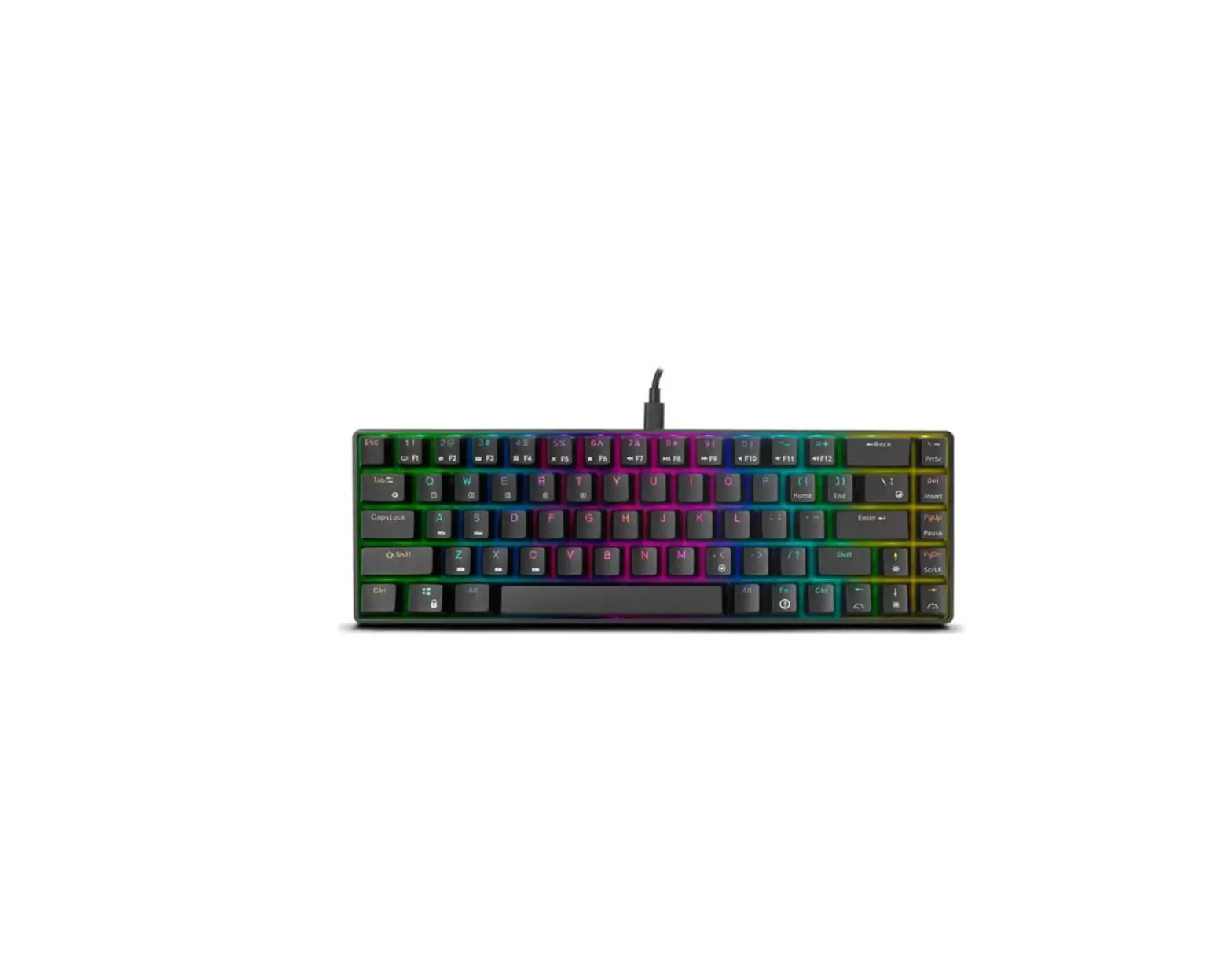
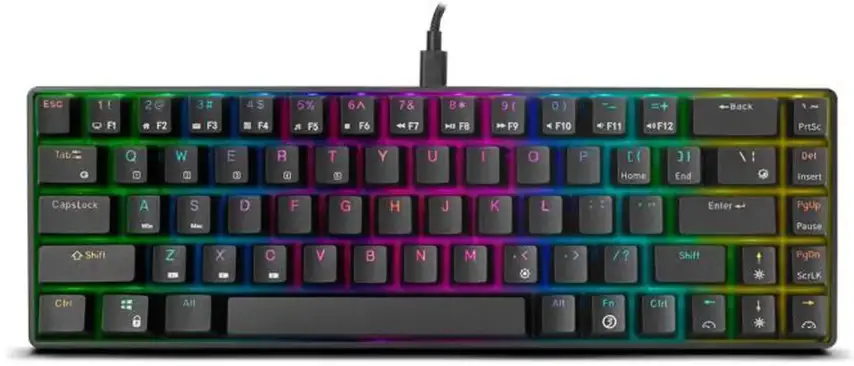
ozene TACTICAL Wireless Mini Mechanical Keyboard
SYSTEM REQUIREMENTS
- Operating Systems Windows, Mac, IOS, Linux or Android.
- Free USB 2.0 port or Bluetooth 5.0 device.
- Internet connection for downloading the software and 200 Mb of hard disk to install it (Only Windows supported).
INSTALLATION INSTRUCTIONS
Select the connection type (wired or Bluetooth) with the switch located in the back side of the keyboard.
Wired Mode. If you selected the wired mode:
- Plug the USB into you PC.
- Wait until your system recognize and install the new device.
- Enjoy playing with Ozone Tactical
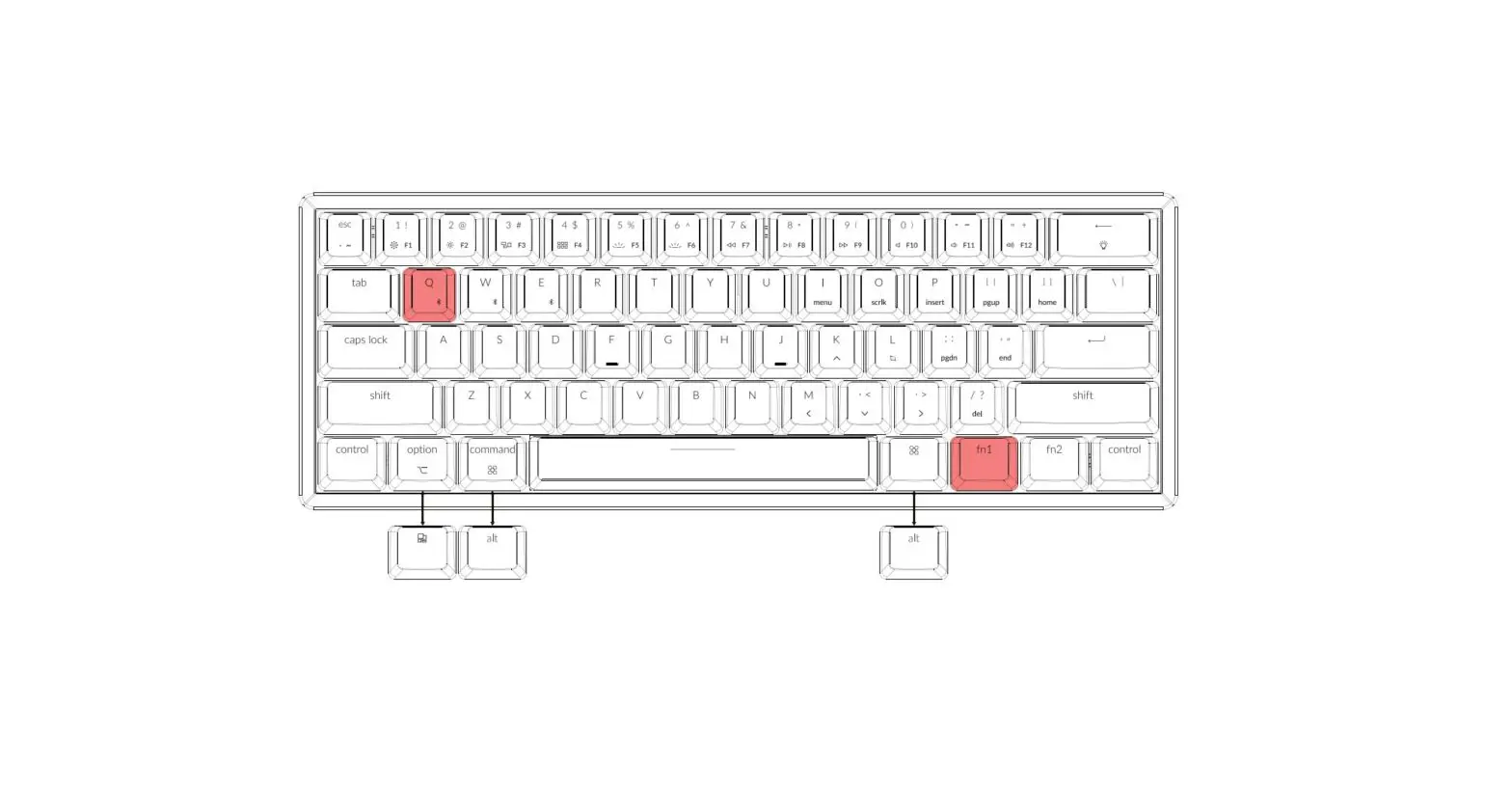
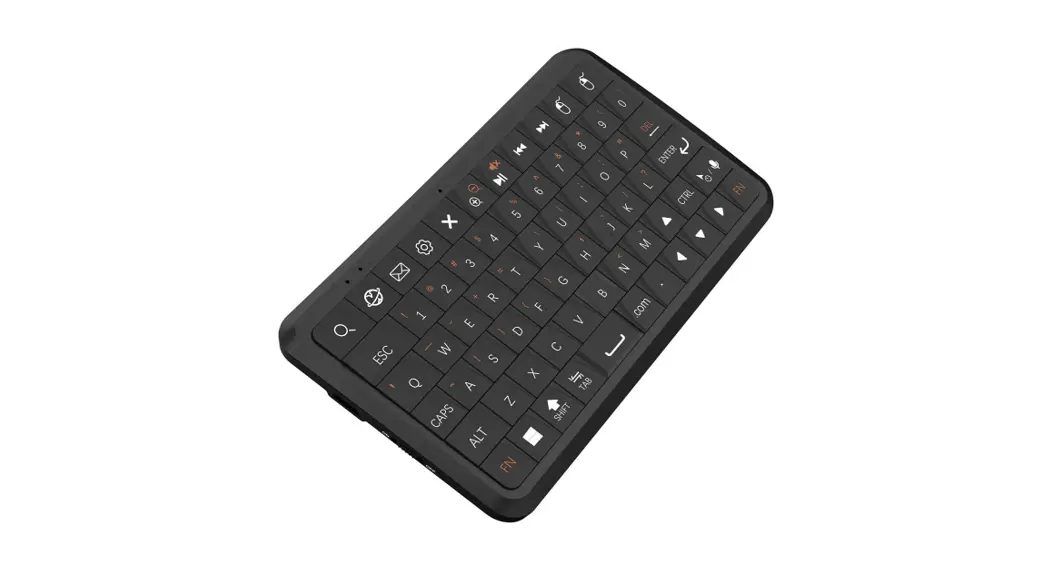
Bluetooth Mode. If you selected the BT mode, you can store up to 5 devices paired with the keyboard and change between them easily. The devices icons are located in the 0, W, E, R and T keys.
Pairing mode:
- Press
 + 0, W, E, R, T to select the key to store the BT device. The key will flash twice quickly.
 - Press + 0, W, E, R, T for 3 seconds, the key will flash continuously, the keyboard has entered in pairing mode.
- Search the keyboard in your Bluetooth device, select it and complete the pairing. The selected key will stop flashing. Pairing is done.
- Repeat the process up to 5 times if you want to pair up to 5 devices.
OTHER FUNCTION
Backlight controls:

Macro recording. You can record up to 3 macros in the Z, X, C keys of the keyboard.
- Press +
 to enable / disable macro keys.
 - Press + Z, X, C for 3 seconds to start recording.
- Press all the keys you want to store in the macro.
- Press + Z, X, C shortly to stop recording.
 to enable / disable macro keys.
Windows and Mac OS modes. Press + A for Windows mode. Press + S for Mac OS mode.
| Windows | Mac OS | |
| Fn+1 | F l |  |
| Fn+2 | F 2 |  |
| Fn+3 | F 3 |  |
| Fn+4 | F 4 |  |
| Fn+5 | F 5 | ____ |
| Fn+6 | F 6 | ____ |
| Fn+7 | F 7 |  |
| Fn+8 | F 8 |  |
| Fn+9 | F 9 |  |
| Fn+10 | F 10 |  |
| Fn+11 | F 11 |  |
| Fn+12 | F12 |  |
Press + CONTROL (left) for Numbers / Functions keys switching.