Contents hide

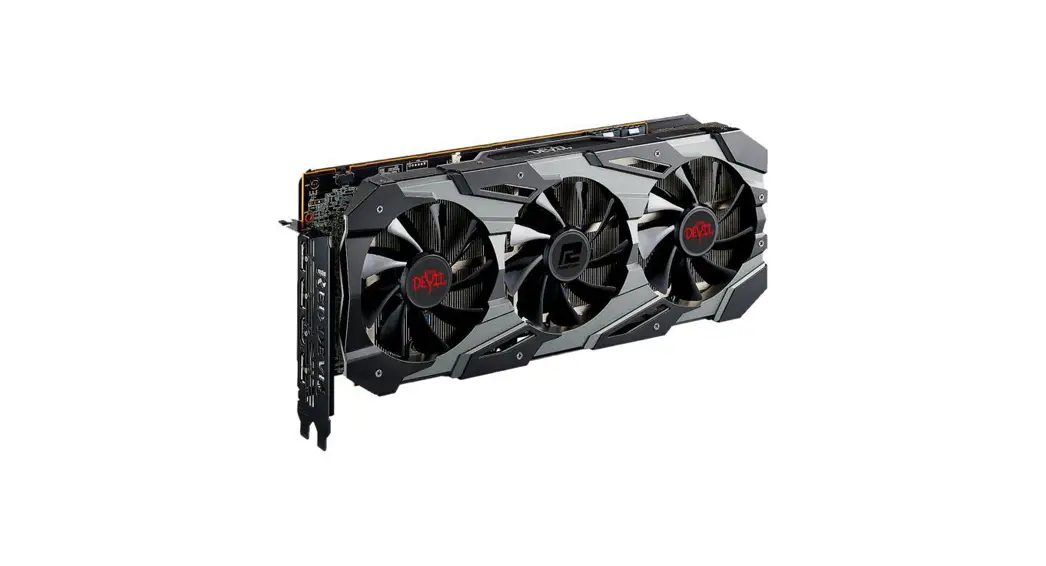
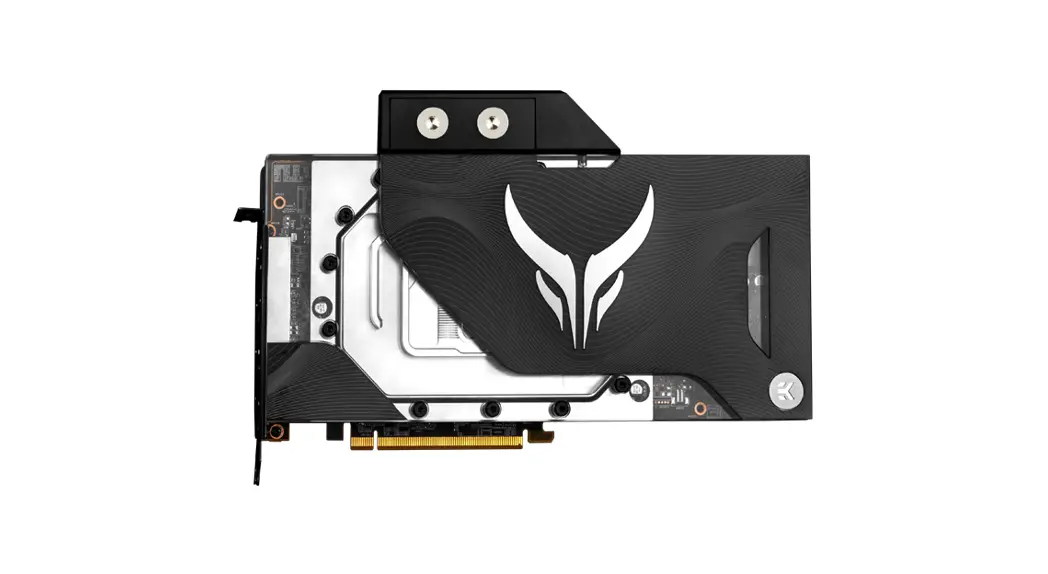
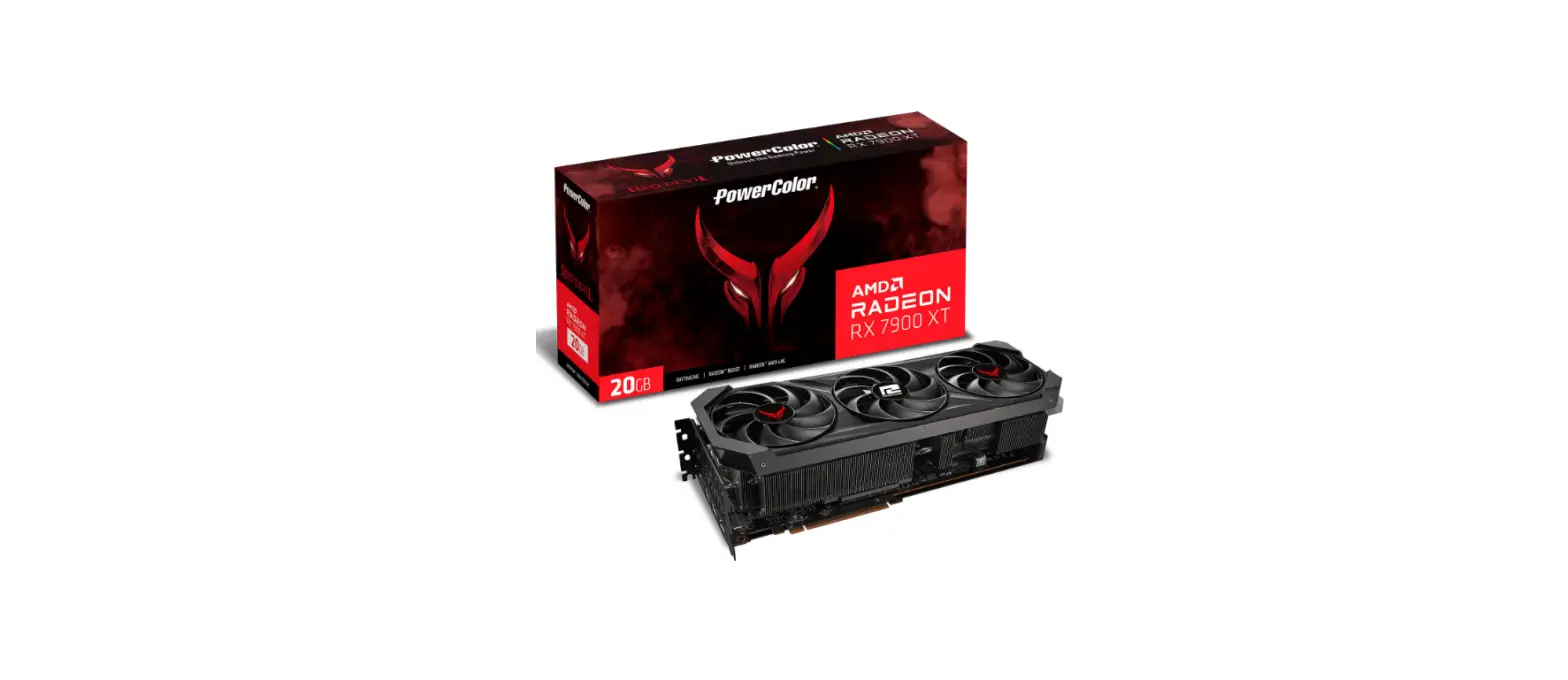
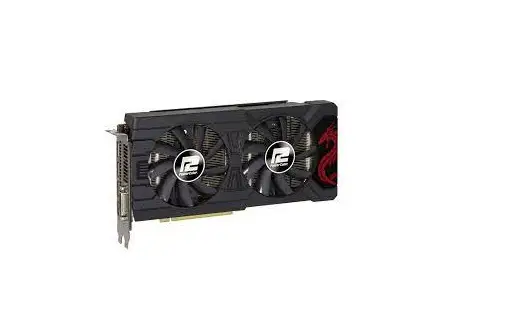
PowerColor AXRX 570 4GBD5-3DHD/OC Graphics Card
 Package Contents
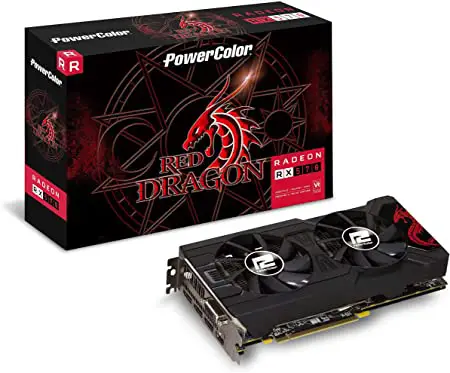 Package Contents
- Graphics Card
- User’s Manual
System Requirements
- Expansion Slot: Motherboard with one or more PCI Express x16 slot.
- Display: Monitor or another display device with compatible connectivity to the output interface of your graphics card.
- Power requirement: Power Consumption differs by model. (For additional support details, please refer to: www.powercolor.com/ to calculate your minimum system power requirement.)
- Operation System: Linux©/Windows® 10 (For additional support details, please refer to: https://www.amd.com/en/support)
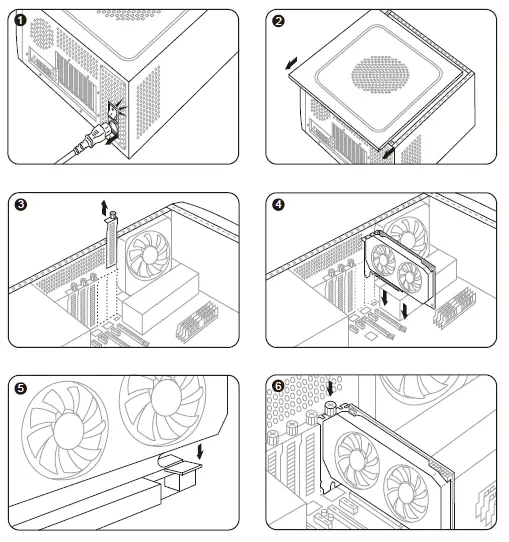
Hardware Installation
- urn off the computer, switch off the PSU and disconnect the power cord.
- Open the case.
- Remove any existing graphics card (if applicable) or PCI-E slot covers.
- Insert the Graphics Card into the PCI-E slot.
- Make sure seating is secured with the PCI-E locking mechanism in place.
- Secure graphics card to the PCI-E bracket with thumbscrew.
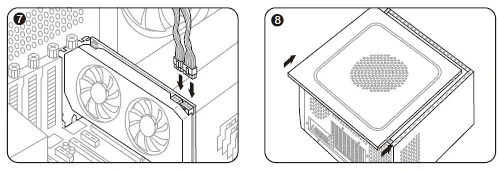
- Plugin the required external PCI-E power connectors (if applicable) from the appropriate PC Power Supply Unit.
- Close the case.
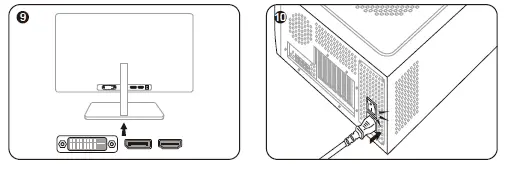
- Connect the display cable into the corresponding GPU display output port.
- Power on System, booting to OS. (Removing all drivers for your previous card and performing a clean install of the new drivers is recommended.)
A Additional Support (Optional)
If the graphics card has multiple BIOS switches, you can switch to your personal preference.
- Confirm that the computer is powered off and switch the BIOS you want.
- Reboot your PC. (For additional support details, please refer to: https://www.powercolor.com/ for specific model support)

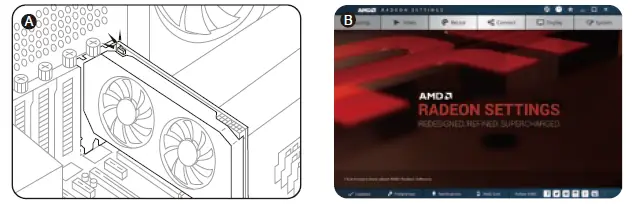
B AMD Radeon Setting Software Installation
To take full advantage of the features and capabilities of your Radeon Graphics products, installing the most up-to-date Radeon Software is
recommended.
- Radeon WattMan: Take your gameplay to the next level by fine-tuning your GPU voltage, engine clock, memory clock, fan speed, and temperature.
- Radeon™ ReLive: Capture, stream and share your greatest moments. (For more support, visit: https://www.amd.com/en/support/driverhelp)
Requires downloading the “AMD Settings” software included when installing the driver AMD/Radeon driver.
Driver Installation
- Please download the driver.
- Install the driver based on your product.
- Execute the driver and follow the instruction.
Driver Installation Link
- Driver for PowerColor
- https://www.powercolor.com/downloads Driver and Support for AMD
- https://www.amd.com/en/support
References
 AMD Drivers and Support | AMD
-
AMD 드라이버 및 지원| AMD
-
AMD Software 도움 센터 | AMD
 PowerColor
-
PowerColor
-
AMD ׀ together we advance_
-
AMD Treiber und Support | AMD
-
AMD Software Hilfecenter | AMD
-
AMD Drivers and Support | AMD
-
AMD Software Help Center | AMD
-
Controladores de AMD y compatibilidad | AMD
-
Centro de ayuda de AMD Software | AMD
-
AMD ドライバー&サポート | AMD
-
AMD ドライバー&サポート | AMD
-
AMD ׀ together we advance_
-
Drivers e suporte da AMD | AMD
-
Central de ajuda de software AMD | AMD
-
AMD Drivers and Support | AMD
-
AMD Software Help Center | AMD
-
AMD 驱动程序与支持 | AMD
-
AMD 驅動程式和支援 | AMD
-
PowerColor
-
PowerColor
-
PowerColor
-
PowerColor
-
PowerColor
-
PowerColor
 AMD Drivers and Support | AMD
 AMD 드라이버 및 지원| AMD
 PowerColor