Apps Steinel CAM App Installation Guide

Steinel CAM App Installations Guide

1. Installing the Steinel CAM App
The Steinel CAM App can be installed on the following operating systems:
– Apple iOS (min. iOS 9.3 – iPhone 5s)
– Android (min. Android 5.0.1 – Samsung Galaxy S4)
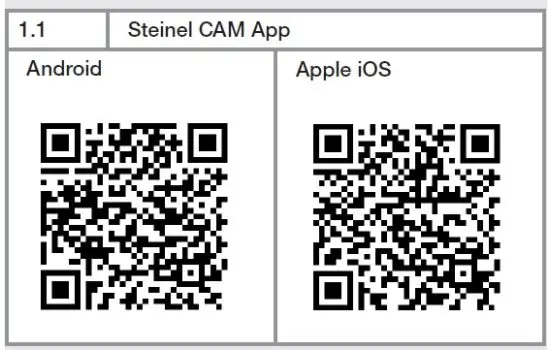
Alternative:
- Scan the QR code in.
- Search for “Steinel CAM” in the Play Store (Android) or in the AppStore (Apple).
- Download Steinel CAM app.
2. Mounting and booting the device
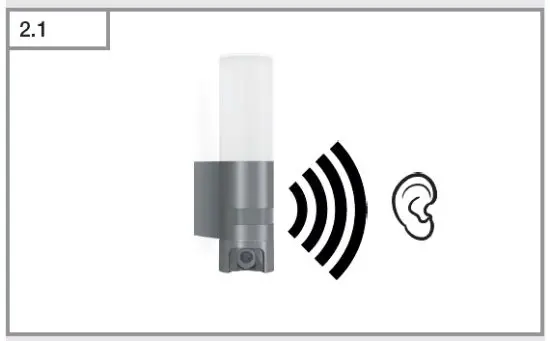
- Mount the device in the desired position in accordance with the operating instructions.
- Open the Status LED cover.
➔ Device operating instructions. - Establish electrical supply:
– The device boots up.
– The light comes on.
– Acoustic signal every 4 seconds.
– Status LED flashes red.
3. Starting the Steinel CAM App
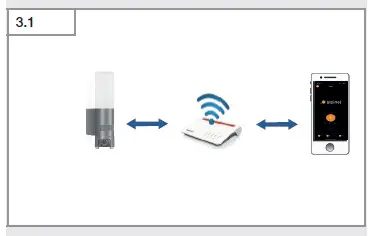
- Establish a connection to the WLAN network via smartphone.
- Start the Steinel CAM App.
The device and the smartphone or tablet must be connected to the same WLAN network.
4. Adding the Steinel CAM
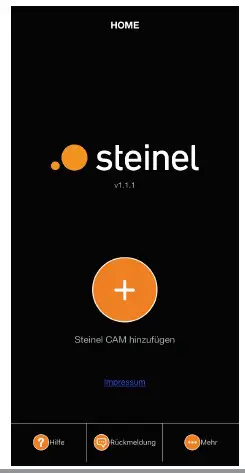
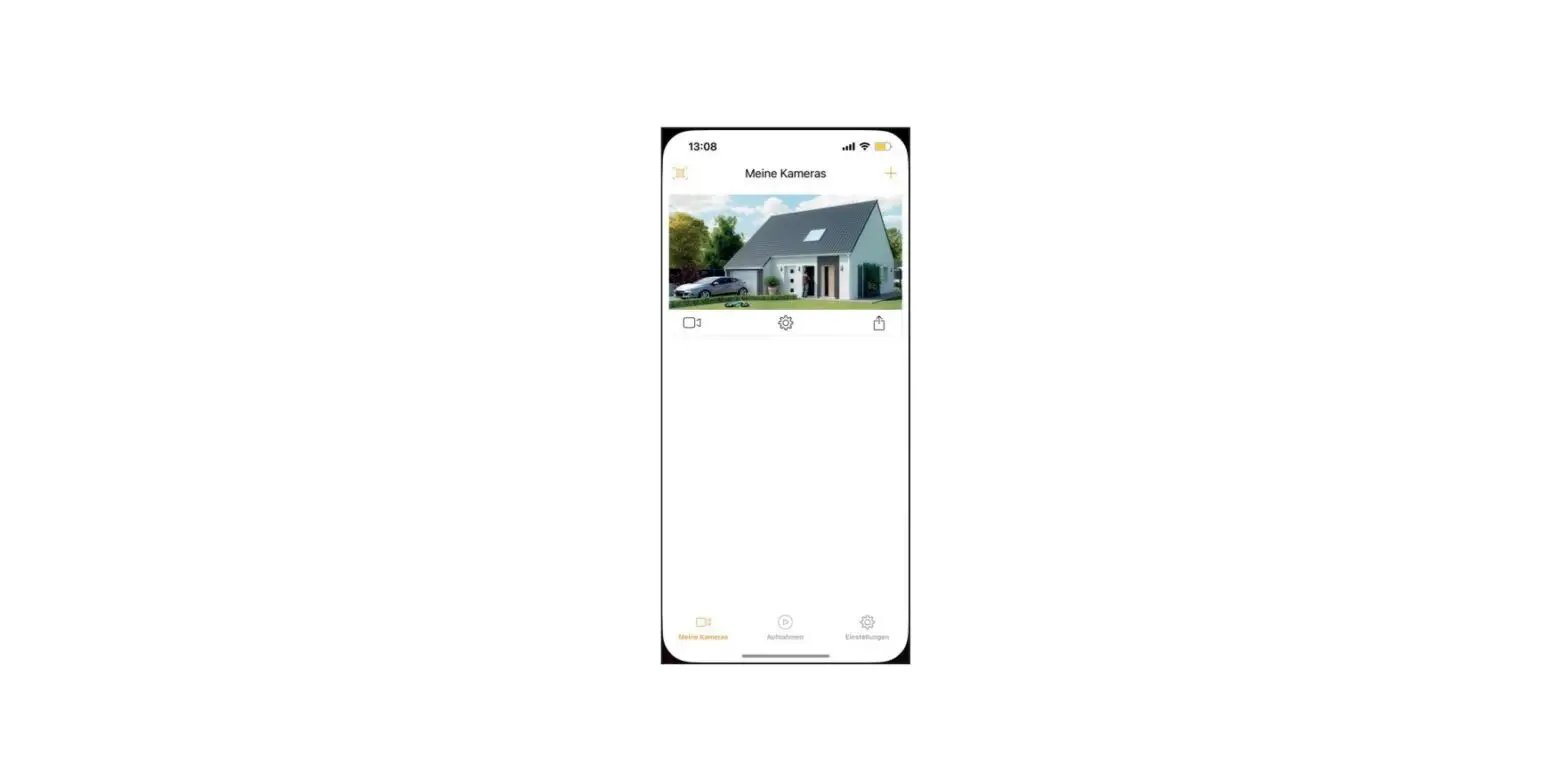
- When installing a new device for the first time, click on the large “+” symbol.
The device is equipped with a very powerful WLAN network antenna. The device WLAN network range will be greater than the smartphone or tablet. - Hold the smartphone or tablet close to the router during configuration.
5. Establishing network access

- When installing a new device for the first time, click on the large “+” symbol.
 The device is equipped with a very powerful WLAN network antenna. The device WLAN network range will be greater than the smartphone or tablet.
- Hold the smartphone or tablet close to the router during configuration.
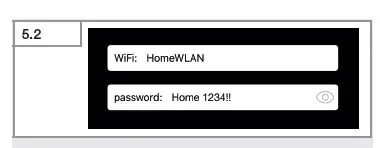
- Enter the WLAN network router password in the Steinel CAM App. Click on the eye symbol to make the password visible.
- Check the password.
- Click on “Continue”.
6. Connecting the device to the network
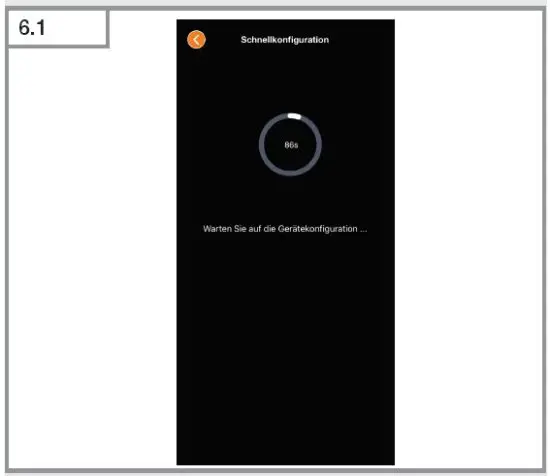
While the device and WLAN router are connecting:
– Acoustic signal sounds every second.
– Status LED flashes green in rapid succession. Once the smartphone or tablet is connected with the device:
– “Acoustic melody” sounds.
– Status LED slowly flashes green.
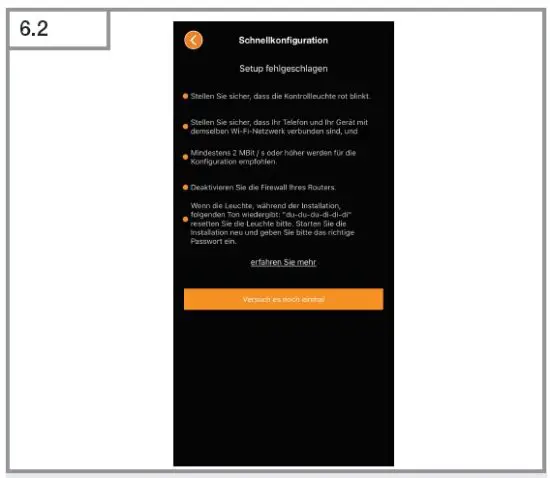
If the configuration process fails:
- Check and rule out each of the possible causes of error specified in the Steinel CAM App. Restart the installation process:
- Wait until the device starts to issue acoustic signals every 4 seconds again.
- Repeat the process starting with “Adding the Steinel CAM” (Fig. 4.1).
7. Configuring the device
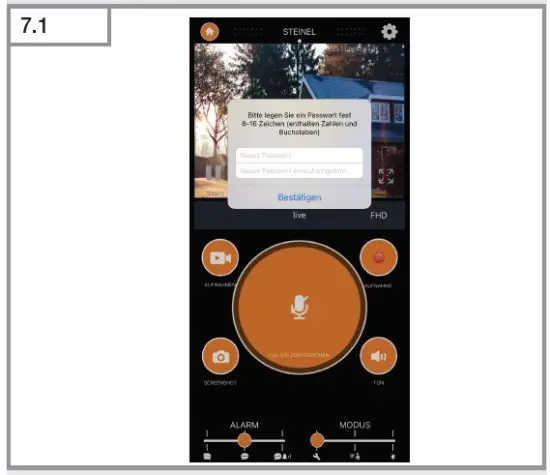
Once the connection has been established successfully,
the user interface will be displayed.
- Play back live image.
- Assign a password for the device.
- Confirm the password.
The device password must contain at least 8 characters and include one letter and one number.
8. Device ready for operation
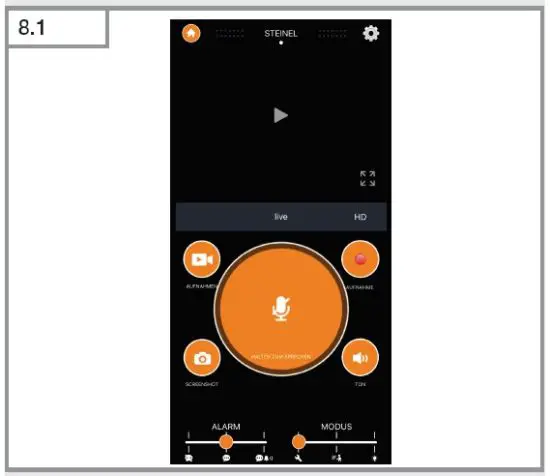
The device is ready for use.
STEINEL Vertrieb GmbH
Dieselstraße 80-84
33442 Herzebrock-Clarholz
Tel: +49/5245/448-188
www.steinel.de
Read More About This Manual & Download PDF: