
Kogan Internet Modem
QUICK INSTALLATION GUIDE
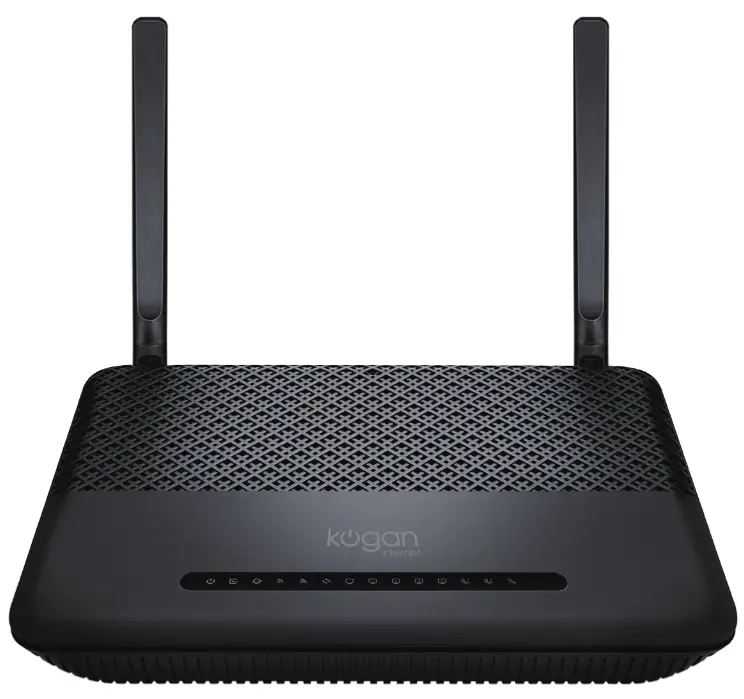
Getting to know your Modem
Please take the time to check what’s in your Kogan Internet Modem box as well as the various lights, buttons and ports on your device.
What’s in the box?
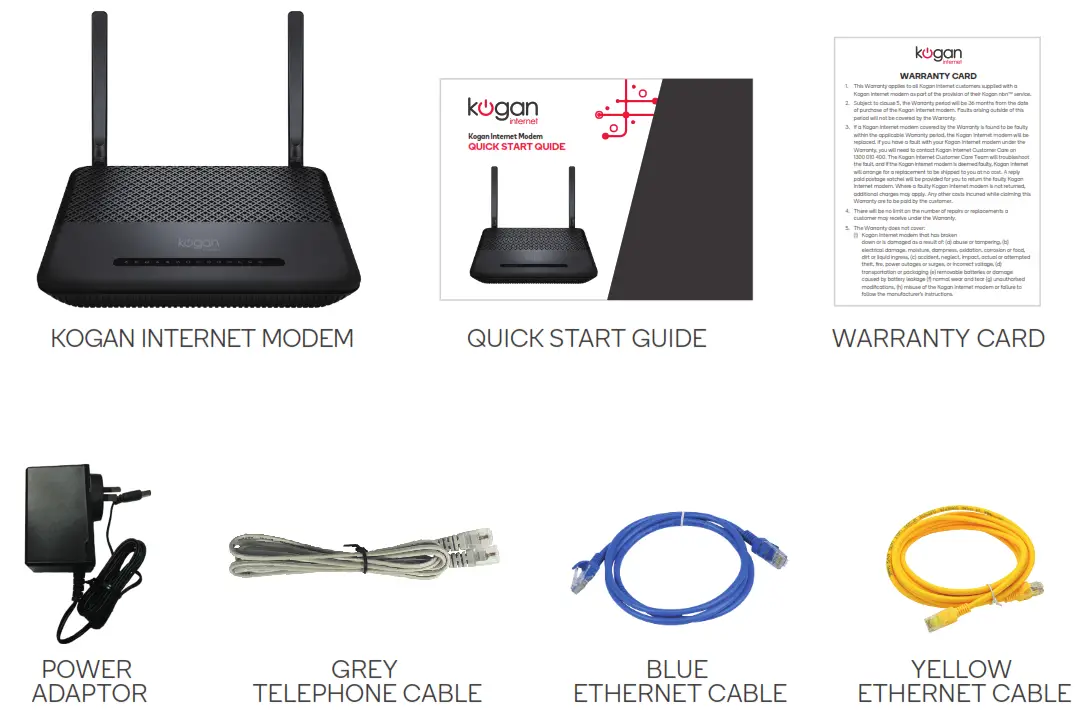
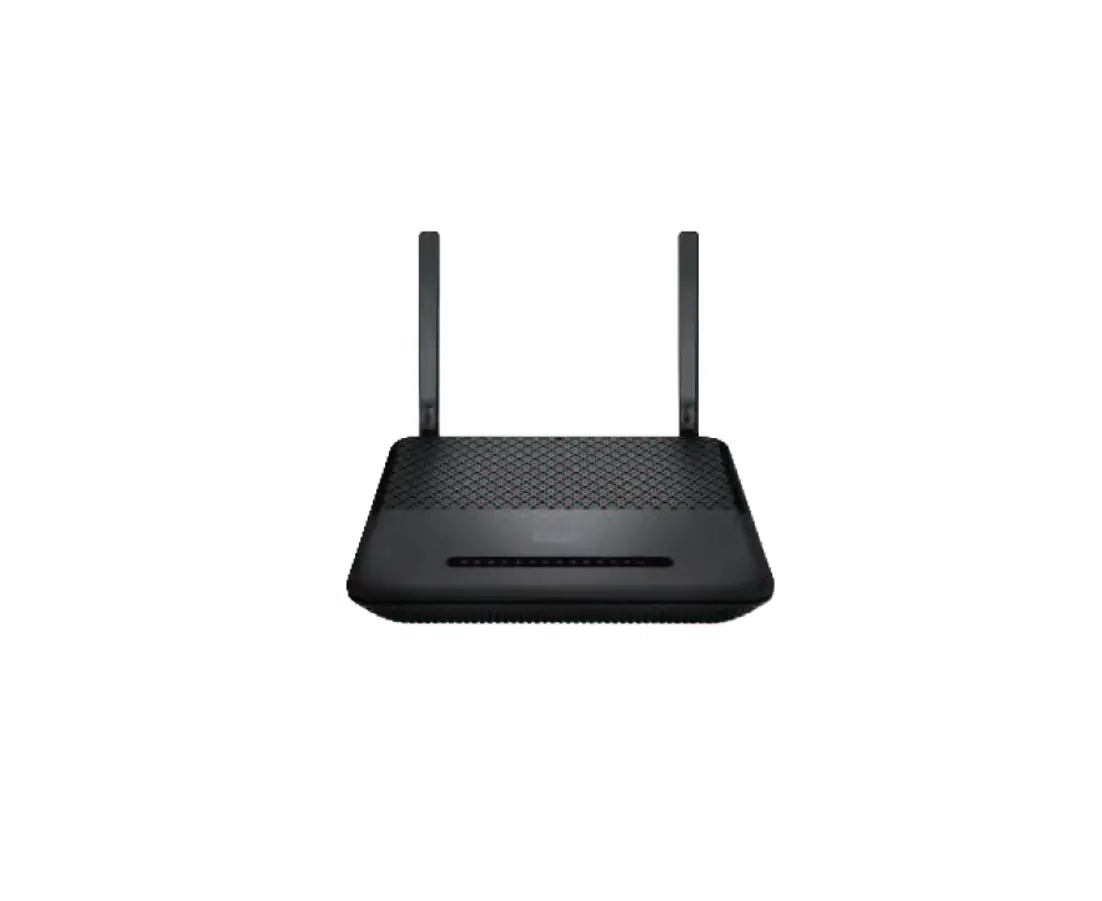
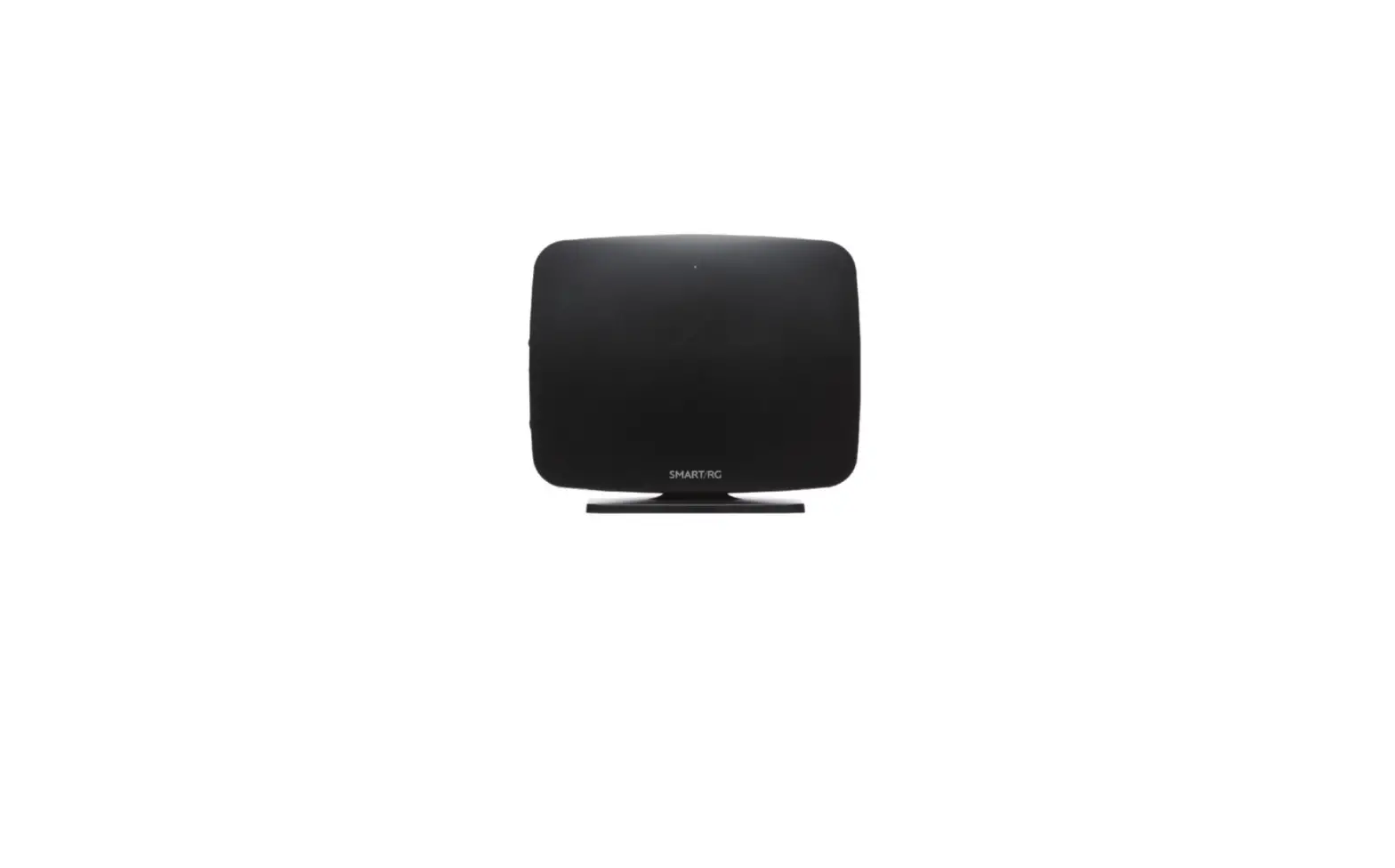
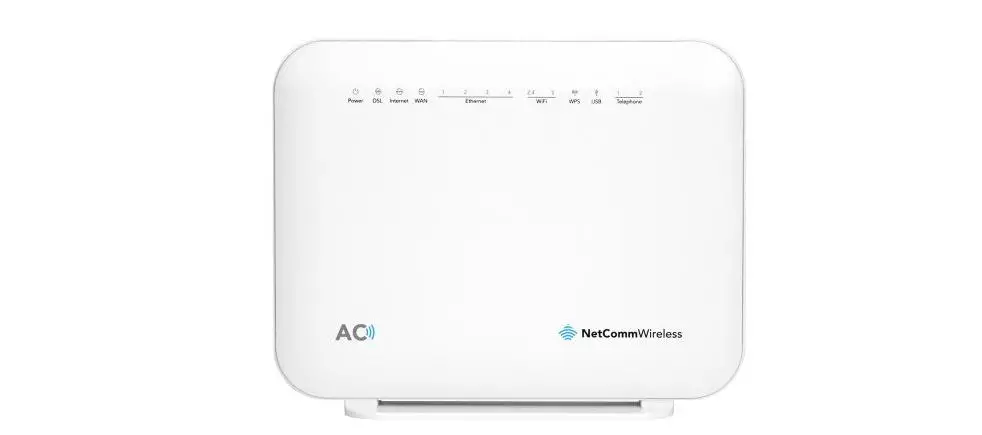
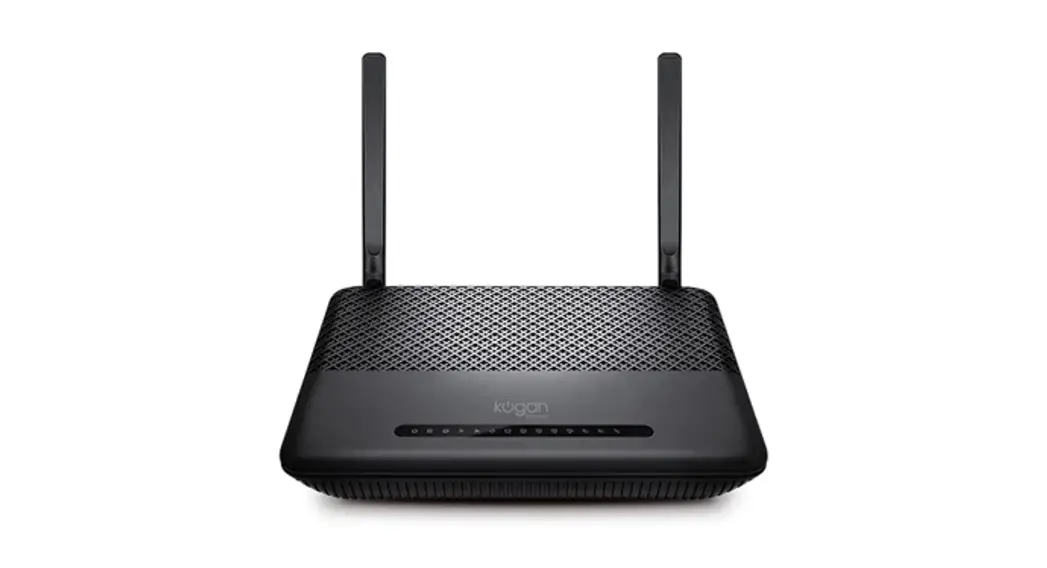
Your Modem
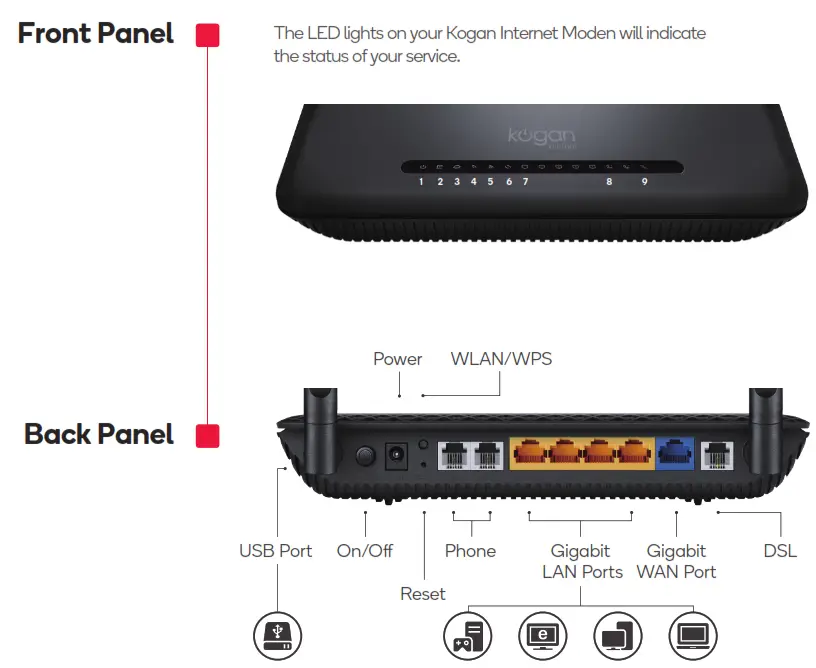
LED Indicators
LED | Status | Indication |
Power | On | Power is on. |
| Off | Power is off. | |
DSL | On | DSL synchronization is complete. |
| Flashing | DSL synchronization is in progress. | |
| Off | DSL synchronization failed. | |
Internet | On | Internet connection is available. |
| Off | No internet connection. | |
Wireless 2.4GHz | On | The 2.4GHz wireless radio band is enabled. |
| Flashing | The router is transmitting or receiving data via 2.4GHz band. | |
| Off | The 2.4GHz wireless radio band is disabled. | |
| Wireless 5GHz | On | The 5GHz wireless radio band is enabled. |
| Flashing | The router is transmitting or receiving data via 5GHz band. | |
| Off | The 5GHz wireless radio band is disabled. | |
WPS | On/Off | Turns on when a WPS synchronization is established and automatically turns off about five minutes later. |
| Flashing | A wireless device is trying to connect to the network via WPS. This process may take up to 2 minutes. | |
WAN | On | A device is connected to the WAN port. |
| Flashing | The WAN port is sending or receiving data. | |
| Off | No device is connected to the WAN port. | |
LAN | On | A device is connected to the LAN port. |
| Flashing | The LAN port is sending or receiving data. | |
| Off | No device is connected to the LAN port. | |
USB | On | The USB device is ready to use. |
| Flashing | USB device is being identified, or data is being transferred. | |
| Off | No USB device is plugged into the USB port. |
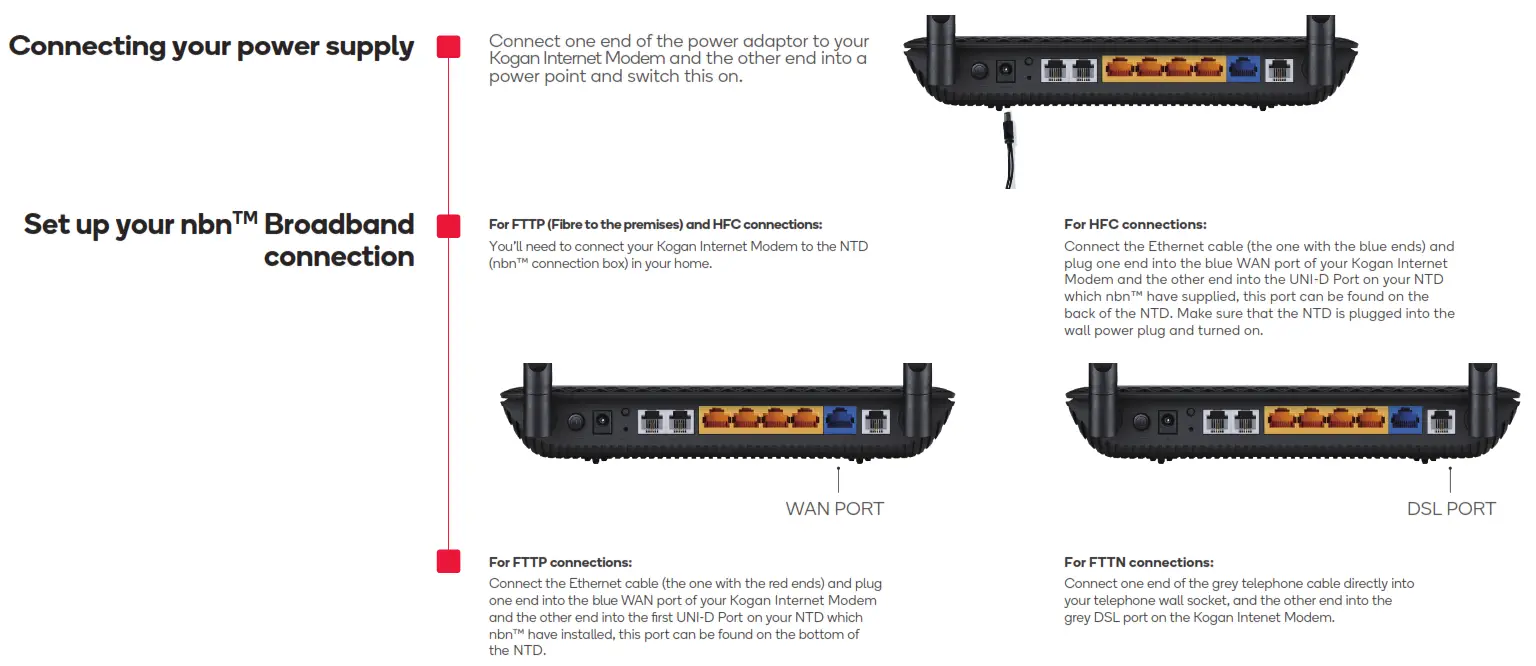
Connecting to nbn once your service is ready
When you receive an email from us that your nbn™ service has been successfully activated it’s time to complete the setup of your Kogan Internet modem.
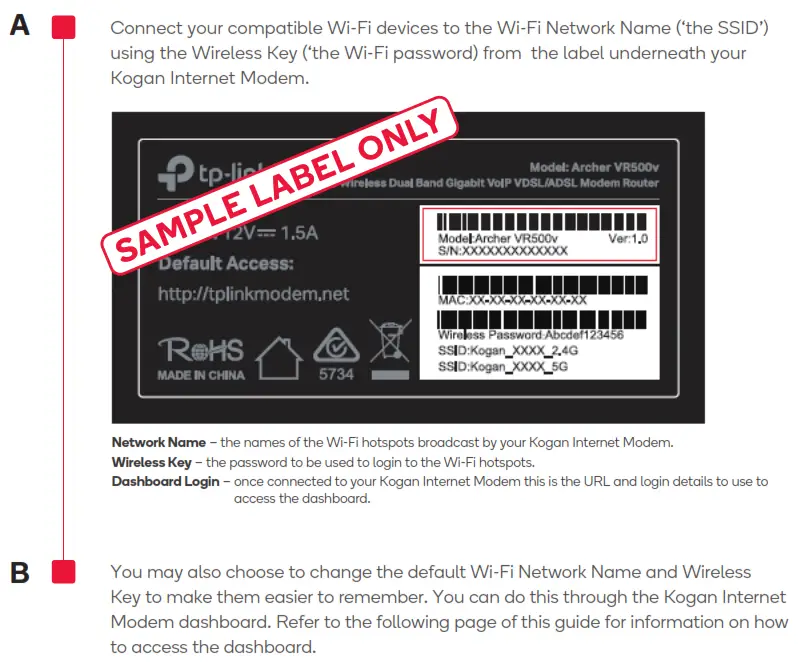
Setting up your Wi-Fi
Advanced Settings
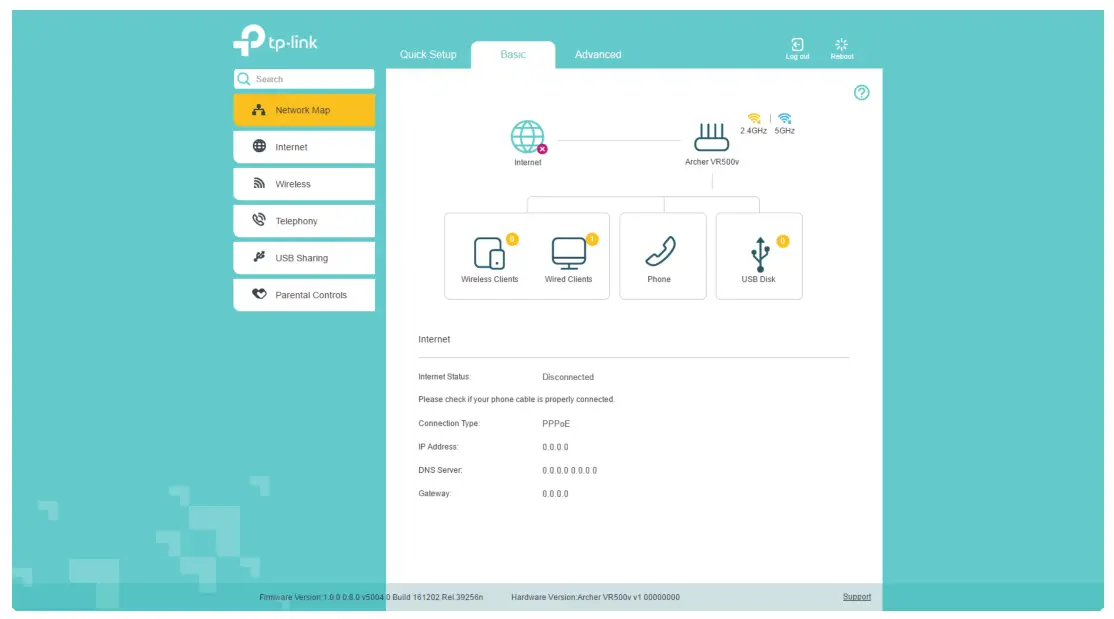
Your Kogan Internet Modem comes with a dashboard that allows you to:
• Change your Wi-Fi Network Name and Wireless Key details
• Manage advanced internet and Wi-Fi settings
Once connected to your Kogan Internet Modem via Wi-Fi or an Ethernet cable you can access the dashboard by typing http://tplinkmodem.net into your browser and using the login details from the label underneath your Kogan Internet Modem.
Troubleshooting Tips
If you are experiencing difficulties connecting via Wi-Fi or when using an Ethernet cable, please try the following:
- Power the device of
- Check that the cables have been plugged in correctly
- After 2 minutes, power on the device again
- Wait for the internet light to turn solid green
If you are still experiencing difculties connecting, you can access more information in the help section at koganinternet.com.au/support
 Kogan Internet
 Trying to configure the Modem? | TP-Link