
Start Here > > >
MOTOSTART
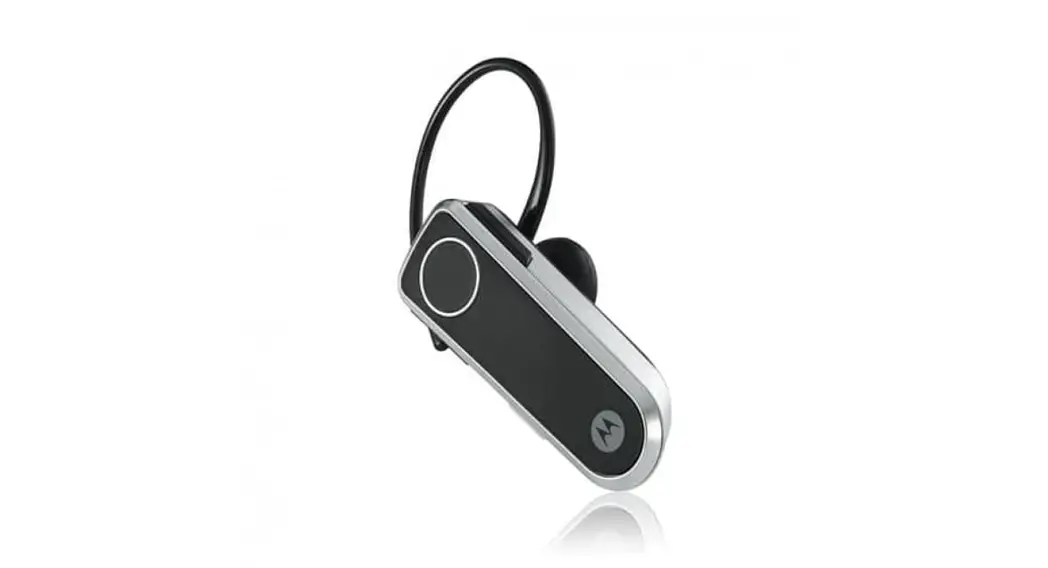
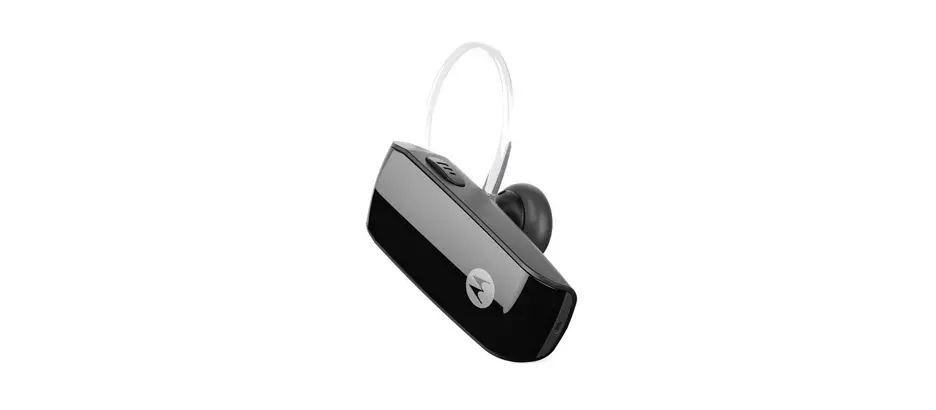
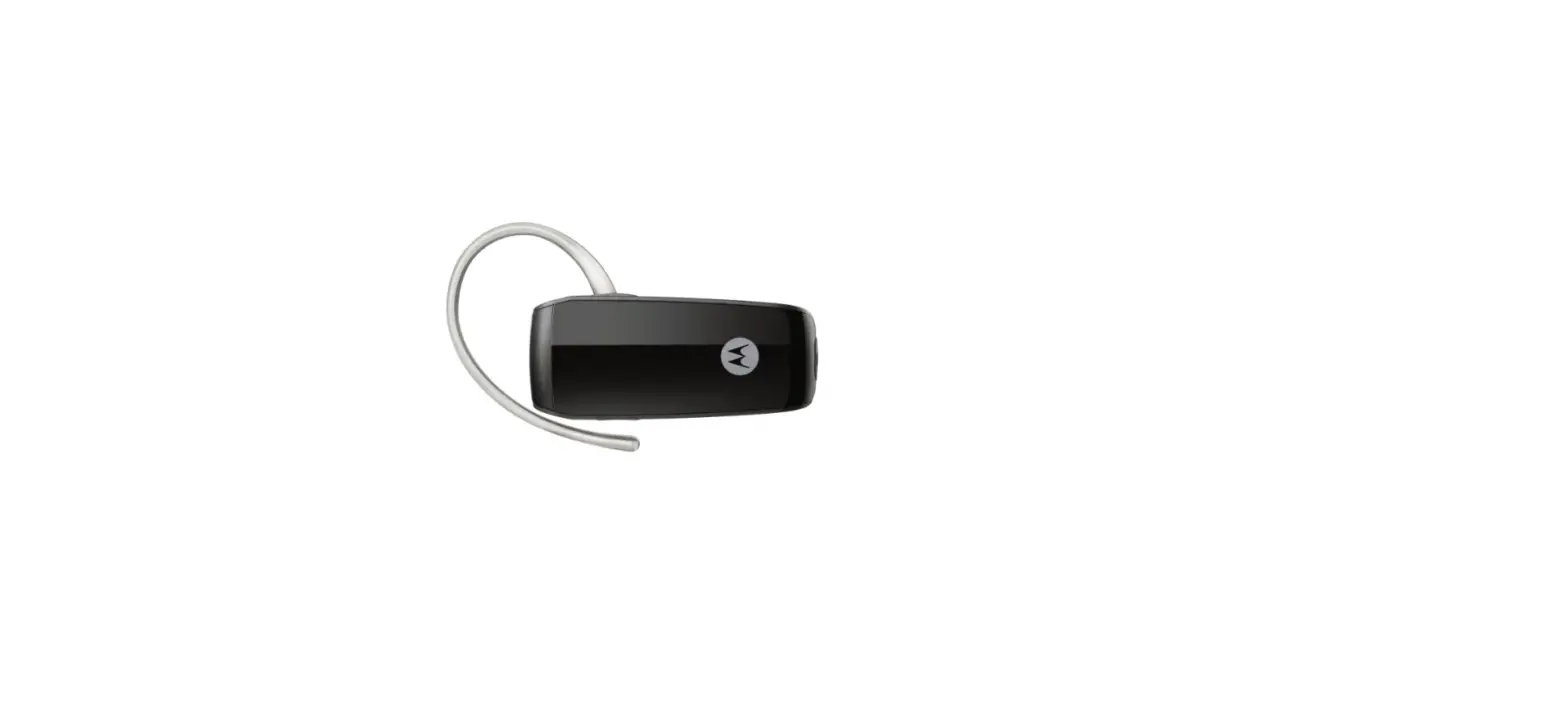
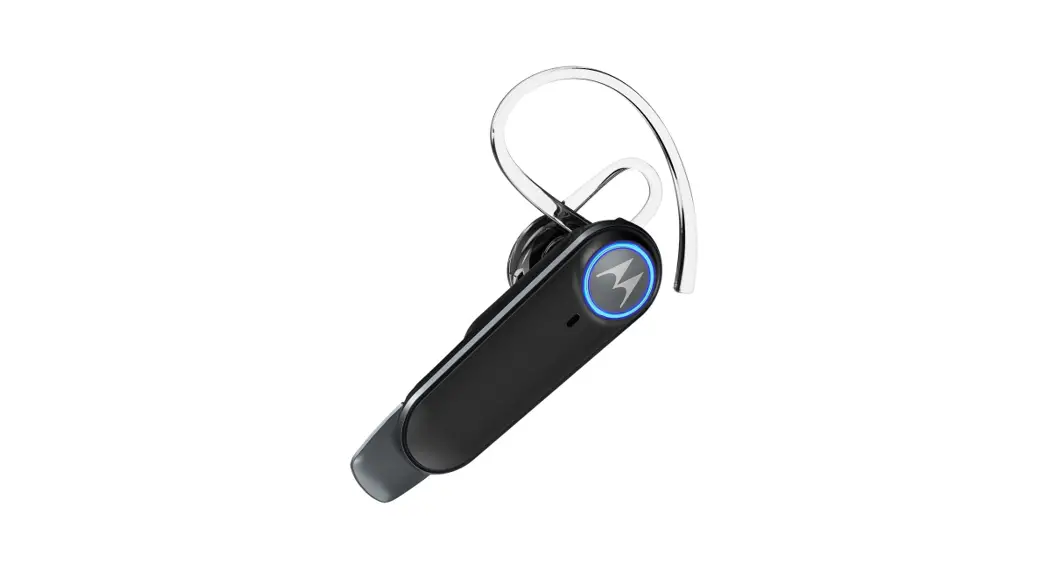
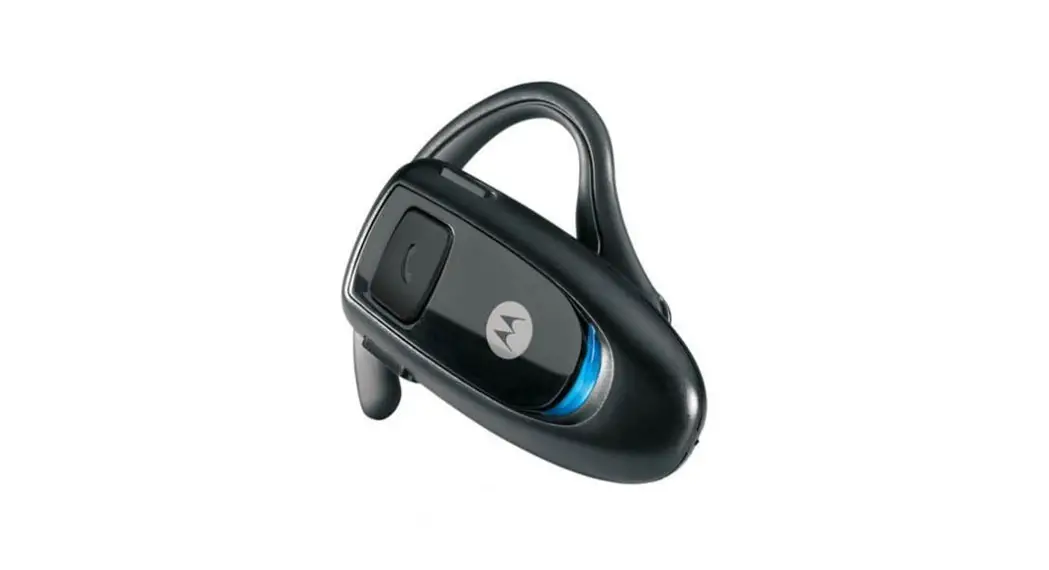
H500 Bluetooth® Handsfree Headset
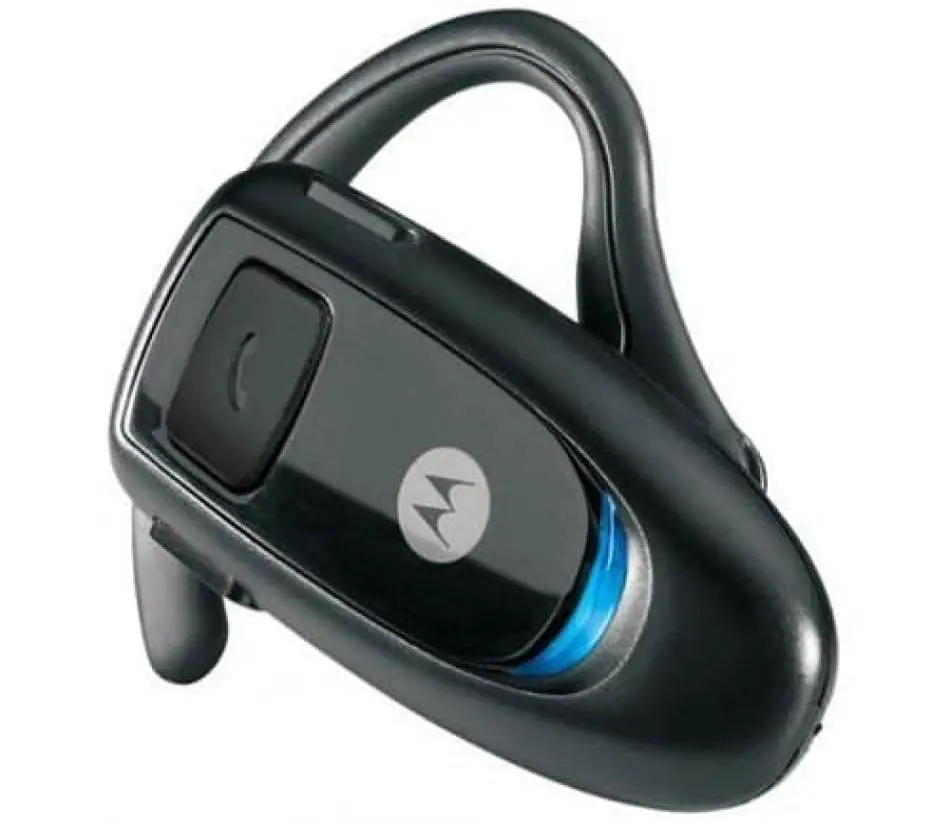
H500 Bluetooth Handsfree Headset
Get Connected in 4 Quick Steps
- CHARGE
- START BLUETOOTH FEATURE
- PAIR
- TEST AND USE
BEFORE YOU BEGIN

Before using this product, read the Important Safety and Legal Information pamphlet and follow its instructions.
Take a moment before you get started to familiarize yourself with your new H500 Handsfree Headset.
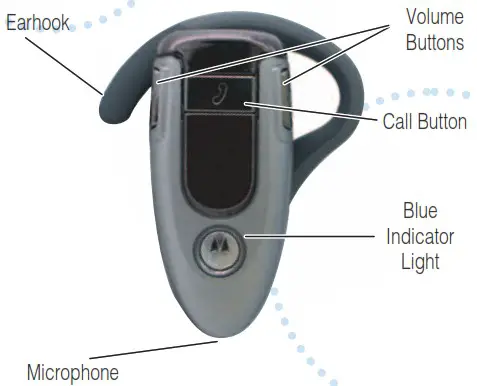
CHARGE
Your Headset’s Battery
Charge your headset’s battery for 2 hours:
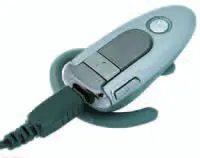
- Plug the Motorola charger into the end of the headset.
The blue indicator light turns on when the battery is charging. It may take up to 1 minute for the light to turn on. When the headset’s battery is fully charged (about 2 hours), the blue indicator light turns off. - Unplug the charger from the headset.
Note: Headset is not functional while charging.
START BLUETOOTH
 Feature On Your Phone
Your phone’s Bluetooth feature is off by default. To use your headset, turn on the Bluetooth feature in your phone.
For most Motorola phones:
- Select
 (Menu) > Settings > Connection > Bluetooth Link > Setup.
 - Scroll to Power.
- Press Change.
- Scroll to On.
- Press Select to turn on the Bluetooth feature. Bluetooth feature remains on until you turn it off.
Note: These steps are for most Motorola phones. For other phones, see your phone’s user’s guide.
 (Menu) > Settings > Connection > Bluetooth Link > Setup.
TROUBLESHOOTING
My phone does not find my headset.
Make sure the blue light on your headset is steadily lit when your phone is searching for devices (see step 3).
My headset worked before but now it’s not working.
Make sure your phone is on and the Bluetooth feature is turned on in your phone (see step 2). If the Bluetooth feature has been turned off or was turned on only temporarily, you may need to restart the Bluetooth feature (see step 2). If you have confirmed the Bluetooth feature is on in your phone, pair your phone and headset again (see step 3).
Support.
If you need more help, contact us at
1-877-MOTOBLUR or visit us at www.hellomoto.com/bluetooth and click Support.
Motorola, Inc.
Consumer Advocacy Office
1307 East Algonquin Road
Schaumburg, IL 60196
www.hellomoto.com
1-877-MOTOBLU
1-888-390-6456 (TTY/TDD United States for hearing impaired)
Guide Number: 6809494A56-C
MOTOROLA and the Stylized M Logo are registered in the US Patent & Trademark Office. The use of wireless devices and their accessories may be prohibited or restricted in certain areas. Always obey the laws and regulations on the use of these products. The Bluetooth trademarks are owned by their proprietor and used by Motorola, Inc. under license. All other product or service names are the property of their respective owners.
© Motorola, Inc. 2006.
PAIR Your Headset
Step A – PUT HEADSET IN PAIRING MODE
Before you can use your headset, you must pair (link) it with your phone.
 With the headset power off, press and hold the Call button for 6 to 10 seconds until the blue indicator light turns on and remains steadily lit. (The light will flash while you hold the Call button.)
- If the indicator light is flashing or does not remain steadily lit, turn off the headset and repeat step 1.
Note: To turn off headset, see “Turning On and Off” on the reverse side of this guide.
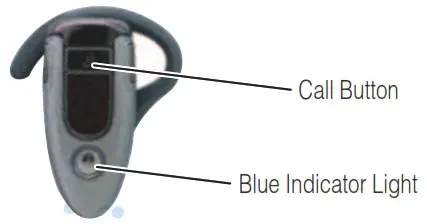 With the headset power off, press and hold the Call button for 6 to 10 seconds until the blue indicator light turns on and remains steadily lit. (The light will flash while you hold the Call button.)
 PAIR Your Phone
Step B – SET THE PHONE TO LOOK FOR YOUR HEADSET
For most Motorola phones:
- Select (Menu) > Settings > Connection > Bluetooth Link > Handsfree > Look for Devices.
The phone lists all Bluetooth devices it finds. - Select Motorola H500.
- Press OK or Yes to pair (link) the handsfree device.
- Enter the passkey 0000 and press OK.
Note: Passkey cannot be changed from 0000.
When your headset is successfully paired with your phone, the blue indicator light changes from steadily lit to flashing.
Note: These steps are for most Motorola phones. For other phones, see your phone’s user’s guide.
TEST AND USE
Your phone and headset are now paired and ready to make and receive calls. To confirm they are operating properly, make a call:
- Place the headset over your ear. See “Wearing the Headset” on the reverse side of this guide.
- On your phone, dial the number you want to call and press the Send key.
- If your phone and headset are successfully paired, you will hear ringing on the headset.
After you have successfully paired your phone and headset, you do not need to repeat these initial setup steps each time you use the headset.
USING YOUR H500
See the Features and Functions Guide on the reverse side of this guide for information on using your H500.
Features and Functions Guide
H500
Bluetooth® Handsfree Headset
 IMPORTANT: Be sure to first follow the MOTOSTART Quick Start Guide on the reverse side of this guide to complete initial setup of your H500.
TURNING THE HEADSET ON/OFF
To turn your headset on, press and hold the Call button until the indicator light flashes. Then, release the button.
Note: Headset may take up to 4 to 5 seconds to turn on.
To turn your headset off, press and hold the Call button until the indicator light flashes rapidly and then turns off.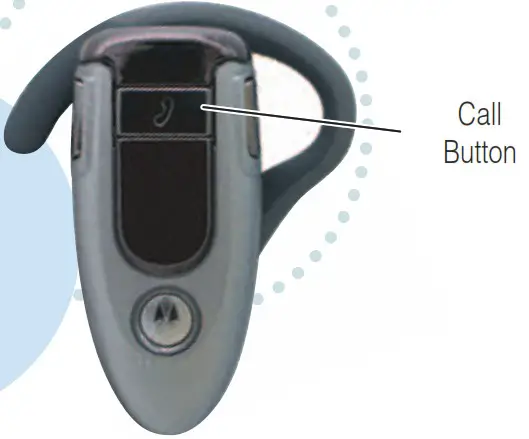
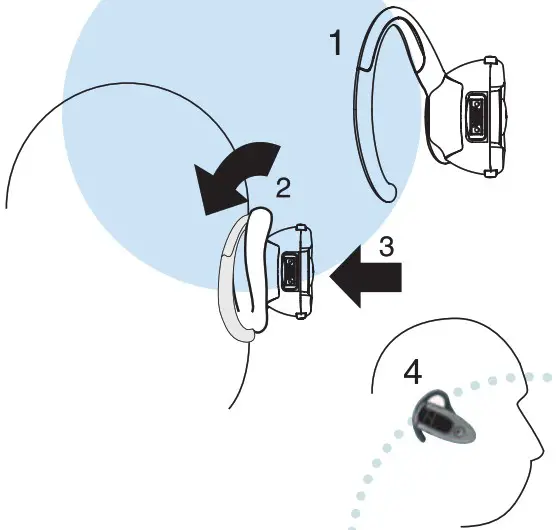
WEARING THE HEADSET
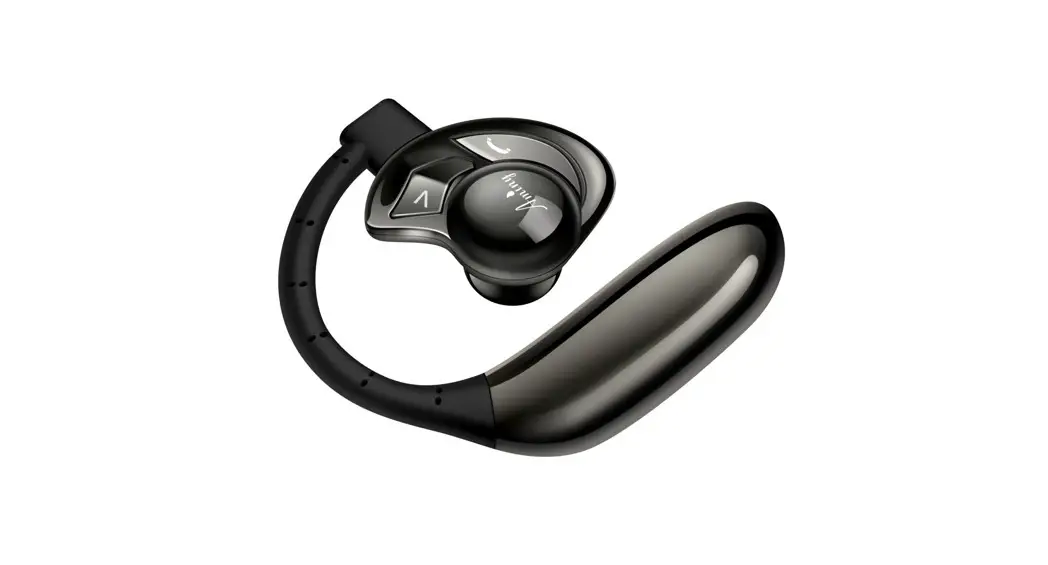
- Open the ear hook.
- Loop the ear hook over your ear.
- Press the headset to your ear.

CHANGING FOR USE ON OTHER EAR
You can wear your H500 headset on your left or right ear. The headset comes ready for the right ear. To change the headset for the left ear:
- Open the ear hook 90 degrees from the headset.

- Gently lift and pull the top of the ear hook up and off the upper hinge pin. Then, pull it away to remove it.

- Flip the headset over.
- Hook the bottom of the earhook onto the lower hinge pin, then lift and pull the top of the earhook over the upper hinge pin.
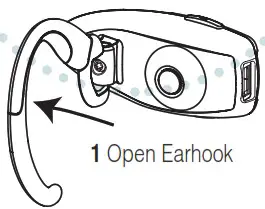
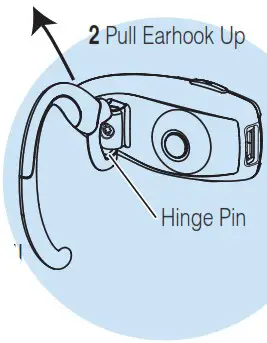
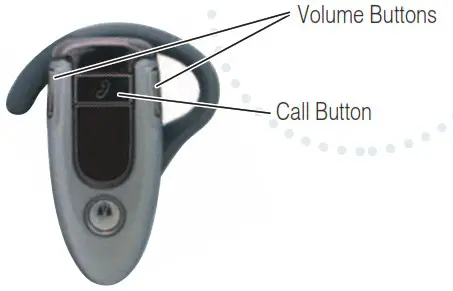
If you change your headset to wear on the other ear, you can also change the orientation of the volume buttons.
- Turn the headset power off.
- Press the Call button and the volume button you want to assign as the “volume up” button until the indicator light flashes twice.
The headset power turns on.
European Union Directives Conformance Statement Hereby, Motorola declares that this product is in compliance with:
- The essential requirements and other relevant provisions of Directive 1999/5/EC.
- All other relevant EU Directives.

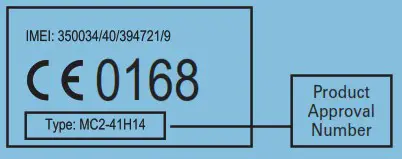
The above gives an example of a typical Product Approval Number.
You can view your product’s Declaration of Conformity (DoC) to Directive 1999/5/EC (to R&TTE Directive) at www.motorola.com/rtte. To find your DoC, enter the product Approval Number from your product’s label in the “Search” bar on the website.
MAKING CALLS
| Function | Action |
| Make a voice dial call | Tap the Call button and speak the name after the tone |
| End a call | Tap the Call button |
| Receive a call | Tap the Call button |
| Reject a call | Press and hold the Call button until you hear a beep |
| Redial last call | Press and hold the Call button until you hear a beep |
| Answer a second incoming call | Press and hold the Call button (places first call on hold) |
Note: Your H500 supports both Handsfree and Headset Profiles. Accessing call functions depends upon which profile your phone supports. See your phone’s user’s guide for more information.
| Function | Action |
| Toggle between two active calls | Press and hold the Call button |
| Join a 3-way call | Press and hold both Volume buttons |
| Put an active call on hold or resume a call on hold | Press and hold the Call button until you hear a beep |
| Disable or enable the indicator light | Press and hold both Volume buttons for 3 to 4 seconds |
| Mute or unmute a call | Tap both Volume buttons |
Note: Some features are phone/network dependent.
INDICATOR LIGHTS
The indicator light provides information about your headset status.
| On (steady) | Charging |
| Off | Charging complete |
With the Charger Plugged In
| Off | Power off |
| On (steady) | Pairing mode |
| 10 rapid flashes | Pairing successful |
| Slow pulse | Connected (on a call) |
| Quick flash | Standby (not on call) |
Note: After 5 minutes of inactivity, the light stops flashing to conserve power, but the headset remains in standby mode.
AUDIO TONES
The audio tones provide information about your headset status.
| Audio Tone | Headset Status |
| Single high tone when pressing volume button | Volume at minimum or maximum |
| Five rapid high tones repeated every 60 sec. | Low battery |
| No audio indications; deteriorating quality | Out of range |
| Ring tone | Incoming call |
| Single high tone | Pairing confirmation |
| Single low tone | Voice activation |
| Dual high/low tone | Voice tag not recognized |
| Single high tone | End call |
| Low to high tone | Phone network not available |
| Two ascending tones | Mute enabled |
| Two descending tones | Mute disabled |
 Product R&TTE Directive Compliance