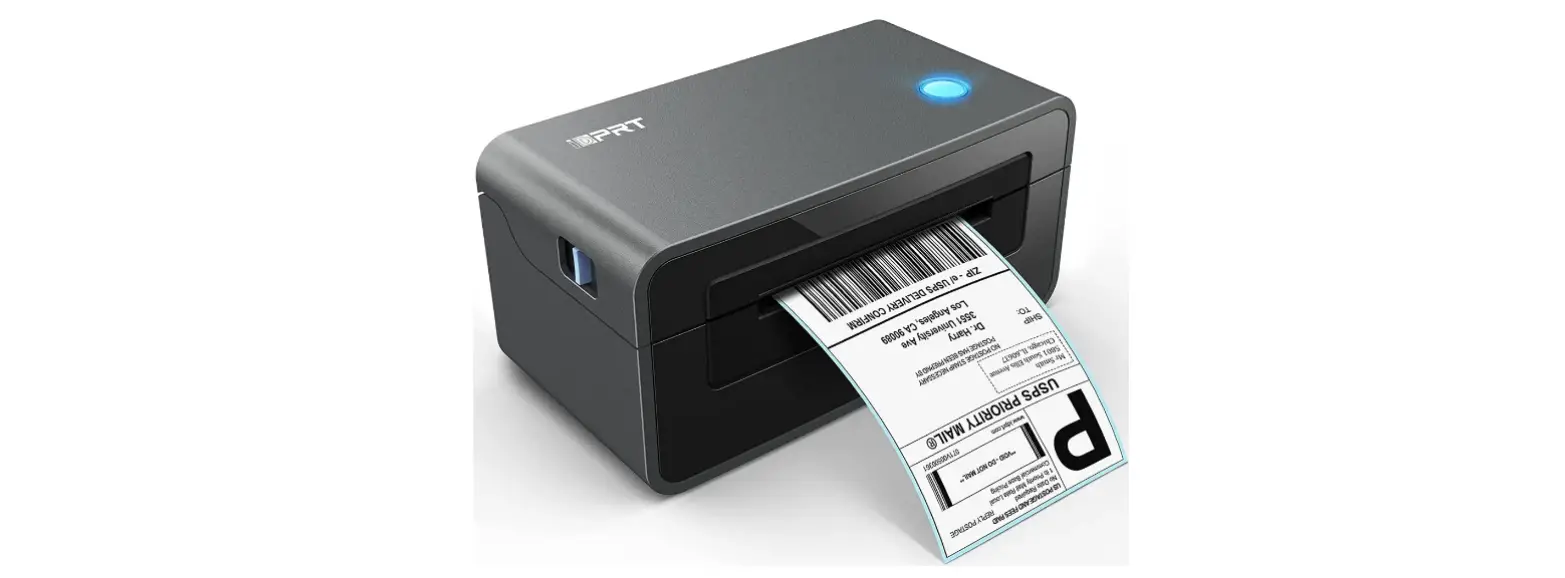
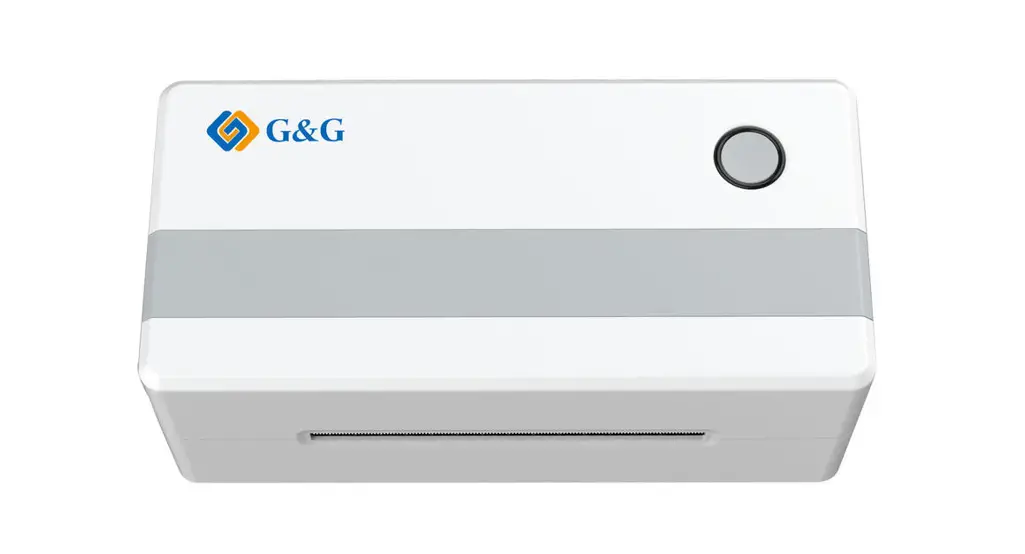
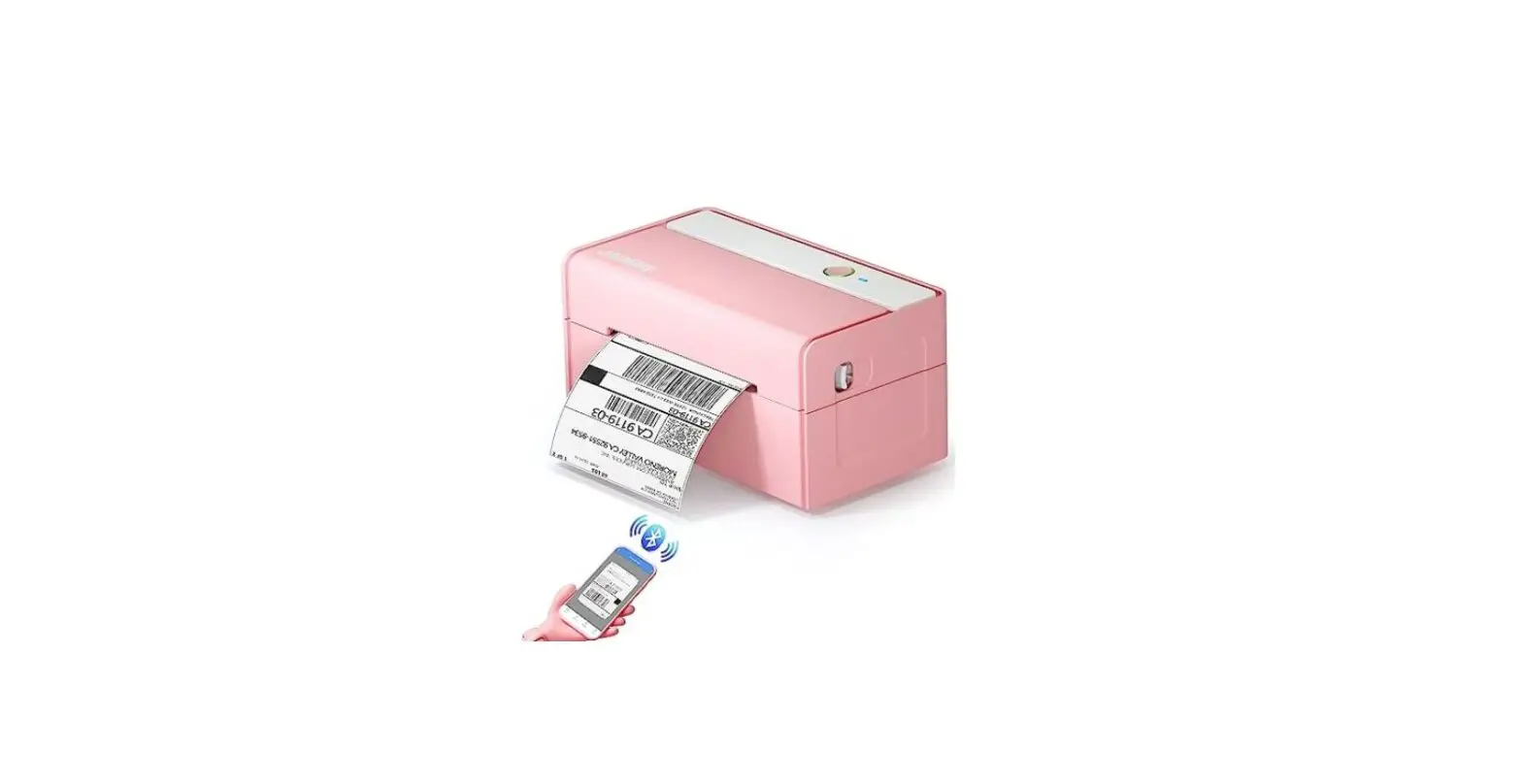
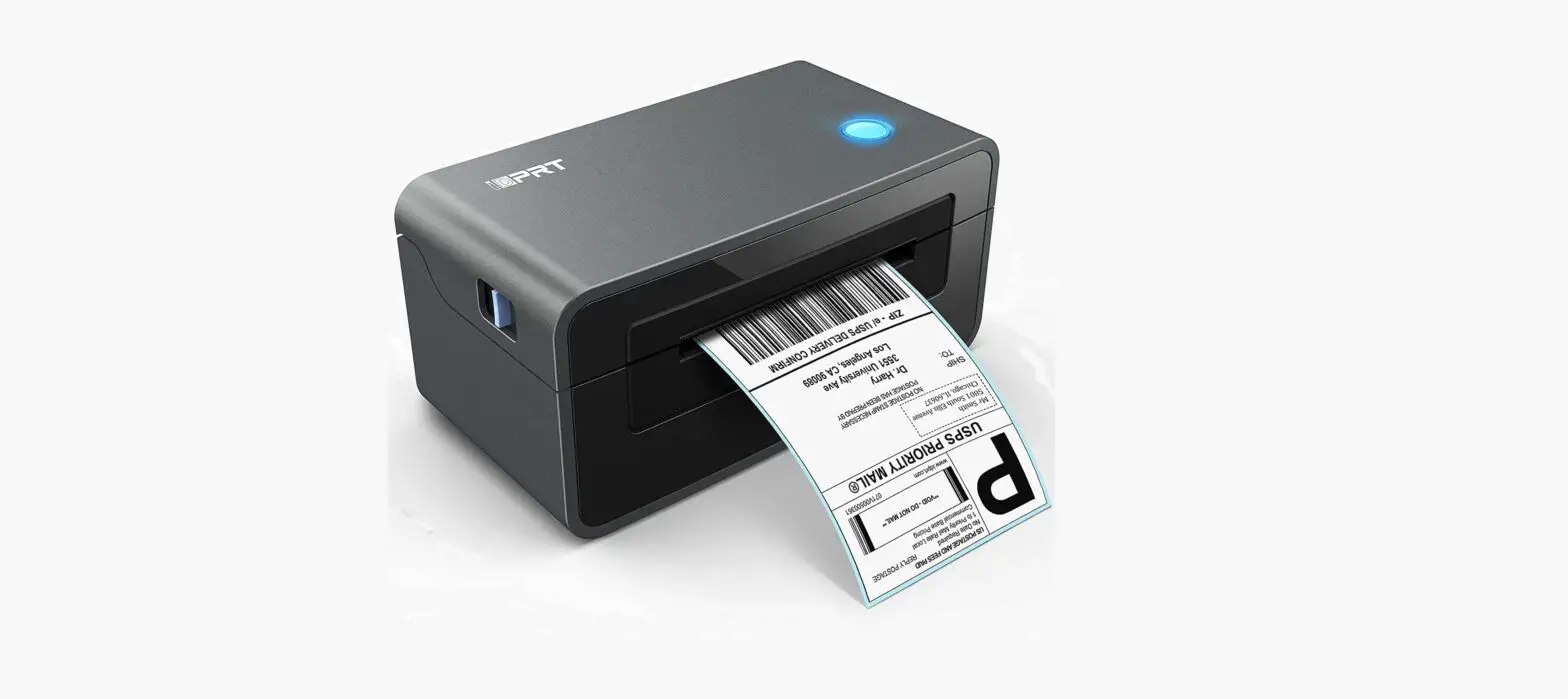
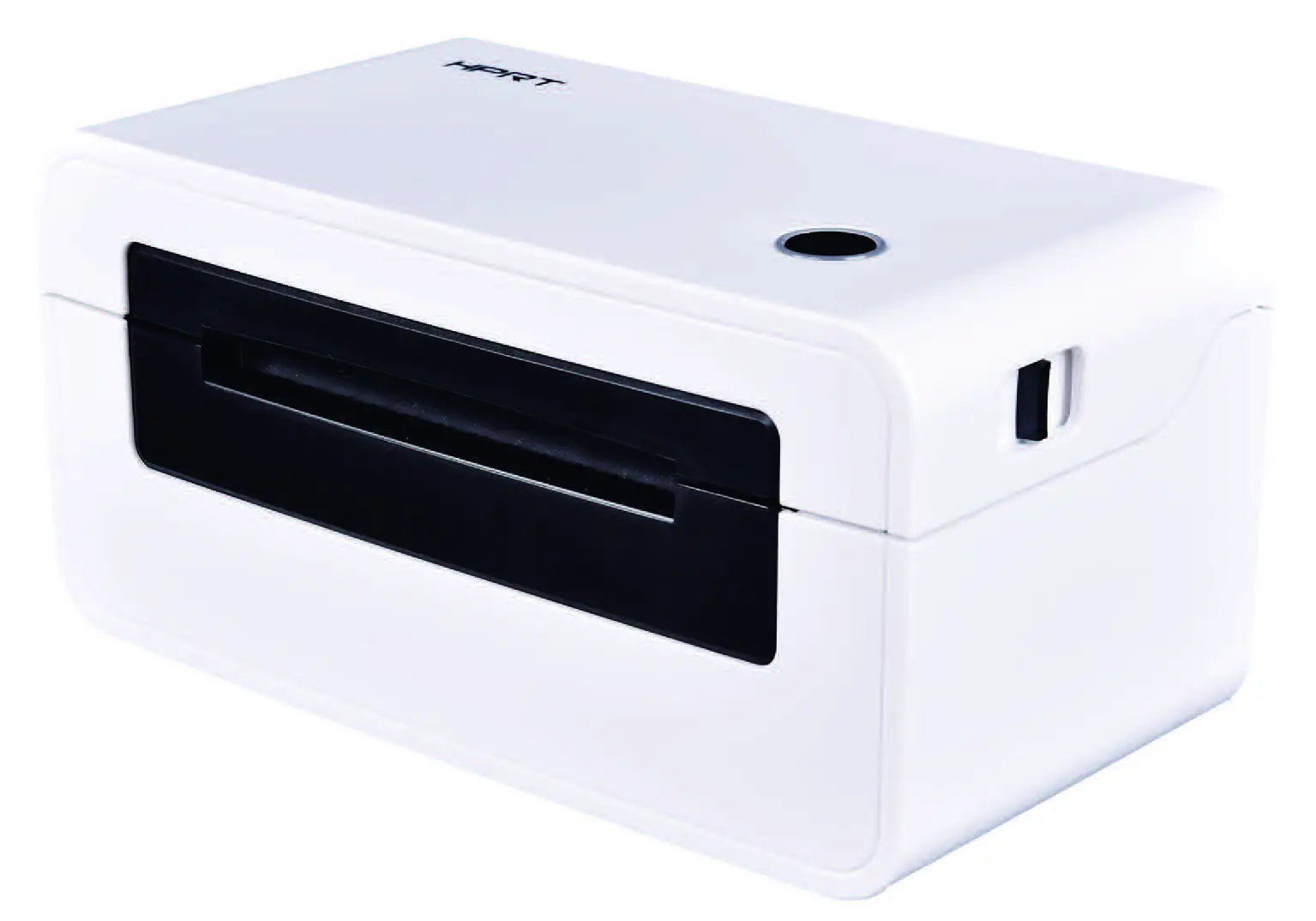
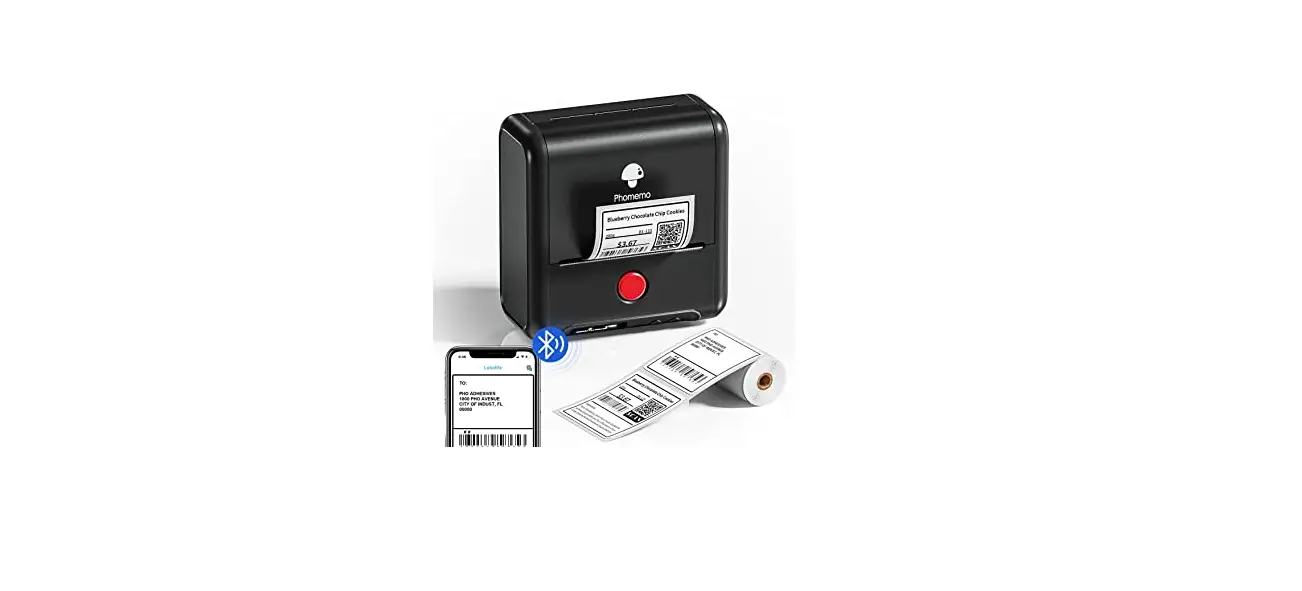
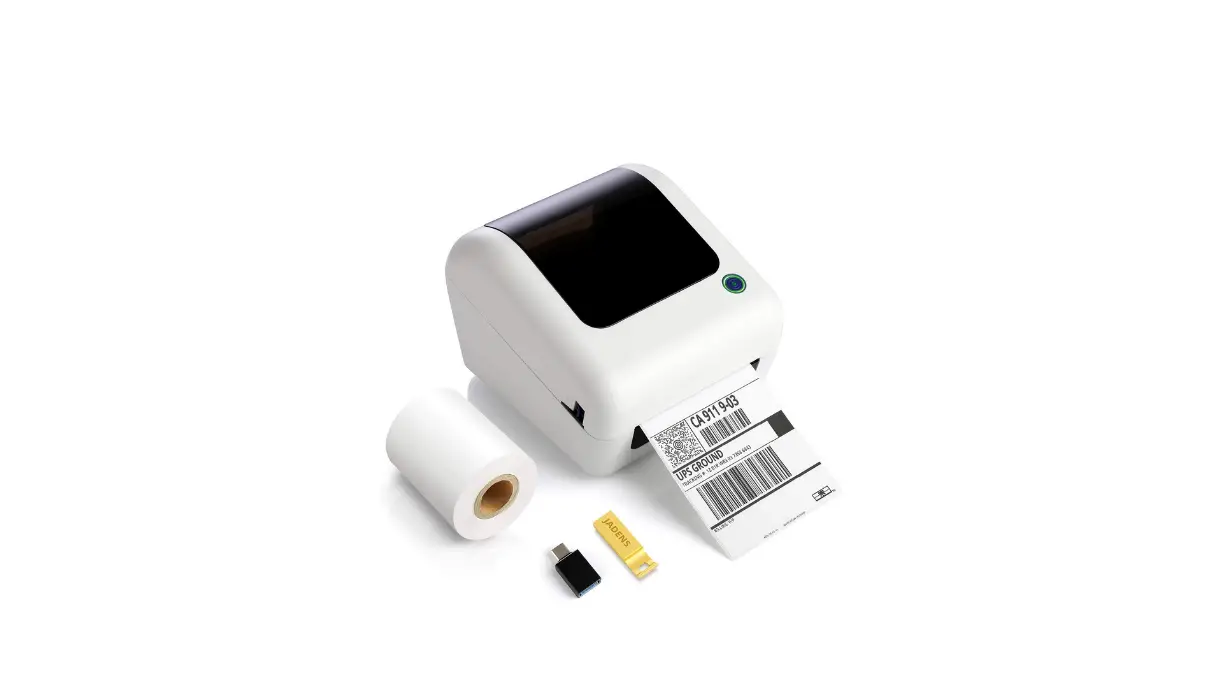
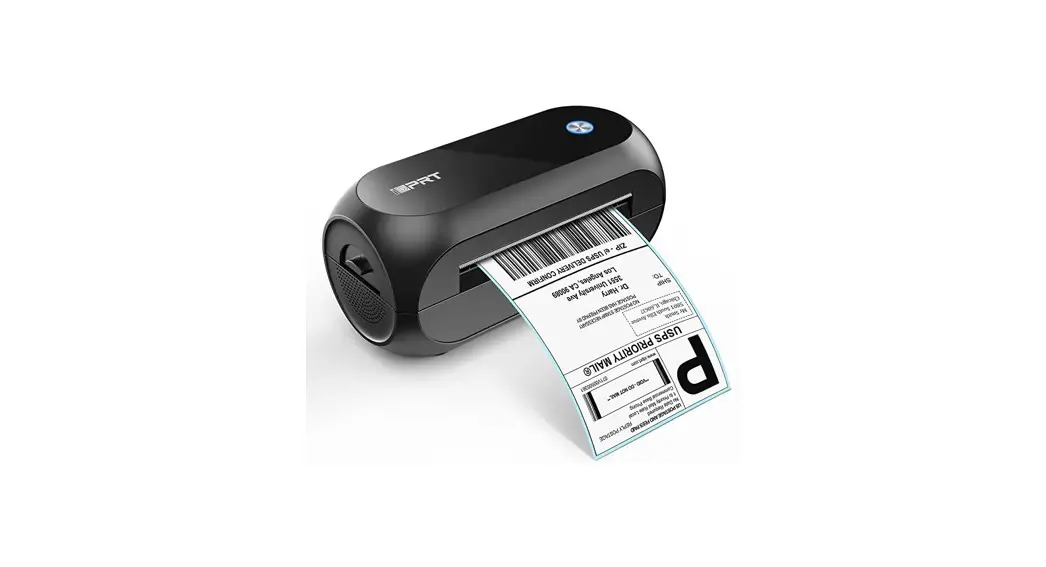
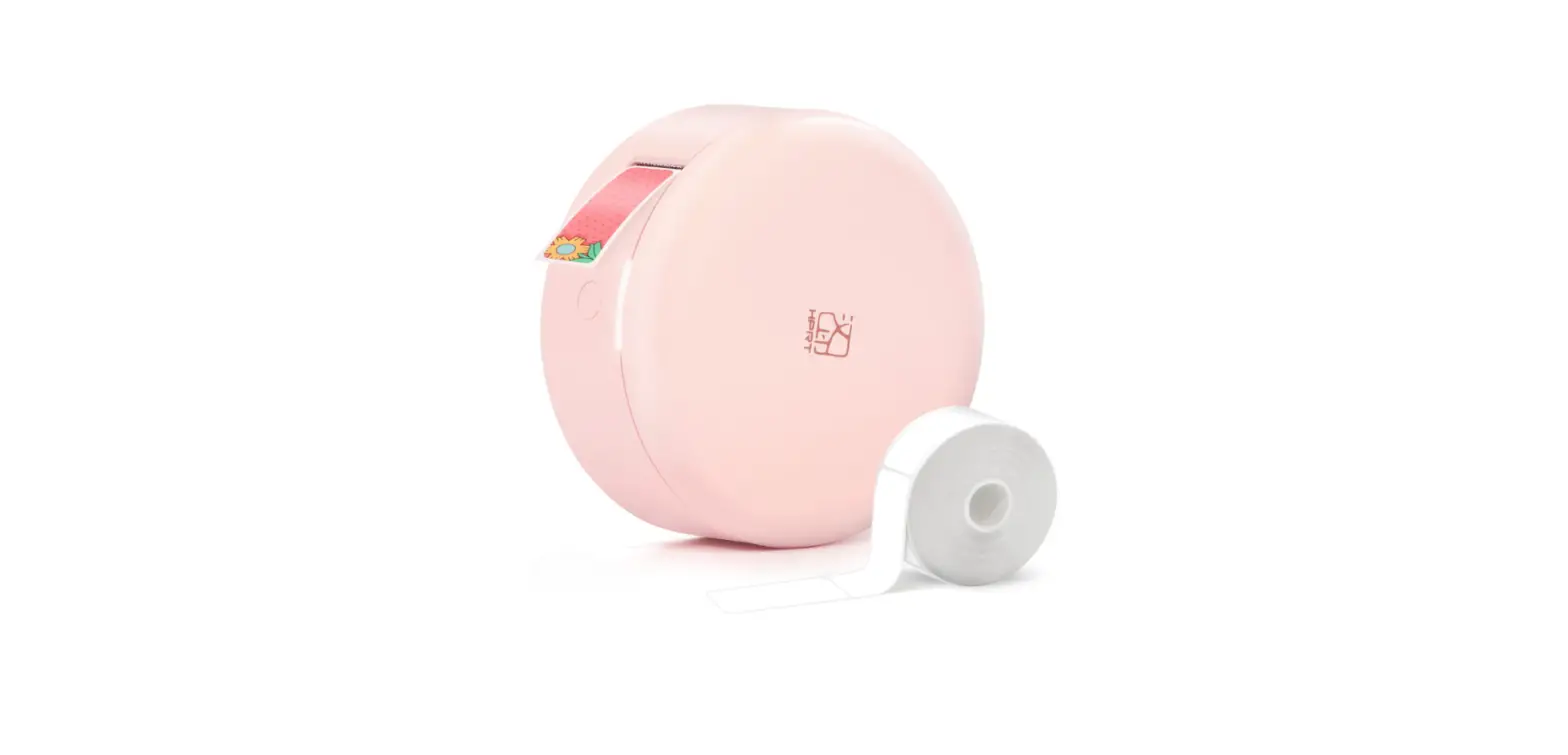
JK-402A Thermal Label Printer
Product Information
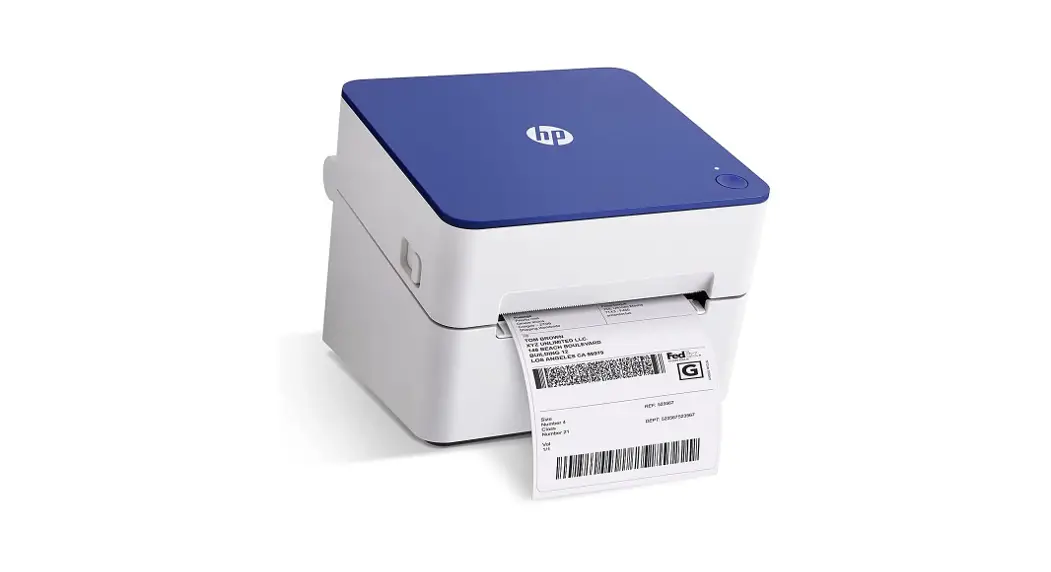
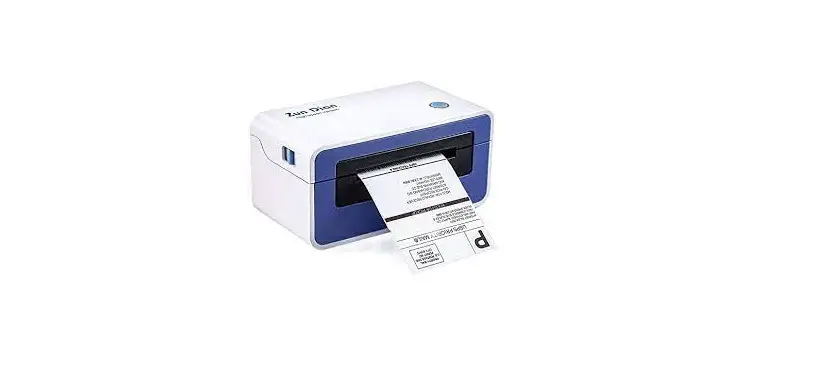
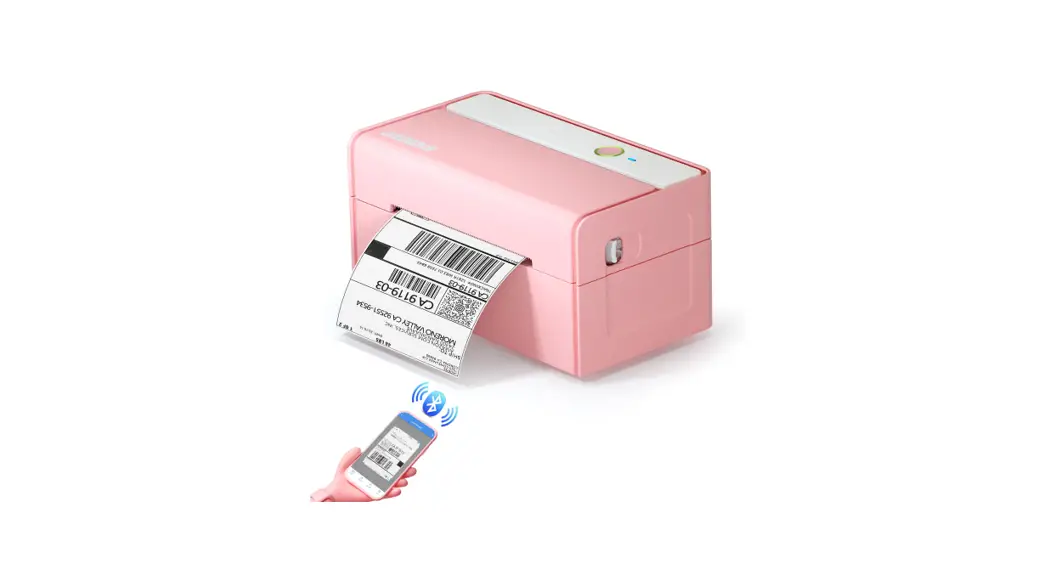
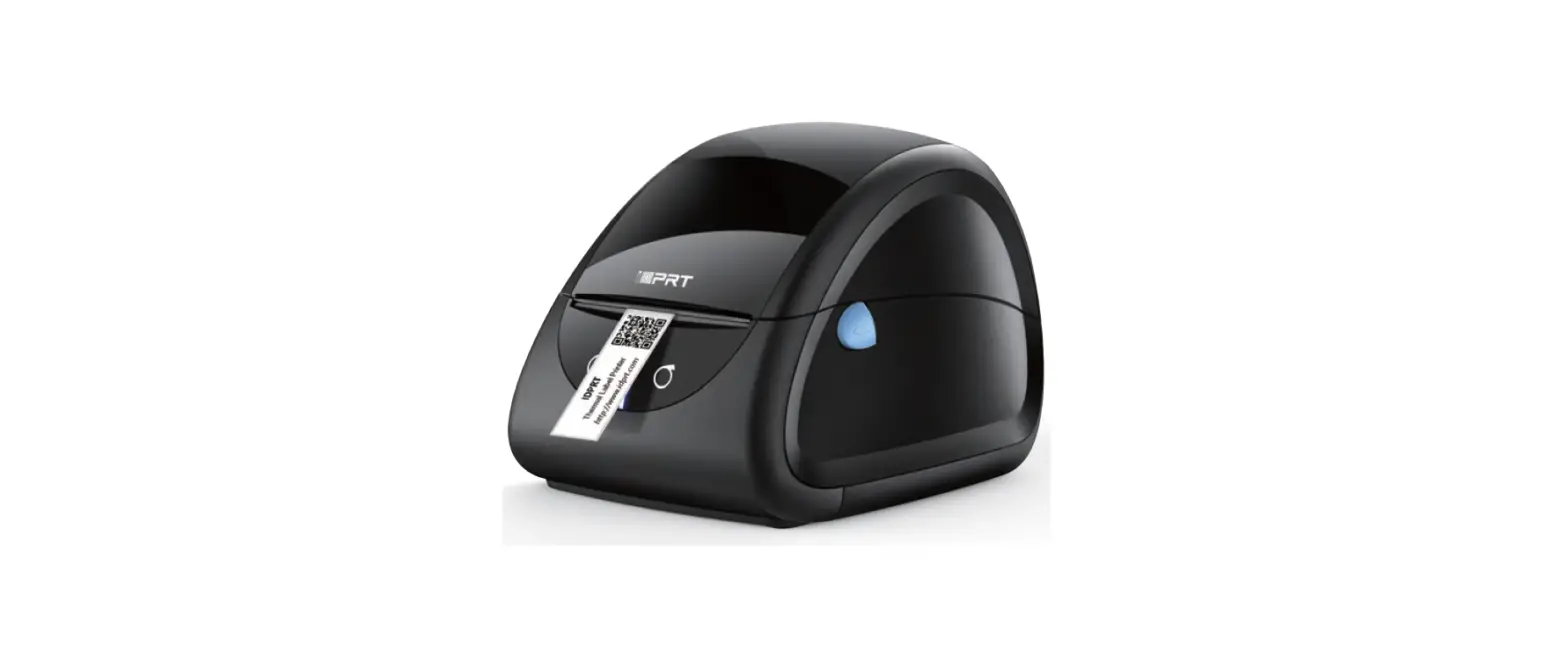
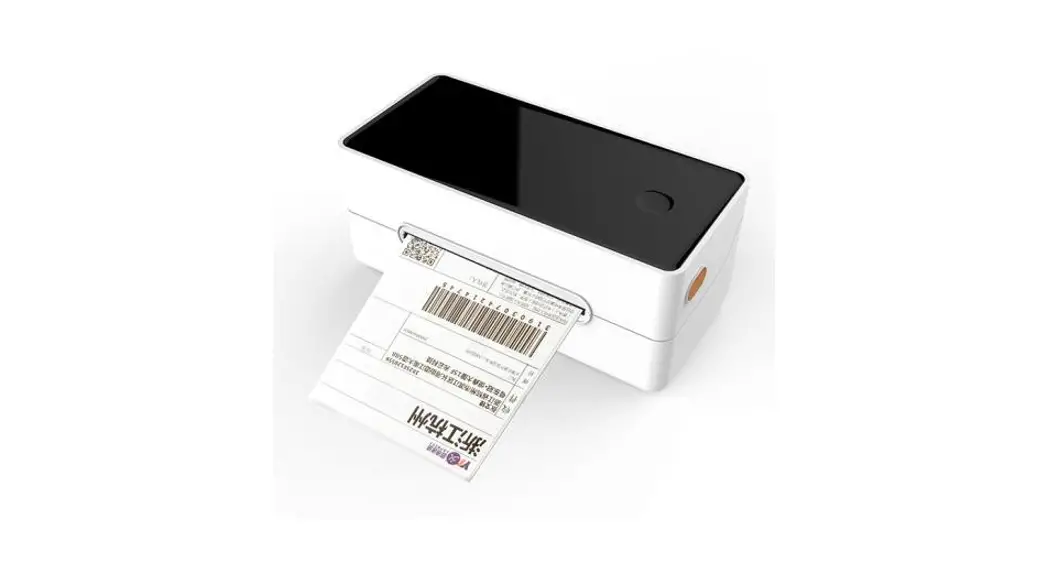
The Thermal Label Printer is a device designed for printing
labels. It comes with standard accessories and components.
Opening-box List
- Thermal Label Printer
- Quick Installation Guide
- V1.0 402A
Preparations before Usage
- Make the cable connection.
- Install folded paper by following these steps:
- Open the top cover of the machine.
- Press the inlet paper guide rail while adjusting the guide rail
spacing according to the size of the folded paper. - Put the folded paper into the inlet paper guide rail and cover
the top cover. - Confirm that the printer has detected the paper feeding and
move the paper suction and normal paper output.
- To resolve stuck paper issues, follow these steps:
- Face the front of the machine and pull the upper cap lever
forward. - Lift the upper cap to remove the jammed paper.
- Face the front of the machine and pull the upper cap lever
Keys and Indicators
The Thermal Label Printer has different indicator statuses:
| Status | Description |
|---|---|
| Blue light flashing / Blue light always on | Normal standby / Bluetooth connected |
| Red light always on | Cover opening error |
| Red light flashes 4 times / 4 beeps | Paper shortage error |
| Red light flashes 2 times | Seam label error |
| Red light keeps flashing / Keep ringing | Overheating error |
Bluetooth Pairing and Printing
This feature is only valid for printers with Bluetooth. Refer to
the user manual for detailed instructions on how to pair and print
using Bluetooth.
Thermal Label Printer
Quick Installation Guide
V1.0 402A
Opening-box List
Standard Accessories
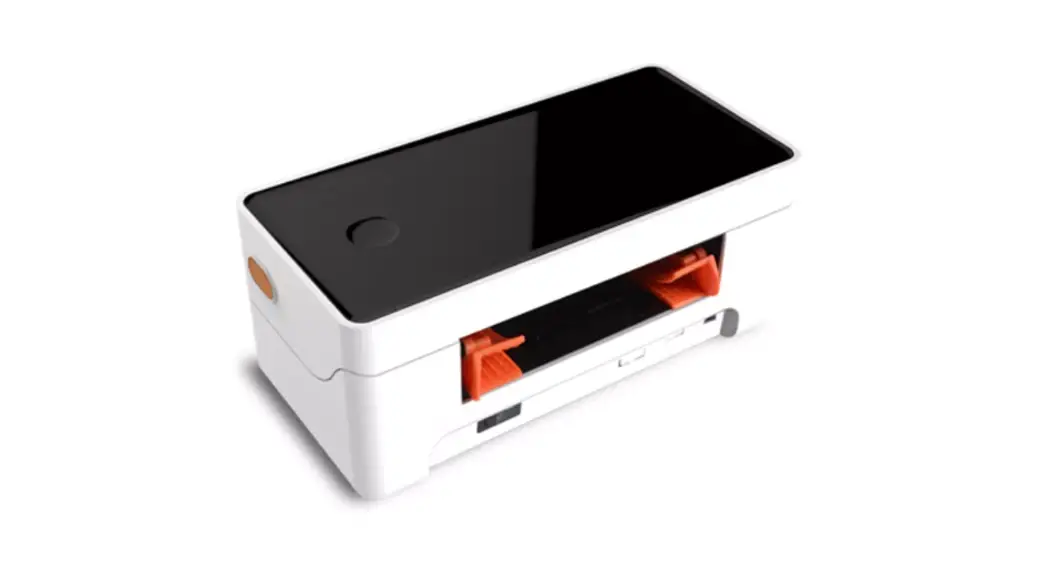
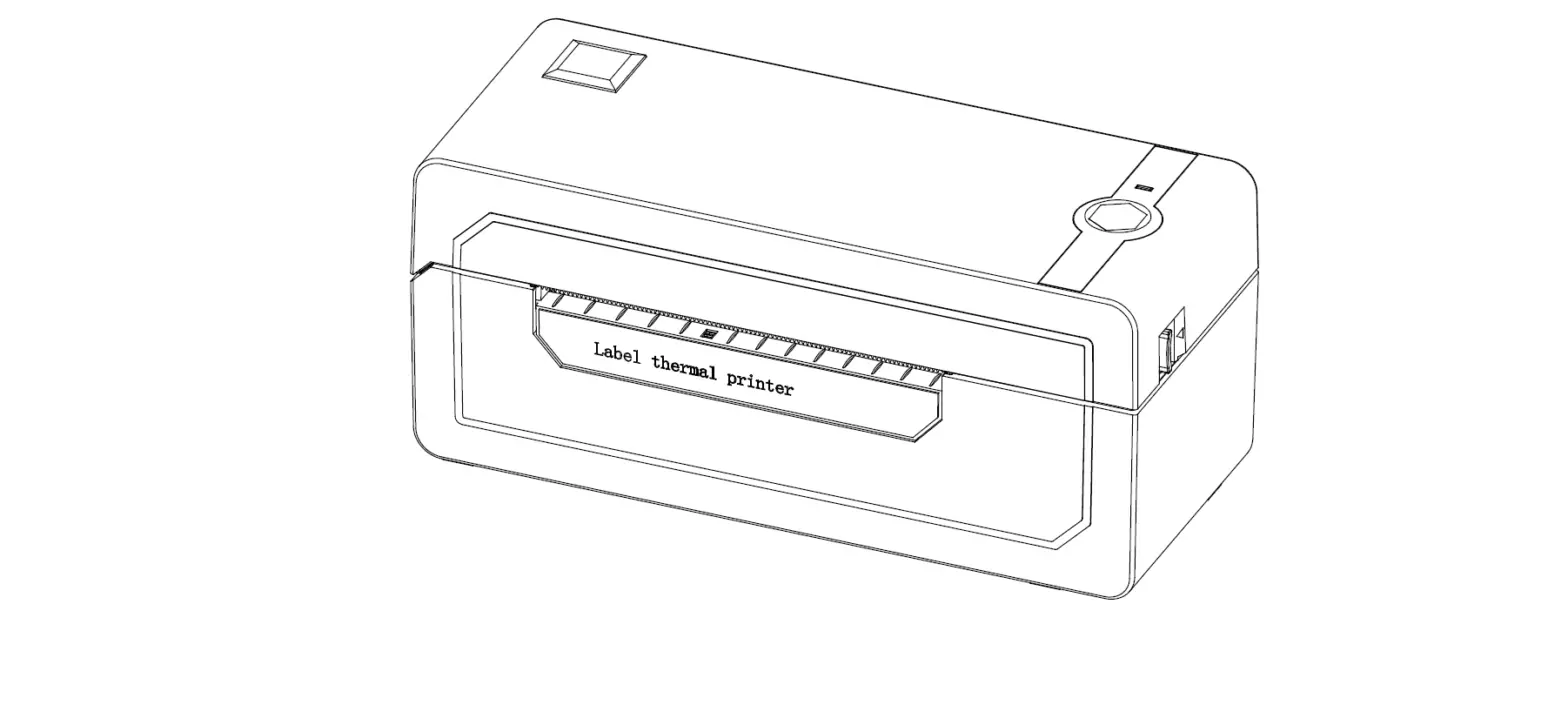
Appearance and Components
2
Preparations before usage
Startup & Shutdown/Usage notices: 1.Turn the printer power switch to theStatus, that is, to turn on the power switch; 2.Turn the printer power switch to theStatus, that is, to turn off the power switch; 3.The power supply must be turned off using a power switch. If you directly unplug the power plug, it can easily damage the printer Internal circuit, resulting in the loss of printing data; 4.When the power is switched on again, wait for a while (greater than5 Seconds) Open immediately without interval The power supply is easy to cause failure; 5.Please use the original power supply, otherwise it may reduce the print quality or damage the printer.
Cable Connection
3
Folded paper installation (1) Open the top cover of the machine, press the inlet paper guide rail at the same
time,According to the size of the folded paper, adjust the guide rail spacing. (2) Put the folded paper into the inlet paper guide rail, and cover the top cover. (3) Confirm that the printer has detected the paper feeding, and move the paper
suction and normal paper output.
Solution for stuck paper (1) Facing the front of the machine, pull the upper cap lever forward and lift the upper cap.
(2) Remove the jamme
4
Keys and Indicators
Indicator status
Status description
Blue light flasging / Blue light always on Normal standby / Bluetooth connected Buzzer alarm
Red light always on Red light flashes 4 times
/
4 beeps
Cover opening error Paper shortage error
Red light flashes 2 times
/
Seam label error
Red light keeps flashing
Keep ringing
Overheating error
5
Bluetooth Pairing and Printing (only valid for printers with Bluetooth
Printer usage tips: 1.To ensure the optimal printing quality of the printer, please use the original power adapter; 2.Clean the printing head regularly or when the printing is not clear, which can ensure the high-quality printing effect; 3.When changing the paper specifications (including paper thickness, quality), it is recommended to make a label paper correction; 4.Avoid the use of inferior paper, inferior paper will greatly wear the printer, causing the printer heating damage; 5.This product with automatic paper suction function, please use the back-end paper suction way into the paper, open the cover of the paper will cause paper waste. 6.If the quality of the paper is poor and the heating sheet has been cleaned and the printing effect still cannot be satisfied,The printing concentration can be increased appropriately by driving it.
6
FCC warning 1. This device should be installed and operated with minimum distance 20cm between the radiator&your body. 2. This device complies with part 15 of the FCC Rules. Operation is subject to the following two conditions: (1) This device may not cause harmful interference, and (2) This device must accept any interference received, including interference that may cause undesired operation. 3. Changes or modifications not expressly approved by the party responsible for compliance could void the user’s authority to operate the equipment. 4. This equipment has been tested and found to comply with the limits for a Class B digital device, pursuant to part 15 of the FCC Rules. These limits are designed to provide reasonable protection against harmful interference in a residential installation. This equipment generates, uses and can radiate radio frequency energy and, if not installed and used in accordance with the instructions, may cause harmful interference to radio communications. However, there is no guarantee that interference will not occur in a particular installation. If this equipment does cause harmful interference to radio or television reception, which can be determined by turning the equipment off and on, the user is encouraged to try to correct the interference by one or more of the following measures: –Reorient or relocate the receiving antenna. –Increase the separation between the equipment and receiver. –Connect the equipment into an outlet on a circuit different from that to which the receiver is connected. –Consult the dealer or an experienced radio/TV technician for help.