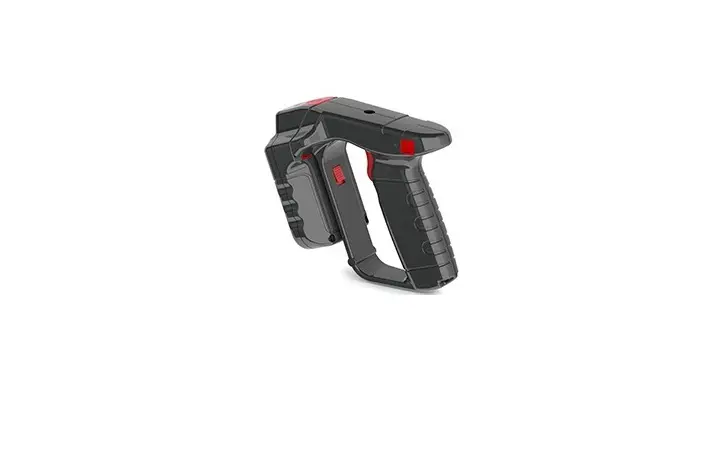
R-5000 RFID Handheld Reader
USER MANUAL for R-5000
CONTENTS
- About this manual
- Revision history
- Relevant document
- Service information
- Overview
- Getting started
- TagFocus and FastID tag supported
- Certification
- Safety information
- Appendix. Specification
ABOUT THIS MANUAL
This manual provides information on the R-5000 device, including
its features, indicators, and usage instructions.
Revision History
| Revision | Date | Description |
|---|---|---|
| 1.0 | 28, July 2022 | First version released |
| 1.1 | 17, August 2022 | ‘NFC Tap to Pair’ [NOTE] Added ‘Charging the Device’ [NOTE] Added |
| 1.2 | 22, August 2022 | ‘SAFETY INFORMATION’ Added ‘R-5000 Device (without barcode)’ Deleted ‘Charging the Device’ [NOTE] Added |
| 1.3 | 21, October 2022 | ‘KC Certification’ Added |
| 1.4 | 9, November 2022 | ‘Laser Safety’ Added to SAFETY INFORMATION |
| 1.5 | 24, November 2022 | ‘FCC Warning’ Added ‘USING THE DEVICE’ Added |
Relevant Document
For programming and interface information, refer to the
Programming Barcode Manual RSP Interface Programmers Guide.
Service Information
If you have any problems with your device, please contact KC
Industrial Co., Ltd Support in your area. For contact information,
please visit http://www.kcindustrial.com/contato-1.
OVERVIEW
Package
The R-5000 package includes:
- R-5000 Device (with barcode)
- Battery [NOTE] Adaptor and USB-C Cable are included.
- Optional hand strap [NOTE] Cradle is sold separately.
- Cradle
Feature
The R-5000 device features:
- R-5000 with Barcode scanner
- Charging LED
- Power Button
- Trigger Key
- Sound Key
- Function Key
- Bluetooth Key
- Barcode Scanner
- Sound Hall
- NFC Tag
- USB Port
- Hand strap Hall
- Battery Button
The device can scan barcodes by emitting a red laser, and you
can hear a beep sound from the sound hole. You can connect the
device with NFC and charge the data communication with the host
terminal using USB cable. Install the handstrap through the hole.
Press the button below to replace the battery.
Indicators
| LED | Status | Description |
|---|---|---|
| CHARGING | OFF | Battery exhausted |
| SOUND | 3-WHITE-LED | Battery level is High |
| 2-WHITE-LED | Battery level is Middle | |
| 1-WHITE-LED | Battery level is Low | |
| FUNCTION | BLINK | Battery fault |
| GREEN | Only sound | |
| BLUE | Sound & Vibration | |
| RED | Only Vibration | |
| BLUETOOTH | BLUE | Scanner mode |
| RED | RFID mode | |
| BLUE-Blink | SPP(UART) Profile | |
| HID Keyboard | BLUE | Not connect in SPP(UART) Profile |
| RED-Blink | Not connect in HID Keyboard | |
| – | OFF | Not connect because the USB Data cable is connected. |
battery power and does not show an accurate remaining power level.
Therefore, please charge the device early. At battery level 10%,
the device sounds beep every 1 minute. At battery level 5%, it
sounds beep every 30 seconds.
GETTING STARTED
Charging the Device
To charge the device:
- Connect the USB-C cable to the device’s USB port.
- Connect the adaptor to a power source.
- The charging LED will light up and blink according to the
battery level. - The device will be fully charged in approximately 3 hours.
Installing the Battery
To install the battery:
- Press the button below the battery button to release the
battery compartment cover. - Insert the battery with the contacts aligned.
- Replace the battery compartment cover.
Bluetooth Pairing
To pair the device with a Bluetooth-enabled device:
- Press and hold the Bluetooth key until the Bluetooth LED blinks
blue. - Activate Bluetooth on the other device and search for available
devices. - Select ‘R-5000’ from the list of available devices.
- If prompted, enter the PIN code ‘0000’ to complete the pairing
process.
NFC Tap to Pair
To pair the device with an NFC-enabled device:
- Ensure that NFC is enabled on both devices.
- Place the devices close together, with the R-5000’s NFC tag
touching the other device’s NFC area. - The devices will automatically pair.
QR Code Pairing
To pair the device with a QR code:
- Scan the QR code with a QR code reader app on your device.
- Follow the instructions to complete the pairing process.
TAGFOCUS AND FASTID TAG SUPPORTED
The R-5000 device supports various types of RFID tags,
including:
- EPC Class1 Gen2
- ISO 18000-6C
- Monza Model Numbers
Monza Model Numbers
The R-5000 device supports the following Monza model
numbers:
- Monza R6
- Monza R6-P
- Monza R6-A
- Monza R6-B
- Monza R6-C
- Monza R6-D
CERTIFICATION
KC Certification
The R-5000 device is KC certified for use in Korea.
SAFETY INFORMATION
Battery Safety
Do not disassemble, crush, puncture, or short circuit the
battery
USER MANUAL for R-5000
CONTENTS
CONTENTS
3
ABOUT THIS MANUAL
4
Revision History
4
Relevant Document
4
Service Information
4
OVERVIEW
5
Package
5
Feature
6
Indicators
7
GETTING STARTED
8
Charging the Device
8
Installing the Battery
9
Bluetooth Pairing
10
NFC Tap to Pair
10
QR Code Pairing
11
TAGFOCUS AND FASTID TAG SUPPORTED
13
Type of tags supported
13
Monza Model Numbers
13
CERTIFICATION
14
KC Certification
14
SAFETY INFORMATION
15
Battery Safety
15
Battery Usage & Disposal Guidelines
15
Battery Storage Guidelines
15
Laser Safety
16
APPENDIX. SPECIFICATION
17
Copyright 2022 KC Industrial Inc. All rights reserved.
3
ABOUT THIS MANUAL
Revision History
Revision 1.0 1.1 1.2
1.3
1.4 1.5
Date
Description
28, July 2022 – First version released
17, August 2022 – `NFC Tap to Pair’ [NOTE] Added
– Charging the Device [NOTE] Added 22, August 2022 – `SAFETY INFORMATION’ Added
– `R-5000 Device (without barcode)’ Deleted
21, October – Charging the Device [NOTE] Added
2022
– `KC Certification’ Added
– `Laser Safety’ Added to SAFETY INFORMATION
9, November 2022
24, November 2022
– `FCC Warning’ Added – `USING THE DEVICE’ Added
Relevant Document
Programming Barcode Manual RSP Interface Programmers Guide
Service Information
If you have a problem with your device, please contact KC Industrial Co.,Ltd Support in your area. For contact information, please visit http://www.kcindustrial.com/contato-1
Copyright 2022 KC Industrial Inc. All rights reserved.
4
OVERVIEW
Package
R-5000 Device (with barcode)
Battery [NOTE] Adaptor and USB-C Cable are included.
Optional
Hand strap
[NOTE] Cradle is sold separately.Cradle
Copyright 2022 KC Industrial Inc. All rights reserved.
5
OVERVIEW
Feature
R-5000 with Barcode scanner
Charging LED Power Button
No.
1 2
3
4
5
6 7 8 9 10 11 12
Trigger Key
Sound Hall NFC Tag
Bluetooth Key
Sound Mode Key Function Key
Hand strap Hall
Barcode Scanner
R-5000 Device (with barcode)
USB Port
Battery Button
Name
Power Key Charging LED
Trigger Key
Sound Key
Function Key
Bluetooth Key Barcode Scanner
Sound Hall NFC Tag USB Port Hand strap Hall Battery Button
Description Press and hold for 3 seconds to turn on/off the device. It makes a beep sound and is powered on. Indicates the charging status and the battery level. The battery power is shown in 3 level. Reads tags or scans barcodes by pressing key. In RFID mode, read the data continuously while pressing key. In Scanner mode, scanning stops once the barcode has been read. Press the key to change the Sound mode: Sound Sound & Vibration Vibration Mute. In case of connecting with iOS terminals in HID mode, hold the key for 3 seconds to keyboard pop up on display. Press the key to change the RFID mode, RFID tag reading or barcode scanning. Hold the key for 3 seconds to delete the data stored in local memory. Press the key to turn on Bluetooth. Hold the key for 3 seconds to delete the Bluetooth connected list(Un-bonding).
Scans barcodes by emitting a red laser.
You can hear a beep sound from the sound hole.
You can connect the device with NFC.
You can charge the data communication with the host terminal using USB cable.
Install the handstrap through the hole.
Press the button below to replace the battery.
Copyright 2022 KC Industrial Inc. All rights reserved.
6
OVERVIEW
Indicators
LED
CHARGING
SOUND
Status
OFF 3-WHITE-LED 2-WHITE-LED 1-WHITE-LED
Blink GREEN BLUE
RED OFF
Description
Battery exhausted Battery level is High Battery level is Middle Battery level is Low
Battery fault Only sound Sound & Vibration Only Vibration
Mute
FUNCTION
RED BLUE
Scanner mode RFID mode
BLUETOOTH
BLUE RED BLUE-Blink RED-Blink OFF
SPP(UART) Profile
HID Keyboard Not connect in SPP(UART) Profile
Not connect in HID Keyboard Not connect because the USB Data cable is
connected.
Copyright 2022 KC Industrial Inc. All rights reserved.
7
GETTING STARTED
Charging the Device
01 Charging with Adaptor
Assemble the plug and the AC/DC adaptor and connect the USB-C cable to charge the device. [NOTE] Use an original charger adaptor and cable from KC Industrial. Other chargers and cables may damage the device. Please refer to SAFETY INFORMATION for safety of using battery. [NOTE] When charging the battery, the highest temperature is 45°C. 02 Charging with Cradle
Take care not to involve a hand-strap between the device and the cradle. Push down the device on the cradle securely. [NOTE] When removing, pick up the device holding the cradle with one hand.
Copyright 2022 KC Industrial Inc. All rights reserved.
8
GETTING STARTED
Installing the Battery
Place the top of the battery fully forward to into the battery holder and push down on the bottom of the battery. To replace the battery, press down the battery button. [NOTE] If a device is not working properly or freezes due to unknown errors, please pull the battery out and resert it. And press the Power key to turn on the device.
Copyright 2022 KC Industrial Inc. All rights reserved.
9
GETTING STARTED
Bluetooth Pairing
You can use Bluetooth to connect the device to host terminals. Turn on the Bluetooth function of the host terminal. Power on the device and Bluetooth indicator will blink (Blue SPP(UART) profile, Red HID mode). Select this device from the device list of the host terminal to pair.
The device name is displayed as “R-5000(XXXXXX)”. When Bluetooth pairing is successful, blink stop and indicator illuminates continuously.
[NOTE] The device can pair automatically with the last connected host terminal. [NOTE] As for iOS, to pair a new host terminal, please turn off the Bluetooth function or delete the device from the device list of the host terminal paired before.
NFC Tap to Pair
Turn on the NFC function of the host terminal. Keep touching your mobile device next to sound hall on the top of R-5000.
[NOTE] Depending on the country and specifications of the mobile device, it does not support NFC. Please refer to the instruction manual of your mobile device(Android). [NOTE] If the connection does not work, please do the following: – If the mobile device is locked, please release the lock and move it slowly on the NFC. – If the mobile device is in a protective case, please remove the case. – Check your mobile device’s Bluetooth turn on. [NOTE] As for iOS terminal, NFC function is not available.
Copyright 2022 KC Industrial Inc. All rights reserved.
10
GETTING STARTED
QR Code Pairing
You can use QR Code attached to the device to connect the host terminals. Install the `KCI RFID’ Mobile Application form the Google Play Store. Launch the `KCI RFID’ on the mobile host terminal. Press the “QR Code Scan” button from the menu in the upper right and read the QR code on the label
attached to the device.
Copyright 2022 KC Industrial Inc. All rights reserved.
11
USING THE DEVICE
Reading Tags
To read tags using the R-5000, Turn on the R-5000 and check the RFID mode (Function LED BLUE). If not in RFID Mode, press the Mode key to change the mode. Connect the host terminal to device. Hold the device in the direction of the tag to be read and press the Trigger key.
[NOTE] When the tag is read successfully, you will hear a beep sound (In Sound, Sound & Vibration mode).
Scanning Barcodes
To scan barcodes using the R-5000, Turn on the R-5000 and check the Scanner mode(Function LED RED). If not in Scanner Mode, press the Mode key to change the mode. Connect the host terminal to device. Hold the device in the direction of the barcode to be scanned and press the Trigger key.
[NOTE] When the barcode is scanned successfully, you will hear a beep sound (In Sound, Sound & Vibration mode).
Copyright 2022 KC Industrial Inc. All rights reserved.
12
TAGFOCUS AND FASTID TAG SUPPORTED
TagFocusTM and FastIDTM are only available for Monza Tag chip, manufactured by Impinj.
Type of tags supported
Model
Monza 4
4D
4E
Tag FocusTM V
V
FastIDTM
V
V
Monza 5
4QT
5
R6
V
V
V
V
V
V
Monza 6
R6-P S6-C
V
V
V
V
Monza X
2K
4K
V
V
V
V
Monza Model Numbers
Family Monza 4 Monza 5 Monza 6 Monza X
Model
4D 4E 4QT 5 R6 R6-P S6-C 2K Dura 8K Dura
TID Memory Address 0x00 ~ 0x1F
0xE2801100 0xE280110C 0xE2801105 0xE2801130 0xE2801160 0xE2801170 0xE2801171 0xE2801140 0xE2801150
Copyright 2022 KC Industrial Inc. All rights reserved.
13
CERTIFICATION
KC Certification
This product is an industrial equipment used in manufacturing or production process, and it is a wireless equipment that has received conformity assessment(registration of conformity) according to Article 58-2 of the Radio Waves Act.
Conformity Assessment Mark
Applicant Model Name Equipment Name Manufacturer / Country of Origin Certification number Certified Wireless Module Information
KC Industrial Co., Ltd R-5000 RFID/USN Wireless Device (900MHz Frequency band) KC Industrial Co., Ltd / Korea R-R-D0t-R5000
R-C-ryt-MDBT50
FCC Warning
This device complies with part 15 of the FCC Rules. Operation is subject to the following two conditions: (1) This device may not cause harmful interference, and (2) this device must accept any interference received, including interference that may cause undesired operation.
This equipment has been tested and found to comply with the limits for a Class B digital device, pursuant to part 15 of the FCC Rules. These limits are designed to provide reasonable protection against harmful interference in a residential installation. This equipment generates, uses and can radiate radio frequency energy and, if not installed and used in accordance with the instructions, may cause harmful interference to radio communications. However, there is no guarantee that interference will not occur in a particular installation. If this equipment does cause harmful interference to radio or television reception, which can be determined by turning the equipment off and on, the user is encouraged to try to correct the interference by one or more of the following measures:
– Reorient or relocate the receiving antenna. – Increase the separation between the equipment and receiver. – Connect the equipment into an outlet on a circuit different from that to which the receiver is connected. – Consult the dealer or an experienced radio/TV technician for help.
Changes or modifications not expressly approved by the party responsible for compliance could void the user’s authority to operate the equipment. The device complies with RF exposure requirement.
Copyright 2022 KC Industrial Inc. All rights reserved.
14
SAFETY INFORMATION
Battery Safety
Follow battery safety guidelines in this manual for safe usage and disposal of Li-ion batteries. Improper battery use may cause an explosion, fire, or other critical hazards.
Battery Usage & Disposal Guidelines
Use only R-5000 approved batteries and charging accessories. Using an incompatible battery or charger may cause device malfunction or other damage.
– Do not disassemble or modify the battery. Do not bend, shred, deform the battery. – Do not expose the battery to excessive heat or cold. – Do not place the battery into a microwave oven or dryer. – Do not short-circuit the battery or allow a foreign object to battery contacts. – Do not burn, expose to water, or other liquids the battery. – If battery leakage is observed, avoid any contact with the skin or eyes. – If contact has been made, wash the affected area with water for 15 minutes, and seek medical attention. – Follow the local regulations for the disposal of used batteries. – Do not store or charge the battery in direct sunlight or in areas prone to get hot such as on the dashboard of a
car extended periods of time, or close to other heat sources.
Battery Storage Guidelines
Storing batteries is as important as using it safely. Battery is a core part of the device’s performance so that you should treat the batteries safely.
– Batteries should be stored in the clean, dry and ventilated environment within ambient temperature ranges of 20±5°C.
– Keep batteries away from corrosive substances. – Keep batteries away from fire and heat. – Batteries are charged while producing to below 30% of full capacity for safety regulations. – Charge it for 30 minutes 1 hour at least once every six months to prevent full discharge and keep the
performance, when you are not using the device for a long period.
Copyright 2022 KC Industrial Inc. All rights reserved.
15
Laser Safety
Class 2 laser Product 1.0mW MAX OUTPUT 650nm LASER. LASER LIGHT. Do not stare into beam.
Copyright 2022 KC Industrial Inc. All rights reserved.
16
APPENDIX. SPECIFICATION
Category
Description
PHYSICAL CHARACTERISTICS
Dimension Weight Power
Notification
55 x 169.5 x 32.8 (W x H x D)
Approx. 250g(Including battery, w/o Barcode option)
18.513Wh ([email protected]), Li-ion Battery,
DC 7.26V, Charging Input power: DC 5V
Beeper, Vibration, 4LEDs
User Input
Power/Trigger/Sound/Mode/BT Key
RFID PERFORMANCE
ETC Option Protocol Chip
1D/2D
ISO 18000-63 (Old.18000-6C)/ EPC Global Class 1 Gen 2 Impinj® Reader Chip
MCU
ARM® Cortex®-M4, 32bit
Antenna
Circular polarization
Reading Speed
Frequency Range/ RF Output
Communication Interface
700+ tags/sec
840-960MHz/up to 30dBm (1W)
(Frequency Range varies from country to country)
Bluetooth(LE), USB
COMMUNICATION
Bluetooth USB Interface
Sealing
v5.1 BLE (SPP, HID) USB Type C, USB to Serial, USB 2.0
Compliant, Charging IP65
Drop Spec.
1.5m
USER ENVIRONMENT
Operating Temp. Storage Temp.
-10°C to 50°C -40°C to 85°C
Charging Temp.
0 °C to 40°C
Humidity
5-95% non-condensing
Copyright 2022 KC Industrial Inc. All rights reserved.
17
 CONTACT | KC industrial