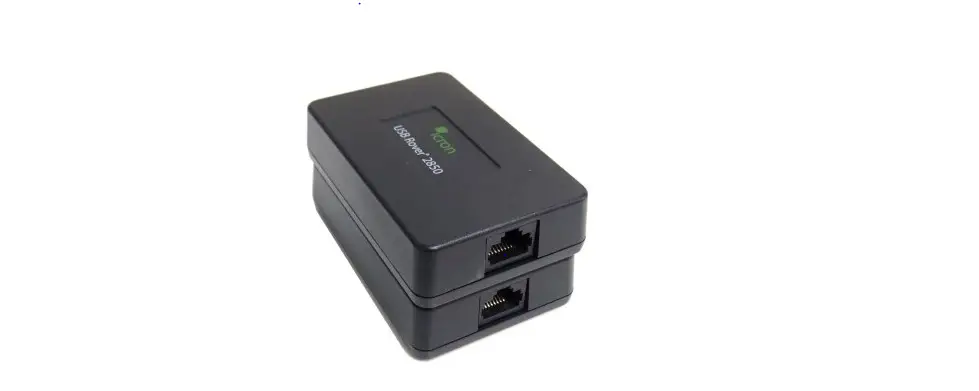
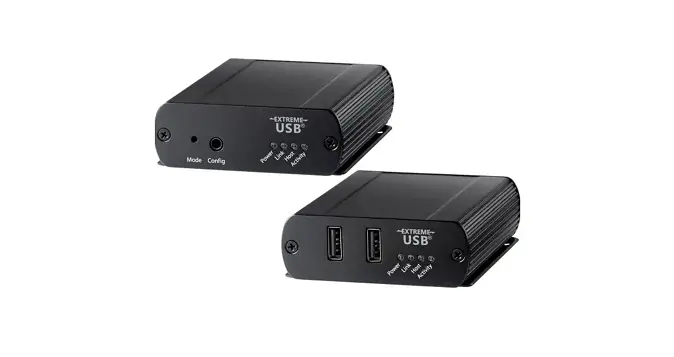
INT-USB3.1-ARJ 1-Port USB 3.x Fixed Range Point-to-Point Extender System
USER MANUAL
1-Port USB 3.x Fixed Range Point-to-Point Extender System
INT-USB3.1-ARJ
REV 220616
www.libav.com 800.530.8998
Product Information
The Intelix INT-USB3.1-ARJ is a 1-port USB 3.x fixed range
point-to-point extender system that allows users to extend USB 3.2
beyond the standard 3m cable limit for USB 3.2 peripheral devices.
The extender system is composed of two individual units, the Local
Extender and the Remote Extender, and incorporates ExtremeUSB-CTM
technology.
Features
- Ability to extend USB 3.2 beyond the standard 3m cable limit
for USB 3.2 peripheral devices - Composed of two individual units, the Local Extender and the
Remote Extender - Incorporates ExtremeUSB-CTM technology
- Does not support DisplayPort ALT mode functionality through the
USB-C connection
Installation Guide
The installation guide provides instructions on how to install
the extender system, install the local and remote extenders,
connect the local extender to the remote extender, check the
installation, connect a USB device, and compatibility.
Installing the Extender System
To install the extender system, follow these steps:
- Install the Local Extender
- Connect the Local Extender to the Remote Extender
- Install the Remote Extender
- Check the Installation
- Connect a USB Device
- Check Compatibility
Installing the Local Extender
To install the Local Extender, follow these steps:
- Connect the Local Extender to the computer using a standard USB
3.2 Gen 1 cable. - Power the Local Extender using the USB Host/Hub or optional DC
input.
Connecting the Local Extender to the Remote Extender
To connect the Local Extender to the Remote Extender, follow
these steps:
- Connect the Local Extender to the Remote Extender using a
Cat5e/6 UTP cable.
Installing the Remote Extender
To install the Remote Extender, follow these steps:
- Connect the Remote Extender to the USB device using a standard
USB 3.2 Gen 1 cable. - Power the Remote Extender using the USB Host/Hub or optional DC
input.
Checking the Installation
To check the installation, follow these steps:
- Ensure that the Power LED on the Local Extender is solid
green. - Ensure that the Link LED on both the Local and Remote Extenders
is solid green.
Connecting a USB Device
To connect a USB device, follow these steps:
- Connect the USB device to the Remote Extender using a standard
USB 3.2 Gen 1 cable.
Compatibility
The INT-USB3.1-ARJ is compatible with USB 3.2, USB 2.0 and USB
1.1 devices.
Troubleshooting
The troubleshooting section provides guidelines on how to
resolve common issues that may occur when using the
INT-USB3.1-ARJ.
Specifications
The specifications section provides detailed technical
specifications for the INT-USB3.1-ARJ.
Technical Glossary
The technical glossary provides definitions of technical terms
used in the user manual.
USER MANUAL
1-Port USB 3.x Fixed Range Point-to-Point Extender System
INT-USB3.1-ARJ
REV 220616
www.libav.com 800.530.8998
Thank you for purchasing the Intelix INT-USB3.1-ARJ.
Please read this guide thoroughly.
FCC Radio Frequency Interference Statement Warning This device complies with Part 15 of the FCC rules. Operation is subject to the following two conditions: (1) this device may not cause harmful interference, and (2) this device must accept any interference received including interference that may cause undesired operation.
CE Statement We, LIBERTY AV SOLUTIONS, declare under our sole responsibility that the INT-USB3.1-ARJ, to which this declaration relates, is in conformity with European Standards EN 55024, EN 55032, EN 61000, and RoHS Directive 2011/65/EU + 2015/863/EU.
IC Statement This Class A digital apparatus complies with Canadian ICES-003 Issue 7.
WEEE Statement The European Union has established regulations for the collection and recycling of all waste electrical and electronic equipment (WEEE). Implementation of WEEE regulations may vary slightly by individual EU member states. Please check with your local and state government guidelines for safe disposal and recycling or contact your national WEEE recycling agency for more information.
Product Operation and Storage Please read and follow all instructions provided with this product and operate for intended use only. Do not attempt to open the product casing as this may cause damage and will void warranty. Use only the power supply provided with this product (if applicable). When not in use, product should be stored in a dry location between -20°C and 70°C.
©2022 All rights reserved. Document #220616
Contents
4 Introduction
Product Contents 4 Features 4 The Local Extender 5 The Remote Extender 6
7 Installation Guide
Installing the Extender System 7 Installing the Local Extender 7 Connecting the Local Extender to the Remote Extender 7 Installing the Remote Extender 8 Checking the Installation 8 Connecting a USB Device 8 Compatibility 8
10 Troubleshooting 12 Specifications 13 Technical Glossary
Introduction
This guide provides product information for the INT-USB3.1-ARJ, installation instructions and troubleshooting guidelines. The instructions in this guide assume a general knowledge of computer installation procedures, familiarity with cabling requirements and some understanding of USB devices.
note NOTE: Notes provide additional information that could be useful.
CAUTION: Cautions provide important information about an operational requirement.
Product Contents
Your INT-USB3.1-ARJ extender system contains: · Local Extender · Remote Extender · USB 3.2 Gen 1 USB-C Cable (USB only) · Custom ARJ Link Cable (10m Plenum Rated) · Cable Pulling Eye · 5V Power Supply with NA, UK, EU and AU Power adapters · 4 Mounting Clips
Features
The INT-USB3.1-ARJ incorporates ExtremeUSB-CTM technology, enabling users to extend USB 3.2 beyond the standard 3m cable limit for USB 3.2 peripheral devices. This extender system is composed of two individual units, the Local Extender and the Remote Extender, and has the following key features:
· 10m extension using included Cable · Support for new USB 3.2 Gen 1/2 host controllers and devices (up to 5Gbps) · Bus Powered Operation · Supports all device types · Backwards compatible to USB 2.0 devices
note INT-USB3.1-ARJ does NOT support DisplayPort ALT mode functionality through the USB-C connection.
The INT-USB3.1-ARJ includes the ExtremeUSB-CTM suite of features: · Transparent USB extension supporting USB 3, 2 and 1 · True plug and play; no software drivers required · Works with all major operating systems: Windows®, macOSTM, Linux® and Chrome OSTM
4
The Local Extender
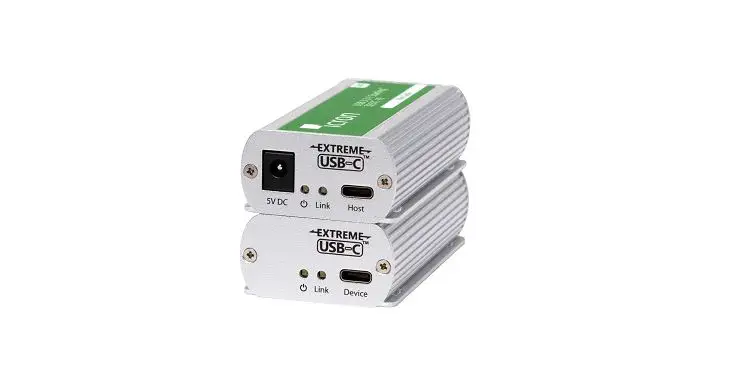
The Local Extender connects to the computer using a standard USB 3.2 Gen 1 cable. Power is provided by the USB Host/Hub or optional DC input.
Front View
5V DC
Link Host
1 23
4
Rear View
Link
Mode Config
5
67
ITEM TYPE 1 DC Power Port
DESCRIPTION DC power input
2 Power LED *
LED Is SOLID GREEN When sufficient power is provided by host. LED is SOLID
Refer to note below AMBER when less than optimal power is not guaranteed by host.
3 Link LED
LED is SOLID GREEN ON when Local Extender is linked to an opposite Remote Extender. LED is OFF or BLINKING when there is no connection between the Local Extender and Remote Extender units.
4 USB Host Port
USB 3 Type-C receptacle used to connect Local Extender to USB 3 Host computer.
5 Link Port (ARJ45) Accepts custom ARJ45 Cable included with product.
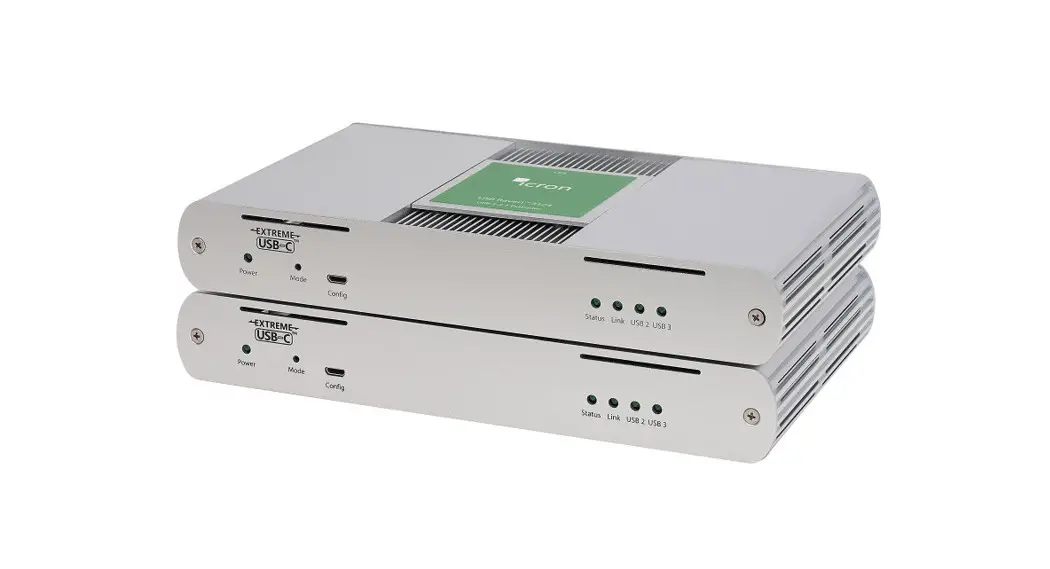
6 Mode
Reserved for manufacturer use.
7 Config
Reserved for manufacturer use.
* Guaranteed sufficient power via USB Bus power requires a USB-C connection to a USB-C power upstream capable of 5V
note 3A configuration. When using a USB-A to USB-C or similar legacy connection, LED will be AMBER. It is recommended in
situations where the LED is AMBER that sufficient testing be performed to guarantee system stability.
5
The Remote Extender
The Remote Extender provides a USB 3.2 Gen 1 Type-C port for standard USB devices and allows you to connect one USB device directly.
Front View
Link Device
12
3
Rear View
Link
Mode Config
4
56
ITEM TYPE
1
Power LED
2
Link LED
3
Device Port
4
Link Port (ARJ45)
5
Mode
6
Config
DESCRIPTION LED Is SOLID GREEN when sufficient power is supplied by Local Extender. LED is SOLID AMBER when less than optimal power is not guaranteed by host.
LED is SOLID GREEN ON when Remote Extender is linked to an opposite Local Extender. LED is OFF or BLINKING when there is no connection between the Local Extender and Remote Extender units.
USB 3 Type-C receptacle used to connect Remote Extender to USB device.
Accepts custom ARJ45 Cable included with product.
Reserved for manufacturer use.
Reserved for manufacturer use.
note * Guaranteed sufficient power via USB Bus power requires a USB-C connection to a USB-C power upstream capable of 5V
3A configuration. When using a USB-A to USB-C or similar legacy connection, LED will be AMBER. It is recommended in situations where the LED is AMBER that sufficient testing be performed to guarantee system stability.
6
Installation Guide
Installing the INT-USB3.1-ARJ Extender System
To complete the installation, you will also require the following items that are not included with this system: · USB compatible computer (host computer) with a USB compliant operating system · USB compatible device(s)
Host
USB Devices
USB 3-2-1 up to 10m
LEX
REX
Preparing Your Site
Before installing the extender, you will need to prepare your site:
1. Place the computer where desired and set it up. 2. Ensure to locate your USB device(s) within the cable-length of the computer. If not, adjust the
location of your device(s) and/or computer accordingly.
Cable installation is important, particularly if high throughput applications are used. When installing, ensure the cable is installed away from, or isolated from potential sources of interference such as electrical wiring, fluorescent lighting, etc.
note Use the included ARJ45 Cable Pulling Eye tool when installing included cable through conduits or other tight spaces. note Use only the included cable with this product; do not cut or re-size the included cable.
Installing the Local Extender
1. Place the Local Extender near the computer. 2. Apply 5V 3A AC power supply to unit. (optional if using USB-C host connection to power circuit) 3. Connect the supplied USB 3.2 Gen 1 cable between the Local Extender host port and a USB 3 port on
the host computer. 4. If the Power LED is AMBER, test the system with the connected device(s) to ensure system is stable.
If not a 5V 3A power supply may be required.
Connecting the Local Extender to the Remote Extender
1. Plug one end of the included Cable into the Link port on the Local Extender. 2. Plug the other end of the included cable into the Link port on the Remote Extender.
7
Installing the Remote Extender
1. Place the Remote Extender near and connect it to the USB device.
Checking the Installation
1. On the Local and Remote Extenders, check that the Power and Link LEDs are on. If the Link LEDs are permanently off or blinking, then the cable between the Local and Remote Extenders may not be installed properly or is defective.
2. For Windows users (7, 8, 8.1, 10), open Device Manager to confirm that the extender system has been installed correctly. Expand the entry for Universal Serial Bus controllers by clicking the “+” sign. If the extender system has been installed correctly, you should find only one instance of “Generic SuperSpeed USB Hub” listed.
To open Device Manager in Windows 7: Open the Start Menu, right click on “Computer” then select: Manage >> Device Manager
To open Device Manager in Windows 8, 8.1 or 10: Right click the Start Menu and then select: Device Manager
3. For macOS users, open the System Profiler to confirm that the extender system has installed correctly. In the left-hand column under Hardware, select “USB” and inspect the right-hand panel. If the extender has been installed correctly, you should find it listed as one instance of “Hub” under the USB SuperSpeed Bus.
note
To open System Profiler in macOS: Open the Finder, select Applications, then open the Utilities folder and double click on the System Profiler icon.
4. If the extender system is not detected correctly or fails to detect, please consult the Troubleshooting section in this guide.
Connecting a USB Device
1. Install any software required to operate the USB device. Refer to the documentation for the USB device, as required.
2. Connect the USB device to the device port on the Remote Extender. 3. Check that the device is detected and installed properly in the operating system.
Compatibility
The INT-USB3.1-ARJ complies with USB 1.1, USB 2.0 and USB 3.2 Gen 1 specifications governing the design of USB devices. However, there is no guarantee that all USB devices or hosts will be compatible as there are a number of different characteristics that may impact the operation of USB devices over extended distances. USB Bus power operation is only guaranteed with USB-C Upstream facing port connections with a USB-C cable.
8
USB Extender Mounting Options
The bottom of the INT-USB3.1-ARJ enclosure features four convenient pre-drilled holes for optional direct surface mounting and four mounting slots for easy cable-ties. Each kit includes:
· 4 mounting brackets · 8 (M2.5×4.5mm) Phillips raised cheese head screws with lock and flat washers · Mounting bracket installation guide (refer to diagram below) Using a Phillips screwdriver, in the order as illustrated below, fasten and secure the provided screws into place.
9
Troubleshooting
The following table provides troubleshooting tips. The topics are arranged in the order in which they should be executed in most situations. If you are unable to resolve the problem after following these instructions, please contact Technical Support for further assistance.
PROBLEM ALL LEDs are OFF on the Local and/ or Remote Extender.
Link LEDs on the Local and Remote Extenders are OFF or BLINKING.
CAUSE 1. The Local and/or Remote
Extender is not receiving power from the AC power adapter.
2. The Local Extender is not connected to a host.
1. There is no connection between the Local and Remote Extenders.
SOLUTION 1. Ensure that the AC power adapter is properly
connected to the Local and/or Remote Extender.
2. Check that the AC adapter is connected to a live source of AC power. Check that the Local and/or Remote Extender Power LED is illuminated.
1. Ensure that the included cable is connected securely between the Local and Remote Extenders.
ALL LEDs on 1. The USB device is
1. Disconnect the extender from the computer.
both the Local
malfunctioning.
and Remote
2. Connect the USB device directly to the host
Extenders are 2. The computer does not
computer.
SOLID ON, but
recognize the USB device.
the USB device
3. If the device does not operate as expected, consult
is not operating 3. The application software for the user documentation for the device.
correctly, or
the USB device is not
is detected as
operating.
4. Update the host computer BIOS, chipset, or USB
an “Unknown
controller drivers from the manufacturer’s website.
Device” in the 4. The USB extender is
operating
malfunctioning.
5. If the device operates as expected when directly
system.
connected to the computer, connect another
device to the extender and reconnect it to the host
computer. If the device still does not work, please
contact Technical Support for assistance.
PROBLEM
CAUSE
SOLUTION
A USB 3
1. The USB device is
1. Disconnect the extender from the computer.
device is not enumerating as USB 3, or
malfunctioning. 2. The computer does not
2. Connect the USB 3 device directly to the host computer.
the operating system is
recognize the USB device. 3. If the device does not operate as expected as a USB 3 device, consult the user documentation for
notifying the 3. The application software
that device or try a different USB port on the host
user that the
for the USB device is not
computer.
device can
operating.
4. Update the host computer BIOS, chipset or USB
“Perform Faster
controller drivers from the manufacturer’s website.
if connected to 4. The USB 3 port on the
a USB 3 port”.
computer is malfunctioning. 5. If the device operates as USB 3 device when directly
connected to the computer, connect another USB 3
5. The USB extender is malfunctioning.
device to the extender and reconnect it to the host computer. If the device still does not work, please contact Technical Support for assistance.
Power LED is Solid Amber.
1. Upstream USB connection does not advertise 5V 3A connectivity.
1. Ensure connection is made to an upstream USB-C port (Not Type A or B).
2. Switch to a different port.
3. Solution may not require all 900mA to operate. Test complete setup.
4. Install Optional Power Supply. (Sold separately)
5. If not working, please contact Technical Support for assistance.
10
11
Specifications
RANGE
Point-to-Point
10m using included Cable
USB DEVICE SUPPORT
Maximum Throughput
5Gbps
Traffic Types
All Traffic Types
Device Types
All Device Types
Maximum Number of Devices and/or Hubs 30, including Hubs
LOCAL EXTENDER
USB Connector
1 x USB 3.2 Gen 1 Type-C Receptacle
Link Connector
1 x ARJ45 “LINK”
Dimensions
86.0 x 45.0 x 24.0mm (3.4″ x 1.8″ x 0.9″)
Enclosure Material
Black Anodized Aluminum
Power Supply
5V 3A
Maximum Wattage
15W (5V 3A) USB or Self-Powered
REMOTE EXTENDER
USB Connector
1x USB 3.2 Gen 1 Type-C Receptacle
Link Connector
1 x ARJ45 “LINK”
Dimensions
86.0 x 45.0 x 24.0mm (3.4″ x 1.8″ x 0.9″)
Enclosure Material
Black Anodized Aluminum
Available Current
Up to 900mA
ENVIRONMENTAL
Operating Temperature Range
0°C 50°C (32°F 122°F)
Storage Temperature Range
-20°C 70°C (-4°F 158°F)
Operating Humidity
20% to 80% relative humidity, non-condensing
Storage Humidity
10% to 90% relative humidity, non-condensing
COMPLIANCE
EMC
FCC (Class A), CE (Class A)
Environmental
RoHS2/3 (CE)
SUPPORT
Warranty
5 year
12
Technical Glossary
USB 3 and USB 2.0 Cables USB cables have two distinct full-sized connectors. The Type A connector is used to connect the cable from a USB device to the Type A port on a computer or hub. The Type B connector is used to attach the USB cable to a USB device.
USB Type A port USB Type A connector
USB 3Type A USB Type B port USB Type B USB 3Type B port USB 3Type B
connector
connector
connector
USB Type-C port USB Type-C connector
USB-C Cable The Type-C Connector is used to connect to both USB Hosts and Devices.
ARJ45 Cables Starling 3251C uses a custom cable assembly based on CAT 7 Cable and leverages an ARJ45 Connection. ARJ45 is a high speed (40Gbps) connection that provides superior cross talk performance when compared to a standard RJ45. The ARJ45 Receptacle is keyed and does not allow RJ45 connections.
ARJ45 Cables cannot be terminated in the field and must be done at the factory. We do not recommend or guarantee operation with any cable other than the one included with this product.
13
 Icron Technical Support
 libav.com