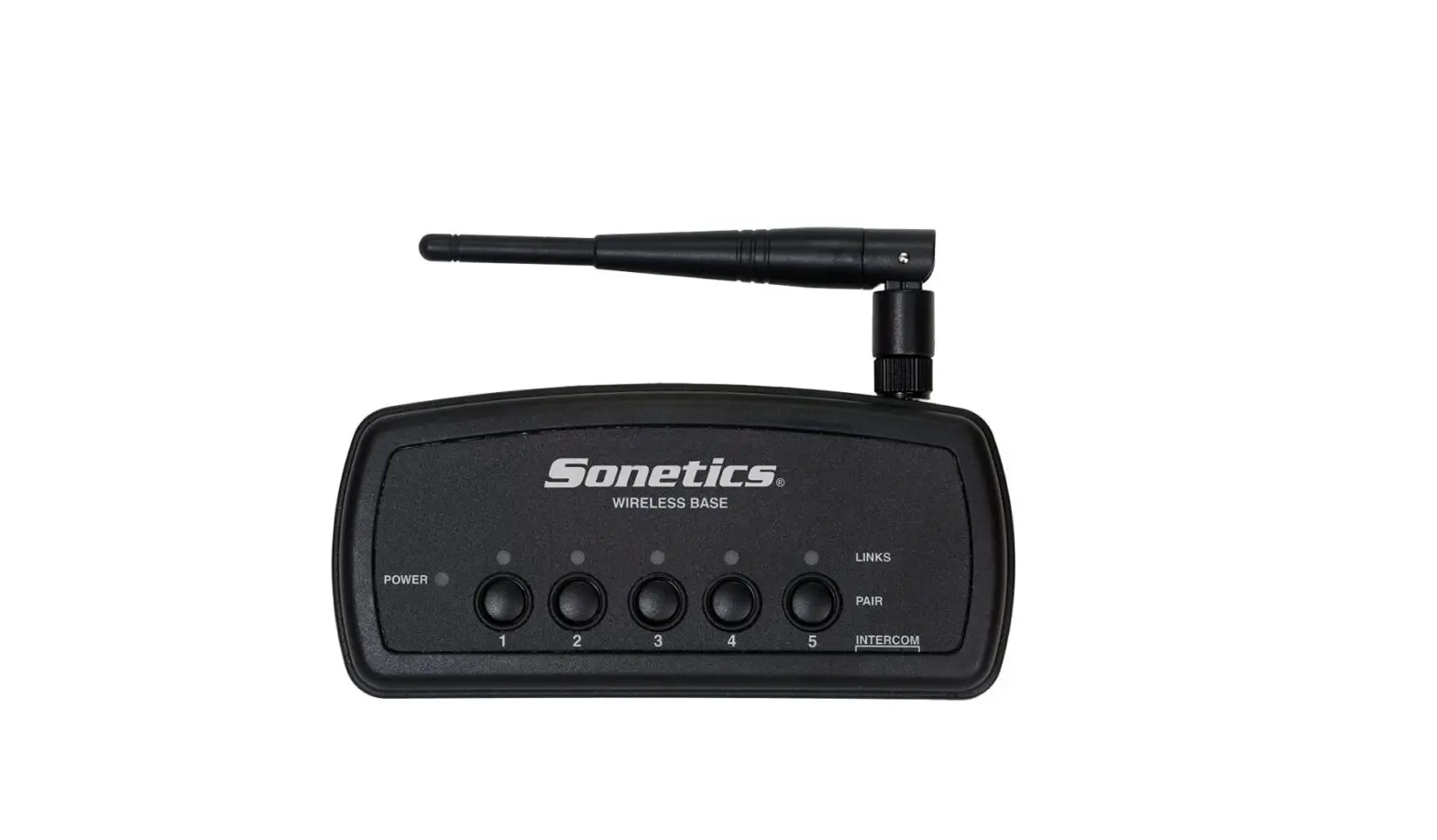
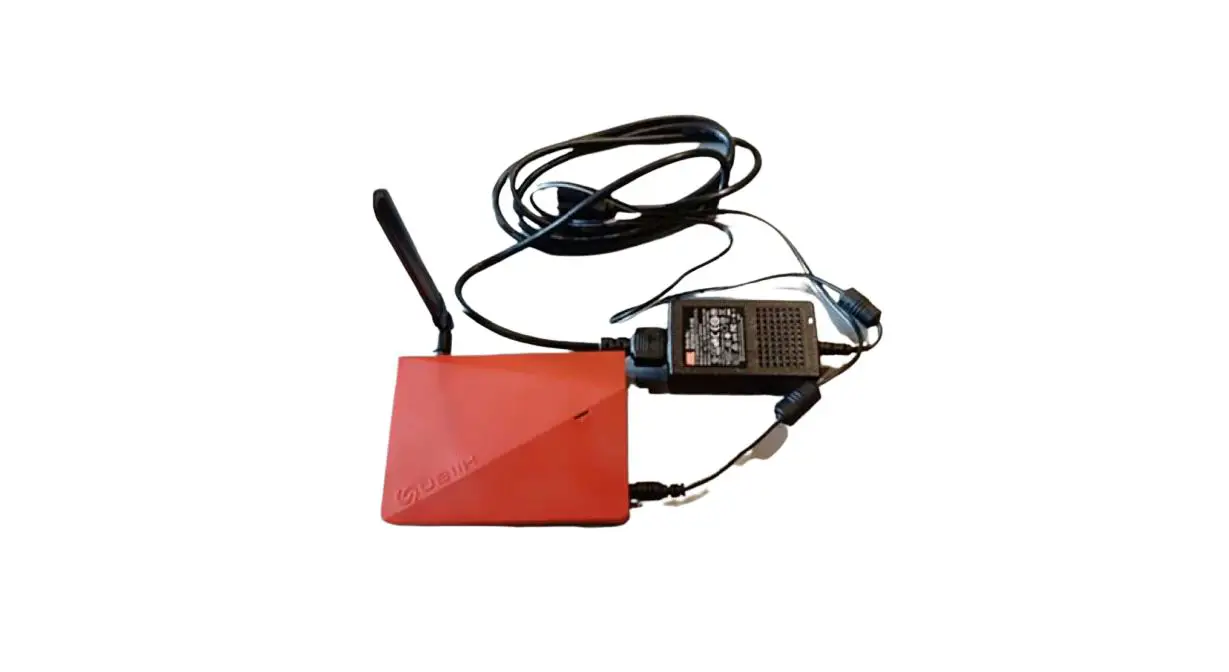
GCS1000 Base Station
Base Station User Manual
Introduction
The Ground Control Station GCS-1000 acts as a ground terminal
for UAV data reception and ground charge command forwarding. It has
a built-in wireless data link terminal that receives data from the
UAV through a radio microwave link and forwards the ground
station’s charge commands to achieve remote control of the UAV from
the ground side. The ground control station has a built-in wireless
data link radio (optional) and a built-in differential 4G module
(optional) and dual-band WiFi module. The ground control station
housing is made of ABS engineering plastic and rigid aluminium
alloy. It has the advantage of being lightweight and easy to
carry.
Functions and Performance
The main functions of the Base Station GCS-1000 are:
| Projects | Function | Description of parameters |
|---|---|---|
| 1 | Narrowband digital data chain | Support for narrowband digital data transmission communication |
| 2 | WEB page management | Support web access to the base station system, displaying the status of the base station, configuring the base station parameters, and updating the base station program |
| 3 | Extensibility | Support for extension of the Zongyang Roc ZT202 tracking antenna |
| 4 | Power supply method | Built-in rechargeable battery, supports external extended power supply, battery power |
The ground control station supports the extension of the ZT202
series ground tracking turret system from JOUAV to extend the
operational range of the UAV and ensure real-time communication
between the ground system and the UAV system.
The key performance indicators are:
| No. | Projects | Indicators/performance requirements |
|---|---|---|
| 1 | Built-in battery type | Lithium batteries |
| 2 | Built-in battery capacity | 6600mAh |
| 3 | Built-in battery charging voltage | 24V |
| 4 | Operating temperature | Charging: 0°C to 45°C, Discharge: -20°C to 60°C, Short-term storage: -20°C to 45°C, Long-term storage (6 months): -20°C to 35°C |
| 5 | Storage temperature | (1 month) -20°C to 45°C, (6 months) -20°C to 35°C |
| 6 | Storage humidity | 75%RH |
| 7 | Working hours | Self-powered with battery for 4h |
| 8 | External dimensions | 198 x 151 x 76mm (without antenna) |
| 9 | Weight | 1600g (without antenna) |
Interface Description
The external interface of the base station includes:
- SMA 4G/WiFi antenna interface
- SMA WiFi antenna interface
- Three-pronged airline plugs for power input, charging of the
device or external battery power - Power switch
- RS232 and RS422 DB9 socket for serial communication port
- RJ45 socket for network port
- LED lights for status indication: Built-in radio indicator, 4G
status light, Charging instructions light, and Power indicator
Use
To use the Base Station GCS-1000, follow these basic operation
steps:
- Set up the ground control station on a tripod.
- Press the earth base station power switch.
- After about 10 seconds, the LED lights up to indicate that the
earth base station is operational.
Care and Maintenance
To ensure the performance and longevity of the Base Station
GCS-1000, follow these care and maintenance guidelines:
- Do not expose the device to high temperatures or humidity.
- Do not drop or hit the device.
- Do not disassemble or modify the device.
- Clean the device with a soft cloth and mild detergent when
necessary.
Cautions
Follow these cautions when using the Base Station GCS-1000:
- Do not touch the antenna during operation.
- Do not insert any metal objects into the device’s
interfaces. - Do not use the device near flammable or explosive
materials. - Observe all local regulations and laws regarding UAV
operation.
Base Station use manual
1. Introdution 2. Use 3. Care and maintenance 4. Cautions
1.Introdution
Base Station GCS-1000 Composition
The Ground Control Stataion GCS-1000, abbreviation as GCS, acts as a ground terminal for UAV data reception and ground charge command forwarding.GCS has a built-in wireless data link terminal, which receives data from the UAV through a radio microwave link and forwards the ground station’s charge commands to achieve remote control of the UAV from the ground side.
The ground control station has a built-in wireless data link radio (optional) and a built-in differential 4G module (optional) and dual-band WiFi module. The ground control station housing is made of ABS engineering plastic and rigid aluminium alloy. It has the advantage of being lightweight and easy to carry.
Figure GCS-1000 UAV base station dimensions
Figure Appearance of the base station
Functions and performance
The main functions are
Projects
Function
Description of parameters
Narrowband digital Support for narrowband digital data transmission communication 1
data chain
Support web access to the base station system, displaying the
2
WEB page management status of the base station, configuring the base station
parameters and updating the base station program
Support for extension of the Zongyang Roc ZT202 tracking
3
Extensibility
antenna
Built-in rechargeable battery, supports external extended
4
Power supply method
power supply, battery power
The ground control station supports the extension of the ZT202 series ground tracking turret
system from JOUAV to extend the operational range of the UAV and ensure real-time communication
between the ground system and the UAV system.
Key performance.
No.
Projects
Indicators/performance requirements
1
Built-in battery type
Lithium batteries
2
Built-in battery capacity
6600mAh
2
Built-in battery charging voltage
24V
3
Operating
4
temperature
Charging Discharge
0°C to 45°C (ambient temperature) -20°C to 55°C (ambient temperature)
Short-term storage
5
Storage
(1 month)
temperature Long-term storage 6
(6 months)
7
Storage humidity
-20°C to 45°C -10°C to 35°C
75%RH
8
Working hours
Self-powered with battery for 4h
9
External dimensions
10
Weight
198 x 151 x 76mm (without antenna) 1600g (without antenna)
Interface description
The external interface of the base station is shown in the diagram.
Figure GCS-1000 base station external interface
No.
Interface
Function description
Remarks
1
SMA
4G/WiFi antenna interface
/
2
SMA
WiFi antenna interface
/
Three-pronged 3
airline plugs
Power input
Charging of the device or external
battery power
4
Switches
Power switch
Supports RS232 and
5
DB9 socket
Serial communication port
RS422
External communication
/
6
RJ45 socket
network port
7
LED lights
Status indication
/
The LED lights are defined as follows: (the numbering rules are numbered 1-5 from left to
right, divided into two rows)
Top row
1
2
3
4
5
Built-in radio indicator
Bottom row
4G status Charging instructions
light
Power indicator
2.Use
Base Station GCS-1000 in use Basic operation
The ground control station will need to be set up on a tripod for use, as shown in the diagram.
Figure Ground base station set-up Notes on erection Ground control station should be placed on relatively high terrain to obtain the best wireless transmission. Keep away from vehicles and obstructions to prevent them from blocking the transmission of radio signals and attenuating the radio transmission distance. Set-up steps 1. Remove the ground control station, install the antenna and ensure that the antenna is securely mounted. 2. Set up the tripod in a suitable position, adjust the head to an approximate level and then mount the ground control station to the tripod by rotating it through the threaded connection on the head, making sure that it is securely mounted.
3. Press the earth base station power switch and after about 10 seconds the LED lights up to indicate that the earth base station is operational.
4. Use a control terminal (laptop, GCS303 or TC101 etc.) to connect to WiFi and launch the ground station software to use it.
Introduction to the website Basic Properties
Web page is accessed via browser at 1. GCS-1000 IP address: 192.168.1.1. 2. Local IP: 192.168.1.xxx, xxx [20,245]. 3. Subnet mask: 255.255.255.0.
Function settings Working mode
The GCS-1000 Basic Properties page, displays information on the machine’s operating mode and status.
“current mode” means the mode of operation of the base station. 1. (b) “Land-based” means a fixed base station. 2. The term “sea base” means a mobile base station. It needs to be matched to the operating mode: 1) when the operating mode is “land-based”, select “land-based base station”; 2) when the operating mode is “sea-based”, select “sea-based base station”. To modify the above two items: select the mode and quickly click on “switch mode”, then click on “send” and finally click on “save”, the changes will take effect after the machine has been rebooted. Special attention should be paid to the fact that when switching modes, if you do not click “Send” in time, the modified mode will be refreshed to the original working mode due to the automatic refresh function of the web page; therefore, you need to click “Send” quickly after selecting the mode.
Click on the top right corner of and the page will switch to settings mode, displaying the “Save” and “Reboot” options.
Digital citation and IMU
The Number Cue and IMU function switches on the Extended Properties page are shown below.
When the “Counting” function is switched on, the angle of the channel will be displayed in real time. The webpage does not currently support the ability to switch on and off the turn table function, this can only be done by modifying the configuration file.
When the “IMU” function is switched on, the pitch and roll angle of the base station is displayed in real time. Unlike the “Count Leads” function, this switch is web-enabled and takes effect instantly, without the need to reboot.
One thing to note in production and testing is the multiplexing function of the “IMU” on button. This function is used to simulate the take-off and landing of an aircraft and to create the conditions for storing PPS data for the new software
The new version of the GCS-1000 software has optimised the way data is stored, i.e. 1) when the aircraft takes off, a PPS file is generated and data is stored; 2) when the aircraft lands (in standby mode), data storage stops; 3) when the aircraft takes off again, a new PPS file is generated and data storage starts. Therefore, the production needs to simulate the take-off and landing of the aircraft to test the PPS data records.
This is achieved by enabling the multiplexing of keys through the “IMU”, i.e. Switching on the “IMU” to simulate sending an aircraft take-off command, at which point the machine generates a new PPS file and starts storing the data. Switched off the “IMU”to simulate the sending of an aircraft standby command and the PPS file stops storing data. The status of the PPS file record is displayed via the basic property page “RAW Storage Count”. The “RAW memory count” starts to increase when data is stored. The “RAW Memory Count” stops counting when you stop storing data.
WIFI configuration
The “SSID” and “Password” in the “commander” block of the expanded properties page show the machine’s WiFi name and password respectively.
Click on the top right corner of to switch to the settings page where you can make changes to your WiFi.
Steps to modify the WIFI configuration: first modify the WIFI configuration parameters, then click “Send”, and finally click “Save”, the modified configuration will take effect after the machine reboots, and the page will display the new configuration parameters.
Dual-link configuration
The “Dual DataLink” block on the extended properties page displays the configuration information and operating status of the dual link mode, as shown in the figure below. If the link is not a dual link, the content displayed in this block is not relevant.
Modification of link parameters. 1. Link parameter changes are only valid in dual-link mode. 2. The types of links that can be configured for primary/secondary links are as follows. There are four types of radio stations. a.TCPClient (TCP client) b.UDPClient (UDP) c.Serial (serial port) d.Multicast (UDP multicast) If the radio is of type TCP, UDP, etc., fill in the local IP and port with the IP and port number of the machine radio, and fill in the target IP and port with the IP and port number of the target to which the radio is connected. If the radio is of the serial type, select the actual serial port number used by the radio, and the radio baud rate is filled in the corresponding parameters. 1. Each parameter setting must be filled in (the same parameter must be filled in again) and
filled in completely before you can click “Send”. After clicking on “Send”, click on “Save” and the configuration will take effect after restarting the machine.
Example 1: Main link parameter setting (external XLR) a. The radio type of the main link is a serial device, select ” Serial “. b. Serial port number configuration: select “COM2” in the drop-down menu (in the case of COM2 by default, you also need to select COM2 by clicking once). c. Baud rate configuration: enter “115200” in the text box. d. Click on “Send”, “Save” and “Restart” in turn. Note: The serial port and baud rate used in different projects may vary. Configure according to the actual serial port and baud rate parameters used by the radio. After the parameters have been successfully configured, restart the GCS1000 for the configuration to take effect.
Example 2: Backup link parameter setting (U200), as shown in the diagram. a. The radio type of the alternative link is a network device, select “Multicast”. b. Local IP: enter “226.0.0.80” in the text box. c. Local port: enter “6076” in the text box. d. Target IP: enter “226.0.0.80” in the text box. e. Target port: enter “6092” in the text box. f. Click on “Send”, “Save” and “Restart” in turn.
Internal radio ID setting
The built-in station ID can be modified as shown in Figure 6.13. Fill in the station ID in the text box and click “Send”. A pop-up message will appear at the top of the page after the modification is successful, providing feedback on the result. The modification of the station ID will take effect immediately and no reboot is required.
Document generation and download
When data is being stored, the stored file is located in the second row of the first page of the file list, and the file at this point is the latest generated file, as shown in the figure.
In the star search state: the file name is structured as “pps<star search start time>.txt”. In the unsearched state: the file name structure is “pps<GCS1000 system internal time>.txt”. When the aircraft takes off, a PPS file is generated and data is stored in it. When the aircraft lands, the file stops being stored and the PPS data for this flight is generated. On the next aircraft take-off, a new PPS file is generated. That is, a PPS file is generated for each aircraft flight, and the aircraft flies multiple sorties and generates multiple files. When the next PPS file is done to solve the calculation, you need to pay attention to the downloaded PPS file.
3. Care and maintenance
Base Station GCS-1000
Charge the GCS-1000 before initial use, use the standard charger to connect to the power
connector for charging, the indicator light will be on during charging and off when charging is
complete. Complete charging time of approximately 4 hours. The GCS1000 is somewhat waterproof, but cannot be exposed to rain for long periods of time. Ground base stations should be stored in a cool, dry and secure environment. Users can connect to WiFi (WiFi name GCS1000-0001) from a mobile phone or computer, and then
use a web browser to log inhttp://192.168.1.1 12 to view system information and operating status. If the appliance is not used for a long period of time, it is recommended that it is charged at least
once every two months.
Common fault descriptions and treatments are listed below.
Serial Failure phenomena
number
Cause of failure
Troubleshooting
The operation light does not come on
1 after 10 seconds of pressing the power switch
Low battery
Charge the base station with the charger connected, then turn on the power to the base station, if it starts normally, the current battery is low, please charge it for later use.
1) The antenna is not
tightened.
Check that the WiFi antenna is installed in the
2 Weak WiFi signal
2) The antenna is mounted correct position and that it is tightened.
in the wrong place.
The control 1) Network cable failure. 1) Replace the network cable and retest.
terminal cannot
2) Check the IPV4 network settings of the
3
communicate with 2) Faulty IP settings. control terminal computer and ensure that the
the base station
network option is “Obtain IP automatically”.
Control terminal GCS303
Powering up: control terminals should be powered up for a period of time to prevent ageing of the equipment if they have not been used for a long time.
Storage: control terminals are kept in a dry, dustproof and corrosion-resistant environment. Cleaning: Keep the control terminal operating panel, screen and screen panel clean and hygienic.
4.Care and maintenance
Always charge at room temperature; charging at low temperatures is strictly prohibited. If the base station is exposed to water, dry it off after use and place it in a ventilated
and dry place to dry fully.
FCC Compliance Notice This device complies with part 15 of the FCC Rules. Operation is subject to the following two conditions: (1) This device may not cause harmful interference, and (2) this device must accept any interference received, including interference that may cause undesired operation. Any changes or modifications not expressly approved by the party responsible for compliance could void the user’s authority to operate the equipment. This equipment has been tested and found to comply with the limits for a Class B digital device, pursuant to part 15 of the FCC Rules. These limits are designed to provide reasonable protection against harmful interference in a residential installation. This equipment generates, uses and can radiate radio frequency energy and, if not installed and used in accordance with the instructions, may cause harmful interference to radio communications. However, there is no guarantee that interference will not occur in a particular installation. If this equipment does cause harmful interference to radio or television reception, which can be determined by turning
the equipment off and on, the user is encouraged to try to correct the interference by one or more of the following measures:
-Reorient or relocate the receiving antenna. -Increase the separation between the equipment and receiver. -Connect the equipment into an outlet on a circuit different from that to which the receiver is connected. -Consult the dealer or an experienced radio/TV technician for help. FCC Radiation Exposure Statement This equipment complies with FCC radiation exposure limits set forth for an uncontrolled environment . This transmitter must not be co-located or operating in conjunction with any other antenna or transmitter. This equipment should be installed and operated with minimum distance 20cm between the radiator& your body.