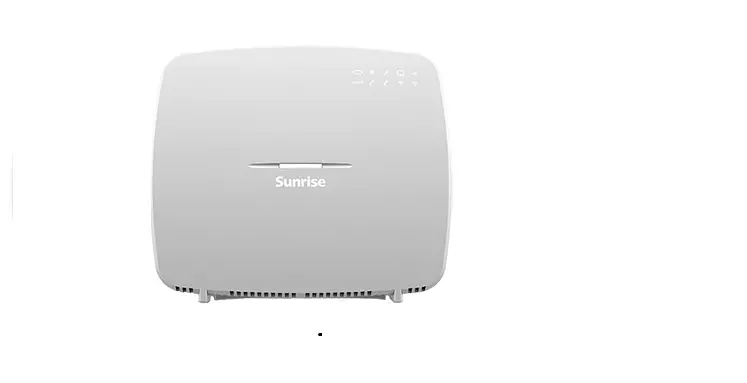

SUNRISE IPTV
Quick Install Guide
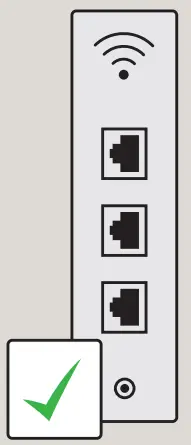
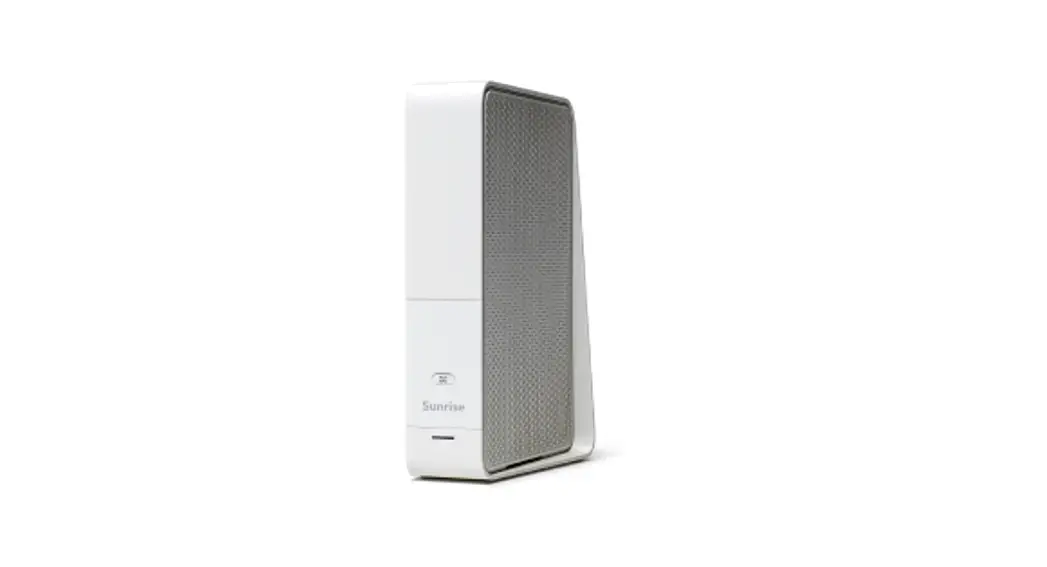
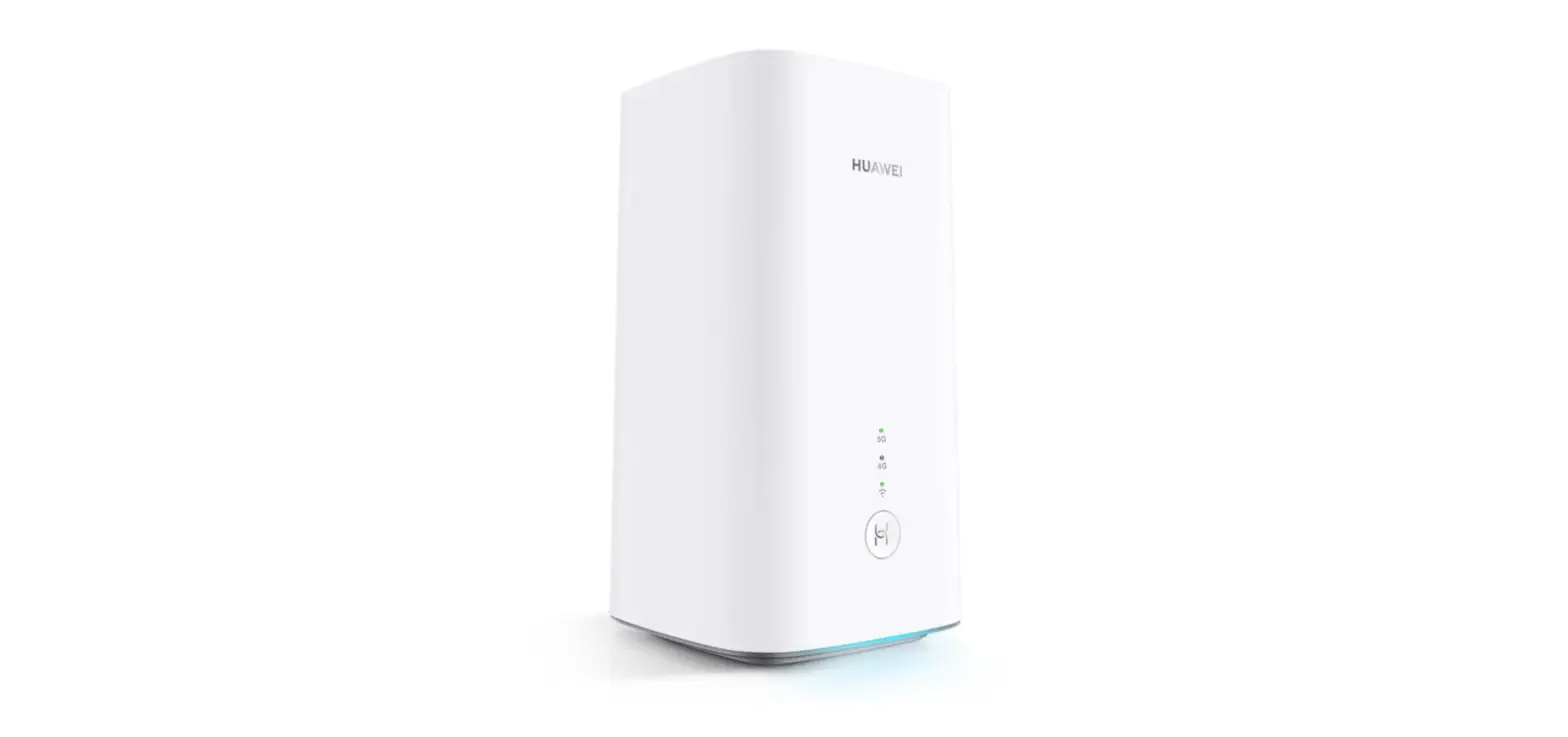
Ensure that your Sunrise modem is installed and working
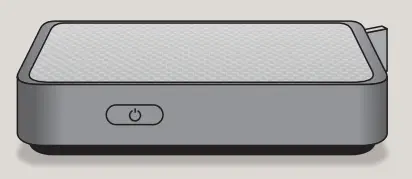
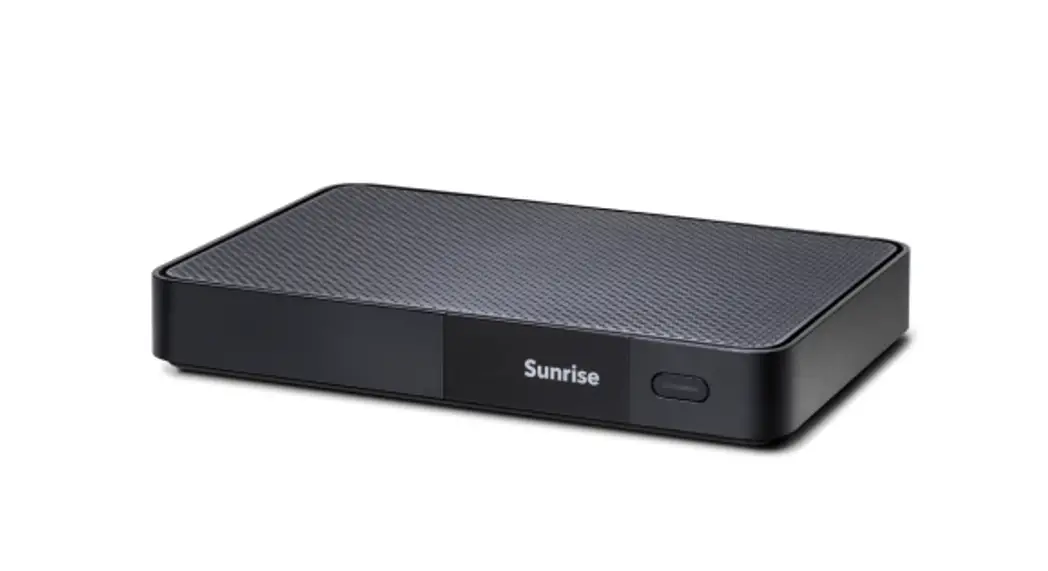
Then install your Sunrise IPTV

Support available online at: https://www.sunrise.ch/de/privatkunden/hilfe.html?cid=DIV_202106OB14226
CONTENTS
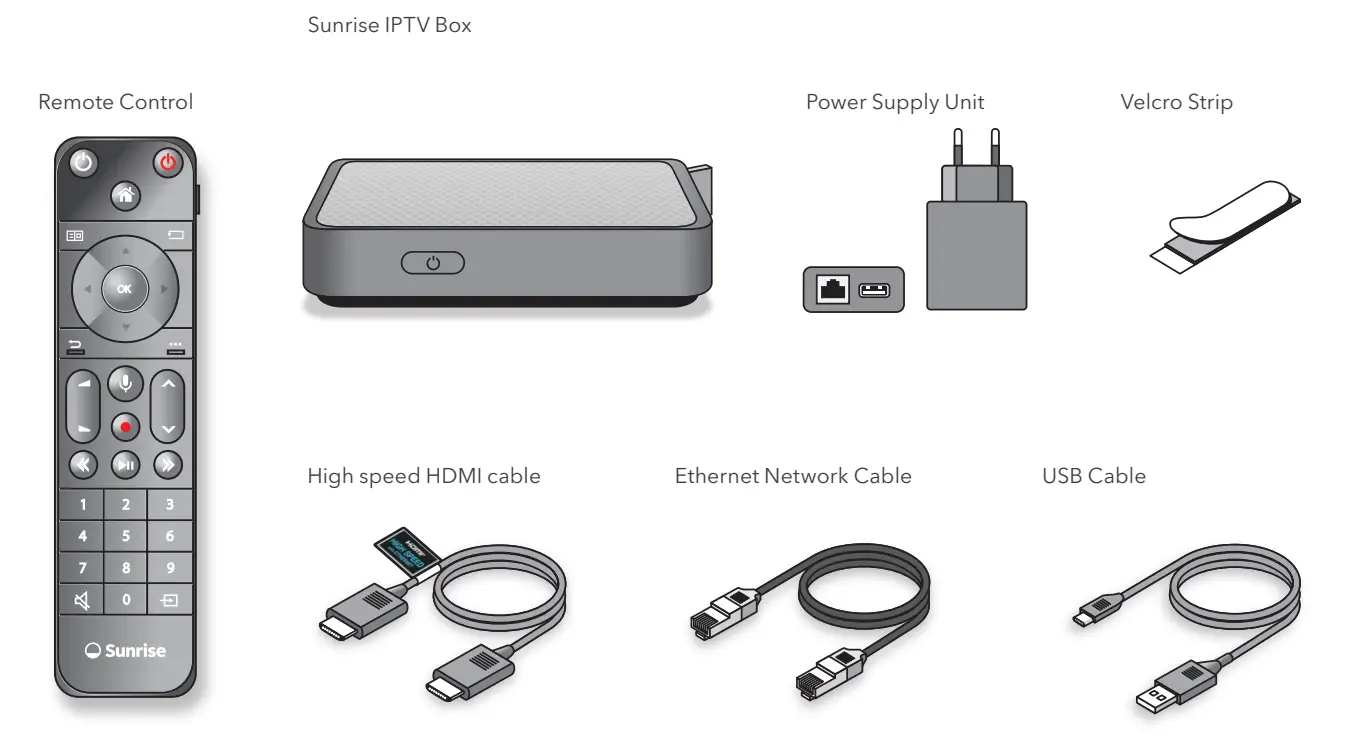
INSTALLATION
- Connect HDMI cable

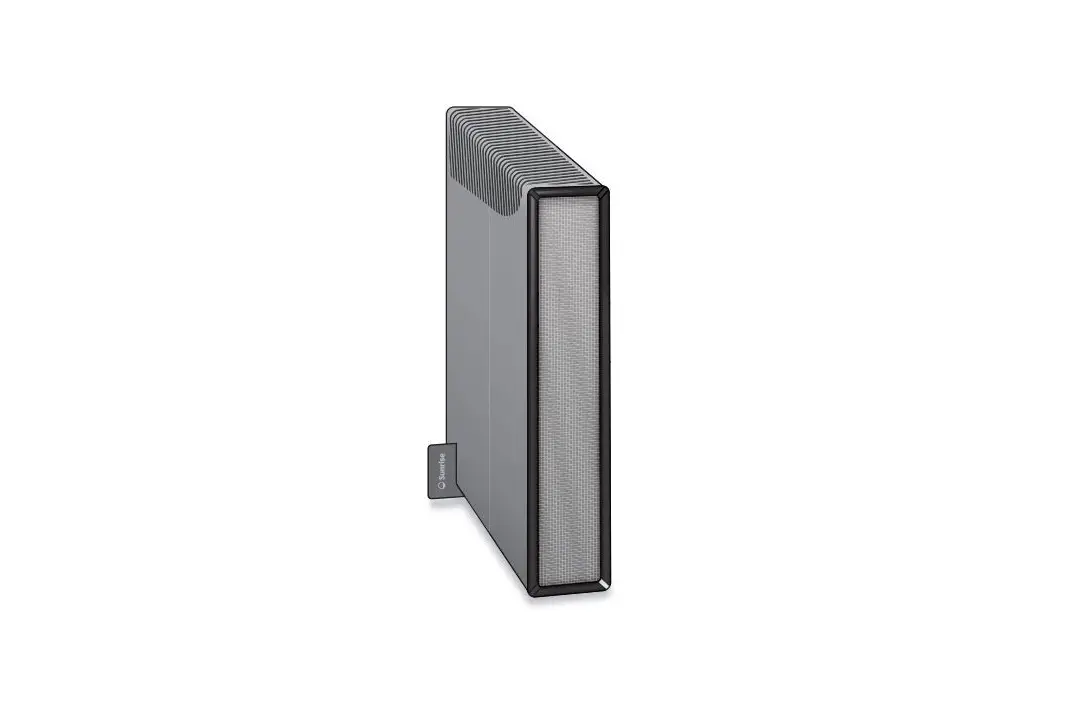
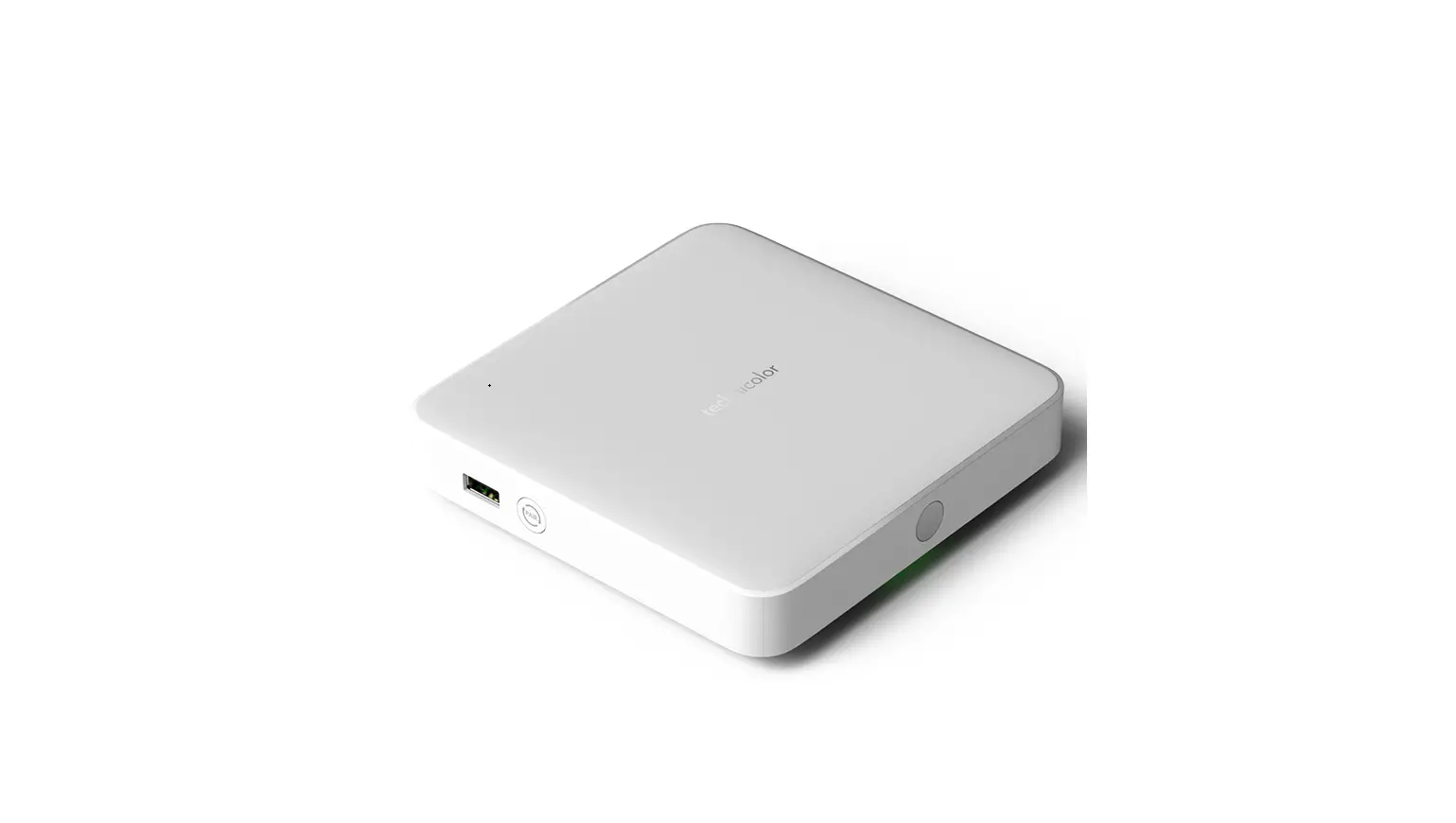
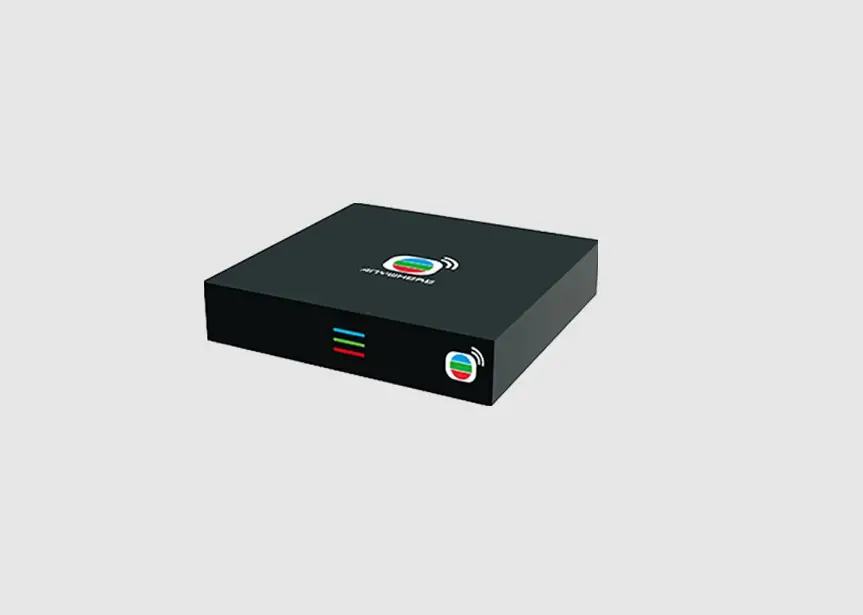
- Connect the TV Box to the socket using the USB cable and power supply unit
 Tip: Fix your Sunrise TV Box with the Velcro on your TV set.
 The Sunrise TV Box as well as this Quick Install Guide are made from recycled materials. Just doing our bit to help the planet wherever we can.
 - Turn on your TV and choose HDMI 1 source
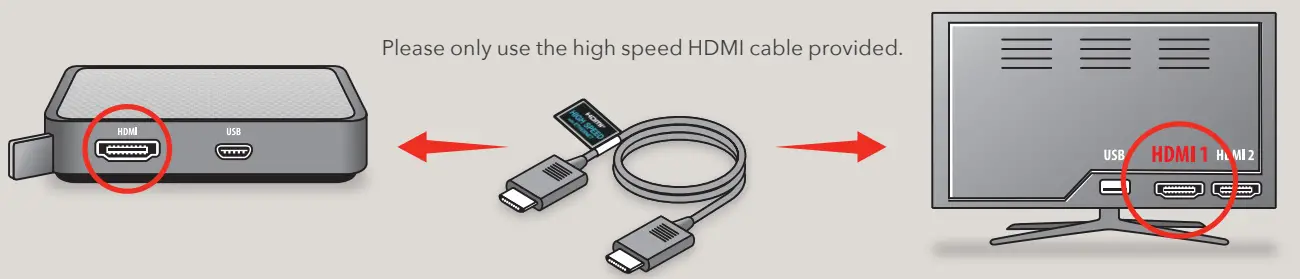
 Tip: Fix your Sunrise TV Box with the Velcro on your TV set.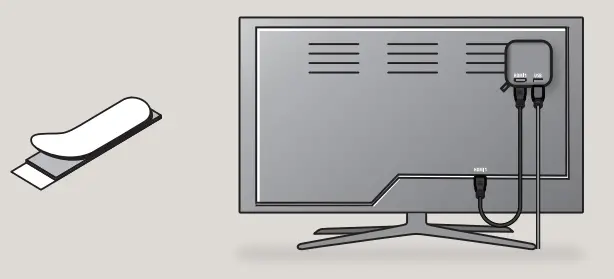
 The Sunrise TV Box as well as this Quick Install Guide are made from recycled materials. Just doing our bit to help the planet wherever we can.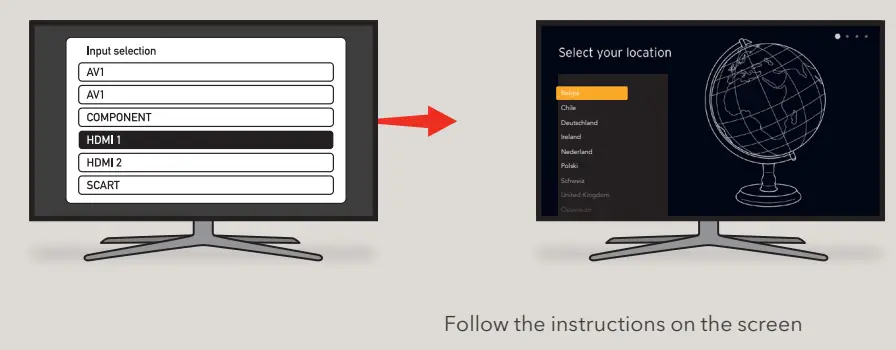
3.1 Remove tab
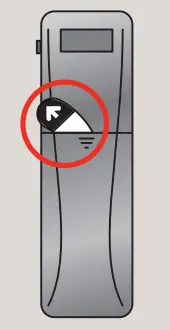
Connect remote control
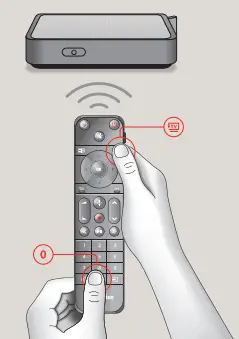
3.2 Press and hold down the «Back to TV» and «0buttons simultaneously for 10 seconds.
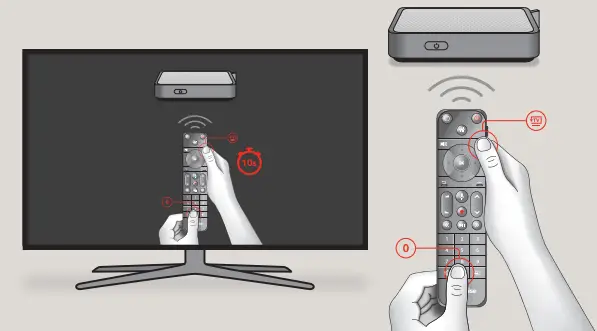
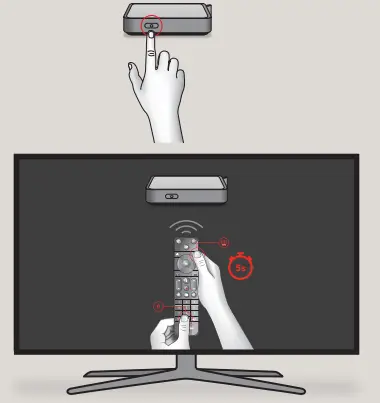
Troubleshooting
- Press and hold down the «On/Off» button for 5 seconds until pairing is displayed on the TV.

- Press and hold down the «Back to TV» and «0» buttons simultaneously for 10 seconds.

- Does the TV Box work with the remote control? If so, proceed to the next step. If not, start again from step 1.

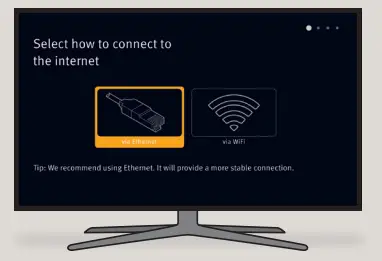
- Choose on-screen the internet connection type you prefer
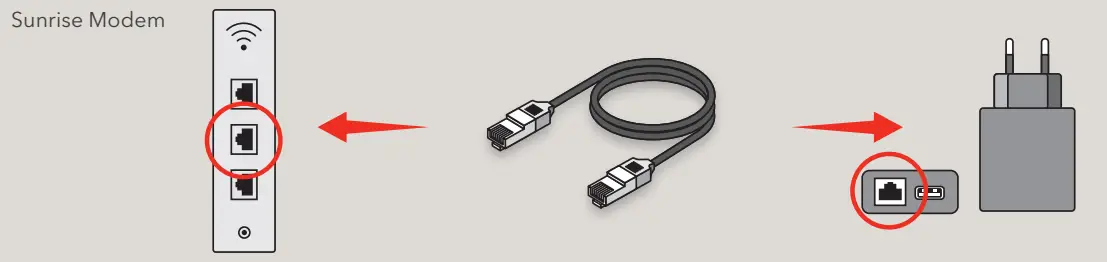
A. Cable connection (recommended for best performance)
For cable internet connection follow the installation instructions below and then click on ethernet. B. Wi-Fi connection
Click on Wi-Fi and follow the instructions on the screen.

- Would you like to enjoy TV entertainment whenever you are on the go as well?
Then download the Sunrise TV app now. More information available at sunrise.ch/support
 B. Wi-Fi connection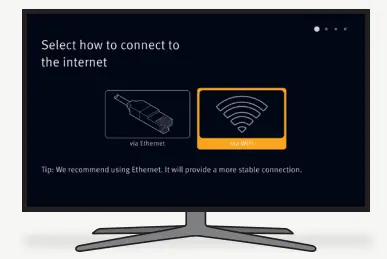

Good to know
The standard PIN for parental control and for renting films is 0000.
The TV Box is set per default to ECO low power mode with a longer boot-up time. You can change this under settings at any time.
Do you want to know which channels you have?
You will find an overview of all the packages here: sunrise.ch/channels
Remote control: tips & tricks
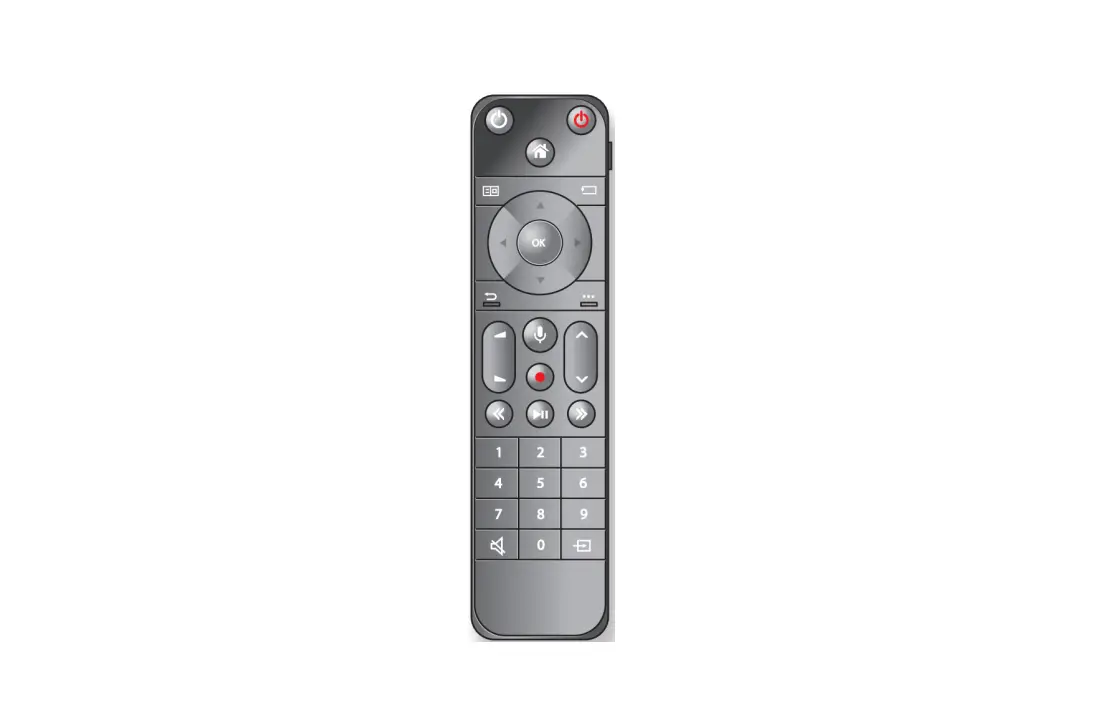
 Turn on TV & TV Box
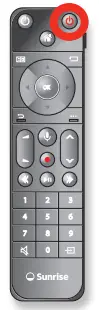 Use the red button to turn your TV Box on/off. Tip: If your TV supports HDMI CEC, your TV and/or amplifier will also be switched on at the same time.
 Personal Home
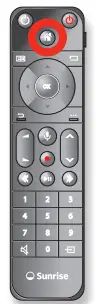
Use the Home button to take you to your personalized home screen. This is where you will find all your favorite content, recommendations for popular shows, and access to all apps and radio stations.
Tip: The Home button always takes you all the way to the top, for example in the TV Guide or on the home screen.
 TV Guide & Replay
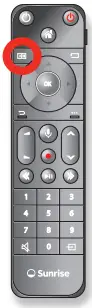
Direct access to the program overview for all channels. In the TV Guide, you can also see all the Replay programs from the past 7 days, listed by channel.
Tips: Use the << >> buttons to jump forwards and backward by days in the TV Guide. Use the Home button to always get all the way to the top.
 TV
TV
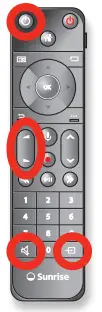
Use the white button to turn your TV on/off if the remote control is paired with your TV. Pairing with TV or amplifier: Settings -> Image & Sound -> Pair remote control.
If your TV or amplifier is paired with the Sunrise remote control, you can also adjust the volume, mute, and select the source.
 Back & Skip
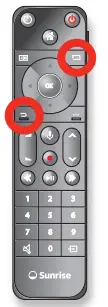
Use the <<Back>> button to go to the previous step. Use the <<Back to TV>> button to jump from anywhere directly to the last program you watched.
Tip: With the <<Back to TV>> button, you can also easily switch between two channels.
 Profiles & Channel Lists
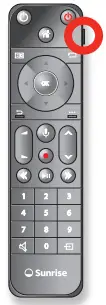
Use the profile button to create a user and topic profiles. Each profile has its own favorites list and personal settings. In the settings, you can set which profile you want to be active when the device powers up.
Tips: Create a sports profile with all the sports channels; create a children’s profile with children’s channels.
 Voice Search and Control
 By holding the button down and talking at the same time, you can search for movies & series, programs or topics, or control the Sunrise IPTV Box. Tips for voice commands: Channels: SRF 1, RTL, MTV and many more. Navigate Recordings, TV Guide, YouTube, Netflix, and many more. Navigate faster in the TV Guide: Saturday, 18:00, fast forward and rewind: 5min forward, 3min and 20sec back Restart the current program: from the beginning.
 Options
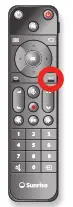
Call up options for the current or selected program. This button is contextual and offers various possibilities depending on where you are.
Tip: If you are watching a program, you can use this button to switch on subtitles.
 Fast forward/Rewind function
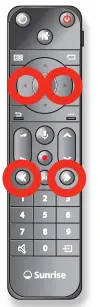
You can rewind/fast forward in increments with the << and >> buttons. Press and hold the navigation buttons (left, right) and fast forward and rewind without having to go through other steps. Briefly press the navigation buttons and jump 30 seconds forwards or 10 seconds back.

 Sunrise canali TV: Panoramica dei canali
 Hosted by one.com