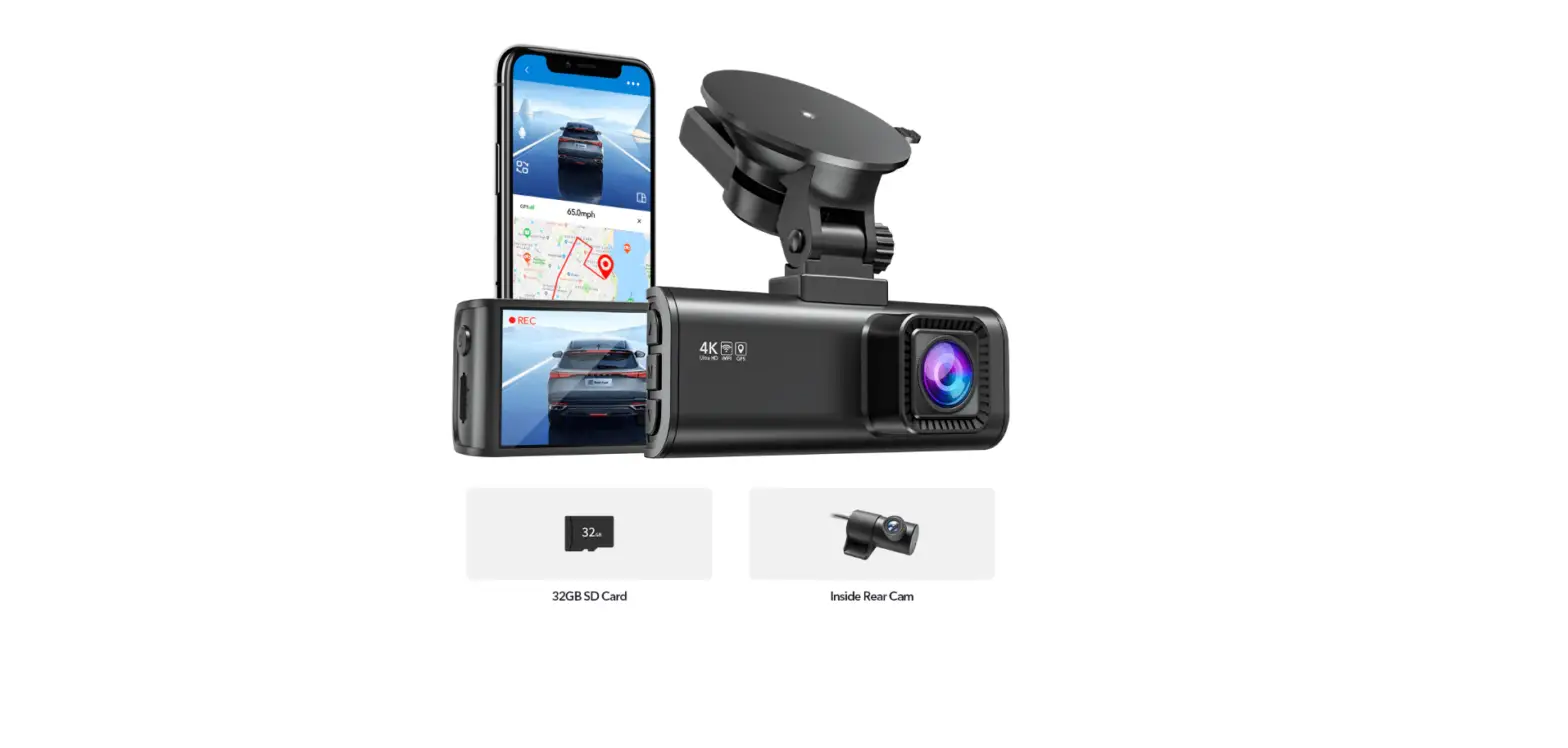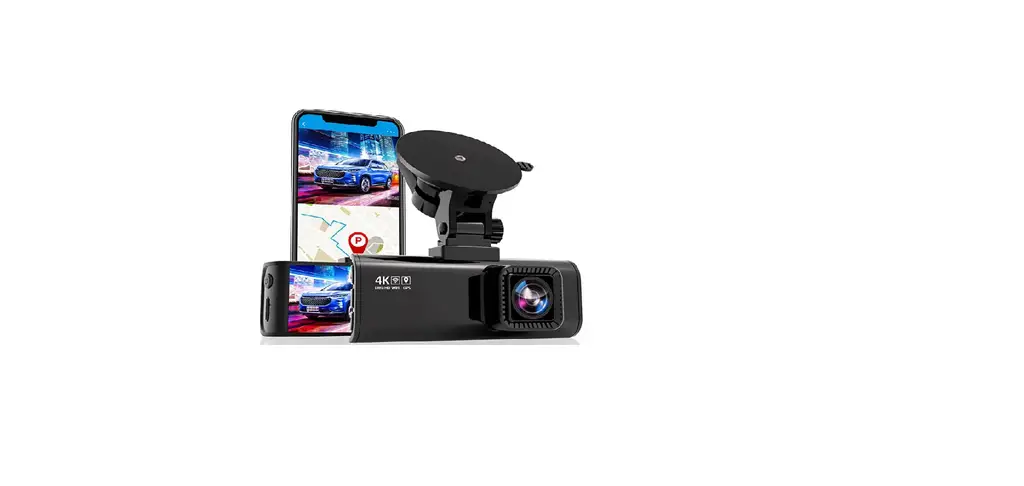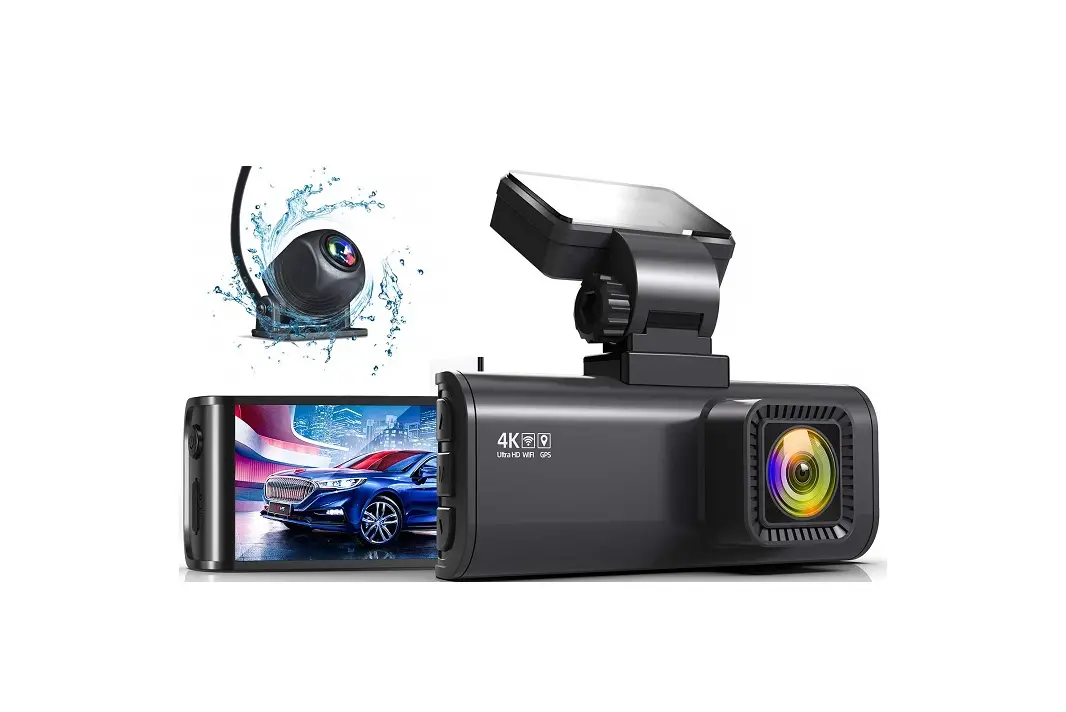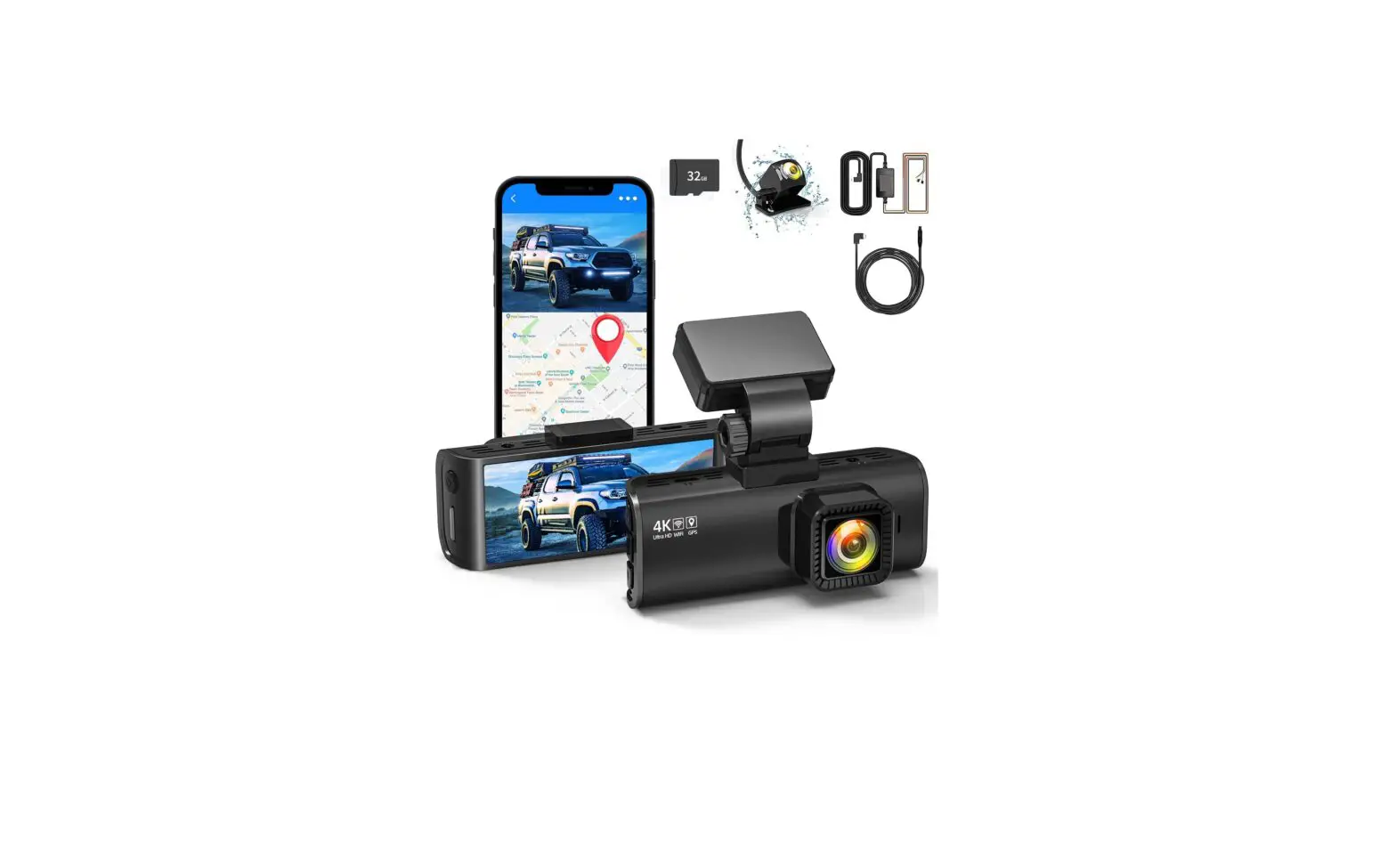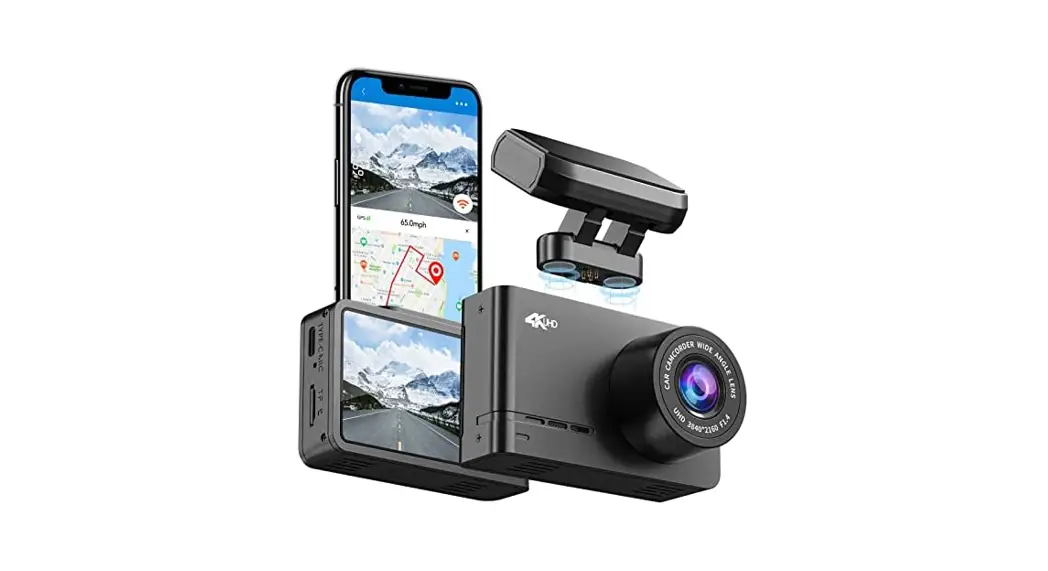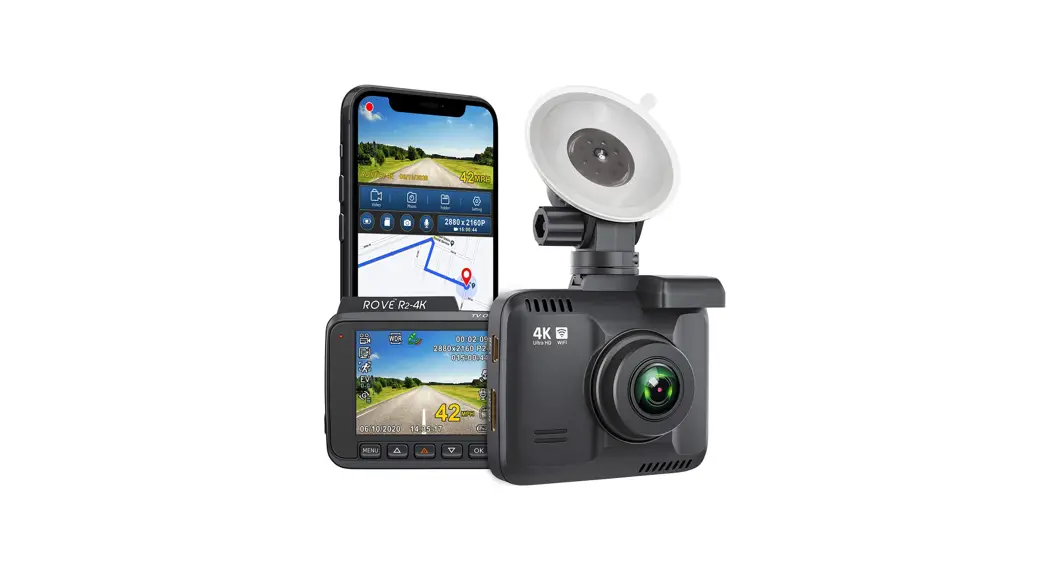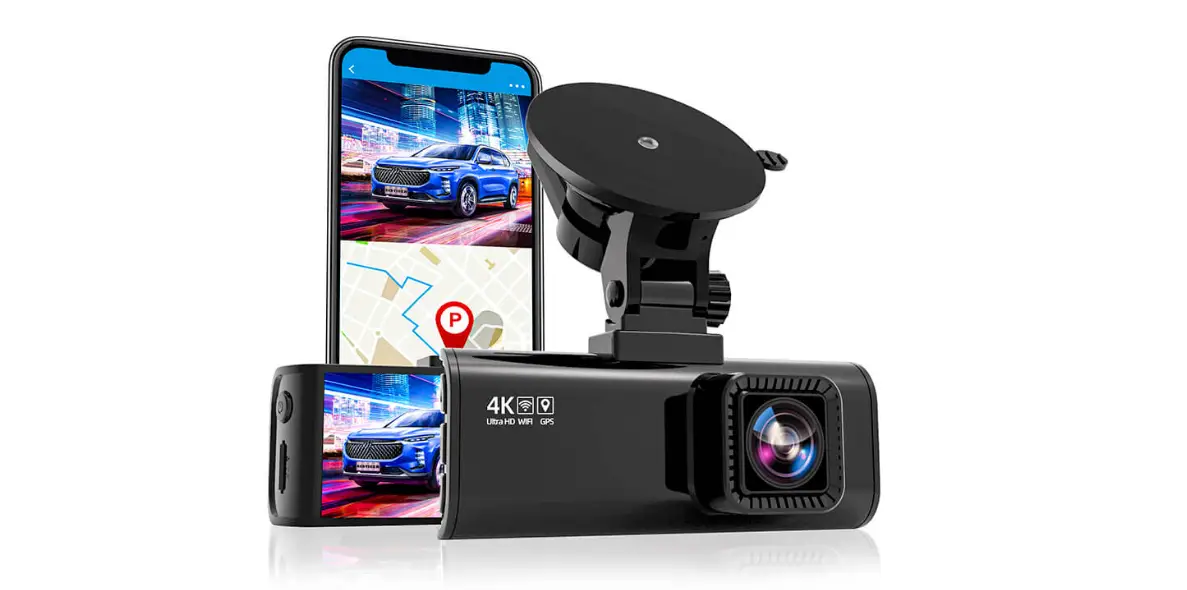

Redtiger F7NS 4K Front Car Camera
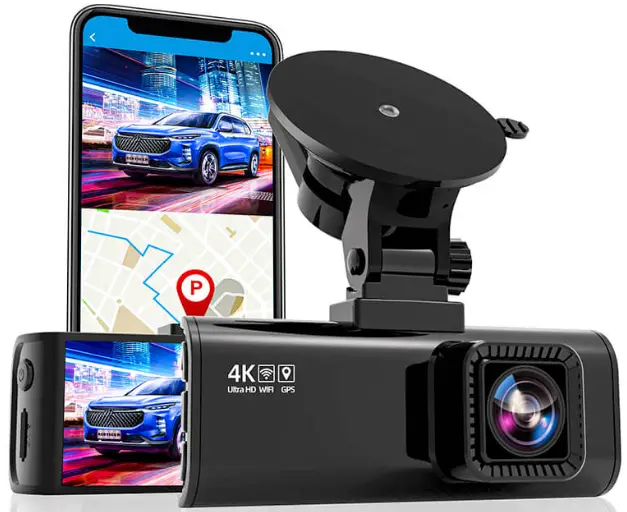
Meeting Your F7NS

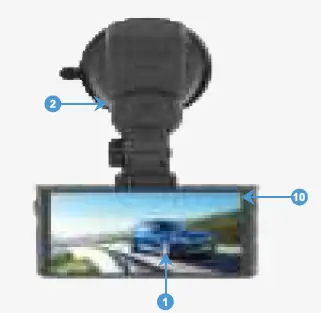
- 1. Screen
- 2. GPS Mount
- 10. Status Light
 12. Lens
 3. Up/ WIFI Button
- 4. Mode / Confirm Button
- 5. Down I Button
 6. Power Button
- 7. Micro SD™ Card Slot
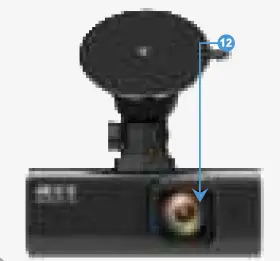 12. Lens
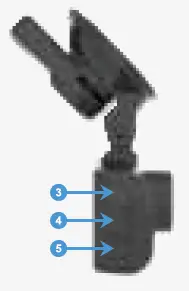 3. Up/ WIFI Button
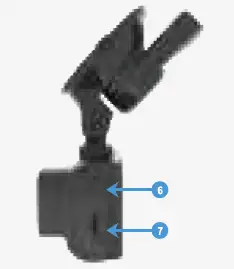 6. Power Button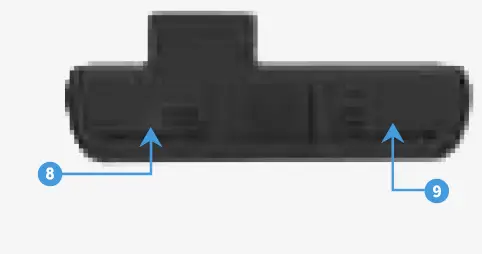
- 8. AV-In
- 9. USB Power Slot
 11 . Reset Button
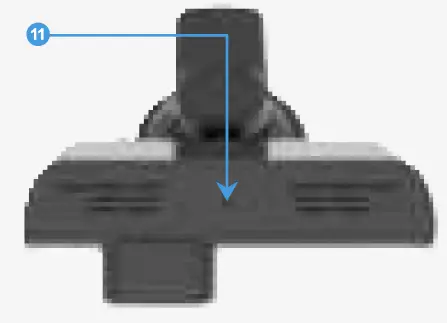 11 . Reset Button
F7NP Power Tools
 Cig Charger -(No Battery Protection)
SEE PAGE 5
- Hardwire Kit
(Parking Mode Needed) (Extra charge)
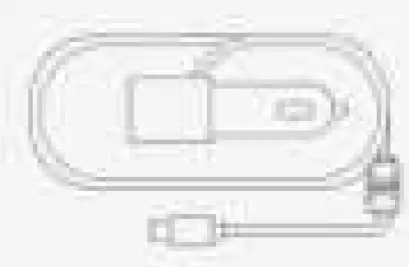 Cig Charger -(No Battery Protection)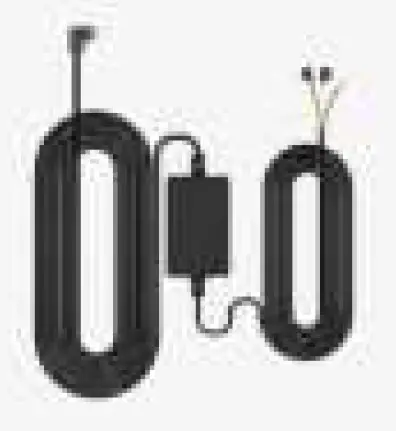
Setting Up Your Camera
INTRO TO F7NS
Trustful Dashcam that guarding each ridding of yours.
UPDATING YOUR CAMERA’S SOFTWARE
To get the latest features and best performance from your camera, make sure it’s using the most current software.
- Visit https://www.redtigercam.com/pages/firmware-1/update.
- Update guide
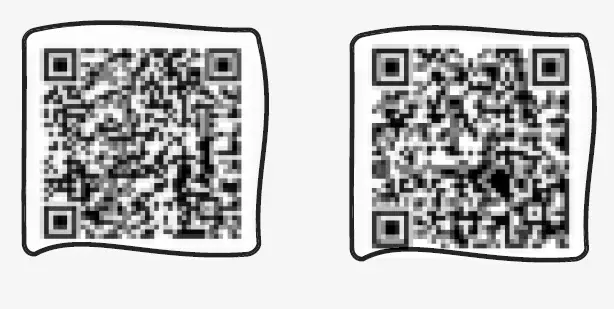 POP-UP: Keep your SD card in good condition by reformatting it regularly. This will erase all of your media, so be sure to save it first.
- Press M button and entre Settings
- Press UP button> Format> OK
A. WARNING: This product is for DC 12v / 24v only.
SD CARD
With your camera off, insert the SD card into the card slot with the label facing the back of your camera.
You can eject the card by pressing it into the slot with your fingernail.
WIRING SET UP
Connect your camera to a Cig charger using the included cig charge cable.
SD CARD
You’ll need a micro SD card (sold separately) to save your videos and photos. Use a U3 Class 10 SD™ Card dedicated or your camera may malfunction.
SD cards can degrade over lime and affect your camera’s ability to save your media. Try swapping out an older card for a new one if you’re having any problems .
POP-UP: Want to know what software version you’re using? Here’s where you can find out.
- Press M button and entre Settings
- Press UP button > Version
POWERING ON
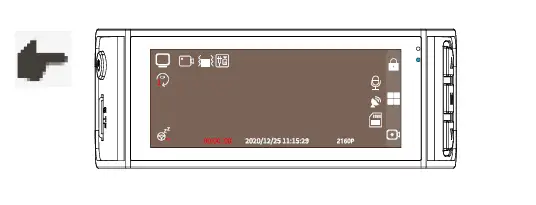
Short press  , button to turn on your F7NS.
 POWERING OFF
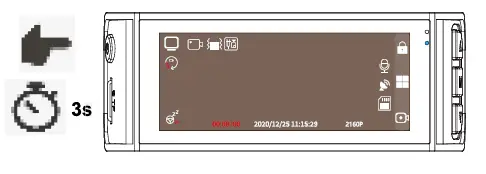
Press and hold button or 3 seconds to turn it of.
Playing Back Your Media
CHOOSE YOUR MODE
Press button to entre Recording>Playback>Setting. Video mode will be auto-select when power on .
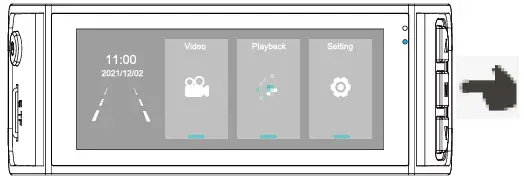
PLAYBACK 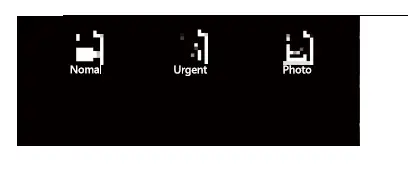
POP-UP:
- Auto record in 30s none action
- Long press UP to Turn On WiFi
- Short press up to lock video
- Short press DOWN to Capture a movement
- Long press down to stop/play recording
PALYBACK
Short press M button to see your records.
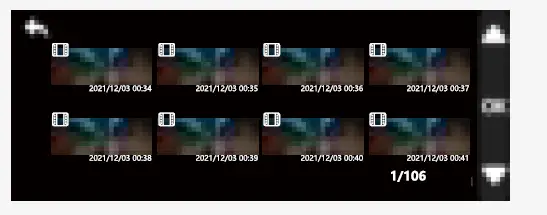 When select a record > Long press M button 3s to edit your records.
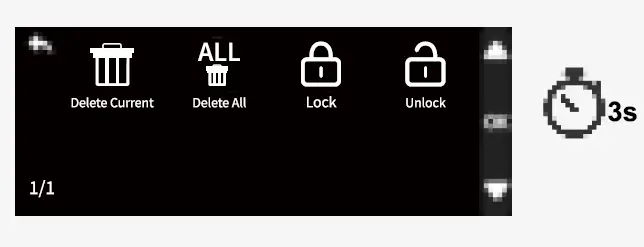 POP-UP: Urgent Locked video will be created by camera sensed a collision or vibration (G-sensor on).
It can’t be auto-recover but only formal lo save the important moment.
Select Lock Video lo unlock and delete.
You can turn off G-sensor lo avoid Locked Records.
Customizing Your F7NS
SETTINGS
Short press to entre Settings menu . 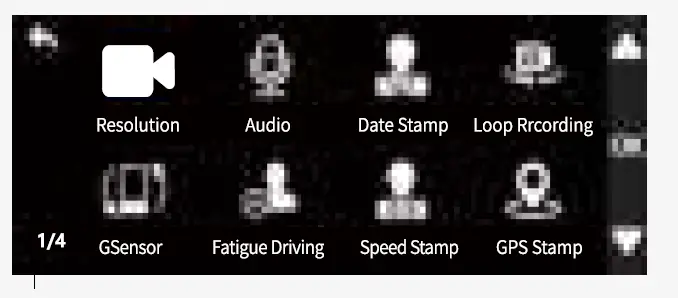
- Resolution
- > 2160P @30FPS
- > 1440P @60FPS
- > 1080P @120FPS
- Audio
- > Sound Recording ON / OFF
- Date Stamp
- > Stamp ON / OFF
- Loop recording
- > 1 / 3/ 5 mins
- G-sensor
- > Off I Low/ Medium/ High
- Fatigue Driving
- > A Reminder Will be Made During 1 h / 2h / 3h / 4h / off
- Speed Stamp
- > Stamp ON / OFF
- GPS Stamp
- > Stamp ON / PFF
SETTINGS
Next page
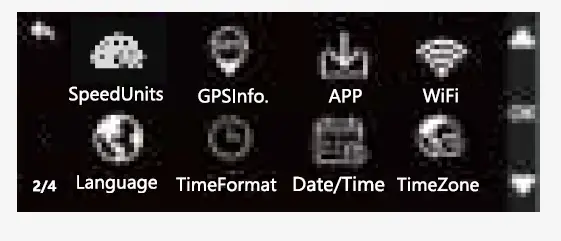
- Speed Units > KMH/MPH
- GPS Info > Display GPS signal strength
- APP > A QR Code for Redtiger app
- WIFI > WIFI ON/O FF
- Language > Choose Your Prefer Language
- Time Format > 12h /24h
- Date/Time > Up Date With GPS
- Time Zone > Choose Your Time Zone
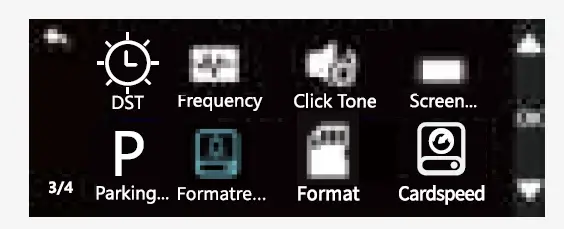
- DST > Daylight Saving Time ON/O FF
- Frequency > 60HZ / 50HZ
- Click Tone >ON/Mute
- Screen Saver > Screen Go Off After 10s / 20s 12mins
- Parking Mode > G-sensor I Time-Lapse
- Format-Reminder > Remind to Clear Data I Prompt formatting
- SD Card Formal > Clear SD card data
- Card-Speed > Card Speed Detection
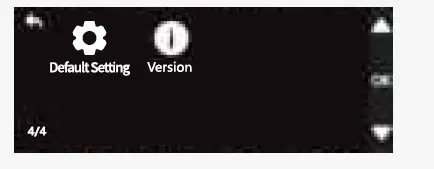
- Default Setting > Reset Al I Settings
- Version > Software Version
POP-UP: In order to a Clean, Smooth, Comfortable using experience, we suggest you format your SD card once a month.
Parking Mode ( Optional )
PREPARE YOUR HARDWIRE KIT
Since we considered some customers have no need of Parking Mode, there’s no hardwire kit included in your packages. You could refer this line of words to contact us to get a free hardwire kit.
GETTING TO KNOW YORU HARDWIRE KIT
Features:
- > Low Voltage Protection
- > Multi Input Power
- > Universal Compatibility
- > Length: 11.5ft
 WARNING: Wrong connection may disable Voltage Protection and damage your car.
INSTALL YOU HARDWIRE KIT
- Red wire » ACC » > power off along the car
- Yellow wire>> B+ >>> never power off
- Black wire >> Ground e.g. screw
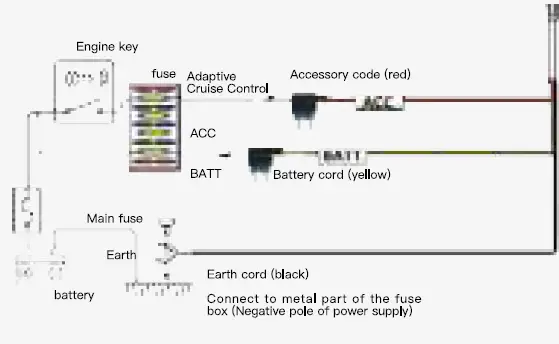 POP-UP: You could usually find your fuse box under the trunk or steering device.
You could cut the head of wires and connect it to your fuse directly if your fuses is small.
SELECT PARKING MODE
Enter Parking Mode In Settings
Setting » Parking Mode
- >off I G-sensor I Time-Lapse 12h / Time-Lapse 24h / Time-Lapse 48h
G-SENSOR
- > Car oil
- > “ACC disconnected ” pop-up
- > Collision or vibration be detected
- > An Unreadable record will be created in Lock space
TIME-LAPSE
- > Select 12h / 24h/ 48h
- > A Record will be created in 1 fps during your parking time
- > 1 min= actual 12 mins
- > Collision or vibration be detected
- > An Unreasable record will be created in Lock space
POP-UP: 1 fps= 1 image during 1 second.
G-sensor could be activated by a deceleration zone.
WRONG INSTALLED

PARTICULAR WRONG CONNECTION 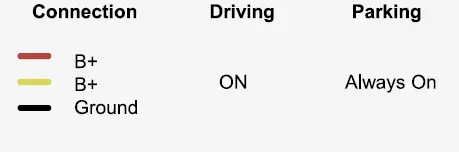
- The camera will run Parking Mode normally, but your car battery will be ran out under this connection.
- The Parking Mode will normal working in screen off status. Unless there is a collision or vibration triggered G-Sensor.
- Please check if your camera working after 15mins your car is off.
Connect to the Redtiger App
DOWNLOAD APP
- Download our App from: https://www.redtigercam.com/pages/app
- Scan QR Code from your F?NS
- Download from Apple APP Store or Google Play Store
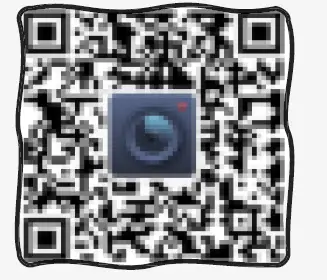 Teleport to WIFI operation: https://youtu.be/_NgPEb_G14c
 CONNECT YOUR F7NS
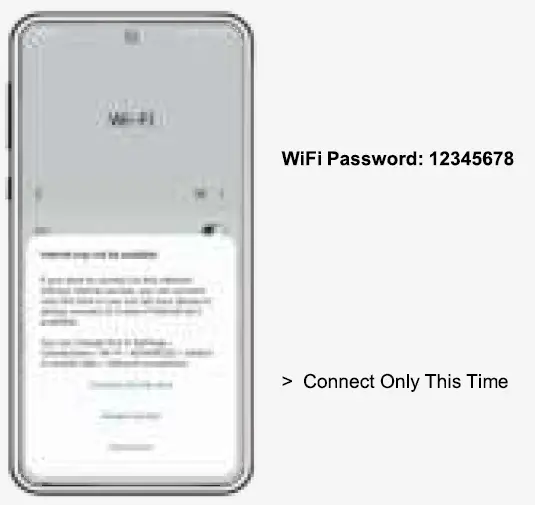 POP-UP: This is to avoid series connection between different device.
Some device may prompt that the software contains virus, you could run the installation as an administrator to download App.
ENJOY REMOTE CONTROL
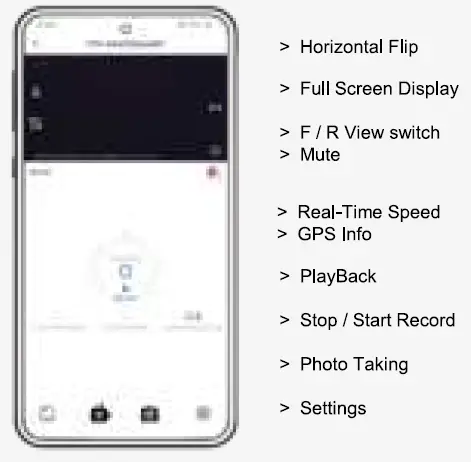
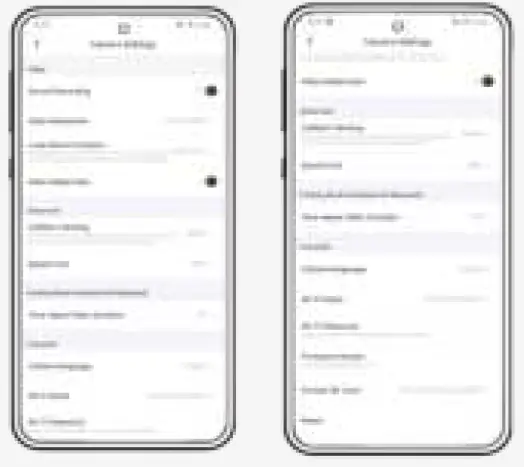
- Enjoyed Most of Functions on Your phone
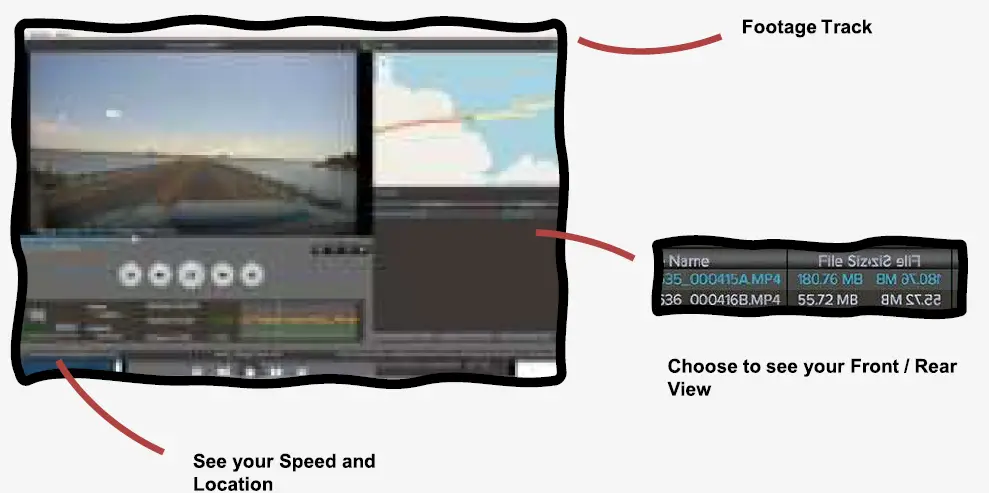
GPS Player ( PC )
DOWNLOAD GPS PLAYER
Download our GPS Player from website: https://www.redliqercam.com/pages/gps-player
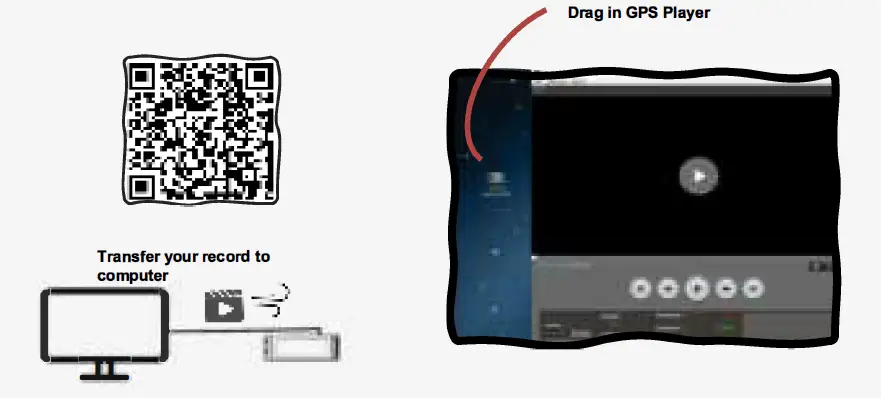
USE YOUR GPS PLAYER
Mount your camera
HOW TO MOUNT YOUR CAMERA
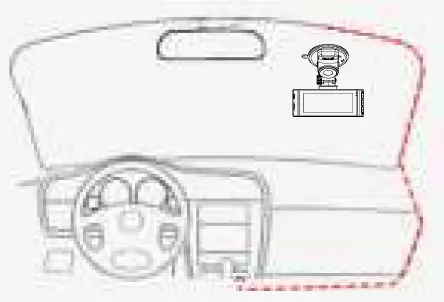
Teleport to F7NScam Mounting:
https://youtu.be/d51YN7Zry0

Maintenance
MAINTEN YOUR CAMEAR
Do not directly plug and unplug the cable or SD card, please perform related operations after camera off.
We do not encourage you connection your camera with other hardwire kit, but if you insist to do this, please have a look of those lower than 6V and higher than 2.5A.
Do not expose to the sun for a long time is the best, camera will heat on during its working, any damaged by high temperature will be added to 1 year free replacement warranty.
Trouble Shooting
WIFI CONNECTION GOES WRONNG
Connection prepare
- > Mobile data/ VPN is off
- > 16 ft less close to your F7NS
- > Only allowed 1 device connection
Connection Notice
- > WIFI password: 12345678
- > Connect only this time
OTHER PROBLEM Won’t enter Parking Mode
- > Hardwire kit needed
- > “ACC disconnected” pop up, then entre Parking Mode automatically
- > Blue light on+ Red light flash
Camera always on after Car turned down
- Wrong connection of Red wire and Yellow wire
- Please connect red wire with ignition fuse
Mass Storage
- Use USB cable with Data transfer function, please use USB cable without transfer function
Screen Resolution
- > 4K = 2160P = 3840*2160
- > 2.5K = 1440P = 2560*1440
Over Hear
- Camera could working -4 ‘F – 150°F
RECEIVED DEAD CAMERA ?
Use USB cable to connect your camera with computer and check if the screen turn on
- > If not, please unplug sd card and use a pin and press the Reset button at the bottom of camera
- > Reconnect your camera and press C
ULTIMATE SOLUTION
- > Use different charging ways to see if the camera work.
- > Use a pin or needle to press the reset button on the bottom of dashcam.
- > Unplug every connection of camera.
- > Plug micro USB charger to see if the camera working. If not, please use your personal USB charge and check again.
- > Check your SD card is U3 Class10, if not, please change or leave message to us to get it.
- > Plug SD card and see if the camera working, if not, please download the latest firmware to solve it.
Please download our latest firmware to upgrade your machine: https://www.redligercam.com/pages/firmware-1 The upgrade steps are:
- > Download the firmware to the computer.
- > Copy the firmware called “FWQ70A” to the root directory of the SD card.
- > Insert the SD card into the machine, then insert the power cord and short press the power button (do not turn off the power during this process )
- > During the upgrade process, the blue light is always on and the red light is flashing. After the upgrade is completed, the machine will automatically turn on. i.e. done. You can refer to this video to upgrade: https://youtu.be/IMz1g3O9SPE.
If the method above didn’t solve your problem, feel free to contact us and please leave current address which is needed if the camera needs to be replaced later.
This solution could be dealing with multiple problems > Won’t turn on > Restart itself > SD card error > Can’t auto recover > Can’t playback
Customer Service
WORDS FROM HEART
Since our products are related to the safety of customers, we are committed to product quality and high-quality after-sales, we want to achieve the best product quality.
In view of no product is flawless, we sincerely believe the true measure of the company’s character is what it does *after* its product does not meet expectations, we fee r sorry for those customers, but deeply grateful for them to make us one more step close to your most trustful auto-mobile after-marled brand.
We are willing to provide 1 month free return for your product, 1 year limited warranty, and lifetime technical support. Your product is guaranteed to be free of defects in materials and products from the date of purchase. In addition, you can also exchange your 1 year old product for a discounted price by contacting us on line.
Behold the motif of complexity to us, simplicity to others, it’s such a pleasure to listen to your advice, and we will take your problem from here.
Redtiger Customer Service Team
Email
Mirror Dash Cam
Email: [email protected] Mini Dash Cam
Email: [email protected] Business Cooperation or Others Email: [email protected]
Customer Phone Service:
+1 888 966 8028 Business Day, Mon-Fri
6 AM-12 AM, 1 PM-8 PM EST(GMT-4)
Product Information
BASIC INFO OF YOUR CAMERA
- Model > F7NS
- Display > 3.16 inch IPS
- Power > 12V/24V
- Aperture > 1.5
- Battery > Super capacitor
- Video Format > Video:MP4 Still image: JPG
- Loop recording > 1/3/Smins
- Recording method > Normal recording/Emergency recording
- Resolution > 2160P@30FPS, 1440P @60FPS, 1080P@120FPS
- GPS >Yes
- Audio > Support sound recording and playback
- G-sensor > 3 Axis G-sensor
- Micro SD card > micro SD 32GB-256GB
- Record photo > Main body display/ Computer / Smartphone
- Temperature > -4″F- 150°F
- Warranty period > 1 Year
Redtiger
Always go-to dash cam
About Us
In an automobile-interconnection era, everything about charm journey is within the reach of eyes.
Product and service are the foundation of Redtiger. We have an expert research and development team of “self-driving experts per capita”.
Based on the personal needs of users, we use technology to drive product innovation.
In the future, we will continue to explore the boundaries of tech to open up a broader vision for driving.