Teltex
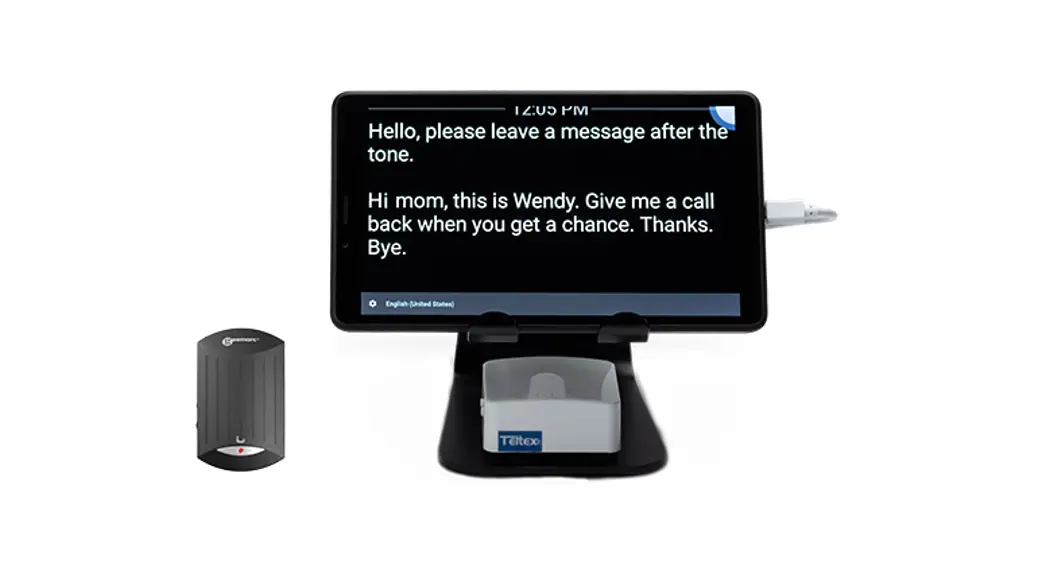
GLT Captioning Tablet with V2T-10
Quick Setup Guide
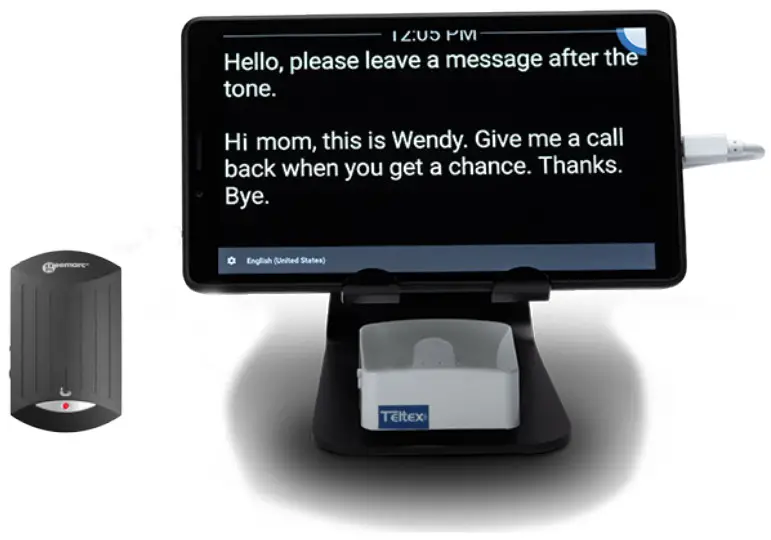
What’s in the Box:
(A) Geemarc V2T-10
(B) 9-Volt Battery
(C) Short line cord
(D) 3.5mm Stereo Audio Cable
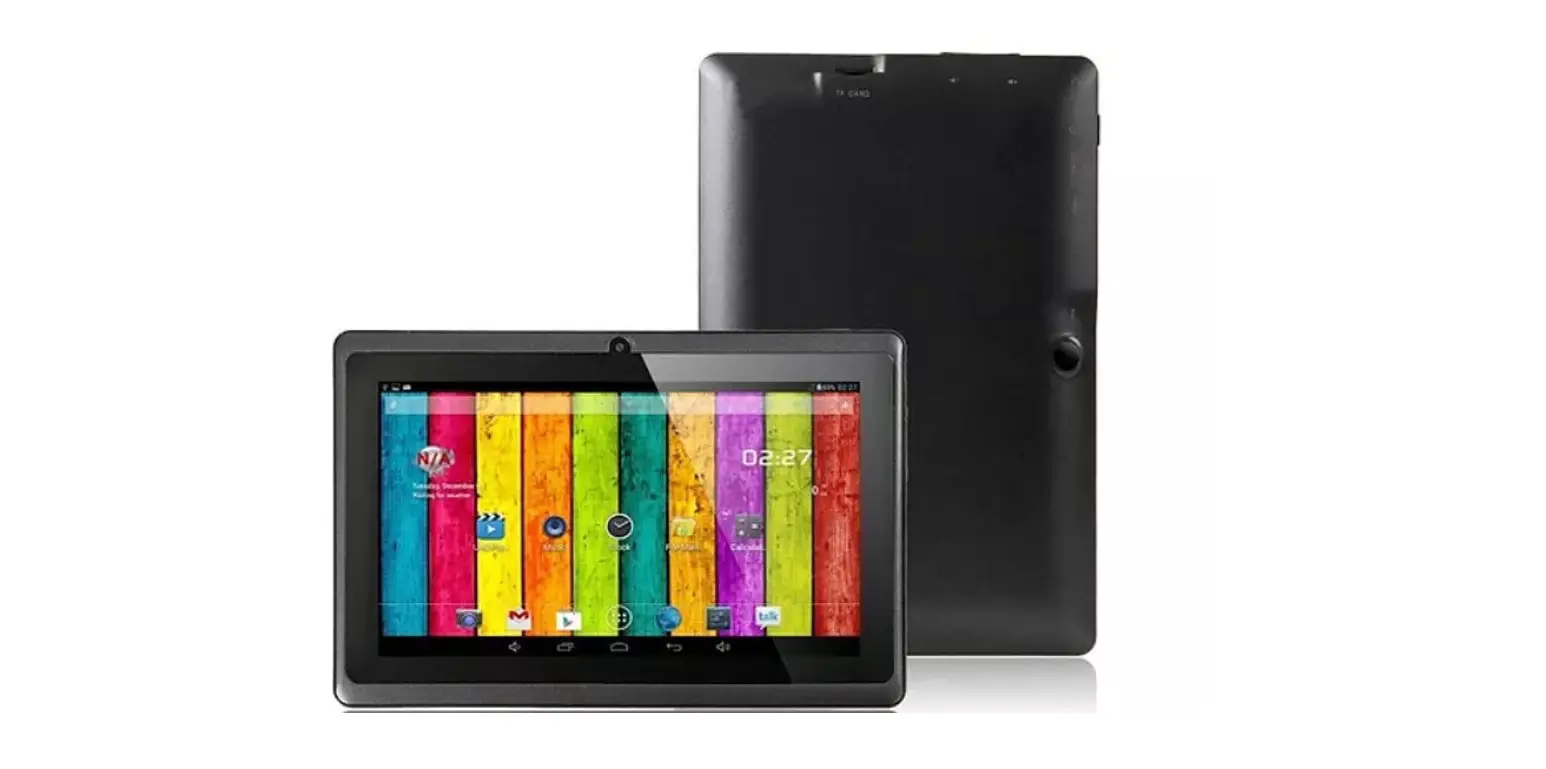
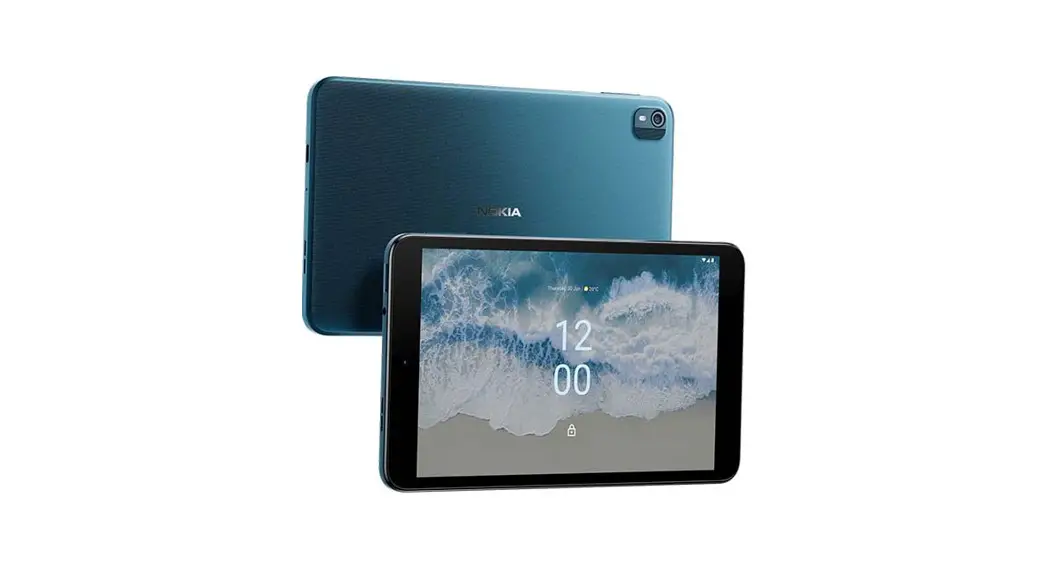
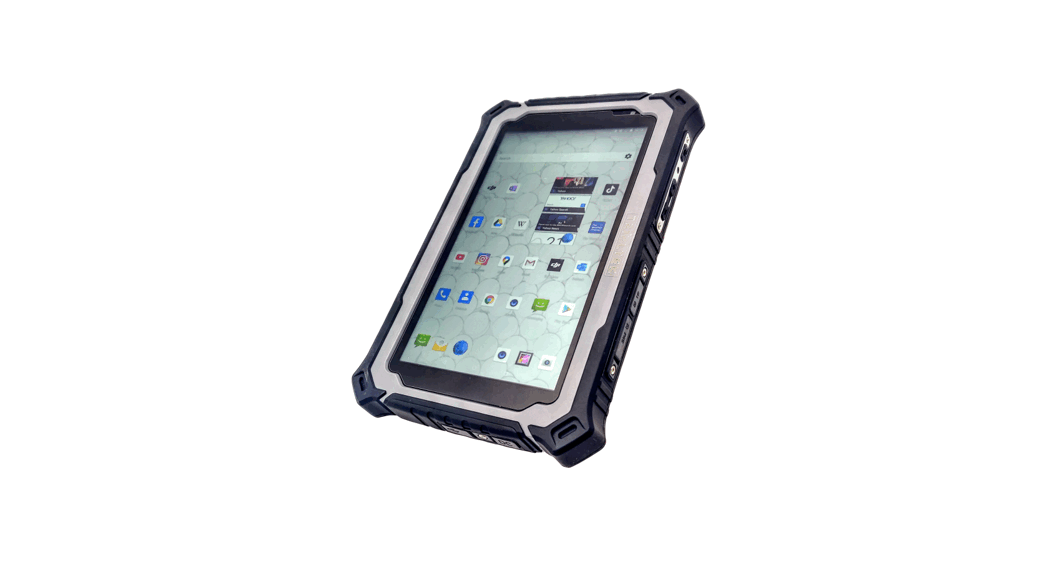
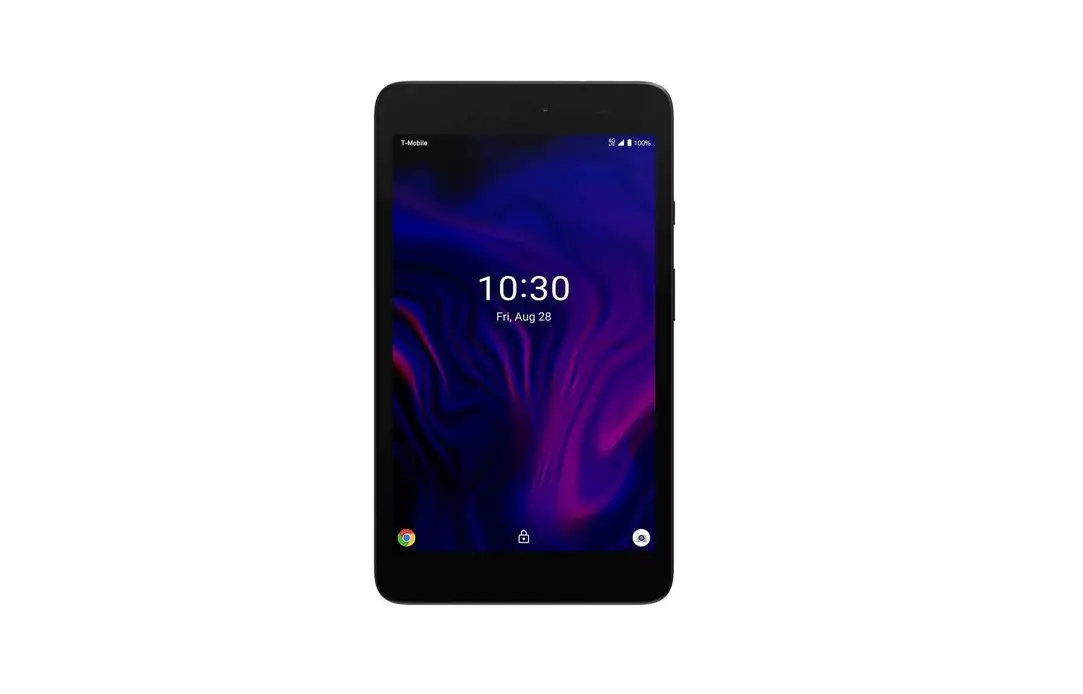
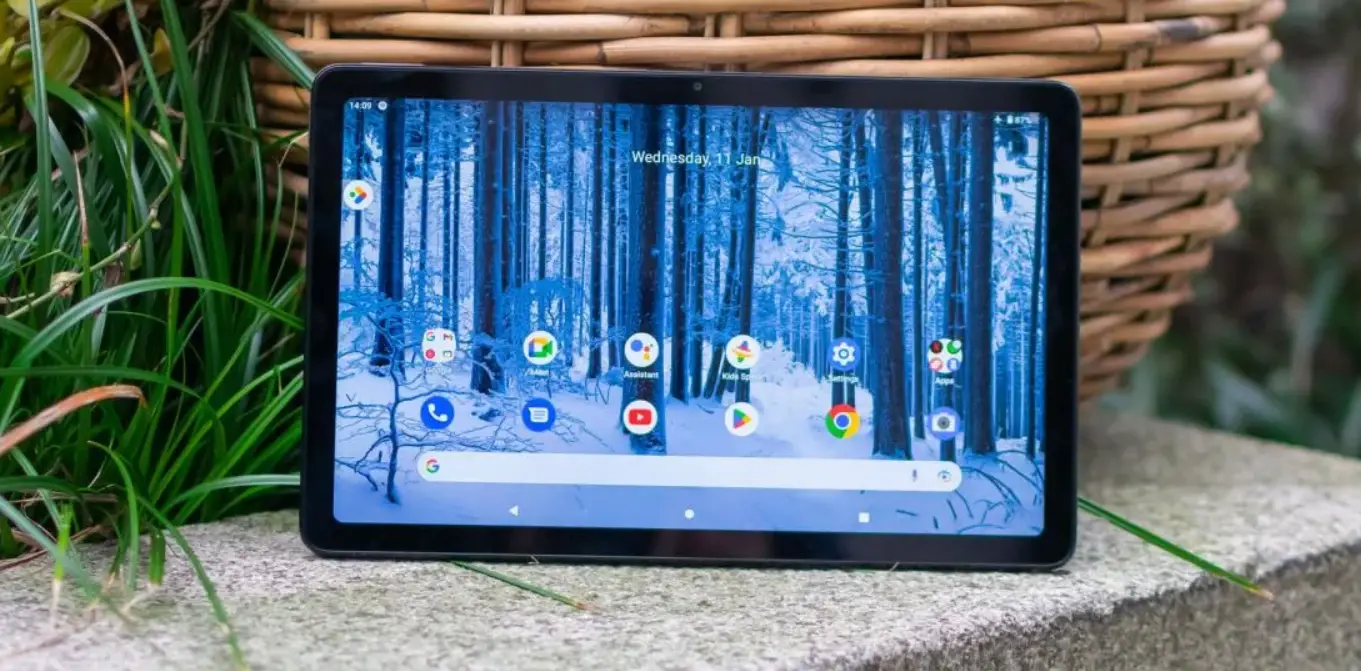
(E) Android Tablet
(F) Tablet Power Supply
(G) Tablet Power Cable
(H) Mini WiFi Router
(i) WiFi Power Supply
(J) WiFi Power Cable
(K) Ethernet Cable
(L) Tablet Stand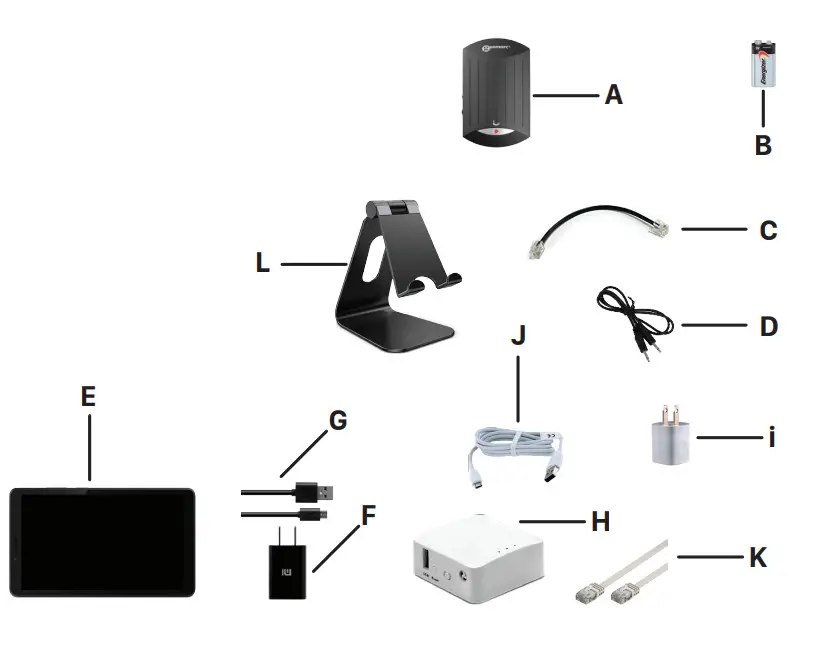 Step 1.
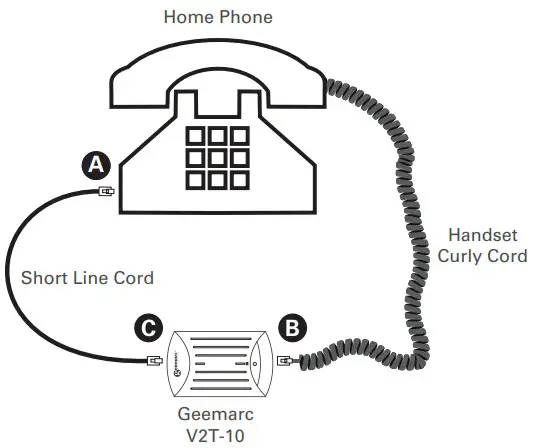
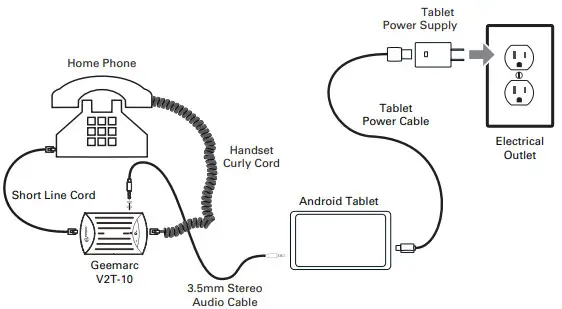
Install 9-volt battery into V2T-10 unit and connect the V2T-10 unit to telephone as shown below.
Step 2.
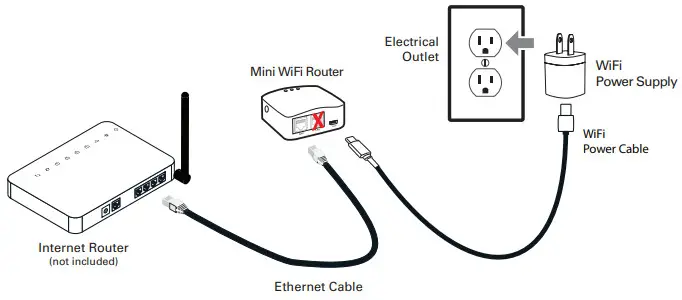
Connect the WiFi Power Cable to the WiFi Power Supply, then connect it to an Electrical Outlet. Connect the WiFi Power Cable to the Mini
WiFi Router Power jack.
Next, connect the Ethernet Cable to the WAN port on Mini WiFi Router and connect the other end of the Ethernet Cable to your Internet
Router (not included).
Step 3.
Connect the 3.5mm Stereo Audio Cable from the Geemarc V2T-10 to the Android Tablet. Connect the Tablet Power Cable from the android Tablet charging port to the Tablet Power Supply. Then connect the Tablet Power Supply to an Electrical Outlet.
Step 4.
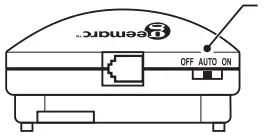
Turn on the Geemarc V2T-10 and set to “Auto” position.
Step 5.
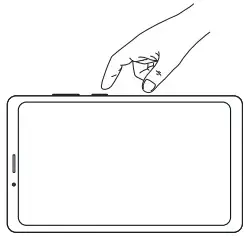
Turn on the tablet by holding down the On/Off button for 5 seconds.
Step 6.
Start using your Teltex GLT Tablet to caption all of your calls.
For Setup Videos Visit: https://www.iaccessibility.com/videos/deaf-hard-of-hearing/
 Deaf/Hard-of-Hearing Videos - iAccessibility Solutions for iOS Communications