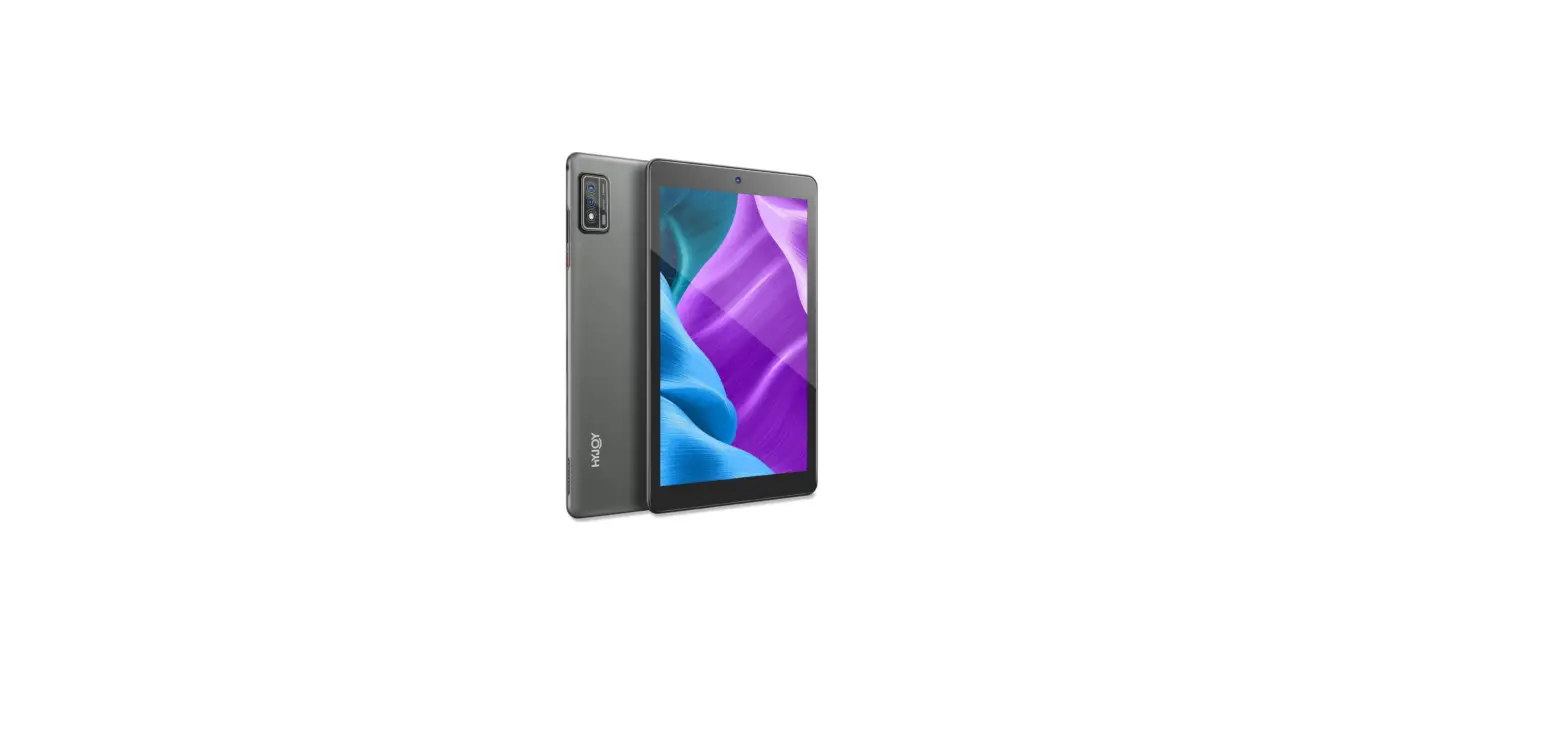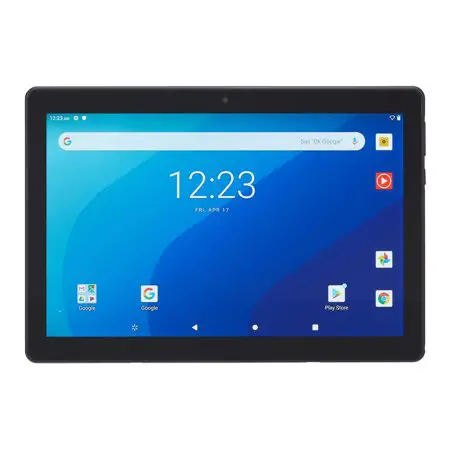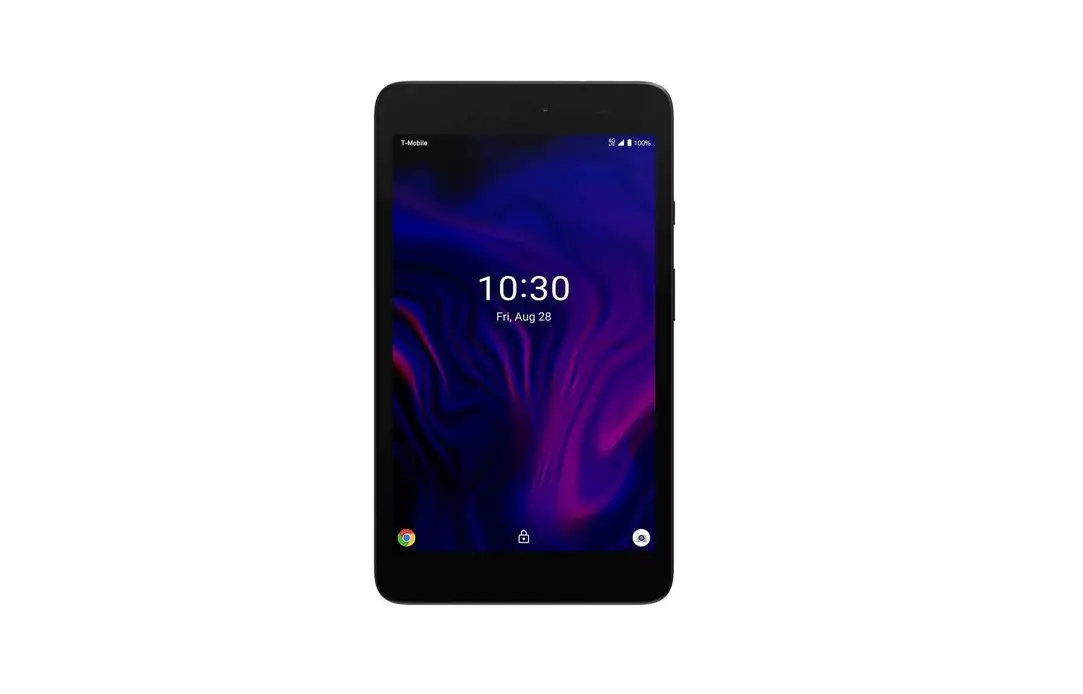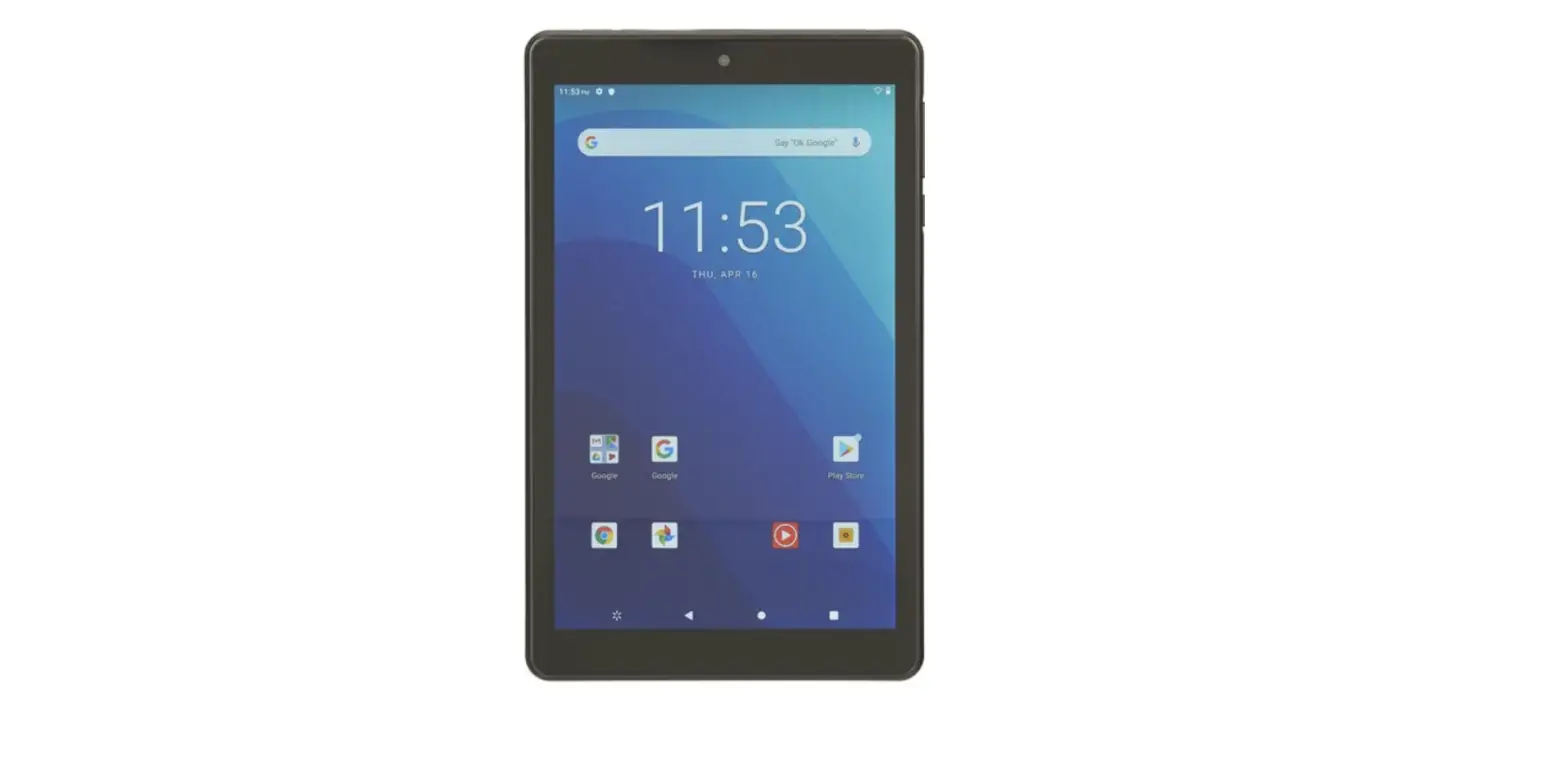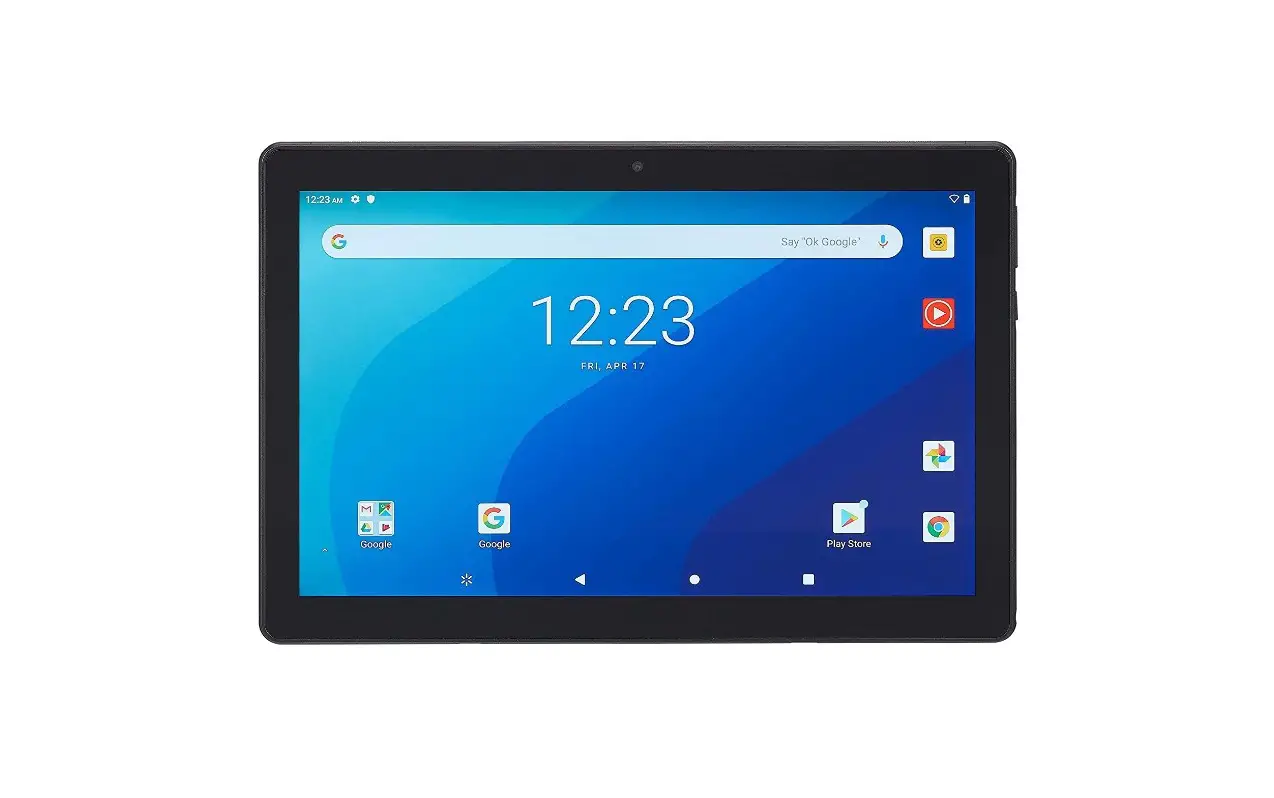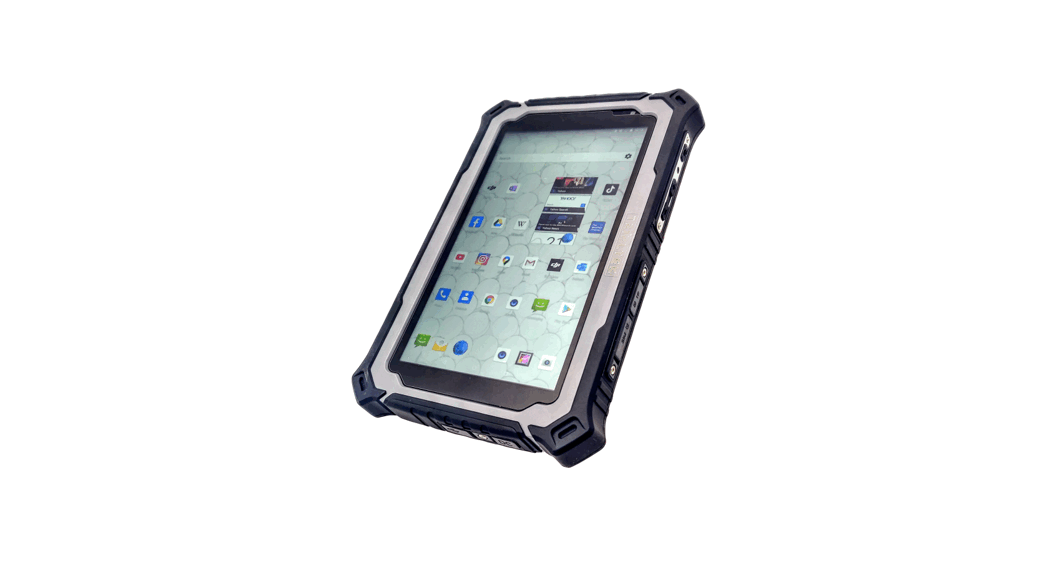
 T93 Android Tablet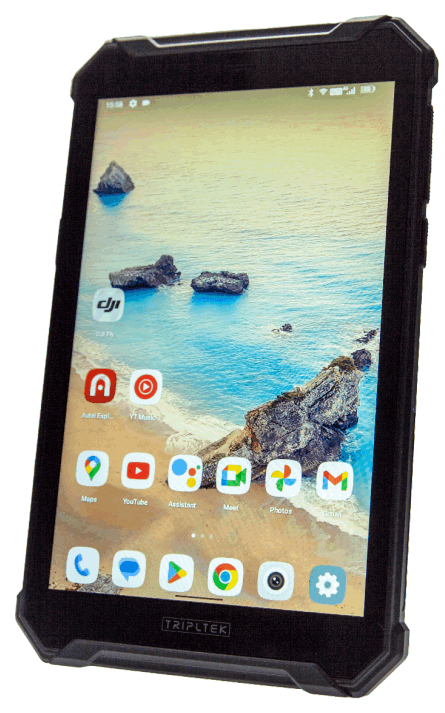
User Guide
Read me first
- Please read this manual before operating your TRIPLTEK Tablet, and keep it for future reference.
- The descriptions in this manual are based on the default settings.
- Images and screenshots used in this manual may differ from the actual product.
- Available features and additional services may vary by device, software or cellular service provider.
- Our company is not liable for performance issues caused by third-party applications.
- The TRIPLTEK T93 is Google Play Protected Certificated from the Factory, Google APPs are pre installed.
- For more information using Android 12 OS visit www.support.google.com/android
- For more recent information about your TRIPLTEK please visit www.tripltek.com/support
Unpack
Check your product box for the following items
- TRIPLTEK 9
- User manual
- USB Fast Power Charger
- USB to Subic charging and data cable
- USB to Sub adapter
- Hand Strap and hardware
For additional accessories. Please visit the TRIPLTEK Website.
Installing a SD card
For additional storage, you can install a SD card.
- Press with the pin into the slot to extract the SIM card/ SD card Tray.
- Place the SD card into the upper part of the Tray.
- Place the Tray into the tablet all the way in.
- Select: “Use for Portable Storage”
Notice: TRIPLTEK uses approved industry standards for memory sd cards, but some brands may not be fully compatible with your device.
Installing a SIM card for cellular service
The TRIPLTEK 9 is an Unlocked device, which means it can be used in any cellular carrier that supports the 4G bands installed on it. You can see these bands on the NETWORKING SPECIFICATIONS page In order to use the Phone function, install a micro SIM card from your preferred carrier, follow the instructions below.
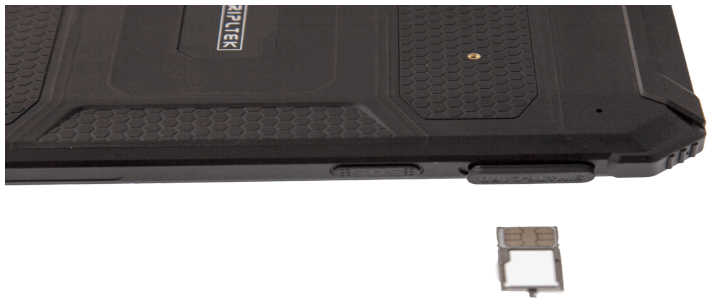
- Press with the pin into the slot to extract the SIM card/SD card Tray.

- Place the SIM card into the lower part of the Tray facing the back of the TRIPLTEK(see picture).
- Place the Tray into the tablet all the way in.
Turn on your device, reboot, and shut down
To turn on your device, press and hold the power key. To reboot your device, press and hold the power key, select “reboot”. To turn off your device, press and hold the power key, select “power off”.
Getting started
Home screen
The home screen has multiple panels. Scroll left or right to the panels on the home screen, you can view indicator icons, widgets, shortcuts to applications, and other items.
Swipe left to see other APPs installed on your device.
Task bar
The task bar is shown at the top of the screen. It displays commonly used option buttons, battery level indicator, current time and other indicator icons of running apps.
Indicator icons
| Icon | Icon | ||
 | Open WiFi Network |  | Airplane Mode |
| Wi-Fi connected |  | New email |
 | Signal strength |  | New SMS/MMS |
 | BT connected |  | Call in progress |
 | Uploading data |  | Missed call |
 | Downloading data |  | Call on hold |
 | USB connection |  | Call Forwarding |
 | Alarm Set |  | Power level |
 | Music being played |  | Don’t disturb |
 | Auto-rotate |  | Location Services |
 | Flashlight |
 Brightest Tablets on the market | Tripltek