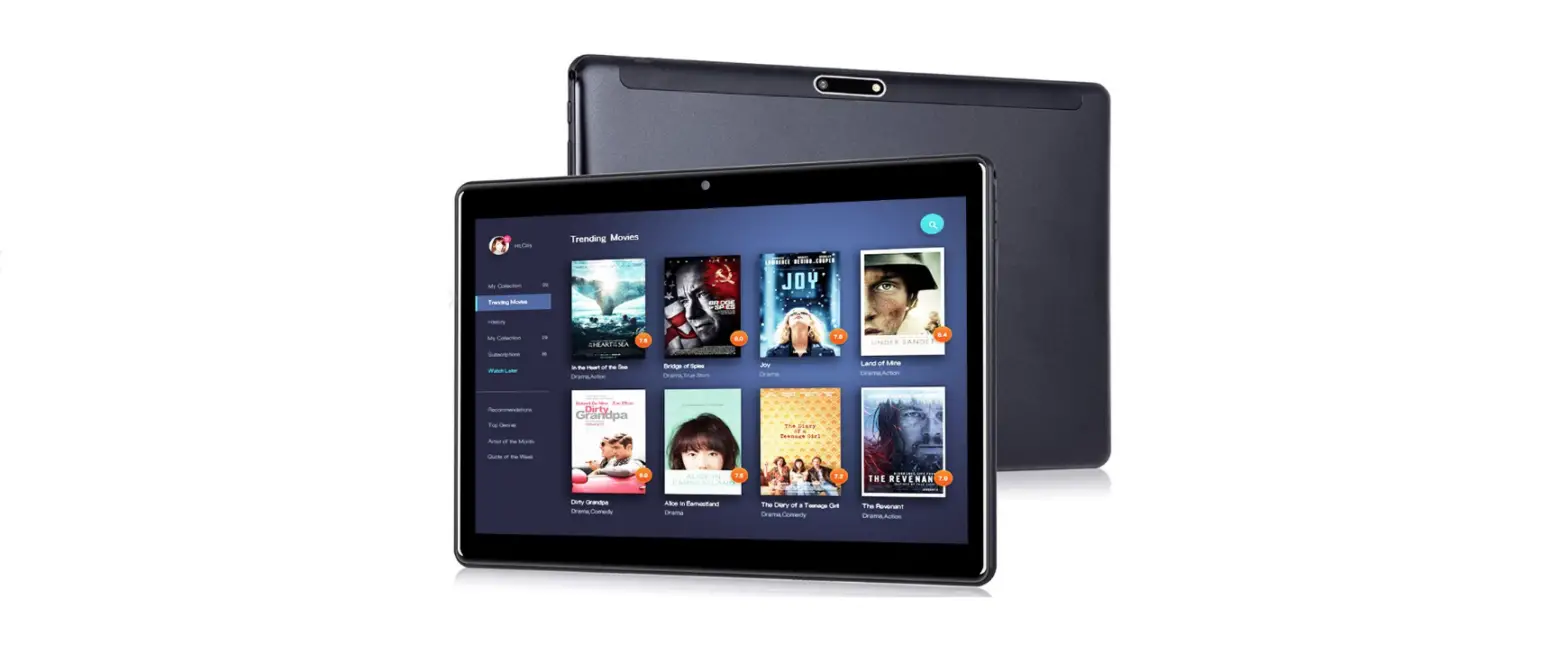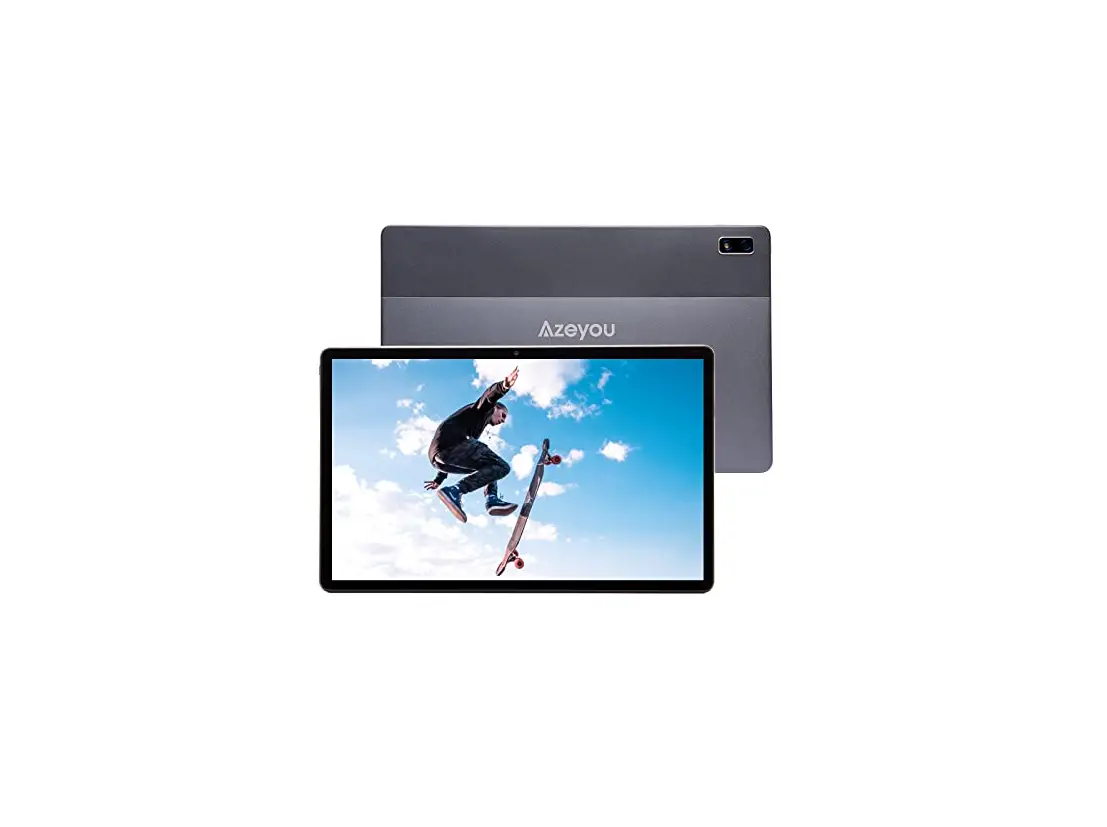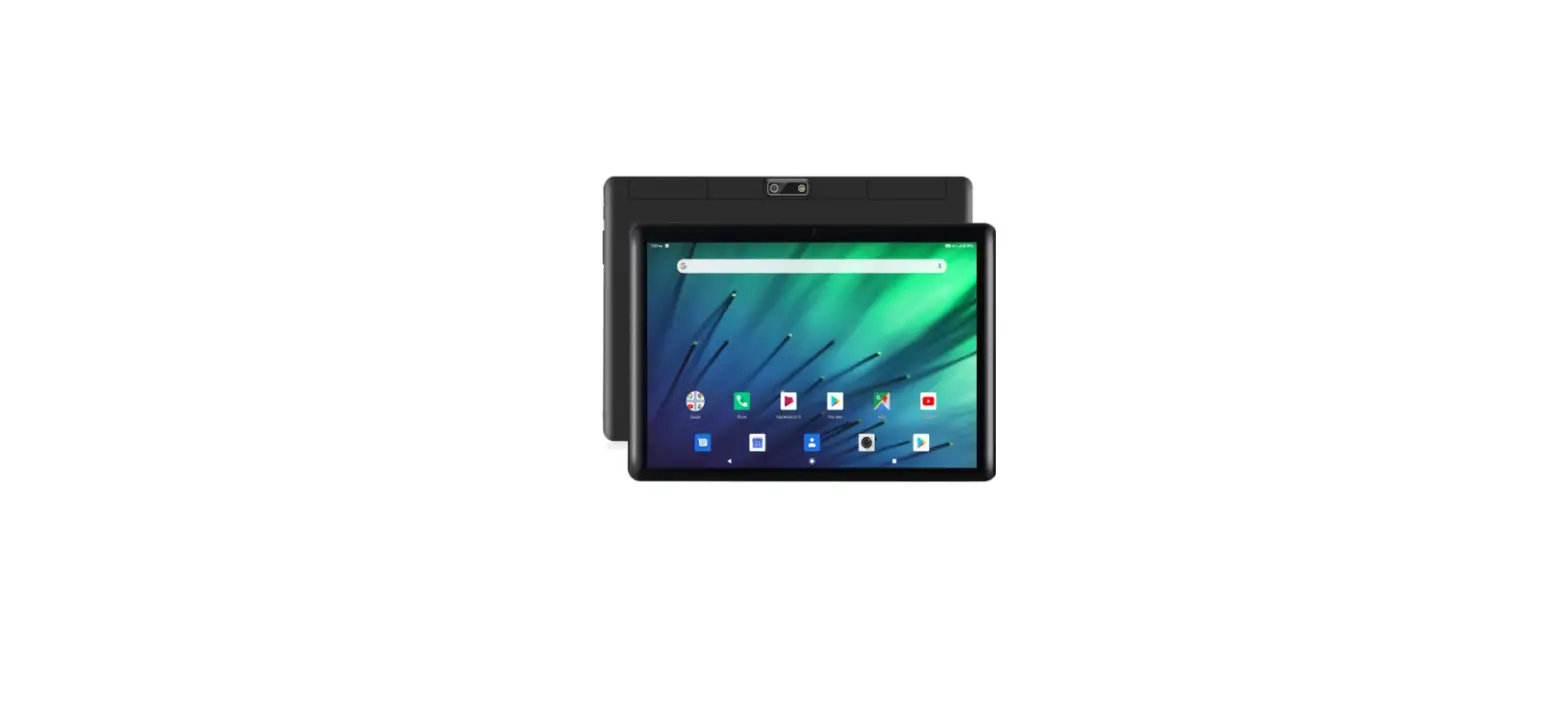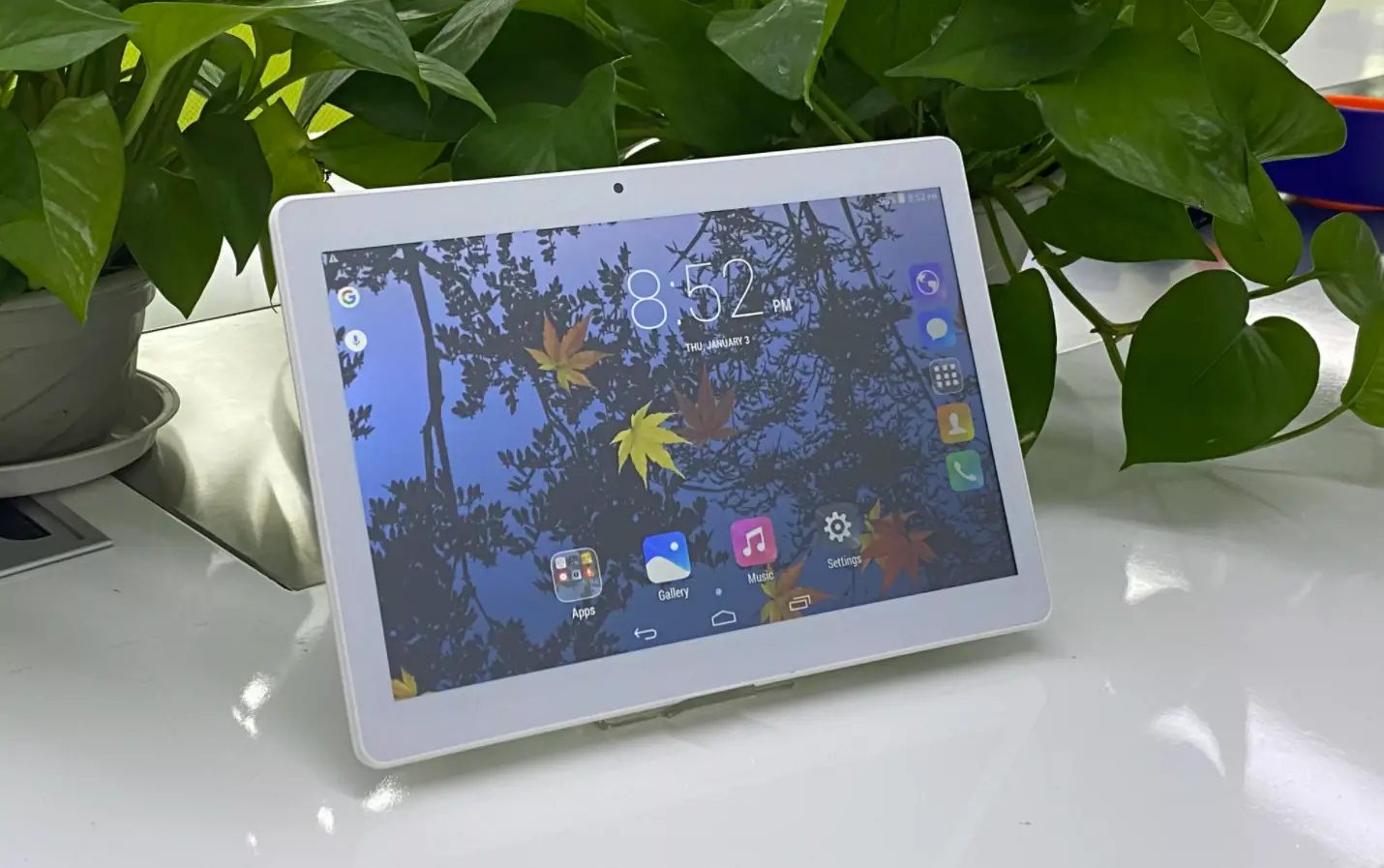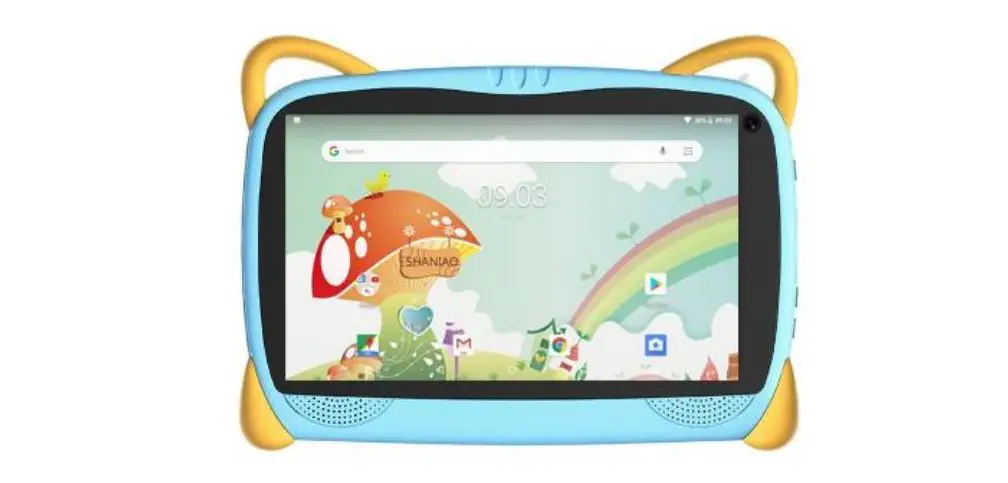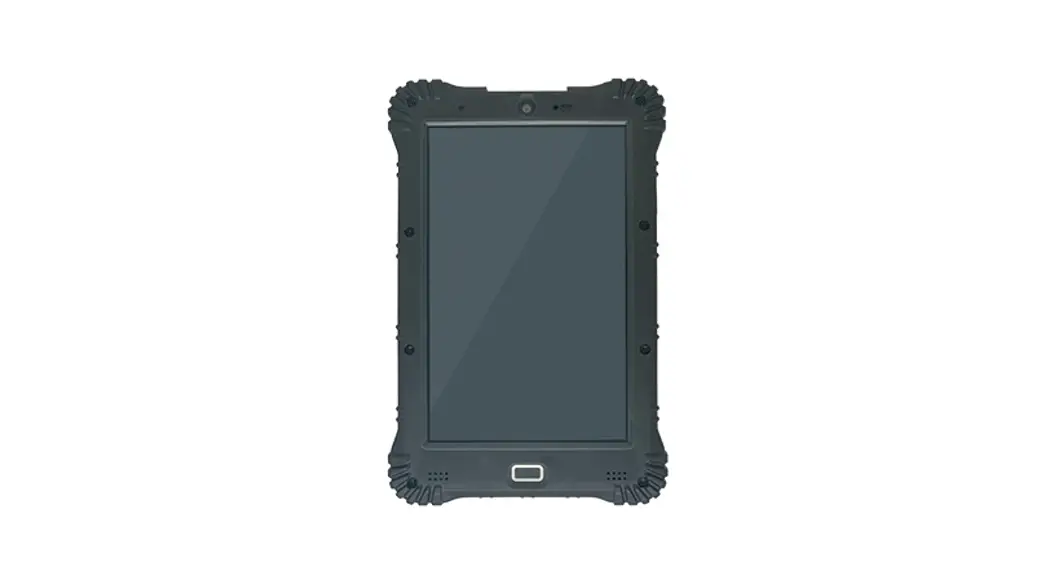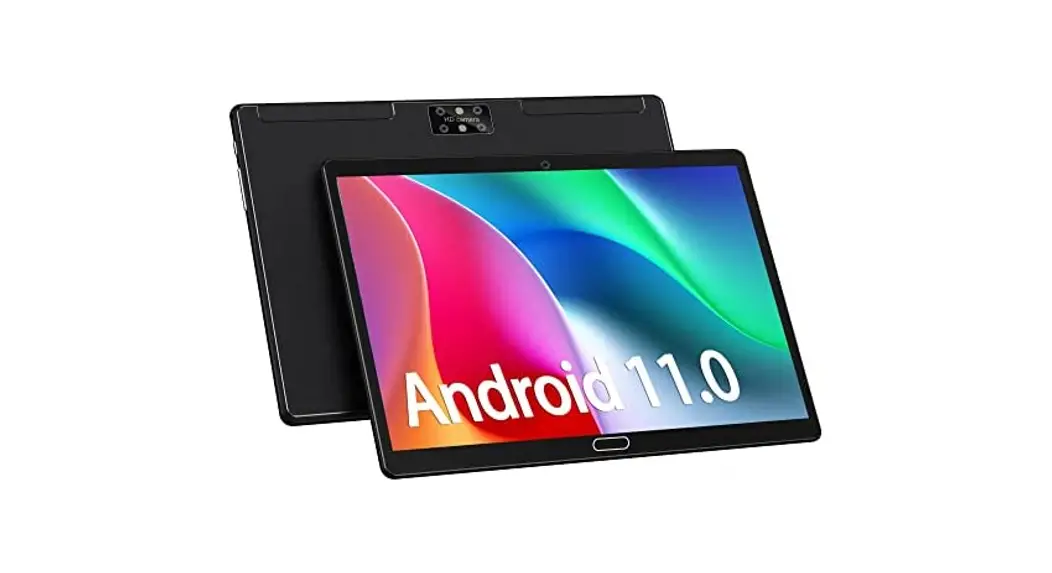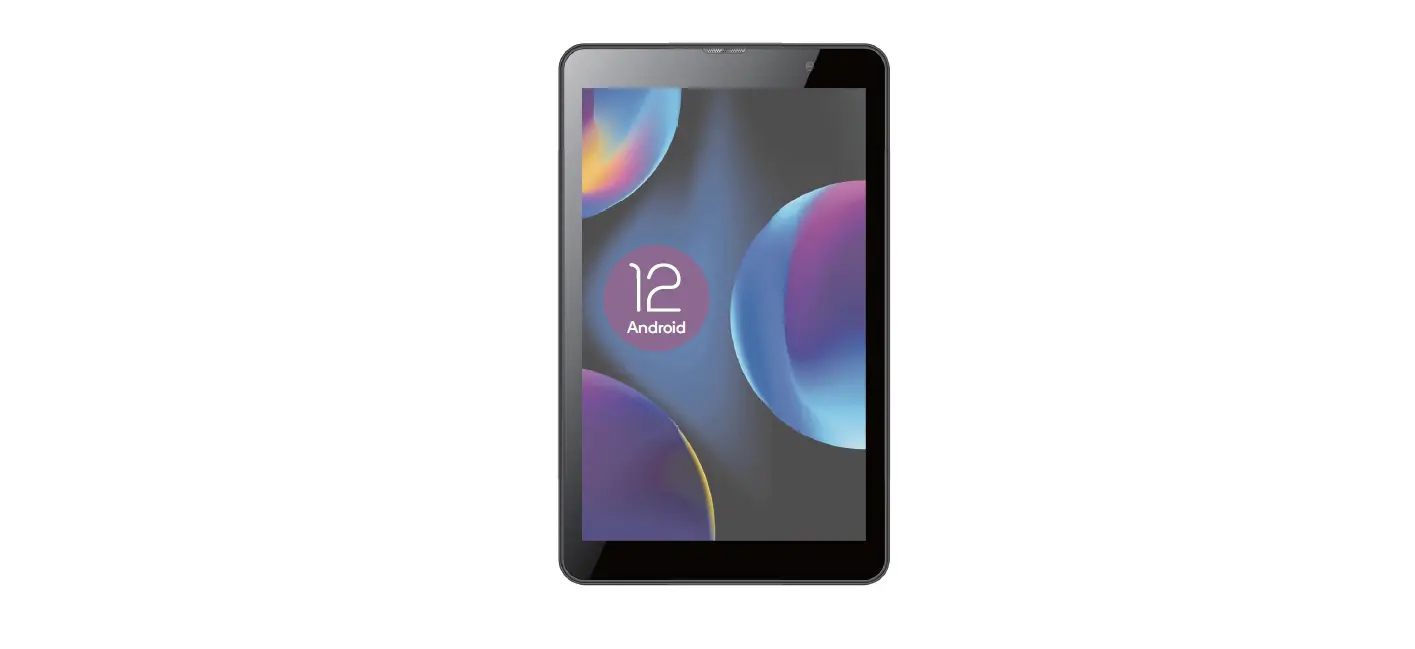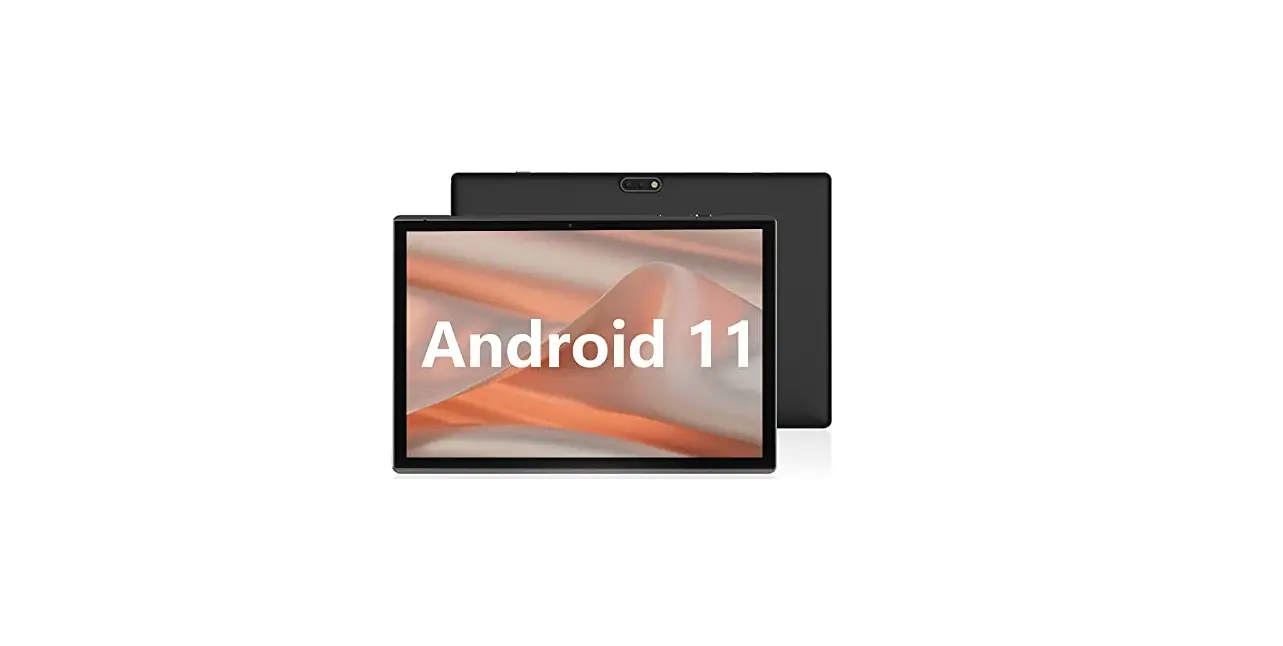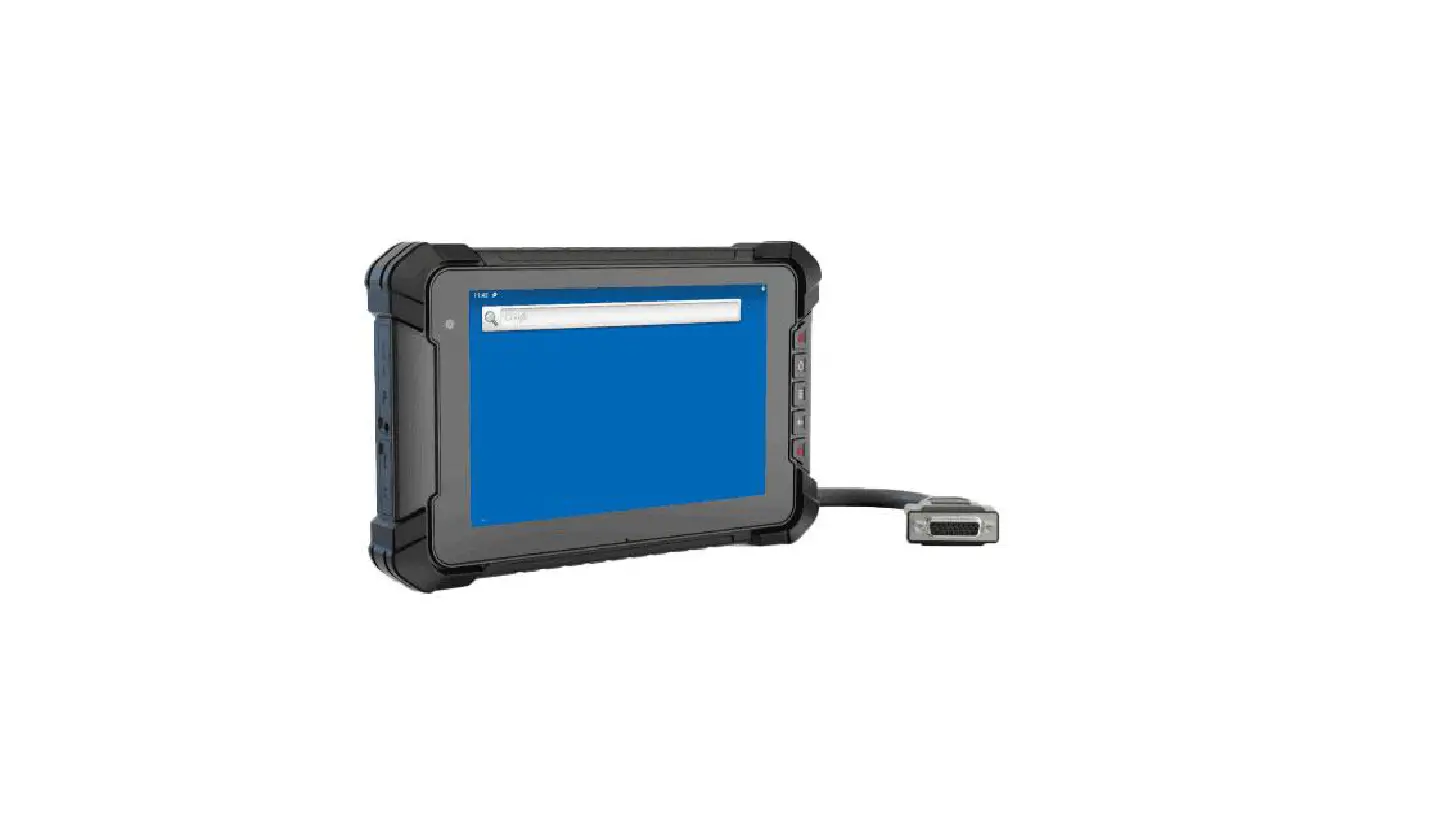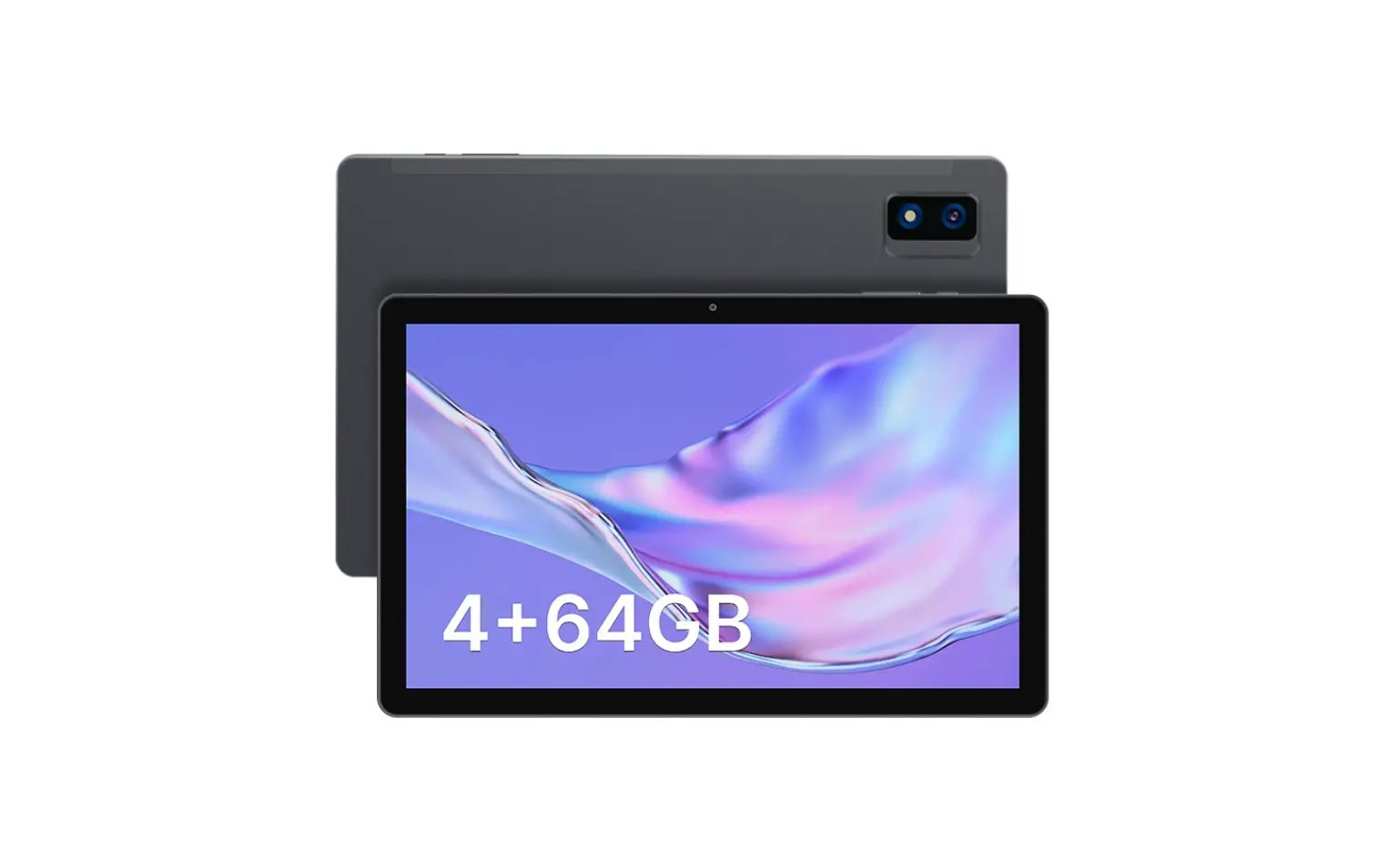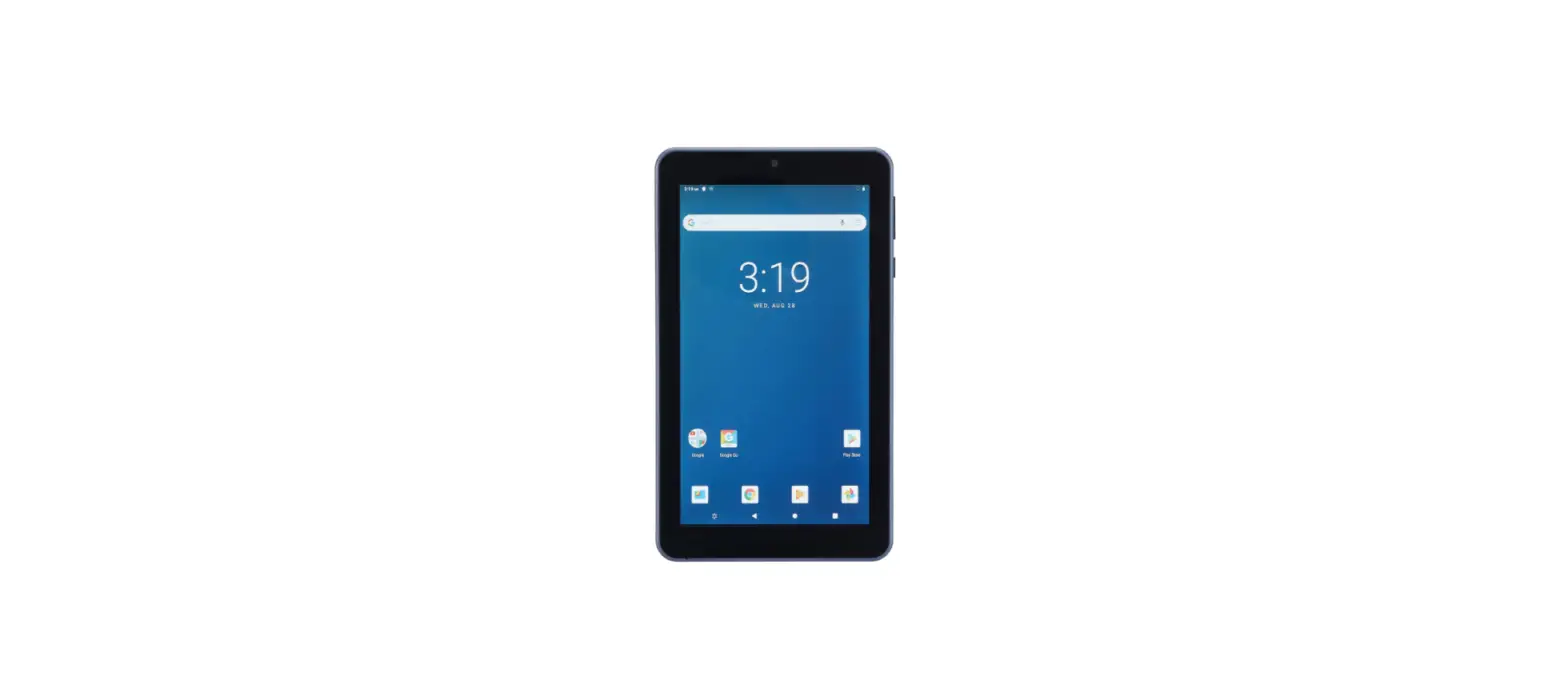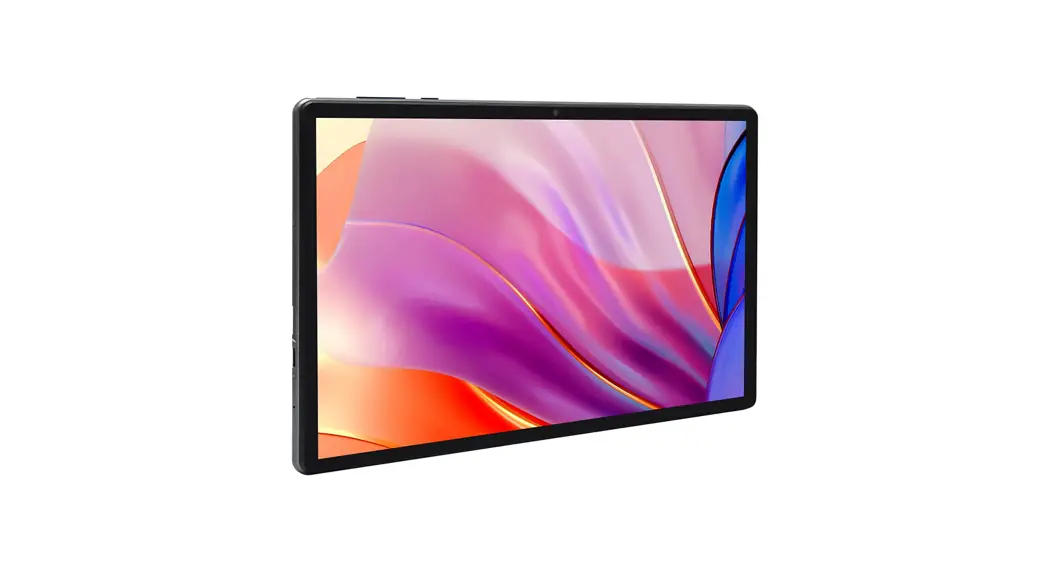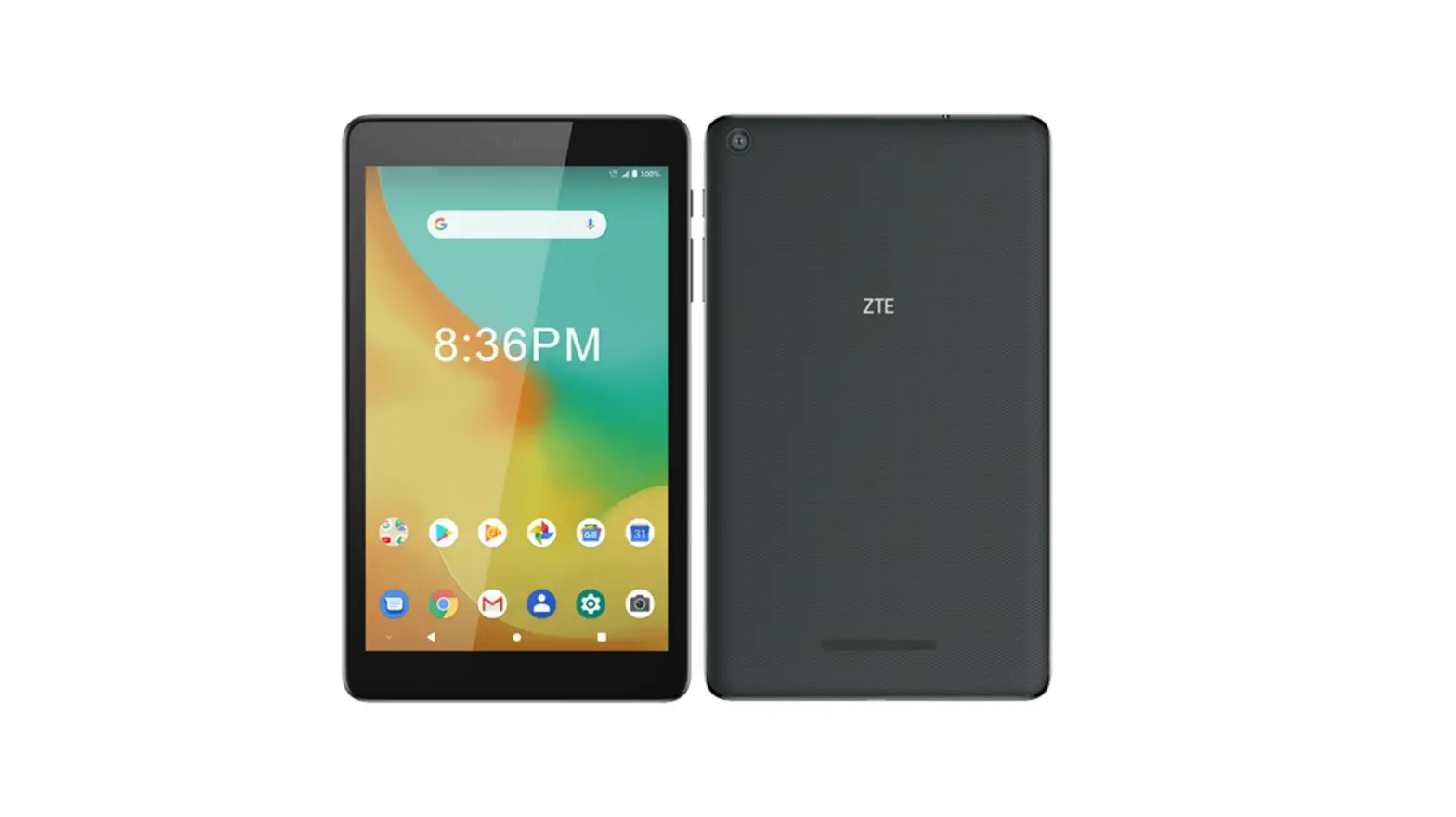

ZhiHua ZHEA101T 10.1inch Android Tablet
Matters needing attention
Thank you very much for choosing our android tablet products, Before installing and using the product, please read this manual carefully so as to have an in-depth understanding of its performance. Please save this manual for future reference if you encounter any use problems. Please place the guest display products in a well-ventilated, flat, and stable place. Avoid direct sunlight. The environmental conditions are stable and there is no sudden change in temperature or humidity. The equipment must be installed by after-sales service personnel or dealers. The company shall not be responsible for any consequences caused by unauthorized changes to the equipment or replacement of connecting equipment and cables in accordance with the provisions. The manufacturer reserves the right to modify the specification without prior notice
Basic features and application areas
The basic features
ZHEA101T is a small Android product with a 10.1-inch, 1280 * 800 resolution IPS HD display, suitable for -5℃~40℃ environment, HD image function, and good viewing Angle. The operating system version is Android 6.0, RAM:1G, Flash memory:8G, This product has good quantity and image processing ability.ZHEA101T Products for different customers are equipped with hardware brackets and plastic brackets and support multiple languages. The display USE DC power supply, DC5V, 2000MA adapter power supply.
Application Area
This product is mainly used in POS cashiers, banks, tax offices, and other service places.
Products Picture
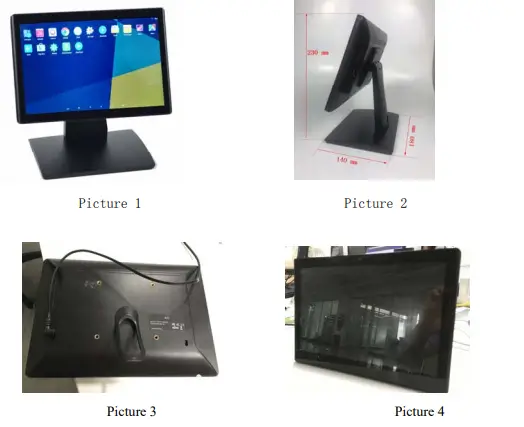
Specification
|
Configura tion | CPU | A64 Quad-Core Processor 、Clocked-1.6G |
| RAM | 1GB | |
| Flash memory | 8GB | |
| OS | Android 6.0 | |
| Size | 244*169*25mm | |
| Network | WIFI | Support WIFI、802.11b/g/n |
| Ethernet | Support | |
| Bluetooth | Support | |
| 4G | Support | |
|
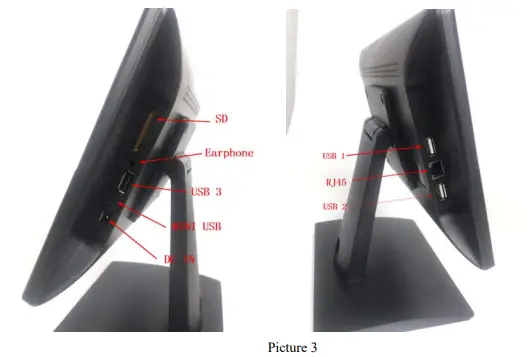
Interface | SD | 1 SD Card (Max support 32G) |
| Mini USB | 1 PCS USB OTG | |
| USB 2.0 | 3 PCS USB 2.0 Interface(Support U Disk、Mouse、Keyboard, Printer) | |
| RJ45 | 1 PCS Network Interface |
| Headphone Jack | 1 PCS 3.5mm Headphone Jack | |
| Power Jack | 1 PCS 4.0 mm Power Jack |
Exterior structure drawing
interface specification
|
Interface | SD | 1 PCS SD Card( Max support 32GB) |
| Mini USB | 1 PCS USB OTG | |
| USB 2.0 | 3 PCS USB 2.0(support U disk、Mouse、keyboard、printer and so on) | |
| RJ45 | 1 PCS RJ45 Network interface | |
| Headphone Jack | 1 PCS 3.5 mm Headphone Jack | |
| Power jack | 1 PCS 4.0 mm Power Jack |
The Graphic Description
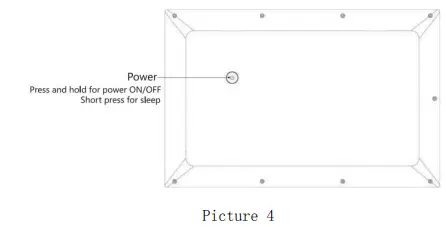
Power On/ Off
- Plug the power cord into the dc socket, and then plug the other end into the power socket
- Press and hold the power button for 3 seconds to open the product 3,
- The screen displays the start logo
- Wait for about 30 seconds to enter the main interface
- Power on: when the power is off, press and hold the power button for 3 seconds to start the device
- Power off: hold down the power button for 3 seconds. When the product is in a working state, click “ok” to turn off the power
- Short press the power button to sleep or wake up the product when standby
Communication interface
- WIFI, Support WIFI、802.11b/g/n
- Ethernet, Support to connect to the Internet
- Bluetooth, support Bluetooth data transmission
- 4G, available via 4G USB dongle
- SD,1 PCS SD Card(Max support 32GB)
- Mini USB,1 PCS USB OTG
- USB 2.0,3 PCS USB 2.0 Interface(Support U Disk、Mouse、Keyboard、 and printer )
- RJ45,1 PCS RJ45 Internet
- Headphone Jack,1 PCS 3.5 mm Headphone Jack
- Power Jack,1 PCS 4.0 mm Power, DC Jack
Physical installation instructions
- Plug the power cord into the dc socket, and then plug the other end into the power socket.
- Press and hold the power button for 3 second to open products.
- The screen displays the start logo.
- wait for about 30 seconds to enter the main interface.
- Click the APP to enter the software.
Product function and operation instruction
APP USE direction
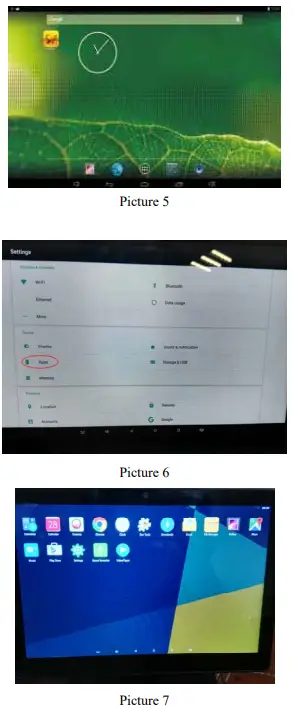
- In the main menu, Click picture Go to the APPS menu screen.
- Swipe the screen left/right to switch to another menu screen.
- Click the application icon to enter the application
- Click the “return” icon to go back to the previous page, and click the “HOME11” icon to go back to the main menu.
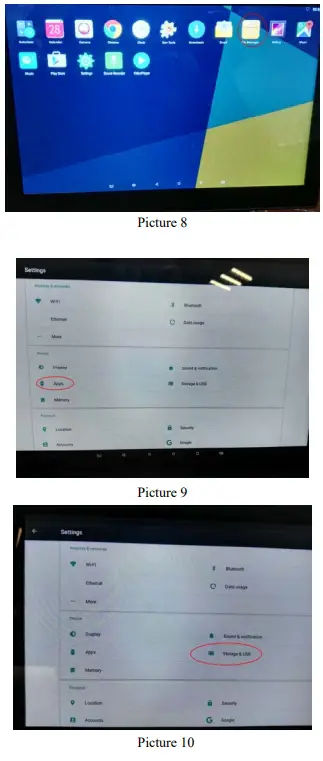
Install and uninstall APK
- Copy files in APK format to USB devices.
- Click the APK in the file manager, then you will go to APK installer, and select install. Once APK is installed, you can click on the APK icon in the application to enjoy the application.
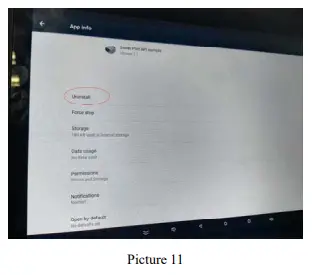
- Click Settings to install APPS, go to Settings – applications – uninstall, and select the application to uninstall.
Warning: This device complies with Part 15 of the FCC Rules. Operation is subject to the following two
conditions:
- this device may not cause harmful interference, and
- this device must accept any interference received, including interference that may cause undesired operation.
changes or modifications not expressly approved by the party responsible for compliance could void the user’s authority to operate the equipment.
NOTE: This equipment has been tested and found to comply with the limits for a Class B digital device, pursuant to Part 15 of the FCC Rules. These limits are designed to provide reasonable protection against harmful interference in a residential installation. This equipment generates, uses, and can radiate radio frequency energy and, if not installed and used in accordance with the instructions, may cause harmful interference to radio communications. However, there is no guarantee that interference will not occur in a particular installation. If this equipment does cause harmful interference to radio or television reception, which can be determined by turning the equipment of and on, the user is encouraged to try to correct the interference by one or more of the following measures:
- Reorient or relocate the receiving antenna.
- Increase the separation between the equipment and receiver.
- Connect the equipment into an outlet on a circuit different from that to which the receiver is connected.
- Consult the dealer or an experienced radio/TV technician for help.
NOTE This device and its antennaćs) must not be co-located or operated in conjunction with any other antenna or transmitter
RF Exposure Statement
To maintain compliance with FCC’s RF exposure guidelines, This equipment should be installed and operated with a minimum distance of 20Cm the radiator of your body. This device and its antenna(s) must not be co-located or operated in conjunction with any other antenna or transmitter