Product Information:
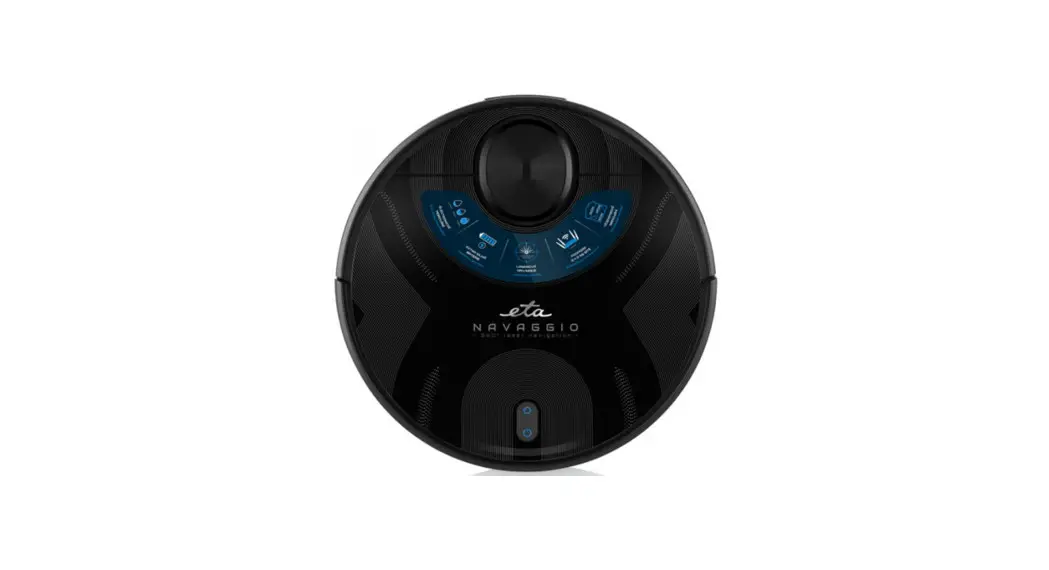
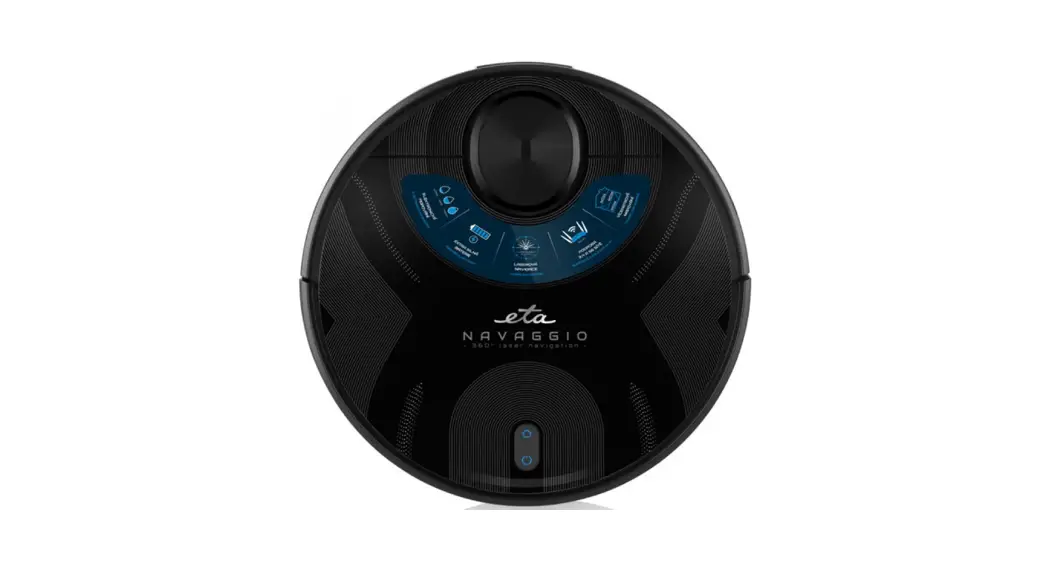
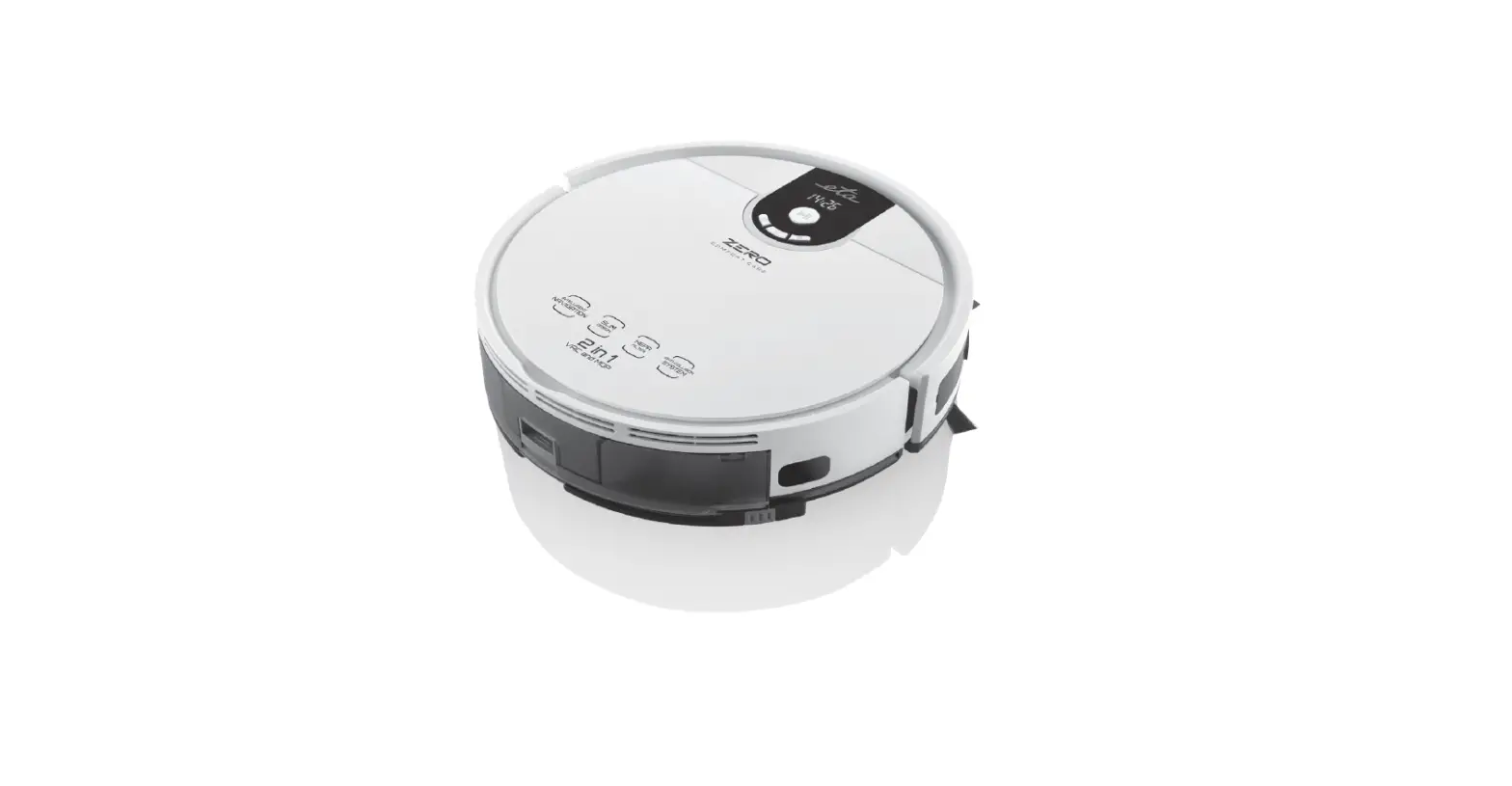
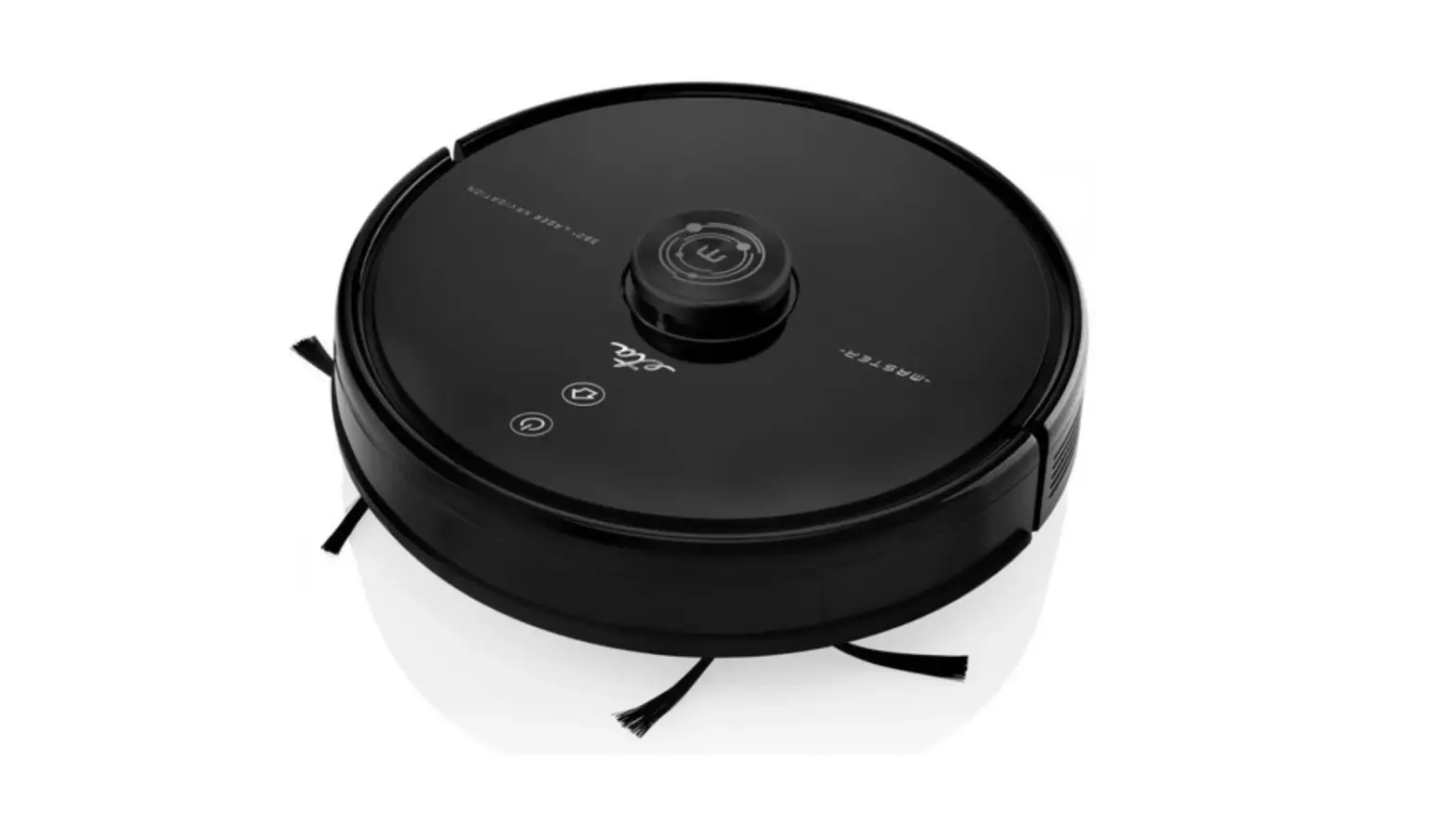
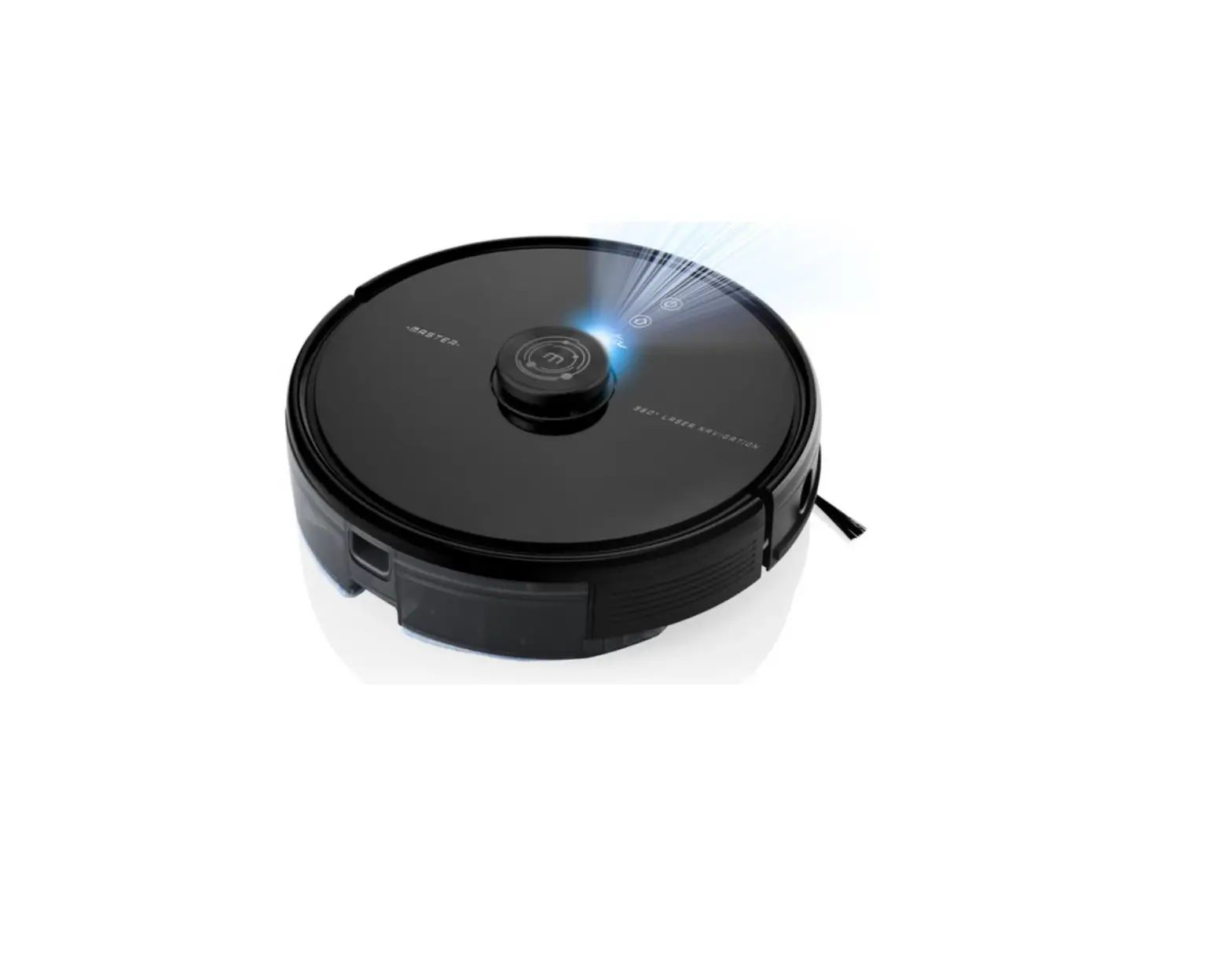
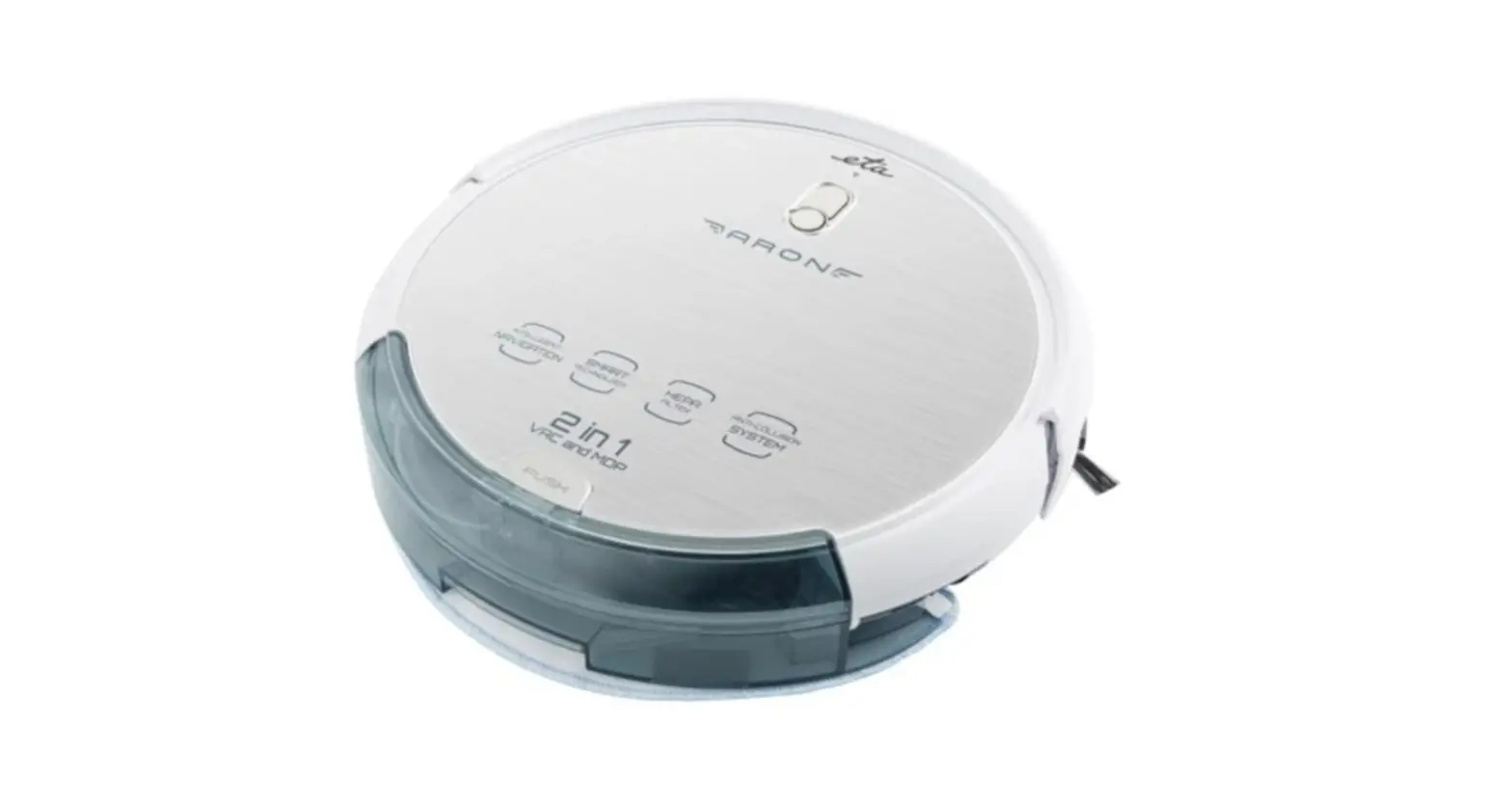
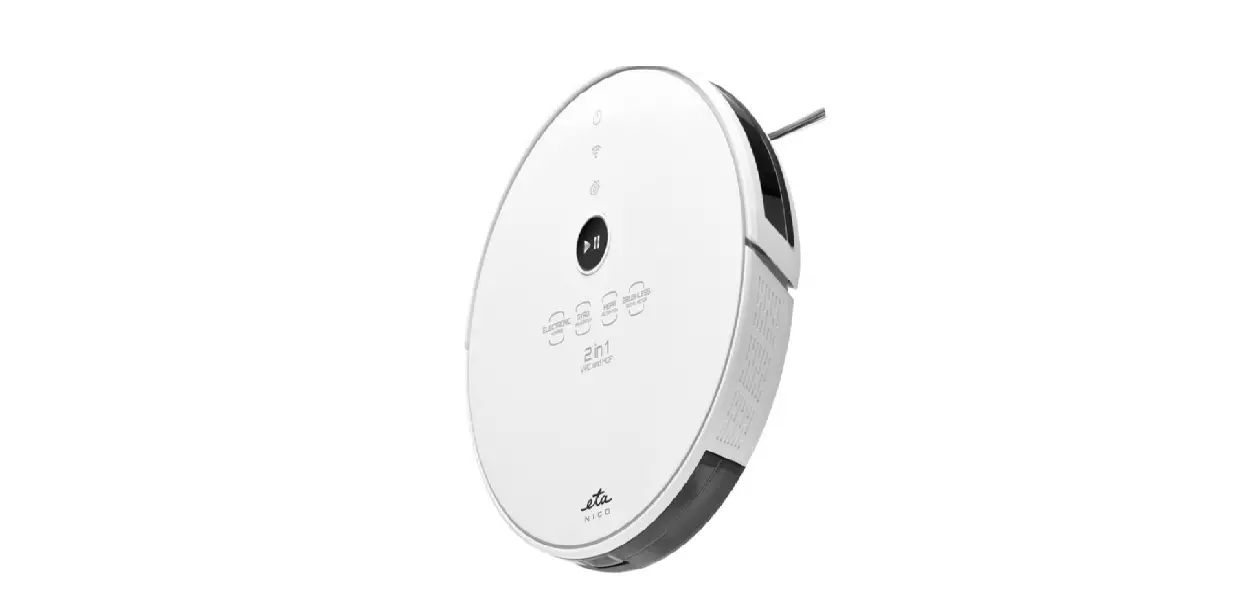
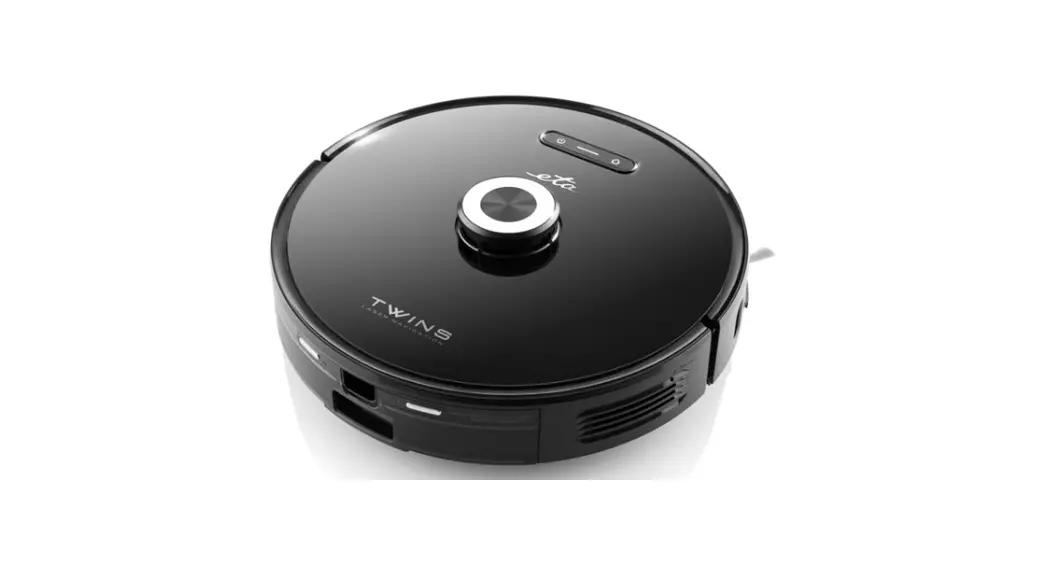
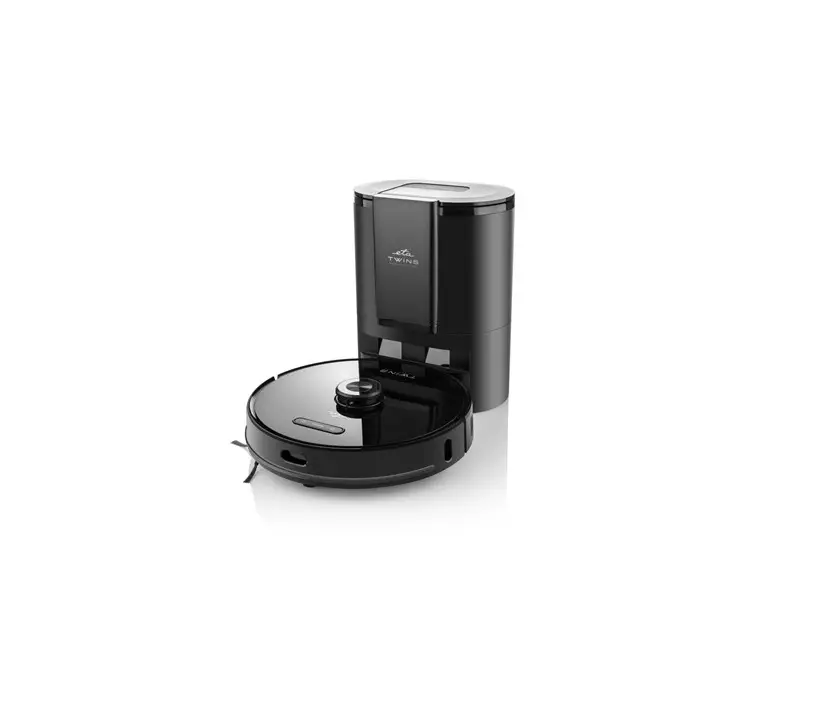
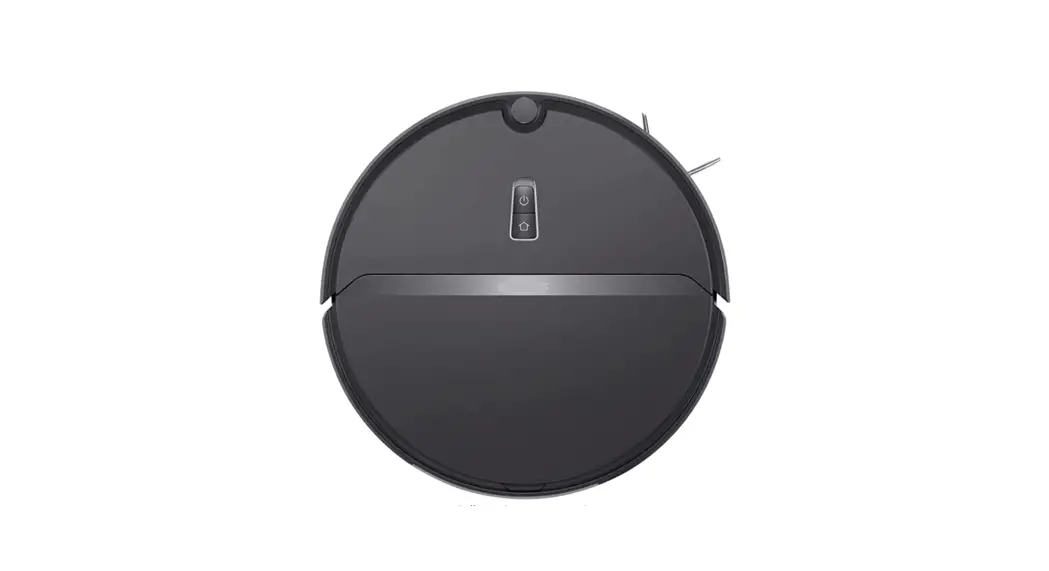
The ETA2228 / ETA4228 Navaggio is a robotic vacuum cleaner that
can be controlled using the ETA Navaggio Application. It offers a
range of features and settings to ensure efficient and thorough
cleaning of your home. The vacuum cleaner is compatible with mobile
devices running Android 4.4 and higher or iOS 9.0 and higher.
- Information on actual mode: Provides
information about the current mode of operation. - Step back: Allows you to go back to the
previous screen or step. - Information panel: Displays messages and
information related to the current function, including warning
messages. - Robot localization: When clicked, the robot
emits an acoustic signal to help you locate it easily. - Cleaned area (m2): Displays the total area
cleaned by the robot. - Sending to the charging station: Initiates the
robot’s return to the charging station. - Map administration: Allows you to manage and
edit the cleaning map. - Start / Stop (Pause) / initiation of automatic
cleaning: Controls the start, stop, and pause of automatic
cleaning. - Actual battery capacity (%): Indicates the
current battery level of the robot. - Movement manual control: Enables manual
control of the robot’s movement. - Mopping function: Activates the mopping
function of the vacuum cleaner. - Vacuum cleaner settings: Provides access to
various settings for the vacuum cleaner. - Cleaning of selected zones: Allows you to
create and clean personalized zones. - Doubled cleaning: Performs a more thorough
cleaning by cleaning each area twice. - Room cleaning mode: Sets prohibited zones and
cleans a selected place and its surroundings. - Time of cleaning (min): Sets the duration of
the cleaning process. - Mode of cleaning along walls: Enables cleaning
along walls. - Mode of cleaning of a selected place and its
surroundings: Cleans a selected place and its
surroundings. - History of cleaning: Provides a log of the
robot’s cleaning history. - Planned cleaning: Allows you to create and
customize cleaning plans. - Suction power: Adjusts the suction power of
the vacuum cleaner. - Intensity of water leakage to the mopping textile (with
mopping adapter): Adjusts the water leakage intensity for
mopping.
Additional Features:
- Option of changing the robot name: Allows you
to change the name of the robot. - Robot identification data: Displays
information about the robot’s identification. - Time zone synchronization: Synchronizes the
robot’s time zone with your mobile device. - DON’T DISTURB function: Sets a time interval
during which the robot does not perform any actions. - Acoustic accompaniment: Provides audio
messages to accompany the robot’s behavior. Volume can be
adjusted. - Function of creating a new map: Enables quick
creation of a map without the need for cleaning. - Option of map reset: Resets the map and
calibrates the robot’s behavior if needed. - Option of robot firmware update: Allows for
updating the robot’s firmware. - Administration of spare parts: Monitors the
wear of spare parts and allows for their replacement. - Activation of application automatic update:
Enables automatic updates for the ETA Navaggio Application. - Administration of robot sharing with other
users: Manages sharing the robot with other users. - Renewal to the factory configurations: Resets
the robot to its factory settings.
Product Usage Instructions:
- Install the ETA Navaggio Application on your mobile phone or
tablet. You can find the application in the Apple Store or Google
Play, or use the provided QR code for quick access. - Ensure that your mobile device is compatible with the ETA
Navaggio Application. It should be running Android 4.4 and higher
or iOS 9.0 and higher. - Connect your mobile device to a Wi-Fi network that supports
2.4GHz or 5GHz (B, G, N+ / AC). The network should have WPA1 or
WPA2 security (WPA2 is recommended). - Launch the ETA Navaggio Application and follow the on-screen
instructions to set up and connect your robotic vacuum
cleaner. - Once connected, you can use the main control menu to access
various features and settings of the vacuum cleaner. - To start automatic cleaning, press the “Start” button. The
robot will begin cleaning the designated areas. - You can use the manual control function to manually guide the
robot’s movement, if needed. - For mopping, make sure to insert the mopping adapter and adjust
the intensity of water leakage in the vacuum cleaner settings. - Customize cleaning zones, set cleaning schedules, and adjust
other settings according to your preferences using the respective
menu options. - If you encounter any issues or unusual behavior, you can
perform a map reset or update the robot’s firmware through the
application.
ETA2228 / ETA4228 Navaggio
ETA NAVAGGIO
BASIC STRUCTURE OF THE APPLICATION MAIN CONTROL MENU 1/2
Information on actual mode
Step back
Information panel Messages and information related to the actual function,
warning messages
Robot localization Upon clicking, the robot will give acoustic signal, what enables you to
find it easily Cleaned area (m2)
Sending to the charging station
Map administration
Start / Stop (Pause) / initiation of automatic cleaning
Actual battery capacity (%)
Movement manual control
Mopping function
Vacuum cleaner settings
Cleaning of selected zones
It enables you to create and consequently clean up
personal zones
Doubled cleaning
Cleaning in this mode will be performed more thoroughly –
i.e twice
Room cleaning mode Setting of prohibited zones
Time of cleaning (min)
Mode of cleaning along walls
ENG
Mode of cleaning of a selected place and its
surroundings
History of cleaning
Planned cleaning
Cleaning plans may be created and variously
adapted
Here you can set suction power
Here you can set intensity of water leakage to the mo-
pping textile only with an inserted mopping adapter
ENG – 25
ETA2228 / ETA4228 Navaggio
ETA NAVAGGIO
BASIC STRUCTURE OF THE APPLICATION MAIN CONTROL MENU 2/2
Option of changing the robot name
Robot identification data
Time zone synchronization
DON’T DISTURB” function Having finished activation, you may set a time interval during which the robot does not carry out actions
Acoustic accompaniment After activation, the robot would comment its behavior with help of audio messages. Sound volume of the audio accompaniment may be set on a scale.
Function of creating a new map Enables quick creation of a map without necessity to clean up
Option of mar reset Robot calibration
Calibration in case of non-standard behavior or movement.
Option of robot firmware update
Administration of spare parts It is possible to monitor systematic wearing of spare parts,
including possibility to reset this time or its purchase Activation of application automatic update Administration of robot sharing with other users
Renewal to the factory configurations
ENG
ENG – 26
ETA2228 / ETA4228 Navaggio
ETA NAVAGGIO
USER’S MANUAL FOR ETA NAVAGGIO APPLICATION
Dear customer,
Thank you for your confidence in the ETA brand products. This manual is destined for all owners of the ETA2228 and ETA 4228 NAVAGGIO vacuum cleaners, who want to use in full range its potential by means of ETA NAVAGGIO Application. You can find here simple instructions and
procedures how to work with your new robotic friend.
Other information, recommendations and tips about your vacuum cleaner
1
can be also found at our web site:
www.etasince1943.com/navaggio
We permanently update this web site and collect here the latest knowledge about this product.
1. APPLICATION INSTALLATION
You can find this application in the database of Apple Store or Google Play, or can also use this QR code for quickening:
2
Download and install the application to your mobile phone (tablet).
COMPATIBILITY Mobile phone (tablet) operation system
Wi-Fi network
ATTENTION
Android 4.4 and higher IOS 9.0 and higher
2,4 / 5 GHz (B, G, N+ / AC) security WPA1 and WPA2 (WPA2 is recommended)
The appliance cannot be operated with Wi-Fi networks secured with IEEE 802.1X protocol (as a rule, company’s Wi-Fi networks).
3
1. ACCOUNT REGISTRATION AND LOGIN
· As soon as you download the application, switch-on it. The basic screen, enabling you to log in, will appear.
· At the same time, it enables switching-over
to the registration of a new account, renewal
of password in case you lost it, or viewing information on the application.
4
· If you don’t have a created account, click on “Sign up”
· To log in, enter the name of your account (e-mail) and password, afterward click on “Sign in”.
· Enter a valid e-mail address and choose a safe password.
5 · After that, click on “Get”, and system will send
a verifying code to your e-mail. Write this code to this field.
· To confirm the procedure, click on “Completed”.
· If you’ve lost your password, you can renew it by means of the e-mail address used for creating the account.
· Enter this e-mail and as soon as you receive a verifying code, write it to the respective field.
· Remark: It could take a certain time until the verifying code comes up. Please be patient. At the same time, check that the code is not blocked by the spam basket/ filter of your e-mail client.
ENG
· After that, change your password and save it properly.
· You may use the new password to log in to your account.
· You may find a version of the application and information pages about the robot in the “About” section.
ENG – 27
ETA2228 / ETA4228 Navaggio
ETA NAVAGGIO
BASIC RECOMMENDATIONS AND TIPS FOR USE
This manual is universal and applies for the both versions of the robotic vacuum cleaner with
ETA NAVAGGIO Application. Namely, these are models ETA2228 and ETA4228. In the context
of functioning the application, you may take notice of a difference in the mopping function, i.e.
ETA2228 contains one universal container for debris with a container for water, and ETA4228
contains 2 containers – one for dry suction, and the second – for mopping. To enable correct
course of the function, it is necessary (in case of ETA4228) to have installed the correct
1
container, the container filled in with water and the mounted mopping adapter with a mop.
If necessary, the application itself will warn and instruct you in case of wrong installation or of necessity to insert another adapter.
· The robotic vacuum cleaner with laser navigation is able to navigate excellently in space and thus clean up with high preciseness. Under normal circumstances, it is able to recognize its position if you replace it within one map to another place, although we don’t recommend it. Always start the robot, if possible, from the charging station, and – if possible – don’t manipulate with it.
· As soon as the robot once creates a map, avoid excessive changes of the environment, which
could confuse the robot, or which could cause erasing the map. It could be, for example,
replacement of furniture, movement of some persons next to the robot (most frequently, children:)), etc.
2
· Pay special attention to the doors. If you want to make available a room for the robot, the door has to be open during mapping. To the contrary, close the door. It is also possible not to close the door and prohibit the robot from access by means of a prohibited zone.
· If you transfer the robot to another part of your house (to another map), change this map directly in the application before switching-on the robot. To the contrary (i.e. if you start the robot from another place within a different map), the robot could be confused and could draw a map incorrectly.
· If you are planning to use the robot, we recommend that you fully charge it first.
· Ideally, always let the robot finish the cleaning task. Don’t interrupt it and don’t enter more orders or operations than is necessary.
· In case of erasing a map or non-standard behavior, at first insert the robot manually into the charging station, and then restart it.
3
2. INFORMATION ON THE ACCOUNT
ENG
· Click on the icon of a person on the basic screen in the right upper corner to move to the section for viewing settings of the account profile.
· Click on the field of the picture next to the e-mail address of the account to add a profile photo to the account.
· Then, click on “Change password” to change your existing password.
· You may find some basic questions and replies about robot functions in the “Help” section.
· The robot can be shared with other users in the “Shared device” section.
· The “About” section provides basic information on the application, including a review of the user’s contract.
· Preview of “Help”, questions and replies.
ENG – 28
ETA2228 / ETA4228 Navaggio
APPLE
ETA NAVAGGIO
3. APPLIANCE PAIRING
· After a successful login, you can see a screen, in this case without a paired appliance.
· To carry out pairing with the robot, click on “Add robot”
1
* In case that you have already paired any appliance, the “+” icon appears. This icon enables
4
you to add the next robot.
· Click on the wheel next to the orange text in the application to confirm that the both button really blink.
· Afterwards click on “Next”
* (Devices with Android OS don’t have this step)
Remarks Before pairing, we recommend that you fully charge the vacuum cleaner (or at least, 30 % of the accumulator capacity). Follow attentively information and particular steps in the application.
· Now it is necessary to specify a Wi-Fi network (and enter the corresponding access password), to which your phone with the application is connected.
2
· A list of robotic vacuum cleaners, which the application is destined for, will appear. Select one, which you own.
5 · Having finished this operation, confirm it by clicking on the “Next” button.
· The next step depends on the operation
system of your device. Compared with Android, IOS contains one more step.
ANDROID
· Reset the vacuum cleaner Wi-Fi network by
long pressing the both buttons (approx. 3
seconds) on the control panel of the vacuum
3
cleaner. · Now you can hear acoustic information on
activation of the configuration related to the
network. At the same time the both buttons
starts to blink.
· If pairing proceeded without problems, this message would appear and the robot would be added to the list of your paired appliances.
Android will start connection without necessity to go to the pho-
ne settings.
Or, if necessary, the application on this screen will ask you to confirm connection to the robot Wi-Fi network
(,,ETA-xxxxx”)
ANDROID APPLE
ENG
· At this moment, you will be asked to leave the application (but don’t close it!) and to switchover your device to the Wi-Fi network settings.
· The robot has its own Wi-Fi network to which now it is necessary to connect manually. The network is named “ETA-xxxxx”. Connect to it.
· As soon as you are connected to it, return back to the application.
· Here you can see the last screen, which shows the connecting procedure of the device to the robot and Wi-Fi network.
ENG – 29
ETA2228 / ETA4228 Navaggio
Android
Apple
WHAT CAN I DO IN CASE OF FAILURE OF PAIRING?
General recommendations
· It is necessary to have an active home Wi-Fi network with a sufficiently strong signal; · Have a sufficiently charged battery in the vacuum cleaner (at least 35 %); · Try to create a new account to exclude problems with wrong activation of the account; · Check whether the Wi-Fi network settings and the smart device operation system correspond to the defined
requirements; · If the vacuum cleaner has been already paired and at present it is in OFFLINE mode (is disconnected from a
Wi-Fi network), you have to remove it from the account first (in the application, click on the bin icon in the list of the appliances and remove it). After it, log out from the account; consequently restart the vacuum cleaner and your phone (preferably, the WI-FI router, too), log in again and repeat pairing procedure
Mobile phone/tablet · Make sure that your phone during pairing is connected to the same Wi-Fi network to which you want
to pair the vacuum cleaner itself (the same SSID); · Use only smart devices with supported versions of the Android and IOS operation systems. · Keep your smart device close to the vacuum cleaner during pairing (within 2 m). · Communication between the vacuum cleaner and mobile phone may be disturbed by some programs
(for example, VPN, firewall, etc.), which you use in your phone. Switch-off these programs during pairing procedure; · Try pairing with another phone to exclude problems in this phone;
WI-FI router
· Use a high-quality Wi-Fi router, which covers for a certainty your house with a sufficiently strong signal. · Verify that the vacuum cleaner is in reach of the Wi-Fi signal; · The Wi-Fi network name (SSID) has to contain ONLY signs a-z and 0-9 (don’t use diacritical signs such as
,,_, -, *, @, +- or “gap”!). The total number of the signs should be in a range of 8-16; · In some cases, network oscillation causes a conflict (disturbance) with other WI-FI networks in the
surrounding, which work on the same or similar frequencies. If it is not technically demanding for your, try to set transmission of the Wi-FI router with automatic switching-over of channels, or to set any non-conflict channel (to identify the state of your Wi-Fi network in your home, you may use different Wi-Fi analyzers, which are available for free for the both platform, Android and iOS). · Complications can be also caused by a non-standard solution of network elements in your home or some types of routers. To avoid such the problems, you may try to create on your mobile device (on which, however, you don’t use the application!) so called ,,hotspot”, the Wi-Fi network of which will be used for temporary pairing of the devices and verifying correct function of the robot.
ETA NAVAGGIO
ENG
ENG – 30
ETA2228 / ETA4228 Navaggio
ETA NAVAGGIO
4. MAP CREATION
This option will only appear in case that you haven’t created a map yet (or you used ,,Reset map”). Select whether you only want to create map quickly or to create and clean up, too.
If necessary, adapt the surface of you house according to the user’s manual and confirm it to start map creation.
You have two basic options on the main screen how to create a new map.
2.
2
1. 1
THE ROBOT IS SCANNING A NEW MAP
ENG
Choose this option always when you want to create one more map next to any existing map. Click on “Create a map” to confirm.
The robot must start from the charging station. Click on “OK” to confirm this fact.
Confirm it by clicking on “OK”.
ENG – 31
ETA2228 / ETA4228 Navaggio
ETA NAVAGGIO
5. MAP MODIFICATION AND ADAPTATION
modification direction
In the next step, you may:
1) Name the map (for example, “2nd floor”) 2) DIVIDE the proposed rooms as necessary 3) MERGE the proposed rooms as necessary 4) Continue in naming rooms and saving the map by
clicking on “Next”.
1)
4)
Having finished area scanning, the application would offer you to save new maps.
modification direction
2)
3)
For better lucidity, it is possible to name particular rooms.
Then, click on “Save” to save the map.
ENG
REMARKS
· You may whenever repeat modifications specified in this page in the Map Administration section.
· Layout and correct naming of the rooms facilitates navigation in the application and its control, as well as administration of the planned cleanings.
· Save each map which you would like to use for a long time.
· In total, you can create and save up to 5 maps. This option may be used, especially, in case of multistage houses.
Having finished modifying and saving the changes, return back by clicking on “<”
If the map proposes automatic room division, your modifications will rewrite this division.
splitting
merging
Here you may variously merge rooms which have been automatically created or proposed by you.
Confirm the change be the “Completed” button.
Here you may variously divide rooms by drawing dividing lines. Confirm the change by the “Completed” button.
The “Back” serves for canceling selection of a particular room.
ENG – 32
ETA2228 / ETA4228 Navaggio
ETA NAVAGGIO
6. UPLOADING OF A SAVED MAP
7. PROHIBITED ZONES (VIRTUAL WALL)
Very useful function are prohibited zones,
which will forbid the robot to clean up in the defined place (you might use it for the areas when you have different vases, fragile furniture,
in a room where you don’t want to allow the robot to move, etc.)
1
· Click on the “Map” icon on the lower panel of the main screen.
1
· First of all, select a map, in which you want
1
to create prohibited zones (if there are more
than one maps).
· After that, you may activate the menu for creating and editing prohibited zones by clicking on “Virtual wall”.
· It is possible to save up to 5 different maps to memory (i.e. of your house or its parts or its storeys)
· Click on “Add” to insert a preset prohibited zone in a shape of square (for example, 2×2 m).
· Click on and drag the square field with a finger to replace the respective zone.
2
· To navigate between the maps, just click on
a map and at the same time drag it with a
2
· Click on, hold and move one of the edges of the square to modify this zone depending on
2
finger.
the shape of the room.
· Here you may either modify and adapt a map
by clicking on “Edit”, or invoke and start using the robot within its space by clicking on “Use”.
· Click on this zone and consequently on the red “x” to delete the zone.
· Click on “Save” to save the respective zones.
REMARKS:
· In the “Map”, you may modify the created maps similarly as is specified in the prior part.
· It is also possible to erase maps by clicking on the bin icon in the right upper corner in the review of the maps.
REMARKS:
· It is possible to create up to 10 different prohibited zones.
· Always, however, leave ample space for manipulation so that the robot can get to all places which are not prohibited (in case of
3
unsuitable settings of the zones, you could make it impossible for the
robot to move, for example, to another room, etc.)
8. PLANNED CLEANING
ENG
· On the main screen, click on “More”. · After that, click on “Schedule”.
· Consequently, a screen will appear on which the already-saved plans will be available.
· Click on “Edit” and then select the particular plan to modify the created plans.
· Also, you may activate and deactivate them by clicking on the wheel in the right part of this plan.
· Click on “Add appointment” to go to the parameter setting for the plan of cleaning.
· During creation of a plan, it is possible to define different cleaning parameters.
· First of all, select a map, on which the cleaning should be performed. Then, select one of three possible cleaning modes and tick off whether you want to perform doubled cleaning within this mode.
· After that, define a start time, tick off whether this plan has to be repeated or should be carried out only once.
· Afterwards, choose days in which the respective cleanings should be carried out, including settings of the parameters of the suction power and mopping intensity.
· Click on “Save” to create this plan.
ENG – 33
ETA2228 / ETA4228 Navaggio
ETA NAVAGGIO
9. CLEANING MODES
8
Room cleaning
You may choose an option of cleaning of a selected room (or several rooms at one time) on the main screen. Click on the “Select room”, then click on a room/rooms which you want to clean up, and then click on “Start” to confirm it.
2
Zonal cleaning
Within the saved map, this mode enables creation of up to 10 different zones, which can be – depending on selection cleaned up individually. Principle: creation and modifications of the zones is the same as in case of prohibited zones (chapter 7). Click on the respective zone (or several zones) to select a zone of cleaning and click on “Start” to confirm that the robot returns to the charging station after finishing the cleaning.
3 4 56
27 8
3
Manual control
It enables manual control of the robot by means of arrows displayed on the application display.
4
Mopping
Mode of cleaning with a mopping adapter for wiping the floor. Click on “Scrubbing” to initiate automatic cleaning with special movements of the vacuum cleaner.
Remark: As soon as the mopping adapter is installed, it is possible to use, of cause, other functions (for example, zonal cleaning), during which the robot will suck and at the same time mop; only at automatic cleaning, however, it exercises special wiping movements which increase effectiveness of wiping.
1
7
Doubled cleaning
1
Automatic cleaning
The application enables activation of the doubled cleaning function. If this function is active (has an orange background), the respective mode will carry out cleaning twice.
It is basic and most frequently used cleaning mode, in which the robot systematically cleans up the whole available area within the respective map. Automatic cleaning may be also used with the mopping function. In this case, however, it is necessary to prevent the vacuum cleaner from driving onto a rug. If you have rugs in your house, use the Prohibited Zones function.
Click on “Start” to start automatic cleaning by the robot.
5
Along walls
If you click on “Edge”, the robot will only clean up boundary parts of a room and after that will return to the charging station.
6
Local cleaning
It is an ideal choice for cleaning a selected particular place (with a squared shape).
When selecting, just click on a place in the map to add a small flag here, afterwards confirm it by clicking on “Start”. Having finished cleaning of the respective area, the vacuum cleaner will return to the charging station.
ENG
ENG – 34
ETA2228 / ETA4228 Navaggio
ETA NAVAGGIO
10. HISTORY OF CLEANING
1
· On the main screen, click on “More”.
1
· After that, click on “Schedule”.
2
· A list of all historical cleanings, including the
2
total statistics of the cleaned up area and total
time of cleaning, will appear.
· You may unroll particular records and check details of the respective cleaning.
3
· In the right upper corner of the list of cleanings and in the preview of particular cleanings, a bin icon is displayed. By means of this icon, you may collectively or separately delete chosen cleaning records.
11. APPLIANCE SHARING
· The application enables sharing the robotic vacuum cleaner between users. Using the sharing function, you may use one robot with several different accounts and phones.
· The “Shared device” function may be found, among others, in the “Settings” part. Remark OS Android can have this section in a different part of settings than OS for APPLE.
TROUBLESHOOTING
In case of whatever problem, first of all make sure whether you use actual version of the application and firmware of the robot. At the same time, try to use the “gold rule of IT” – restart all what you could and is available for you i.e. the application itself, phone, robot and – if necessary – Wi-FI router itself. These rules often can remove big part of complications and problems. If no basic recommendations help you, you may try to return the robot in the factory configurations in the Settings section.
ENG
· The sharing section itself contains 2 main parts. “SHARED” and “ACCEPT”.
· The “SHARED” shows all robots which you have paired with your account and which you may share with other users.
· The “ACCEPT” contains approved appliances and appliances awaiting for approval.
· Click on the robot, which you want to share, in the “SHARED” section.
· Consequently you can see a list of addresses with which you share the robot. In this case, the list is empty – you may add the first use.
· To add, click on “Add share”.
· After that, enter e-mail address of the account for ETA NAVAGGIO Application, with which you want to pair and click on “OK” to confirm it.
· Consequently, the counter party (the designated address of the account) will need to accept this sharing in the sharing section, or, if necessary, the application itself will ask him/her to do so after initiation.
· After confirmation, you may monitor the robot and control it jointly. If you want to cancel sharing, drag with a finger to the left to the respective shared address to display the erasing option.
ENG – 35
 Navaggio robot vacuum cleaner support | etasince1943.com