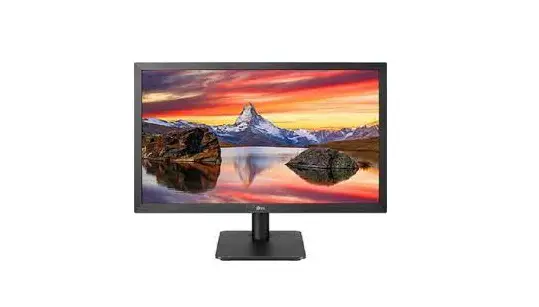
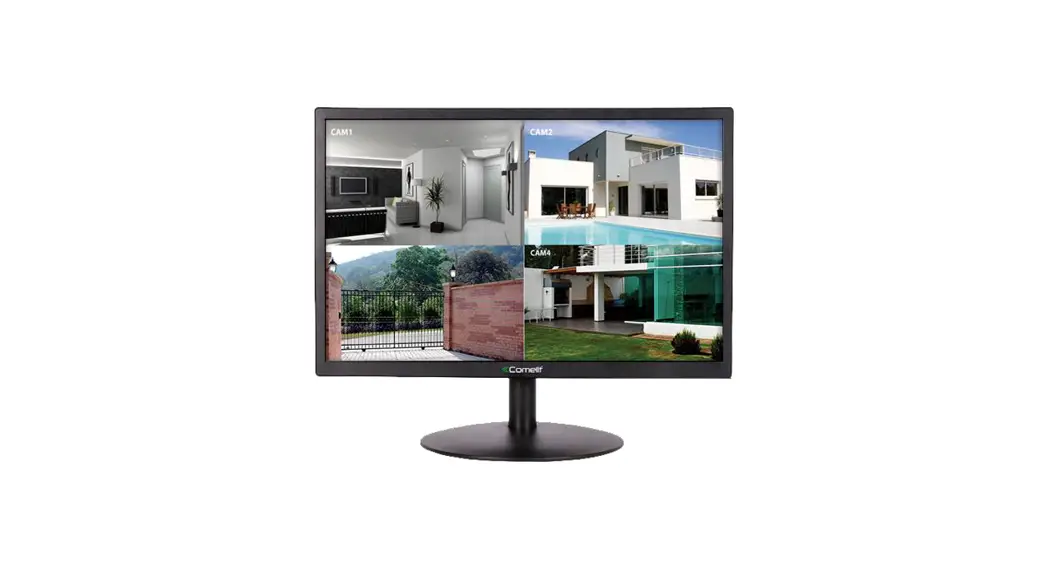
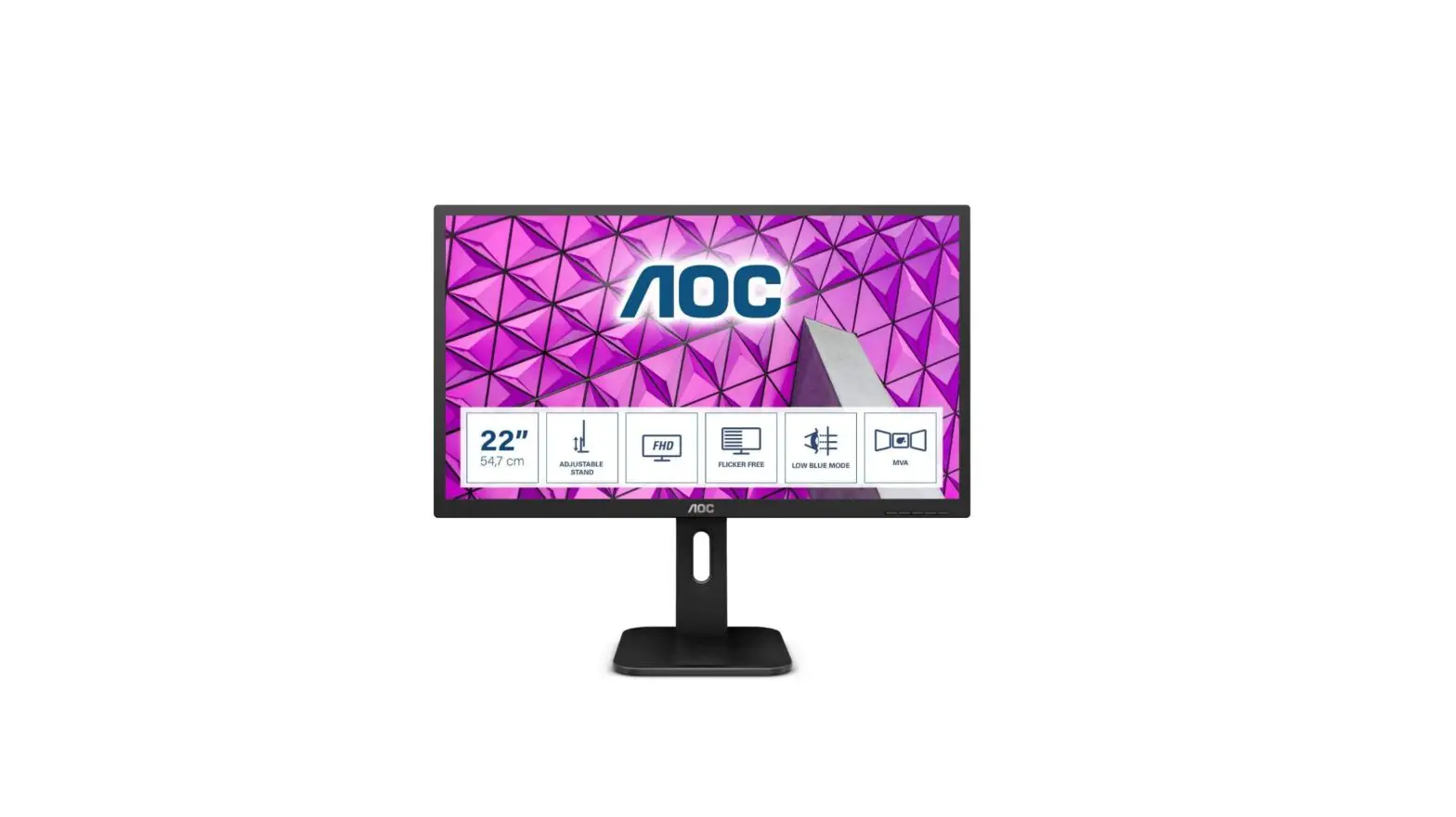
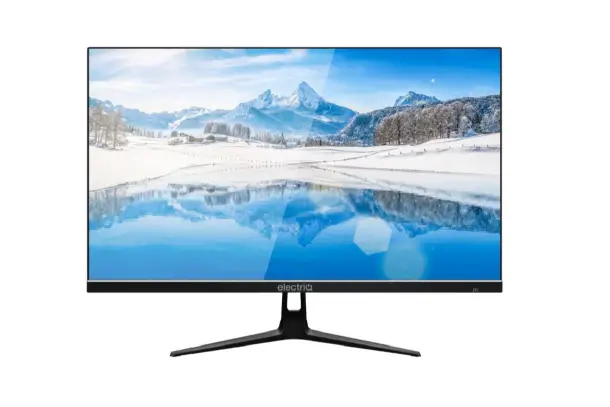
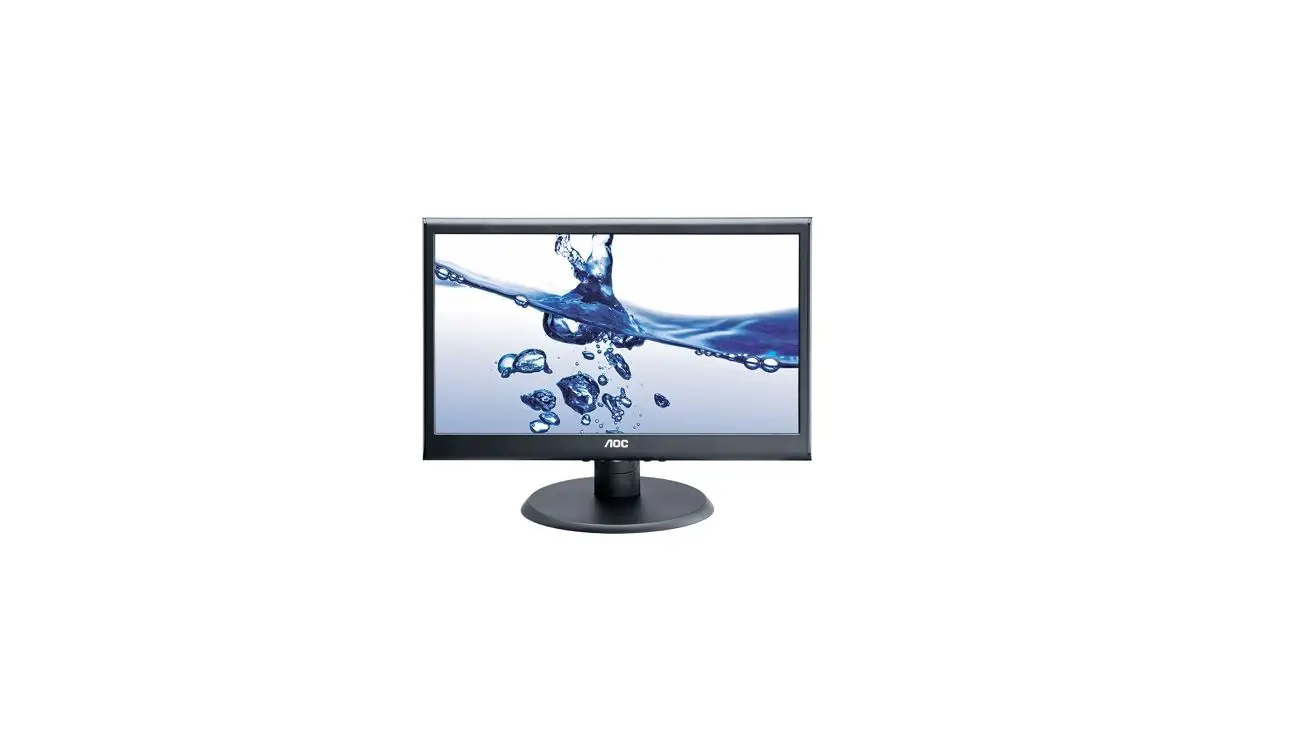
RF-PM-190 LED Metal Monitor 48.1 cm 19 Inch
Product Information: – Product Name: 48.1 cm (19) Metal Monitor –
Item Number: 2616623 – Operating Instructions: Included in the
package – Manufacturer: Conrad – Website: – Germany: www.conrad.de
– Austria: www.conrad.at – Switzerland: www.conrad.ch – Trademarks:
All company names and product names mentioned are trademarks of
their respective owners. All rights reserved. – HDMI: HDMI is a
registered trademark of HDMI Licensing L.L.C. – Package Contents: –
59 x Mounting screws – 1 x VGA cable – 1 x BNC cable – User Manual
Product Usage Instructions: 1. Safety Precautions: – General: –
Follow all safety instructions provided in the user manual. – Do
not expose the monitor to moisture or extreme temperatures. – Keep
the monitor away from direct sunlight and heat sources. – Handling:
– Handle the monitor with care to avoid damage. – Do not apply
excessive force or pressure on the monitor. – Operating
Environment: – Use the monitor in a well-ventilated area. – Avoid
dusty or humid environments. 2. Monitor Connections: – DC Power
Input: Connect the included DC power cable to the monitor’s DC
power input. – VGA Input: Connect a VGA cable to the VGA input port
of the monitor. – HDMI Input: Connect an HDMI cable to the HDMI
input port of the monitor. – BNC Input: Connect a BNC cable to the
BNC input port of the monitor. – Audio Input/Output: Connect audio
devices using the provided audio input/output ports. – USB Port:
Use the USB port to connect compatible devices. 3. Remote Control:
– The remote control allows you to control various functions of the
monitor. – Insert the batteries into the remote control according
to the instructions provided. 4. Mounting the Monitor: – Table
Mounting: – Use the provided screws to attach the monitor stand to
the monitor base. – Place the monitor on a stable surface. – Wall
Mounting: – Use the provided screws and wall mounting plates to
mount the monitor on the wall. – Follow the instructions provided
for proper installation. – VESA Mounting (not included): – If using
a VESA mount, follow the manufacturer’s instructions for mounting
the monitor. 5. Operating the Monitor: – Make sure the monitor is
securely mounted on a table or wall. – Press the power button to
turn on the monitor. – Use the remote control or buttons on the
monitor to adjust settings, select input sources, and navigate
menus. 6. Troubleshooting: – Problem: The product does not turn on.
– Solution: Check the power connection and ensure it is properly
plugged in. – Problem: No image appears on the display. – Solution:
Check the cable connections and make sure they are securely
connected. – Problem: Blurry or distorted image. – Solution: Adjust
the picture mode settings via the menu button and ensure you are
not using a faulty video cable or switch box. 7. Cleaning and Care:
– Disconnect the monitor and connected devices from power before
cleaning. – Clean the monitor with a soft, dry cloth. – For screen
cleaning, use a soft, clean, and dry cloth with lens cleaning
solution if necessary. – Store the monitor in a shaded, cool, and
dry place when not in use. 8. Disposal: – Product: Follow local
regulations for proper disposal of the product. – Batteries: Remove
batteries and dispose of them separately according to battery
disposal regulations in your area. 9. Technical Specifications: –
Power Supply: – Input Voltage/Current: 12 V/DC, 4 A – Power
Consumption: 48 W – Standby Power Consumption: [Not specified]
Please refer to the user manual for complete instructions and
additional information.
Bedienungsanleitung
48.1 cm (19″) Metallmonitor
Best.-Nr. 2616623
Operating Instructions
48.1 cm (19″) Metal monitor
Item No. 2616623
Seite 2 – 13 Page 14 – 25
1 Inhaltsverzeichnis
2 Einführung ………………………………………………………………………………………………………………………………………..3 3 Bestimmungsgemäße Verwendung………………………………………………………………………………………………………3 4 Lieferumfang……………………………………………………………………………………………………………………………………..3 5 Aktuelle Bedienungsanleitungen ………………………………………………………………………………………………………….3 6 Symbol-Erklärung ………………………………………………………………………………………………………………………………4 7 Sicherheitshinweise ……………………………………………………………………………………………………………………………4
7.1 Allgemein …………………………………………………………………………………………………………………………………….4 7.2 Handhabung ………………………………………………………………………………………………………………………………..4 7.3 Betriebsumgebung………………………………………………………………………………………………………………………..4 7.4 Betrieb ………………………………………………………………………………………………………………………………………..5 7.5 Netzteil………………………………………………………………………………………………………………………………………..5 7.6 Angeschlossene Geräte…………………………………………………………………………………………………………………6 8 Produktübersicht………………………………………………………………………………………………………………………………..6 8.1 Monitor………………………………………………………………………………………………………………………………………..6 8.2 Fernbedienung……………………………………………………………………………………………………………………………..7 9 Batterien in die Fernbedienung einlegen ……………………………………………………………………………………………….7 10 Anbringen des Monitors………………………………………………………………………………………………………………………8 10.1 Tischmontage …………………………………………………………………………………………………………………………….8 10.2 Wandmontage…………………………………………………………………………………………………………………………….9 10.3 Montage mittels VESA-Halterung (nicht mitgeliefert) ……………………………………………………………………….9 11 Anschließen des Monitors …………………………………………………………………………………………………………………10 12 Bedienung des Monitors ……………………………………………………………………………………………………………………10 13 Fehlerbehebung………………………………………………………………………………………………………………………………. 11 14 Reinigung und Pflege ………………………………………………………………………………………………………………………. 11 15.1 Produkt ……………………………………………………………………………………………………………………………………12 15.2 Batterien/Akkus…………………………………………………………………………………………………………………………12 16 Technische Daten …………………………………………………………………………………………………………………………….13 16.1 Stromversorgung ………………………………………………………………………………………………………………………13 16.2 Netzteil…………………………………………………………………………………………………………………………………….13 16.3 Fernbedienung………………………………………………………………………………………………………………………….13 16.4 Anzeige……………………………………………………………………………………………………………………………………13 16.5 Anschlüsse……………………………………………………………………………………………………………………………….13 16.6 Betriebsbedingungen…………………………………………………………………………………………………………………13 16.7 Sonstiges…………………………………………………………………………………………………………………………………13
2
2 Einführung
Sehr geehrte Kundin, sehr geehrter Kunde,
wir bedanken uns für den Kauf dieses Produkts.
Bei technischen Fragen wenden Sie sich bitte an:
Deutschland:
www.conrad.de
Österreich:
www.conrad.at
Schweiz:
www.conrad.ch
3 Bestimmungsgemäße Verwendung
Bei dem Produkt handelt es sich um einen Monitor (48,1 cm/19) zur Tisch- oder Wandmontage mit eingebauten Lautsprechern und Fernbedienung. Ausgestattet ist das Produkt mit den Video-Eingängen HDMI, VGA, BNC (CVBS) und Cinch, einer 3,5 mm Audio-Eingangsbuchse, einer 3,5 mm Audio-Ausgangsbuchse sowie mit einem USB 2.0 Anschluss zur Wiedergabe unterstützter Foto-, Musik- oder Videodateien über einen USB-Datenträger. Dem Produkt liegen Befestigungssätze für die Tisch- oder Wandmontage bei. Das Produkt ist ferner mit standardmäßigen 75 mm und 100 mm VESA-Halterungen (nicht mitgeliefert) kompatibel.
Das Produkt ist ausschließlich für die Verwendung in Innenräumen vorgesehen. Verwenden Sie es daher nicht im Freien. Der Kontakt mit Feuchtigkeit ist in jedem Fall zu vermeiden. Das Produkt ist für den industriellen und gewerblichen Einsatz bestimmt.
Sollten Sie das Produkt für andere als die genannten Zwecke verwenden, kann das Produkt beschädigt werden. Eine unsachgemäße Verwendung kann Kurzschlüsse, Brände, Stromschläge oder andere Gefahren verursachen.
Das Produkt entspricht den gesetzlichen Vorgaben und erfüllt sämtliche der nationalen und europäischen Vorschriften. Aus Sicherheits- und Zulassungsgründen dürfen Sie dieses Produkt nicht umbauen und/oder verändern.
Lesen Sie sich die Bedienungsanleitung sorgfältig durch und bewahren Sie sie sicher auf. Geben Sie das Produkt nur zusammen mit der Bedienungsanleitung an Dritte weiter.
Alle enthaltenen Firmennamen und Produktbezeichnungen sind Warenzeichen der jeweiligen Inhaber. Alle Rechte vorbehalten.
HDMI ist eine eingetragene Marke der HDMI Licensing L.L.C.
4 Lieferumfang
Monitor Netzteil Fernbedienung 1 x Tischmontageständer 2 x Profilbleche zur Wandmontage (linke und rechte
Seite)
59 x Befestigungsschrauben 1 x VGA-Kabel 1 x BNC-Kabel Bedienungsanleitung
5 Aktuelle Bedienungsanleitungen
Laden Sie aktuelle Bedienungsanleitungen über den Link www.conrad.com/downloads herunter oder scannen Sie den abgebildeten QR-Code. Folgen Sie den Anweisungen auf der Website.
3
6 Symbol-Erklärung
Die folgenden Symbole befinden sich am Produkt/Gerät oder erscheinen im Text:
Das Symbol warnt vor Gefahren, die zu Verletzungen führen können.
Das Symbol warnt vor gefährlicher Spannung, die zu Verletzungen durch Stromschlag führen kann.
7 Sicherheitshinweise
Lesen Sie sich die Bedienungsanleitung sorgfältig durch und beachten Sie insbesondere die Sicherheitshinweise. Sollten Sie die in dieser Bedienungsanleitung aufgeführten Sicherheitshinweise und die Angaben zur bestimmungsgemäßen Verwendung nicht beachten, übernehmen wir keine Haftung für daraus resultierende Personen- oder Sachschäden. Darüber hinaus erlischt in solchen Fällen die Gewährleistung/Garantie.
7.1 Allgemein
Das Produkt ist kein Spielzeug. Halten Sie es von Kindern und Haustieren fern. Lassen Sie Verpackungsmaterial nicht achtlos herumliegen. Dieses könnte anderenfalls für Kinder zu einem
gefährlichen Spielzeug werden. Sollten Sie noch Fragen haben, die in dieser Bedienungsanleitung nicht beantwortet wurden, wenden Sie sich an
unseren technischen Kundendienst oder anderes Fachpersonal. Lassen Sie Wartungs-, Änderungs- und Reparaturarbeiten ausschließlich von einer Fachkraft bzw. einer
zugelassenen Fachwerkstatt ausführen.
7.2 Handhabung
Gehen Sie stets vorsichtig mit dem Produkt um. Stöße, Schläge oder sogar das Herunterfallen aus geringer Höhe können das Produkt beschädigen.
Vor dem Reinigen oder Ändern von Kabelverbindungen immer den Monitor ausschalten, den Netzstecker ziehen sowie alle angeschlossenen (oder anzuschließenden) Geräte trennen.
Um Displayschäden zu vermeiden, nie mit Fingernägeln oder anderen harten oder scharfen Gegenständen auf der Oberfläche kratzen oder hineinstechen.
7.3 Betriebsumgebung
Zur Vermeidung von Stromschlägen oder anderen Gefahren keine mit Flüssigkeit gefüllten Gegenstände (wie z. B. Getränke oder Blumenvasen) in Gerätenähe abstellen.
Produkt vor hoher Feuchtigkeit und Nässe schützen. Das Produkt nicht auf einem wackligen Tisch oder an einer hohlen Wand montieren, der bzw. die das
Produktgewicht nicht tragen kann. Die Lüftungsöffnungen oder sonstigen Öffnungen am Produkt nicht blockieren oder abdecken. Um Schäden oder Verletzungen zu vermeiden, das Produkt nicht zudecken oder andere Gegenstände darauf
ablegen. Setzen Sie das Gerät keiner mechanischen Beanspruchung aus. Schützen Sie das Produkt vor extremen Temperaturen, starken Stößen, brennbaren Gasen, Dampf und
Lösungsmitteln.
4
Schützen Sie das Produkt vor direkter Sonneneinstrahlung. Nehmen Sie das Produkt niemals unmittelbar nachdem es von einer kalten in eine warme Umgebung gebracht
wurde in Betrieb. Das dabei entstehende Kondenswasser kann unter Umständen das Produkt zerstören. Lassen Sie das Produkt deshalb vor der Inbetriebnahme stets zuerst einmal auf Zimmertemperatur kommen. Verwenden Sie das Produkt nicht in unmittelbarer Nähe von starken magnetischen oder elektromagnetischen Feldern, Sendeantennen oder HF-Generatoren. Das Produkt funktioniert dann unter Umständen nicht ordnungsgemäß.
7.4 Betrieb
Wenden Sie sich an einen Fachmann, wenn Sie Zweifel an der Bedienung, der Sicherheit oder dem Anschluss des Geräts haben.
Sollte kein sicherer Betrieb mehr möglich sein, nehmen Sie das Produkt außer Betrieb und schützen Sie es vor unbeabsichtigter Verwendung. Sehen Sie UNBEDINGT davon ab, das Produkt selbst zu reparieren. Der sichere Betrieb ist nicht mehr gewährleistet, wenn das Produkt: sichtbare Schäden aufweist, nicht mehr ordnungsgemäß funktioniert, über einen längeren Zeitraum unter ungünstigen Umgebungsbedingungen aufbewahrt wurde oder erheblichen Transportbelastungen ausgesetzt wurde.
7.5 Netzteil
Verändern oder reparieren Sie keine Komponenten der Netzversorgung, einschließlich Netzstecker, Netzkabel und Netzteile. Verwenden Sie keine beschädigten Bauteile. Es besteht die Gefahr eines lebensgefährlichen Stromschlags! Schließen Sie das Produkt an eine Steckdose an, die jederzeit leicht zugänglich ist. Verwenden Sie nur das mitgelieferte Netzteil zur Energieversorgung. Als Spannungsquelle für das Netzteil darf nur eine ordnungsgemäße Netzsteckdose des öffentlichen Versorgungsnetzes verwendet werden. Überprüfen Sie vor dem Anschluss des Netzteils, ob die Spannungsangaben auf dem Netzteil mit der Spannung in Ihrem Haushalt übereinstimmen. Das Netzteil darf nicht mit nassen Händen angeschlossen oder getrennt werden. Ziehen Sie niemals am Kabel, um das Netzteil von der Steckdose zu trennen. Verwenden Sie stattdessen stets die dafür vorgesehenen Griffflächen am Netzstecker. Trennen Sie das Netzteil aus Sicherheitsgründen während Gewittern vom Netzstrom. Sollte das Steckernetzteil Beschädigungen aufweisen, so fassen Sie das Netzteil nicht an, da dies zu einem tödlichen Stromschlag führen kann! Gehen Sie stattdessen wie folgt vor: Schalten Sie zunächst die Spannungszufuhr zur Steckdose ab, an der das Netzteil angeschlossen ist (entsprechenden Leitungsschutzschalter abschalten oder die Sicherung herausnehmen und anschließend den entsprechenden FI-Schutzschalter abschalten). Ziehen Sie das Netzteil aus der Steckdose. Verwenden Sie ein neues Netzteil der gleichen Bauart. Sehen Sie von der weiteren Verwendung des defekten Netzteils ab. Achten Sie darauf, dass Kabel weder eingeklemmt, geknickt noch durch scharfe Kanten beschädigt werden. Verlegen Sie Kabel immer so, dass niemand darüber stolpern oder sich in ihnen verfangen kann. Bei Nichtbeachtung besteht Verletzungsgefahr.
5
7.6 Angeschlossene Geräte
Beachten Sie auch die Sicherheits- und Bedienungshinweise der übrigen Geräte, die an dieses Produkt angeschlossen sind.
8 Produktübersicht
8.1 Monitor
12 14 11 13 15
16
16
17
12
DC
VGA
34
Audio Audio
HDMI
AV
R
L
In Out
USB
BNC
5 6 7 8 9 10
1 Betriebslampe 2 IR-Empfänger (für
Fernbediensignale) 3 DC-Netzeingang 4 VGA-Eingang 5 HDMI Eingang 6 Cinch Eingangsbuchsen (AV)
7 3,5 mm Audio-Eingangsbuchse
8 3,5-mm Audio-Ausgangsbuchse
9 USB (2.0) Anschluss
10 BNC
11 Taste
/Lautstärke –
12 Taste /Lautstärke +
13 Taste Power
14 Taste Down 15 Taste Menü 16 Lautsprecher 17 VESA-Lochungen 75 mm und
100 mm
6
8.2 Fernbedienung
A B
C
OK
D E
F
G
H
A Ein-/Aus-Taste
B Schneller Rücklauf:
Wiedergabe von Musik/Videos über USB
I
C Pfeiltasten
J
D Auswahl der Eingangsquelle
K
E Lautstärke +/-
F Zurück
G Schneller Vorlauf: Wiedergabe von Musik/Videos über USB
H Menü
I OK – Auswahl bestätigen – Anzeige der Statusleiste bei der Wiedergabe von Bildern, Musik und Videos über USB
J Anzeige der verfügbaren Eingangsquellen
K Schlafmodus
9 Batterien in die Fernbedienung einlegen
1. Den Deckel des Batteriefachs auf der Rückseite der Fernbedienung öffnen. 2. Neue Batterien (2 x 1,5 V AAA, nicht mitgeliefert) einlegen. Auf die Plus- und Minussymbole im Batteriefach
achten. 3. Deckel wieder am Batteriefach anbringen.
7
10 Anbringen des Monitors
Benötigtes Werkzeug: Kreuzschlitzschraubendreher. Zum Festschrauben die Schrauben im Uhrzeigersinn und zum Lösen gegen den Uhrzeigersinn drehen.
Mitgeliefertes Befestigungsmaterial (nicht maßstabgerecht)
A
Flügelschraube für Tischständer
x 2
B
Schraube für Tischständer
x 2
C
Schraube für Schreibtisch (Bohrlöcher bereits im Tisch)
x 13
D
Schraube für Holzschreibtisch
x 5
E
Schraube für die Wandmontage
x 13
F
Selbstbohrschraube für die Wand
x 12
G
Plastikdübel
x 12
E
Tischmontageständer
x 1
F
Profilbleche zur Wandmontage (linke und rechte Seite)
x 2
10.1 Tischmontage
(A) (B)
(C or D)
1. Den Monitor und alle angeschlossen (anzuschließenden) Geräte ausschalten und aus den Steckdosen ziehen. 2. Die Bohrungen an den Seitenteilen des Tischständers mit den entsprechenden Löchern links und rechts auf der
Rückseite des Monitors fluchten lassen (siehe Abbildung). 3. Die Schrauben (B) in der mittleren Bohrung der Seitenteile festziehen, um den Ständer am Monitor zu befestigen. 4. Den Monitor auf den gewünschten Winkel einstellen und mit den Flügelschrauben (A) wie dargestellt den Monitor
im jeweiligen Winkel an den runden Aussparungen festklemmen. Mit den Flügelschrauben kann der Monitorwinkel eingestellt werden.
8
5. Den Monitor auf einen stabilen, ebenen und soliden Tisch abstellen. Den Ständer mit 4 Schrauben am Tisch (C oder D) anschrauben (siehe Abbildung). WARNUNG! Der Montageständer des Monitors muss mit den 4 Schrauben am Tisch festgeschraubt werden (C oder D). Den Monitor nicht ohne Festschrauben des Ständers mit den 4 Schrauben benutzen, da er sonst instabil ist und umstürzen kann.
10.2 Wandmontage
Den Monitor an einer flachen, stabilen Wand montieren, die das Gerätegewicht tragen kann.
(G)
OPTION A
(G)
OPTION B
(E)
(F)
(E)
(F)
1. Den Monitor und alle angeschlossen (anzuschließenden) Geräte ausschalten und aus den Steckdosen ziehen. 2. Je nachdem, wie die Profilbleche angeschlagen werden, kann das Gerät in die Wand eingelassen (OPTION A)
oder bündig zur Wand (OPTION B) montiert werden. 3. Die Profilbleche (I) auf beiden Seiten des Monitorrahmens anschlagen (OPTION A oder B) und die gewünschten
Positionen vor dem Montieren an der Wand kennzeichnen. Die Kabellängen müssen dabei berücksichtigt werden. 4. Mit den 8 Schrauben (E) die Profilbleche an den Seiten des Monitors anbringen und mit den 12 Selbstbohrschrauben
und den 12 Plastikdübeln (F und G) die Profilbleche an der Wand befestigen, wie in der nachfolgenden Abbildung gezeigt.
10.3 Montage mittels VESA-Halterung (nicht mitgeliefert)
Der Monitor ist mit den VESA-Lochungen 75 mm und 100 mm ausgestattet. Der Monitor kann an einer geeigneten VESA-Halterung befestigt werden, falls gewünscht.
9
11 Anschließen des Monitors
1. Mit einem geeigneten Kabel ein Video-Abspielgerät mit den VGA, HDMI, Cinch oder BNC-Eingängen unten am Monitor anschließen. VGA- und BNC-Kabel werden mitgeliefert.
2. Das beiliegende Netzteil mit dem DC-Eingang am Monitor (12 VDC) und die andere Seite an eine Steckdose anschließen.
12 Bedienung des Monitors
VORAUSSETZUNG:
D Der Monitor ist fest am Tisch oder an der Wand montiert.
1. Video-Abspielgerät einschalten. 2. Den Monitor mit der Taste Power auf der Fernbedienung oder auf der Rückseite des Monitors einschalten.
Æ Das Gerät zeigt den Startbildschirm mit dem Renkforce Logo an. 3. Sofern erforderlich, die Taste INPUT auf der Fernbedienung drücken, um die Signalquelle auszuwählen, die mit
dem Monitor verbunden ist. 4. Mit den Tasten und Pfeiltasten auf der Fernbedienung können die Funktionen und Menüoptionen rasch aufgerufen
werden. Auf der Rückseite des Monitors stehen außerdem fünf Funktionstasten zur Verfügung: : Minustaste/Lautstärke /Bestätigungstaste
: Plustaste/Lautstärke + : Schaltet den Monitor ein/aus : Navigiert das Bildschirmmenü nach unten : Ruft das Hauptmenü auf/Zurück-Taste 5. Um am Monitor bestimmte Einstellungen festzulegen, die Taste Menu auf der Fernbedienung oder am Monitor drücken, um das Hauptmenü aufzurufen: PICTURE SOUND TIME OPTION 6. Unter OPTION können Sie die Bildschirmsprache (OSD) von Englisch (Standard) auf Deutsch umstellen. 7. Um Fotos, Musik oder Videodateien auf dem Monitor wiederzugeben, die auf einem USB-Speichergerät hinterlegt sind, das USB-Gerät an den USB (2.0) Anschluss des Monitors anschließen, auf der Fernbedienung die Taste INPUT drücken und als Signalquelle USB auswählen.
Hinweis: Vor dem Anschließen des USB-Speichers an den Monitor immer zunächst die Dateien sichern, um sie vor Beschädigung oder Verlust zu schützen.
8. Nach dem Gebrauch den Monitor mit der Taste Power ausschalten. Wird der Monitor längere Zeit nicht benötigt, den Netzstecker aus der Steckdose ziehen.
10
13 Fehlerbehebung
Problem
Das Produkt schaltet sich nicht ein.
Im Display erscheint kein Bild.
Die Optionen Kontrast, Helligkeit, Farbe, Schärfe und Farbton sind deaktiviert. Displaydarstellung ist nicht richtig zentriert oder unproportional. Die Bildfarben sind anscheinend verfälscht. Das Bild springt, flackert oder wirkt wellig.
Das Bild wirkt verschwommen oder hat Schattenkanten.
Mögliche Ursache Batterien der Fernbedienung auswechseln. Kontrollieren, ob das Netzteil fest am Monitor und an die Steckdose
angeschlossen. Prüfen, ob an der Steckdose Strom anliegt. Strom und Kabelverbindungen überprüfen. Der gewählt Eingang ist falsch. Wenn im Display “No Signal” gemeldet
wird, die Taste INPUT auf der Fernbedienung drücken, um die Signalquelle zu wechseln. Anschließend zur Bestätigung OK drücken.
Bildmodus auf “Benutzer” umstellen.
Über die Taste MENU unter PICTURE (BILD) die Option “Aspect Ratio” (Seitenverhältnis) umstellen. Über die Taste MENU unter PICTURE (BILD) die Option “Colour Temperature” (Farbtemperatur) korrigieren. Elektrogeräte und Funkgeräte weiter vom Monitor entfernen. Eventuell senden diese Störwellen aus. Über die Taste MENU unter PICTURE (BILD) > “Picture Mode” (Bildmo-
dus) die Optionen Helligkeit und Kontrast korrigieren. Auf Video-Verlängerungskabel oder Schaltboxen verzichten.
14 Reinigung und Pflege
Wichtig: Verwenden Sie keine aggressiven Reinigungsmittel, Reinigungsalkohol oder andere chemische
Lösungsmittel. Diese können Gehäuseschäden und Gerätestörungen verursachen. Spülen Sie das Produkt nicht unter dem Wasserhahn ab und setzen Sie es keiner Feuchtigkeit aus. Tauchen Sie das Produkt nicht in Wasser.
1. Vor dem Reinigen das Produkt und die angeschlossenen Geräte von der Steckdose trennen. 2. Den Monitor mit einem weichen, trockenen Tuch reinigen. 3. Das Display mit einem weichen, trockenen Tuch abwischen. Bei Bedarf wenige Tropfen Linsenreinigungsmittel
auf das Tuch geben oder ein Brillenputztuch verwenden 4. Bewahren Sie das Produkt an einem schattigen, kühlen und trockenen Ort auf.
11
15 Entsorgung
15.1 Produkt
Alle Elektro- und Elektronikgeräte, die auf den europäischen Markt gebracht werden, müssen mit diesem Symbol gekennzeichnet werden. Dieses Symbol weist darauf hin, dass dieses Gerät am Ende seiner Lebensdauer getrennt von unsortiertem Siedlungsabfall zu entsorgen ist. Jeder Besitzer von Altgeräten ist verpflichtet, Altgeräte einer vom unsortierten Siedlungsabfall getrennten Erfassung zuzuführen. Die Endnutzer sind verpflichtet, Altbatterien und Altakkumulatoren, die nicht vom Altgerät umschlossen sind, sowie Lampen, die zerstörungsfrei aus dem Altgerät entnommen werden können, vor der Abgabe an einer Erfassungsstelle vom Altgerät zerstörungsfrei zu trennen. Vertreiber von Elektro- und Elektronikgeräten sind gesetzlich zur unentgeltlichen Rücknahme von Altgeräten verpflichtet. Conrad stellt Ihnen folgende kostenlose Rückgabemöglichkeiten zur Verfügung (weitere Informationen auf unserer Internet-Seite): in unseren Conrad-Filialen in den von Conrad geschaffenen Sammelstellen in den Sammelstellen der öffentlich-rechtlichen Entsorgungsträger oder bei den von Herstellern und Vertreibern im Sinne des ElektroG eingerichteten Rücknahmesystemen Für das Löschen von personenbezogenen Daten auf dem zu entsorgenden Altgerät ist der Endnutzer verantwortlich. Beachten Sie, dass in Ländern außerhalb Deutschlands evtl. andere Pflichten für die Altgeräte-Rückgabe und das Altgeräte-Recycling gelten.
15.2 Batterien/Akkus
Entnehmen Sie evtl. eingelegte Batterien/Akkus und entsorgen Sie diese getrennt vom Produkt.Sie als Endverbraucher sind gesetzlich (Batterieverordnung) zur Rückgabe aller gebrauchten Batterien/Akkus verpflichtet; eine Entsorgung über den Hausmüll ist untersagt.
Schadstoffhaltige Batterien/Akkus sind mit dem nebenstehenden Symbol gekennzeichnet, das auf das Verbot der Entsorgung über den Hausmüll hinweist. Die Bezeichnungen für das ausschlaggebende Schwermetall sind: Cd=Cadmium, Hg=Quecksilber, Pb=Blei (die Bezeichnung steht auf den Batterien/ Akkus z.B. unter dem links abgebildeten Mülltonnen-Symbol). Ihre verbrauchten Batterien/Akkus können Sie unentgeltlich bei den Sammelstellen Ihrer Gemeinde, unseren Filialen oder überall dort abgeben, wo Batterien/Akkus verkauft werden. Sie erfüllen damit die gesetzlichen Verpflichtungen und leisten Ihren Beitrag zum Umweltschutz. Vor der Entsorgung sind offen liegende Kontakte von Batterien/Akkus vollständig mit einem Stück Klebeband zu verdecken, um Kurzschlüsse zu verhindern. Auch wenn Batterien/Akkus leer sind, kann die enthaltene Rest-Energie bei einem Kurzschluss gefährlich werden (Aufplatzen, starke Erhitzung, Brand, Explosion).
12
16 Technische Daten
16.1 Stromversorgung
Eingangsspannung/-Strom…………………………….12 V/DC, 4 A Leistungsaufnahme ………………………………………48 W Leistungsaufnahme im Standby ……………………..<0,5 W
16.2 Netzteil
Eingangsspannung/-Strom…………………………….100 240 V/AC, 50/60 Hz, max. 1,5 A Ausgangsspannung/-strom…………………………….12 V/DC, 4 A, 48 W
16.3 Fernbedienung
Batterie ……………………………………………………….3,0 V, 2 AAA-Batterien mit je 1,5 V (batterien nicht enthalten)
16.4 Anzeige
Energieeffizienzklasse…………………………………..F Displaydiagonale ………………………………………….48,1 cm (19″) Displaygröße (B x H) …………………………………….377 x 302 mm Auflösung…………………………………………………….1280 x 1024 Pixel Bildformat ……………………………………………………5:4 Horizontaler Blickwinkel…………………………………170° Vertikaler Blickwinkel…………………………………….160° Kontrastverhältnis…………………………………………1000:1 Helligkeit……………………………………………………..250 cd/m² Ansprechzeit………………………………………………..5 ms Wiederholrate ………………………………………………75 Hz Startbild ………………………………………………………Renkforce OSD Sprache ………………………………………………Englisch (Standard) / Deutsch
16.5 Anschlüsse
Eingebaute Anschlüsse / Buchsen ………………….VGA, HDMI, Cinch, BNC (CVBS), USB (2.0), 3,5 mm Audio-Eingang, 3,5 mm Audio-Ausgang
Unterstützte Formate per USB (2.0) Anschluss…MP4, AVI, MOV, MPG, MP3, JPG, JPEG, PNG Unterstützt USB-Speichergeräte bis 64 GB
16.6 Betriebsbedingungen
Betriebs-/Lagerbedingungen ………………………….0 bis +40 °C, 20 85 % rF (nicht-kondensierend)
16.7 Sonstiges
Unterstützte Montage ……………………………………Tisch- oder Wandmontage VESA-Kompatibilität ……………………………………..75 x 75 mm / 100 x 100 mm Produktabmessungen (B x H x T) …………………..422 x 352 x 51 mm Gewicht……………………………………………………….7,4 kg
13
1 Table of contents
2 Introduction……………………………………………………………………………………………………………………………………..15 3 Intended use……………………………………………………………………………………………………………………………………15 4 Delivery content ……………………………………………………………………………………………………………………………….15 5 Up-to-date operating instructions………………………………………………………………………………………………………..15 6 Description of symbols………………………………………………………………………………………………………………………16 7 Safety instructions ……………………………………………………………………………………………………………………………16
7.1 General information …………………………………………………………………………………………………………………….16 7.2 Handling…………………………………………………………………………………………………………………………………….16 7.3 Operating environment ………………………………………………………………………………………………………………..16 7.4 Operation…………………………………………………………………………………………………………………………………..17 7.5 Power adapter ……………………………………………………………………………………………………………………………17 7.6 Connected devices ……………………………………………………………………………………………………………………..17 8 Product overview ……………………………………………………………………………………………………………………………..18 8.1 Monitor………………………………………………………………………………………………………………………………………18 8.2 Remote control …………………………………………………………………………………………………………………………..19 9 Installing the batteries in the remote control …………………………………………………………………………………………19 10 Installing the monitor…………………………………………………………………………………………………………………………20 10.1 Desktop installation……………………………………………………………………………………………………………………20 10.2 Wall installation…………………………………………………………………………………………………………………………21 10.3 Installation with VESA mount (not included) ………………………………………………………………………………….21 11 Connecting the monitor……………………………………………………………………………………………………………………..22 12 Using the monitor……………………………………………………………………………………………………………………………..22 13 Troubleshooting ……………………………………………………………………………………………………………………………….23 14 Cleaning and care…………………………………………………………………………………………………………………………….23 15 Disposal ………………………………………………………………………………………………………………………………………….24 15.1 Product ……………………………………………………………………………………………………………………………………24 15.2 (Rechargeable) batteries ……………………………………………………………………………………………………………24 16 Technical data………………………………………………………………………………………………………………………………….25 16.1 Power supply ……………………………………………………………………………………………………………………………25 16.2 Power adapter ………………………………………………………………………………………………………………………….25 16.3 Remote control …………………………………………………………………………………………………………………………25 16.4 Display …………………………………………………………………………………………………………………………………….25 16.5 Ports ……………………………………………………………………………………………………………………………………….25 16.6 Environment……………………………………………………………………………………………………………………………..25 16.7 Other……………………………………………………………………………………………………………………………………….25
14
2 Introduction
Dear customer, Thank you for purchasing this product. If there are any technical questions, please contact: www.conrad.com/contact
3 Intended use
This product is a 48.1 cm (19″) monitor for desktop or wall mounting, with built-in speakers and remote control. The product is equipped with HDMI, VGA, BNC (CVBS), and RCA video input ports, a 3.5 mm audio input jack, a 3.5 mm audio output jack, and a USB (2.0) port to play supported photo, music, or video files from a USB storage device. The product includes mounting kits for desktop or wall installation. The product is also compatible with standard 75 mm and 100 mm VESA mounts (not included).
The product is intended for indoor use only. Do not use it outdoors. Contact with moisture must be avoided under all circumstances. The product is designed for industrial and commercial use.
If you use the product for purposes other than those described, the product may be damaged. Improper use can result in short circuits, fires, electric shocks or other hazards. The product complies with the statutory national and European requirements. For safety and approval purposes, you must not rebuild and/or modify the product.
Read the operating instructions carefully and store them in a safe place. Make this product available to third parties only together with the operating instructions.
All company names and product names are trademarks of their respective owners. All rights reserved.
HDMI is a registered trademark of HDMI Licensing L.L.C.
4 Delivery content
Monitor Power adapter Remote control 1 x Desk mounting stand 2 x L-shaped wall mounting strips
(left and right sides)
59 x Mounting screws 1 x VGA cable 1 x BNC cable Operating instructions
5 Up-to-date operating instructions
Download the latest operating instructions at www.conrad.com/downloads or scan the QR code shown. Follow the instructions on the website.
15
6 Description of symbols
The following symbols are on the product/appliance or are used in the text:
The symbol warns of hazards that can lead to personal injury.
The symbol warns of dangerous voltage that can lead to personal injury by electric shock.
7 Safety instructions
Read the operating instructions carefully and especially observe the safety information. If you do not follow the safety instructions and information on proper handling in this manual, we assume no liability for any resulting personal injury or damage to property. Such cases will invalidate the warranty/guarantee.
7.1 General information
The device is not a toy. Keep it out of the reach of children and pets. Do not leave packaging material lying around carelessly. This may become dangerous playing material for
children. If you have questions which remain unanswered by these operating instructions, contact our technical support
service or other technical personnel. Maintenance, modifications and repairs must only be completed by a technician or an authorised repair centre.
7.2 Handling
Please handle the product carefully. Jolts, impacts or a fall even from a low height can damage the product. Before cleaning or handling cable connections, always turn off and unplug the monitor and all connected (to be
connected) devices. Do not scratch or poke the screen with your fingernails or any hard or sharp objects to avoid damage.
7.3 Operating environment
Do not place any objects filled with liquids near the device (such as drinks or flower vases) to avoid electric shock or hazards.
Protect the product from high humidity and moisture. Do not install the product on an unstable desk or hollow wall that cannot support the weight of the product. Do not block or cover the ventilation holes or any openings on the product with foreign objects. Do not cover or place any object on the product to avoid possible damage or personal injury. Do not place the product under any mechanical stress. Protect the product from extreme temperatures, strong jolts, flammable gases, steam and solvents. Protect the product from direct sunlight. Do not switch the product on after it has been taken from a cold to a warm environment. The condensation that
forms might destroy the product. Allow the product to reach room temperature before you use it. Never operate the product in direct proximity of strong magnetic or electromagnetic fields or transmitter aerials or
HF generators. Doing so can prevent the product from functioning properly.
16
7.4 Operation
Consult an expert when in doubt about the operation, safety or connection of the appliance. If it is no longer possible to operate the product safely, take it out of operation and protect it from any accidental
use. DO NOT attempt to repair the product yourself. Safe operation can no longer be guaranteed if the product: is visibly damaged, is no longer working properly, has been stored for extended periods in poor ambient conditions or has been subjected to any serious transport-related stresses.
7.5 Power adapter
Do not modify or repair mains supply components including mains plugs, mains cables, and power supplies. Do not use damaged components. Risk of death by electric shock! Connect the appliance to a wall socket that can be accessed easily. As power supply, only use the supplied mains adaptor. Only connect the power adaptor to a normal mains socket connected to the public supply. Before plugging in the power adaptor, check whether the voltage stated on the power adaptor complies with the voltage of your electricity supplier. Never connect or disconnect power adaptors if your hands are wet. Never unplug the power adaptor from the mains socket by pulling on the cable; always use the grips on the plug. For safety reasons, disconnect the power adaptor from the mains socket during storms. Do not touch the power adapter if there are any signs of damage, as this may cause a fatal electric shock! Take the following steps: Switch off the mains voltage to the socket containing the power adapter (switch off the corresponding circuit breaker or remove the safety fuse, and then switch off the corresponding RCD protective switch). Unplug the power adapter from the mains socket. Use a new power adapter of the same design. Do not use the damaged adapter again. Ensure that cables are not pinched, kinked or damaged by sharp edges. Always lay cables so that nobody can trip over or become entangled in them. This poses a risk of injury.
7.6 Connected devices
Also observe the safety and operating instructions of any other devices which are connected to the product.
17
8 Product overview
8.1 Monitor
16
12 14 11 13 15
16 17
12
DC
VGA
34
Audio Audio
HDMI
AV
R
L
In Out
USB
BNC
5 6 7 8 9 10
1 Power indicator light 2 IR receiver (for remote control
signal) 3 DC power input 4 VGA input port 5 HDMI input port 6 RCA input jacks (AV)
7 3.5 mm Audio input jack
8 3.5 mm Audio output jack
9 USB (2.0) port
10 BNC
11
button / – Vol
12 button / + Vol
13 Power button
14 Down button 15 Menu button 16 Speakers 17 75 mm and 100 mm VESA hole
patterns
18
8.2 Remote control
A B
C
OK
D E
F
G
H
A Power button
B Fast backward:
Music/Video usage in USB channel
I
C Arrow keys
J
D Input selection
K
E Volume +/-
F Return
G Fast forward: Music/Video usage in USB channel
H Menu
I OK – Confirm selection – Display the status bar when playing pictures, music, and videos in the USB channel
J Display current channels
K Sleep mode
9 Installing the batteries in the remote control
1. Open the battery compartment cover on back of the remote control. 2. Insert the new batteries (2x 1.5 V AAA batteries, not included), following the + and – ends indicated inside the
battery compartment. 3. Close the battery compartment cover.
19
10 Installing the monitor
Tool needed: Cross-head screwdriver. Turn the screws clockwise to tighten and anti-clockwise to loosen.
Mounting parts included (not to scale)
A
Butterfly screw for desk stand
x 2
B
Screw for desk stand
x 2
C
Screw for desk (The table has been drilled)
x 13
D
Screw for wooden desk
x 5
E
Screw for wall mounting
x 13
F
Self-tapping screw for wall
x 12
G
Plastic wall anchor
x 12
H
Desk mounting stand
x 1
I
L-shaped wall mounting strip (left and right)
x 2
10.1 Desktop installation
(A) (B)
(C or D)
1. Turn off the monitor and all connected (to be connected) devices, and unplug them from the mains socket. 2. Align the holes on the arms of the desk mounting stand with the corresponding holes on both sides of the back
of the monitor, as illustrated. 3. Tighten the screws (B) in the centre hole of the arms to attach the stand to the monitor. 4. Adjust the monitor to the desired angle and tighten the butterfly screws (A) into the curved slot, as illustrated, to fix
the monitor at that angle. The butterfly screws allow you to adjust and fix the angle of the monitor.
20
5. Place the monitor on a sturdy, level, and stable desk. Secure the stand to the desk with 4 mounting screws (C or D), as illustrated. WARNING! The desk mounting stand of the monitor is designed to be secured to the desk with the 4 mounting screws (C or D). Do not use the monitor without securing the stand with the 4 mounting screws as the monitor will be unstable and can fall.
10.2 Wall installation
Install the monitor on a flat, stable wall that is strong enough to support its weight.
(G)
OPTION A
(G)
OPTION B
(E)
(F)
(E)
(F)
1. Turn off the monitor and all connected (to be connected) devices, and unplug them from the mains socket. 2. You can choose between recessed mount (OPTION A) or flushed mount (OPTION B), depending on how you
orient the L-shaped strips. 3. Align the L-shaped strips (I) on both sides of the monitor frame (OPTION A or B) and mark the desired positions
on the wall before installing. Take into account the cable lengths. 4. Use 8 screws (E) to attach the strips to the sides of the monitor, 12 self-tapping screws and 12 plastic wall anchors
(F and G) to install the strips on the wall following the corresponding illustrations.
10.3 Installation with VESA mount (not included)
The monitor is designed with 75 mm and 100 mm VESA hole patterns. If you prefer, mount the monitor on a suitable VESA mount.
21
11 Connecting the monitor
1. Connect a video source device to the VGA, HDMI, RCA, or BNC inputs on the bottom of the monitor using a suitable cable. The VGA and BNC cables are included with the product.
2. Connect the included power adapter to the DC input (12 V/DC) on the monitor and to the mains socket.
12 Using the monitor
PRECONDITION:
D Monitor is securely installed on the desk or wall.
1. Turn on the video source device. 2. Turn on the monitor by pressing the Power button on the remote control or back of the monitor.
Æ The monitor will display the Renkforce logo welcome screen. 3. If required, press the INPUT button on the remote control to select the source device connected to the monitor. 4. Use the buttons and directional arrows on the remote control to quickly access functions and navigate through
menu options. Five control buttons are also available on the back of the monitor: : button / volume / confirmation button
: + button / + volume : Turns the monitor on/off : Navigates down the screen menu : Accesses the Main Menu / Return button 5. To set the monitor to your preferred settings, press the Menu button on the remote control or monitor to access the Main Menu: PICTURE SOUND TIME OPTION 6. You can switch the on-screen display (OSD) language to English (default) or German in OPTION. 7. To enjoy your photos, music, or video files saved in a USB storage device, plug the USB device into the USB (2.0) port on the monitor and press the INPUT button on the remote control to select USB as the source. Note: Before connecting your USB storage device to the monitor, always backup your files to protect them from damage or loss. 8. After use, press the Power button to turn the monitor off. Unplug the power adapter from the mains outlet if the monitor will not be used for a long period of time.
22
13 Troubleshooting
Problem
Possible cause
The product does not turn on.
Replace the batteries in the remote control.
Make sure the power adapter is firmly connected to the monitor and mains socket.
Check that the mains outlet has power.
No image is shown on the screen.
Check the power and cable connections.
The input source selected is incorrect. If the “No Signal” message is shown on the screen, change the source by pressing the INPUT button on the remote control and press OK to confirm.
Contrast, Brightness, Colour, Sharpness and Tint options are disabled.
Set the Picture Mode to “User”.
Screen image is not centred or sized properly.
Adjust the Aspect Ratio in PICTURE via the Menu button.
Image colours do not seem correct. Adjust the Colour Temperature in PICTURE via the Menu button.
Image bounces, flickers, or has wave patterns.
Move electrical or wireless devices that may cause interference away from the monitor.
Adjust the Contrast and Brightness in PICTURE > Picture Mode via the
Image is blurry, or has a ghosting or
Menu button.
shadowing problem.
Make sure you are not using an extension video cable or switch box.
14 Cleaning and care
Important: Do not use harsh cleaning agents, rubbing alcohol or other chemical solutions. They damage the housing and
can cause the product to malfunction. Do not rinse the product under the tap or expose to moisture. Do not immerse the product in water.
1. Disconnect the product and connected devices from the mains outlet before cleaning. 2. Clean the monitor with a soft, dry cloth. 3. Wipe the screen with a soft, clean and dry cloth. If necessary, add a few drops of lens cleaning solution to the
cloth, or use a lens cleaning tissue. 4. Store the product in a shaded, cool and dry place.
23
15 Disposal
15.1 Product
This symbol must appear on any electrical and electronic equipment placed on the EU market. This symbol indicates that this device should not be disposed of as unsorted municipal waste at the end of its service life. Owners of WEEE (Waste from Electrical and Electronic Equipment) shall dispose of it separately from unsorted municipal waste. Spent batteries and accumulators, which are not enclosed by the WEEE, as well as lamps that can be removed from the WEEE in a non-destructive manner, must be removed by end users from the WEEE in a non-destructive manner before it is handed over to a collection point. Distributors of electrical and electronic equipment are legally obliged to provide free take-back of waste. Conrad provides the following return options free of charge (more details on our website): in our Conrad offices at the Conrad collection points at the collection points of public waste management authorities or the collection points set up by manufacturers or distributors within the meaning of the ElektroG End users are responsible for deleting personal data from the WEEE to be disposed of. It should be noted that different obligations about the return or recycling of WEEE may apply in countries outside of Germany.
15.2 (Rechargeable) batteries
Remove batteries/rechargeable batteries, if any, and dispose of them separately from the product. According to the Battery Directive, end users are legally obliged to return all spent batteries/rechargeable batteries; they must not be disposed of in the normal household waste.
Batteries/rechargeable batteries containing hazardous substances are labelled with this symbol to indicate that disposal in household waste is forbidden. The abbreviations for heavy metals in batteries are: Cd = Cadmium, Hg = Mercury, Pb = Lead (name on (rechargeable) batteries, e.g. below the trash icon on the left). Used (rechargeable) batteries can be returned to collection points in your municipality, our stores or wherever (rechargeable) batteries are sold. You thus fulfil your statutory obligations and contribute to environmental protection. Batteries/rechargeable batteries that are disposed of should be protected against short circuit and their exposed terminals should be covered completely with insulating tape before disposal. Even empty batteries/rechargeable batteries can contain residual energy that may cause them to swell, burst, catch fire or explode in the event of a short circuit.
24
16 Technical data
16.1 Power supply
Input voltage/current……………………………………..12 V/DC, 4 A Power consumption………………………………………48 W Standby power consumption ………………………….<0.5 W
16.2 Power adapter
Input voltage/current……………………………………..100240 V/AC, 50/60 Hz, max. 1.5 A Output voltage/current…………………………………..12 V/DC, 4 A, 48 W
16.3 Remote control
Battery ………………………………………………………..3.0 V, 2x 1.5 V AAA batteries (batteries not included)
16.4 Display
Energy efficiency rating …………………………………F Display size (diagonal) ………………………………….48.1 cm (19″) Display size (W x H) ……………………………………..377 x 302 mm Resolution……………………………………………………1280 x 1024 pixels Image format ……………………………………………….5:4 Horizontal viewing angle………………………………..170° Vertical viewing angle……………………………………160° Contrast ratio……………………………………………….1000:1 Brightness……………………………………………………250 cd/m² Response time……………………………………………..5 ms Refresh rate…………………………………………………75 Hz Opening screen ……………………………………………Renkforce OSD language……………………………………………..English (default) / German
16.5 Ports
Built-in ports / jacks ………………………………………VGA, HDMI, RCA, BNC (CVBS), USB (2.0), 3.5 mm Audio input, 3.5 mm Audio output
USB (2.0) port supported formats……………………MP4, AVI, MOV, MPG, MP3, JPG, JPEG, PNG Supports USB storage devices up to 64 GB
16.6 Environment
Operating/Storage conditions…………………………0 to +40 °C, 20 85 % RH (non-condensing)
16.7 Other
Supported installation……………………………………Desktop or wall mounted VESA compatibility ……………………………………….75 x 75 mm / 100 x 100 mm Product dimensions (W x H x D) …………………….422 x 352 x 51 mm Weight ………………………………………………………..7.4 kg
25
Dies ist eine Publikation der Conrad Electronic SE, Klaus-Conrad-Str. 1, D-92240 Hirschau (www.conrad.com). Alle Rechte einschließlich Übersetzung vorbehalten. Reproduktionen jeder Art, z. B. Fotokopie, Mikroverfilmung, oder die Erfassung in elektronischen Datenverarbeitungsanlagen, bedürfen der schriftlichen Genehmigung des Herausgebers. Nachdruck, auch auszugsweise, verboten. Die Publikation entspricht dem technischen Stand bei Drucklegung. Copyright 2023 by Conrad Electronic SE.
This is a publication by Conrad Electronic SE, Klaus-Conrad-Str. 1, D-92240 Hirschau (www.conrad.com). All rights including translation reserved. Reproduction by any method, e.g. photocopy, microfilming, or the capture in electronic data processing systems require the prior written approval by the editor. Reprinting, also in part, is prohibited. This publication represent the technical status at the time of printing. Copyright 2023 by Conrad Electronic SE.
2616623_v7_0623_02_dh_mh_DE_EN_(1)
 Conrad Electronic » Your sourcing platform
 Conrad Electronic – Alle Teile des Erfolgs
 Conrad Electronic » Your Sourcing Platform
 Conrad Electronic Online Shop » Alle Teile des Erfolgs