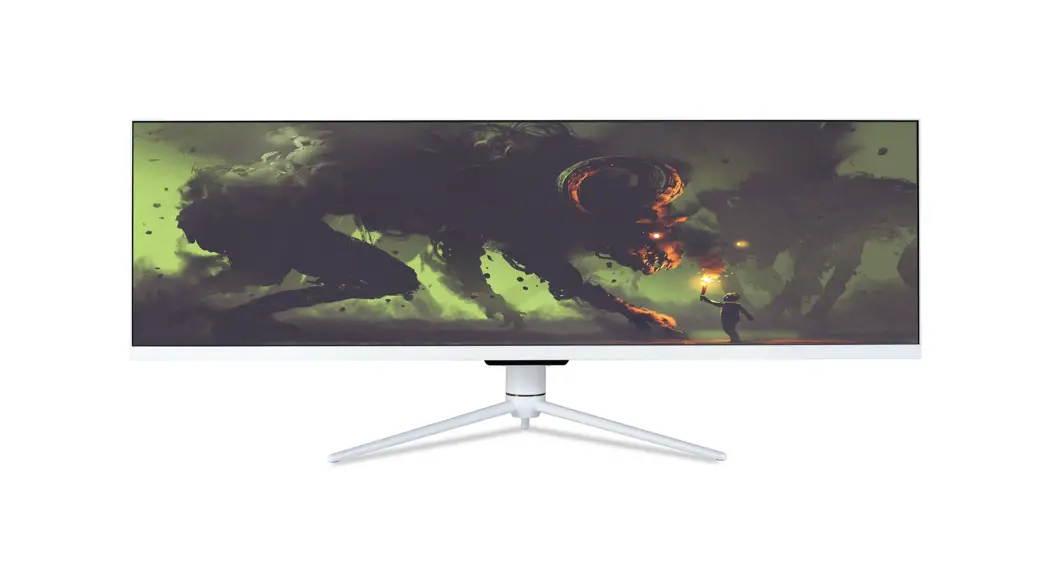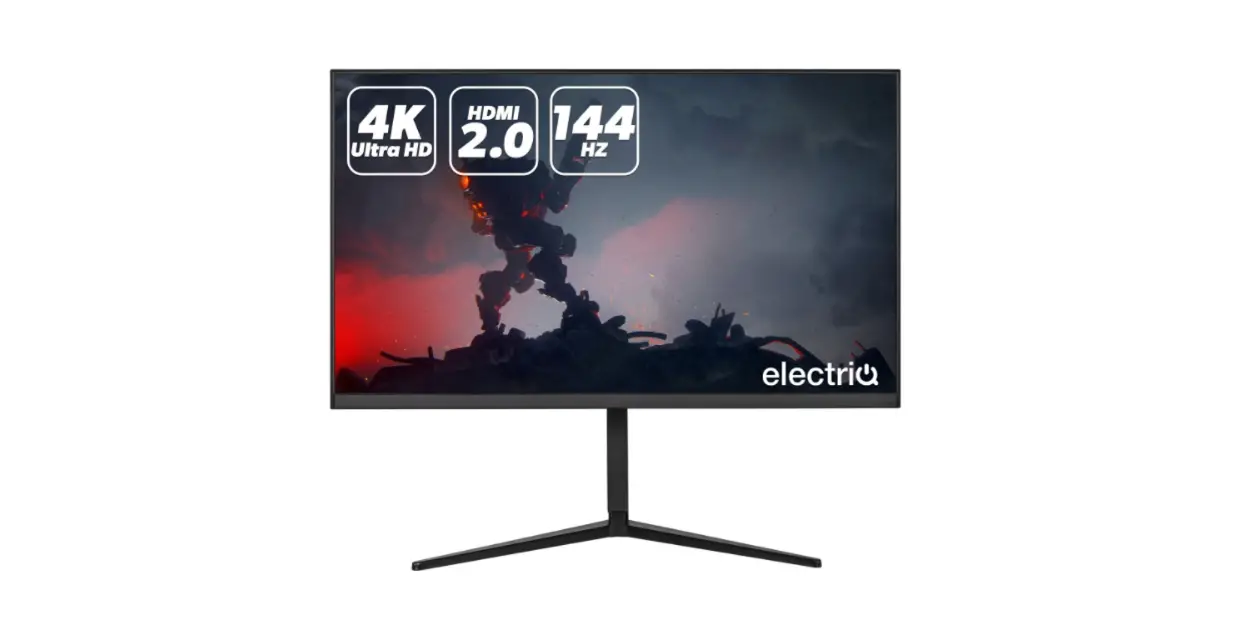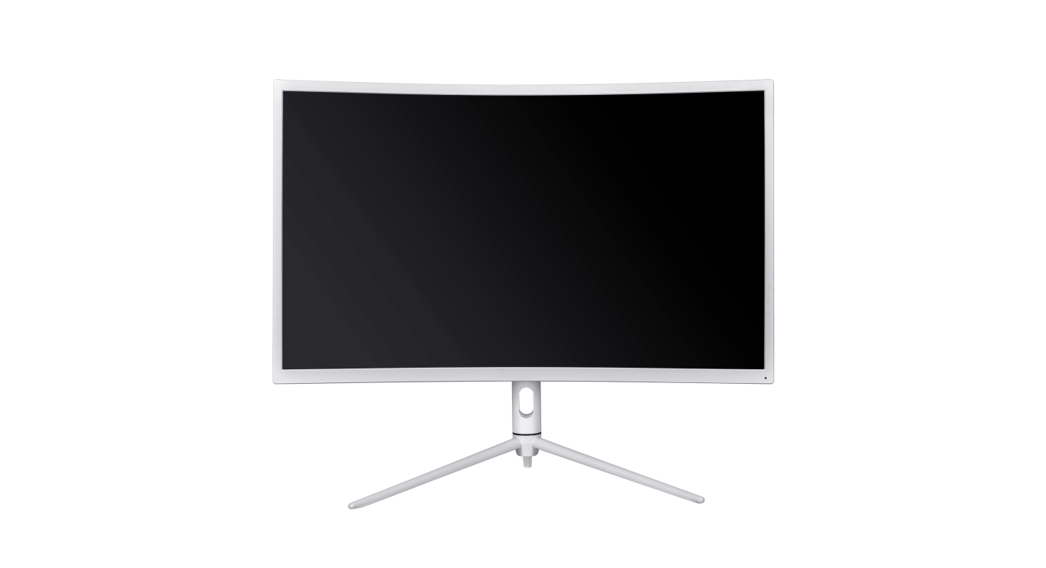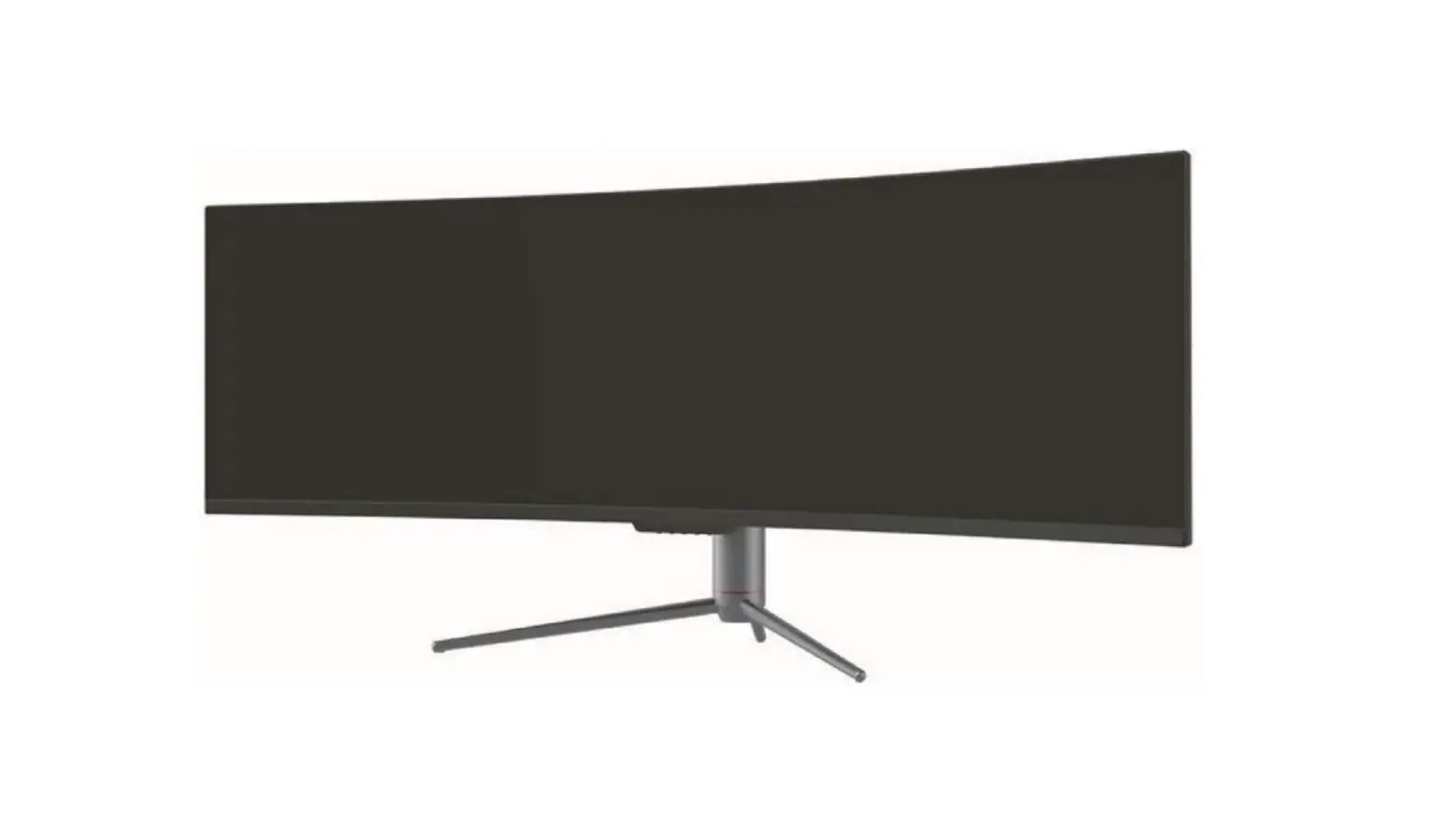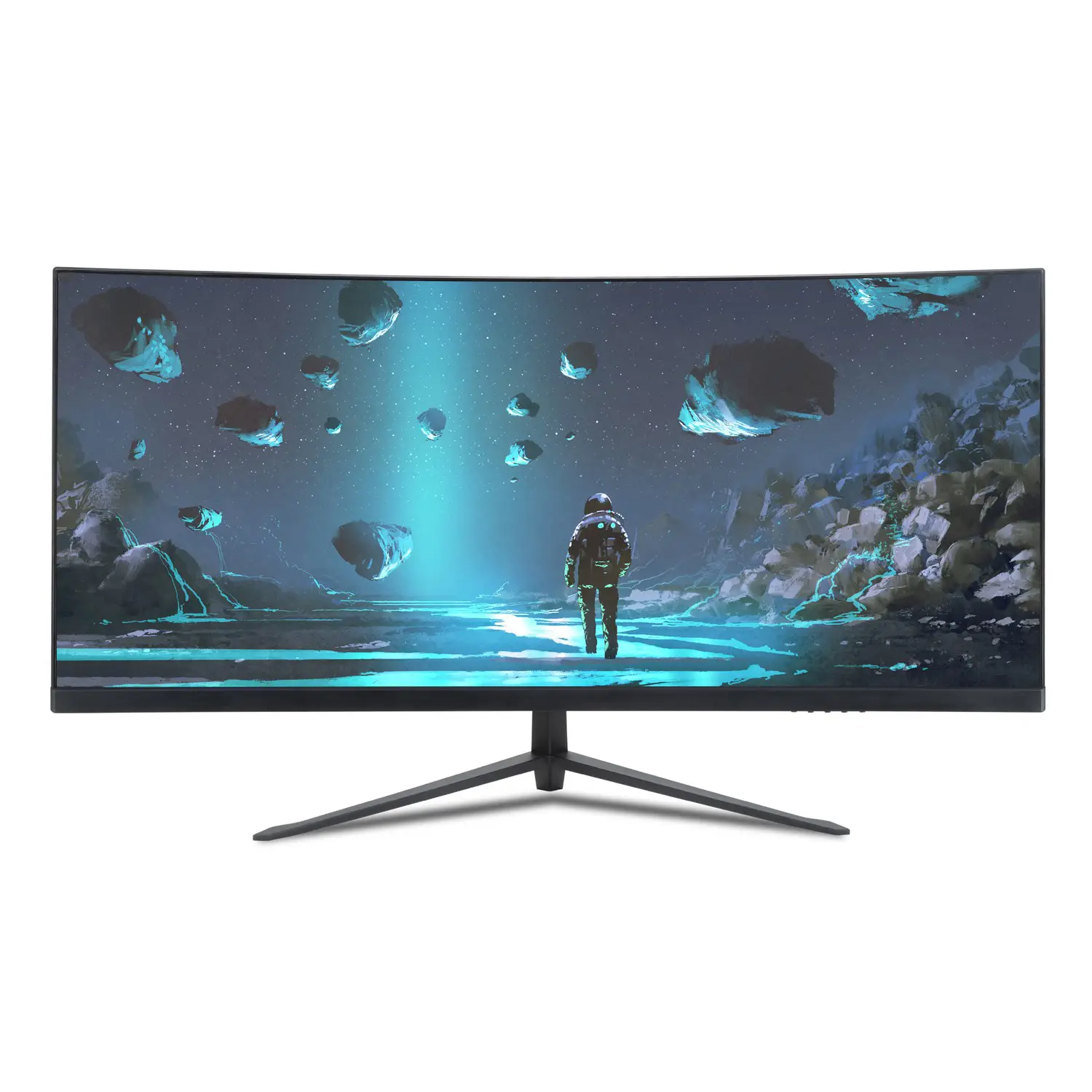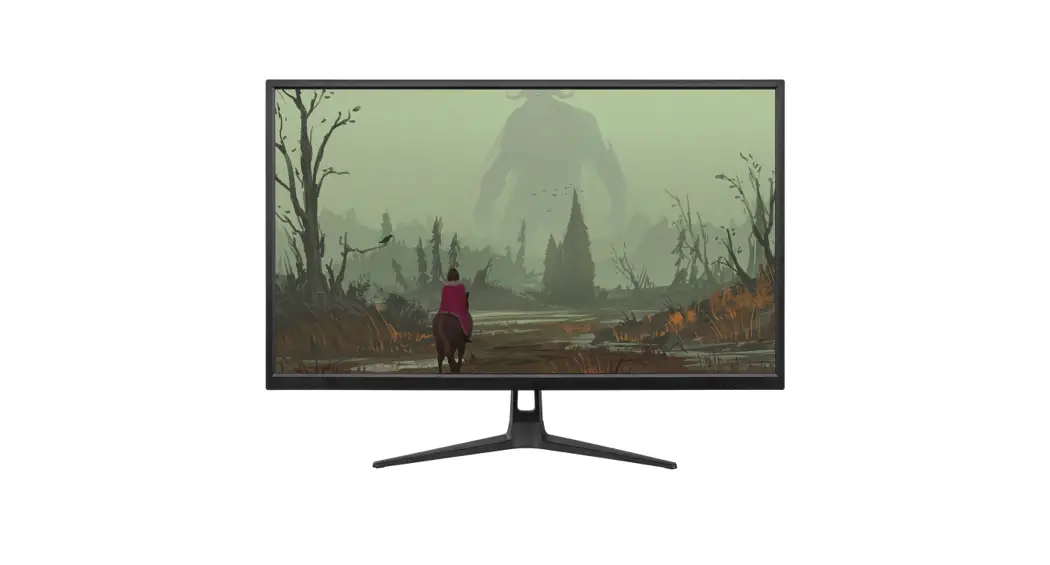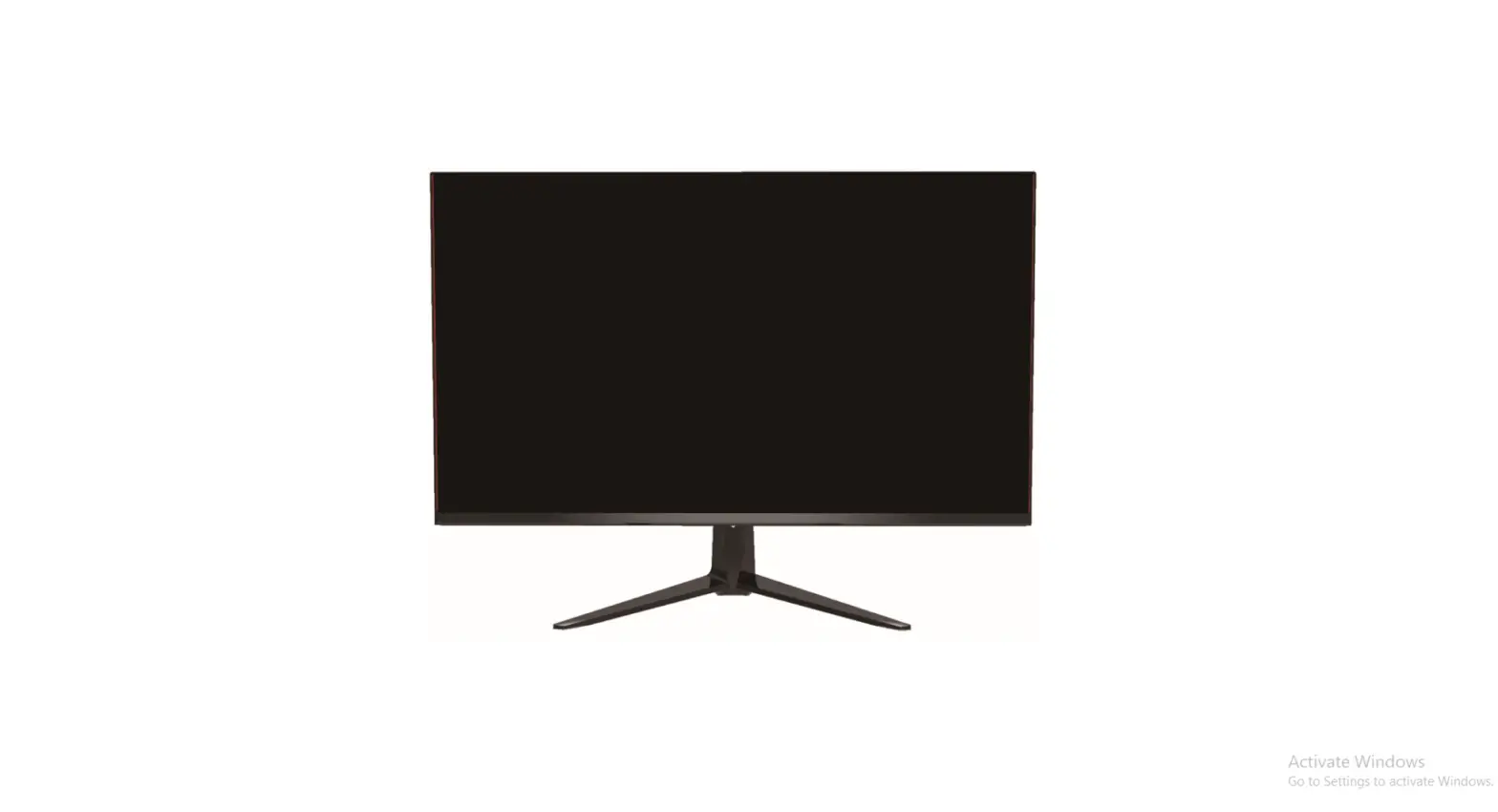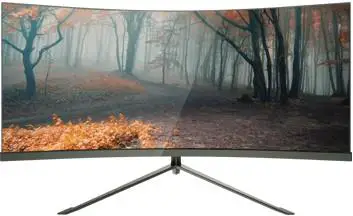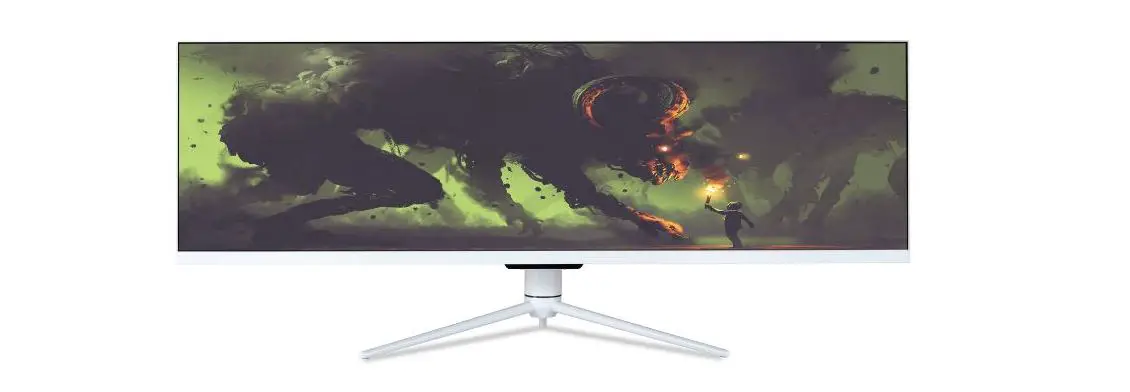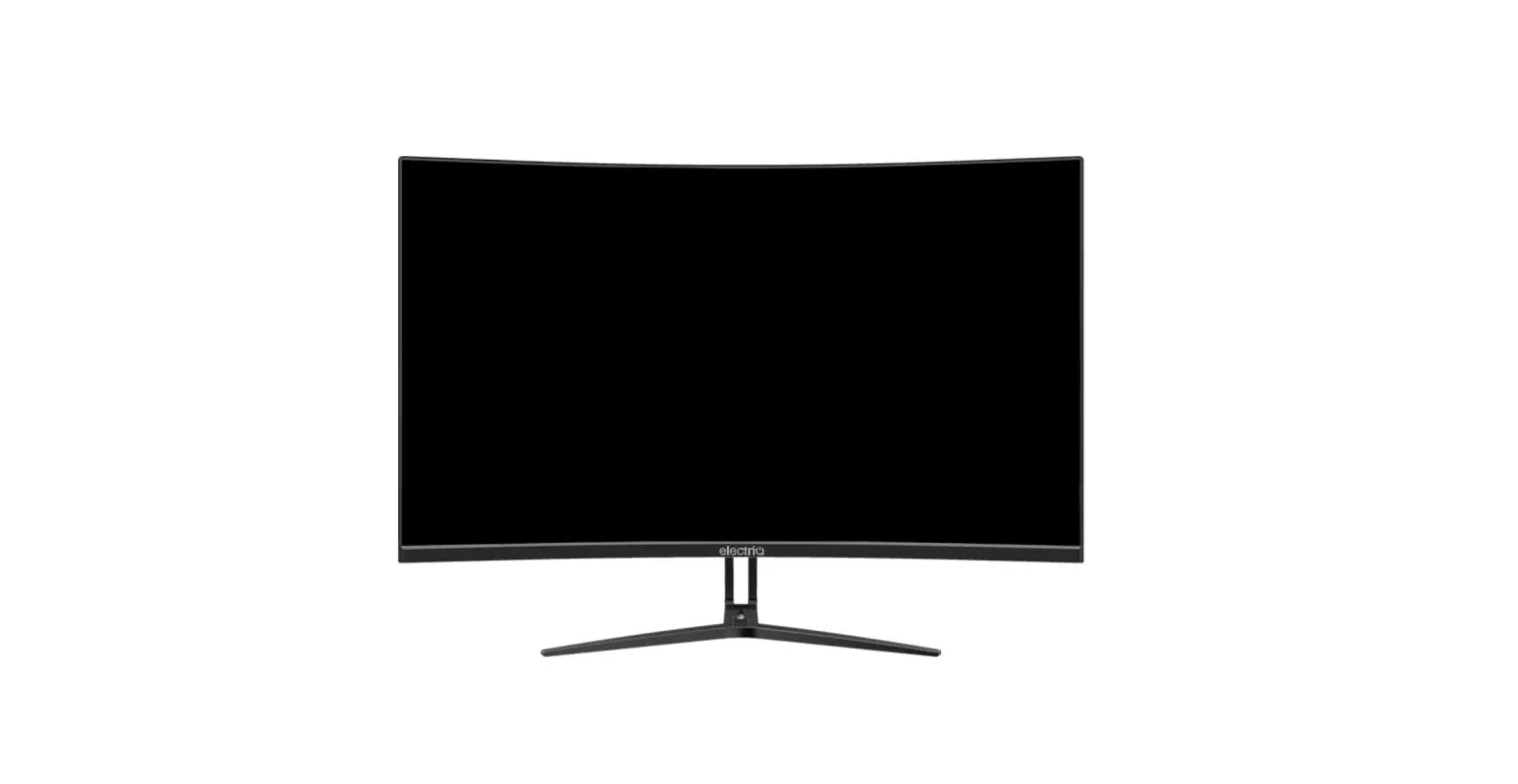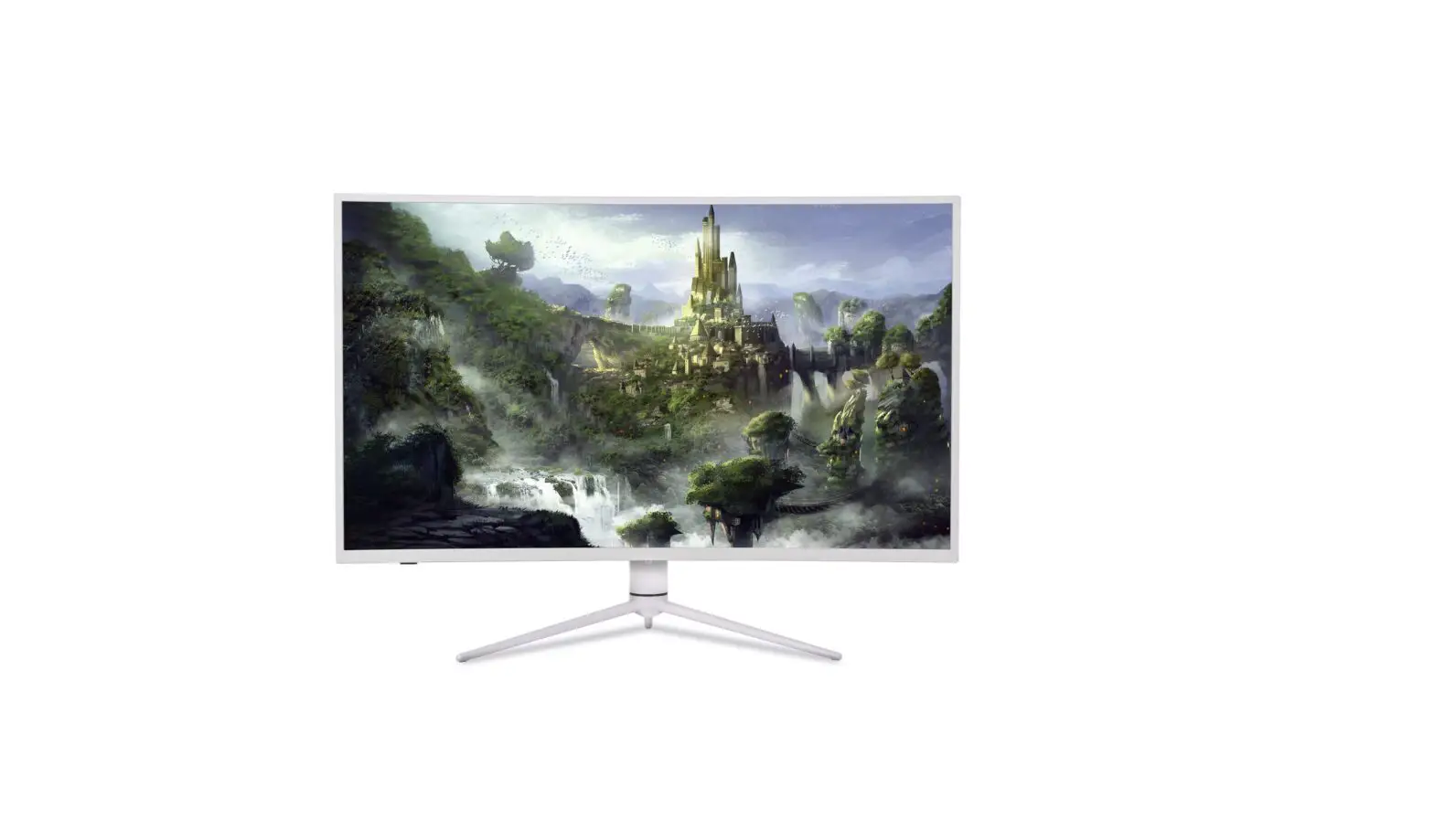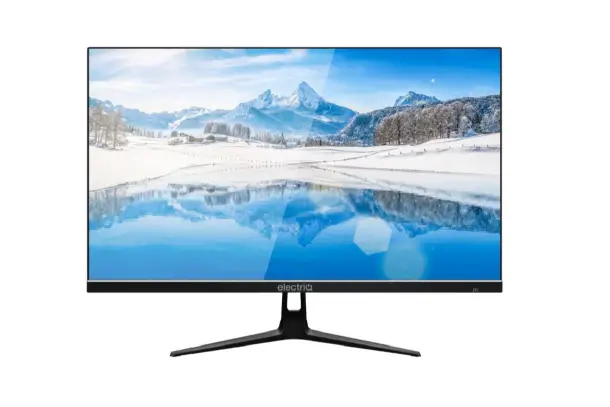

electriQ 25” Full HD 165Hz LED Monitor
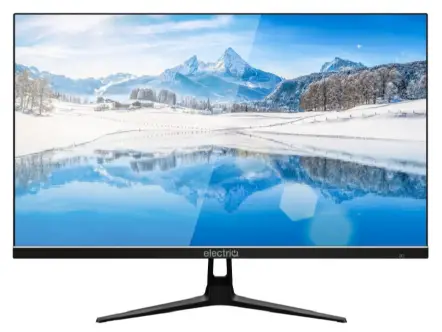
Thank you for choosing electriQ. Please read the user manual before using this monitor and keep it safe for future reference Visit www.electriQ.co.uk to view our entire range of Intelligent Electricals
SAFETY INFORMATION
- Read these instructions – All the safety and operating instructions should be read before this product is operated.
- Keep these instructions – The safety and operating instructions should be retained for future reference.
- Heed all warnings – All warnings on the appliance and in the operating instructions should be adhered to.
- Follow all instructions – All operating and usage instructions should be followed.
- Do not use this equipment near water, or in humid environments – The appliance should not be used near water or moisture e.g. in a wet basement or near a swimming pool.
- Clean only with a dry cloth. Do not use solvents or petroleum-based fluids.
- Do not block any ventilation openings.
- Do not install near any heat sources such as radiators, stoves or other apparatus (including amplifiers) that produce heat.
- Do not tamper with the supplied plug. This plug is a BS1363 standard plug.
- Protect the power cord from being walked on or trapped, particularly at the plug and at the point where it exits from the appliance.
- Only use attachments/accessories specified by the manufacturer.
- Use only with a cart, stand, tripod, bracket or table specified by the manufacturer or sold with the apparatus. When a cart or stand is used, use caution when moving it to avoid any injuries or damage from it tipping over.
- Unplug the apparatus during lightning storms or when unused for long periods of time.
- Refer all servicing to qualified personnel. Servicing is required when the apparatus has been damaged in any way, such as if the power supply cord or plug is damaged, liquid has been spilled or objects have fallen into the apparatus or it has been exposed to rain or moisture, it does not operate normally or has been dropped.
- Please keep the unit in a well-ventilated environment.
- The monitor should only be connected to a mains power supply as rated on the back of the equipment.
- To prevent overload, do not share the same power supply socket with too many other electronic components.
- Do not place any connecting wires where they may be stepped on or tripped over.
- Do not place heavy items on the cable as this may cause damage.
- When removing from a socket hold by the plug and not the wires.
- Disconnect the power immediately and seek professional help if the plug or cable is damaged, liquid has spilt onto the unit, if accidentally exposed to water or moisture, if anything accidentally penetrates the ventilation slots or if the unit does not work normally.
- Do not remove the safety covers. There are no user serviceable parts inside. Trying to service the unit yourself is dangerous and may invalidate the product’s warranty. Only qualified personnel should service this apparatus.
- Do not block ventilation slots on the back cover. The monitor can be placed in a cabinet but ensure at least 5cm (2″) clearance all around. Do not tap or shake the screen, this may damage internal components.
- WARNING: To reduce the risk of fire or electric shock, do not expose this apparatus to rain or moisture. The apparatus shall not be exposed to dripping or splashing and objects filled with liquids, such as vases, shall not be placed on the apparatus.
- WARNING: The wall plug socket is used as a disconnection device and should remain readily accessible.
- WARNING: The batteries shall not be exposed to excessive heat such as direct sunlight or fire.
- Although every effort is made to maintain the accuracy of the manual, due to continuous product development, some variation from the manual is possible.
- The availability of features and settings may vary depending on the input source and method of connection.
- Although every effort is made to maintain the accuracy of the manual, due to continuous product development, some variation from the manual is possible.
- The availability of features and settings may vary depending on the input source and method of connection.
- The available resolutions and refresh rates may be limited by the capabilities and/or settings of the source device.
WHAT’S INCLUDED
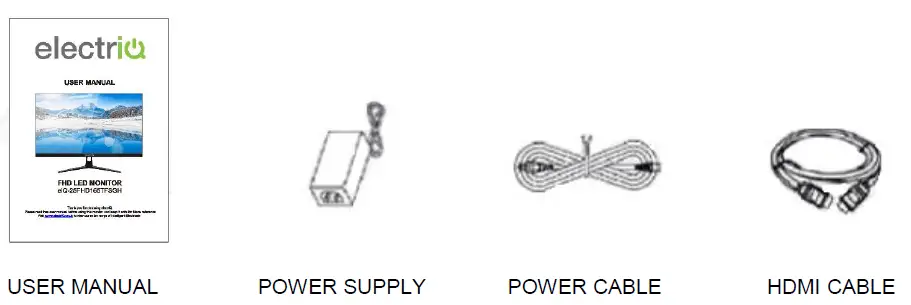
MONITOR DIMENSIONS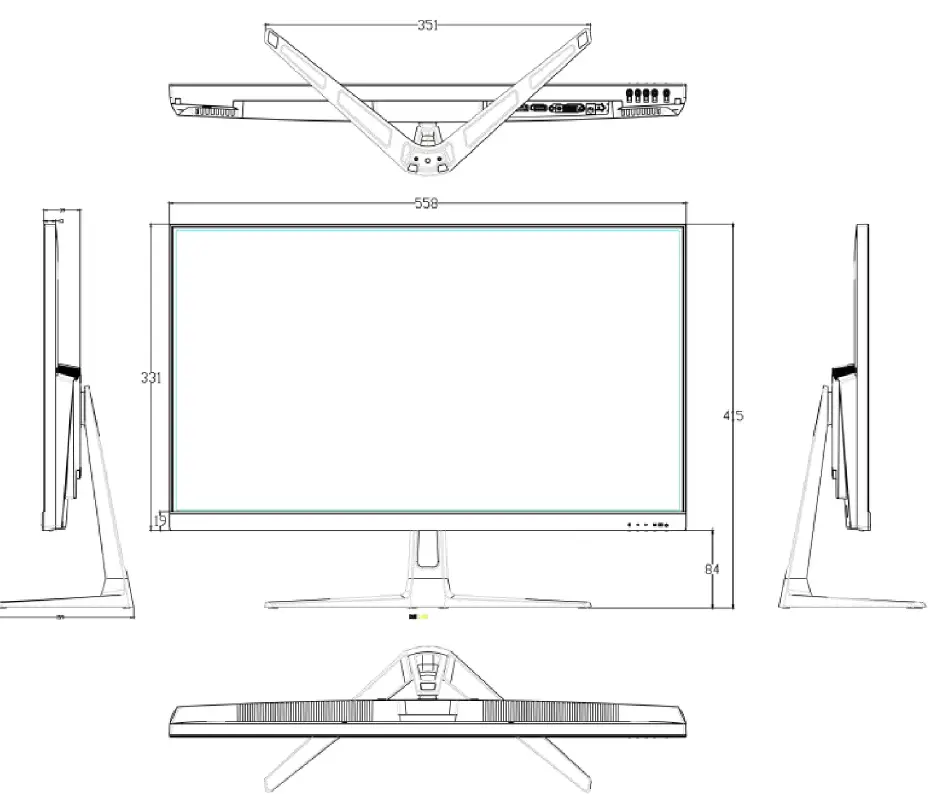 CONNECTIONS AVAILABLE ON THE MONITOR

- POWER
- USB (Firmware updates)
- HDMI 2 (HDMI 1.4, 75Hz, Free Sync)
- HDMI 1 (HDMI 2.0, 144Hz, Free Sync)
- DP (Display Port 1.2, 165Hz, Free Sync)
- AUDIO OUT
WALL MOUNTING
- The monitor is provided with mounting holes for a VESA approved wall mounting bracket (not supplied).
- The VESA mounting pattern is: 100x100mm and the size of the screws is 4 x M6 x 10 (not supplied)
- Do not use screws longer than specified or damage will occur to the internal components.
NOTE: As the monitor is considered heavy, please consult with a professional wall mount installer to perform the installation.
GETTING STARTED
MONITOR CONTROLS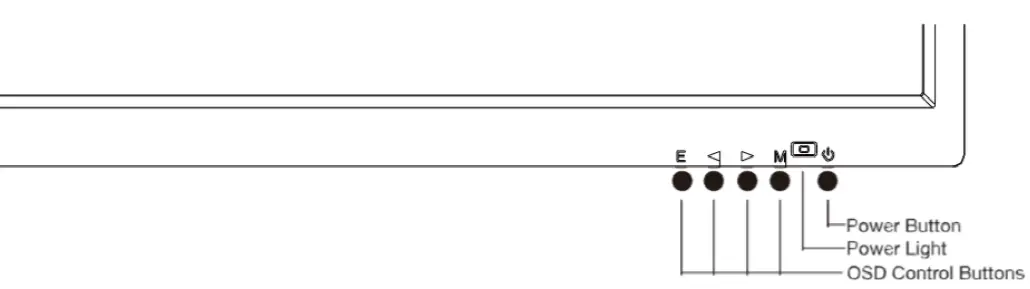
INITIAL SETUP
Connect the monitor to a power socket.
- Press the POWER button on the monitor or to turn it on (The indicator will be blue).
- Connect the relevant cable to the corresponding input on the monitor. The source will be automatically detected.
- To change between inputs, press the E button to enter the source menu. Use the ◄and ► buttons to choose the input source between DP, HDMI1 and HDMI2.

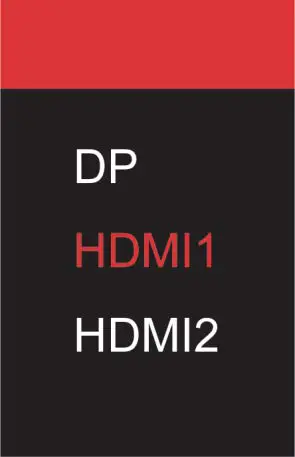
MENU OPTIONS
The menu for the monitor can be accessed by pressing the menu button on the control panel. This menu is separated into the following sub menus: Input source, Brightness/Contrast, Colour Settings, Picture Quality Settings, Display, Audio, OSD (On screen display), and other. Details of each menu can be found in the following section.
INPUT SOURCE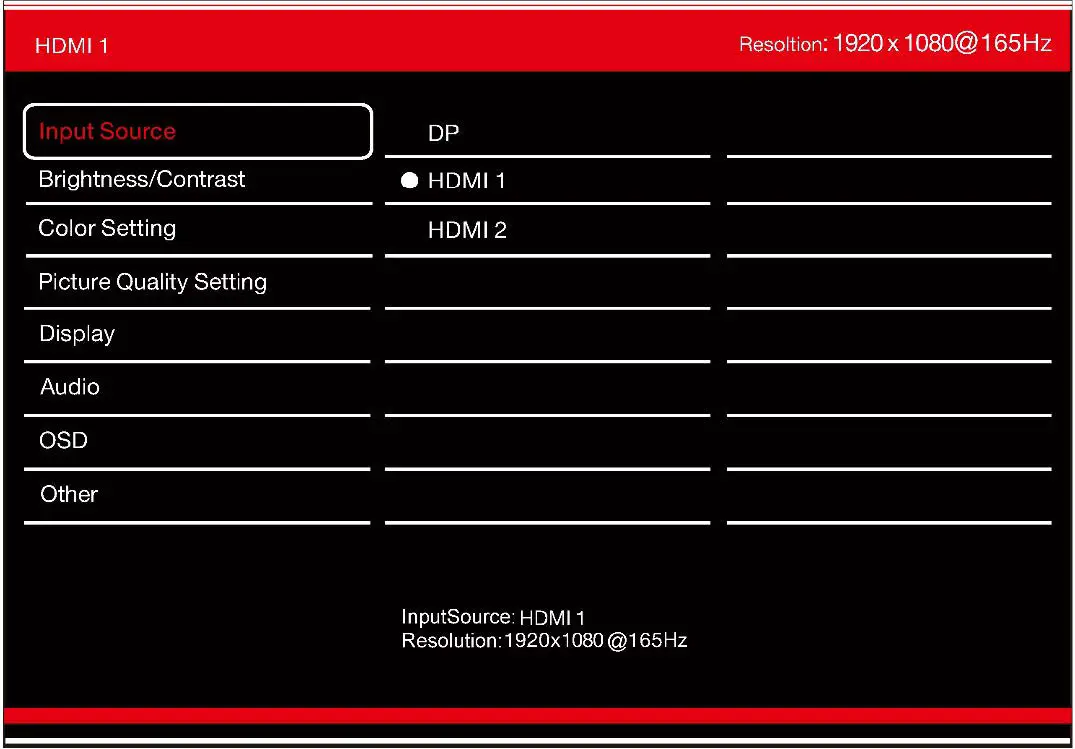
Signal: Change the signal source between DP, HDMI 1 and HDMI2.
BRIGHTNESS/CONTRAST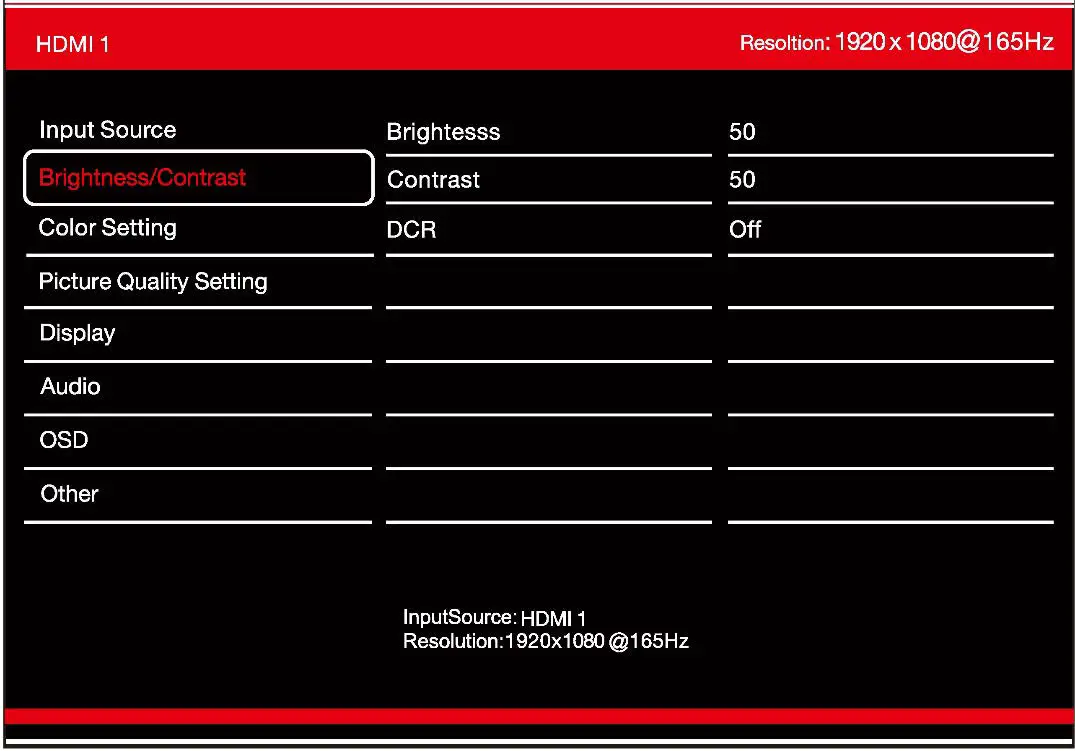
| Brightness | Adjust the brightness of the display between 0 and 100. |
| Contrast | Adjust the contrast of the display between 0 and 100. |
| DCR | Turn the Dynamic Contrast Ratio feature on or off. |
COLOUR SETTINGS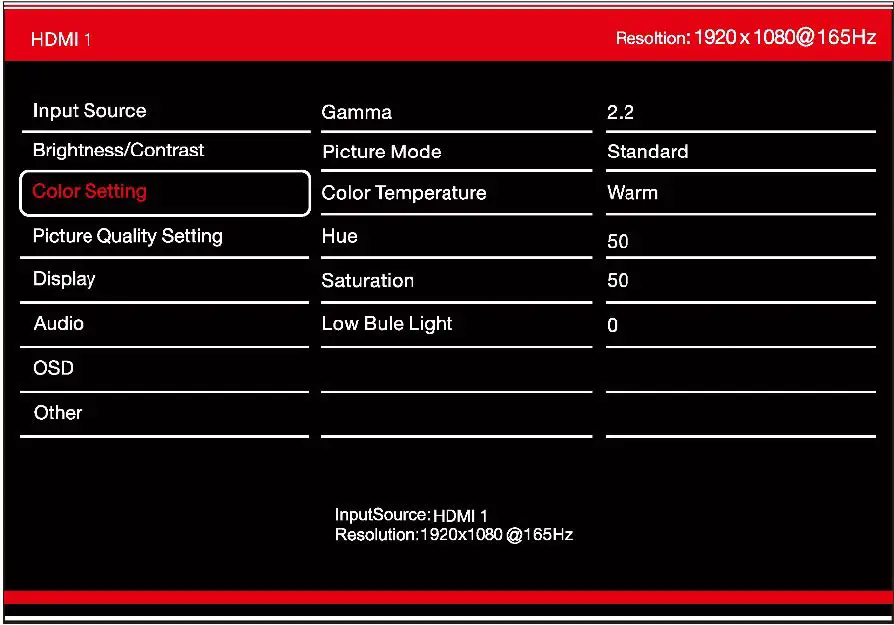
| Gamma | Change the Gamma value for the display between 2.0, 2.2 or 2.4. |
| Picture Mode | Change the picture mode between Standard, Photo, Movie, Game, FPS and RTS |
| Colour Temperature | Change the Colour Temperature of the display to normal Warm, Cool or User. When the User Mode is selected, the Red, Green, and Blue values can be adjusted independently between 0 and 100. |
| Hue | Change the Hue value between 0 and 100. |
| Saturation | Change the Saturation of the display between 0 and 100. |
| Low Blue Light | Change the blue light emitted by the display between0 and 100. |
PICTURE QUALITY SETTINGS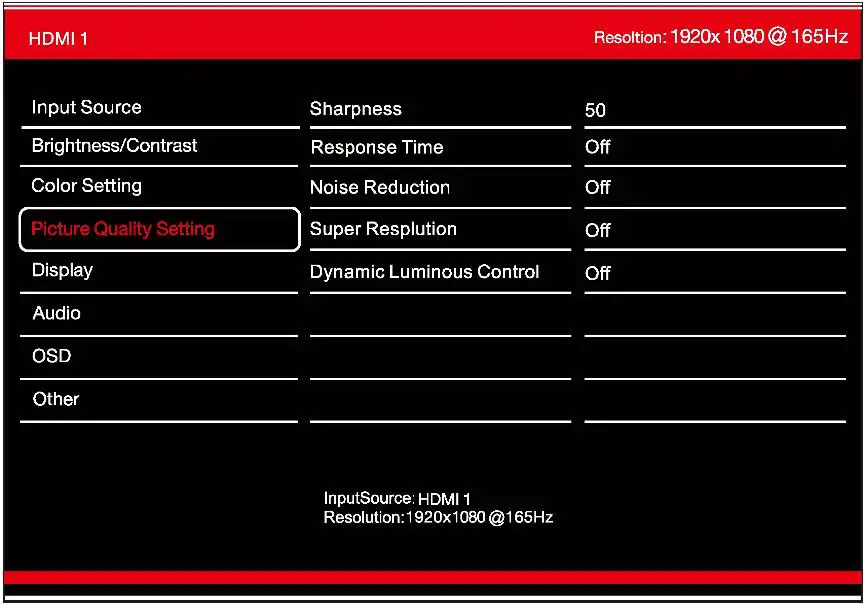
| Sharpness | Change the display Sharpness between 0 and 100. |
| Response Time | Turn the Response Overdrive feature between Off, High, Middle of low |
| Noise Reduction | Adjust the level of Noise Reduction between Low, Medium, High, or Off. |
| Super Resolution | Change the Super Resolution value from 0 to 5. |
| Dynamic Luminance Control | Turn the Dynamic Luminance Control feature on or off. |
DISPLAY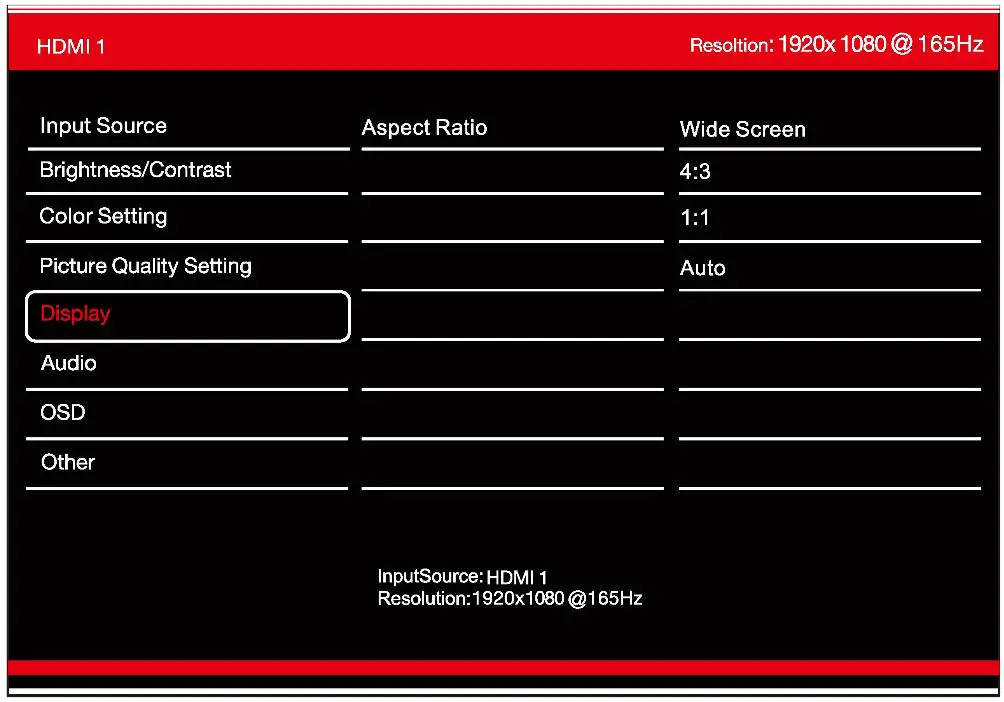
Aspect Ratio: Change the Aspect Ration between Wide screen, 4:3, 1:1 and Auto.
AUDIO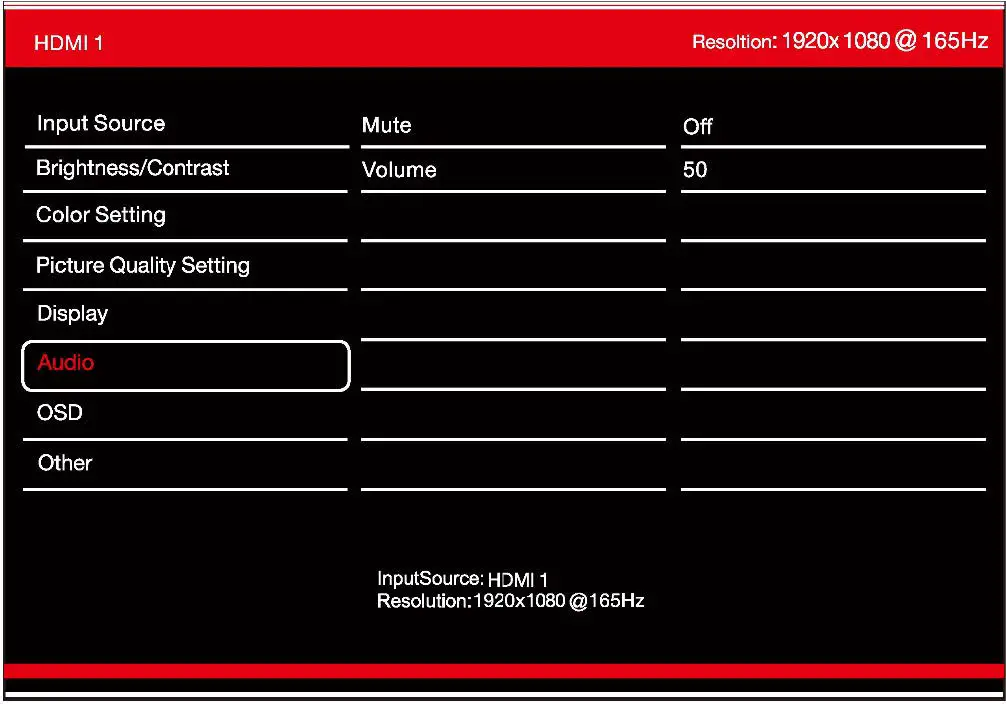
Mute: Turn On and off to mute and unmute the audio output.
Volume: Adjust the output volume between 0 and 100.
OSD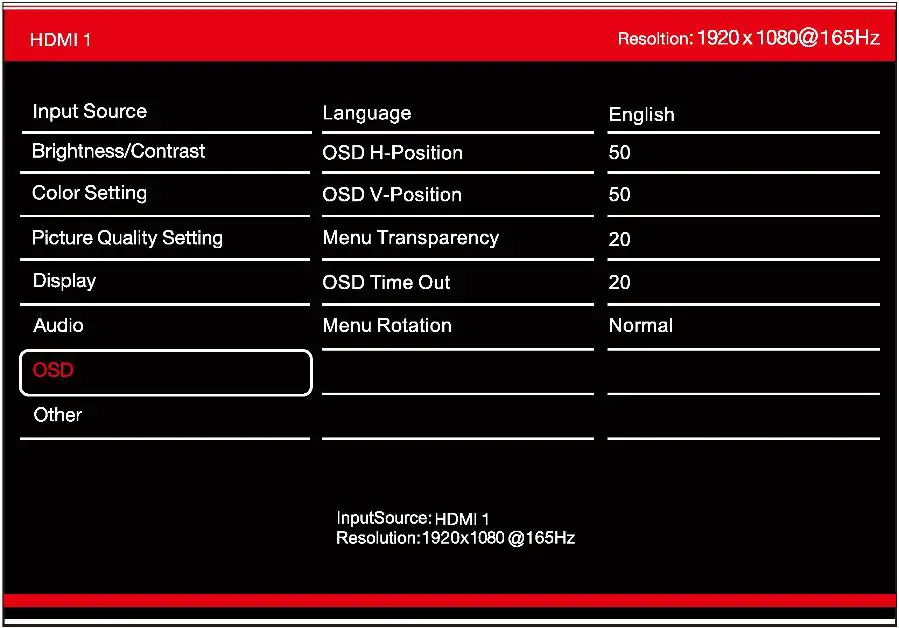
| Language | Change the OSD Menu display language between English, Chinese, Korean, Russian, Spanish, Japanese and French. |
| OSD H-Position | Change the horizontal position of the OSD Menu. |
| OSD V-Position | Change the vertical position of the OSD Menu. |
| Menu Transparency | Change the transparency value of the OSD Menu between 0 and 100. |
| OSD Time Out | Change how long the OSD Menu is on before it automatically exits. |
| Menu Rotation: | Rotate the OSD Menu for ease of use on rotated screens. |
OTHER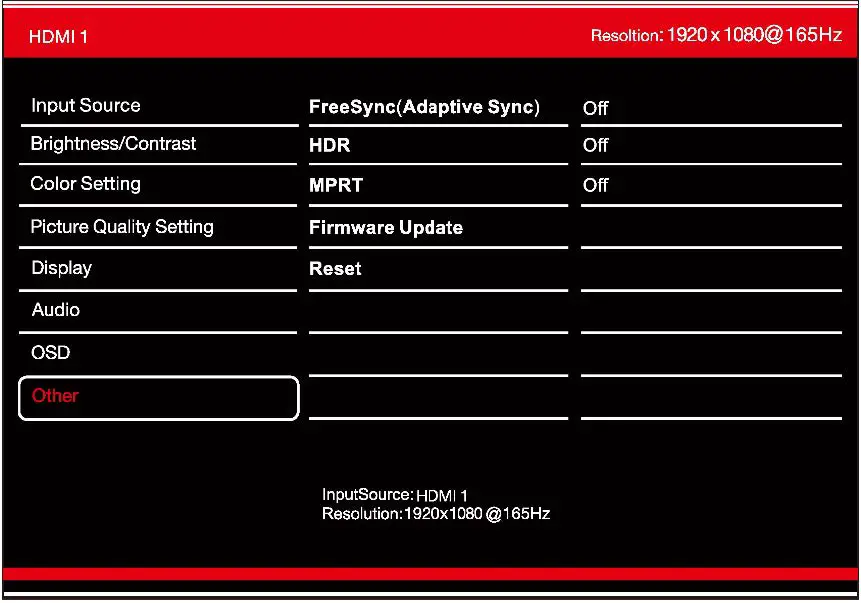
| Free Sync Mode | Turn Free Sync On or Off. HDR: Turn HDR On (requires HDMI 2.0 input). |
| HDR | Turn HDR on (Requires HDMI 2.0 input) |
| MPRT | Turn MPRT On or Off. |
| Firmware Update | Update the monitor firmware with proper firmware Using the USB port. |
| Reset | Restore factory default setting. |
SPECIFICATIONS
| eiQ-25FHD165TFSGH | |
| Panel Type | 25”(16:9)LED Backlit Monitor |
| Panel Dimensions | 622.28mm Diagonal |
| Case Type | Plastic |
| Best Resolution | 1920(H)x1080(V)@165Hz |
| Active Display Area | 543.744(H)x302.616(V) |
| Pixel Pitch | 0.283(H)x0.280(V) |
| Contrast Ratio | 1000:1 Typical |
| Brightness | 400 cd/m² |
| Response Time | 5ms (GTG) |
| Viewing Angle | 178°/178° CR≥10 |
| Display Colours | 16.7M |
| Video Compatibility | Multi-Standard for NTSC / PAL |
| Aspect Ratio | 16:9 |
| Speaker Multimedia Speakers | 2x3W |
| Sound Demodulation | Stereo. Audio |
| Operating Humidity | 20%-70% |
| Operating Temperature | -10 to 50℃ |
| IN/OUT INTERFACE | |
| Video Interface | HDMIx2, DPx1, USBx1 |
| Audio Interface | Audio out x1 |
| Safety & EMC Certification | CE/FCC/ROHS |
| Stand Type | Desktop |
| Button Position | Right Hand Side |
| Power Input | DC 12V 4A |
| Power Consumption | ≤21W |
TROUBLESHOOTING
| Problem | Solution |
| No power | Insert the plug securely into the power outlet. |
| No picture | Ensure that the equipment is connected properly. |
| Ensure the correct input is selected. | |
| Buttons on the monitor don’t do anything | Disconnect the power plug and then reconnect it. (The unit may not be operating properly due to lightning, static, or other factors.) |
| Noise or other interference | Electronic equipment near the unit may be causing interference. Relocate the unit or move the equipment. |
ENVIRONMENTAL PROTECTION
Recycling facilities are now available for all customers at which you can deposit your old electrical products. Customers will be able to take any old electrical equipment to participating civic amenity sites run by their local councils. Please remember that this equipment will be further handled during the recycling process, so please be considerate when depositing your equipment. Please contact the local council for details of your local household waste recycling centres.
electriQ UK SUPPORT
www.electriQ.co.uk/support If the unit fails to operate call: 0871 620 1057 or complete the online form
Office hours: 9AM – 5PM Monday to Friday
www.electriQ.co.uk
Unit J6, Lowfields Business Park
Lowfields Way, Elland
West Yorkshire, HX5 9DA
 Buy electriQ Appliances Online | TVs | Ovens | Dehumidifiers | Security