
For Customer Support refer to Plustek
Technical Support Site
https://plustek.com/us/support/technical-support-form.php
- Scan to watch eScan SharePoint tutorials
- QR Code scannen und Anleitungsvideo anschauen.

- For more info pls refer to the online guide at
- Weitere Online-Informationen finden Sie hier

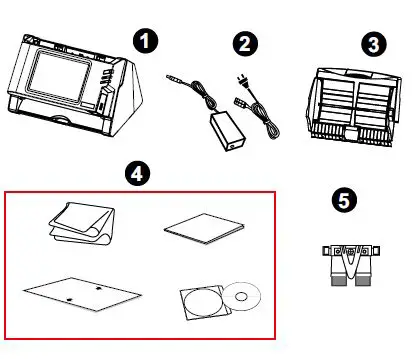
Unpack and Assemble
Pad module may vary upon scanner model.
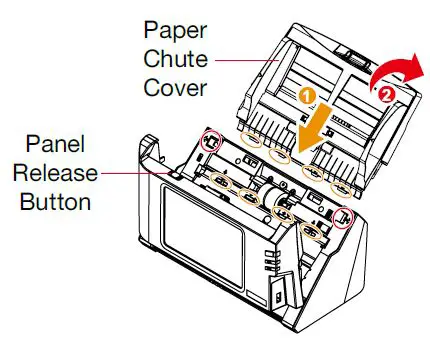
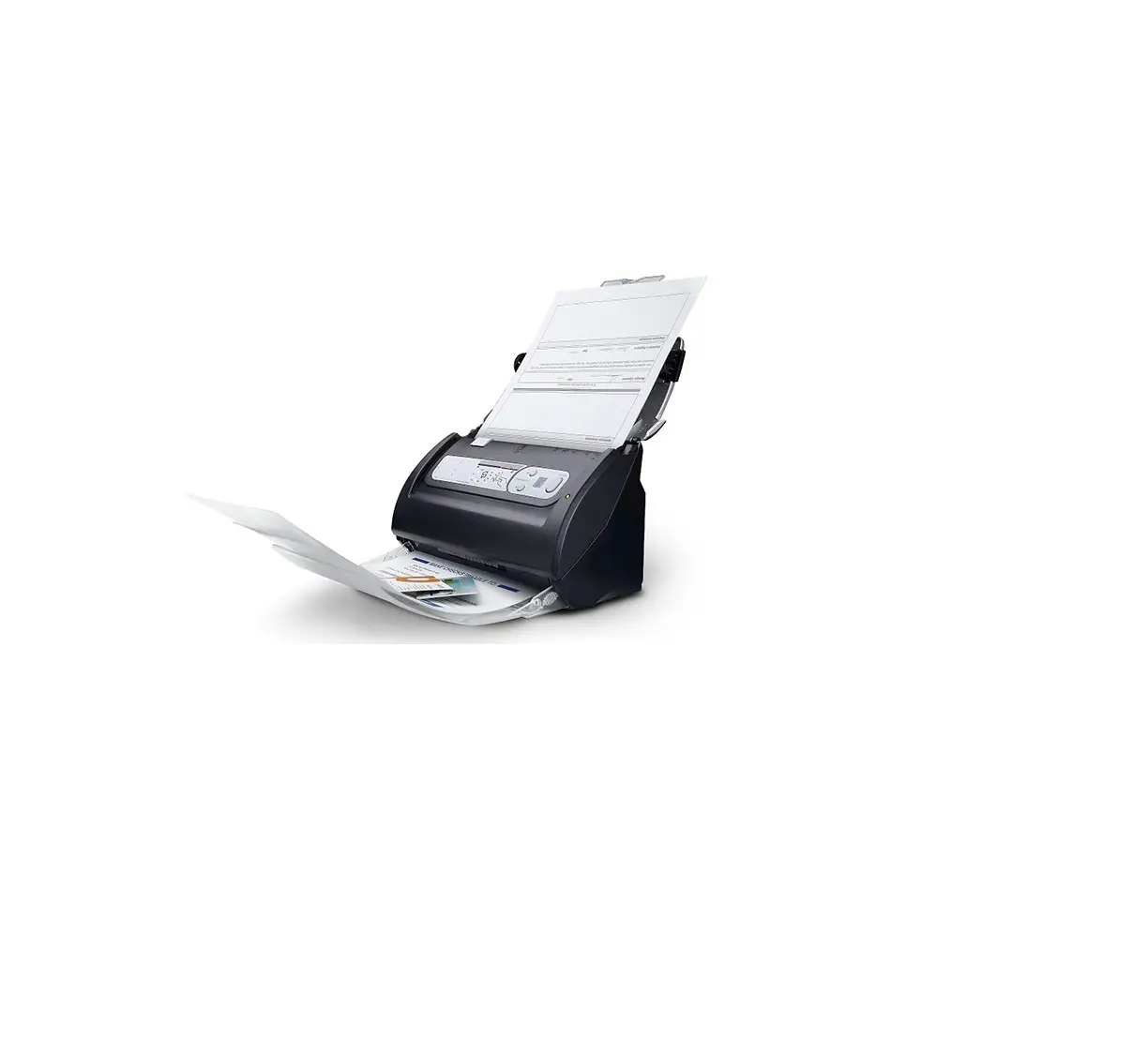
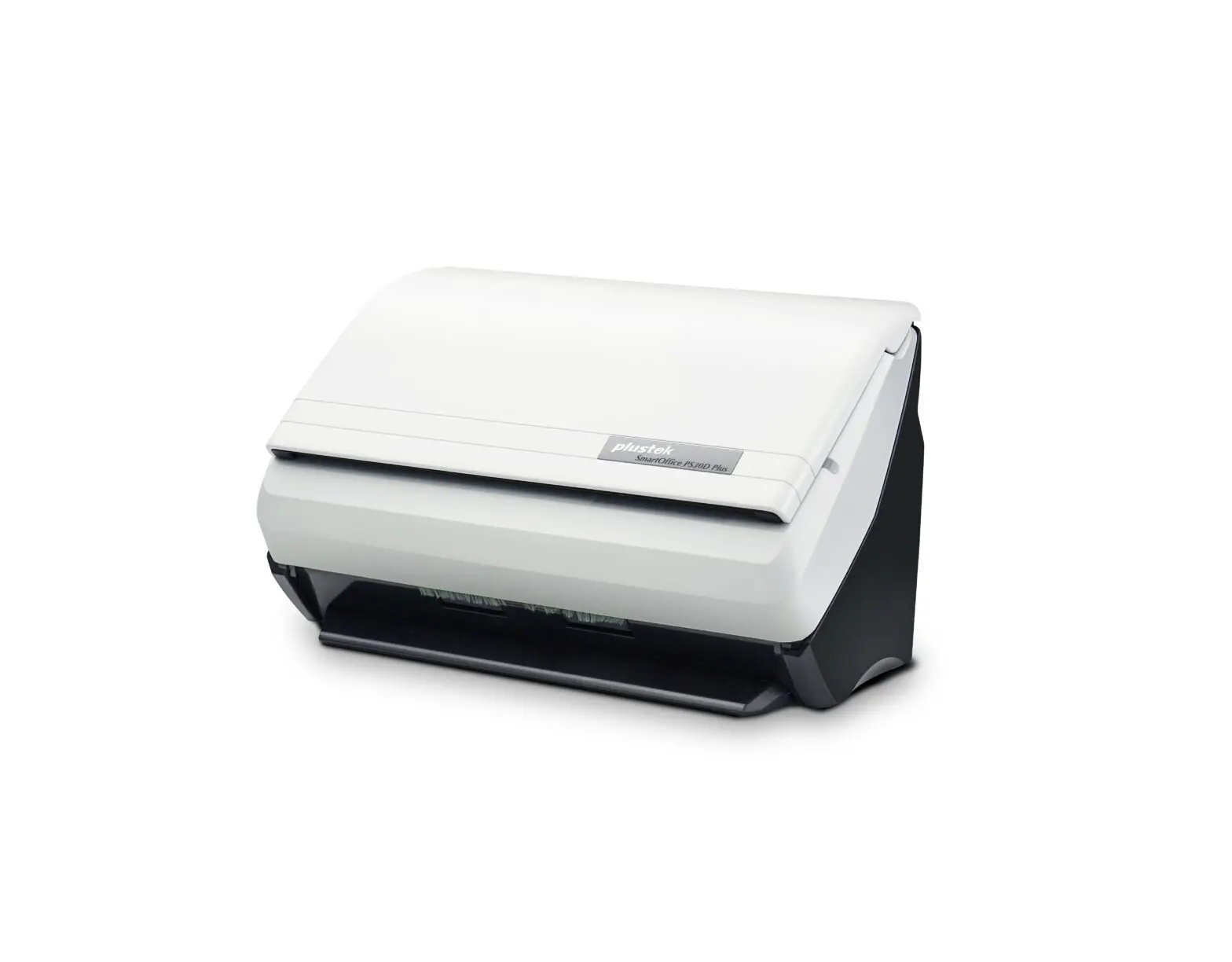
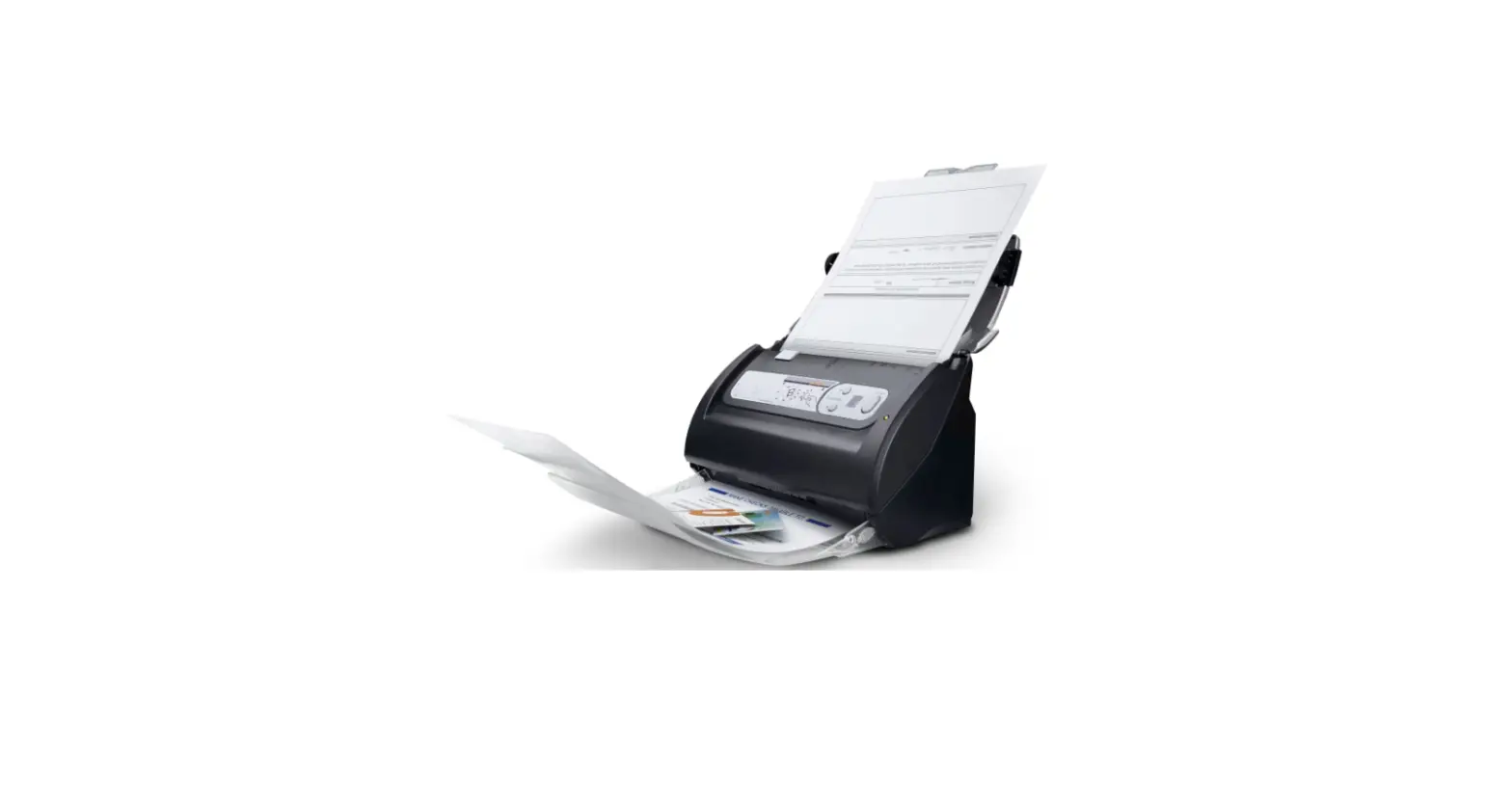
Install the paper chute by opening the upper panel unit and remove all packing materials.
Connecting the eScan
Connecting with Ethernet (RJ45) cable.
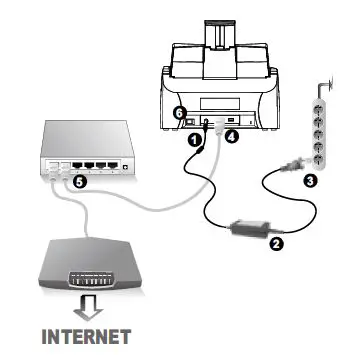
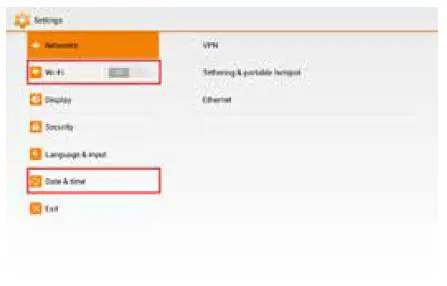
When using wireless network connection, please configure Wi-Fi and Time-Zone settings under“Settings” menu
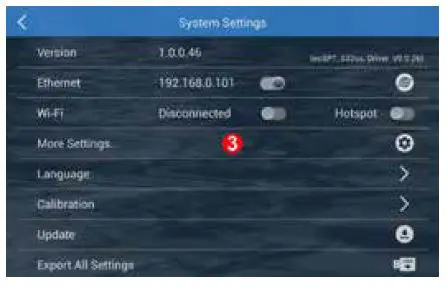
Tap Configurations > System Settings
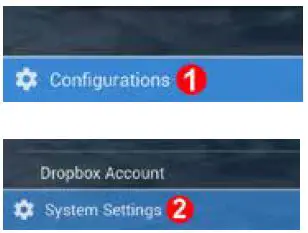
Tap More Settings…
Adjust Wi-Fi and Date & time settings
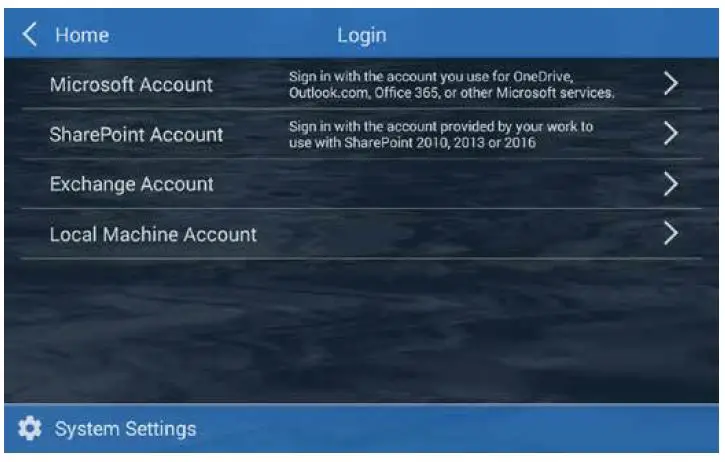
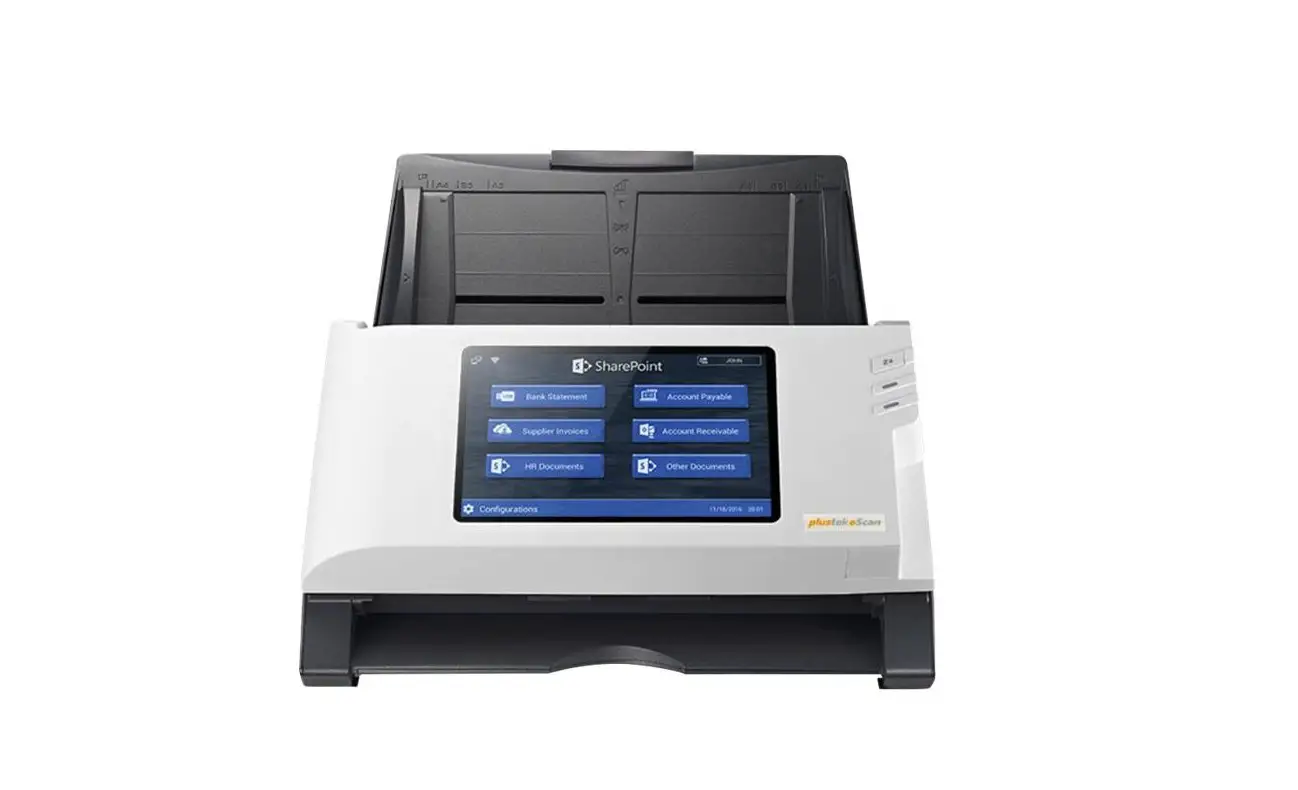
Tap on ‘Configurations’ > Choose an account type > Create a new account. Follow the screen instruction to setup. (Please refer to the online guide for more info)
For SharePoint 2010/2013/2016: Host field is an required field to enter relevant IP address or domain name. For example 192.168.1.10 or example.domain.com.
If the host is a site collection, you have to enter the entire path. For example:
192.168.1.10/sites/site_collection_name/
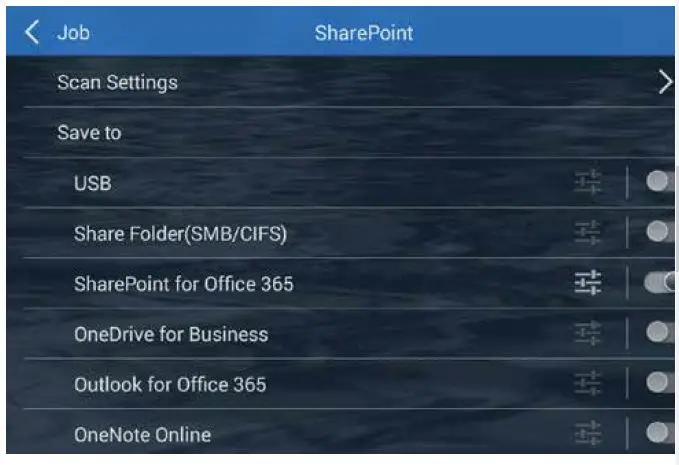
Enable desired saving destination and tap to configure.
Tap on Scan Settings to configure scan settings.
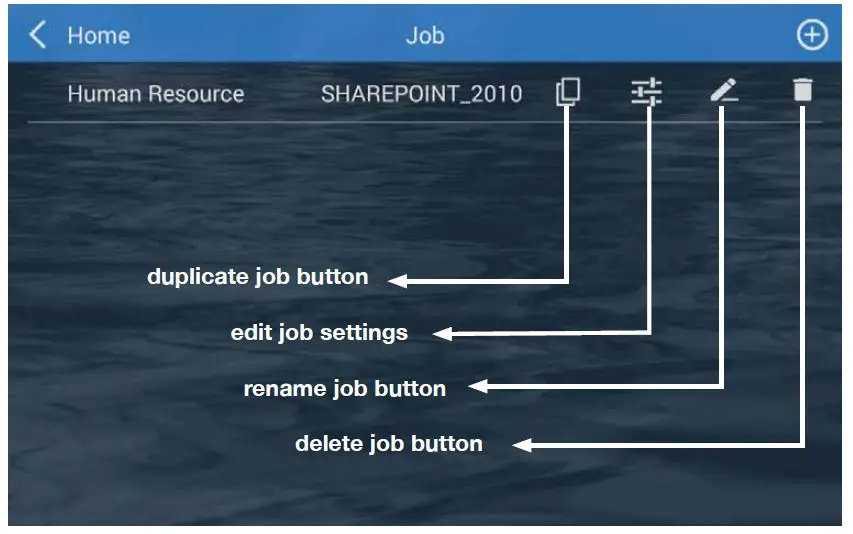
Scan Settings Configurations
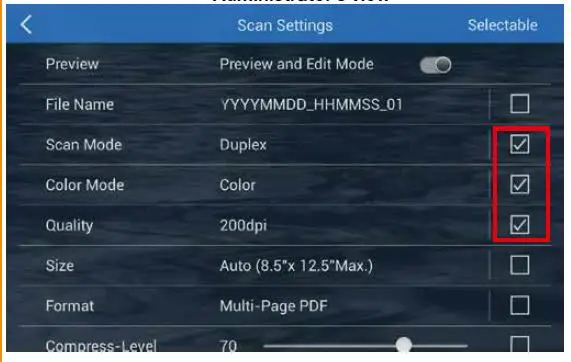
Tap the checkbox in the Selectable column to enable the respective settings adjustable in the user’s interface.
Administrator’s view
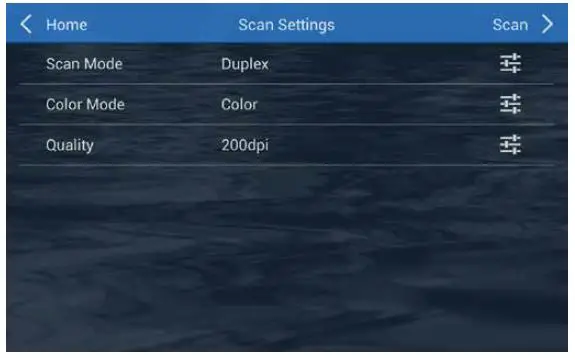
User can then adjust scan settings in the user’s interface.
User’s view
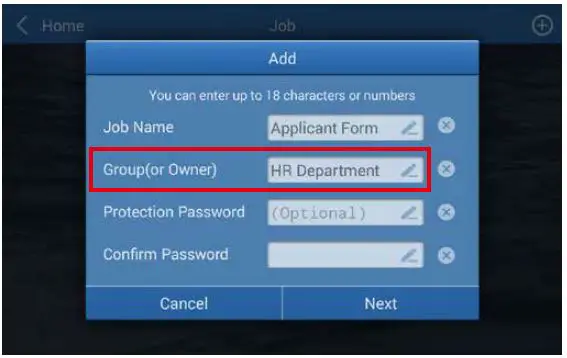
Enter a Group name when creating the scan job if necessary, to organize and sort job buttons (You many also edit group name, under the job menu)
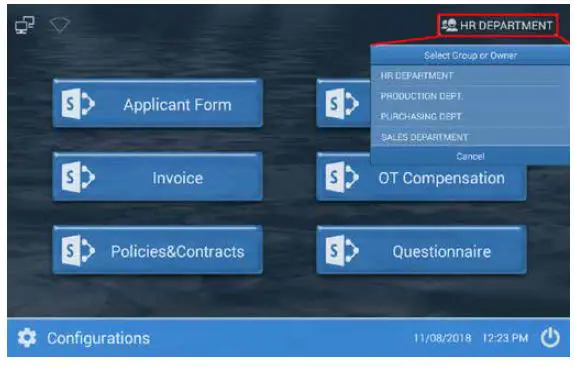
Groups are displayed in the upper right corner of the menu, tap to view the full list of groups created. Each group can include up to 12 job buttons.
© 2021 by . All rights reserved. All registered trademarks are the property of their respective owners.
 plustek.com/us/products/network-