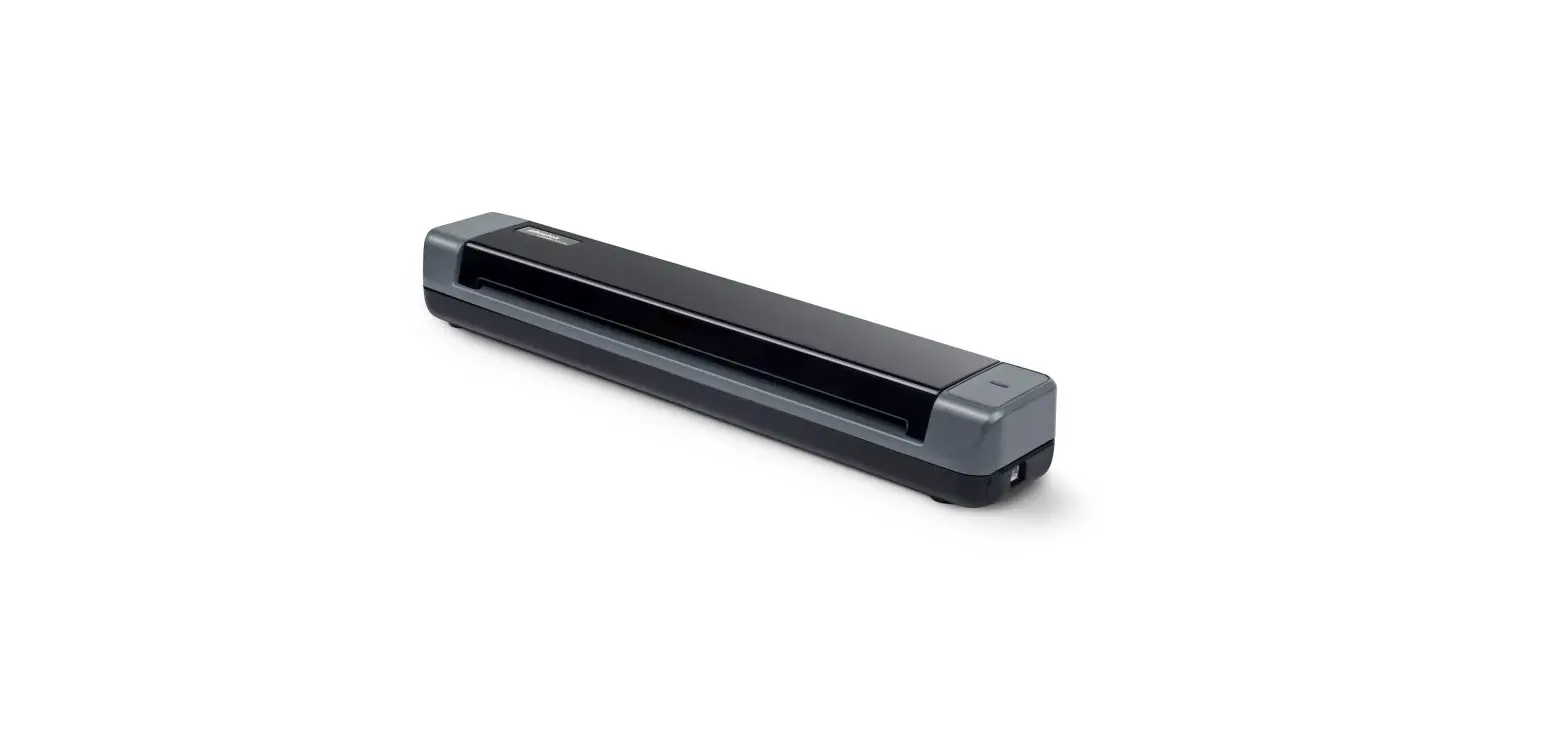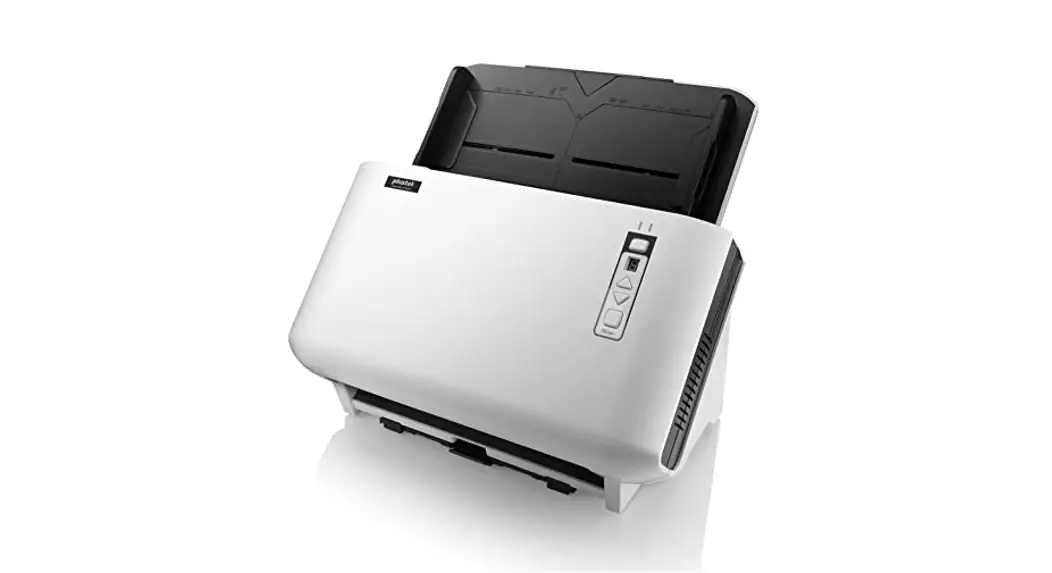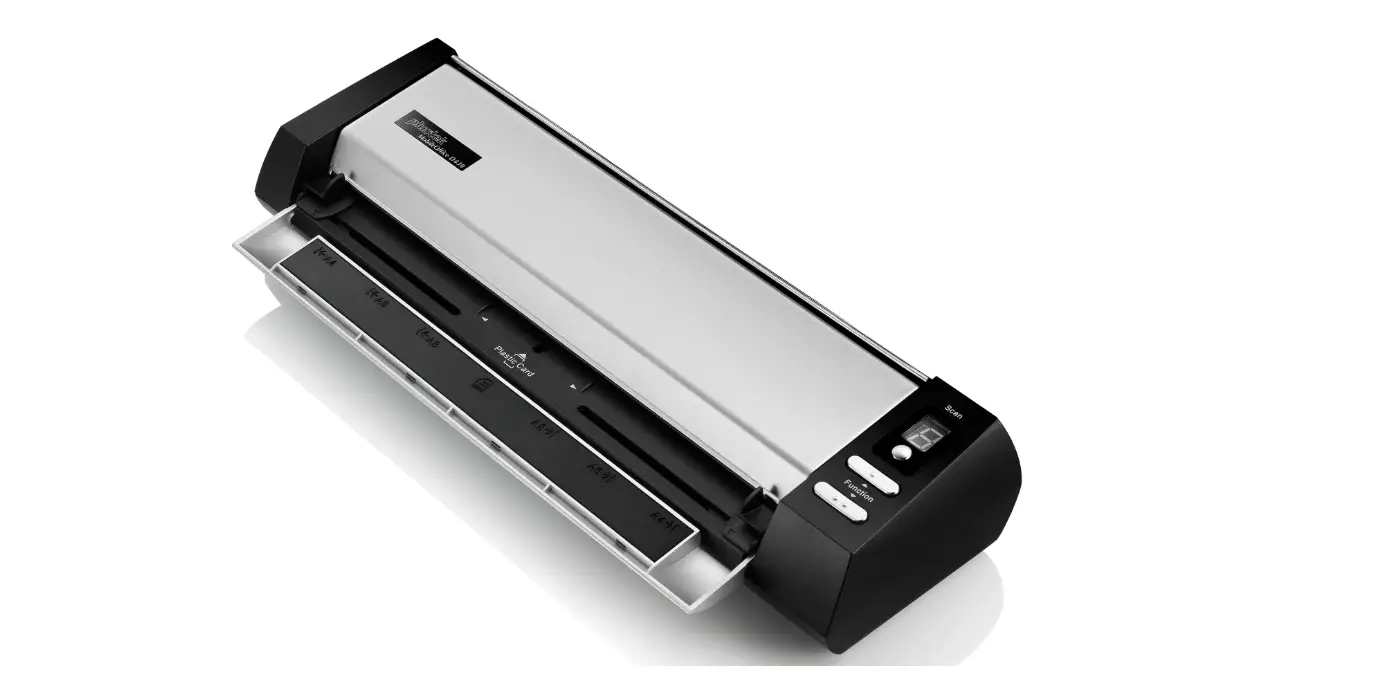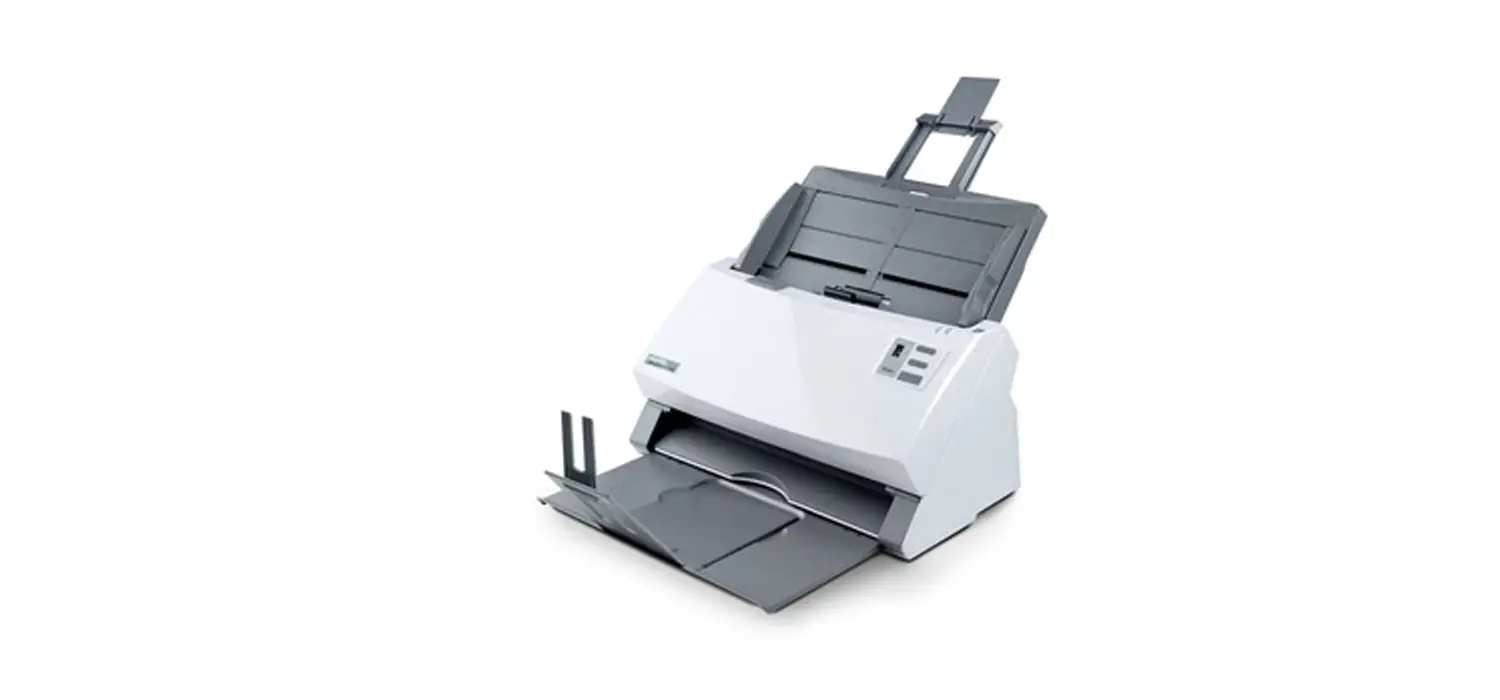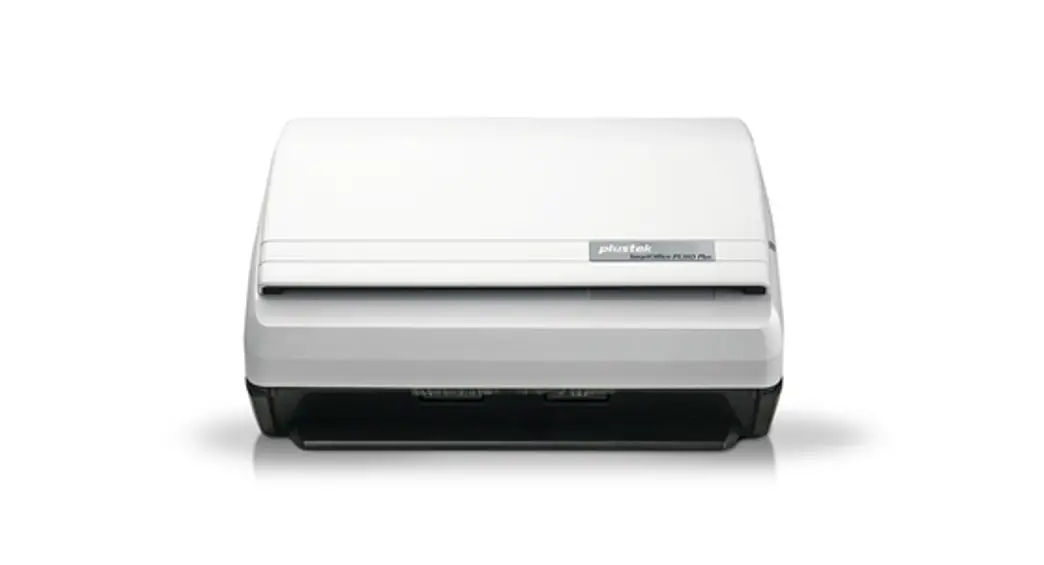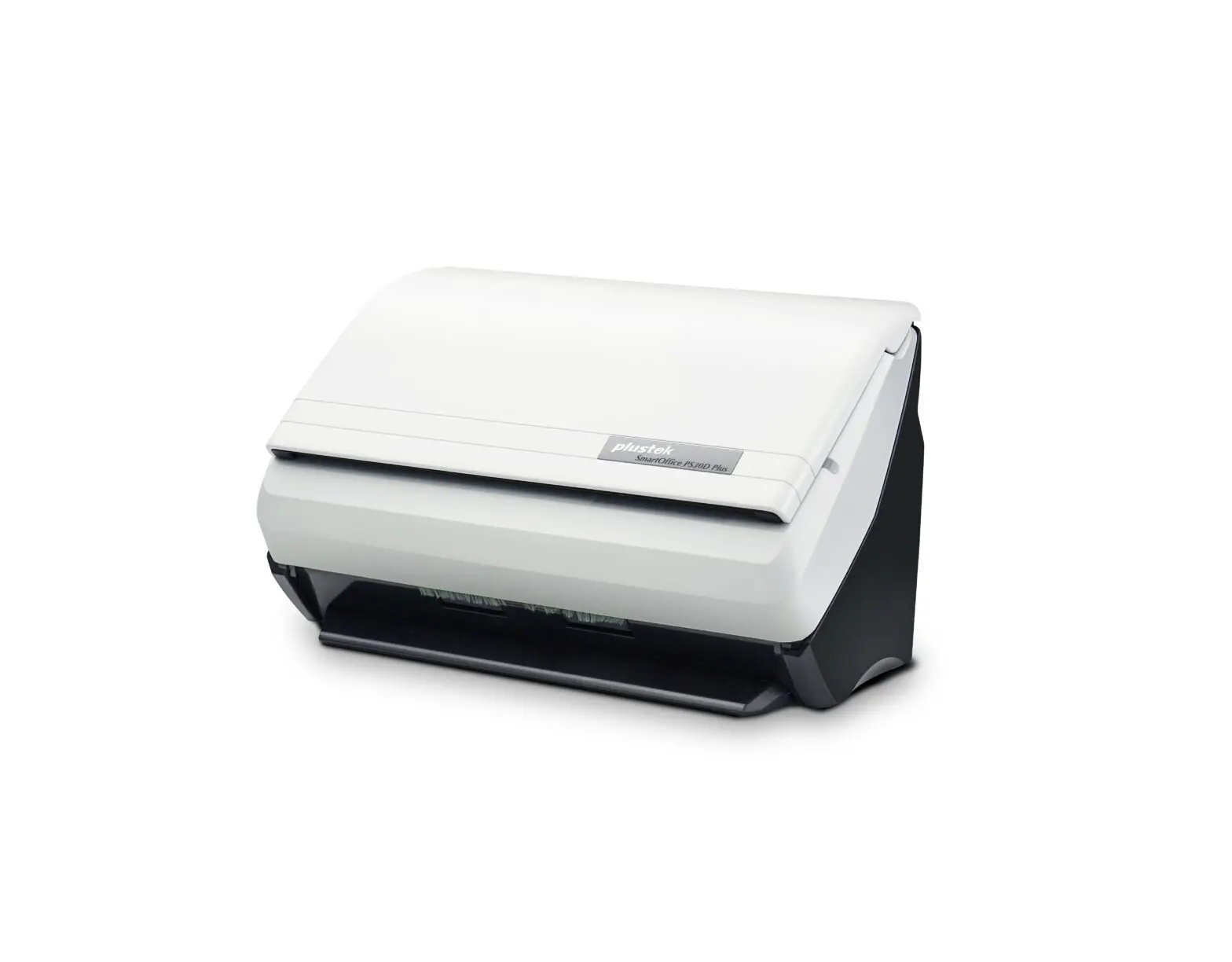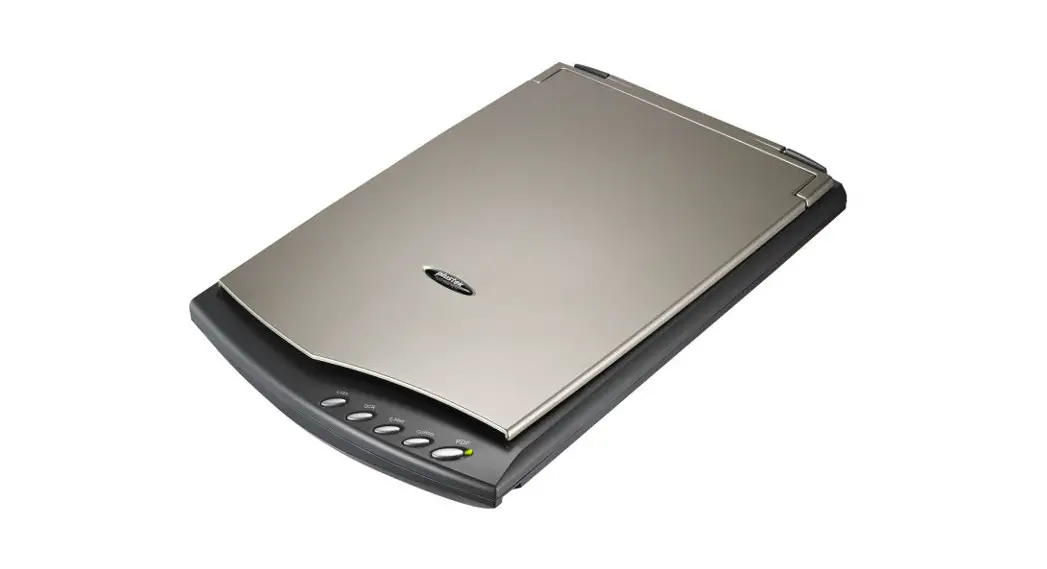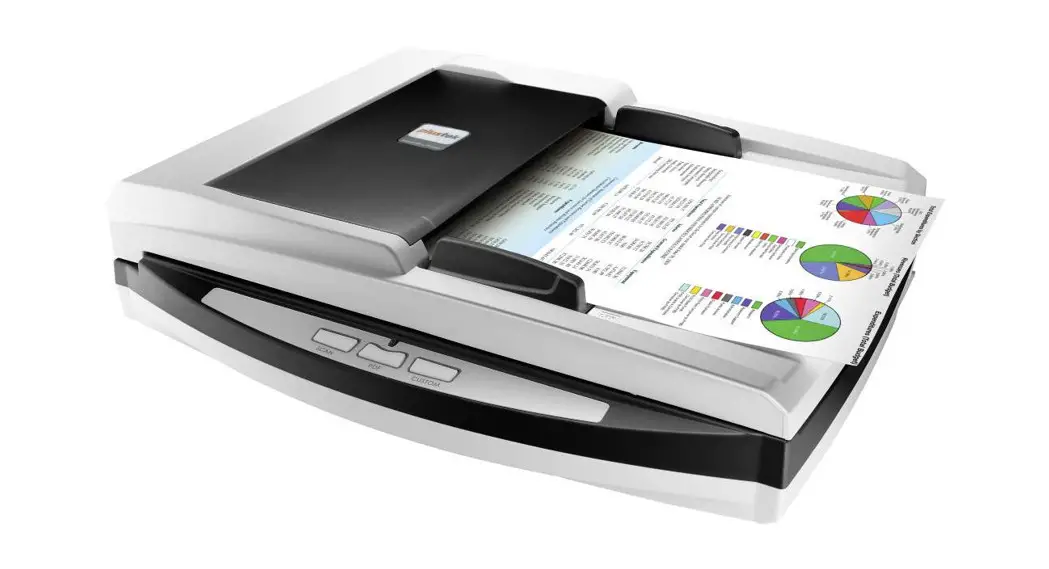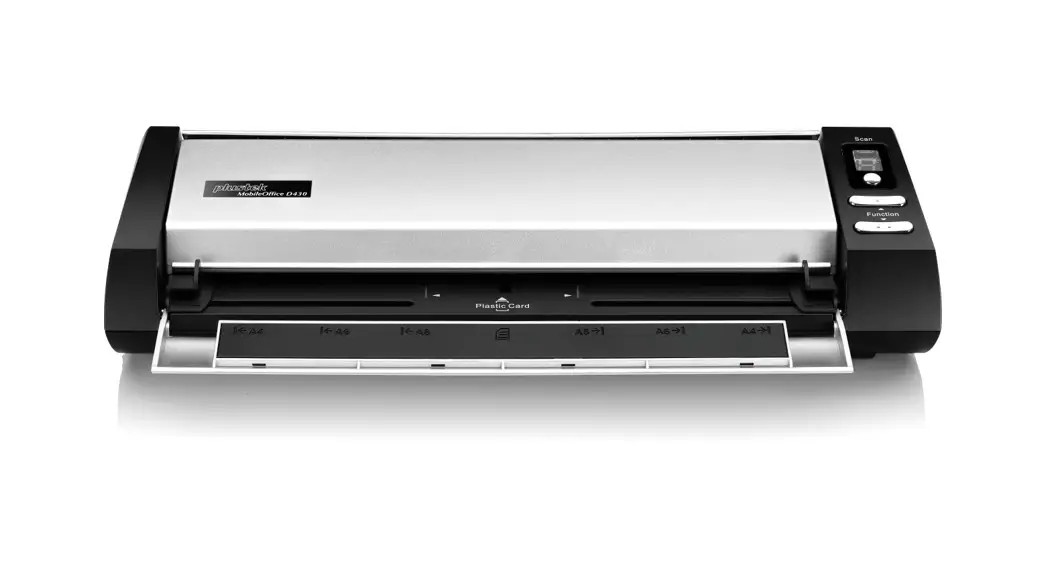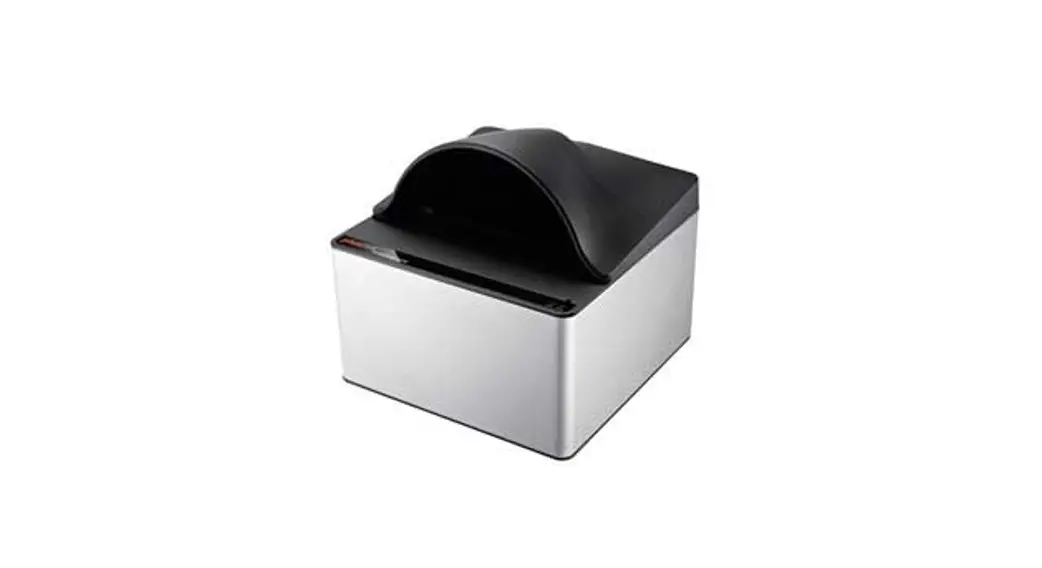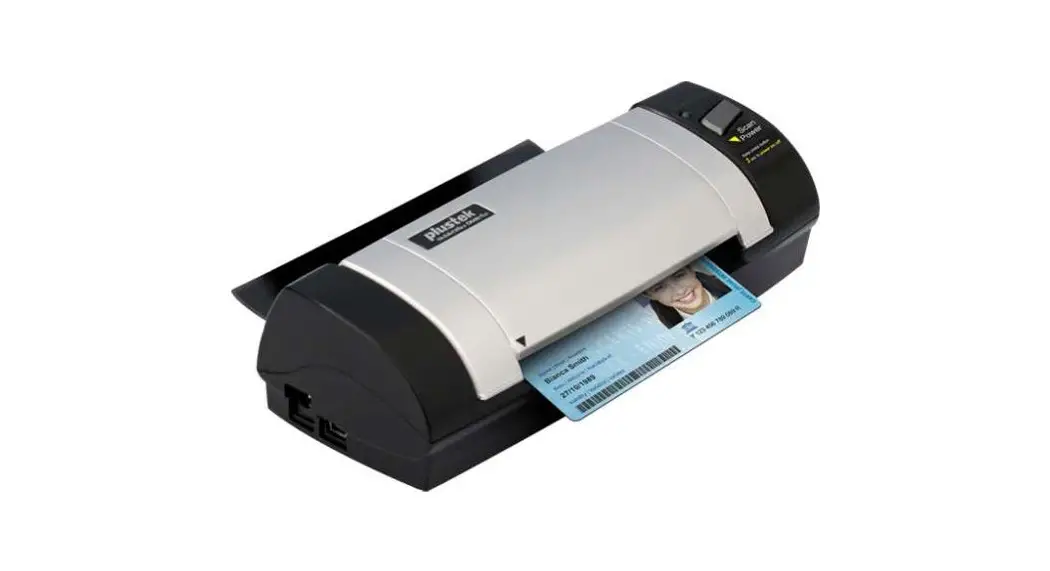

D600 Series + iKnow Quick Start Guide

Install and Register
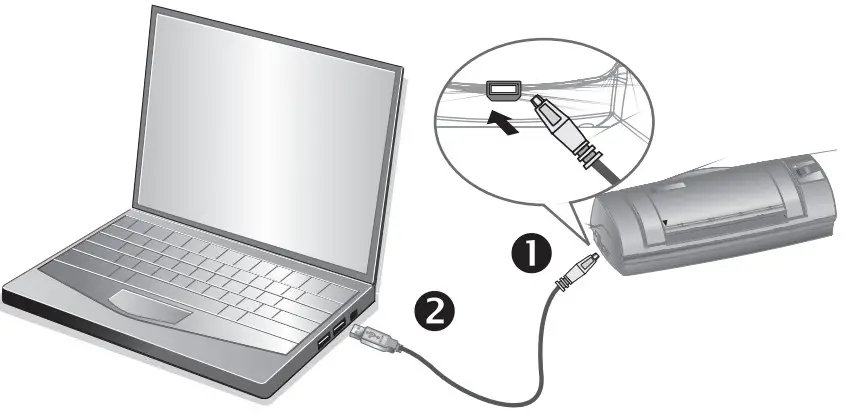
*Please make sure there is an active Internet connection.
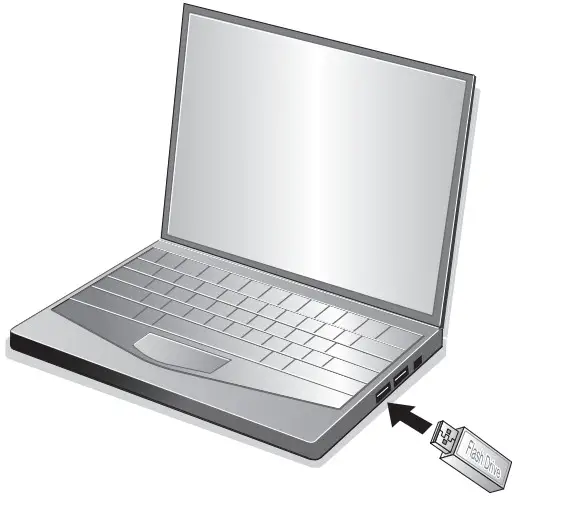
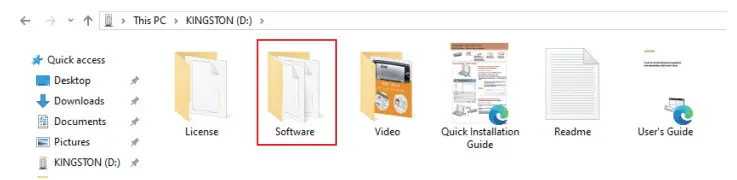
- Insert the USB Flash Drive to install all software.
USB -> Software -> Setup.exe
- After the installation is completed, click
 to launch iKnow.
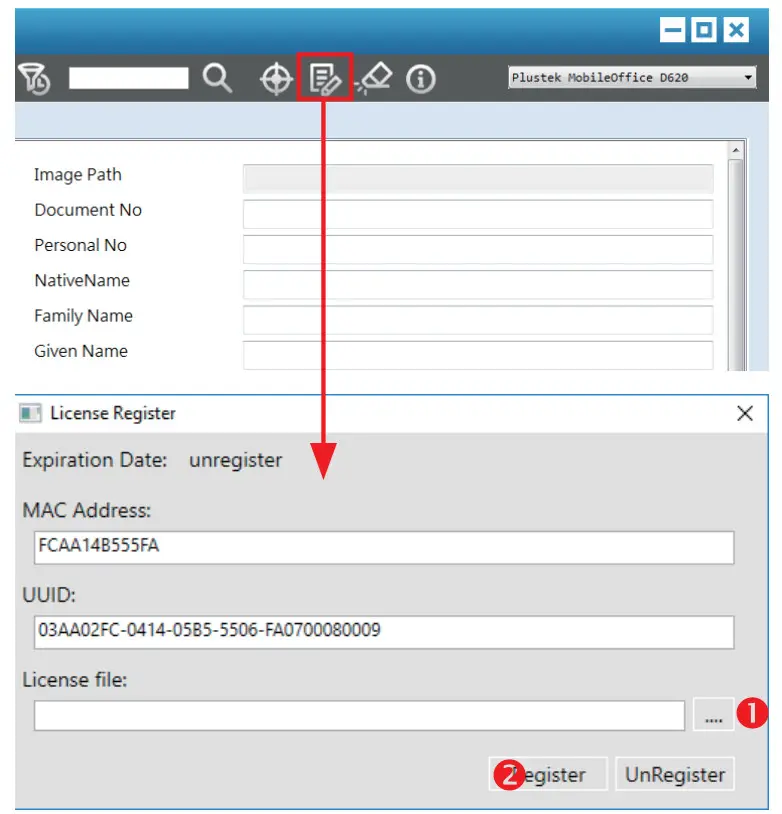
 - Click on
 the button to open the License Register dialog.
 - Click on the 1
 button to select the license file iKnow_Key_ xxxxxxxxxx, then clicks the 2 Register button to register the license.
 to launch iKnow.
 the button to open the License Register dialog.
 button to select the license file iKnow_Key_ xxxxxxxxxx, then clicks the 2 Register button to register the license.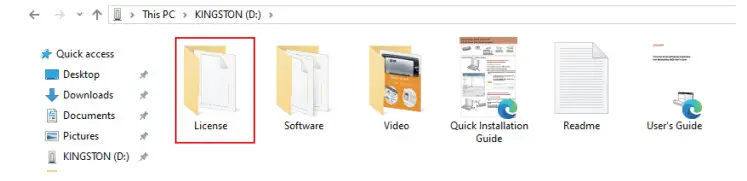
If the following dialog pops up, please make sure your internet connection is active.

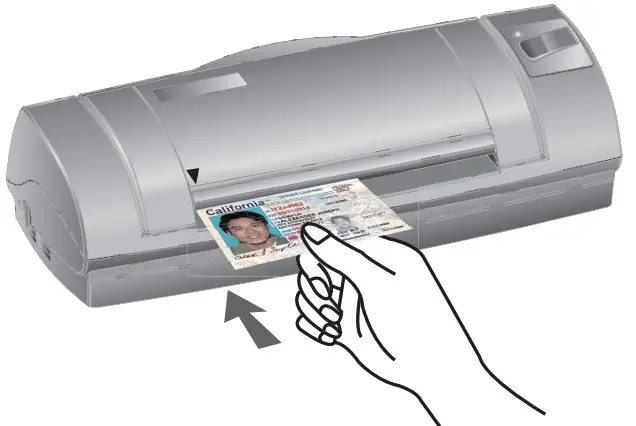
Quick Scan
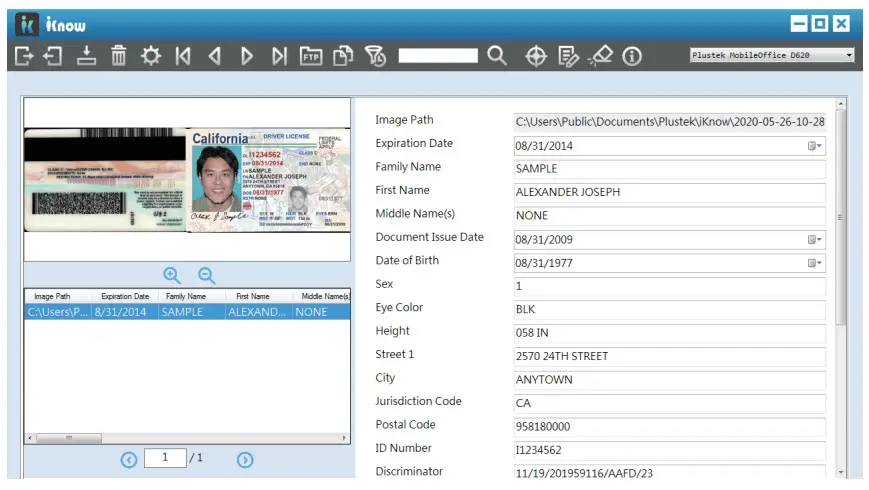
The toolbar button functions are as follows: Import: import CSV file.
 Export: export the scanned data.
 Setting: open Setting dialog.
 Upload: upload the information to the specific FTP folder.
 Filter: open the Filter dialog. You may select the desired condition to find the desired information.
 Search: Enter the keyword and click this button to search for desired information.
Setting Dialog
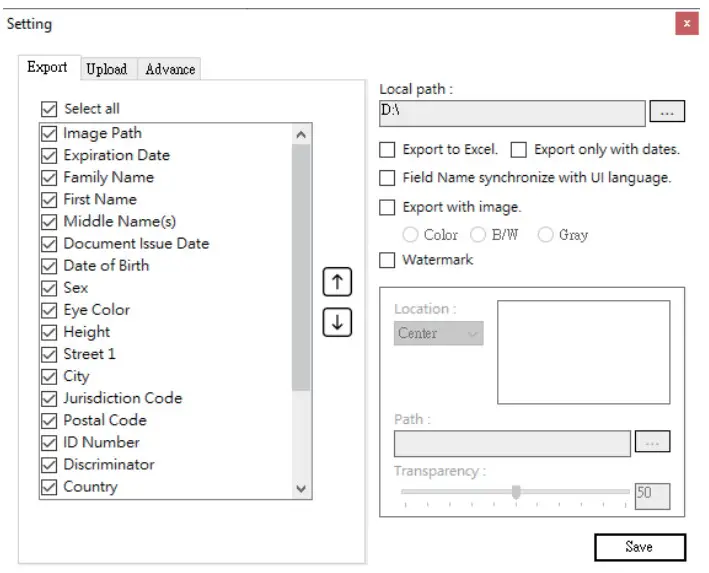
Export:
Tick the checkbox before the desired item to display the information in the main window, and use the Up and Down arrow button to adjust the display order.
Advance:
Saving recognize failed data: Select this option to save unrecognized images. Under the age of XX: Select this option to notice the information that is under a certain age.
Troubleshooting
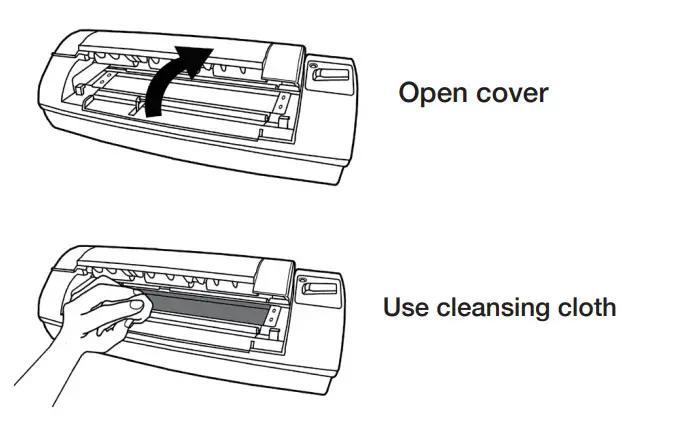
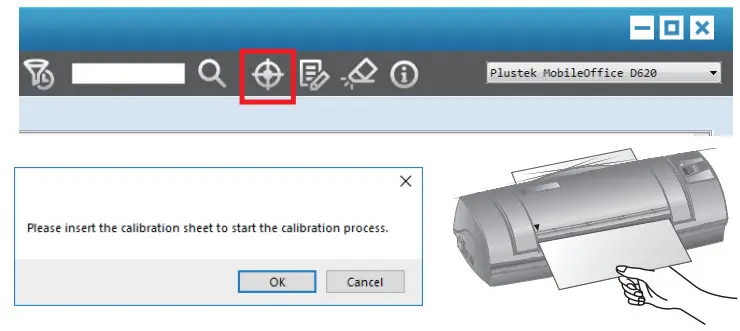
If the color of the scanned images are not correct, please do the following:
Technical Support
USA/Canada
Estados Unidos
Service Hours (Except National Holiday): Monday to Friday, 9AM to
5:30PM Pacific Time
Horario de servicio (excepto feriados nacionales): de lunes a viernes
de 9 a.m. a 5:30 p.m., hora del Pacífico
Tel.: 714-670-7713
e-mail: [email protected]
Web: https://plustek.com/usa/support/
 plustek.com/usa/support/