 An Excelitas technologies Brand
installation guide
Micro-Manager
 1288 EMVA Standard Compliant
Micro-Manager
PCO MicroManager
PCO asks you to carefully read and follow the instructions in this document.
For any questions or comments, please feel free to contact us at any time.
telephone: +49 (0) 9441 2005 50
fax: +49 (0) 9441 2005 20
postal address: Excelitas PCO GmbH Donaupark 11 93309 Kelheim, Germany
email: [email protected]
web: www.pco.de
Micro-Manager installation guide 3.1.0
Released December 2021
©Copyright Excelitas PCO GmbH
 This work is licensed under the Creative Commons Attribution-NoDerivatives 4.0 International License. To view a copy of this license, visit http://creativecommons.org/licenses/by-nd/4.0/ or send a letter to Creative Commons, PO Box 1866, Mountain View, CA 94042, USA.
Introduction
Supported Cameras
Include PCO’s entire range of high performance scientific cameras into your specific microscopy setup with Micro-Manager.
All monochrome and color versions of the following list are supported:
| Camera | Sensor | Interface | Bit | Alignment |
| pco.1200 | CMOS | FW/CL/GigE/USB 2.0 | 10 | MSB* |
| pco.1300 | CCD | FW | 12 | ” |
| pco.1400 | ” | FW | 14 | ” |
| pco.1600 | ” | ” | 14 | ” |
| pco.2000 | ” | ” | 14 | ” |
| pco.4000 | ” | ” | 14 | ” |
| pco.pixelfly usb | ” | USB 2.0 | 14 | ” |
| pco.ultraviolet | ” | USB 2.0 | 14 | ” |
| pco.dimax | CMOS | GigE/USB 2.0/USB 3.0 | 12 | ” |
| pco.flim | ” | USB 3.0 | 14 | ” |
| pco.edge | sCMOS | CL/CLHS/USB 3.0 | 16 | ” |
| pco.panda | ” | USB 3.1 Gen 1 | 16 | ” |
Explanation Interface: FW = Firewire IEEE1394A; CL = Camera Link, CLHS = Camera Link HS
Alignment: *most significant bit
About Micro-Manager
In contrast to virtually all of the available commercial solutions, Micro-Manager supports multiple platforms and provides an open plugin interface for adding new devices. In addition, Micro Manager is compatible with the widely used image processing package ImageJ, available in the public domain.
Combined with ImageJ, Micro-Manager provides a full featured microscope management and image processing package, comparable in capabilities to commercial solutions. It is distributed free of charge and under an Open Source license. Its code base and functionality can be customized, extended, and re-used practically without restrictions.
PCO provides a free generic adapter for PCO scientific cameras on Microsoft Windows platforms.
Micro-Manager
Copyright for Micro-Manager: GNU “Lesser General Public License”
Official Micro-Manager website
Download
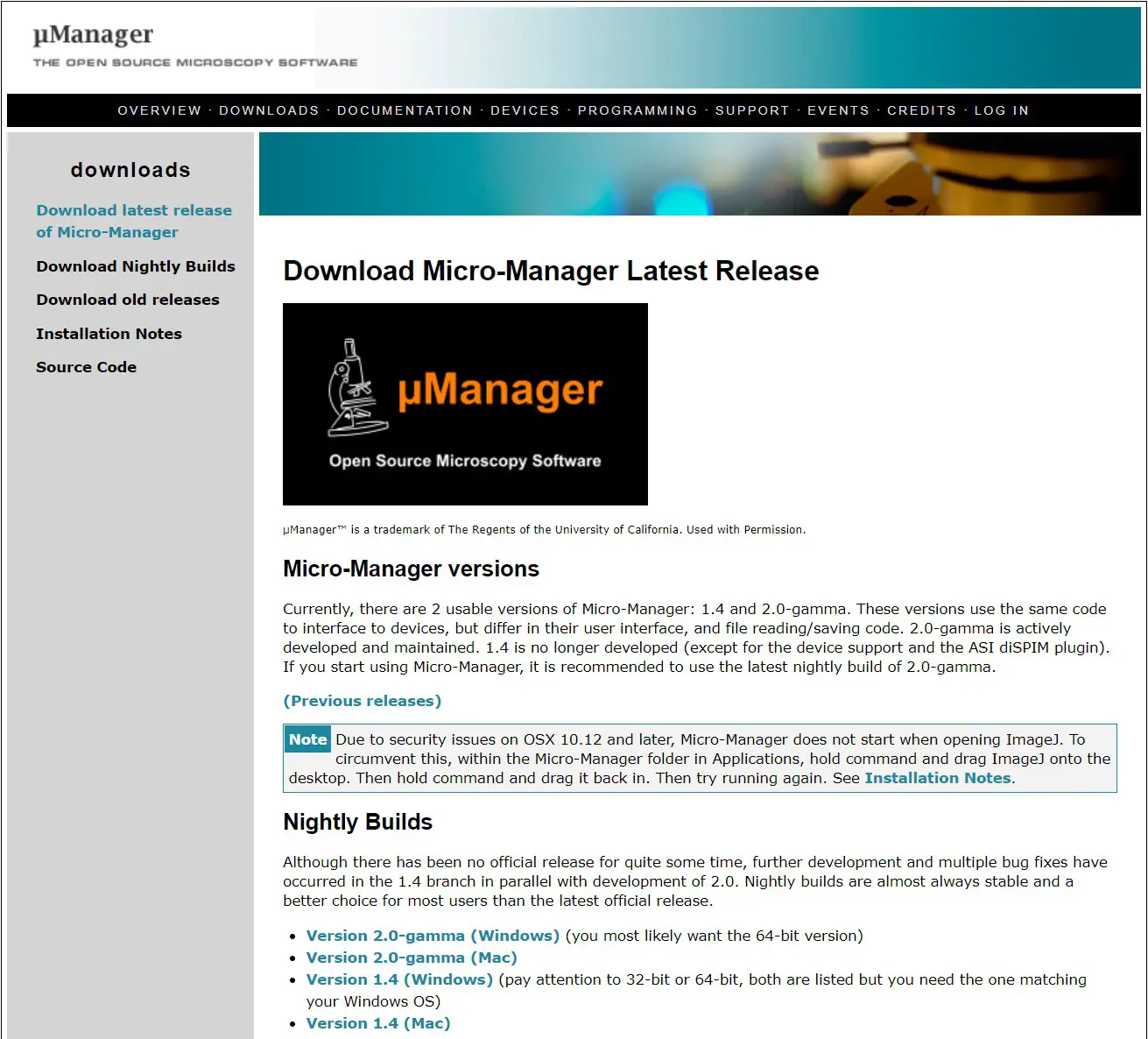
First, download Micro-Manager. PCO recommends to download Nightly Builds to get the latest version.
Note Nightly Builds is a beta version and is not for productive use: use at your own risk! You always need to install pco.camware, pco.sdk, or the pco.runtime package, because some runtime DLL files from the installed packages are needed (see 2.3).
Please do not use the latest release as it does not contain current bug fixes or the most recent PCO device adapter DLLs.
Installation
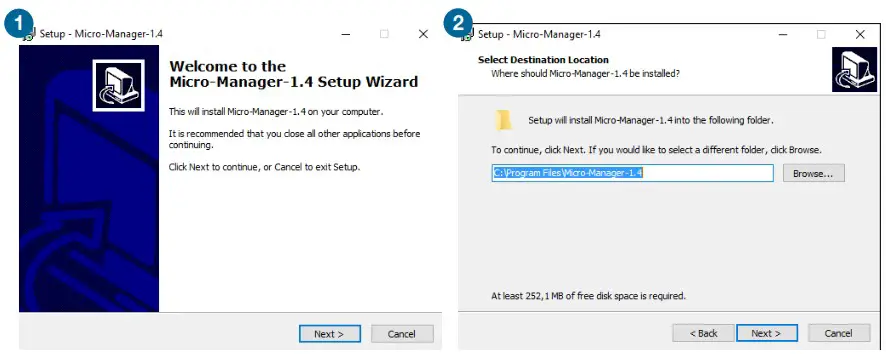
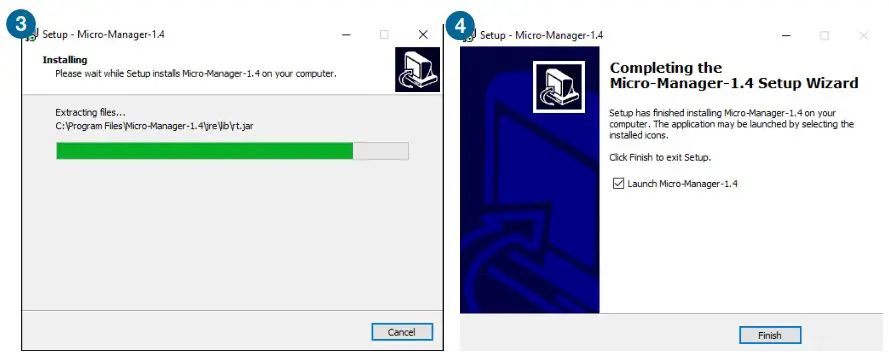
Please follow the installation wizard:
Copy PCO Files
Please copy the corresponding DLL files into your Micro-Manager directory.
These files should be found on your computer under: Looking for 64 bit DLLs:
- C:\Program files \PCO Digital Camera Toolbox\pco.camware
- C:\Program files(x86)\PCO Digital Camera Toolbox\ pco.sdk\bin64 pco.runtime\bin64
Looking for 32 bit DLLs:
- C:\Program files(x86)\PCO Digital Camera Toolbox\pco.sdk\bin pco.runtime\bin
Files needed for all PCO cameras:
- PCO_Conv.dll
- PCO_CDlg.dll
- SC2_Cam.dll
In the case of Camera Link HS interface you also need the following file:
- sc2_clhs.dll
In case of Camera Link you also need the following files depending on the used framegrabber:
- Silicon Software ME4: sc2_cl_me4.dll
- Matrox: sc2_cl_mtx.dll, clsermtx.dll, mtxclsermil.dll
- National Instruments: sc2_cl_nat.dll
Configuration
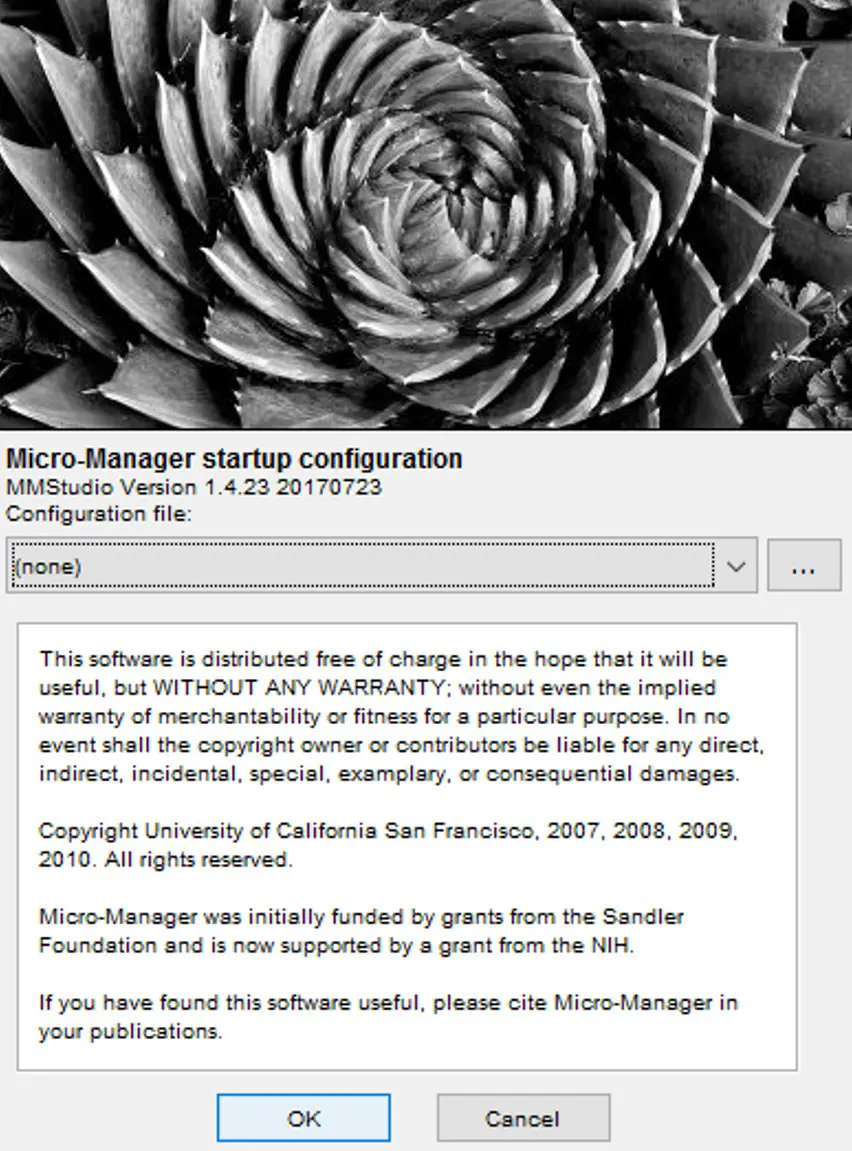
- Start your PCO camera
- Start Micro-Manager
- Open Micro-Manager with the default configuration (none)
Hardware Configuration Wizard
- Start the Hardware Configuration Wizard
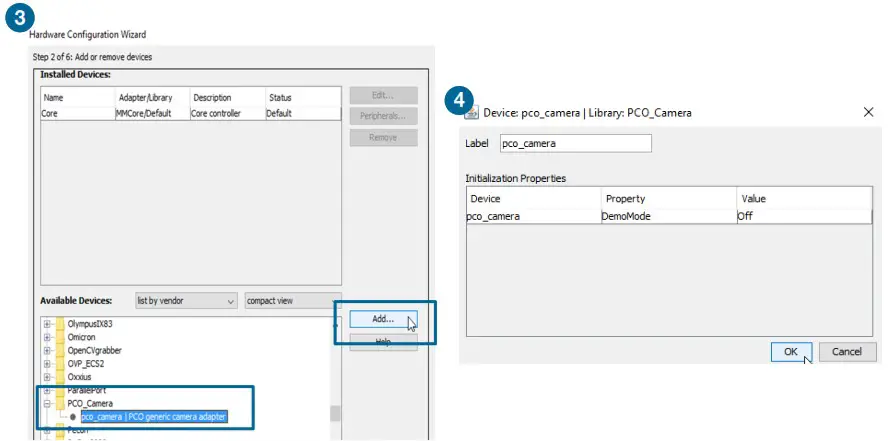
- Create a new configuration
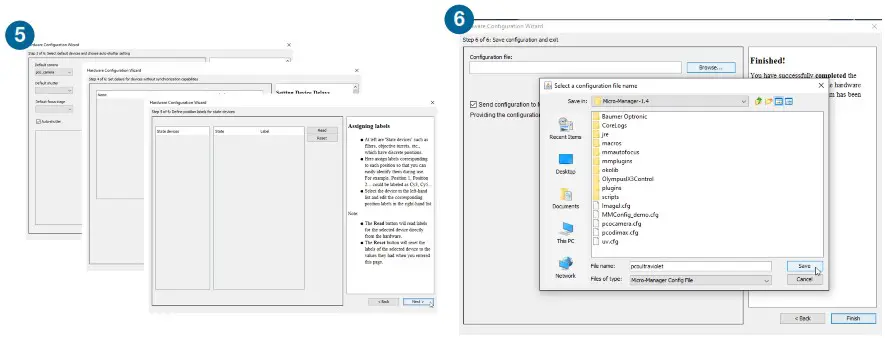
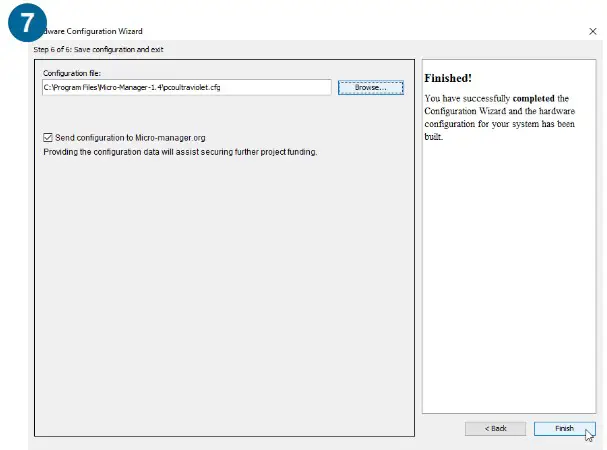
- Add the pco_camera adapter from the list
- Micro-Manager will scan for cameras
- Skip the steps 3 + 4 + 5
- Save the new configuration (e.g. “pcoultraviolet”) to the Micro-Manager directory
- Finish
 Snap image for test
 Snap image for test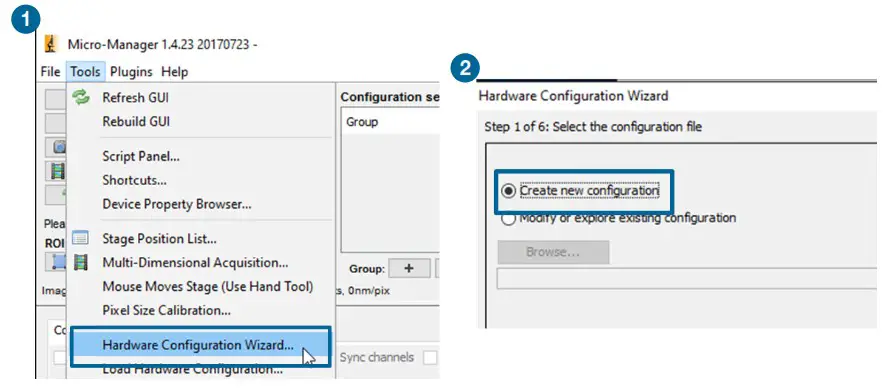
Configuration Settings
After the Hardware Configuration Wizard is finished successfully, the Configuration settings can be predefined.
First add a Group 1 .
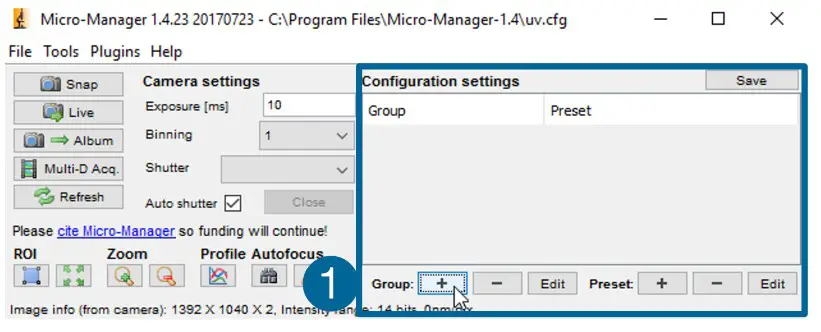
The Group Editor opens. Enter a group name 2 and select the property names that you want to add to your group 3 . Press OK 4 .
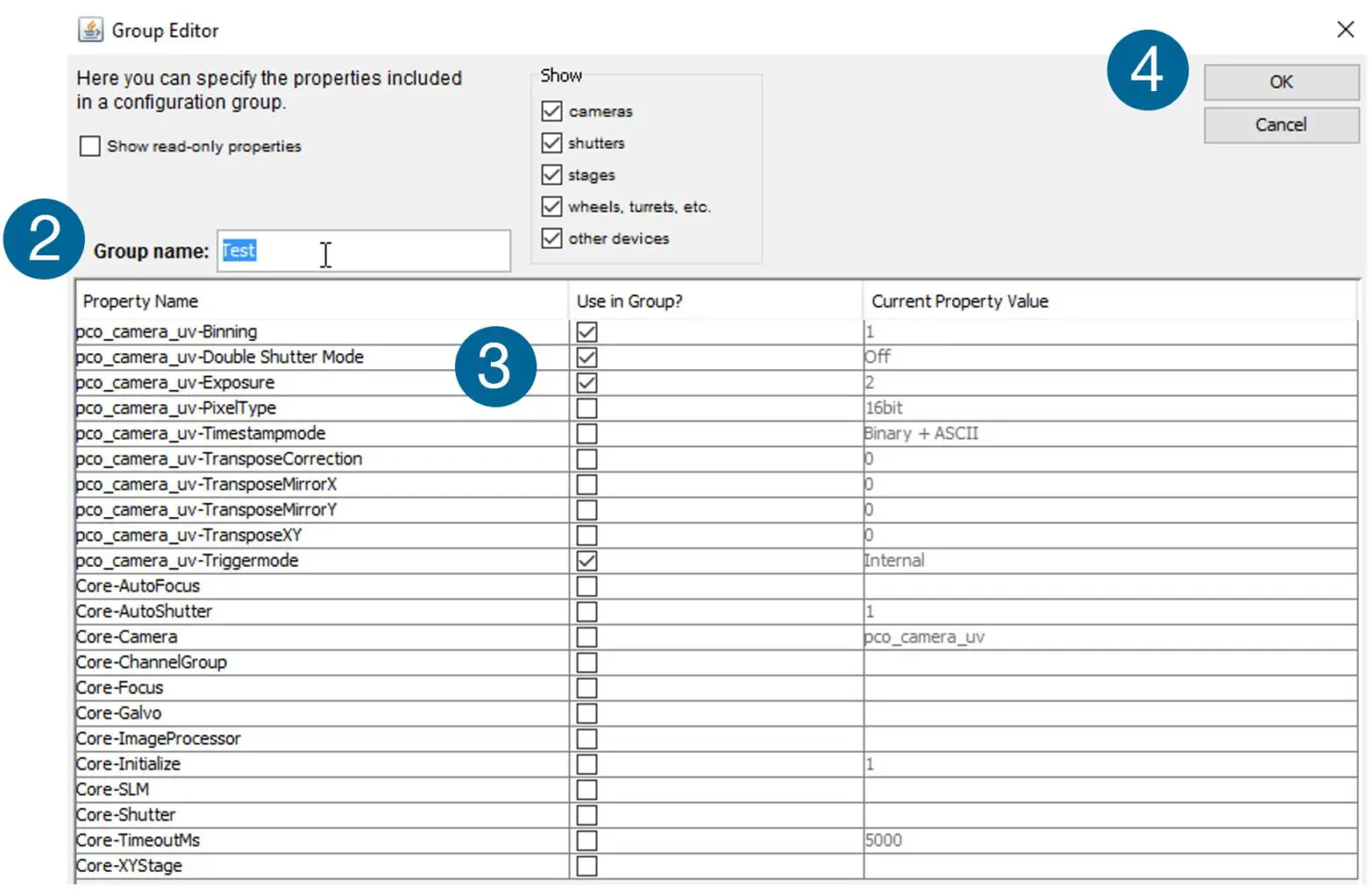
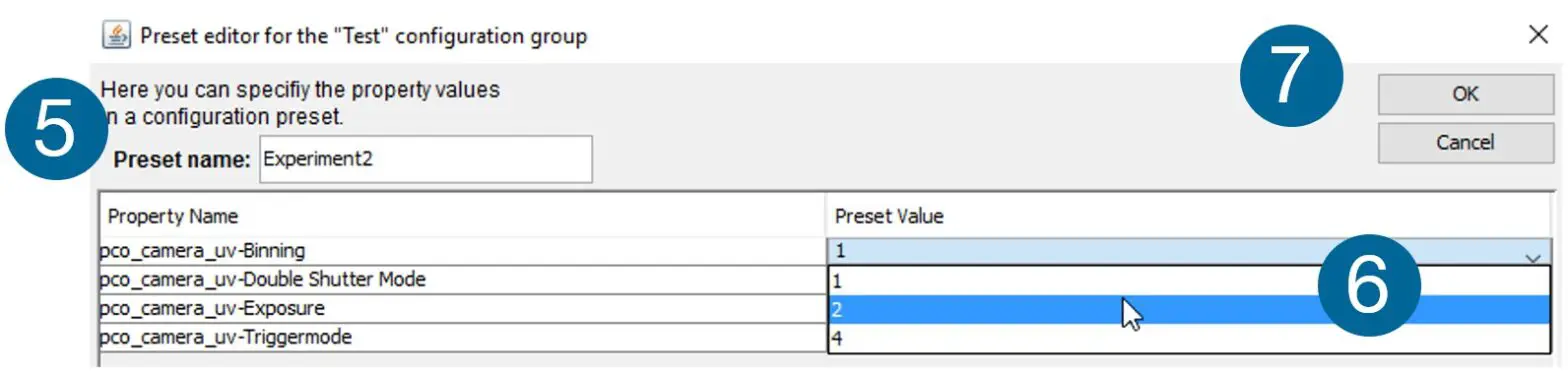
The Preset editor for the configuration group opens. Enter the Preset name 5 .
Select the Preset values 6 .
Press OK 7 .
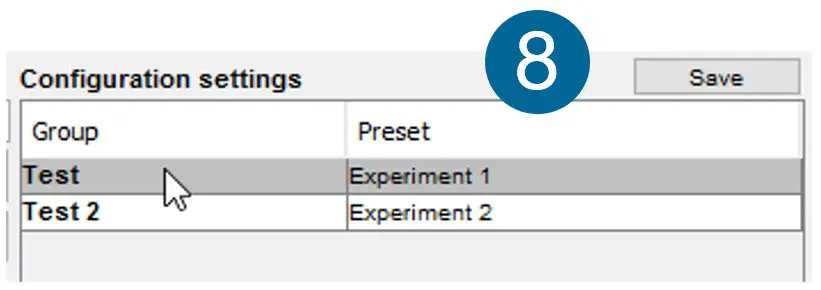
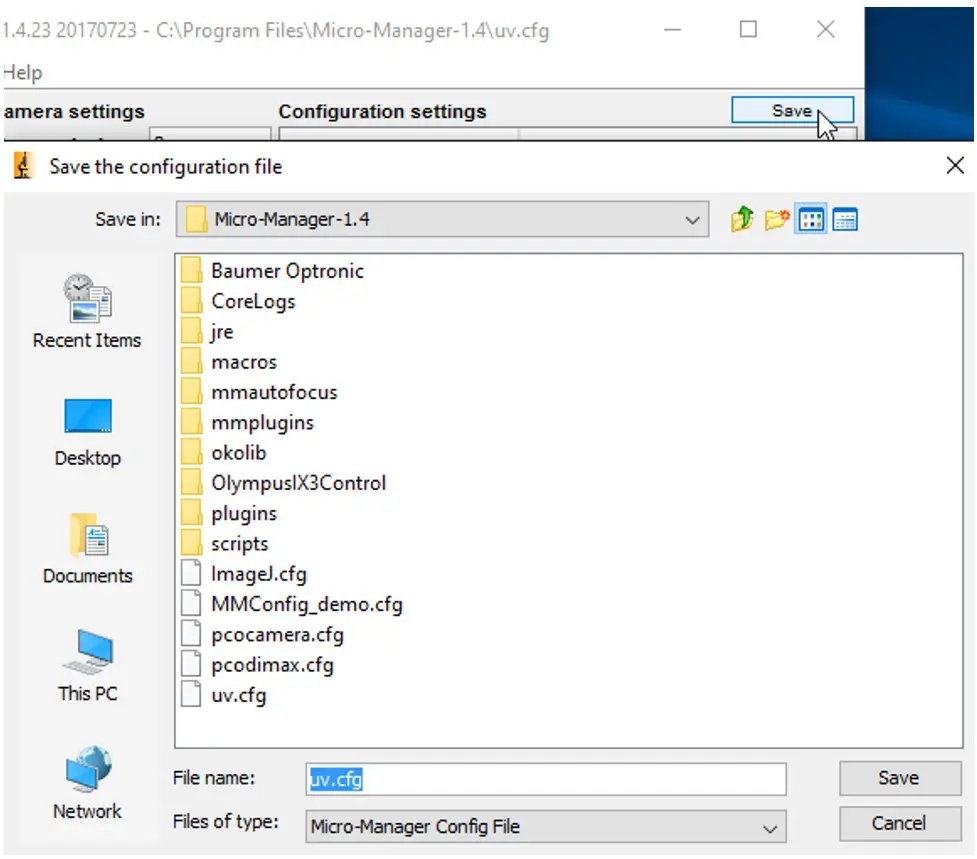
The Configuration settings window displays all your configuration settings. Press Save to save your Groups and Presets 8 .
Color Camera
Open the Device Property Browser to change the camera settings.
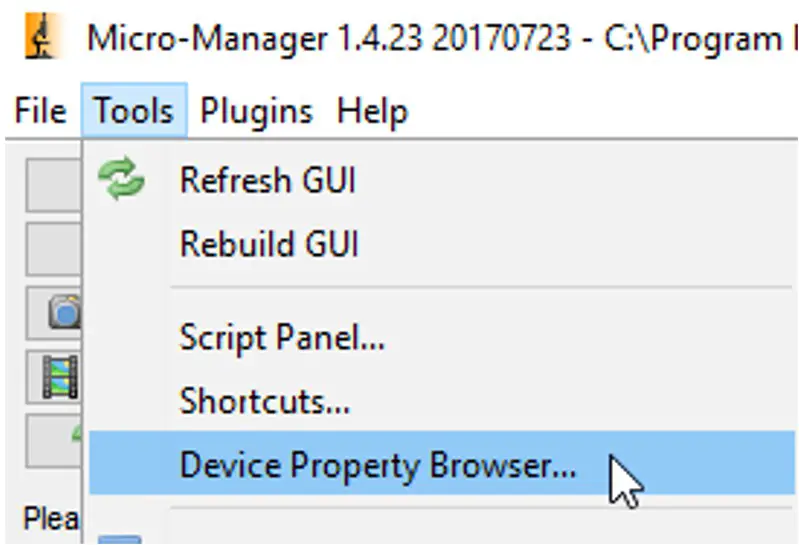
If you use a PCO color camera, change the pco_camera-PixelType to RGB 32bit.
The standard value is 16bit – this will provide a monochrome image.

contact
| pco europe +49 9441 2005 50 [email protected] pco.de | pco america +1 866 678 4566 [email protected] pco-tech.com | pco asia +65 6549 7054 [email protected] pco-imaging.com | pco china +86 512 67634643 [email protected] pco.cn |
 for application stories please visit our website
https://www.pco.de/applications/An Excelitas technologies Brand
 Creative Commons — Attribution-NoDerivatives 4.0 International — CC BY-ND 4.0
 PCO: Excelitas PCO GmbH
 Micro-Manager