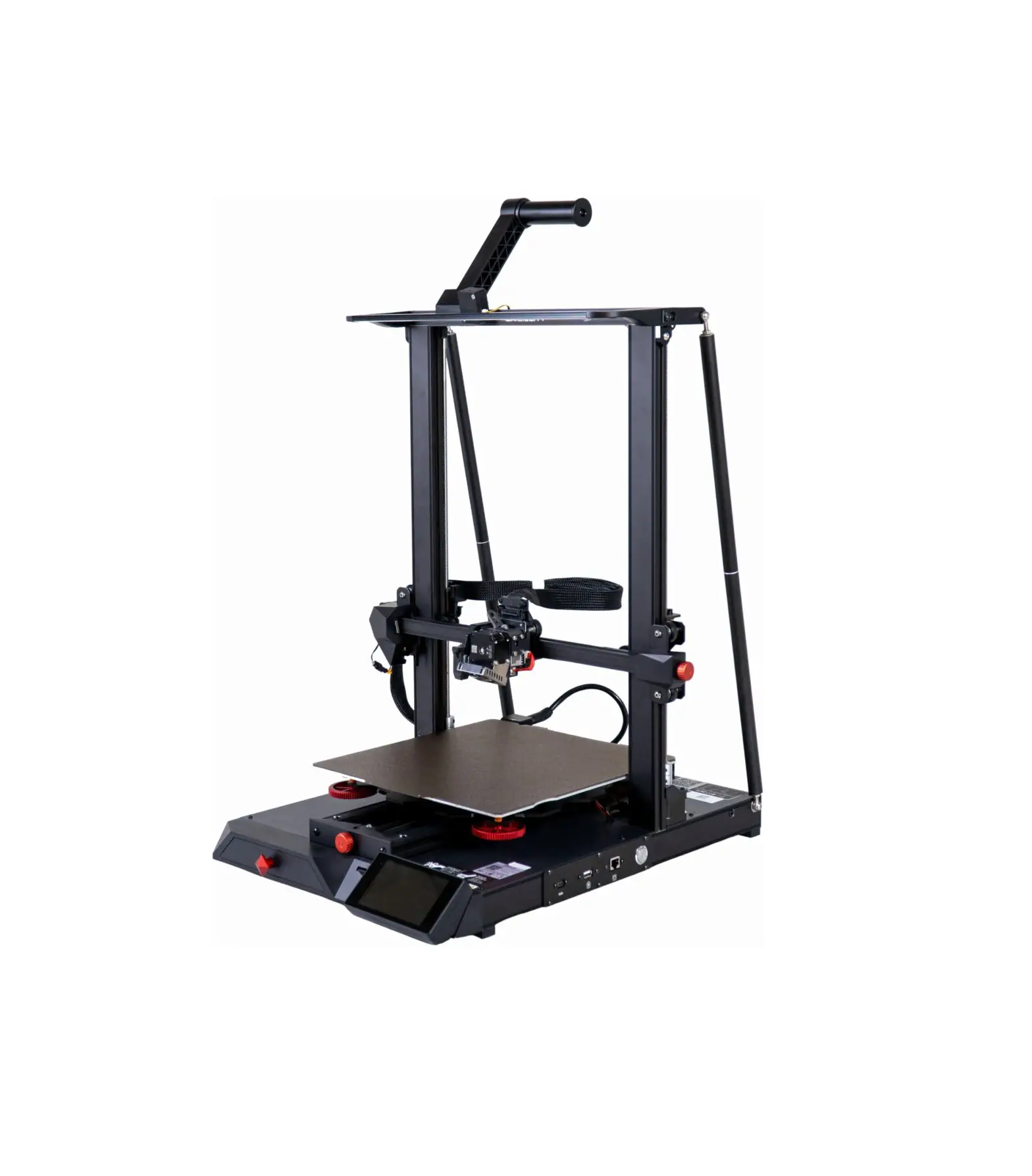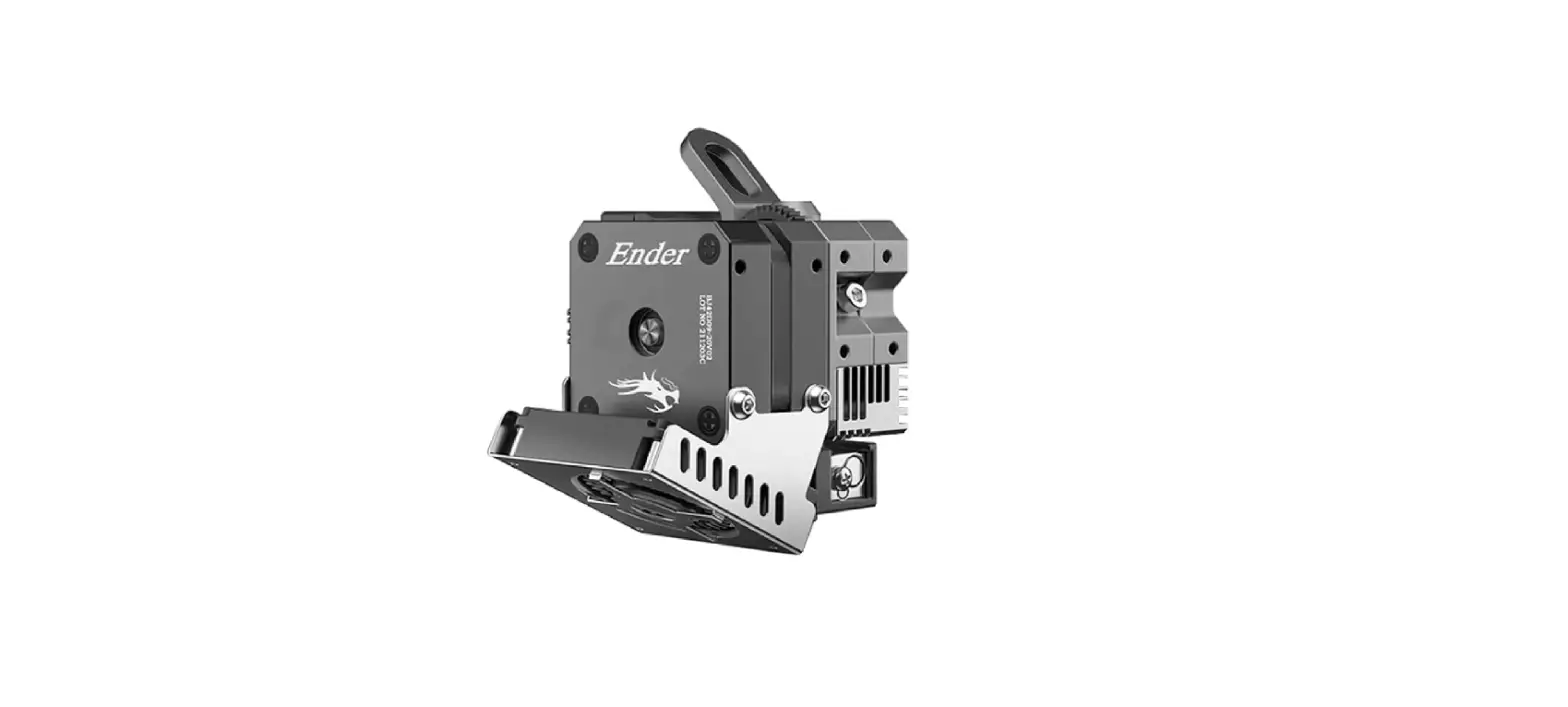

Creality Sprite Extruder Pro Kit
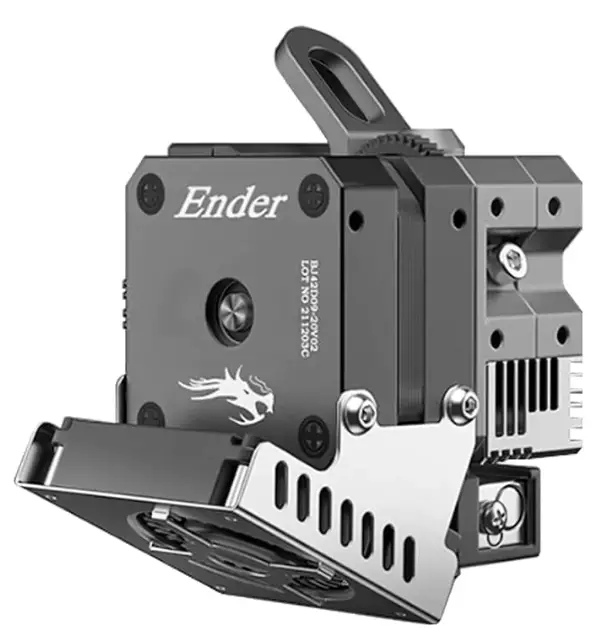
Creality Sprite Extruder Pro Kit
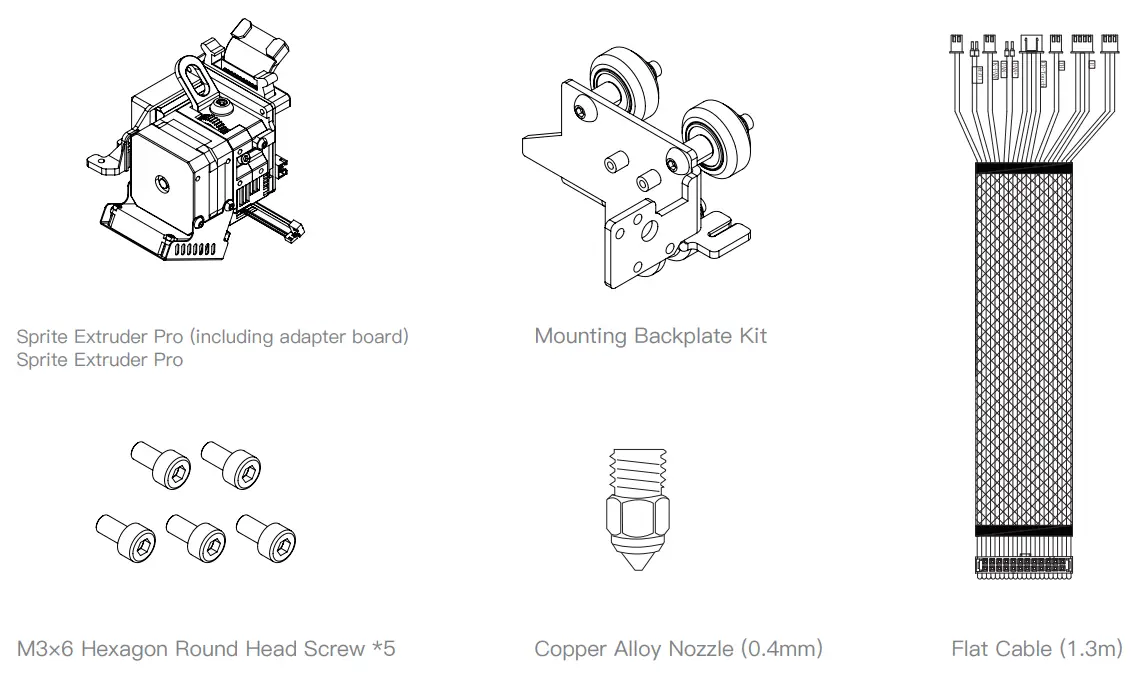
Parts List 
Installation instructions
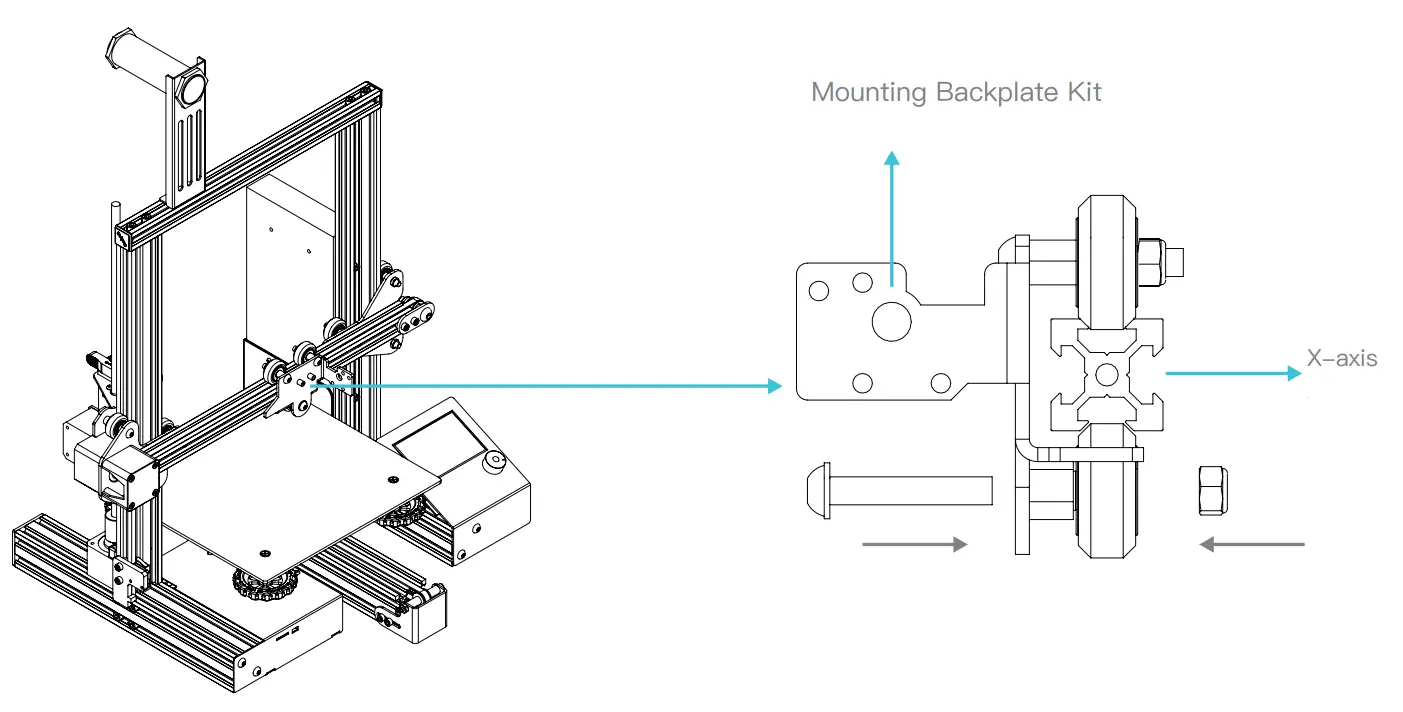
- Remove the original hotend kit, and install the mounting backplane kit on the X-axis profile.

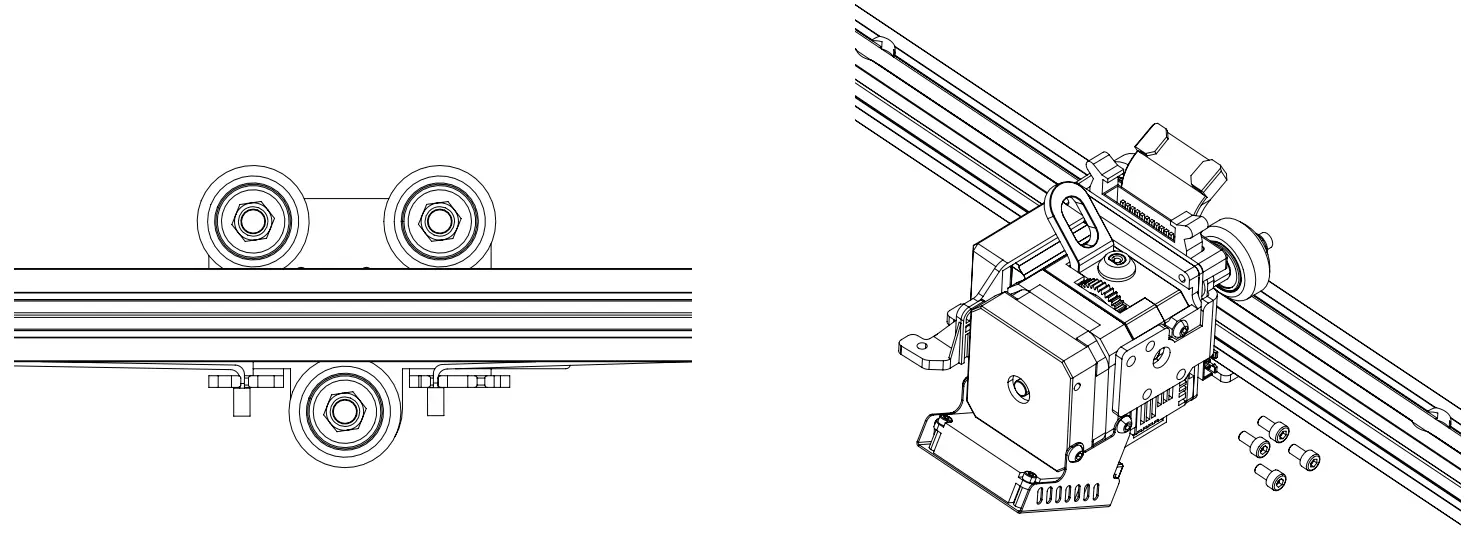
- Select an appropriate slot on the mounting backplane according to timing belt length. Adjust the eccentric nut so that the mounting backplane kit slides freely on the X-axis profile without shaking.
- Fix Sprite Extruder Pro on mounting backplane with 4pcs M3×6 hexagon round head screws.
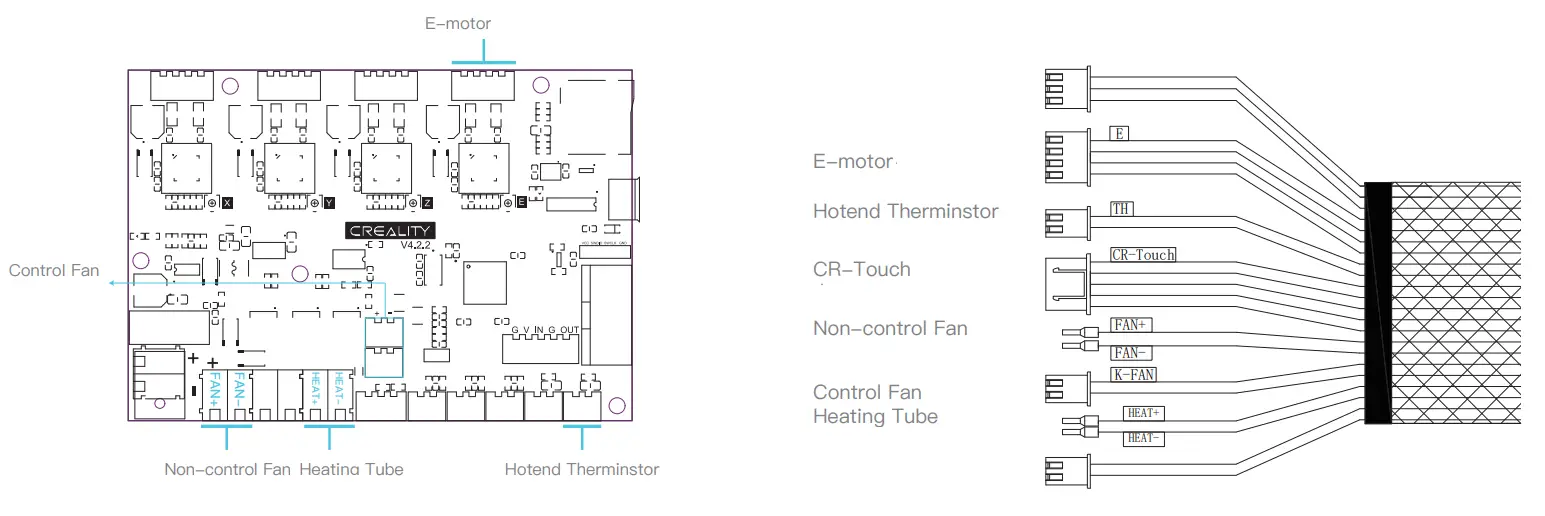
Motherboard Wiring Diagram
- Connect a terminal to the corresponding interface on the motherboard according to the cable label(Terminals without labels are redundant and do not need to be connected to the motherboard. Please disconnect printer power when wiring). Then connect the other end of the cable to Sprite Extruder Pro.

- Adjust the printer’s Estep’s value to 424.9 (the value is for reference only and can be fine-tuned according to the actual printing situation), and then click “Store Settings”.
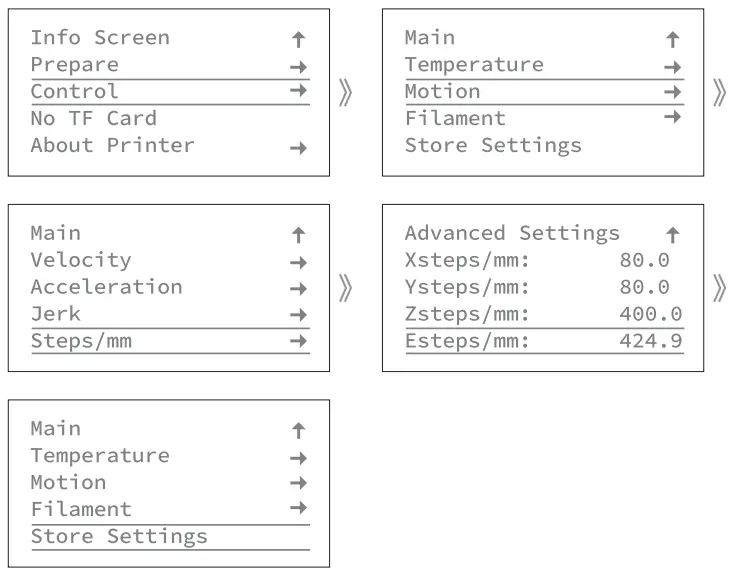
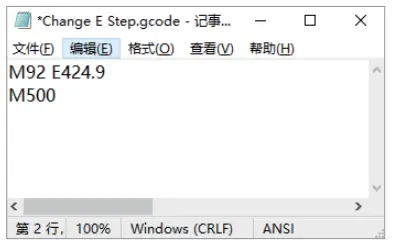
If the printer does not support adjusting the Esteps value to 424.9, you can make it with the following 4 steps.
- Create a new text file (txt) and type “M92 E424.9” in the text.
- Press “Enter” to continue typing “M500”.
- Save the file as the code format, and copy it into the TF card.
- Insert the TF card into the printer and click to print this file. At this time, the printer’s Estep’s value has been adjusted to 424.9.
- After installation, you need to level the printing platform again.
- The side adjusting screw on the Sprite Extruder Pro can adjust the clamping degree between extrusion gear and filament. Clockwise is for tightening and anticlockwise is for loosening.
3. The withdrawal distance must be less than 3mm.
If the 3D printer restarts during hotend heating up, please reverse the heating tube connectors on the mainboard.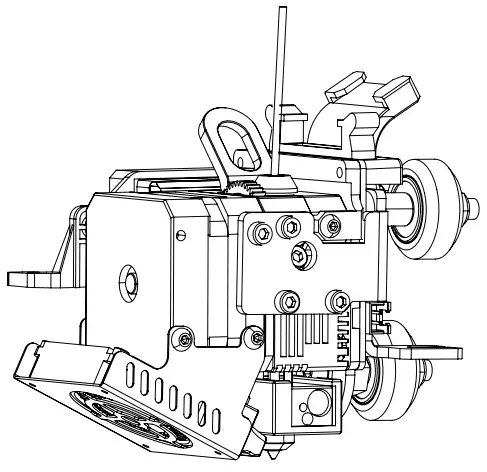
| Sprite Extruder Pro Kit Material Guide | |||||||
| Material | Printing with an enclosure recommended | Dry box recommended | Retraction distance | Retraction speed | Heatbed temperature (+- 5°C) | Nozzle temperature (+- 5°C) | Recommended printing speed |
| CR-PLA | NO | NO | 0.8mm | 40mm/s | 60℃ | 200℃ | 50mm/s |
| CR-TPU | NO | NO | 2mm | 40mm/s | 60℃ | 230℃ | 50mm/s |
| HP-TPU | NO | NO | 2mm | 40mm/s | 60℃ | 210℃ | 50mm/s |
Retraction speed: 35-45 mm/s
Retraction distance (direct drive) for rigid materials (PLA): 0.8 mm
Retraction distance (direct drive) for soft materials (TPU-95): 2 mm
Caution:
- All wires must not be clamped during machine assembly;
- For parameter configuration and more advanced configurations, please refer to the official website: www.creality.com
The specific values of printing parameters need to be adjusted according to filaments of different manufacturers.
Leveling Tip
This paper can be used for manual leveling or auxiliary leveling. thickness 0.1mm.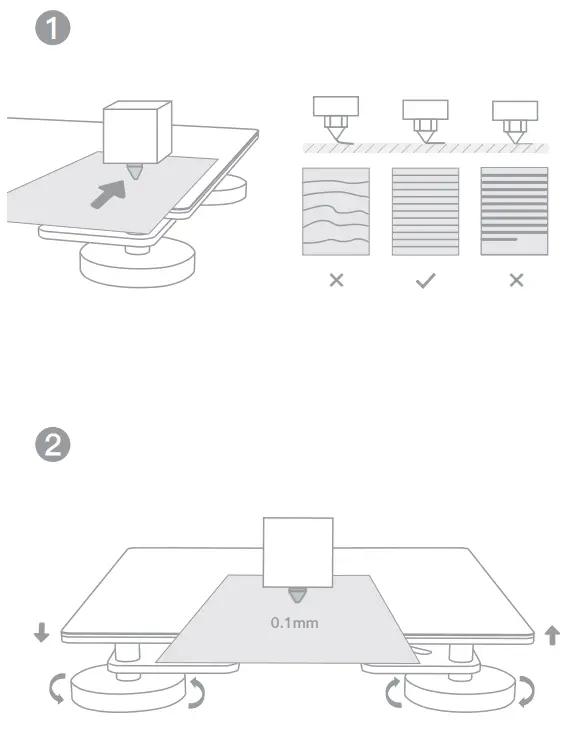
Due to the differences between models, product images, and descriptions only for reference purposes, please see the subject produce. The final explanation rights shall be reserved by Shenzhen Creality 3D Technology Co., Ltd.
 https://qr.creality.com
SHENZHEN CREALITY 3D TECHNOLOGY CO., LTD.
Add: 18F, JinXiuHongDu Building, Meilong Blvd.,Longhua Dist., Shenzhen, China 518131
Official Website: www.creality.com Tel: +86 755-8523 4565
E-mail: [email protected] [email protected]
DOWNLOAD RESOURCES
- Creality Sprite Extruder Pro Kit [pdf] User Manual Extruder, Sprite Extruder, Pro Kit, Kit
- Read more: https://#manualsee.com/creality/sprite-extruder-pro-kit-manual#ixzz7htiIgbpY
- CREALITY Sprite Extruder Pro Kit [pdf] User Manual Sprite, Extruder Pro Kit, Sprite Extruder Pro, Sprite Extruder Pro Kit
- Read more: https://#manualsee.com/creality/sprite-extruder-pro-kit-manual#ixzz7htiTrztF
FAQ’S
The main difference is that Creality 3D Printer Extruder is for Creality CR-10S, CR-10, CR-10S4, CR-10S5, CR-10S5S and CR-10S4S.
Creality Ender 3’s are pretty loud on the surface, at roughly 58db (conversation at a restaurant), but when you convert the right parts such as stepper motor dampers and premium fans, it can be a lot quieter.
Unfortunately, the Ender does not offer a built-in option for automatically shutting off after completing the printing process, meaning that your printer will stay on until you manually turn it off.
The best method to make an Ender printer bigger is to use a designated conversion kit like the Ender Extender 400XL. You can upgrade the aluminum extrusions to larger ones, then refit the necessary parts to increase your build volume. Make sure to change your slicer to reflect your new print bed volume.
3DPrinterOS – 3D Printing software – allows you to scale, orient and repair your STL file. These can be queued up and tracked across the workflow. All the file versions will be stored on your account.
The Ender 3 can’t print pure wood or metal, but wood & metal-infused PLA is a widely used material that can be 3D printed on the Ender 3. They are not substitutes. There are 3D printers that specialize in 3D printing metal, but these are a lot more expensive and can cost $10,000 – $40,000.
The Ender Pro, and V2 can all support a Wi-Fi connection, though there are a few different options, which we’ll look at in the following sections. Let’s get started!
Is The Ender 3 Bluetooth? the Ender Pro does not come with Wi-Fi connectivity. However, we can connect either using our smartphone by using an SD card (like a Galaxy S), the Octoprint software combination, the Raspberry Pi + AstroBox combination, or the Creality Cloud.
All you need to do here is get yourself an adapter which inserts into your MicroSD slot into your Ender, then present a SD slot for the WiFi-SD card since they only come in the larger size. You can get a pretty cheap one from Amazon, the LANMU Micro SD to SD Card Extension Cable Adapter is a great choice.
To connect your Ender to a PC, you have to download and install the printer driver and control software, such as Pronterface, Cura, or Simplify3D. Then use a mini USB or micro USB cable (depending on the model) to connect the printer to the PC.
Ordinary 3D printers do not use much electricity, only about 50-150 Watts while printing. This is about the same as one or two incandescent light bulbs. There are many different 3D printers and print settings available, however, so for a more accurate number you need to make some calculations or measurements.
Typically this 3D printing problem is attributable to two parts of the printing process — either something is wrong with your filament supply, or there’s a problem with the hot end/nozzle itself. It could be as simple a case as your filament has run out.
A 3D printer extruder motor may fail to turn due to bad wiring, inadequate power supply to the motor, or a faulty/old motor. It can also happen when something blocks your printer’s extrusion flow.
VIDEO
www://www.creality.com/
 CREALITY - Official Website, Leading 3D Printer Supplier & Manufacturer