 uport 1200 series USB-to-Serial Converter
User Manual
Overview
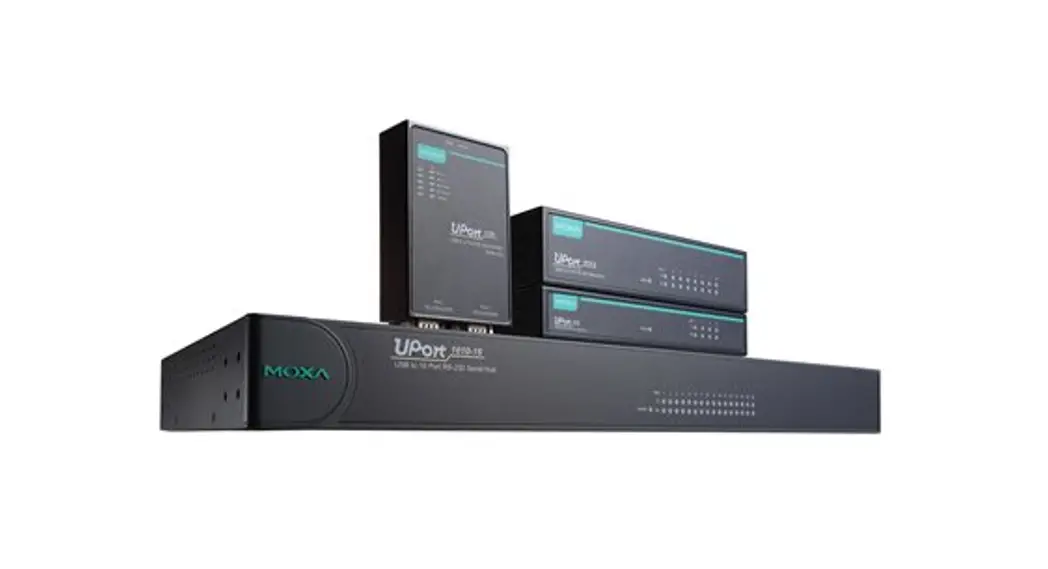
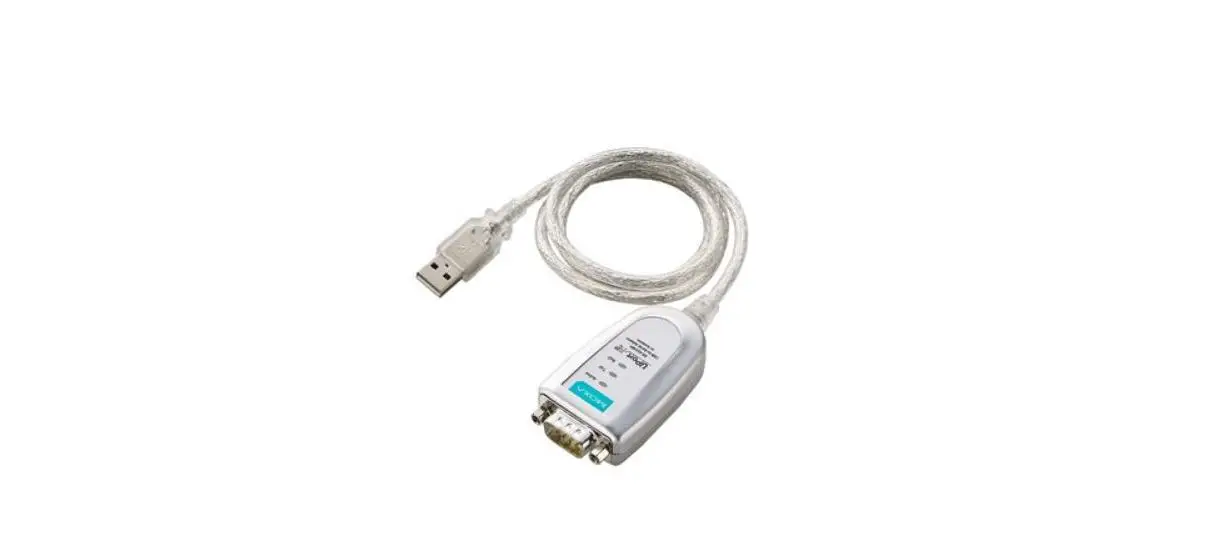
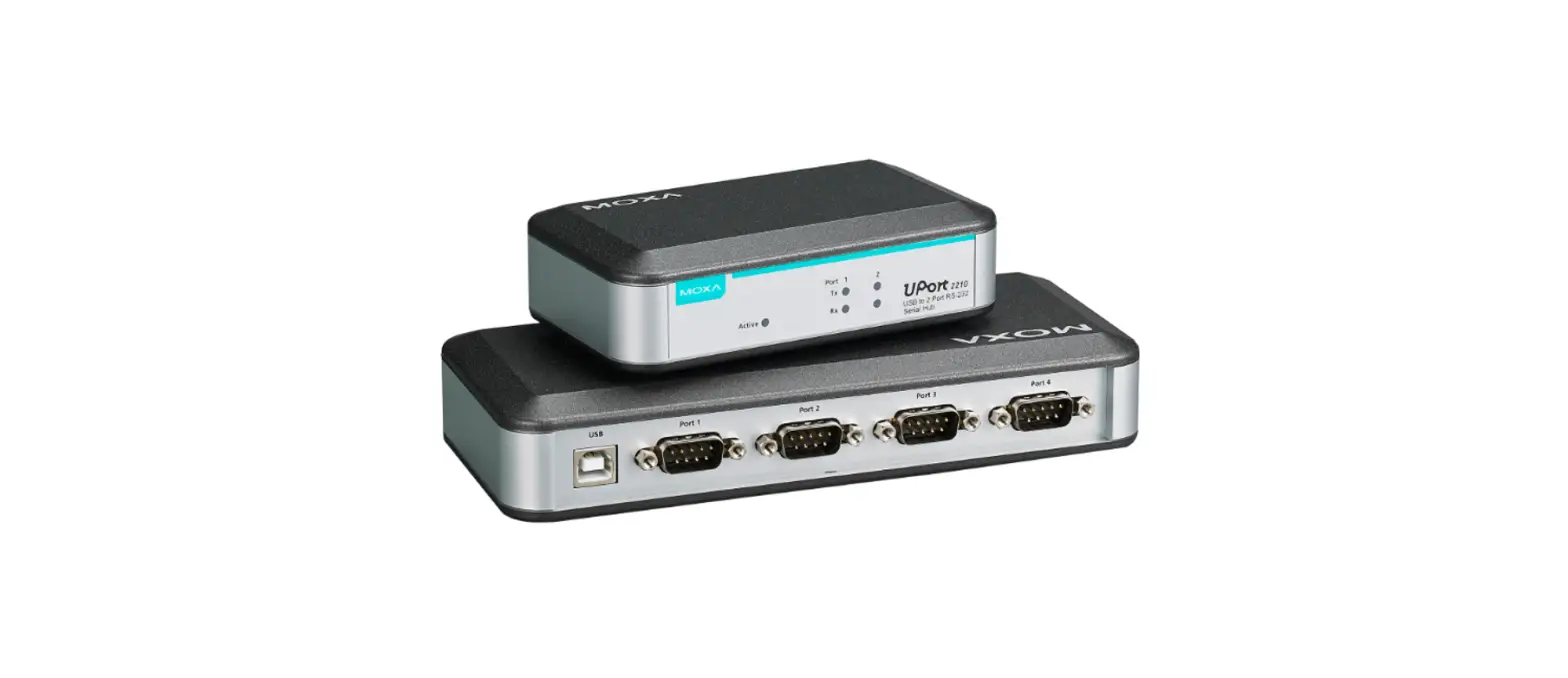
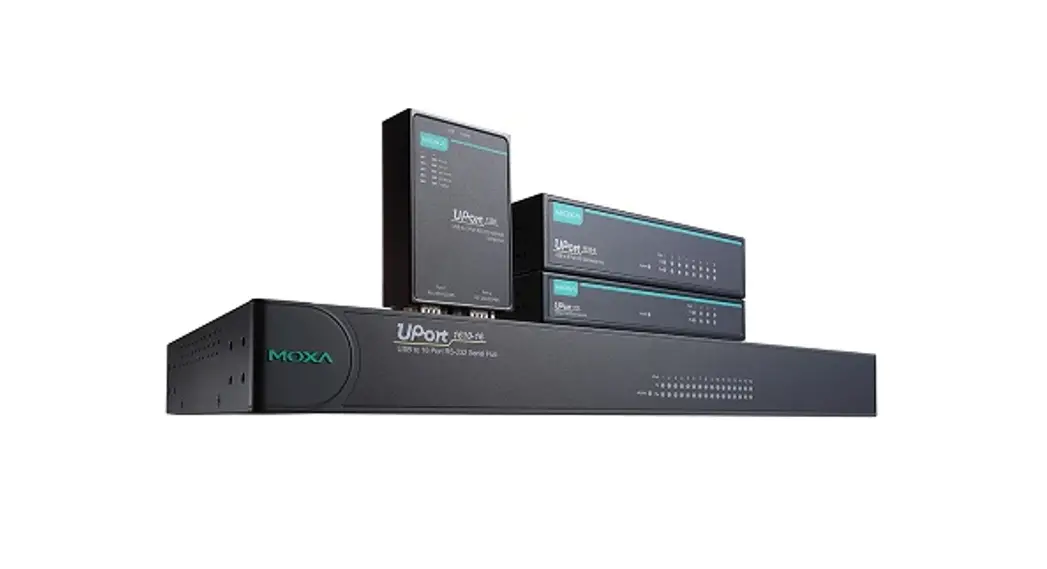
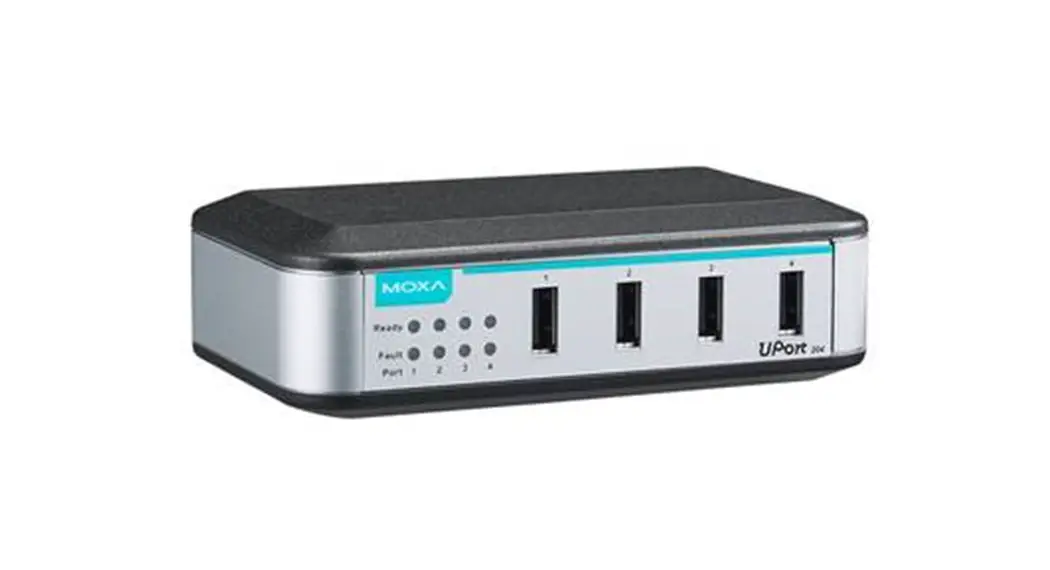
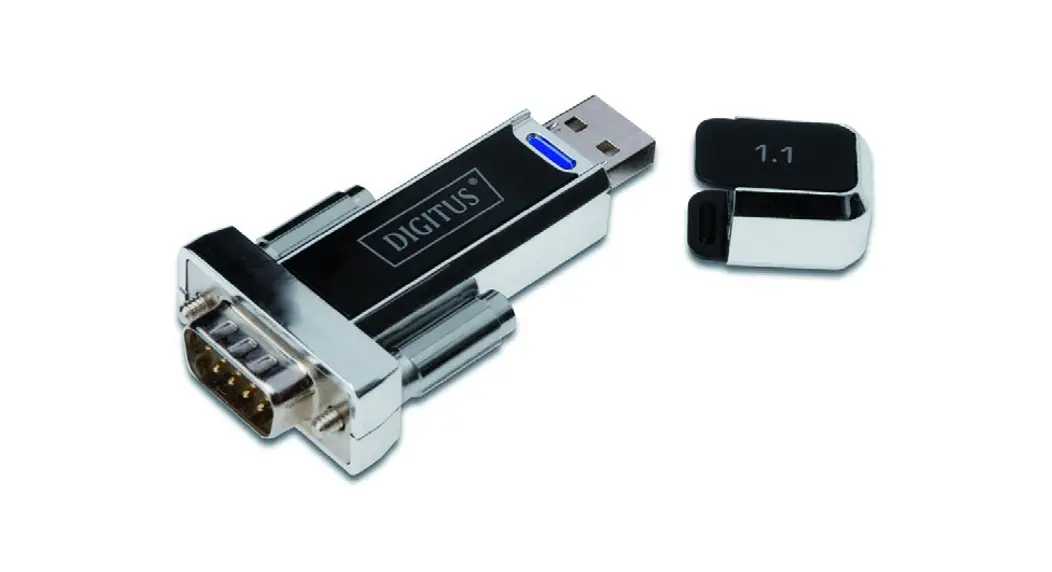
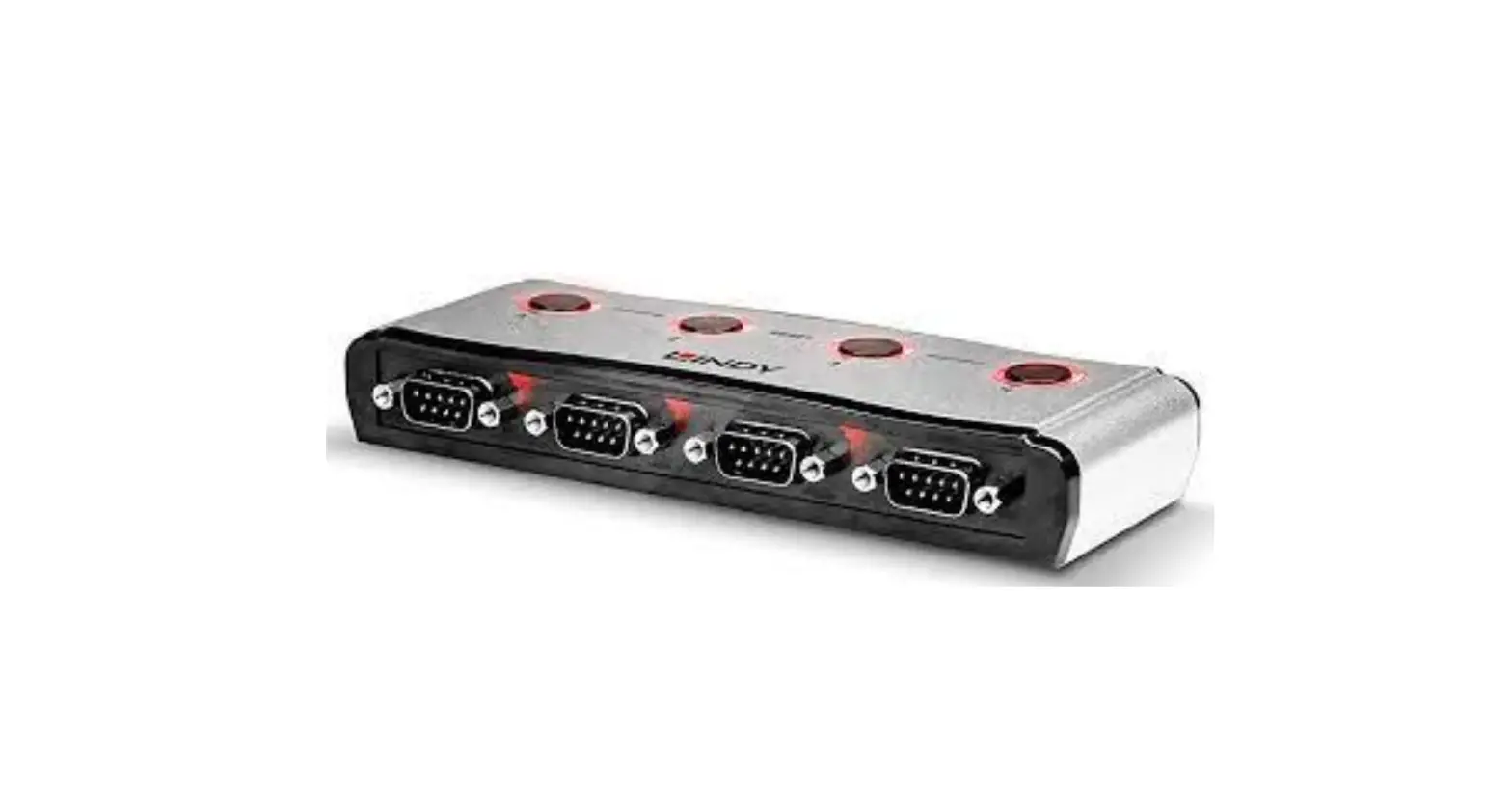
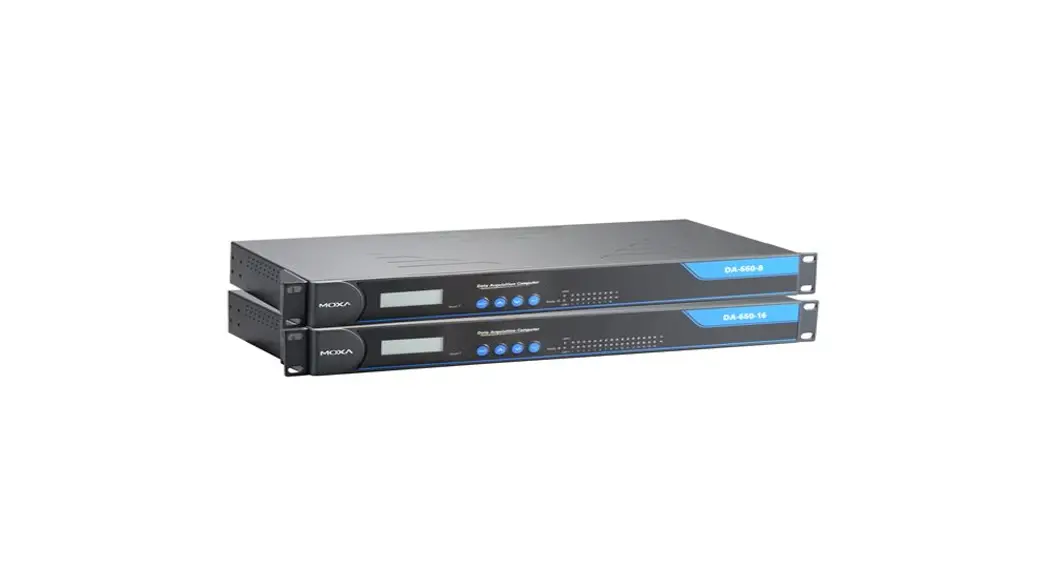
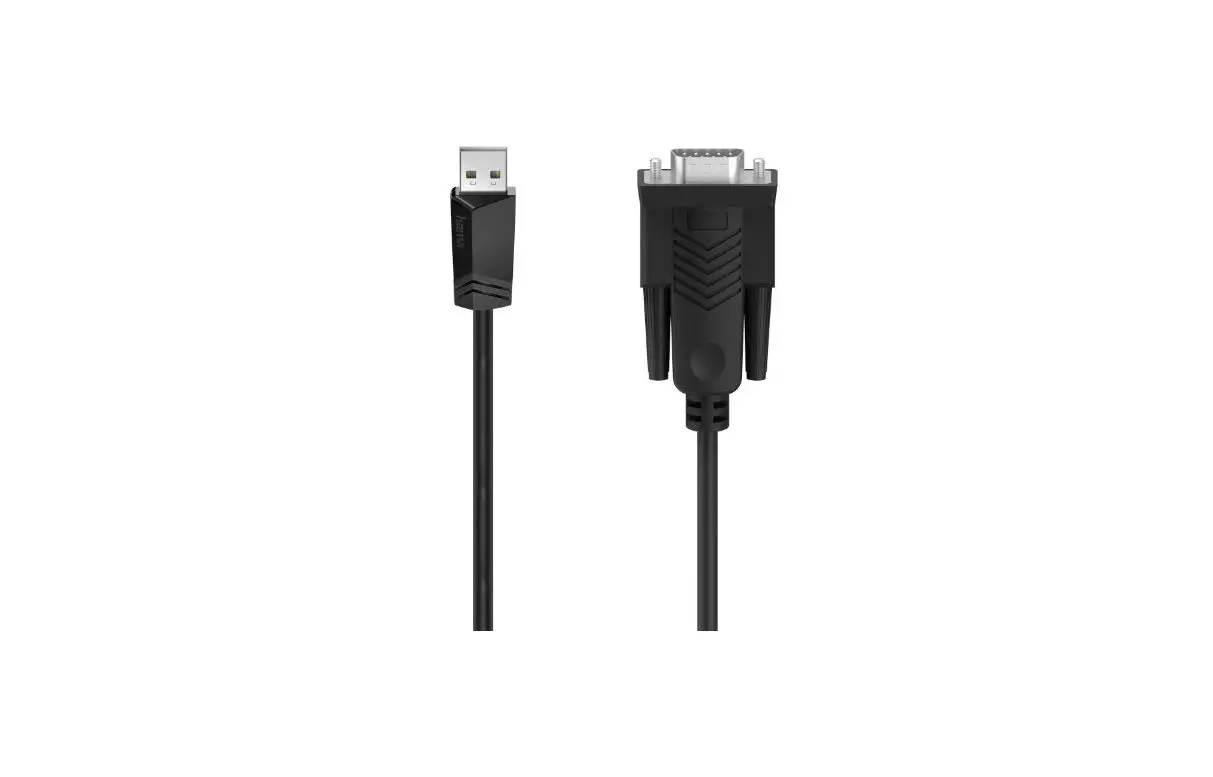
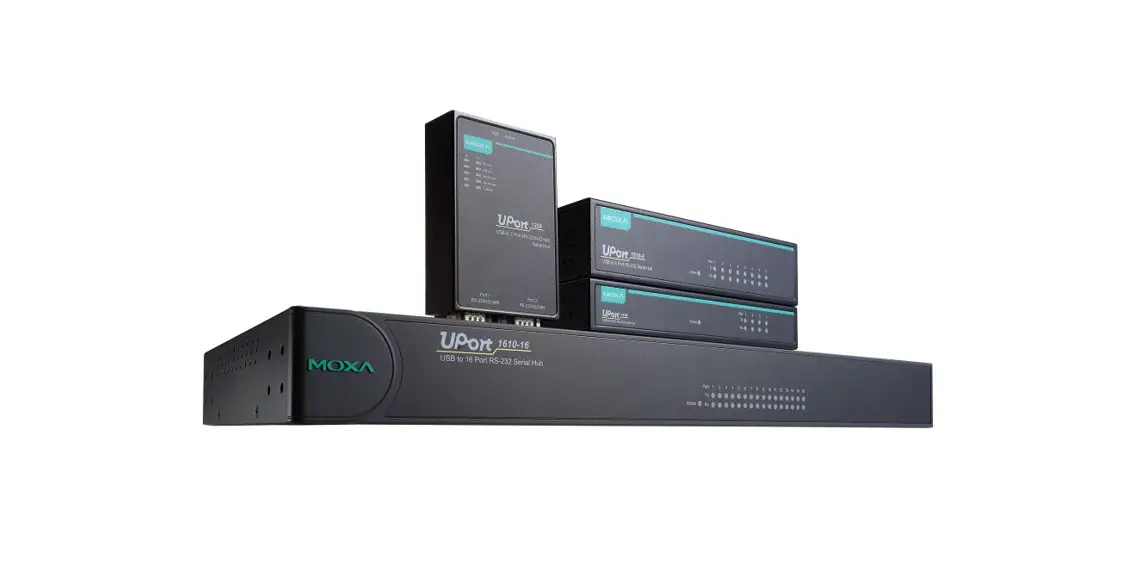
Moxa’s USB-to-serial product provides a wide range of easy-to-use solutions for adding Windows COM ports and Linux tty ports through a PC’s USB port. The UPort 1200/1400/1600 series are the following models:
- UPort 1250: 2-port RS-232/422/485 USB-to-serial converter
- UPort 1250I: 2-port RS-232/422/485 USB-to-serial converter w/isolation protection
- UPort 1410: 4-port RS-232 USB-to-serial converter
- UPort 1450: 4-port RS-232/422/485 USB-to-serial converter
- UPort 1450I: 4-port RS-232/422/485 USB-to-serial converter w/isolation protection
- UPort 1610-8: 8-port RS-232 USB-to-serial converter
- UPort 1650-8: 8-port RS-232/422/485 USB-to-serial converter
- UPort 1610-16: 16-port RS-232 USB-to-serial converter
- UPort 1650-16: 16-port RS-232/422/485 USB-to-serial converter
Before connecting UPort USB-to-serial converters to your computer’s USB port, we recommend installing the UPort driver first. To do this, follow the installation procedure described in the “Installing the UPort 1200/1400/1600 Driver” section below. The installation procedure was done on a PC running a Windows platform. UPort converters can be connected to any upstream type A USB port that is on the PC host or on an upstream hub. UPort converters are hot-pluggable, and therefore there is no need to power down your computer prior to installation.
After installing the driver, connect the UPort to an upstream host or hub. The Found New Hardware wizard will locate the appropriate drivers automatically. Once the drivers are found, various windows will pop up as the sport’s serial port is being installed. When the Found New Hardware Wizard finishes installing the UPort, use the operating system’s Device Manager to check and/or modify the port settings. The new COM port will be listed under Ports (COM & LPT).
Ordering Information
Package Checklist
Before installing the UPort, verify that the package contains the following items:
- 1 UPort 1200/1400/1600 USB-to-serial converter
- USB cable: CBL-USBA/B-100
- 100 to 240 VAC power adapters (excluding T models, UPort 1250/1410)
- 1 power cord suitable for your region (excluding T models, UPort 1250/1410)
- 1 serial adapter: mini DB9F-to-TB (excluding UPort 1410/1610 series)
- WK-44-01: 19” rackmount L brackets (2 L-shaped plates with 8 screws; for UPort 1600-16 series)
- Quick installation guide (printed)
- Warranty card
NOTE Notify your sales representative if any of the above items is missing or damaged.
NOTE The operating temperature of the power adapter in the box is from 0 to 40°C. If your application is not in this range, please use a power adapter supplied by UL Listed External Power Supply (the power output meets SELV and LPS and is rated 12 to 48 VDC, the minimum current is 92.4 mA).
WARNING
- This unit is not intended for consumer use. It will only be shipped to manufacturers or factories.
- The DC source should come from a class external adapter or a 12 to 48 VDC safety extra-low voltage (SELV) limited power source (LPS), using a transfer device.
- This unit should be installed or set up by a qualified service person.
Refer to the table below to see whether external power is needed for your UPort. If applicable, connect the UPort to an external power source.
| UPort1250 | UPort1250I | UPort1400 | UPort1600-8 | UPort1600-16 | |
| Bus Power | P | – | P | – | – |
| External Power(adapter) | – | P | P | P | – |
| ExternalPower (cord) | – | – | – | – | P |
Power Input Specifications
| UPort 1250 | 5 VDC (bus power), 360 mA |
| UPort 1250I | 12 to 48 VDC, 200 mA (max. in 12 VDC) |
| UPort 1410/1450 | 12 to 48 VDC (external) or 5 VDC (bus power), 260mA (max. in 12 VDC) |
| UPort 1450I | 12 to 48 VDC, 360 mA (max. in 12 VDC) |
| UPort 1600-8 | 12 to 48 VDC, 340 mA (max. in 12 VDC) |
| UPort 1600-16 | 100 to 240 VAC, 150 mA (max. in 100 VAC) |
Installing the UPort 1200/1400/1600 Driver
- Connect the UPort to the PC using the USB cable.
- After turning your PC’s power on, Windows will automatically detect the UPort.
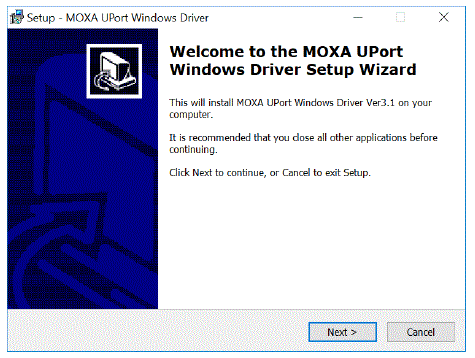
- Run the Setup program that you may find on Moxa’s support website http://www.moxa.com/support/. Click Next to start installing the driver.

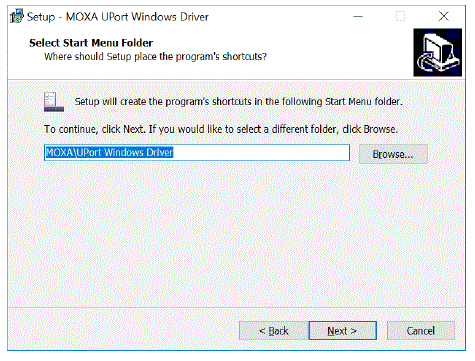
- Read and accept the agreement. Click Next to set the indicated folder.

- Set Start Menu Folder location

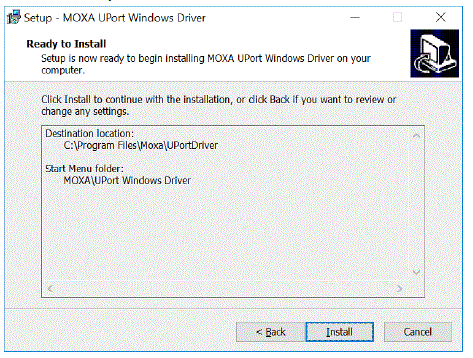
- Click Install to proceed with the installation.

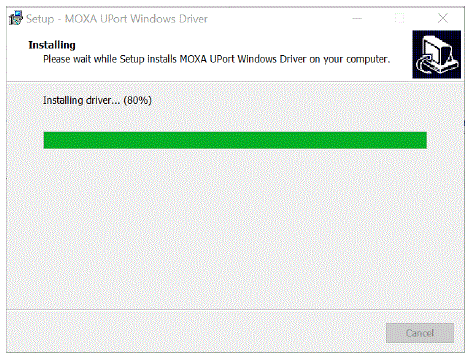
- The installation will take a few minutes to complete.

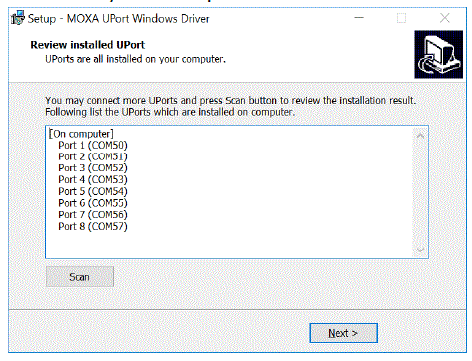
- After the driver has been installed successfully, you can click Scan to review the installation results if the UPort is connected to your computer.

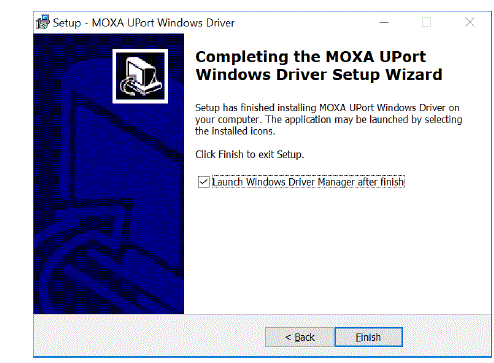
- Check Launch Windows Driver Manager after finishing to configure the UPort after quitting the driver installer.

Installing the macOS Driver
For macOS 10.12 and later, follow the steps below to install the driver
- Enter recovery mode.
- Disable System Integrity Protection (SIP) by typing ‘csrutil disable in the terminal.
- Return to normal mode.
- Launch the UPort driver installer and finish the installation procedure.
- Enter recovery mode again.
- Enable System Integrity Protection (SIP) by typing ‘csrutil enable’ in the terminal.
- Return to normal mode.
For detailed instructions, please refer to the UPort 1200/1400/1600 User’s Manual on the product webpage or the ‘readme.txt’ in the driver installation package.
Installing the Linux Driver Linux Kernel
Execute the following commands from the Linux prompt:
- # CD /moxa
- # tar xvfz driv_linux_uport_[VERSION]_[BUILD].tgz Find “Makefile” in /moxa/mxuport, then run
- # make install
- # modprobe mxuport
For further information, please refer to readme.txt which comes with the driver.
Serial Port Pin Assignments
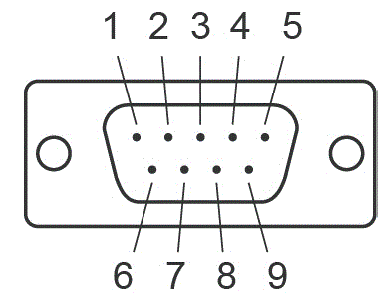
The serial ports on the UPort 1200/1400/1600 have DB9 male connectors. Refer to the following table below for the RS-232 and RS-422/485 pin assignments.
NOTE For UPort with DB Male Serial Ports, you may refer to DB9 Male Ports pin assignment section to loop back pin 2 and pin 3 for the RS-232 interface to carry out a self-test on the device.
| Pin | RS-232 | RS-422/RS-485 4W | RS-485 2W |
| 1 | DCD | TxD-(A) | – |
| 2 | RxD | TxD+(B) | – |
| 3 | TxD | RxD+(B) | Data+(B) |
| 4 | DTR | RxD-(A) | Data-(A) |
| 5 | GND | GND | GND |
| 6 | DSR | – | – |
| 7 | RTS | – | – |
| 8 | CTS | – | – |
 Moxa - Your Trusted Partner in Automation