 GSM DEVICES
G-ULTRA QUICK GUIDE
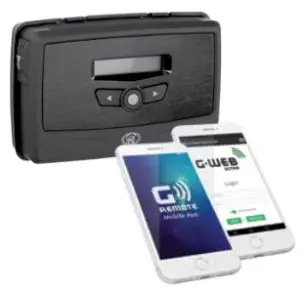
Centurion Systems (Pty) Ltd
www.CentSys.com
Important Safety Instructions 
- Do not install this product near the DOSS sensor inside the gate motor housing or near the remote receiver.
- Do not install this product near any sensitive electrical components.
- All installation, repair, and service work to this product must be done by a suitably qualified person.
- Do not in any way modify the components of the system.
- Do not install the equipment in an explosive atmosphere: the presence of flammable gas or fumes is a serious danger to safety.
- Do not leave packing materials (plastic, polystyrene, etc.) within reach of children as such materials are potential sources of danger.
- Dispose of all waste products like packing materials, according to local regulations.
- Centurion Systems (Pty) Ltd does not accept any liability caused by improper use of the product, or for use other than that for which the GSM system was intended.
- This product was designed and built strictly for the use indicated in this documentation. Any other use, not expressly indicated here, could compromise the service life/operation of the product and/or be a source of danger.
- Anything not expressly specified in these instructions is not permitted.
This icon indicates tips and other information that could be useful during the installation. This icon denotes variations and other aspects that should be considered during installation.
Technical Specifications
| Supply Voltage Range | 11-24V DC |
| Maximum Current Draw | 300mA @ 12V DC |
| Input/output Current Rating | 50mA (Open Collector) |
| Relay Contact Current Rating | 1A, 30V AC/DC (Resistive) |
| Input Sense Voltage Range | 0-24V DC (0-1.6V Low-input State, |
| Network Provider | 5V-24V High-input State) |
| Number of Configurable | MTN (South Africa only) |
| Input/Output Channels | 4 |
| Number of Relays | 2 |
Product Identification
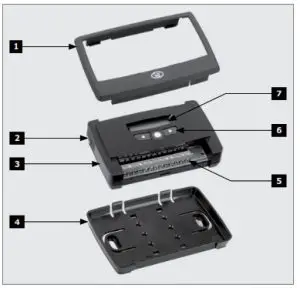
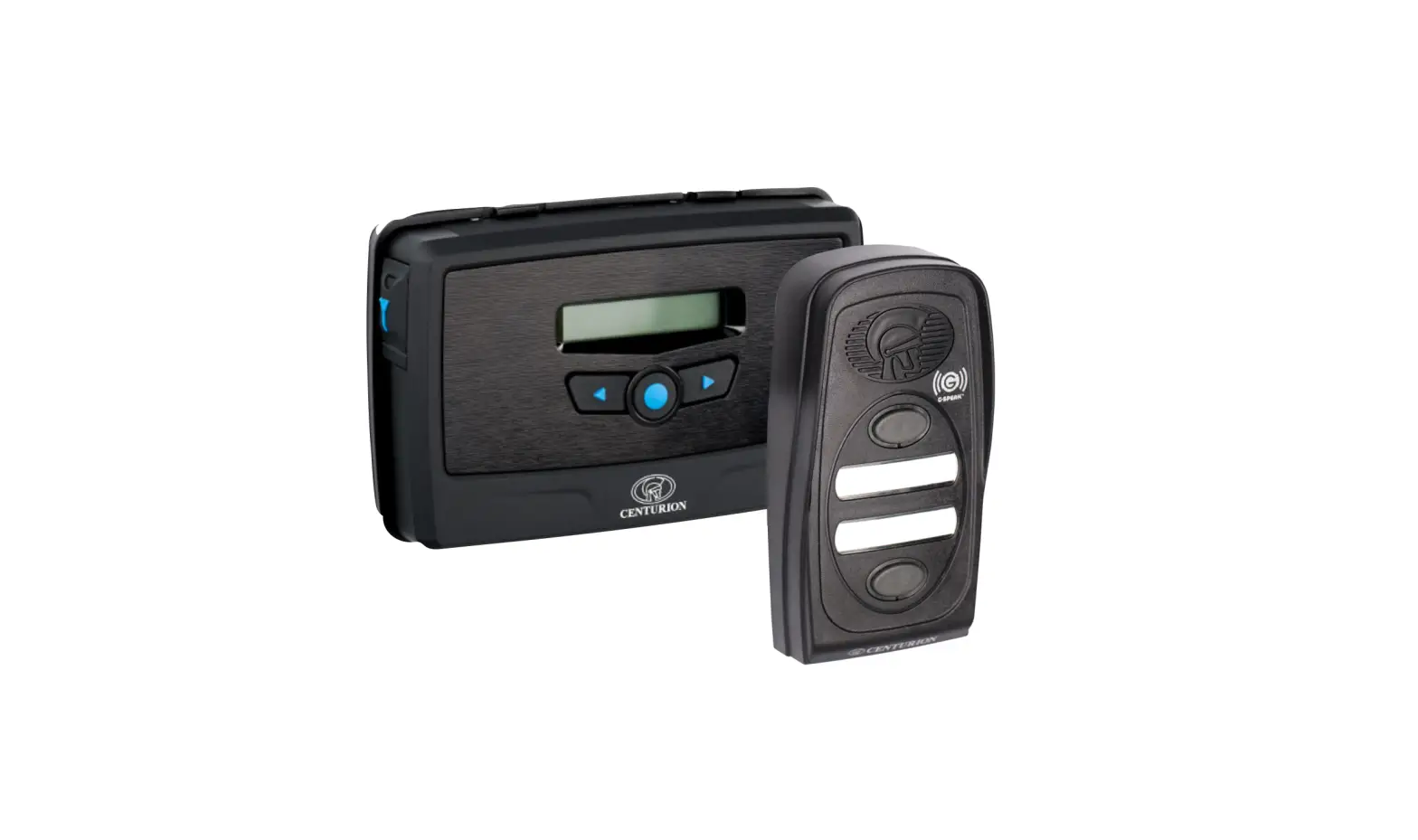
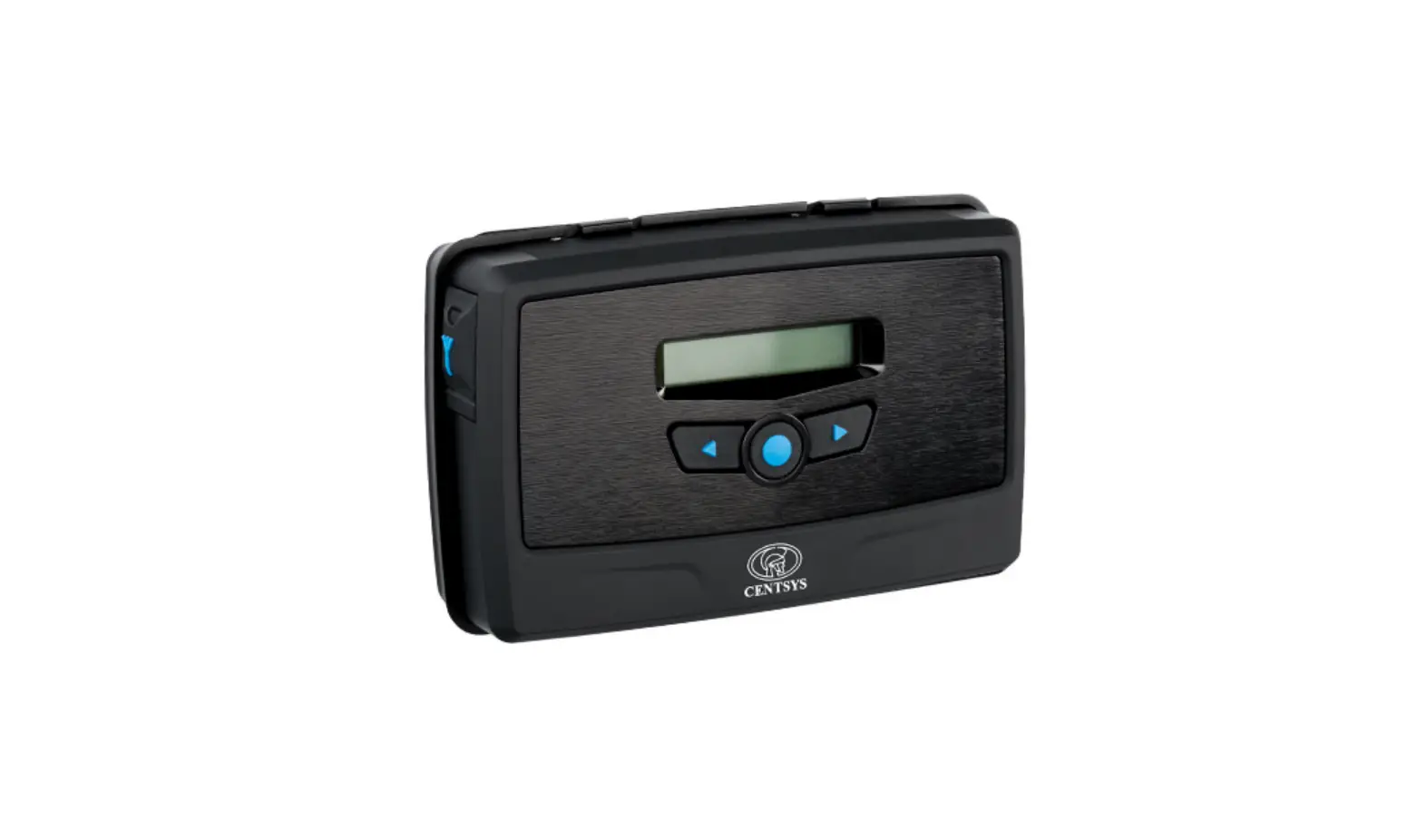
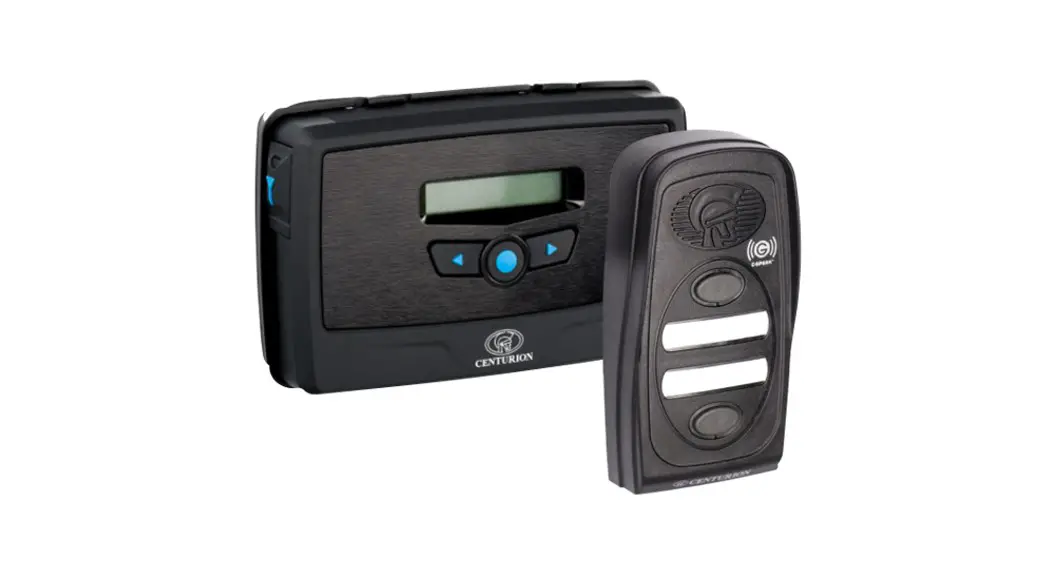
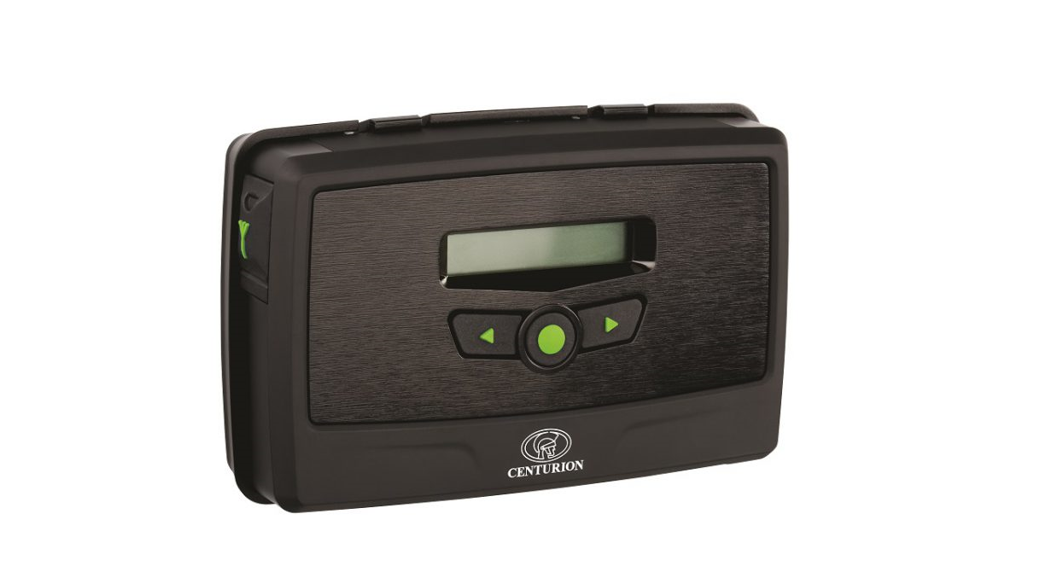
- Fascia
- External Antenna Cover
- Main G-ULTRA Unit
- Mounting Plate
- Terminal Blocks
- Navigation panel
- LCD Screen
Optional: External Antenna
NOTE:
The Internal Antenna is selected by default.
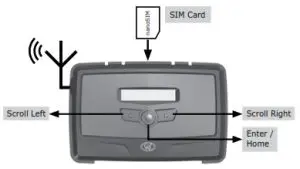
LCD Interface
Table 2 below lists the information shown on the different screens found on the LCD interface. The left and right scroll buttons are used to toggle between the different screens.
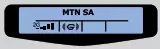 | Home Screen Network Name or Phone Number Applicable to Incoming / Outgoing SMS or Call.  Network Signal Strength Network Signal Strength Connected to Internet Connected to Internet Connected to G-WEB Connected to G-WEB the device has Error Condition the device has Error Condition Incoming SMS Incoming SMS Outgoing SMS Outgoing SMS Incoming Phone Call Events Incoming Phone Call Events Outgoing Phone Call Events Outgoing Phone Call Events |
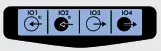 | IO Status Screen Input: Deactivated (“E” = Input event reached) Input: Deactivated (“E” = Input event reached) Input: Activated (pulled to ground) (“E” = Input event reached) Input: Activated (pulled to ground) (“E” = Input event reached) Output: Off Output: Off Output: On (pulling to ground) Output: On (pulling to ground) |
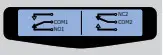 | Output Status Screen Relay X is Switched OFF and the Normally-Closed and Common Contacts are connected. Relay X is Switched OFF and the Normally-Closed and Common Contacts are connected. Relay X is Switched ON and the Normally-Open and Common Contacts are connected. Relay X is Switched ON and the Normally-Open and Common Contacts are connected.X= 1 or 2 |
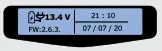 | Voltage/Firmware/Date & Time Screen Supply Voltage Firmware Version Time Date |
 | Phone Number Screen Device SIM Phone Number. |
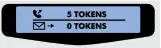 | Airtime Balance Screen Outgoing Call Credits Outgoing Call Credits Outgoing SMS Credits Outgoing SMS Credits |
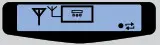 | GSM Antenna Selected Screen Internal GSM Antenna Selected (default). External GSM Antenna Selected (connect own Antenna to SMA connector). Internal GSM Antenna Selected (default). External GSM Antenna Selected (connect own Antenna to SMA connector). Press Enter to change between Press Enter to change betweenInternal and External Antennas. |
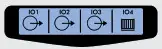 | Gate Status Screen Gate Closed Gate Closed Gate Opening Gate Opening Gate OpenGate Status Warning Gate OpenGate Status Warning |
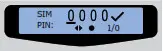 | SIM Screen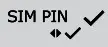 SIM PIN OK SIM PIN OK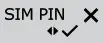 SIM PIN Incorrect SIM PIN Incorrect SIM Error SIM Error |
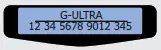 | IMEI Screen Displays the device’s IMEI number |
Configurations
5.1. Removing the Mounting Plate and Fascia
To access the terminal blocks of the G-ULTRA, the backplate and fascia need to be removed. Follow the instructions below to do this.
5.1.1. Removing the Mounting Plate
Gently pull the two clips at the back, backward to release the main G-ULTRA unit, and lift the unit out of the mounting plate.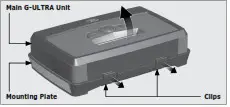
5.1.2. Removing the Fascia
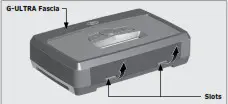
The fascia can be removed by inserting the tips of one’s fingers into the slots (as shown in Figures 3 and 4), and pulling outward and upward. The fascia should pop off without effort.
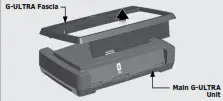
 Reverse the procedure under Section 10.1 to re-assemble the G-ULTRA.
5.2. Installation
5.2.1. Wall-mounting
The Mounting Plate is used to mount the G-ULTRA device to a wall. Use four screws with wall anchors (not supplied) to secure Mounting Plate.
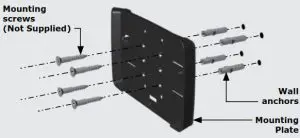
Clip the G-ULTRA main unit into the Mounting plate after it has been secured to the wall; a ‘click’ will be heard if done correctly.

| GND | Ground |
| IO1 | Input / Output 1 (Default: Output) |
| IO2 | Input / Output 2 (Default: Output) |
| IO3 | Input / Output 3 (Default: Output) |
| IO4 | Input / Output 4 / Gate Status Input (Default: Output) |
| NO | Relay 1 Normally-open |
| COM | Relay 1 Common |
| NC | Relay 1 Normally-closed |
| NO | Relay 2 Normally-open |
| COM | Relay 2 Common |
| NC | Relay 2 Normally-closed |
| + | Positive of Power Supply 12-24VDC |
| – | Negative of Power Supply |
5.4. Wiring Diagrams (Please refer to the online G-ULTRA wiring diagram document for more diagrams)
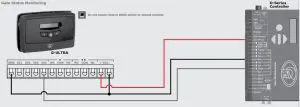
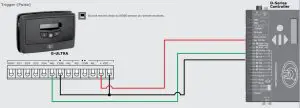
 Looking for more wiring diagrams and product applications? Scan the QR code on your mobile device to be taken to our wiring diagram library.
5.5. Configuration of features
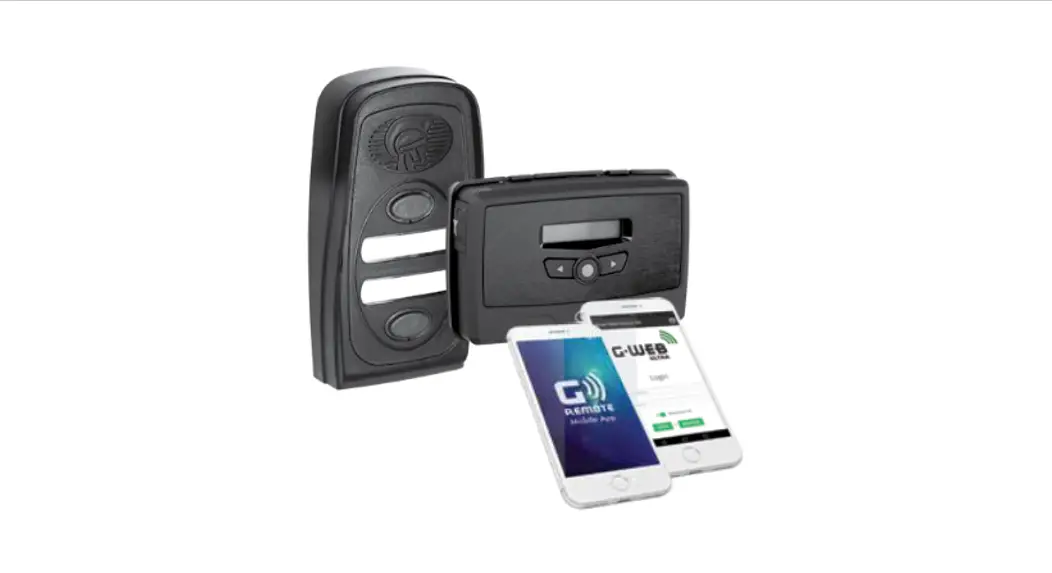
All features – both basic and advanced – can be easily, and remotely, configured via our G-WEB Mobile Phone App or our G-WEB Online Interface.
By simply logging on to the G-WEB App or G-WEB, you can add and delete users, specify text for input notifications and activations, modify device characteristics, and many other features.
Download the G-WEB mobile App from your Smart Phone by navigating to the App Store or go to http://www.gweb.co.za
It would be necessary to register if you have not previously done so.
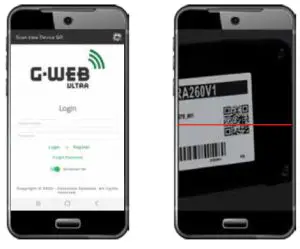
5.5.1. G-WEB Mobile App (Installers)
To download the G-WEB Mobile installer app, simply scan the QR code on your mobile device to be taken to the app in the applicable app store for your operating system. The G-WEB app gives you on-the-go access to a
multitude of configuration and admin settings.
https://play.google.com/store/apps/details?id=com.CenturionSystems.GwebScannerApp
https://apps.apple.com/us/app/g-web/id1434390317
There is no need to download a third-party QR Scanner, as there is a QR Scanner that is built into the G-WEB ULTRA Mobile App.
5.5.2. G-WEB Online
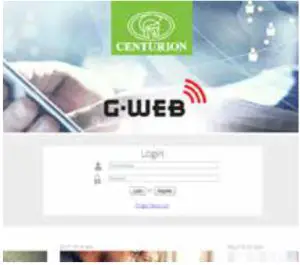
Your CENTURION GSM devices can be remotely managed and configured using the G-WEB online interface. Scan the QR code to be taken to G-WEB online.
5.5.3. G-REMOTE Mobile App (Users)
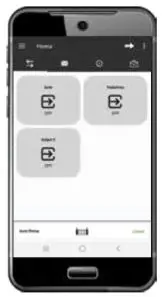
Download the G-REMOTE mobile app now for free by scanning the QR code on your mobile device. G- REMOTE lets you remotely control your GSM devices from your phone and receive push notifications for systems that are being monitored.
 |  |

Connect with us on: facebook.com/centurionsystems
 YouTube.com/centurionsystems
 @askcenturion
 centurion.systems
Subscribe to the newsletter:
www.centsys.com/subscribe
Call Centurion Systems (Pty) Ltd. South Africa
Head Office: +27 11 699 2400
Call Technical Support: +27 11 699 2481
from 07h00 to 18h00 (UTC+2)
www.centsys.com.au
Call: 1300 CENTSYS (1300 236 879)
After Hours International Technical Support Call Centre
+27 11 699 2481 (16:00 to 02:00 – Australian Eastern Time)
E&OE Centurion Systems (Pty) Ltd reserves the right to change any product
without prior notice
All product and brand names in this document that are accompanied by the® symbol
are registered trademarks in South Africa and/or other countries, in favor of Centurion
Systems (Pty) Ltd, South Africa.
The CENTURION and CENTSYS logos, all product and brand names in this document that
are accompanied by the TM symbol are trademarks of Centurion Systems (Pty) Ltd, in
South Africa and other territories; all rights are reserved.
We invite you to contact us for further details.