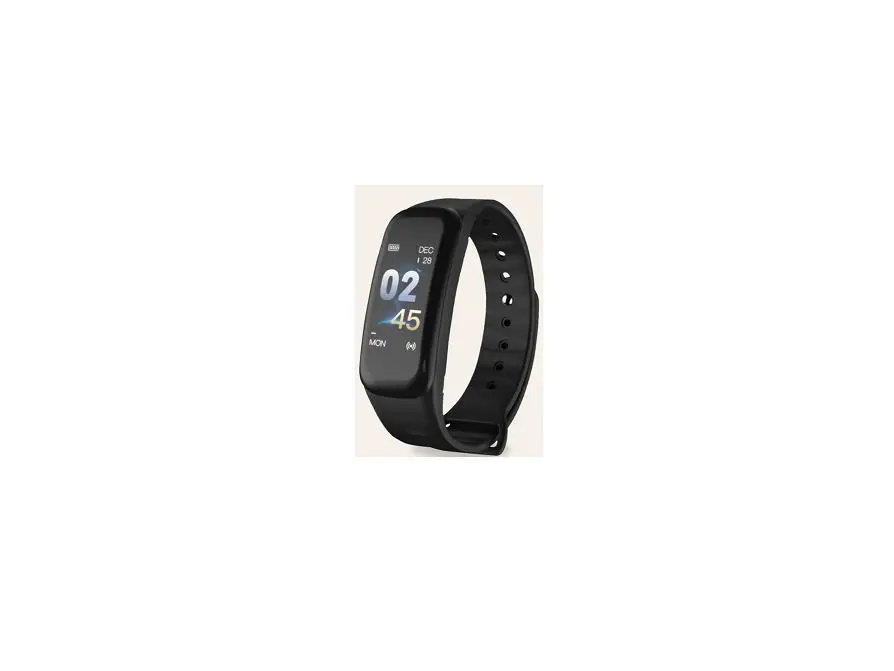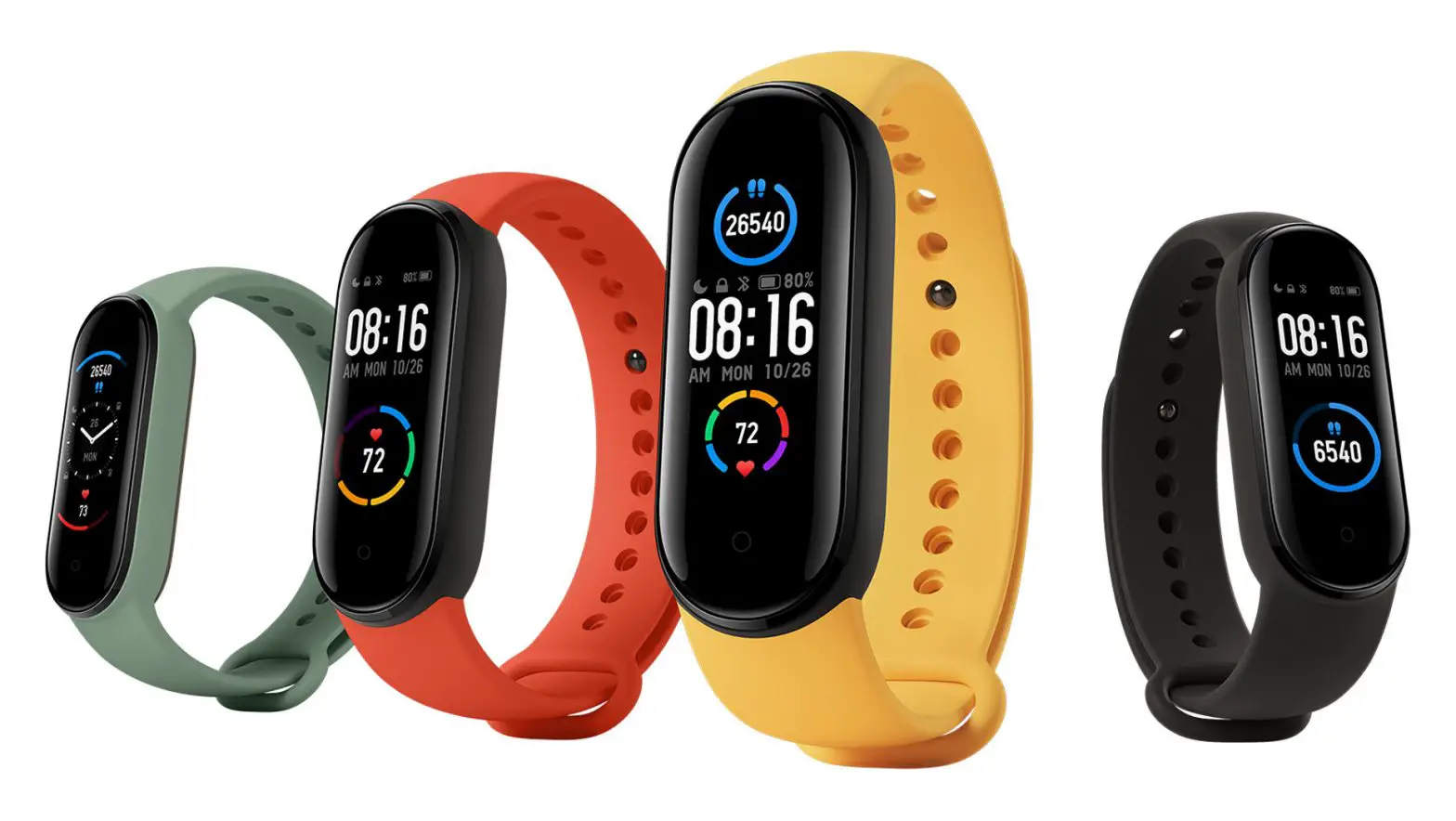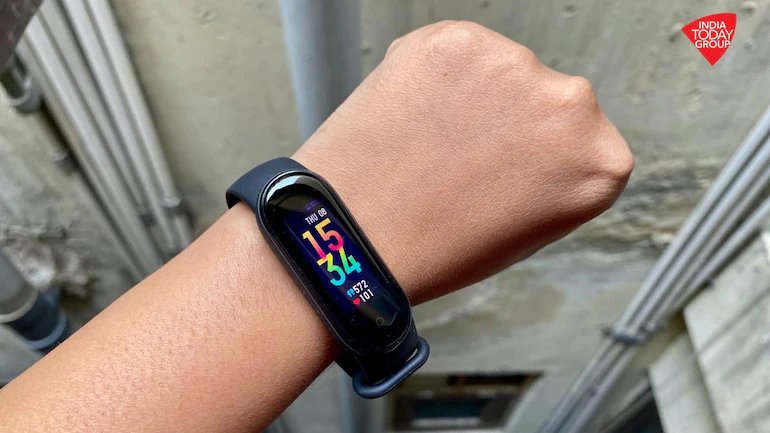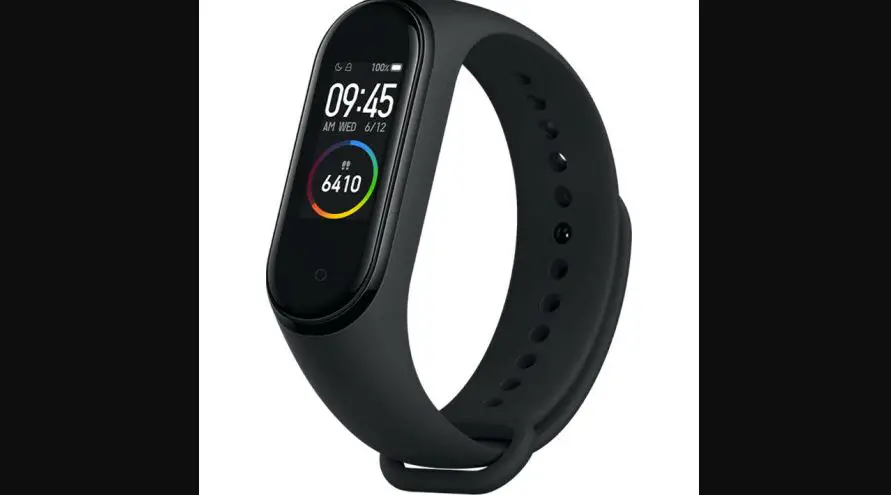
UMAX U-BAND Sport Smart Band Cheapest User Manual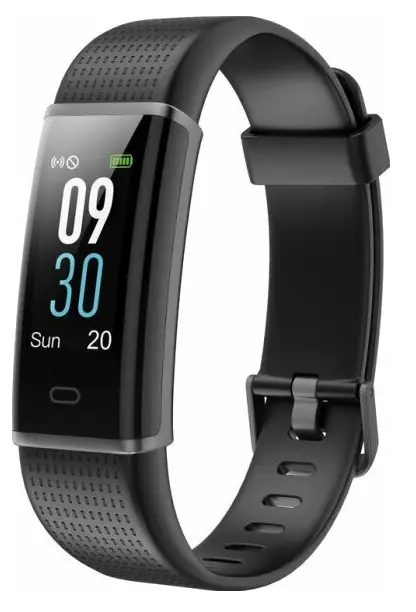
Introduction
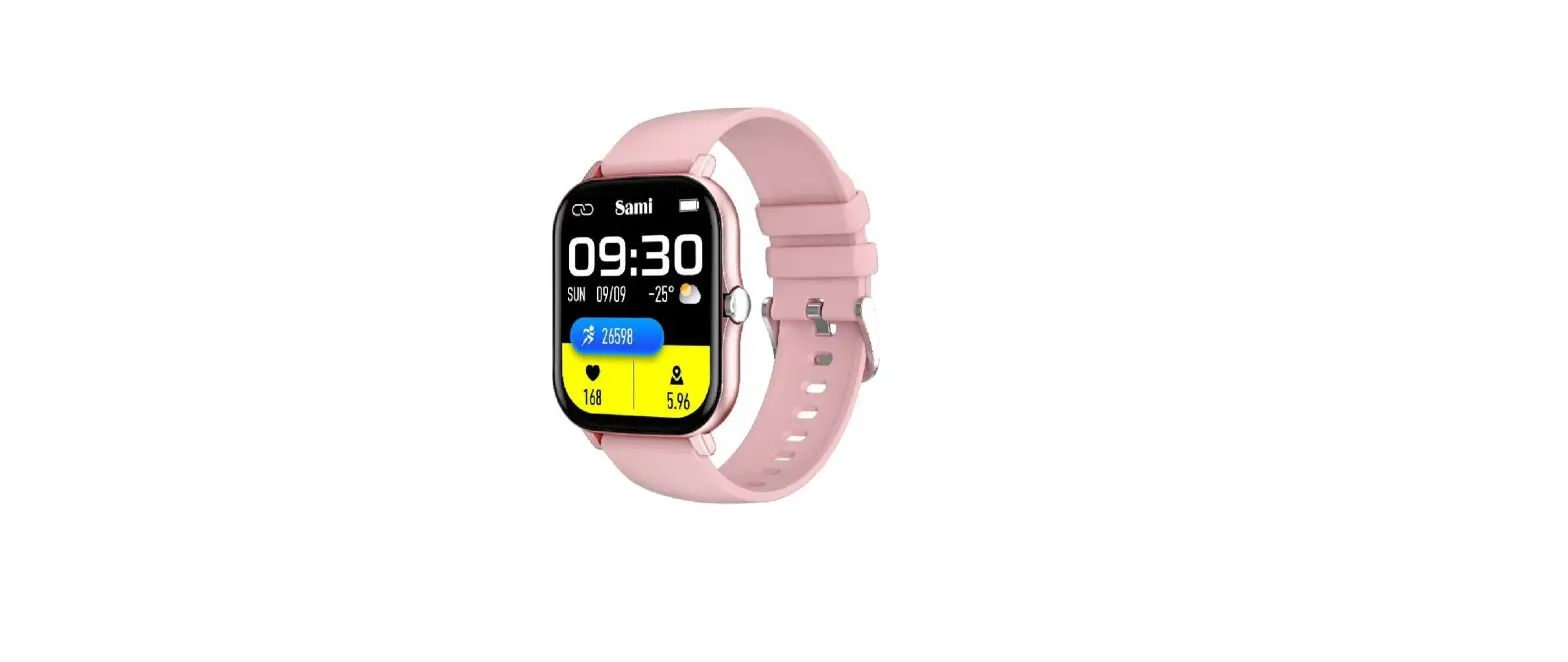
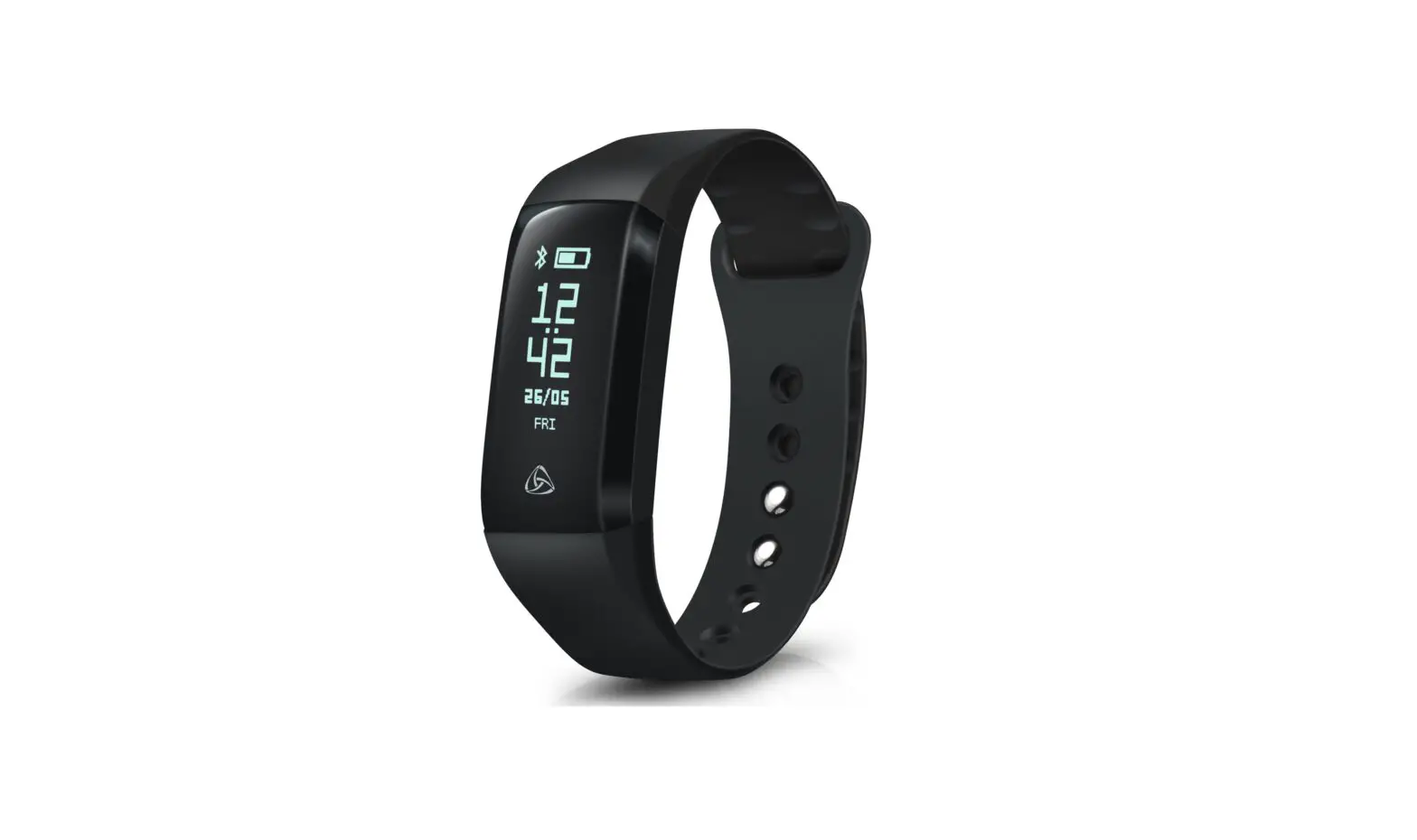
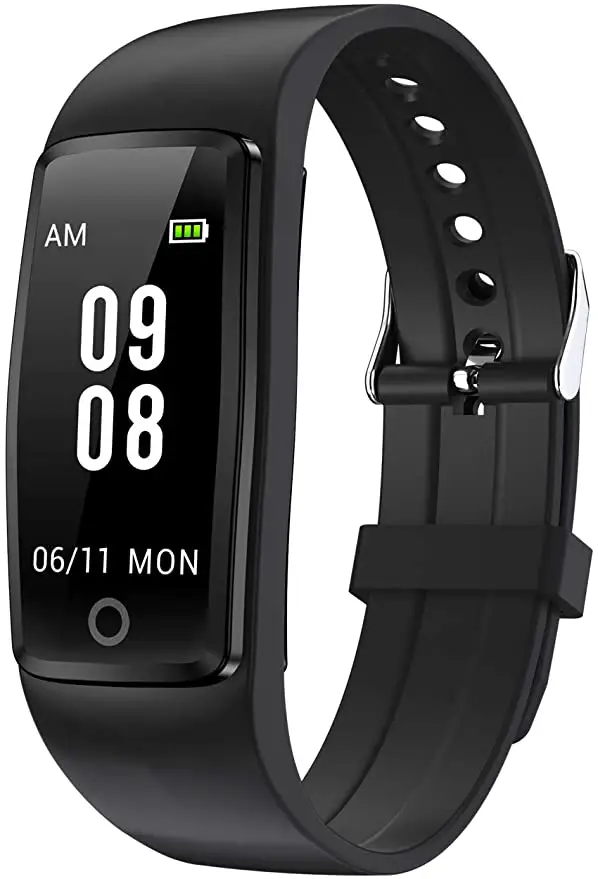
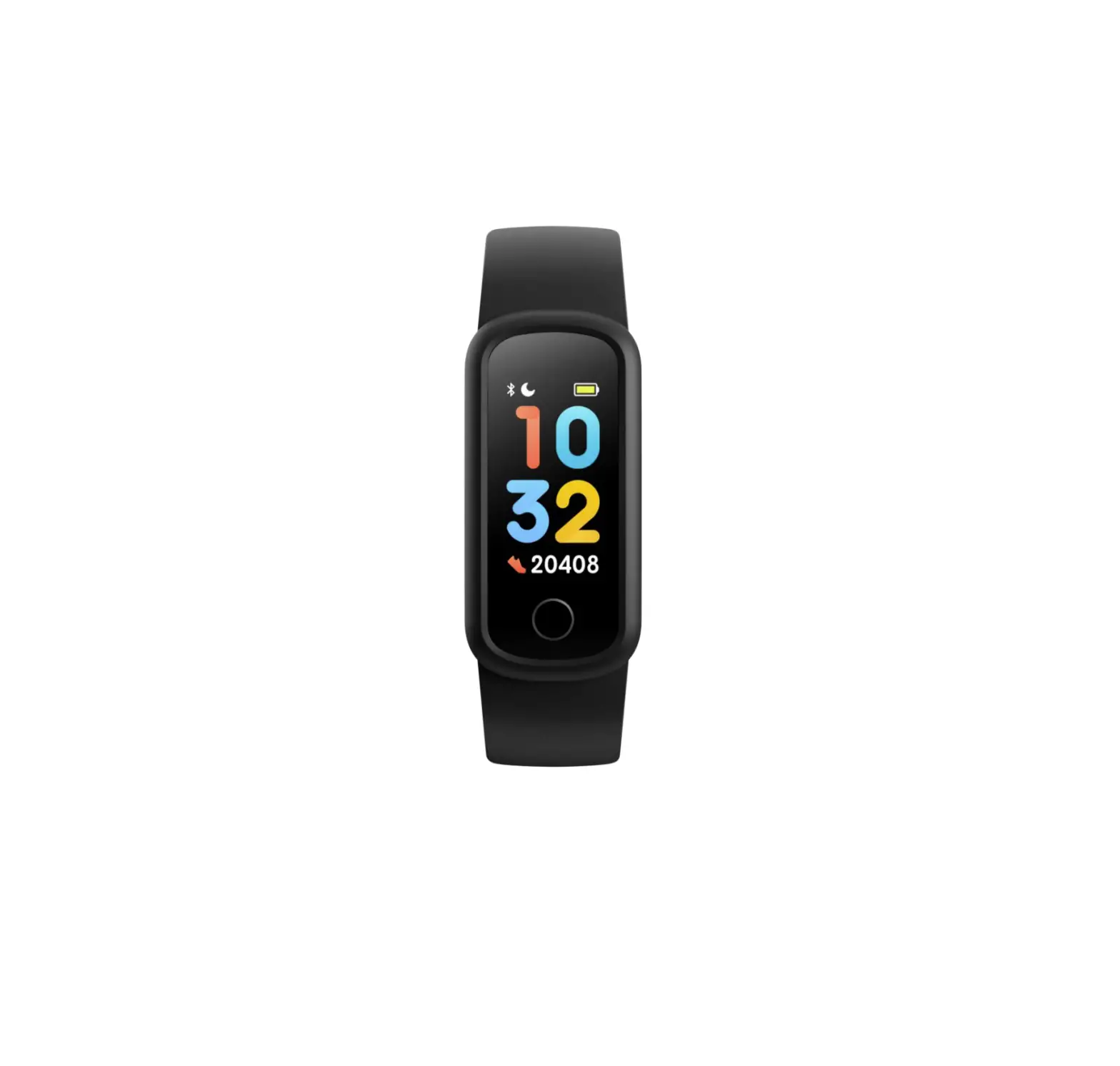
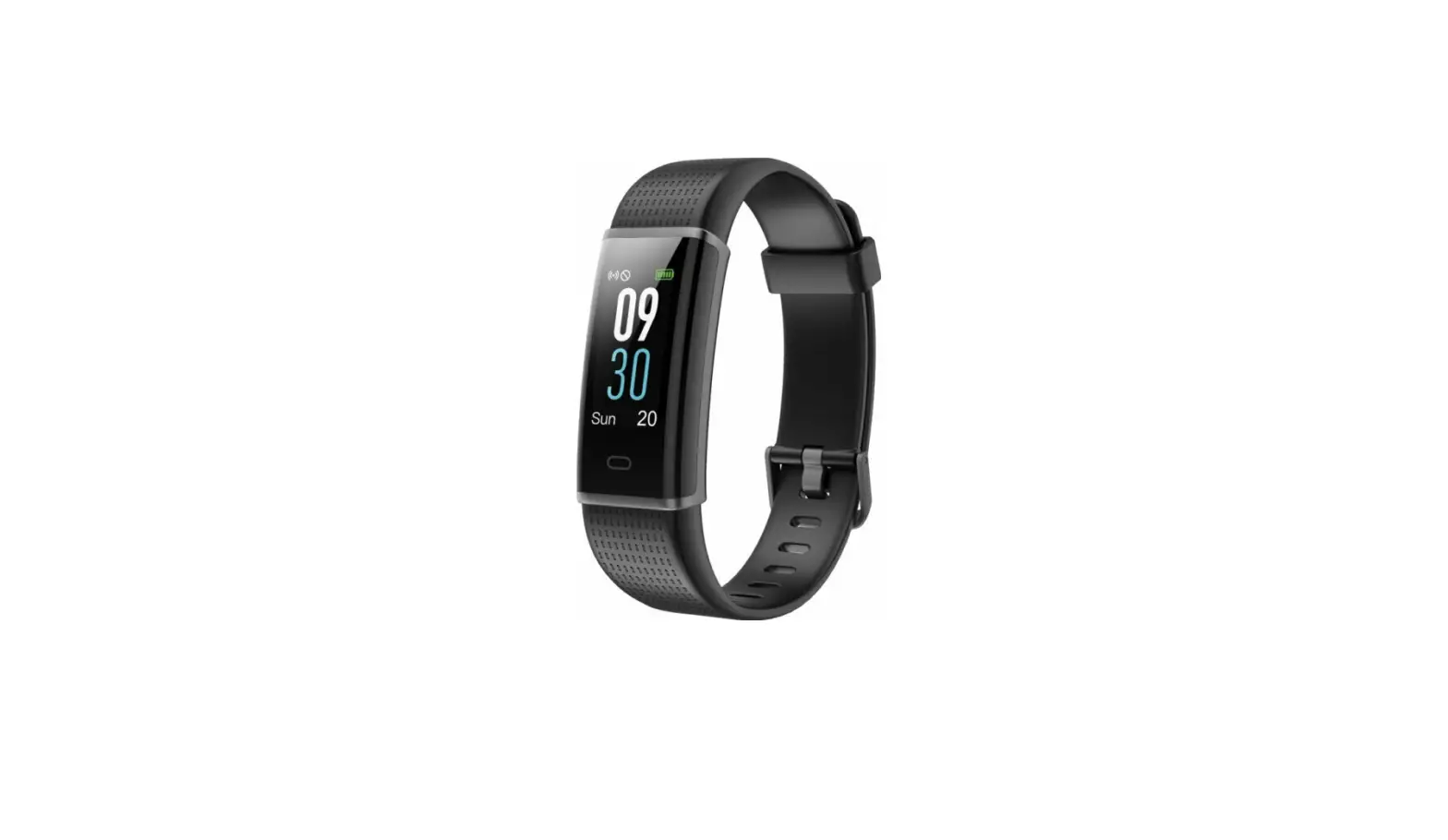
Thank you for buying smart wristband UMAX. The wristband has modern design and it is easy to use. Not only it motivates you for more activity, but you can also see quality of your sleep and history of all activites in the application. The wristband has large display with a touch screen for convenient use and you can charge it directly from USB port in your computer. There are many other functions, such as notifications on incoming calls, text messages, and notifications from social media sites such as Facebook, Twitter, WhatsApp and others.
Heart rate measuring 24 hours a day
The wristband measures your heart rate for 24 hours a day in short intervals. Specially designed photoelectric sensor combined with an advanced and innovative algorithm provides accurate data for the whole day during any activity.
Measuring your activity all day and night
Wherever you are the embedded sensor measures your steps, distance, activity and burned calories. If your turn on the function for long sitting notification, you will be notified after a long period of iinactivity.
Sport activity
The wristband has a function to measure one-time sport activity. You can choose from different sports, such as exercise, running, badminton, basketbal and others. After the activity ends you can see details in the application on your smartphone.
Automatic measuring of sleep quality and alarm clock
The wristband automatically recognizes quality of your sleep and also tracks awake time during the night. After synchronizing with the smartphone application you can see details and chart of your sleep quality. You can also set up a silent alarm to wake up in the morning.
Incoming phone call notifications
The wristband vibrates and shows the name or a phone number of an incoming call if your phone is connected and within 10 metres. You will not miss any important call.
Remote shooting
You can activate smartphone shutter by touching the button on your wristband or by turning your wrist.
Smart application in several languages
The application used to synchronize data between your wristband and smartphone is very easy to use. You can see your activity during the day and previous weeks and months. You can set up goals for steps per day, sleep time, inactivity time.
You also have an option to set up several alarms. In case there are any updates, the wristband can be automatically updated via the application. The application is also compatible with Google-Fit and HealthKit to share details of your activity.
Sharing screenshots on social media
Any screen from the application can be easy shared on social media by one click. You can also easily share it by email.
Connecting to a phone
Use an application VeryFitPro on iOS and Android to connect your wristband to your phone.
Note – following hardware and software requirements must be met:

Download VeryFitPro
Search for and download „VeryFitPro“ from the Apple Store and Google Play.
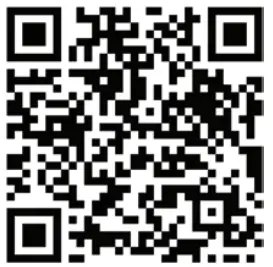
iOS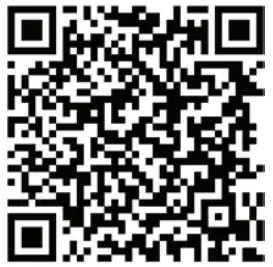
Android
Connecting the device
We suggest charging the device before its first use. Carefully take the main unit out of the strap and connect it to a USB charger or laptop (5V/0,5A). Time to fully charge the battery is about 60 minutes.
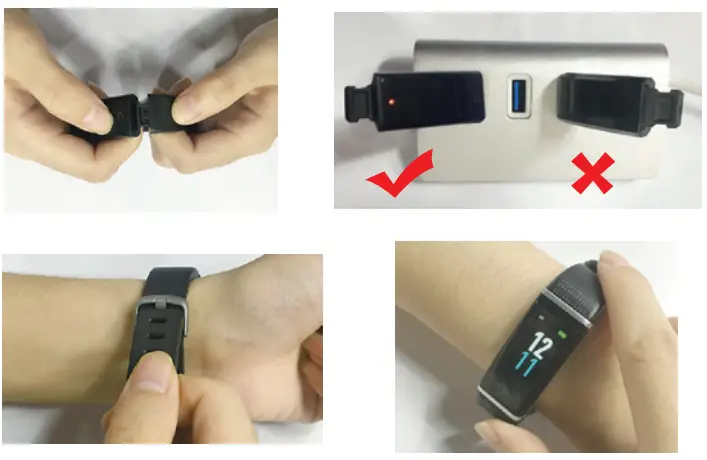
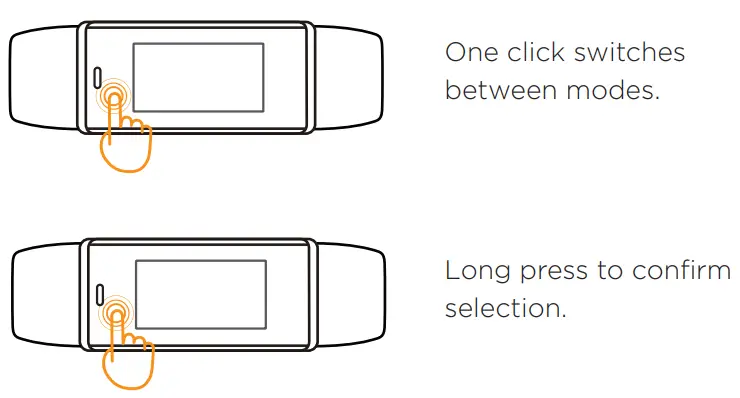
Touching the touch button area switches between modes. The screen automatically turns o after a short time.
Way of wearing
Wear the writband on your wrist just like a regular watch.
Measuring heart rate
For an accurate heart rate reading wear the writsband on the top of your wrist. During an exercise make the strap a bit tighter.
Automatic all day monitoring is turned on by default. You can turn it o in the settings.
Battery
The battery lasts about 8 days
Activity overview
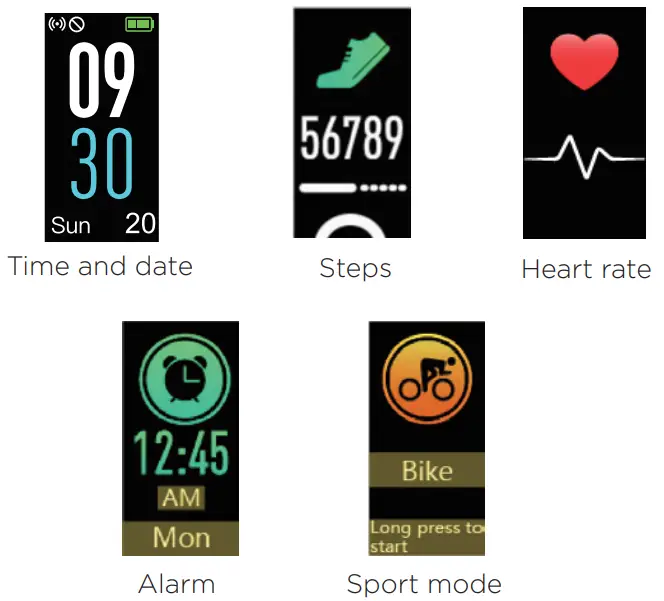
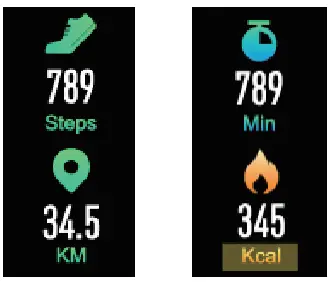
Pressing the touch button switches between time, steps, calories, distance, heart rate, alarm, and sport mode.
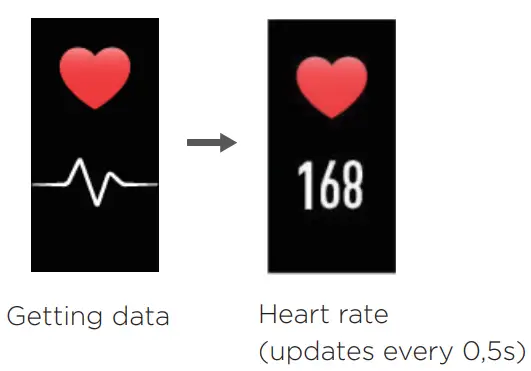
Heart rate
Alarm
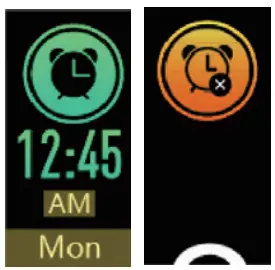
Alarm clock can be turned on inside the application.
Holding the touch button for 2s turn off the alarm.
Sport mode
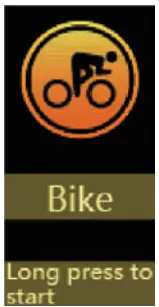
Hold the touch button for 2s to turn on sport mode.
Pressing the button switches between types of sport.
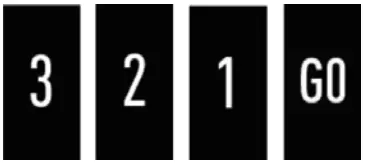
Countdown 3-2-1-GO and sport measuring starts.
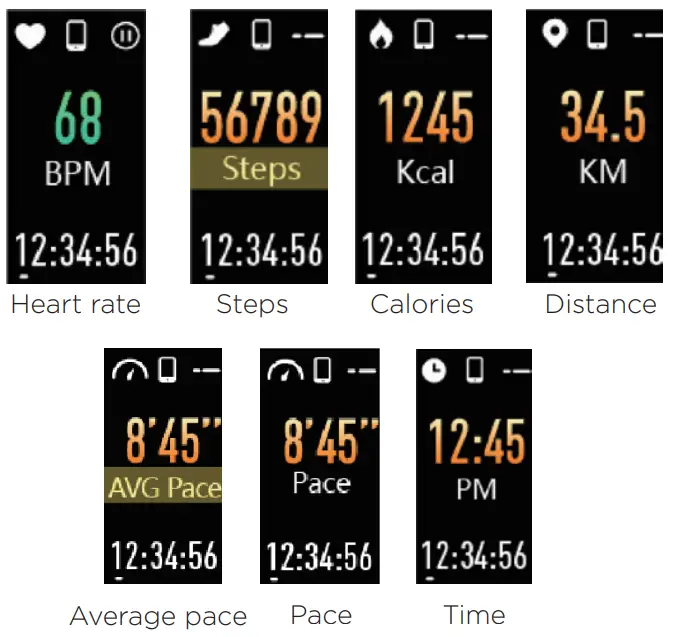
Pressing the touch button shows various information about ongoing sport activity.
Press the button for 2s to turn o sports mode.
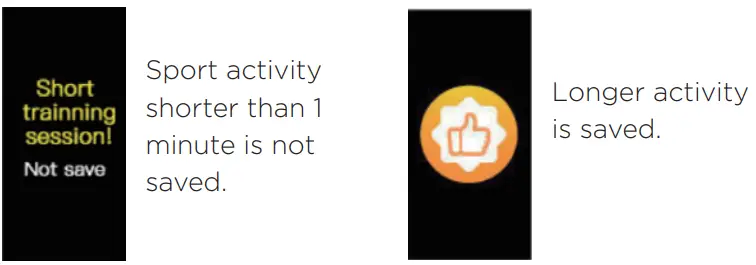
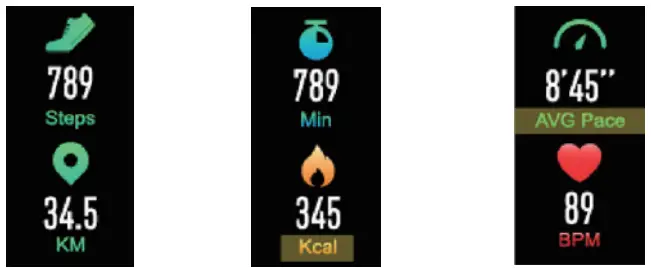
Sport overview is shown after activity ends.
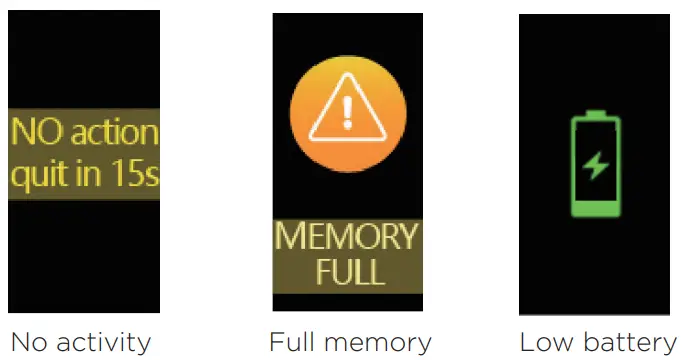
Sport mode automatically turns off for several reasons.
Remote shooting
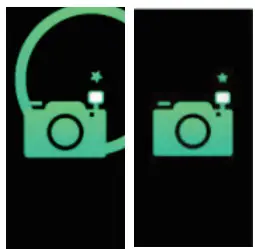
Pressing the touch button or turning your wrist activates your smartphone camera shutter.
This function can be set up in the application
Alarm
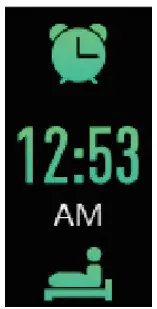
You can set up the time for the alarm clock in the applications. Several types of alarms can be chosen from.
Incoming call notifications
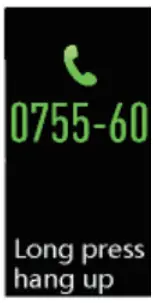
You can be notified of an incoming call.
Pressing the touch button hides the notification.
Long press of touch button rejects the phone call.
Message notification
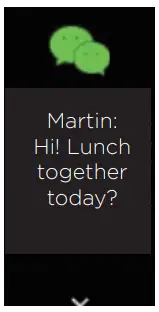
Notifications for text messages and various applications can be set up in the application.
Pressing the touch button shows following notifications.
Long sitting notification
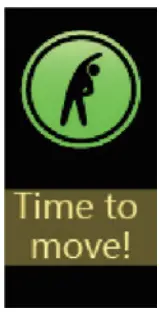
You can be notified after a long time of sitting.
Reaching your goals
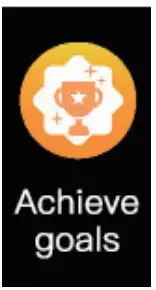
After reaching your daily goal for steps you will see a notification.
How to find a device for pairing
- Make sure that Bluetooth is turned on and that your smartphone runs Android 4.4 and higher or iOS 7.0 and higher.
- Make sure that the distance between your smartphone and wristband is less than 0,5 meters during pairing. After pairing you can use the device within 10 metres.
- Make sure that the wristband has enough battery.
Pairing fails?
Restart your smartphone or restart Bluetooth service.
How to restore factory settings
Make sure the device is connected to your smartphone via Bluetooth. In the application click on device > system settings > reboot device.
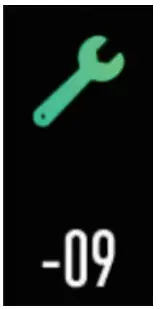
Hardware errors?
In case any hardware errors happens the following screen issh ows with a number identifying the type of an error.
 Importer hereby declares that this wireless device is in compliance with the essential requirements and other relevant provisions of the R&TTE Directive and Radio Equipment Directive 2014/53/EU, as applicable. A copy of the EU Declaration of Conformity is available at www.umax.cz.
 Do not dispose of electrical appliances as unsorted municipal waste, use separate collection facilities.
Contact your local authority for information regarding the collection systems available. If electrical appliances are disposed of in landfills or dumps, hazardous substances can leak into the groundwater and get into the food chain, damaging your health and well-being. Please contact your local or regional waste authority for more information on collection, reuse and recycling programs.
Technical support
Phone: 800 118 629
Email: [email protected]
Service center
ConQuest entertainment a. s
Hloubětínská 11
198 00 Praha 9
Czech Republic
+420 284 000 111
Opening hours
MO-TH 9:00 – 17:00
FR 9:00 – 16:00

© 2018 Umax Czech a.s. All rights reserved. Umax and Umax logo are trademarks or registered trademarks of Umax Czech a.s. Apple and the Apple logo are trademarks of Apple Inc., registered in the U.S. and other countries. App Store is a service mark of Apple Inc., registered in the U.S. and other countries. Google Play and the Google Play logo are trademarks of Google LLC. All other trademarks and trade names are those of their respective owners.
 UMAX - obchod s elektronikou a IT