 Smart Band User Guide
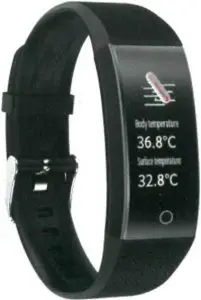
Smart Band User Guide
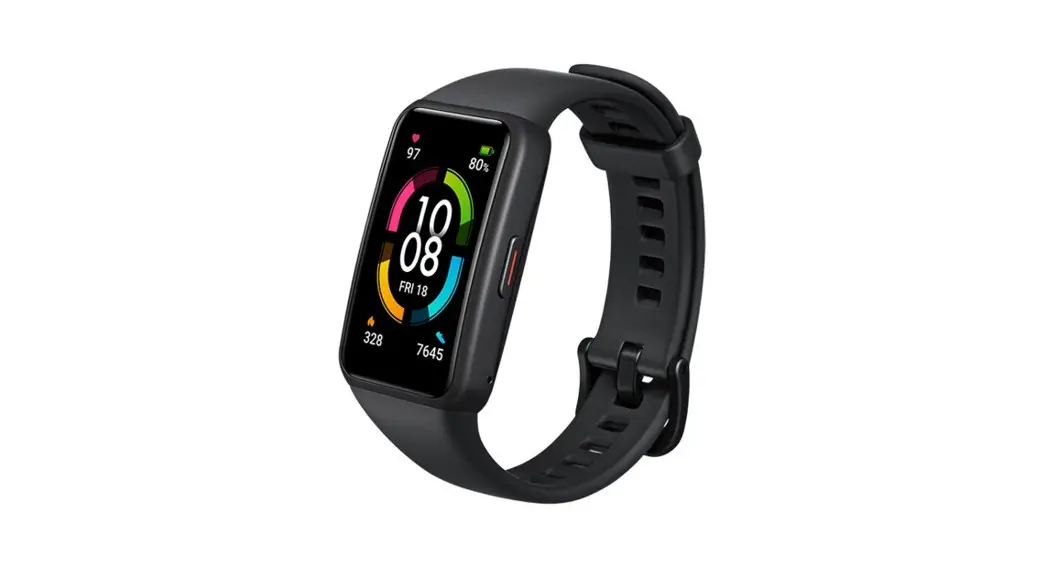
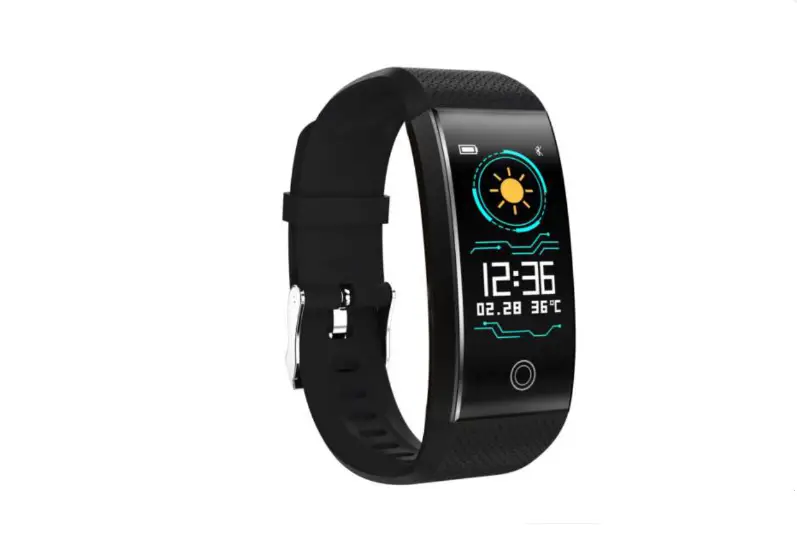
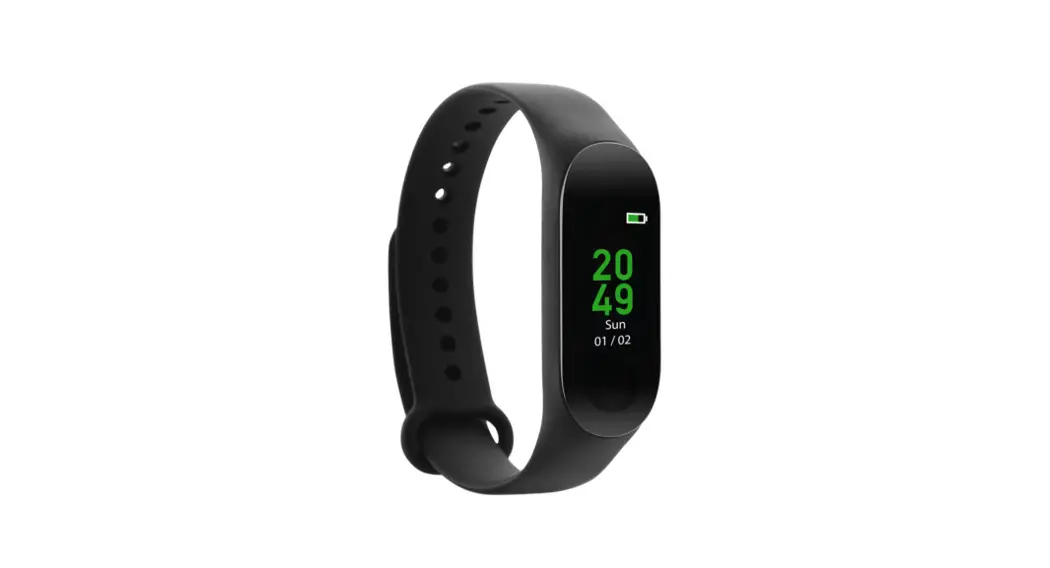
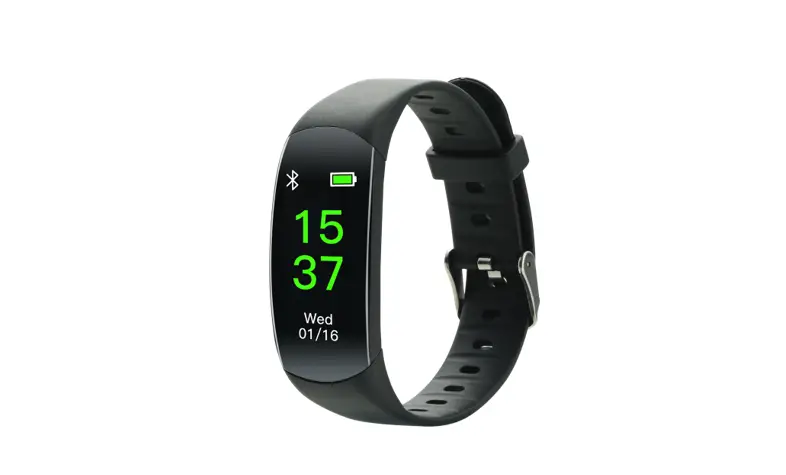
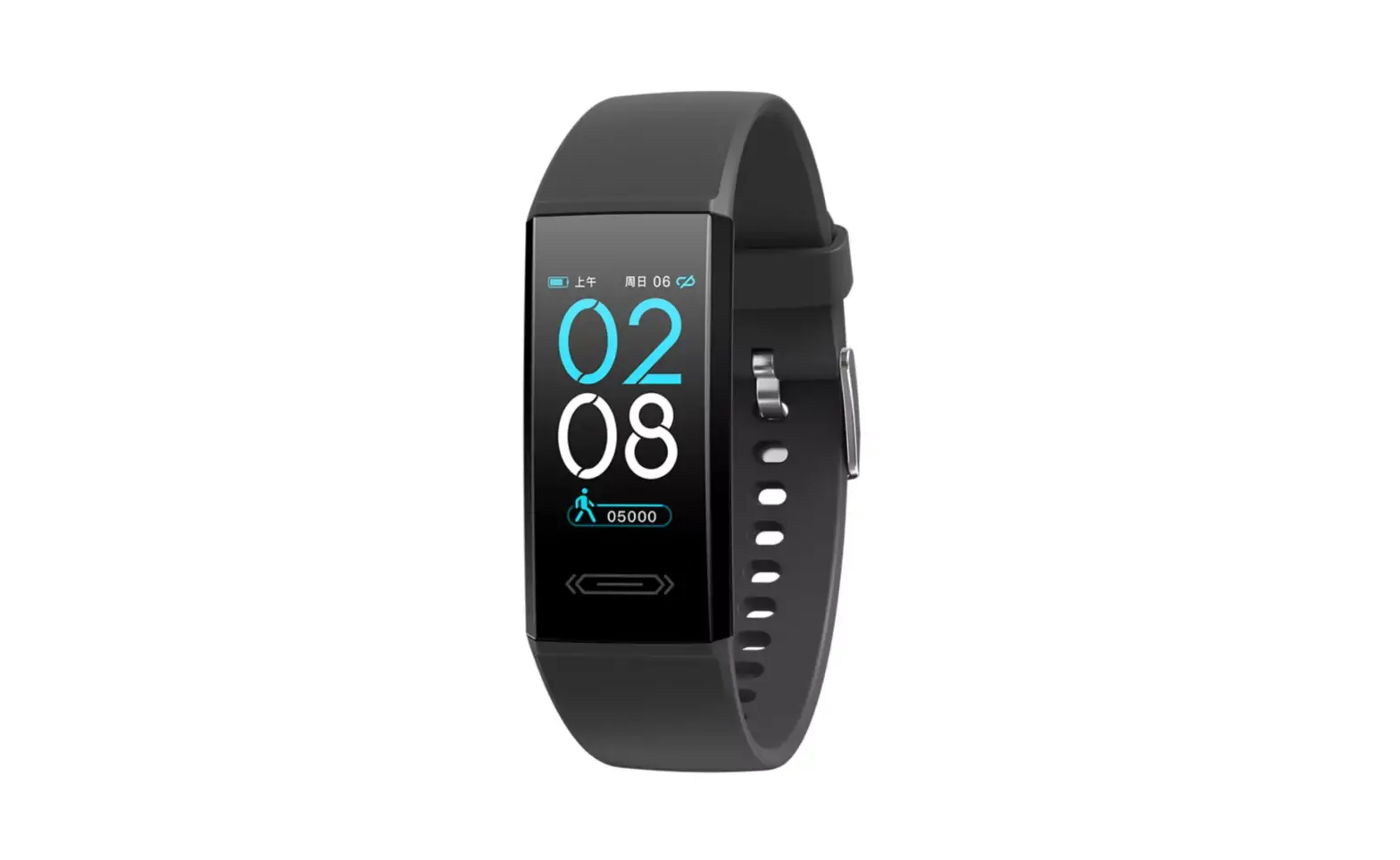
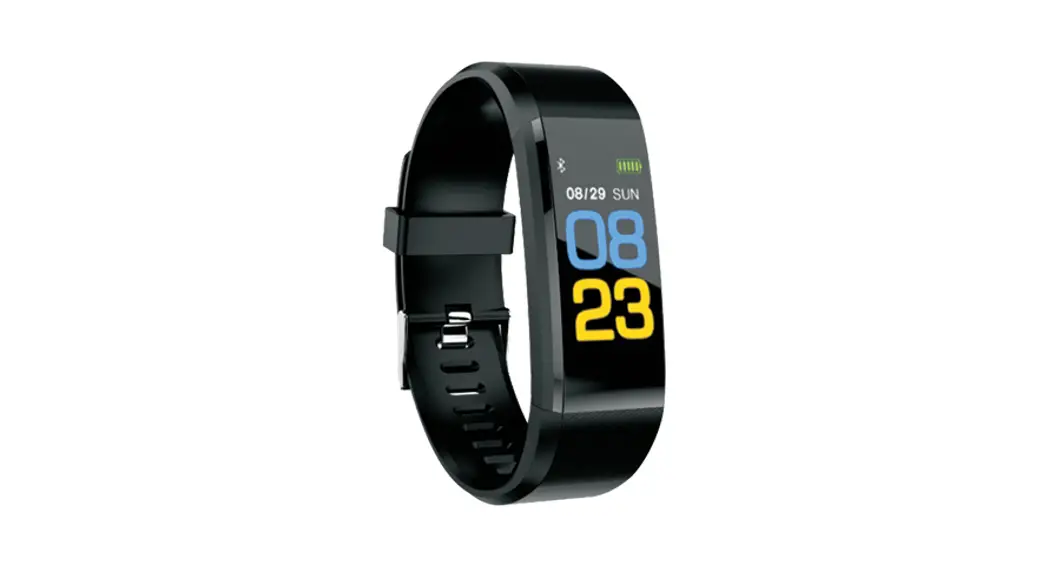
Basic Layout
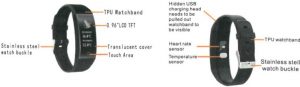
2. Charging the Device
UBS Charging 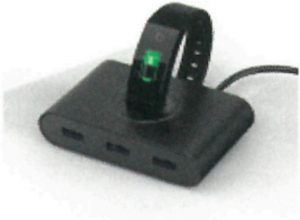 Please charge the device before use the smart bracelet. The machine adopts USB charging, and it needs 10 pull out 1he watchband with buckle said, expose the charging head, and then insert the charging head in the correct direction into the USS charger or computer USS port. Charger: Voltage SV Charge time: aboutl.5-2 hours
3. Function
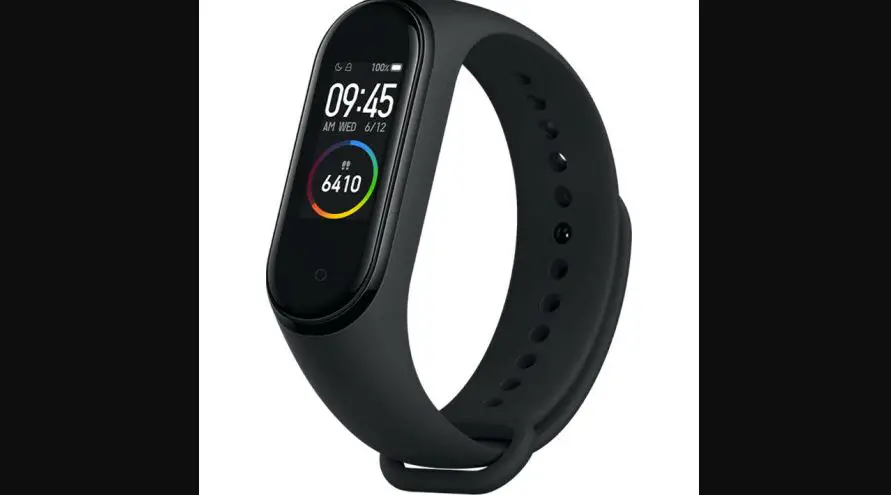
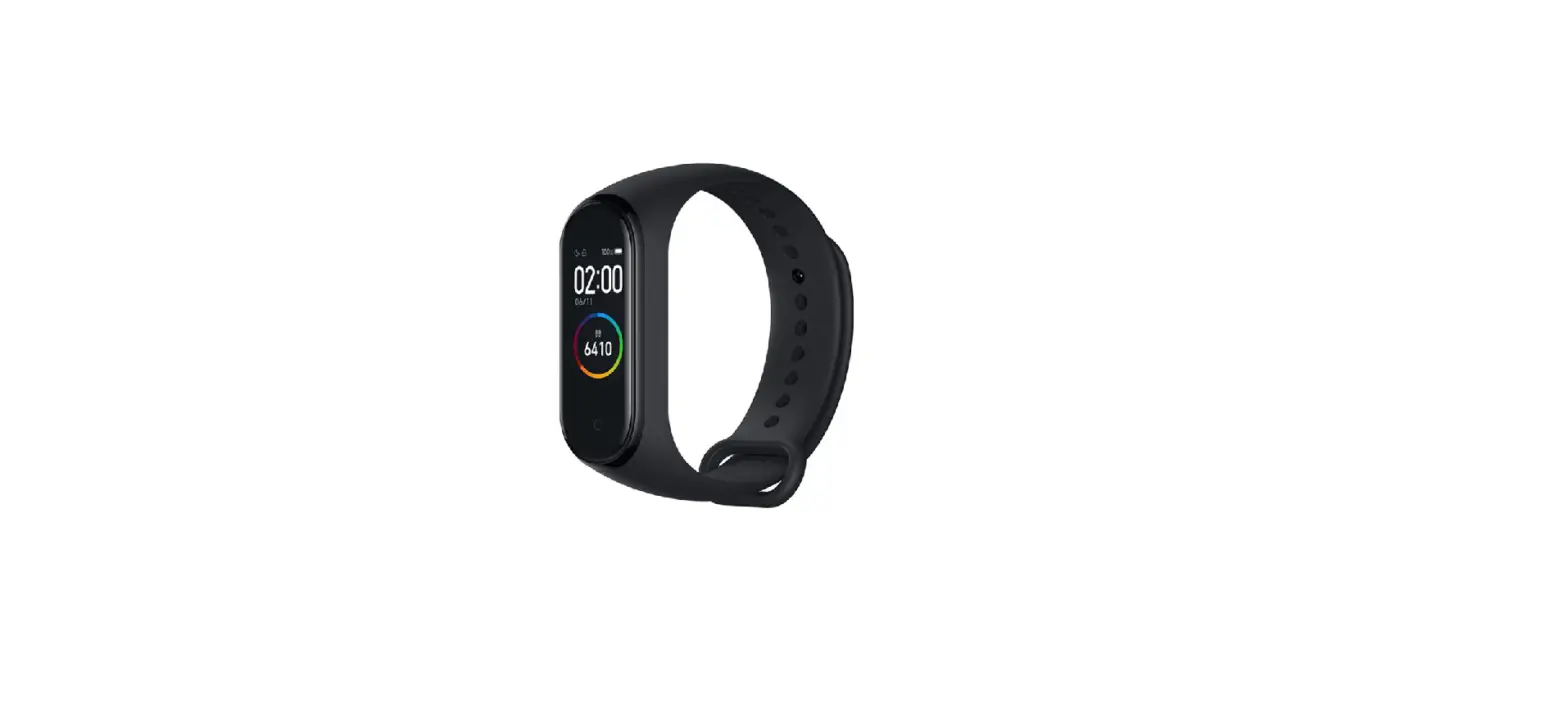
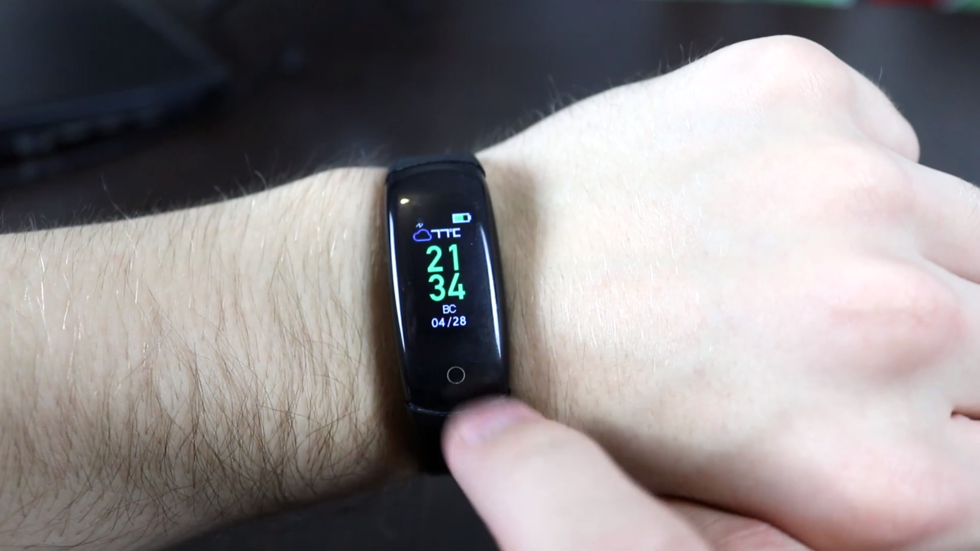
3.I Main interface
After the device has been connec1cd via Bluetooth successful with your phone, the time will auto synchronize correctly with your phone. 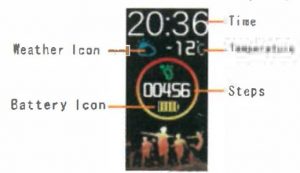 3.2 Pedometer / Distance/ Calories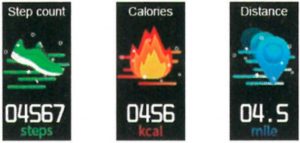
4. Bluetooth Paring
- Turn on the smart bracelet. Turn on your smartphone’s Blue Tooth and GPS.
- Turn on your smartphone’s wi-fi capability, scan the QR code below to download the “Youth Health” APP or search for “Youth Health” downloads in GooglePlay or apple’s APP Store.
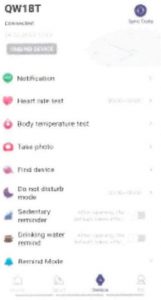
 3. Download ·Youth Health” APP and run it. After the installation is completed, in the “Device” / “+ add device”, select the corresponding Bluetooth name from the list (for example: QWVl8T), and click it connect 10 the corresponding bracelet. The time, date, language (many language may not be supported) will automatically synchronize the mobile phone system. As shown on the right. 4.1 Bluetooth Remove
- Delete the Bluetooth on the APP
- Turn off the APP on the smart phone
- Remove the Bluetooth on the setting of the smart phone
4.2 Bluetooth automatic reconnect When the bracelet reaches the Bluetooth connec1ion range, it will automatically reconnect the bracelet.
5. How to use APP
After install Youth Health APP, you may required m fill your personal information such as gender, weight etc. Theo please connect smart bracelet via Bluetoo1h (Please reference to the Bluetooth Paring Steps) After successful connection between the bracelet and the mobile APP, the movement data will be synchronized automatically. 5.1 “Home”--Steps, Sleep, Heart, BP, SpO2, Body Temperature These modes need to connect the bracelet to complete the data collection and synchronize to the mobile APP in real time. Show below: 5.2 “Sport” – Analysis and Report Show below: 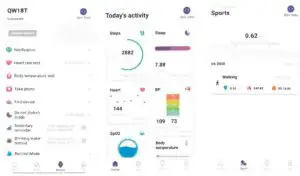 5.3 “Device”-settings The following functions can only be realized under the premise that the mobile APP is successful.
- Notifications Function: Include call notification, SMS notification, application message push such as QQ message push, “WeChat message” push and other functions.
- Heart rate test: Open heart rate detection, set the detection time period, the bracelet can detect the heart rate within the specified time.
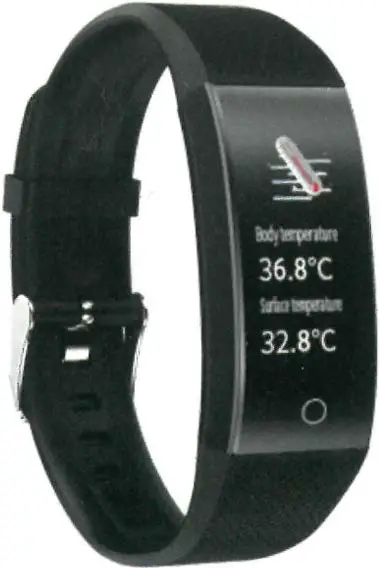
Body temperature test
- Take a photo: You can use the bracelet to control your phone to take a photo
- Find Device: The bracelet will be vibrate and bright screen.
- Do not disturb mode: After you open the “do not disturb mode”, except alarm clock, all notifications in the Settings are not reminded, and the bracelet will no longer have automatic bright screen vibration reminder.
- Sedentary and drinking water reminder Turn on this function, set the monitoring period, the bracelet can remind you to drink water or sport at regular intervals during the prescribed time.
- Remind Mode: It is three modes for you select: Vibration, Bright screen, Bright screen +Vibration
- Set an alarm
- Raise hand: Turn on this function, when you lifting hand to tilt the bracelet inward, facing the wearer straight ahead, the bracclc1 automatically bright screen.
- Firmware update
- Unit settings
Specification
- Chip: BK3431Q
- Display: LCD TFT 0.96
- Battery: 90mAh
- Waterproof: IP68
- Standby time: 7 days
- Support system: IOS 10.0 or above, Android 4.4 or above
- Heart rate monitor: support
- Blood pressure: support
- Auto screen light: support
- Bluetooth: BLE 4.0
Remark: W’hy Bluetooth disconnected and incoming calls and messages do no remind:
- Please keep A PP and smart bracelet both turn on.
- Please keep smart phone and smart bracelet within 8 meters.
- here is some smart phone, will turn off APP automatically in order to save power. In this case, please set your phone on Mobile Manger or security center accordingly to allow APP turn on always.
- Turn off the power saving mode.
- When you have 1hcse problems, and not know how to set, please ask for services online.
Tips: This device not for medical use, test data just for reference. This instruction is subject to change without prior notice.
FAQS
It is based on the brightness that you can set in the settings.
You can’t set it up without connecting it to the app. But once set up, it can be used without the app, you would need to sync it regularly but that doesn’t need to be everyday.
No. The band is far too big and the readings are inaccurate. You’d need an infant oximeter that goes on their finger (a standard one is far too big)
You have to press on the screen for a couple of seconds and it takes you to a stop button then press on the red circle
NFC is not available on this device and definitely not in Europe.
Press the power button for 3 seconds until the red light flashes.
Press the power button for 3 seconds until the red light flashes, and then press the button again for 3 seconds until the red light flashes again.
Please charge it before use. The machine adopts USB charging, and it needs 10 pull out 1he watchband with buckle said, expose the charging head, and then insert the charging head in the correct direction into the USS charger or computer USS port.
This function can be used to count steps, distance and calories. You need to open APP “Youth Health” first. And then start this function by tapping on “Pedometer”, “Distance” or “Calories” icon on APP interface. The device will automatically record your steps, distance and calories when you are walking or running. All data will be recorded in APP automatically. You can see all data in APP interface by tapping on “History”.
Please connect your smart bracelet with your phone via Bluetooth in advance, and then open APP “Youth Health”. And then tap on “Pedometer” icon on APP interface. The time will auto synchronize correctly with your phone system automatically within 10 seconds after you tap it. If you don’t sync time with your phone system, please tap on “Pedometer” icon again to sync time manually. If you want to change language, please go back to main interface of APP and tap on “Language” icon; select corresponding language from list and click it connect 10 corresponding smart bracelet; language will auto synchronize correctly with your phone system automatically within 10 seconds after you tap it; if you want to change language later, please repeat above operation again. If you want to change date format, please go back to main interface of APP and tap on “Date” icon; select corresponding date format from list and click it connect 10 corresponding smart bracelet; date format will auto synchronize correctly with your phone system automatically within 10 seconds after you tap it; if you want to change date format later, please repeat above operation again. If you want to change time format, please go back to main interface of APP and tap on “Time” icon; select corresponding time format from list and click it connect 10 corresponding smart bracelet; time format will auto synchronize correctly with your phone system automatically within 10 seconds after you tap it; if you want to change time format later, please repeat above operation again. If you want to change units (kilometers / miles), please go back to main interface of APP and tap on “Units” icon; select corresponding units from list and click it connect 10 corresponding smart bracelet; units will auto synchronize correctly with your
No it does not, it can tell you calories burnt on an activity but it can’t (and no fitness tracker can) tell you whether those calories are from glucose or fat. Fat will only be burnt from exercise after you’ve used up stored glucose.
No
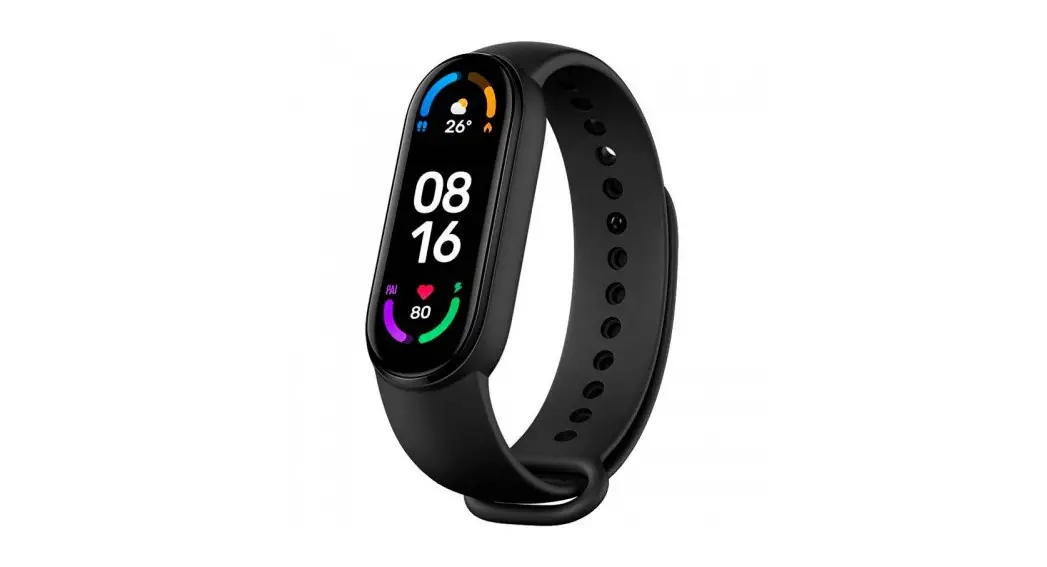
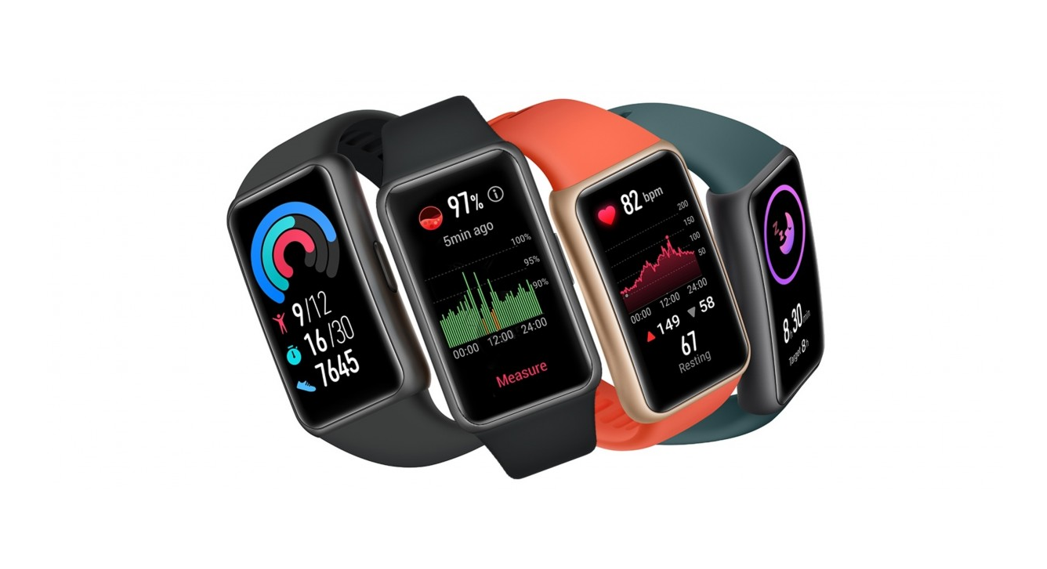
By default my watch home screen on my Mi Band 6 shows at top of the screen my step count, in the middle time and date, and at the bottom thel last heart rate scan rest.
You can edit your home screen to different configurations in the setting though.
Yes it does
It has a stopwatch and timet. But lots of other things as well.
VIDEO