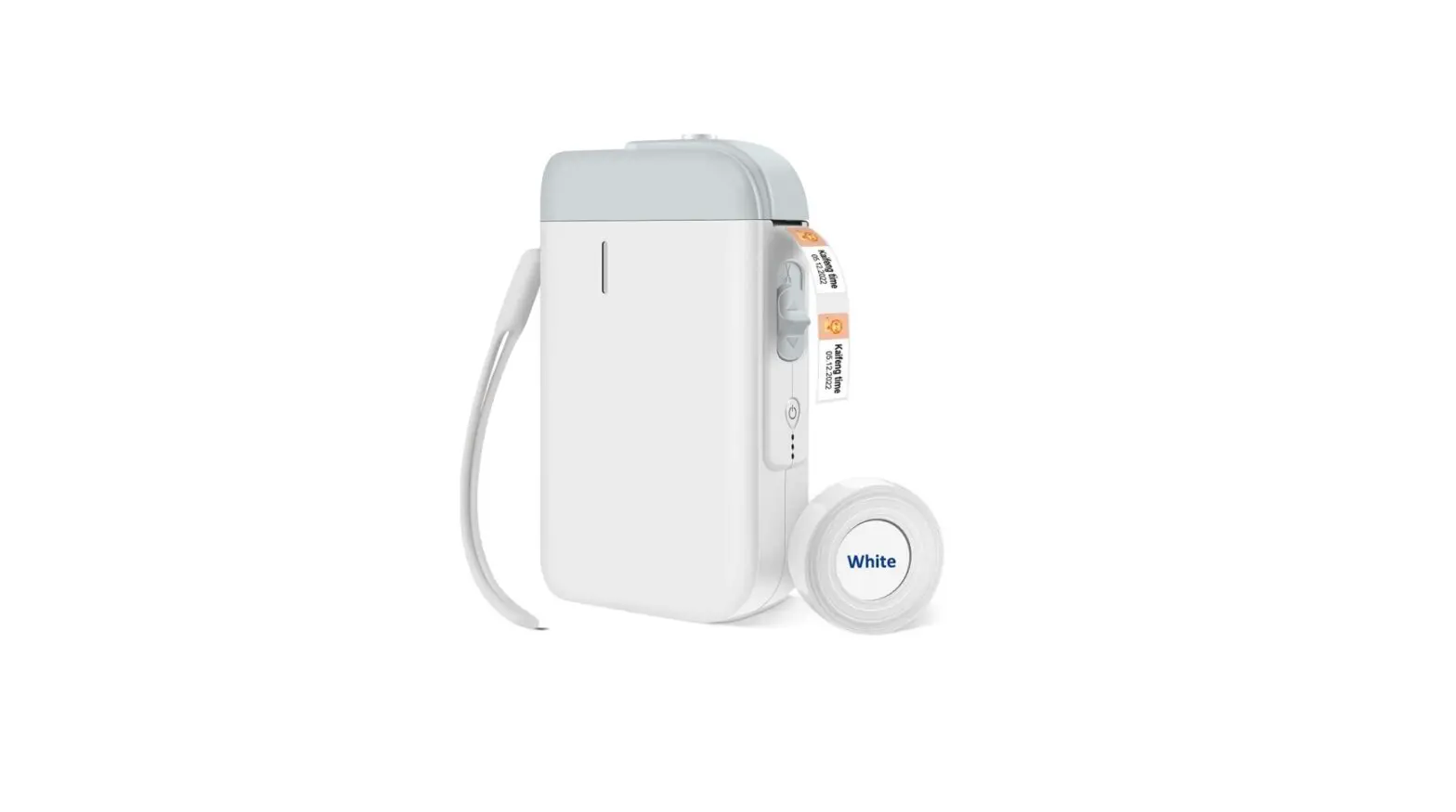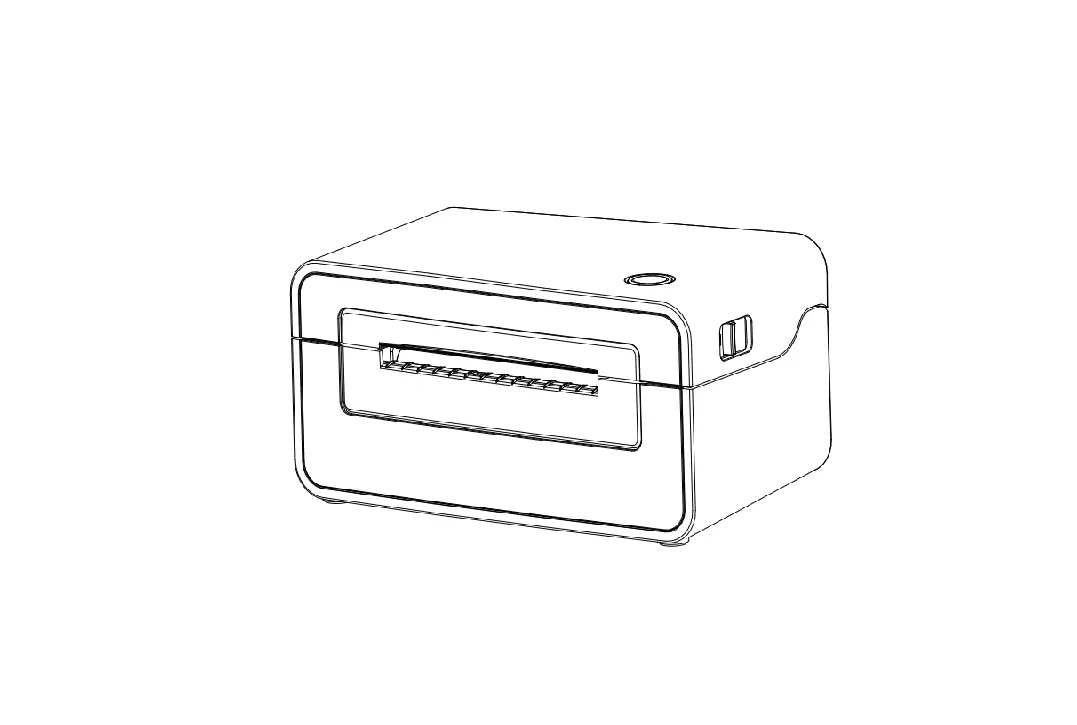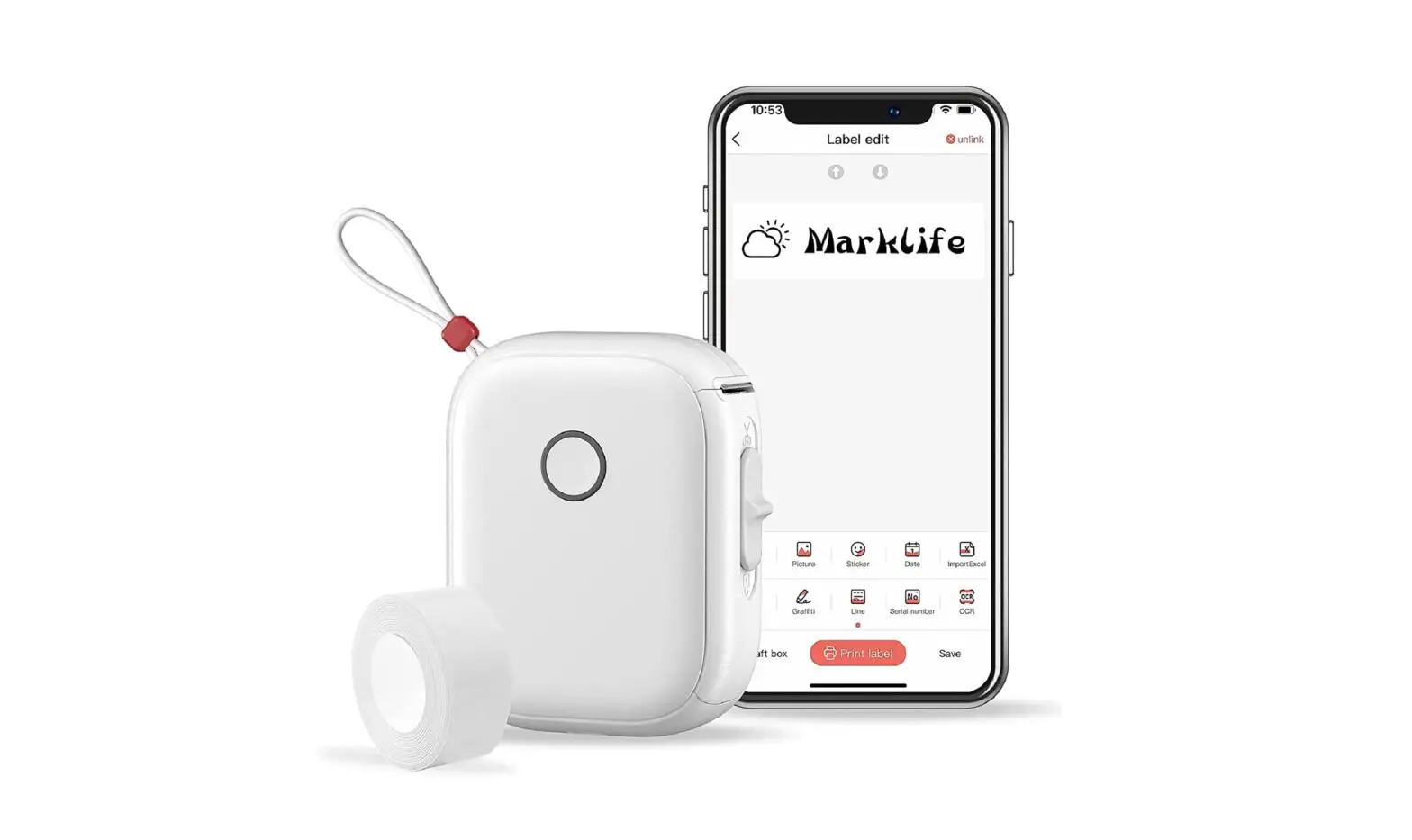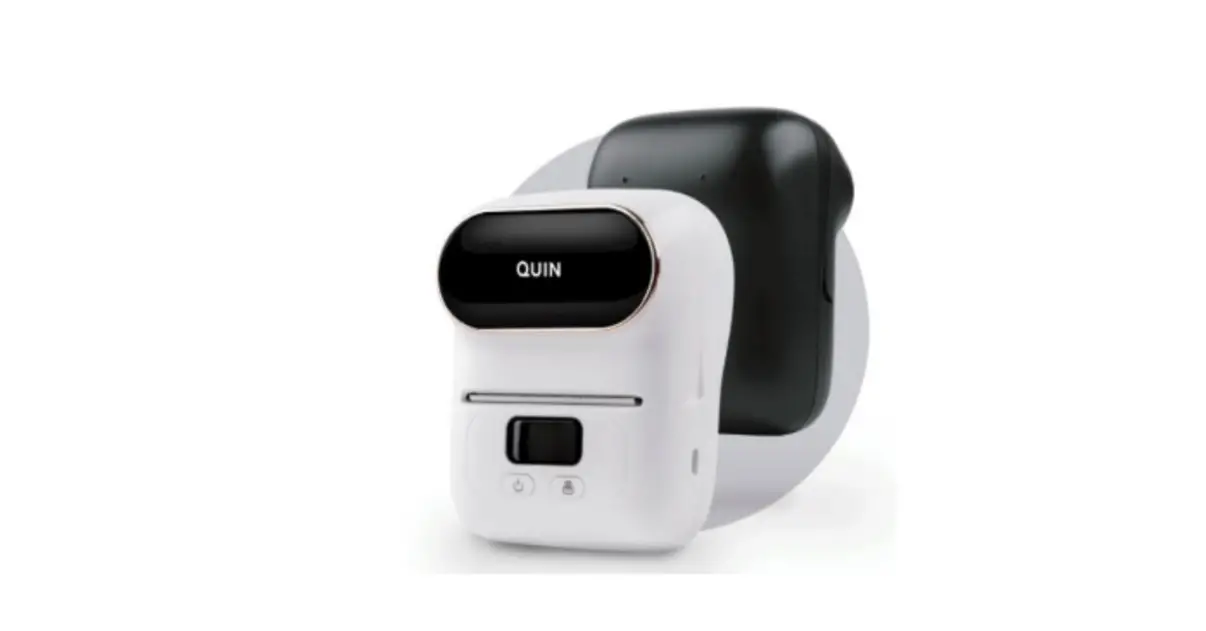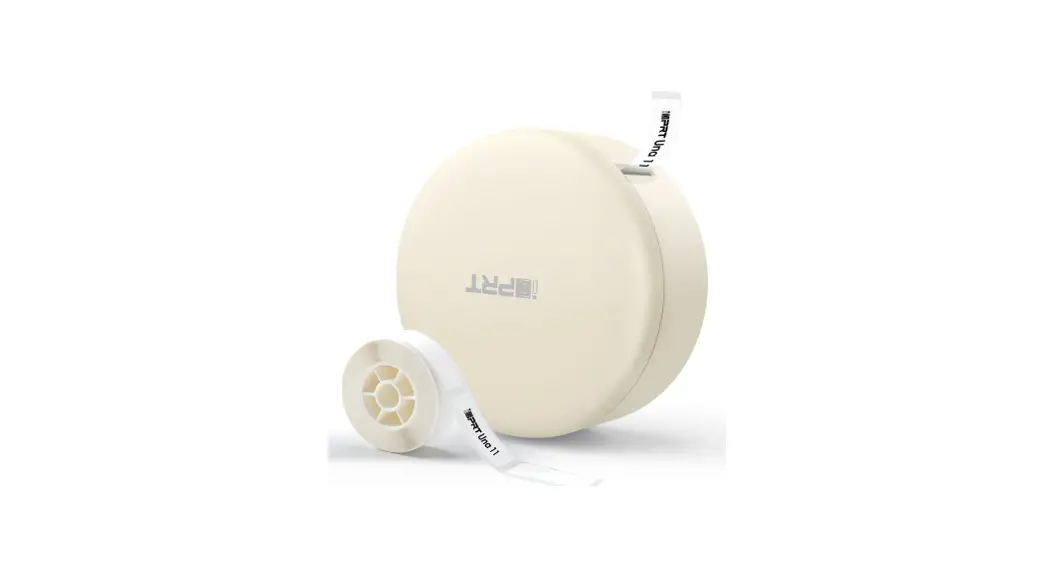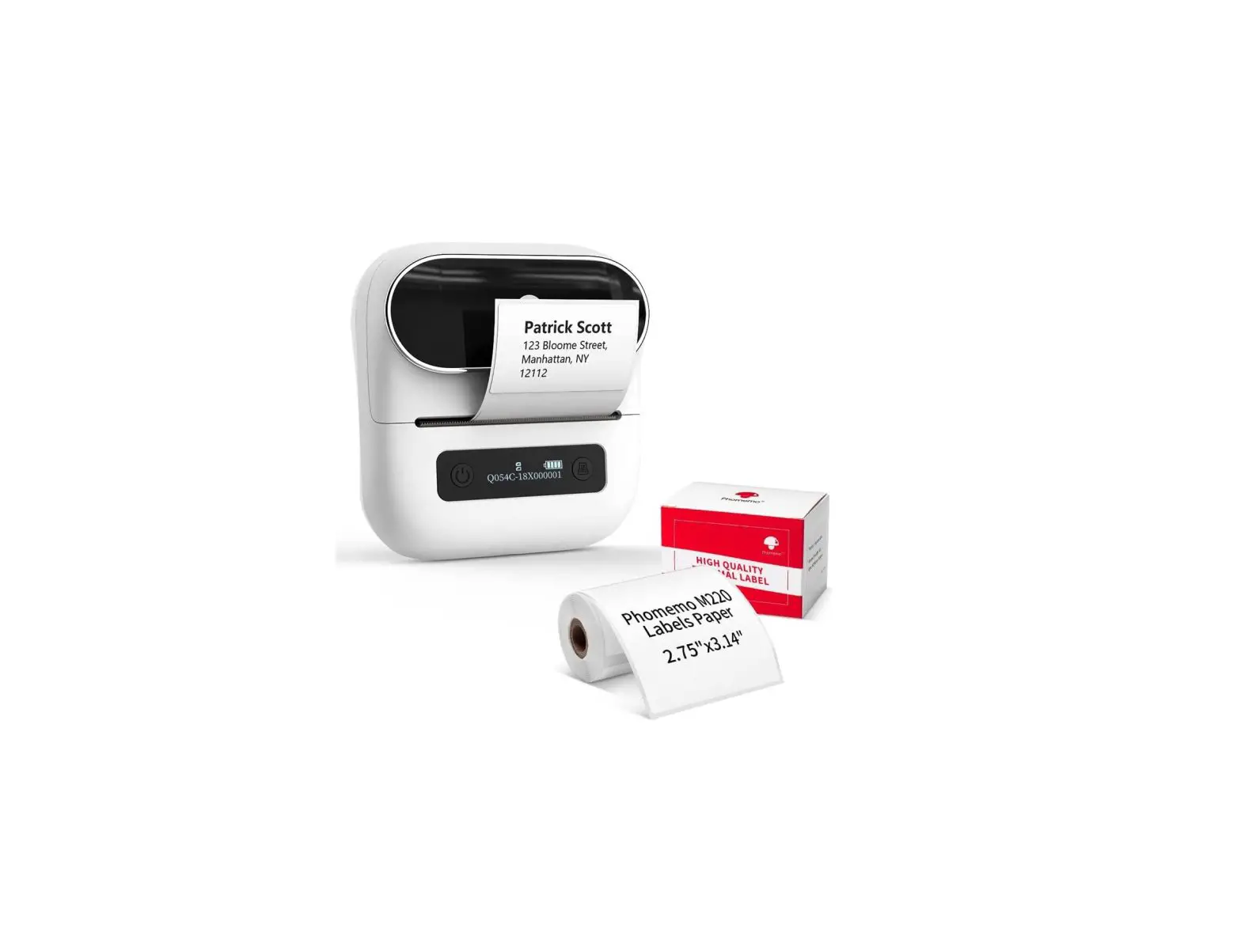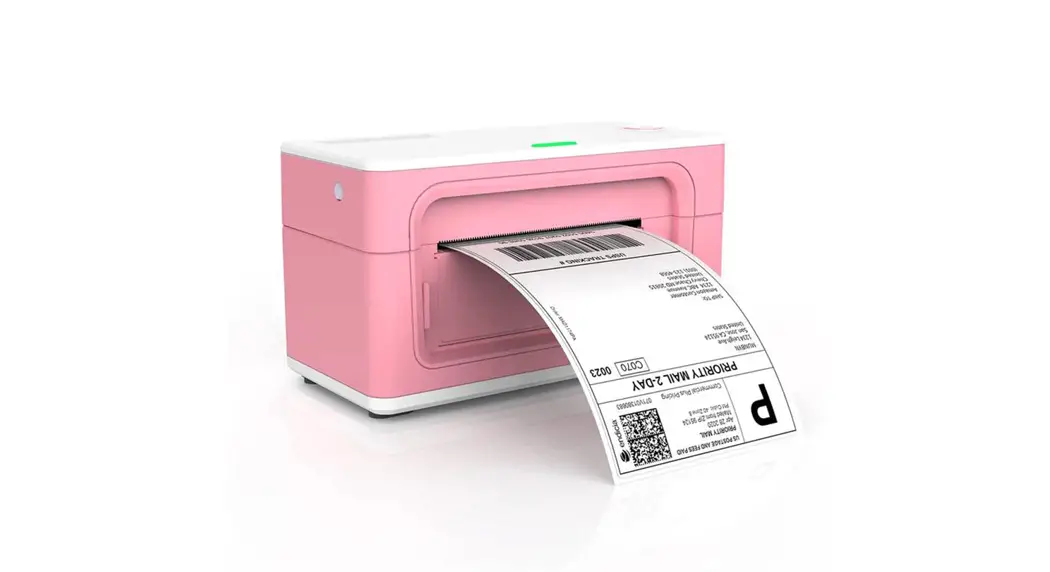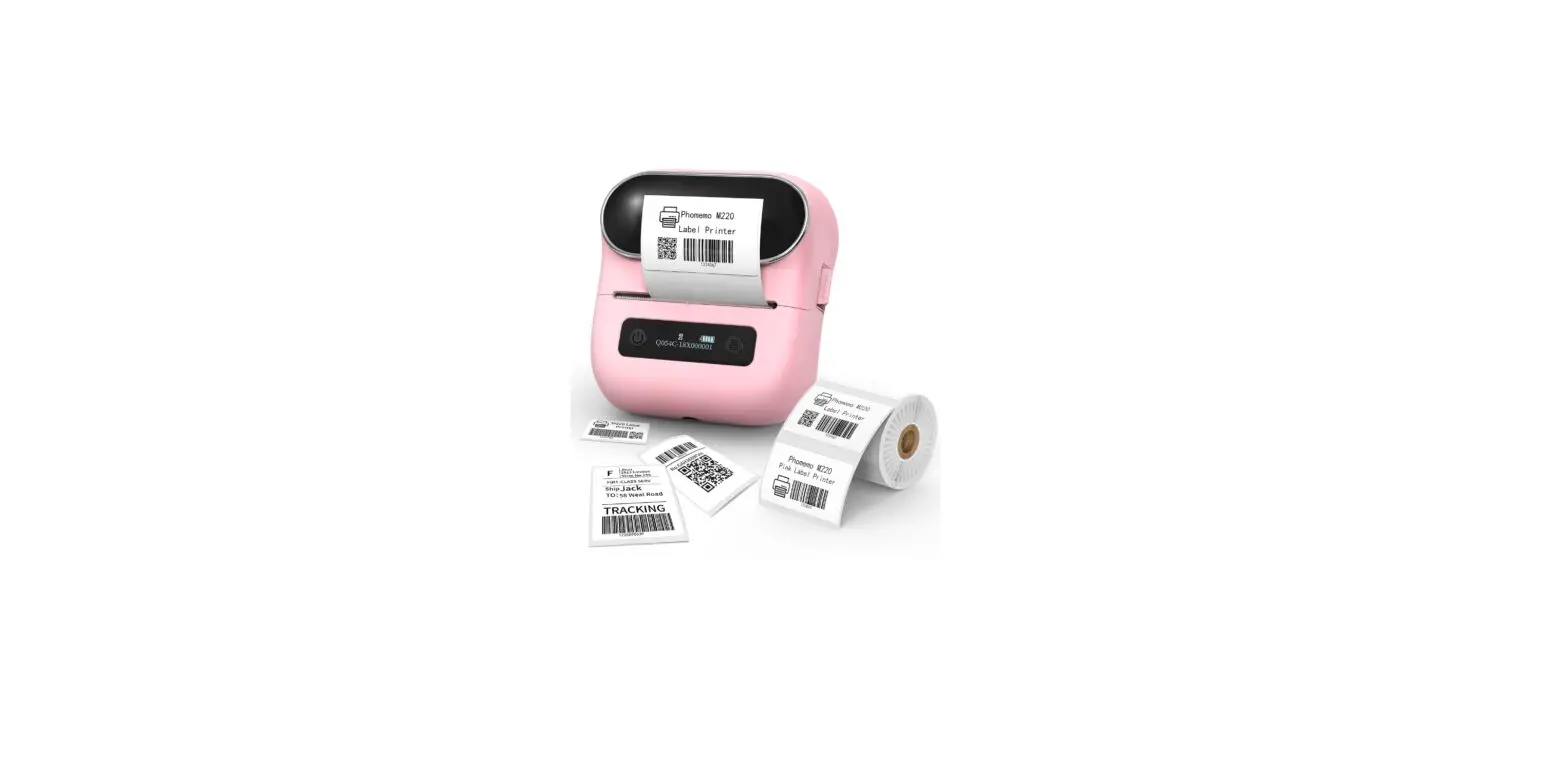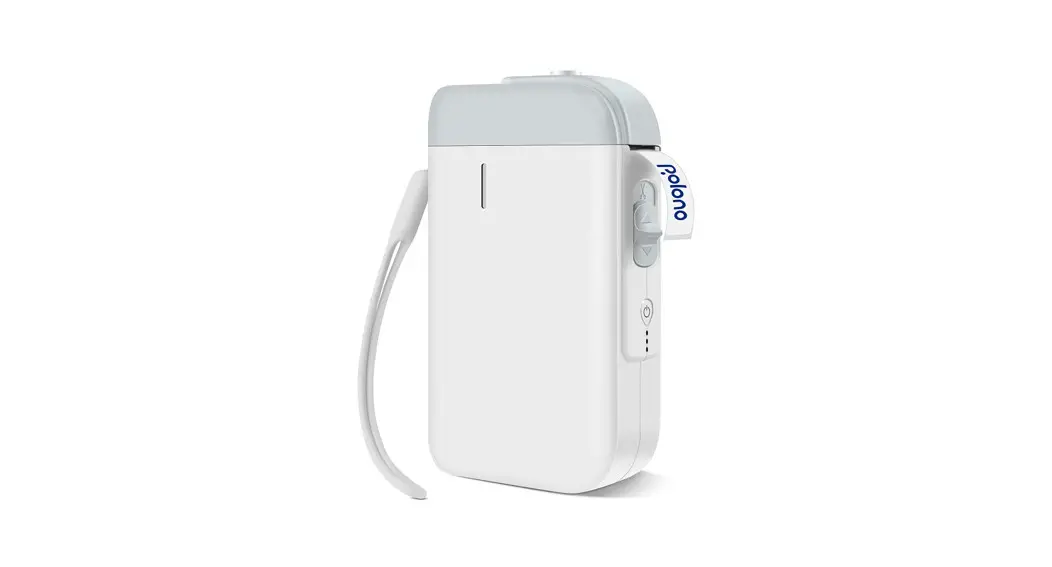
 Thermal label printer
User Guide
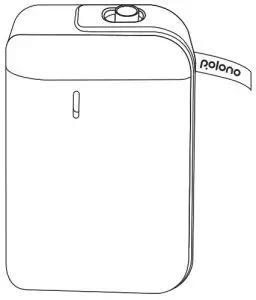
Thank you for choosing POLONO
Read thoroughly before using
Warning
The paper bin must be clean. Any debris will catch and damage the print head while printing.
Use alcohol to clean the paper bin and print head.
Do not disassemble the printer or attempt any self-repairs.
Power off the printer if any malfunctions occur.
Charge in a cool and ventilated room.
Do not expose the printer to high humidity or temperatures.
Keep away from water.
If any strange scents or smoke come from the printer, power off and unplug immediately.
Avoid dropping or shaking the printer to prevent damage.
Do not open the cover while it is printing. Do not touch the print head immediately after printing as it will be HOT.
Use a soft clean cloth to clean the outside of the printer.
High temperatures may result in poor print quality.
Use POCONO label paper for best results. Use of other label printers may result in poor print quality or damage to the printer.
The longevity of the printed labels depends on the quality of the label paper. Choose high-quality label paper if you need them to last.
Keep away from children.
Store in a clean and dry environment.
The printer does NOT come with an adapter. Use one with a rating of 5V 2A.
This printer can only be used in non-tropical environments.
The printer may cause radio interference. Take any necessary precautionary measures.
Specifications
| Printing Technology | Direct thermal |
| Resolution | 203dpi |
| Speed | 90 mm/s max |
| Battery | 1200 mAh |
| Supported print width | 15mm (12mm available) |
| Connection | Bluetooth |
| Application support | POLONO (Google Play/App Store) |
| Paper cutting | Manual paper cutting |
| Input | 5V-2A |
| Charge | Micro USB port |
| Work environment | 5-40°C,90%RH(no condensation) |
| Storage environment | 5-40°C,90%RH(no condensation) |
| Dimension | 131 x82x31 mm |
| Weight | 210g |
| Life expectancy | 50Krn, Lettering rate 12.5% |
The contents of this manual may change without prior notice. The components, hardware, software, and technology may be upgraded for better functionality. Contact sales or customer support with any questions or concerns.
Figure
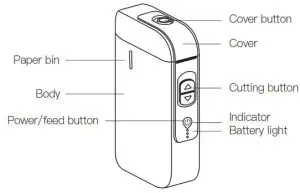
Quick guide
- Search for and install the “POLONO” app on Google Play or App Store.
- Long press (hold) the power button to turn on the machine.
- Slide the cover button to the other side and open the cover, place a roll of thermal paper into the bin.
- Press the power button once to align the paper.
- Use the POCONO app to connect the printer to the phone via Bluetooth.
- Use the POCONO app to create and edit labels.
- Print from the app and wait for the printer to finish printing.
- Push the cutting button upwards to cut the label.
Installing Paper
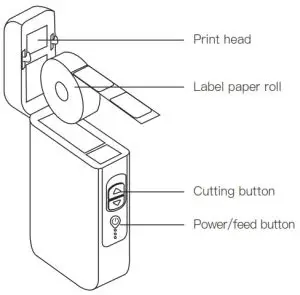
- Slide the cover button to the other side to open the cover.
- Load the paper roll in the paper bin. Refer to the image for the correct placement.
- Unroll the paper enough so that it sticks out of the printer slightly.
- Press the power/feed button to calibrate the label and test the printer.
Connecting the Printer
- Long press the power button to power on the printer.
- Open the POLONO app on your device and search for the label printer P10 via Bluetooth.
Tip: Use POLONO label paper for best results.
Key and indicator light
| Power on | Press and hold the power button for 2s to power on the printer. It will beep once. |
| Power off | Press and hold the power button for 2s to power off the printer. It will beep twice. |
| Print Bluetooth information page | When the printer is powered on, press and hold the feed button for 1s to print the Bluetooth information page. |
| Low battery warning | When the battery drops below 10%, it will flash red and power off automatically after 10s. |
| Overheat warning | Flashes red twice every other second. The printer will resume printing after the temperature decreases. |
| Charging | Battery lights will alternate green flashes. Once fully charged, all 3 lights are illuminated. |
Troubleshooting
Why are the labels coming out blank?
Check to see if the paper has been inserted correctly. The print side must face upwards.
Try printing a self-check page by pressing the power button twice. If the page does not print, it means there is a printer malfunction; if the page does print, check the paper or app settings.
Why are the labels not printing clearly?
Check and adjust the printing density.
If there is a line or blank area on the label, check if the print head is clean. If not, clean it with alcohol. Low-quality paper may also introduce problems. For best results, use POLONO label paper.
Why are the labels not aligned properly?
Change the paper type on the app. Realign the printer by pressing the power/feed button once.
Why did the printer stop printing during a print job?
Make sure there is still paper in the bin. If the paper is still available, check the app for the specific cause.
Warranty
Pocono offers an extensive warranty for all products that extends through 1 YEAR of the delivery date. This warranty covers quality-related issues and product defects.
If you are past the 30-day return period on Amazon, contact us directly via the “Contact seller” option on your Order Details.
If the product is not working properly, we can send you a replacement product.
This warranty does not apply in cases of abuse, mishandling, or unauthorized repair of the product.
If you have any questions about this warranty or would like additional information, please contact us via the “Contact Seller” option or directly via e-mail at [email protected].
Please keep the original box, packing materials, and all documentation in the event that service is required.