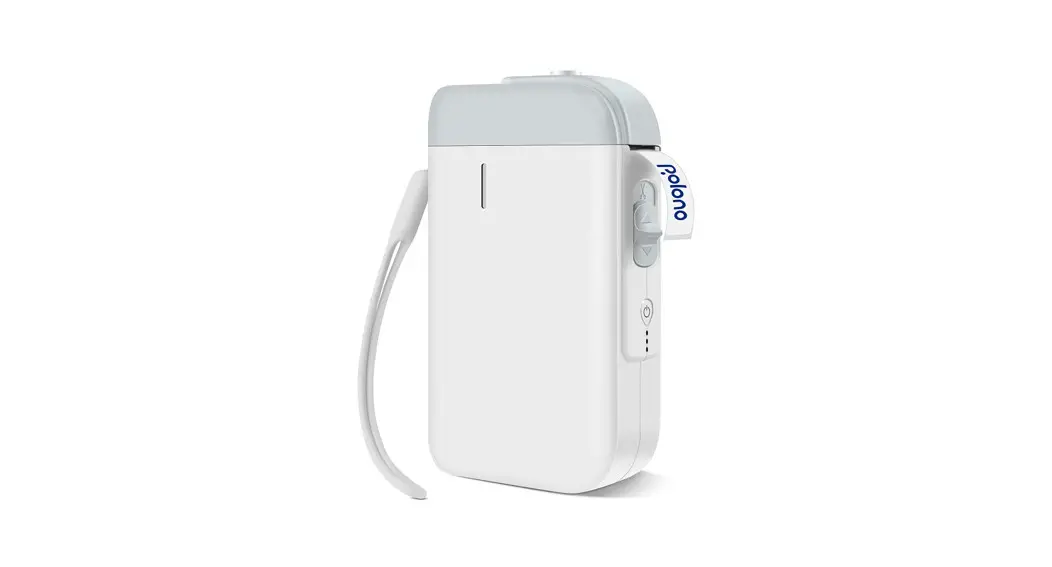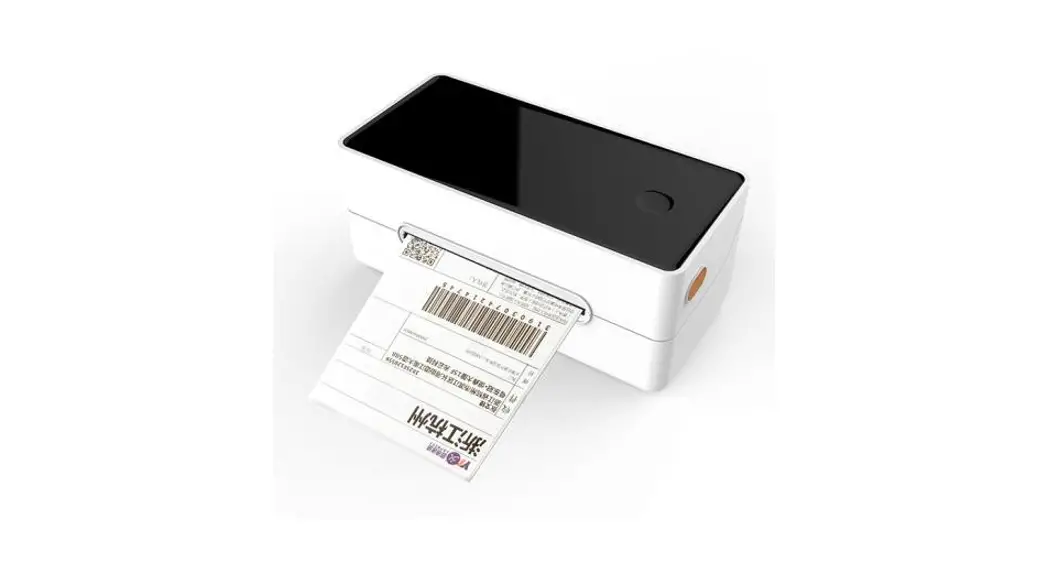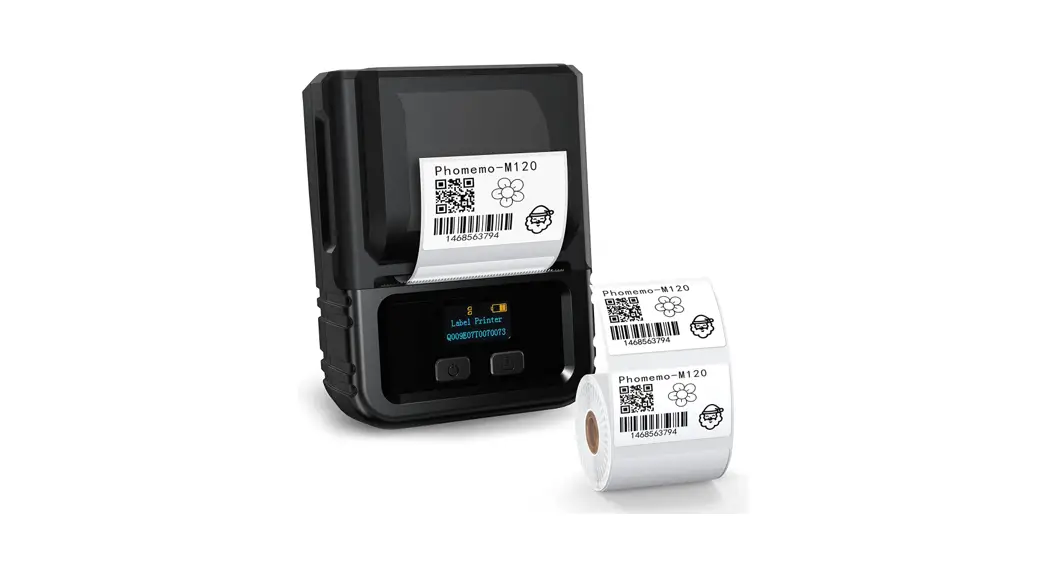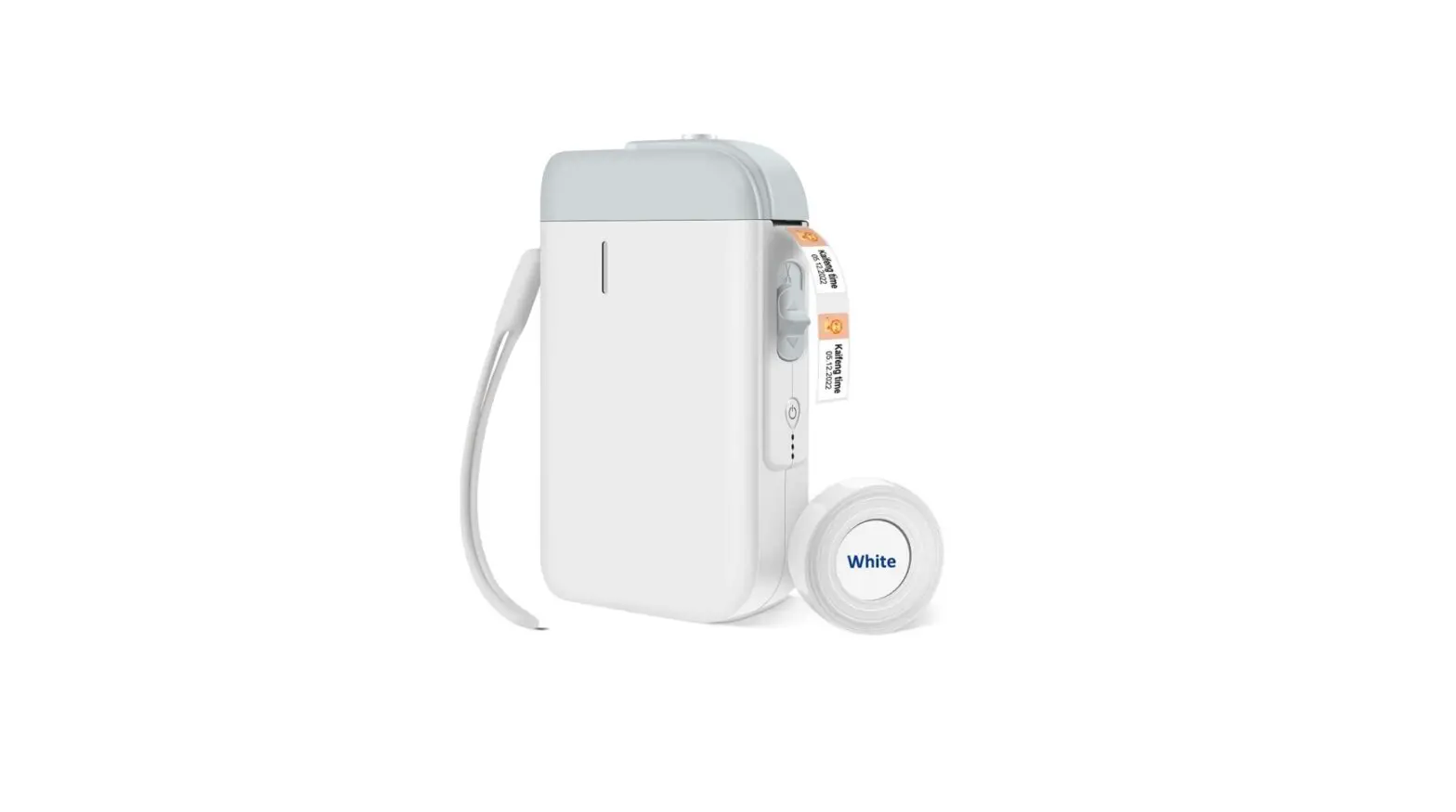
polono P10 Mini Label Printer User Manual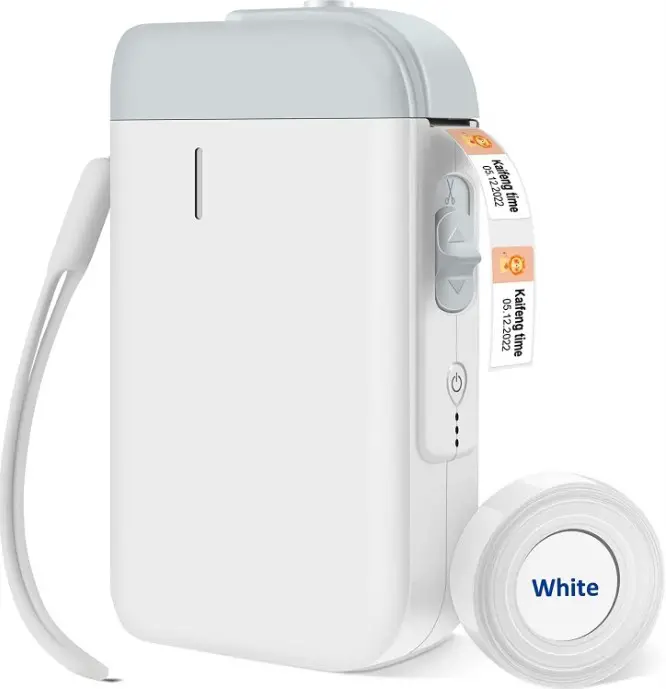
FAQ for Label maker Malfunction
A: Check to see if the paper has been inserted correctly. The print side mustfaceupwards. Try printing a self-check page by pressing the power for 1 second. If the page does not print, it means there is a printer malfunction; if the page does print, check thepaper or app settings.
A: Check and adjust the printing density on the app. If there is a line or blank area on the label, check if the print head is clean. If not, clean it with alcohol. Low quality paper may also introduce problems. For best results, use POLONO label paper
A: Make sure there is still paper in the bin. If paper is still available, check theappfor the specific cause.
FAQ for Label maker Operation
A: Setting on polono app:
Change the paper type to 15*40 mm or continuous depending on paper loaded. Realign the printer by pressing the power/feed button once.
A: Setting on app:
Select the text, click on “+” the middle tab to enlarge the text. Or double-click the text, select “font” tab, click “+” to enlarge the text.
A: Setting on polono app:
Select the text or image,slide the middle tab to the right side, click on “center”.
A: It is suggested use continuous paper to print long text,which can print as long as needed. Load the continuous paper, open the app: create a new label, select continuous paper, set the width as needed, then edit text and print.