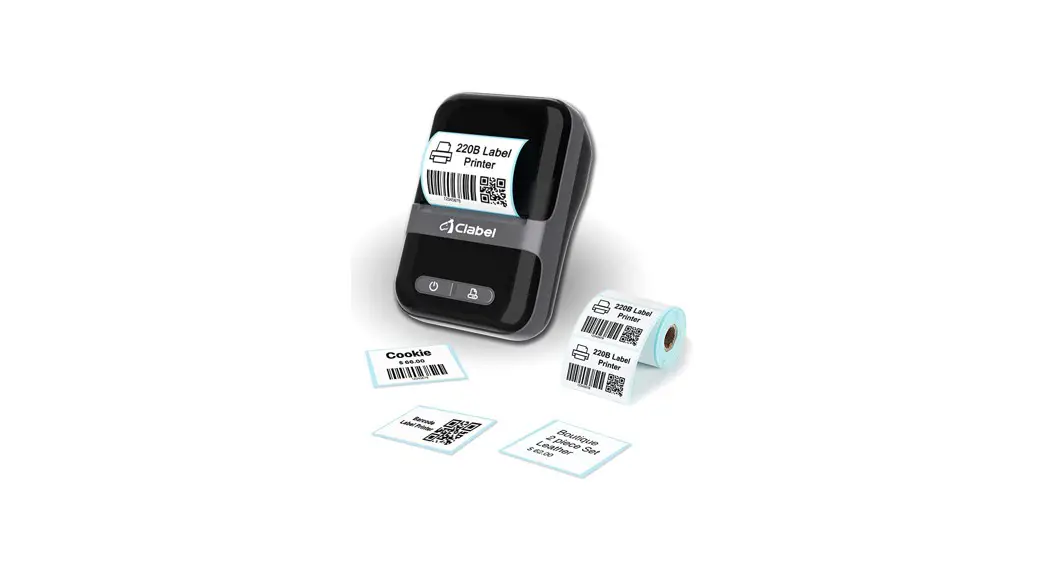
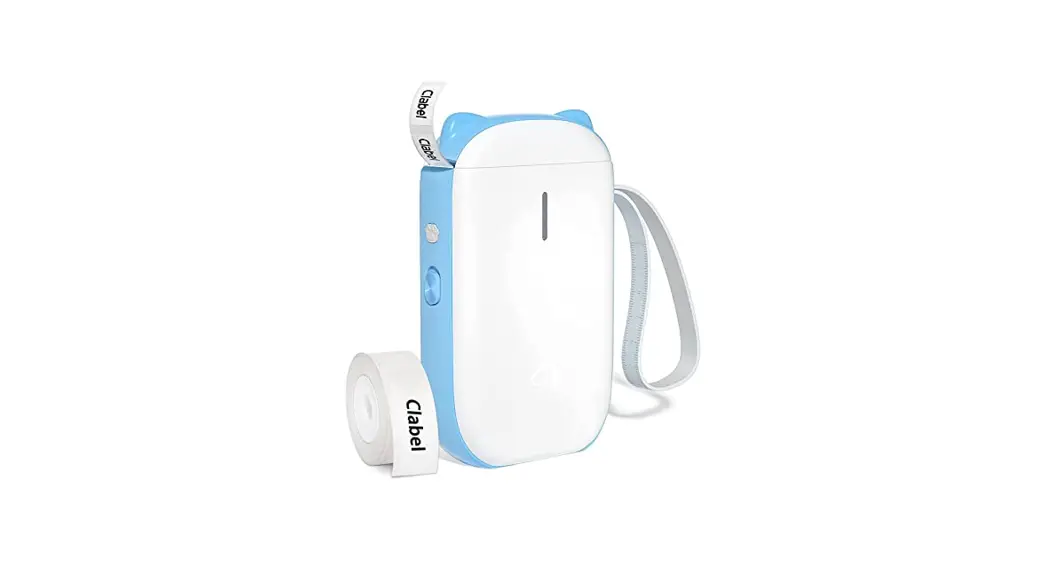
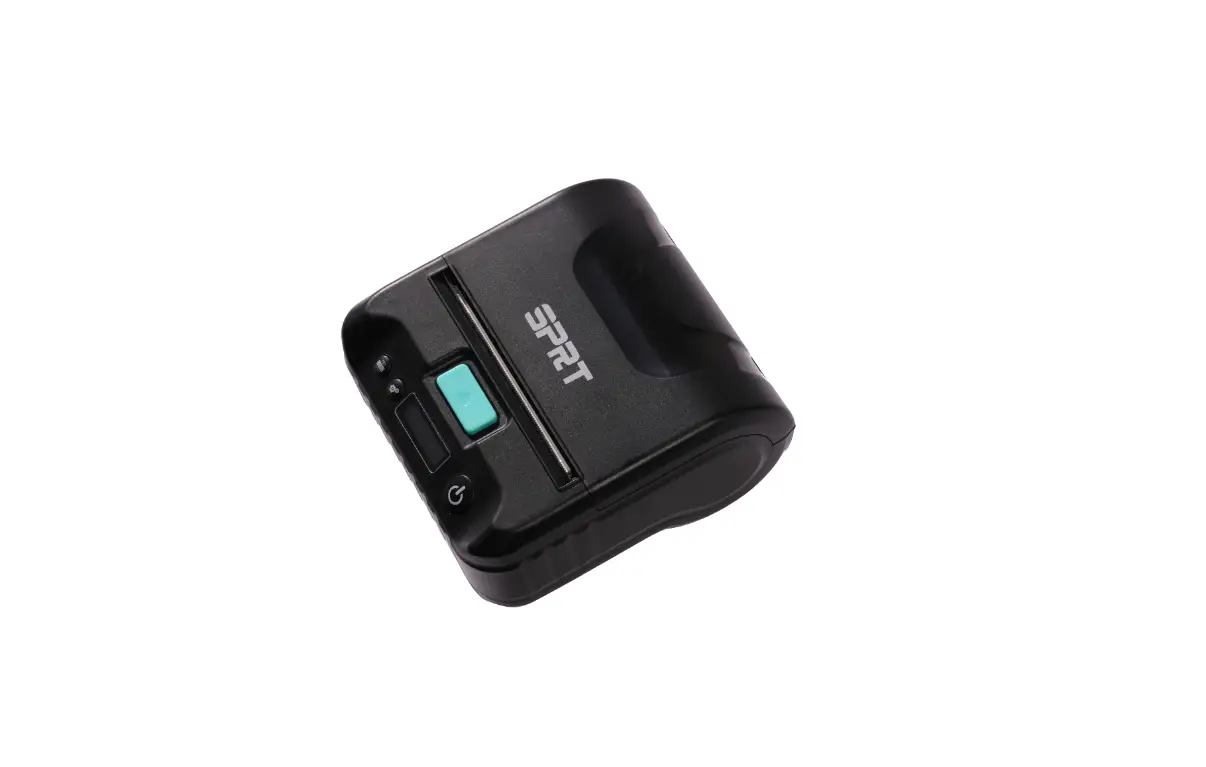
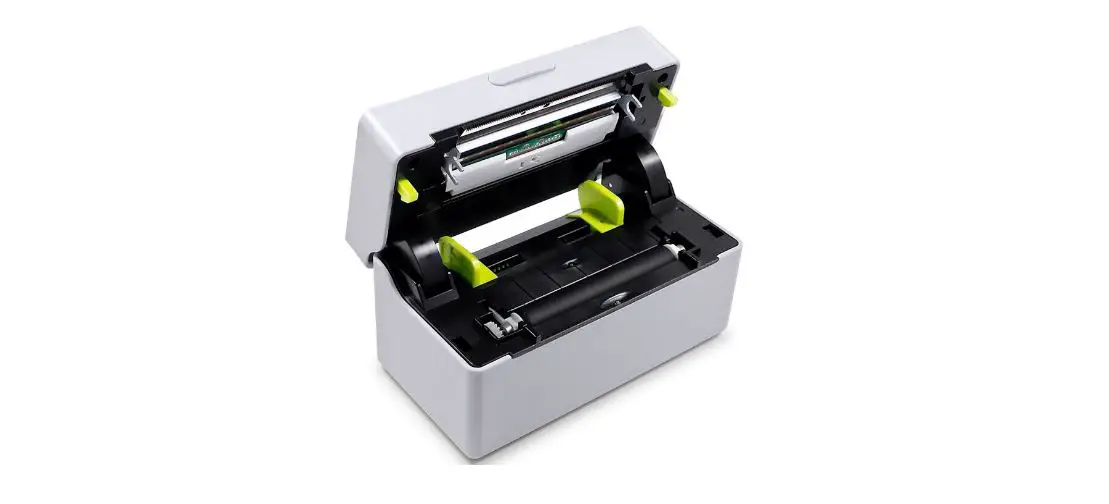
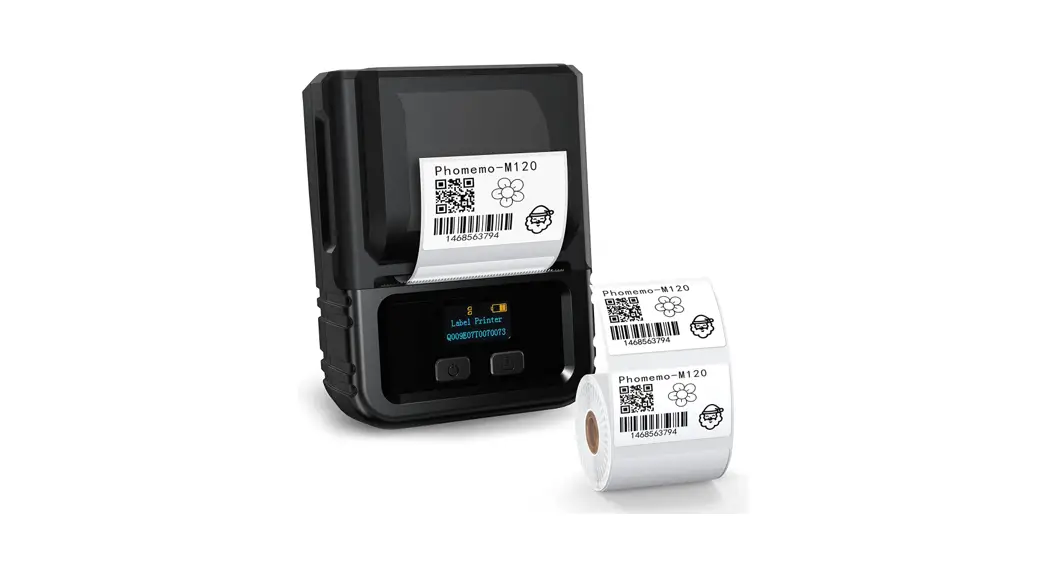
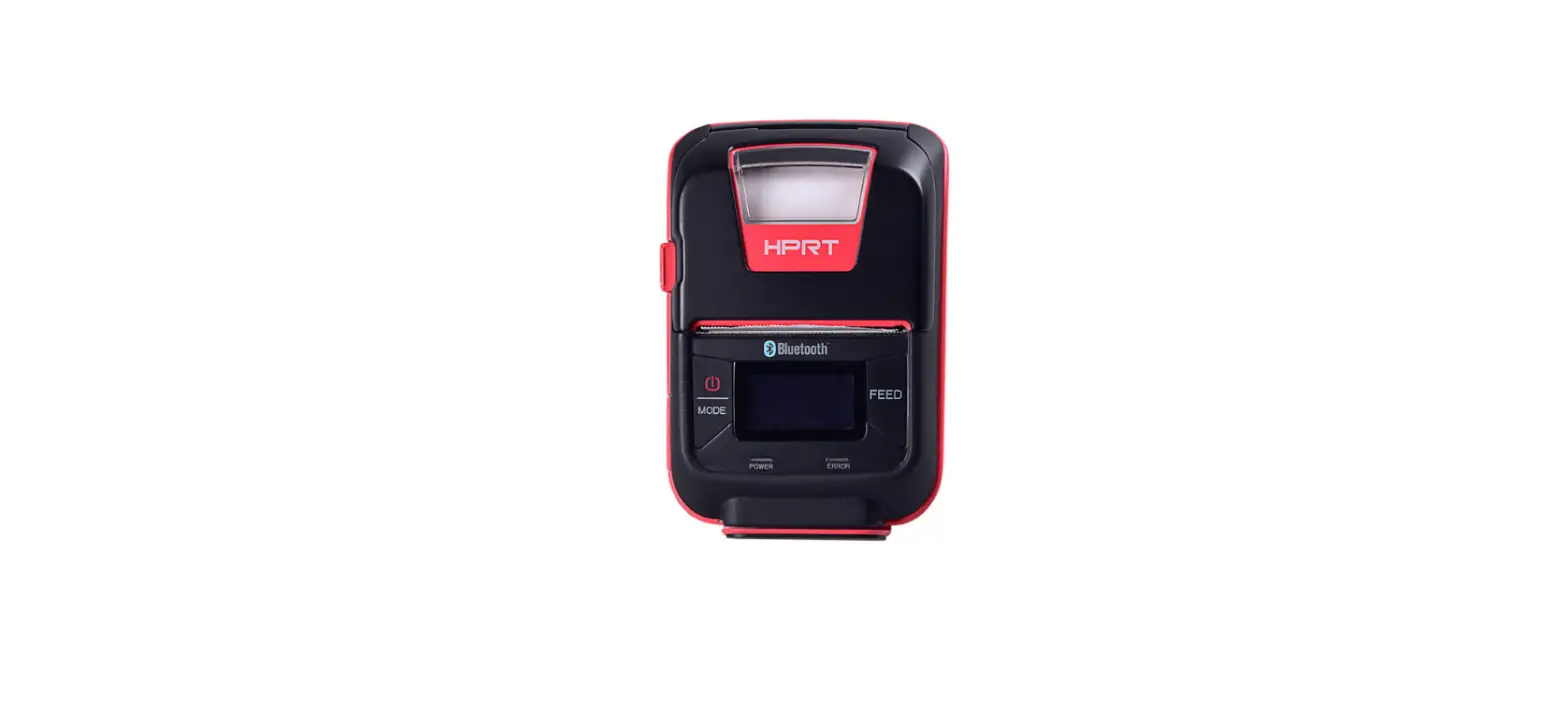
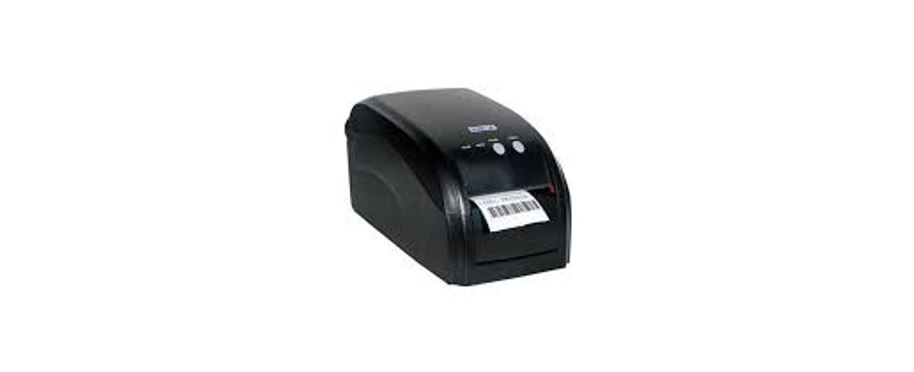
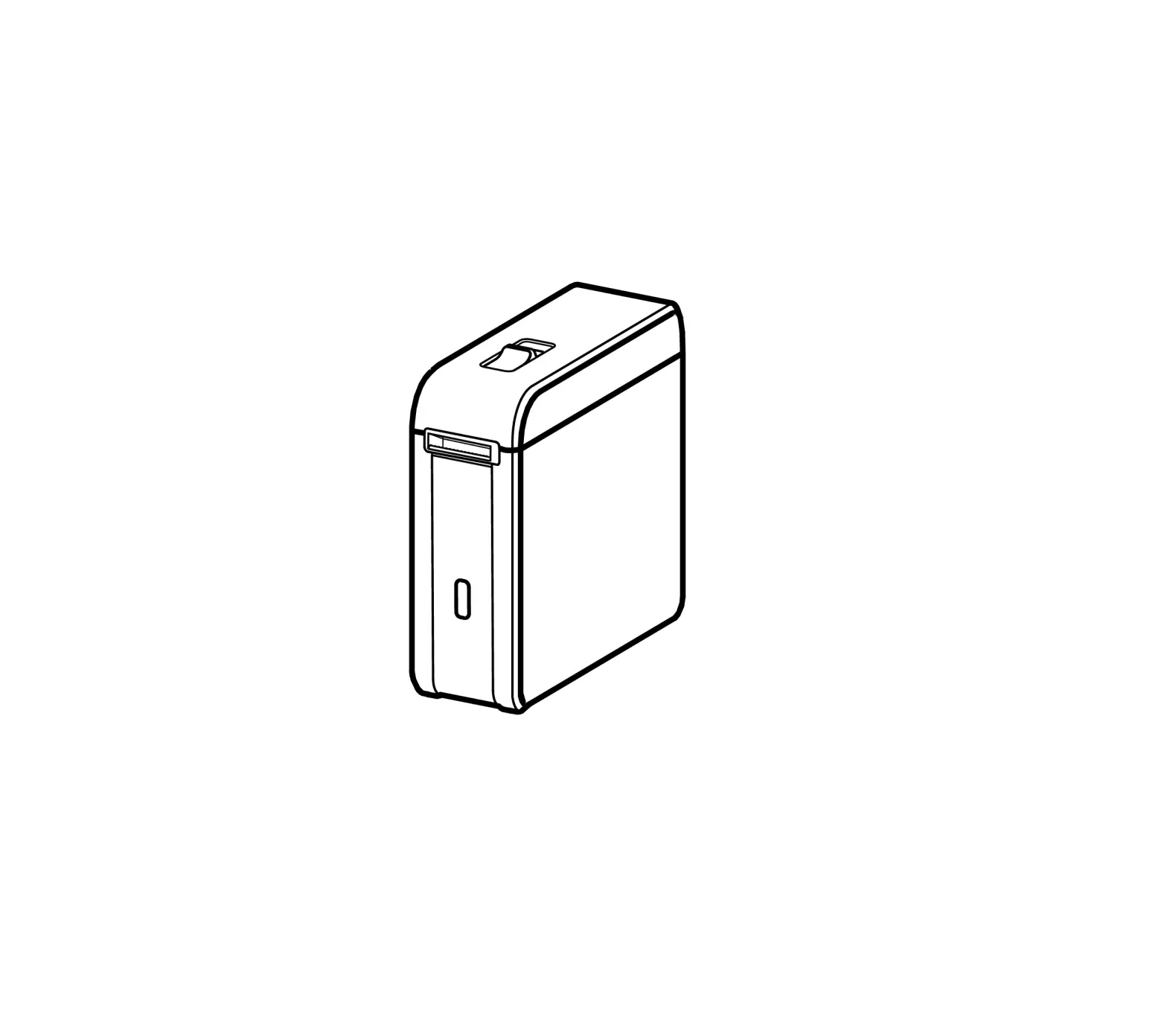
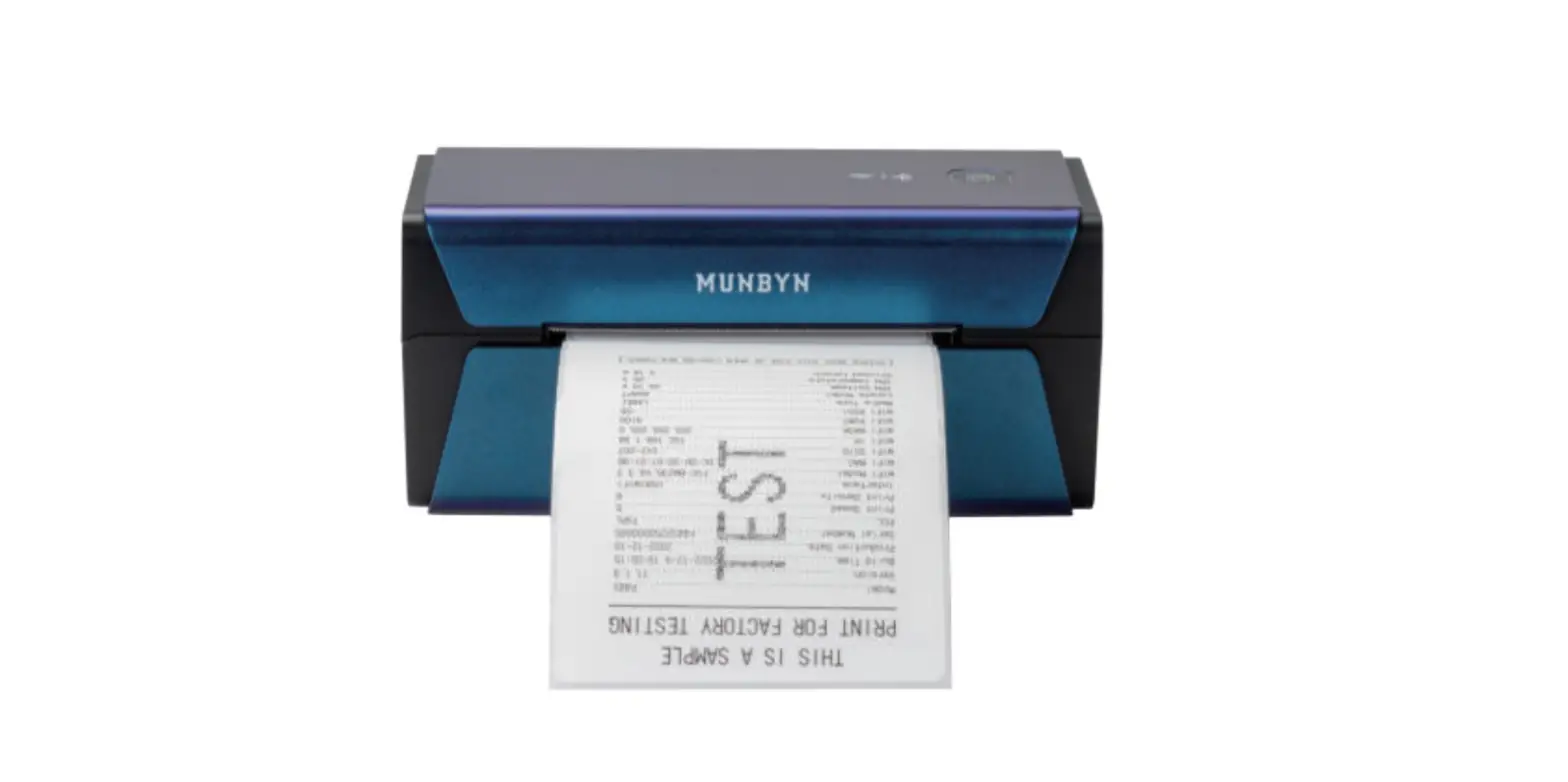
HM-T260L Portable Label Printer
Product Information
The product is a printer with a Type-C charging port and a reset
hole. It comes with various components including a tear bar, power
button, indicator light, and paper loading mechanism. The printer
is equipped with different indicator statuses to indicate its
operational state, such as abnormal light state and basic light
state. It supports Bluetooth connectivity and can be controlled
through a mobile app. The printer can be charged using a USB Type-C
to Type-A cable and a power adapter.
Product Usage Instructions
Turning On/Off
To turn on the printer, long press the power button for 3
seconds. To turn it off, long press the power button for 3 seconds
again.
Paper Loading
- Use both hands to pry the cover apart on both sides.
- Install the paper roll with the thermal side facing
outward. - Move the paddle switch up and adjust the paper limiter
according to the width of the paper roll. Press down the paddle
switch to lock the paper limiter. - Pull out a small piece of paper and close the lid.
App Download and Printing
To connect the printer to a mobile device, follow these
steps:
- Scan the QR code provided in the manual to download the app
(HerePrintAPP or HereLabelAPP). - Open the Hancode app and click on “My – Connect Device”.
- Check the list of Bluetooth devices and find “HM-T260L-XXXX”.
Click to connect. - Create a new label by clicking on “New – New Label”. Set the
label width and height based on the actual size of the label
paper. - Edit the labels as needed, click “Next” after editing, and then
print.
Battery Charging
When the battery level is low, the indicator light will flash
(white, flashing once per second). To charge the printer, use a USB
Type-C to Type-A cable and connect it to a power adapter (not
included) with an output not higher than 5V/1A. It is recommended
to charge in a timely manner to prevent automatic shutdown during
printing. Ensure that the power adapter used for charging has
obtained CCC certification and meets the standard requirements.
Note: The printer can be charged either through
a power adapter or a computer USB port.
Customer Service
If you require warranty, after-sales, or technical support, you
can reach out to the online WeChat customer service.
FCC Warning
This device complies with part 15 of the FCC Rules. It may not
cause harmful interference and must accept any interference
received, including interference that may cause undesired
operation. Any unauthorized changes or modifications could void the
user’s authority to operate the equipment.
Note: The equipment has been tested and found
to comply with the limits for a Class B digital device according to
Part 15 of the FCC Rules. It is designed to provide reasonable
protection against harmful interference in a residential
installation. Improper installation or use may cause harmful
interference to radio communications.
Product Introduction
Appearance and Components
Type-C Charging Port Reset Hole
Packing List
Quick Start Guide
Printer
The actual content inside the box shall be based on the actual object.
Tear Bar
Power Button Indicator Light
Product Introduction
Indicator Status
White Abnormal Light State
Constant brightness: abnormal (paper shortage/cover opening/TPH overheating) Slow flashing: low battery
White Basic State Light
On/Off
Flash: Firmware upgrade in progress Slow flashing: charging Always on: Printer ready/Bluetooth connected
successfully/Bluetooth disconnected /Bluetooth lost
Long press the power button for 3 seconds to turn it on/off.
Paper Loading Instruction
01 Use both hands to pry the cover apart on both sides.
02 As shown in the following figure, install the paper roll with the thermal side facing outward. 5IFSNPTFOTJUJWF-BZFS
Paper Loading Instruction
03
Move the paddle switch up and adjust the paper limiter according to the width of the paper roll. After adjustment, press down the paddle switch and lock the paper limiter.
04 Pull out a small piece of paper and close the lid.
APP Download
Scan QR code to download the app:
Connect Printing
“HerePrint”APP “HereLabel”APP
Open the Hancode app and click on “My” – “Connect Device”. Check the list of “Bluetooth devices”, find “HM-T260L-XXXX”, and click to connect.
Click “New” – “New Label”. Set the label width and height based on the actual size of the label paper.
Edit the labels as needed, click “Next” after editing, and then print.
Battery charging
If you need to charge, please use a USB Type-C to Type-A cable and connect the power adapter (self provided, adapter output not higher than 5V/1A) to the printer for charging. When the battery level is low, the indicator light will flash (white, flashing once per second). Please charge in a timely manner. If you continue printing, the printer may automatically shut down. Charging through PC
Charging through power adapter
Note: You can use a power adapter or computer USB for power supply, and the adapter is not included when shipping. If consumers use a power adapter for charging, they should purchase and use a power adapter that has obtained CCC certification and meets the standard requirements.
Online WeChat Customer Service (Warranty/After Sales/Technical Support)
FCC WARNING
This device complies with part 15 of the FCC Rules. Operation is subject to the following two conditions: (1) this device may not cause harmful interference, and (2) this device must accept any interference received, including interference that may cause undesired operation.
Any changes or modifications not expressly approved by the party responsible for compliance could void the user’s authority to operate the equipment.
NOTE: This equipment has been tested and found to comply with the limits for a Class B digital device, pursuant to Part 15 of the FCC Rules. These limits are designed to provide reasonable protection against harmful interference in a residential installation. This equipment generates, uses and can radiate radio frequency energy and, if not installed and used in accordance with the instructions, may cause harmful interference to radio communications.
However, there is no guarantee that interference will not occur in a particular installation. If this equipment does cause harmful interference to radio or television reception, which can be determined by turning the equipment off and on, the user is encouraged to try to correct the interference by one or more of the following measures:
— Reorient or relocate the receiving antenna. — Increase the separation between the equipment and receiver. — Connect the equipment into an outlet on a circuit different from that to
which the receiver is connected. — Consult the dealer or an experienced radio/TV technician for help. To
maintain compliance with FCC’s RF Exposure guidelines, This equipment should be installed and operated with minimum distance between 20cm the radiator your body: Use only the supplied antenna.
HM-T260L