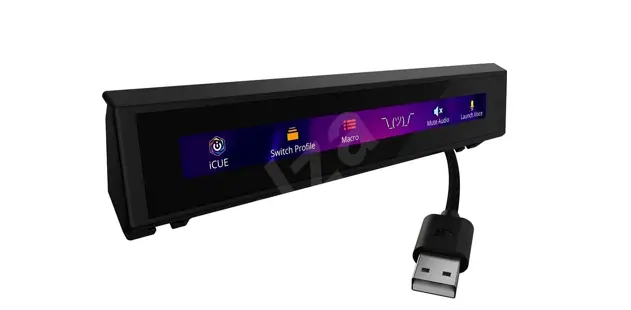
iCUE NEXUS Companion Touch Screen
Product Information
The iCUE NEXUS is a companion touch screen that can be connected
to a PC via USB. It can be used as a standalone device with the
included base or attached to a K70 RGB MK.2 or K95 RGB PLATINUM
series keyboard using the provided bracket. The touch screen allows
for custom graphics and functions.
Hardware Setup
Standalone Base
- Connect the USB to the base.
- Insert the iCUE NEXUS into the base.
- Connect the base USB to the PC.
Keyboard Bracket
- Locate the bracket that matches the keyboard’s rear center
panel. - Peel off the protective film.
- Attach the bracket to the keyboard.
- Slide the iCUE NEXUS onto the bracket.
- Connect the USB to the keyboard.
Software Setup
The iCUE NEXUS supports designing custom screens with graphics
and functions. Swipe left and right on the touch screen to navigate
between screens. For advanced programming and product tutorials,
visit www.corsair.com/nexus-faq.
Getting to Know iCUE NEXUS

- A – iCUE NEXUS
- B – Touch Screen
- C – USB Connector
- D – Standalone Base
- E – Base USB Passthrough
- F – Base USB Connector
- G – Keyboard Mounting Brackets (x3)
- H – Bracket Removal Tool
Contact Information:
- Website: corsair.com
- Phone: (888) 222-4346
- Support: support.corsair.com
- Blog: corsair.com/blog
- Forum: forum.corsair.com
- YouTube: youtube.com/corsairhowto
Información del producto
El iCUE NEXUS es una pantalla táctil compañera que se puede
conectar a una PC mediante USB. Se puede usar como dispositivo
independiente con la base incluida o adjuntarlo a un teclado de la
serie K70 RGB MK.2 o K95 RGB PLATINUM utilizando el soporte
proporcionado. La pantalla táctil permite gráficos y funciones
personalizados.
Configuración de hardware
Base independiente
- Conecte el USB a la base.
- Inserte el dispositivo iCUE NEXUS en la base.
- Conecte el USB de la base a la PC.
Soporte del teclado
- Identifique el panel central posterior que corresponda al
teclado. - Retire el film protector.
- Coloque el soporte en el teclado.
- Deslice el iCUE NEXUS sobre el soporte.
- Conecte el USB al teclado.
Configuración de software
El iCUE NEXUS admite el diseño de pantallas personalizadas con
gráficos y funciones. Deslice el dedo hacia la izquierda y hacia la
derecha en la pantalla táctil para navegar entre las pantallas.
Para programación avanzada y tutoriales del producto, visite
www.corsair.com/nexus-faq.
Conozca iCUE NEXUS
- A – iCUE NEXUS
- B – Pantalla táctil
- C – Conector USB
- D – Base independiente
- E – Passthrough USB de la base
- F – Conector USB de la base
- G – Soportes de montaje para el teclado (x3)
- H – Herramienta de extracción del soporte
Información de contacto:
- Sitio web: corsair.com
- Teléfono: (888) 222-4346
- Soporte: support.corsair.com
- Blog: corsair.com/blog
- Foro: forum.corsair.com
- YouTube: youtube.com/corsairhowto
Informações do produto
O iCUE NEXUS é uma tela de toque companheira que pode ser
conectada a um PC via USB. Ele pode ser usado como um dispositivo
independente com a base incluída ou anexado a um teclado da série
K70 RGB MK.2 ou K95 RGB PLATINUM usando o suporte fornecido. A tela
de toque permite gráficos e funções personalizados.
Configuração de hardware
Base independente
- Conecte o USB à base.
- Insira o iCUE NEXUS na base.
- Conecte o USB da base ao PC.
Suporte do teclado
- Localize o suporte correspondente ao painel central traseiro do
teclado. - Remova o filme protetor.
- Prenda o suporte ao teclado.
- Deslize o iCUE NEXUS no suporte.
- Conecte o USB ao teclado.
Configuração de software
O iCUE NEXUS suporta a criação de telas personalizadas com
gráficos e funções. Deslize para a esquerda e para a direita na
tela de toque para navegar entre as telas. Para programação
avançada e tutoriais do produto, visite www.corsair.com/nexus-faq.
Conheça o iCUE NEXUS
- A – iCUE NEXUS
- B – Tela de toque
- C – Conector USB
- D – Base independente
- E – Passthrough USB da base
- F – Conector USB da base
- G – Suportes de montagem do teclado (x3)
- H – Ferramenta de remoção do suporte
Informações de contato:
- Website: corsair.com
- Telefone: (888) 222-4346
- Suporte: support.corsair.com
- Blog: corsair.com/blog
- Fórum: forum.corsair.com
- YouTube: youtube.com/corsairhowto
iCUE NEXUS
Companion Touch Screen
HARDWARE SETUP
iCUE NEXUS connects to PC USB via the standalone base or when attached to a K70 RGB MK.2 or K95 RGB PLATINUM series keyboard via an included bracket.
STANDALONE BASE
1. Connect USB to base 2. Insert iCUE NEXUS 3. Connect base USB to PC
ENGLISH
3
1 2
KEYBOARD BRACKET 1
2
3 4
5
1. Locate bracket matching keyboard rear center panel
2. Peel off protective film
3. Attach bracket to keyboard 4. Slide iCUE NEXUS onto bracket 5. Connect USB to keyboard
IMPORTANT: If attached to a keyboard, allow 24 hours for the adhesive tape on the bracket to set before using the touch screen. To remove the bracket later, turn over the keyboard and insert the included removal tool (H) into the gap between the bracket and the keyboard from the bottom side, and then gently press down to lift the bracket until it begins to detach. Hold the partially detached portion while continuing to lift different areas of the bracket until it is fully released from the keyboard. Additional brackets are available at www.corsair.com.
SOFTWARE SETUP
iCUE NEXUS requires the iCUE software. Download iCUE from www.corsair.com/downloads and install on your Windows® PC. > Launch iCUE, click the iCUE NEXUS device tile, and then go to the Screens tab to begin
designing your own screens with custom graphics and functions. > Swipe left and right on the touch screen to quickly navigate between screens.
NOTE: For more information on advanced programming and product tutorials, visit www.corsair.com/nexus-faq.
GETTING TO KNOW iCUE NEXUS
A
D
ENGLISH
B
E
F C
G
H
A — iCUE NEXUS B — TOUCH SCREEN C — USB CONNECTOR D — STANDALONE BASE
E — BASE USB PASSTHROUGH F — BASE USB CONNECTOR G — KEYBOARD MOUNTING BRACKETS x 3 H — BRACKET REMOVAL TOOL
FRANÇAIS
INSTALLATION MATÉRIELLE
L’iCUE NEXUS se connecte à votre ordinateur PC via la base autonome ou lorsque fixé à un clavier de la gamme CORSAIR K70 RGB MK.2 ou K95 RGB PLATINUM à l’aide du support fourni.
BASE AUTONOME
1. Brancher le connecteur USB sur la base
2. Insérer l’iCUE NEXUS
3. Brancher le connecteur USB de la base sur l’ordinateur PC
3
1 2
SUPPORT POUR CLAVIER 1
2
3 4
5
1. Repérer le panneau arrière central du clavier correspondant au support
2. Retirer le film protecteur
3. Fixer le support au clavier 4. Glisser l’iCUE NEXUS sur le support 5. Brancher le connecteur USB sur le clavier
IMPORTANT: Si l’appareil est fixé à un clavier, attendez 24 heures pour que le ruban adhésif du support durcisse avant d’utiliser l’écran tactile. Pour retirer ultérieurement le support, retournez le clavier et insérez l’outil de démontage (H) fourni dans l’espace entre le support et le clavier à partir du bas, puis appuyez doucement vers le bas pour lever le support jusqu’à ce qu’il commence à se détacher. Tenez la partie partiellement détachée tout en continuant à lever différentes parties du support jusqu’à ce qu’il soit entièrement dégagé du clavier. Des supports supplémentaires sont disponibles à l’adresse www.corsair.com.
FRANÇAIS
INSTALLATION LOGICIELLE
L’iCUE NEXUS requiert le logiciel iCUE. Téléchargez le logiciel iCUE sur le site www.corsair.com/downloads et installez-le sur votre ordinateur PC fonctionnant sous Windows®. > Lancez le logiciel iCUE, cliquez sur la vignette du périphérique iCUE NEXUS, et allez
dans l’onglet Écrans pour commencer à concevoir vos propres écrans avec des fonctions et des graphiques personnalisés. > Balayez vers la gauche et la droite sur l’écran tactile pour naviguer rapidement entre les écrans.
REMARQUE: Pour plus d’informations sur la programmation avancée et pour des tutoriels sur le produit, visitez le www.corsair.com/nexus-faq.
PRÉSENTATION DE L’iCUE NEXUS
A
D
B
E
F C
G
H
A — iCUE NEXUS B — ÉCRAN TACTILE C — CONNECTEUR USB D — BASE AUTONOME E — PASSE-CÂBLE USB DE LA BASE
F — CONNECTEUR USB DE LA BASE
G — SUPPORTS DE FIXATION POUR CLAVIER x 3
H — OUTIL DE DÉMONTAGE DU SUPPORT
iCUE NEXUS
WEB: corsair.com PHONE: (888) 222-4346 SUPPORT: support.corsair.com
BLOG: corsair.com/blog FORUM: forum.corsair.com YOUTUBE: youtube.com/corsairhowto
© 2020 CORSAIR MEMORY Inc. All rights reserved. CORSAIR and the sails logo are registered trademarks in the United States and/or other countries. All other trademarks are the property of their respective owners. Product may vary slightly from those pictured. 49-002031 AB
ESPAÑOL
CONFIGURACIÓN DEL HARDWARE
iCUE NEXUS se conecta al puerto USB de la PC a través de la base independiente o, cuando se conecta a un teclado K70 RGB MK.2 o K95 RGB PLATINUM, a través de un soporte incluido.
BASE INDEPENDIENTE
1. Conecte el USB a la base 2. Inserte el dispositivo iCUE NEXUS 3. Conecte el USB de la base a la PC
3 1 2
SOPORTE DEL TECLADO 1
2
3 4
5
1. Identifique el panel central posterior para conectar el soporte al teclado
2. Retire la película protectora
3. Conecte el soporte al teclado
4. Inserte el dispositivo iCUE NEXUS en el soporte deslizándolo
5. Conecte el USB al teclado
IMPORTANTE: Si lo conecta a un teclado, deje pasar 24 horas para que se fije la cinta adhesiva del soporte antes de usar la pantalla táctil. Para quitar el soporte, dé vuelta el teclado e inserte la herramienta de extracción incluida (H) en el espacio que se encuentra entre el soporte y el teclado desde la parte inferior. Luego, presione con suavidad para levantar el soporte hasta que se empiece a desprender. Sostenga la parte levemente desprendida y, a su vez, siga levantando diferentes partes del soporte hasta separarlo por completo del teclado. Hay soportes adicionales disponibles en www.corsair.com.
CONFIGURACIÓN DEL SOFTWARE
iCUE NEXUS requiere el software iCUE. Descargue el software iCUE en www.corsair.com/downloads y, luego, instálelo en su PC con Windows®. > Ejecute el software iCUE, haga clic en la ficha del dispositivo iCUE NEXUS y,
luego, vaya a la pestaña Pantallas para diseñar sus propias pantallas con gráficos y funciones personalizados. > Deslice el dedo hacia la izquierda y la derecha en la pantalla táctil para navegar rápidamente de una pantalla a otra.
NOTA: Para obtener más información sobre programación avanzada e instructivos del producto, visite www.corsair.com/nexus-faq.
CONOZCA iCUE NEXUS
A
D
ESPAÑOL
B
E
F C
G
A — iCUE NEXUS B — PANTALLA TÁCTIL C — CONECTOR USB D — BASE INDEPENDIENTE E — CABLE DE EXTENSIÓN DEL
CONECTOR USB DE LA BASE
H
F — CONECTOR USB DE LA BASE G — SOPORTES DE MONTAJE PARA EL
TECLADO x 3 H — HERRAMIENTA DE EXTRACCIÓN
DEL SOPORTE
PORTUGUÊS
CONFIGURAÇÃO DE HARDWARE
O iCUE NEXUS se conecta com o PC pela base avulsa ou ao ser anexado ao teclado das séries K70 RGB MK.2 ou K95 RGB PLATINUM por meio de um suporte incluído.
BASE AVULSA
1. Conectar USB à base 2. Inserir iCUE NEXUS 3. Conectar base USB ao PC
3 1 2
SUPORTE DO TECLADO 1
2
3 4
5
1. Localize o suporte correspondente ao painel central traseiro do teclado
2. Retire o filme de proteção
3. Prenda o suporte ao teclado 4. Deslize o iCUE NEXUS no suporte 5. Conecte o USB ao teclado
IMPORTANTE: Depois de prendê-lo ao teclado, espere 24 horas para que a fita adesiva se fixe antes de usar a tela touchscreen. Para remover o suporte posteriormente, vire o teclado e insira a ferramenta de remoção incluída (H) no espaço entre o suporte e o teclado, no lado inferior, e depois pressione para baixo cuidadosamente para levantar o suporte até que ele se solte. Segure a parte parcialmente solta enquanto continua a levantar diferentes áreas do suporte até que ele se solte completamente do teclado. Suportes adicionais estão disponíveis em www.corsair.com
CONFIGURAÇÃO DO SOFTWARE
O iCUE NEXUS exige o software iCUE. Baixe o iCUE em www.corsair.com/downloads e o instale no seu PC Windows®. > Inicie o iCUE, clique no bloco do dispositivo iCUE NEXUS, depois vá até a guia Telas para
começar a projetar suas próprias telas com gráficos e funções personalizadas. > Deslize para a esquerda e direita na tela touchscreen para navegar rapidamente entre telas.
OBSERVAÇÃO: Para mais informações sobre programação avançada e tutoriais de produtos, visite www.corsair.com/nexus-faq.
CONHEÇA O iCUE NEXUS
A
D
PORTUGUÊS
B
E
F C
G
H
A — iCUE NEXUS B — TOUCH SCREEN C — CONECTOR USB D — BASE AVULSA E — PASSTHROUGH USB DA BASE
F — CONECTOR USB DA BASE
G — SUPORTES DE MONTAGEM DO TECLADO x 3
H — FERRAMENTA DE REMOÇÃO DO SUPORTE
Changes or modifications not expressly approved by the party responsible for compliance could void the user’s authority to operate the equipment.
This device complies with Part 15 of the FCC Rules. Operation is subject to the following two conditions: (1) This device may not cause harmful interference, and (2) this device must accept any interference received, including interference that may cause undesired operation. This equipment has been tested and found to comply with the limits for a Class B digital device, pursuant to Part 15 of the FCC Rules. These limits are designed to provide reasonable protection against harmful interference in a residential installation. This equipment generates, uses and can radiate radio frequency energy and, if not installed and used in accordance with the instructions, may cause harmful interference to radio communications. However, there is no guarantee that interference will not occur in a particular installation. If this equipment does cause harmful interference to radio or television reception, which can be determined by turning the equipment off and on, the user is encouraged to try to correct the interference by one of the following measures: – Reorient or relocate the receiving antenna. – Increase the separation between the equipment and receiver. – Connect the equipment into an outlet on a circuit different from that to which the receiver is connected. – Consult the dealer or an experienced radio/TV technician for help. This device must not be co-located or operating in conjunction with any other antenna or transmitter. Operation is subject to the following two conditions: (1) this device may not cause harmful interference, and (2) this device must accept any interference received, including interference that may cause undesired operation.
This Class B digital apparatus meets all requirements of the Canadian Interference-Causing Equipment Regulations. CAN ICES-3(B)/NMB-3(B)
Cet appareil numérique de la class B respecte toutes les exigences du Règlement sur le materiel brouilleur du Canada. CAN ICES-3(B)/NMB-3(B)
 PC Components | Gaming Gear | CORSAIR
 Home - Corsair Community
 PC Components | Gaming Gear | CORSAIR