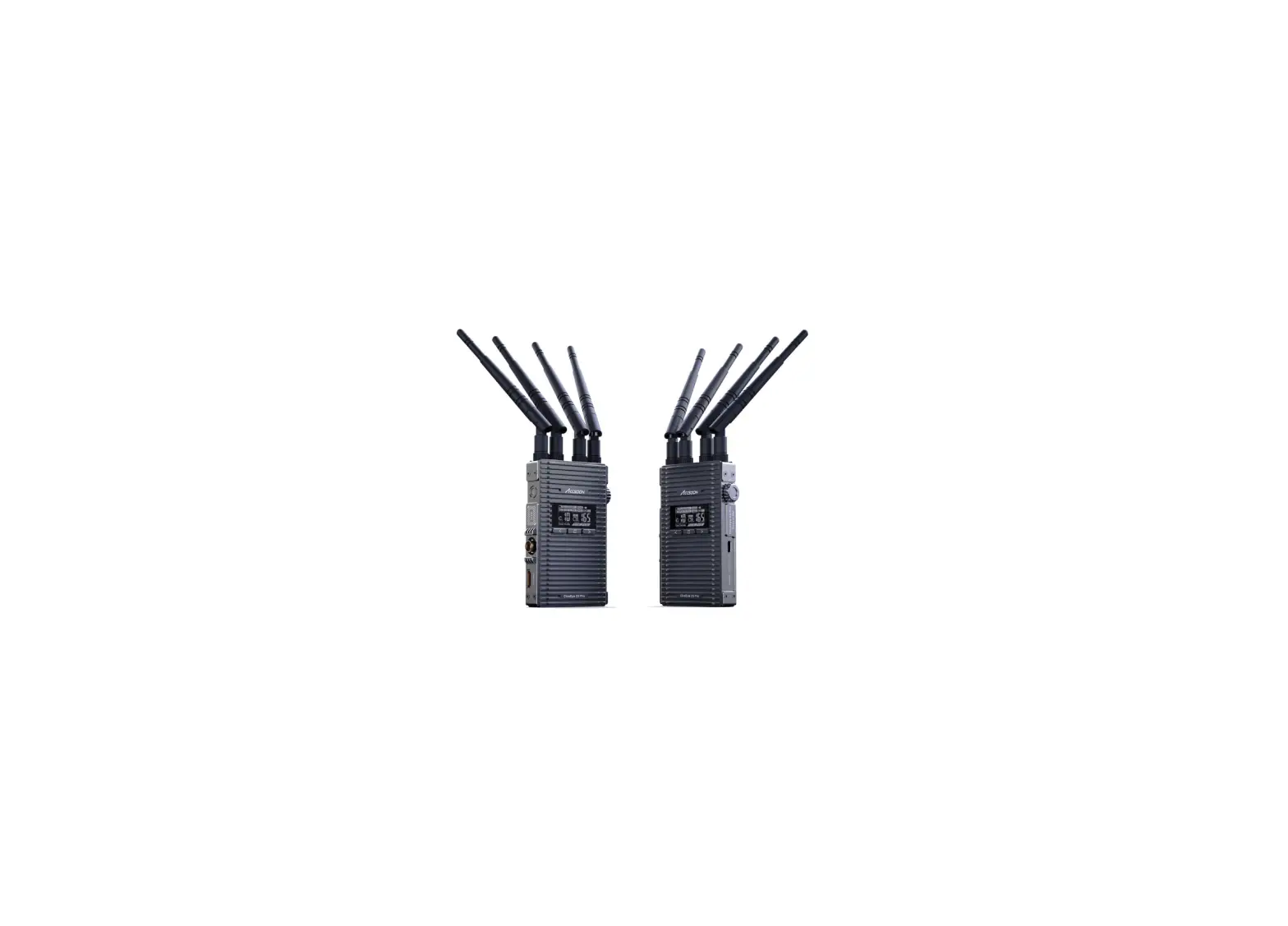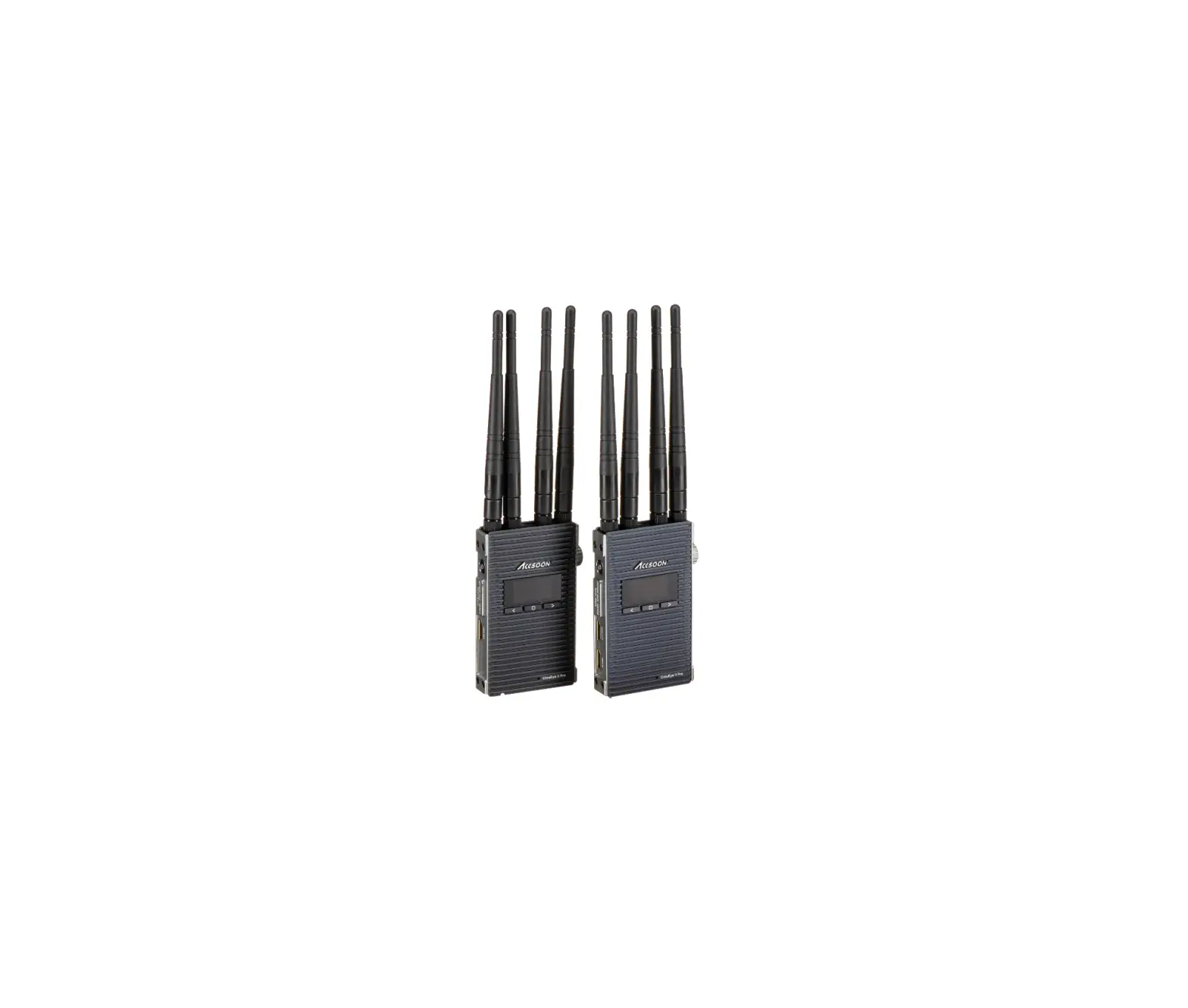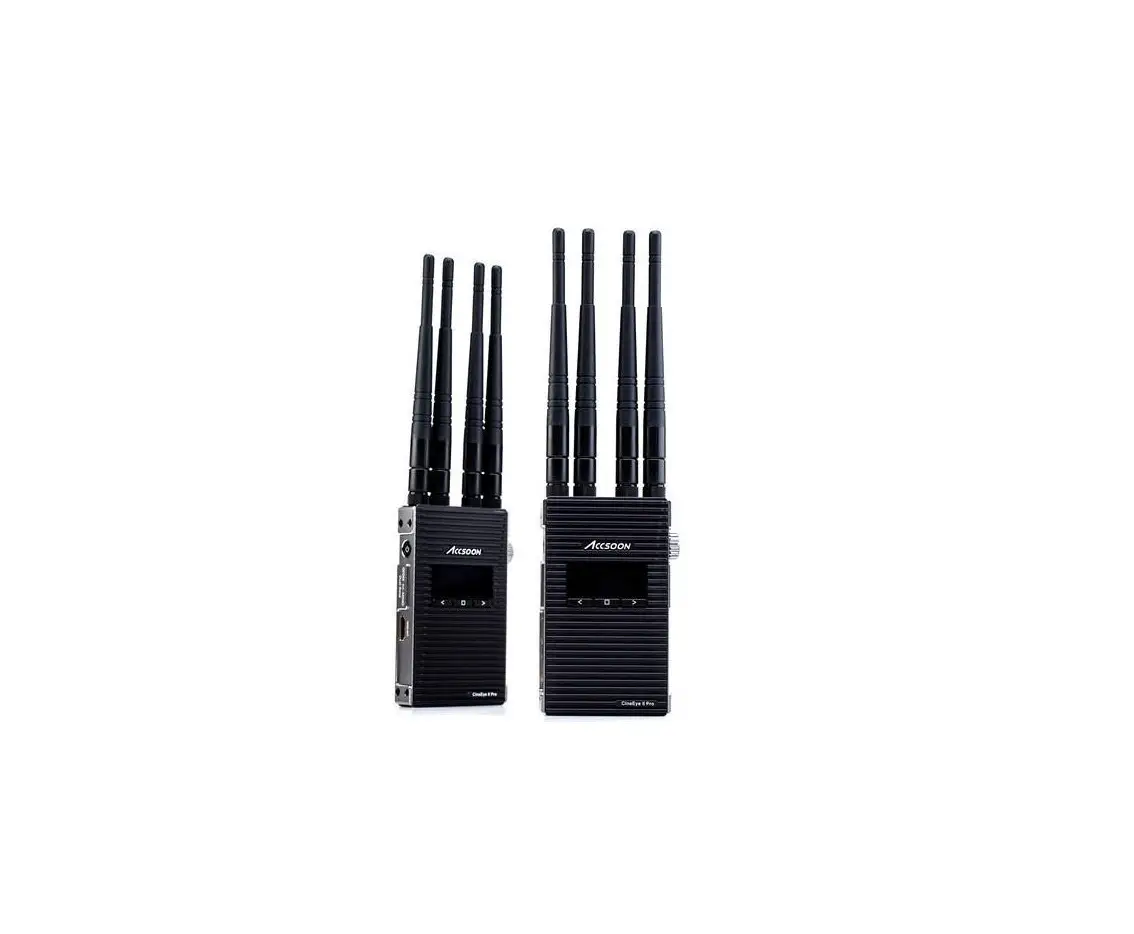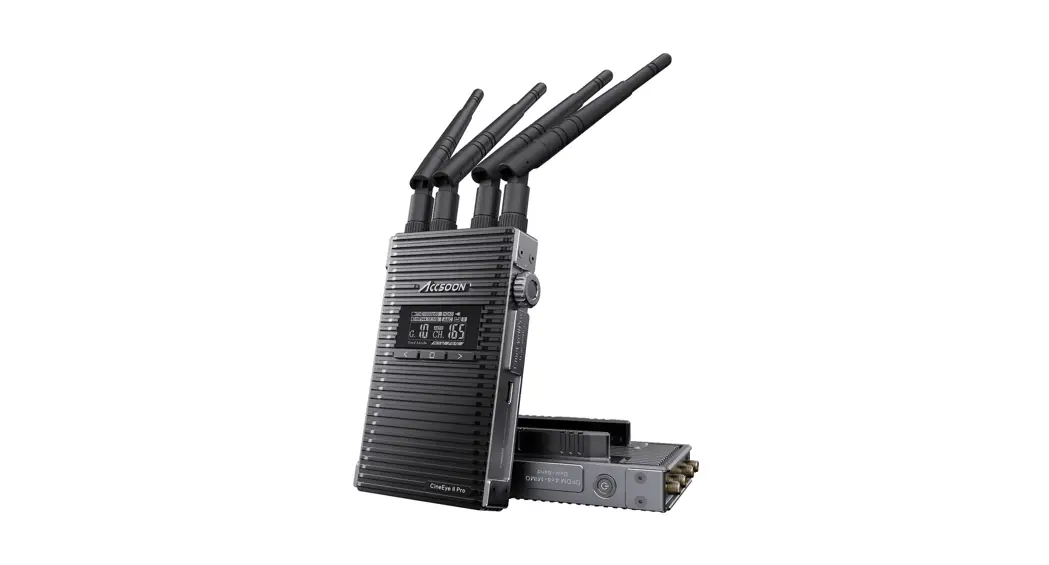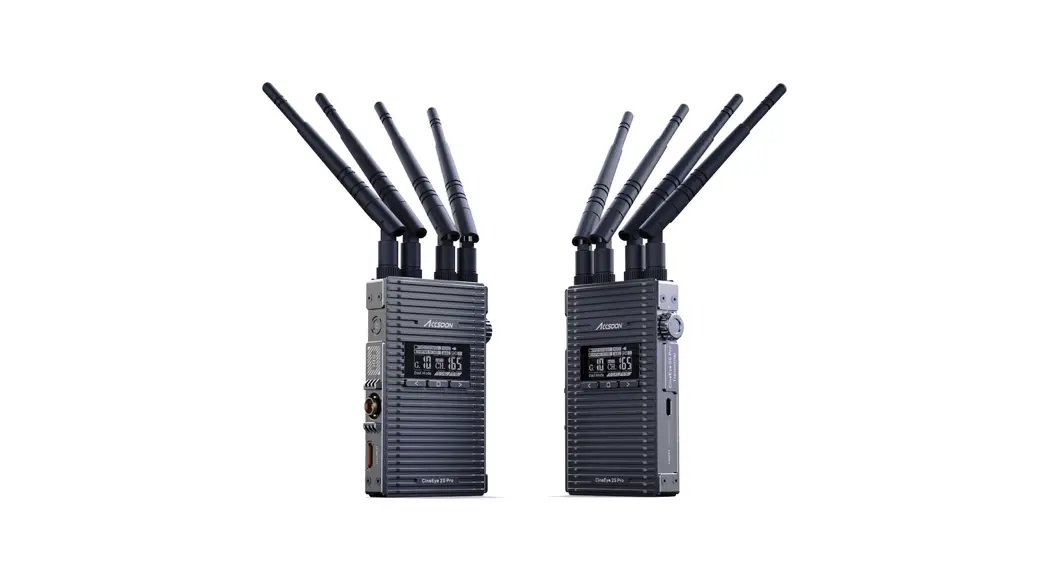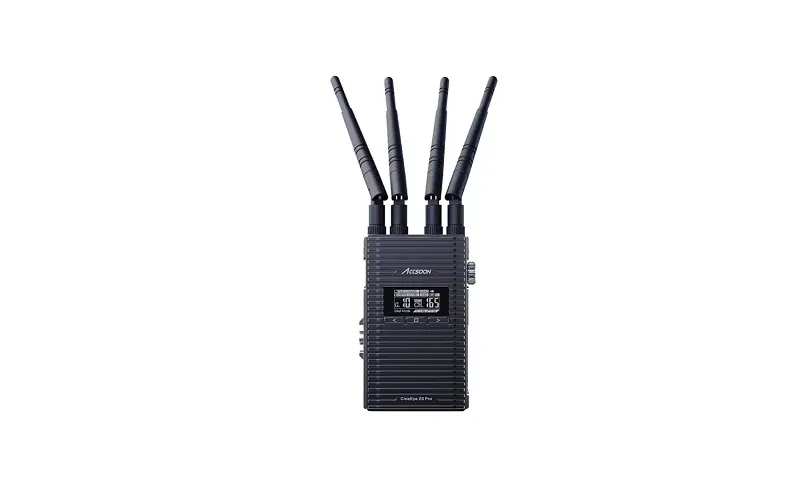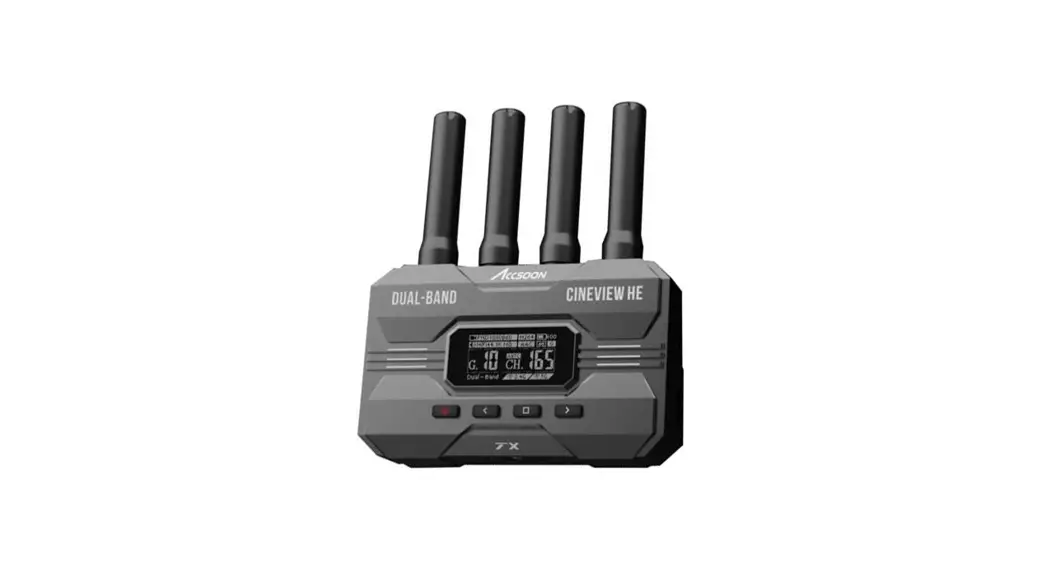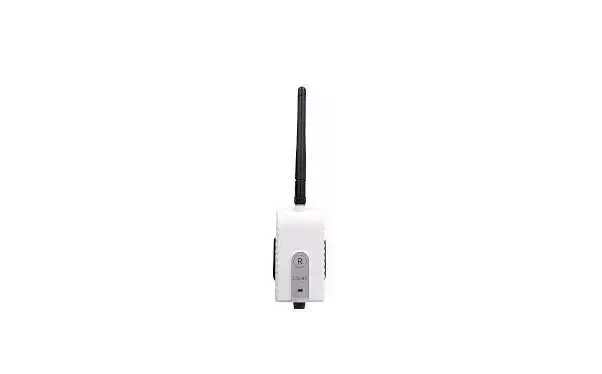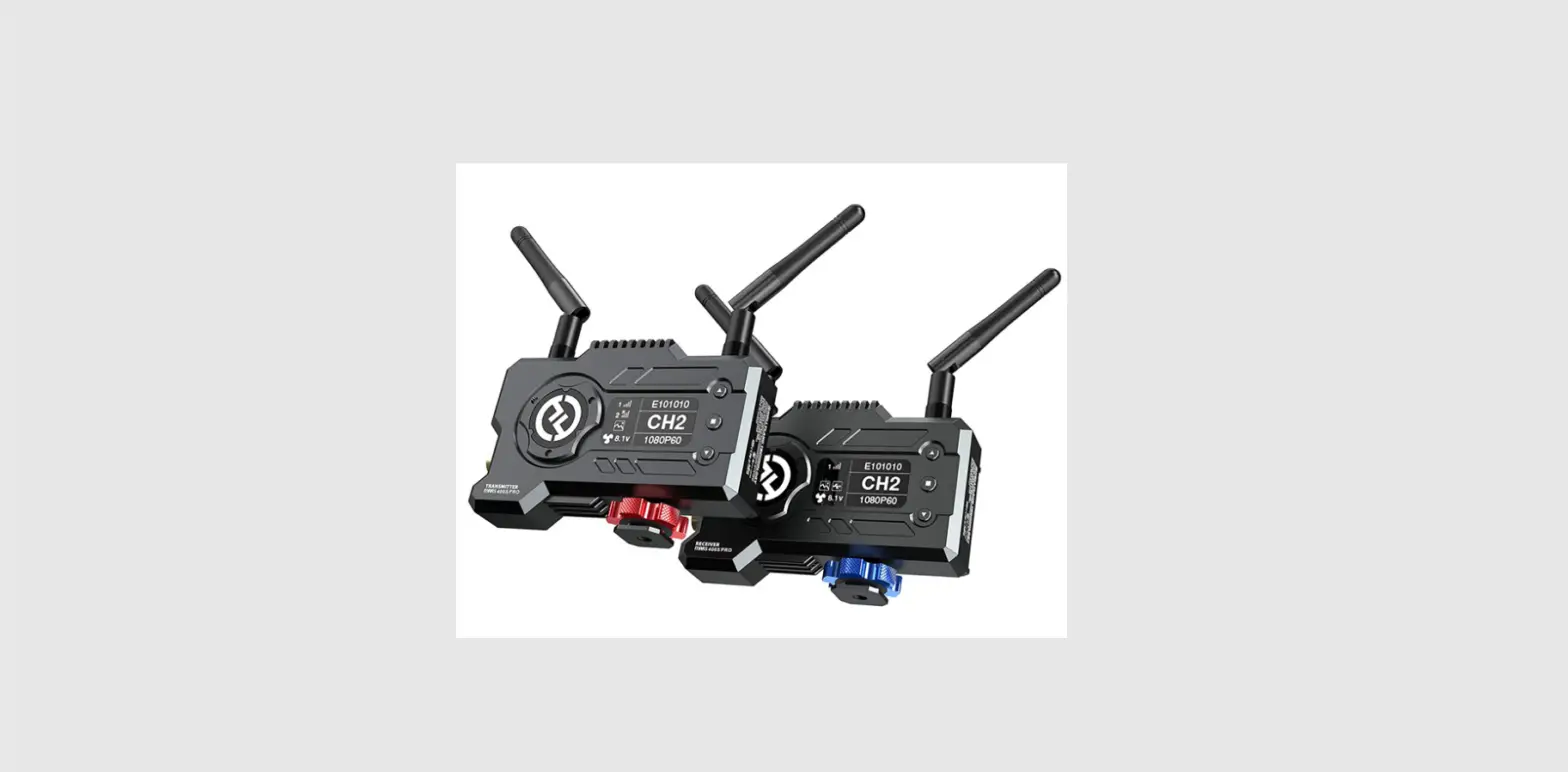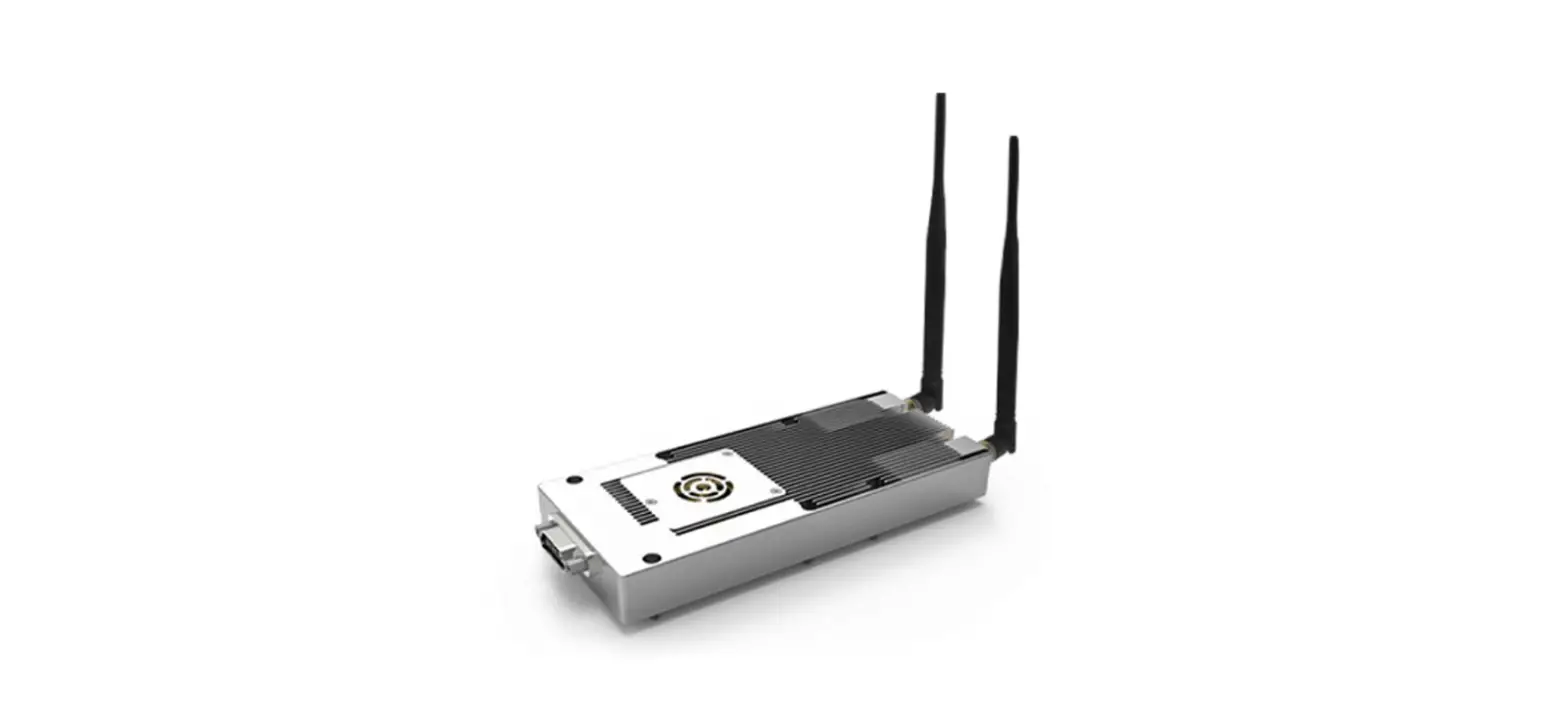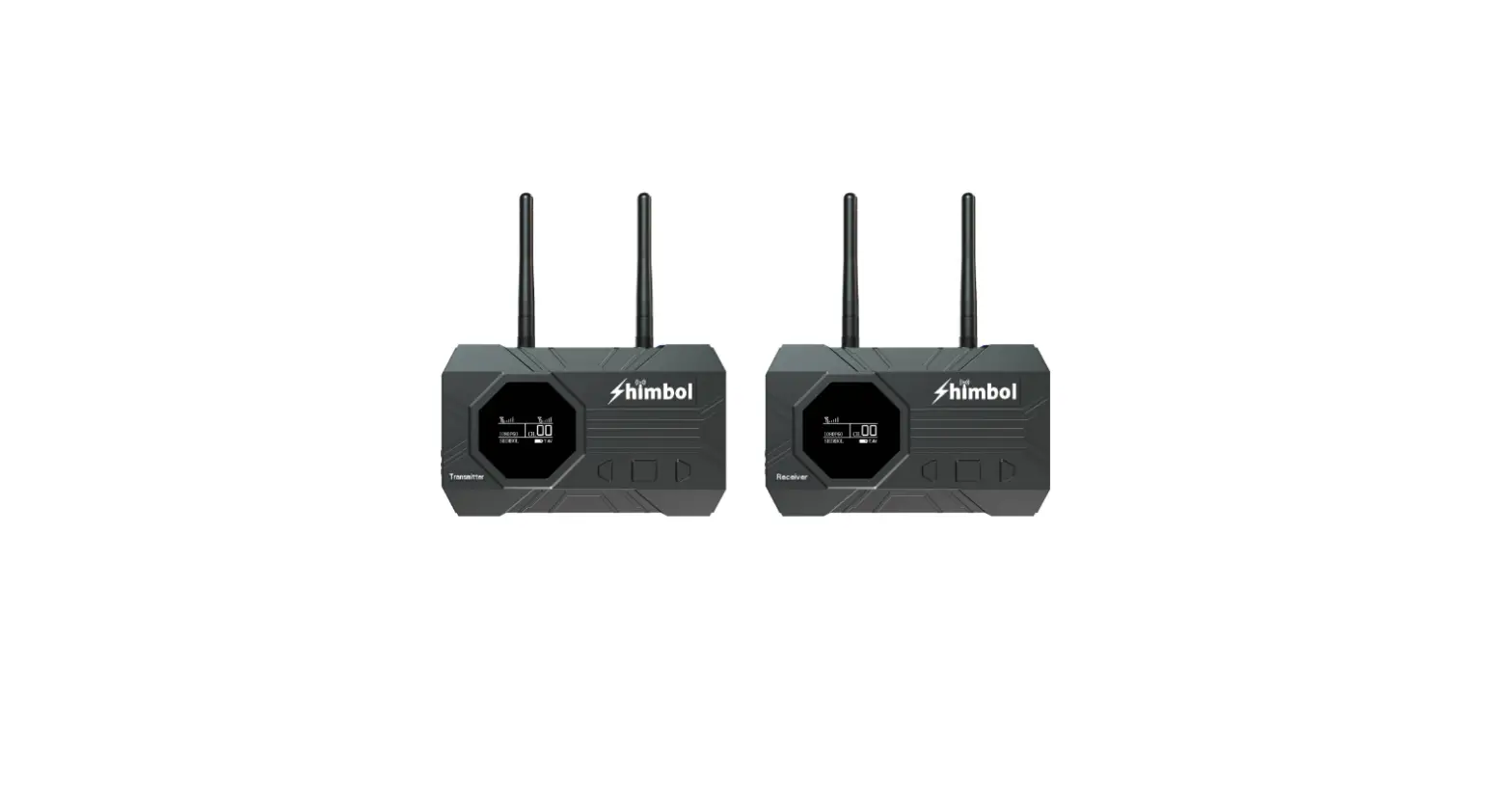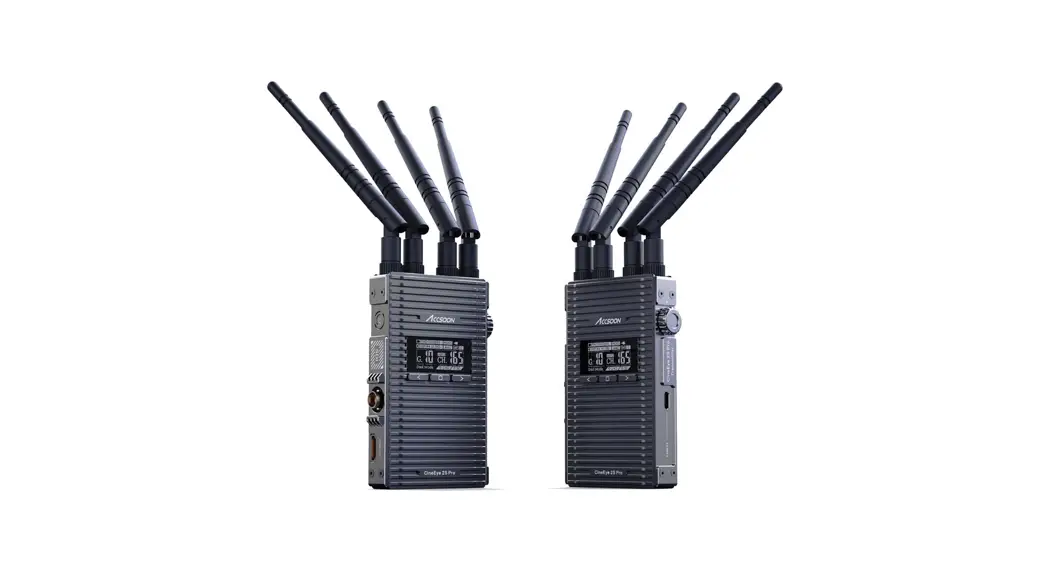
 CineEye 2S Pro
User Manual
v1.0
Product Features
- High-reliability dual-band (2.4G and 5G) transmission
- Transmission range of up to 1200 feet
- Very low latency (<0.06 seconds)
- SDI in and HDMI in
- High-quality audio transmission
- Supports transmission to up to 4 receivers
- Camera Control supported
- Professional monitoring App for iOS and Android
- 1.3 inch OLED display
- DC and battery power supply supported
- Firmware upgradable
In the Box
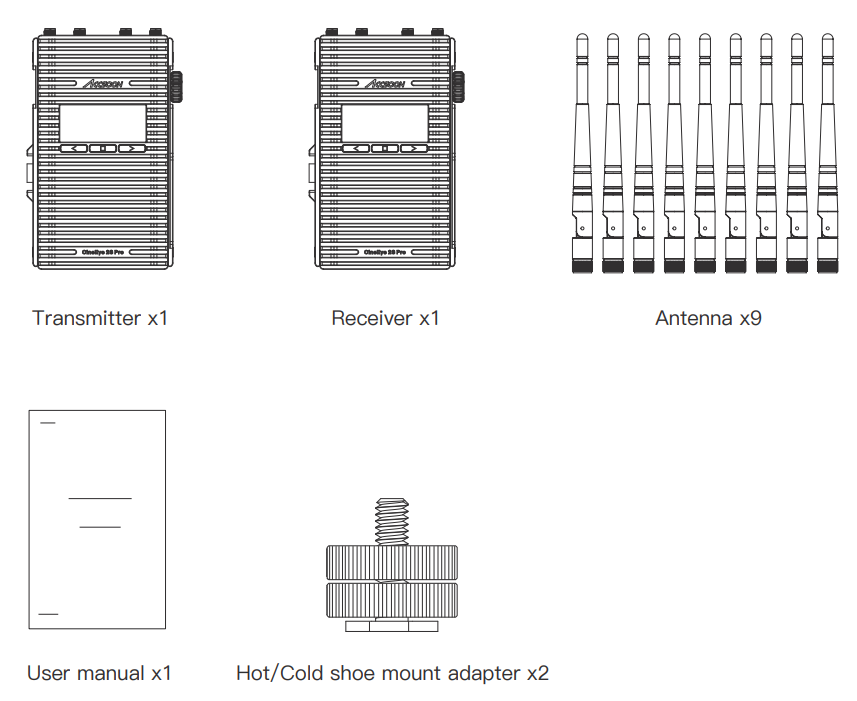
CineEye 2S Pro
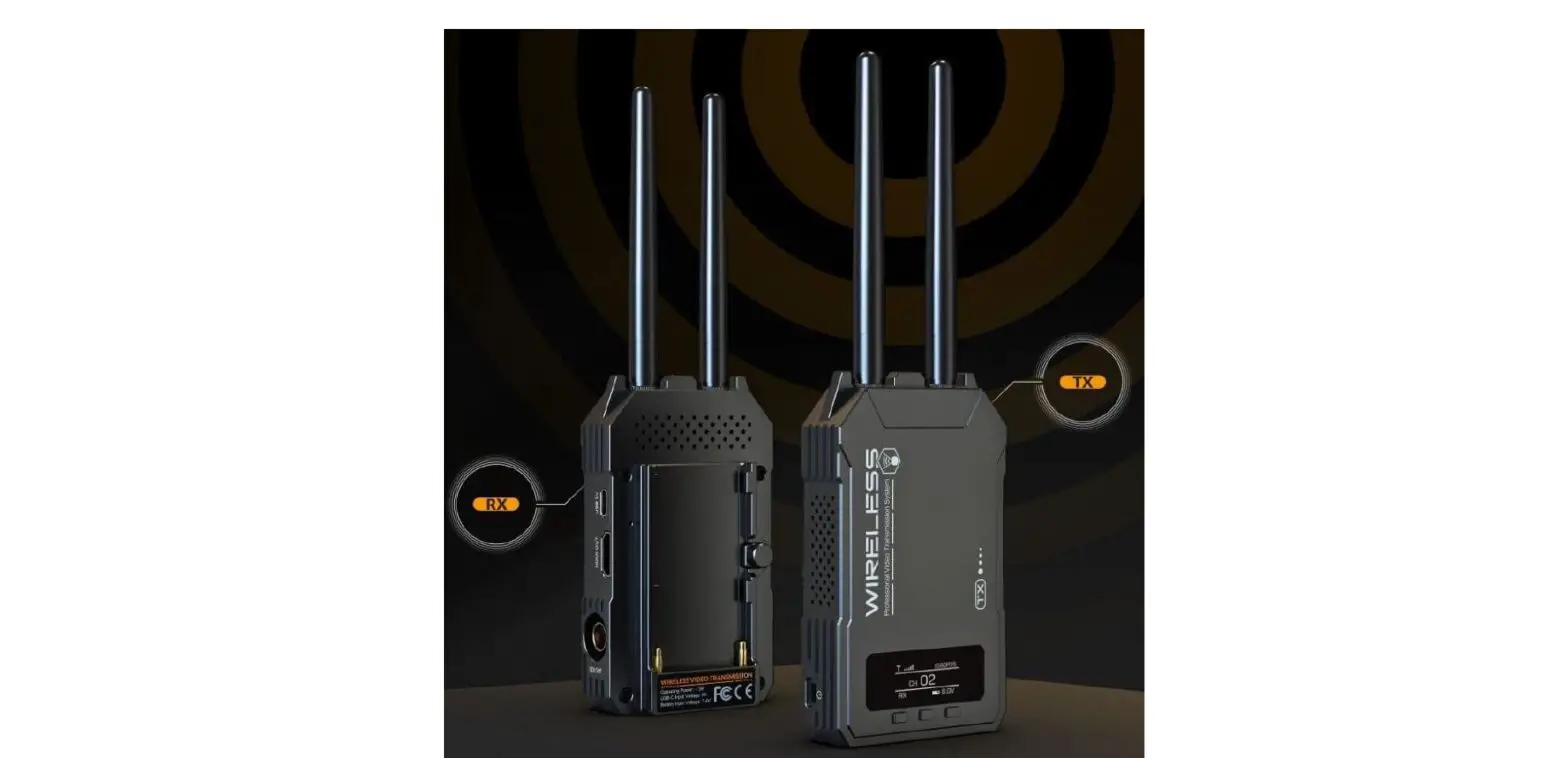
Transmitter
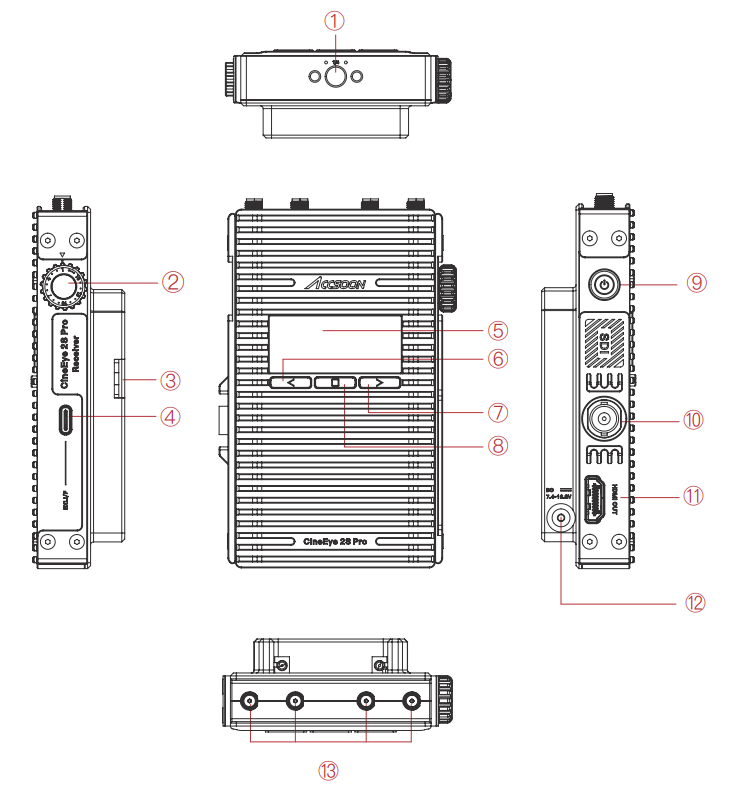
- 1/4 Screw
- Group Knob
- Battery Lock
- Camera Control Interface
- 1.3 inch OLED
- Left Key
- Right Key
- Menu/OK Key
- Power Button
- SDI In
- HDMI In
- DC Port
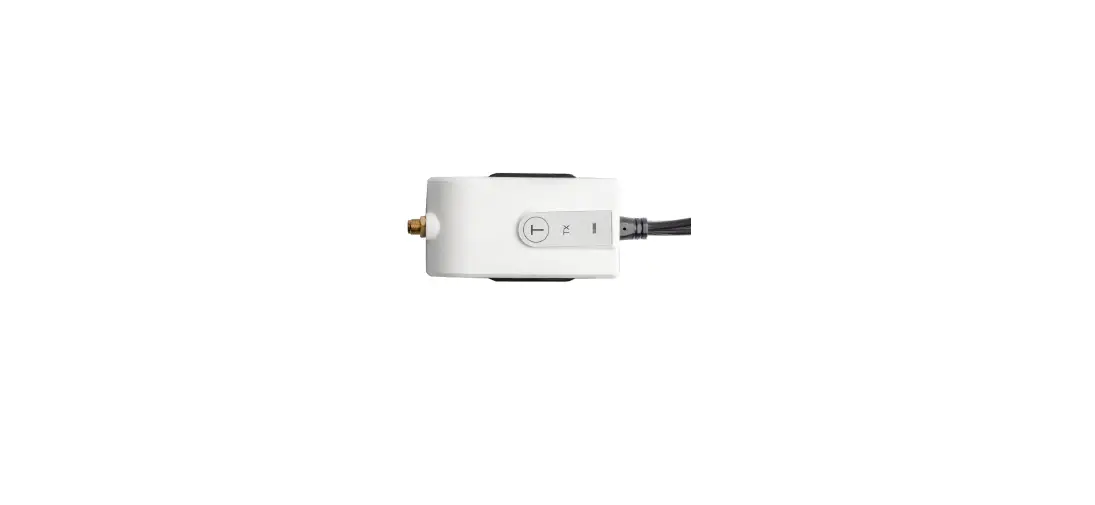
- Antenna Connector (RP-SMA Male)
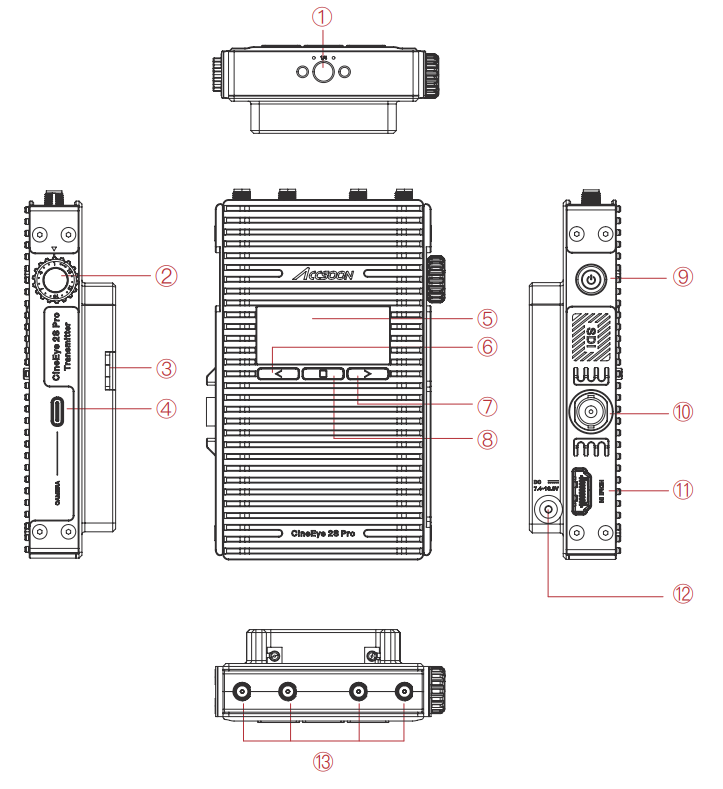
- 1/4 Screw
- Group Knob
- Battery Lock
- Camera Control Interface
- 1.3 inch OLED
- Left Key
- Right Key
- Menu/OK Key
- Power Button
- SDI Out
- HDMI Out
- DC Port
- Antenna Connector (RP-SMA Male)
Typical Application
Diagram1
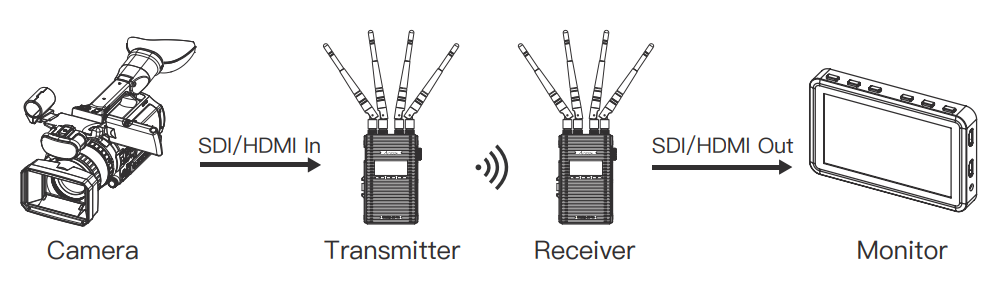
Diagram 2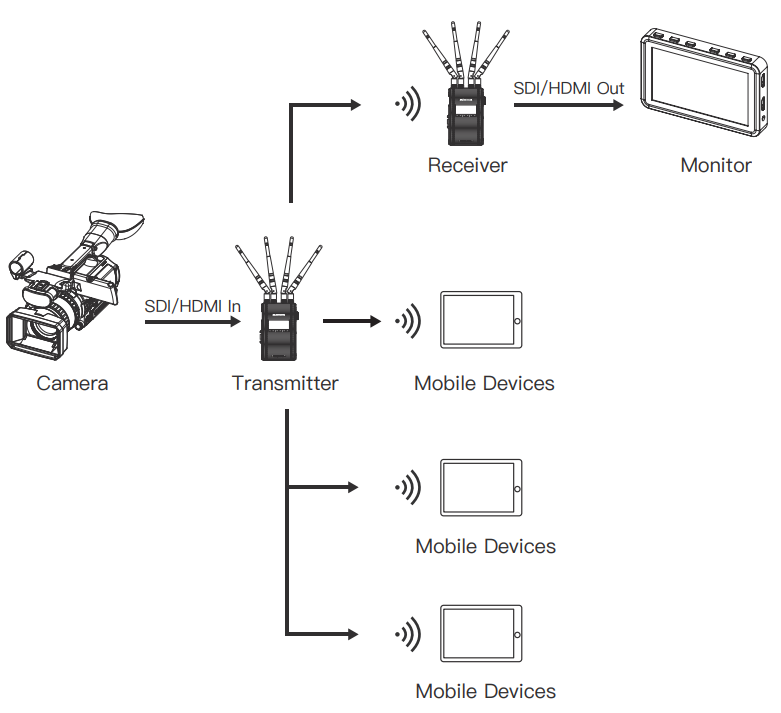
Diagram 3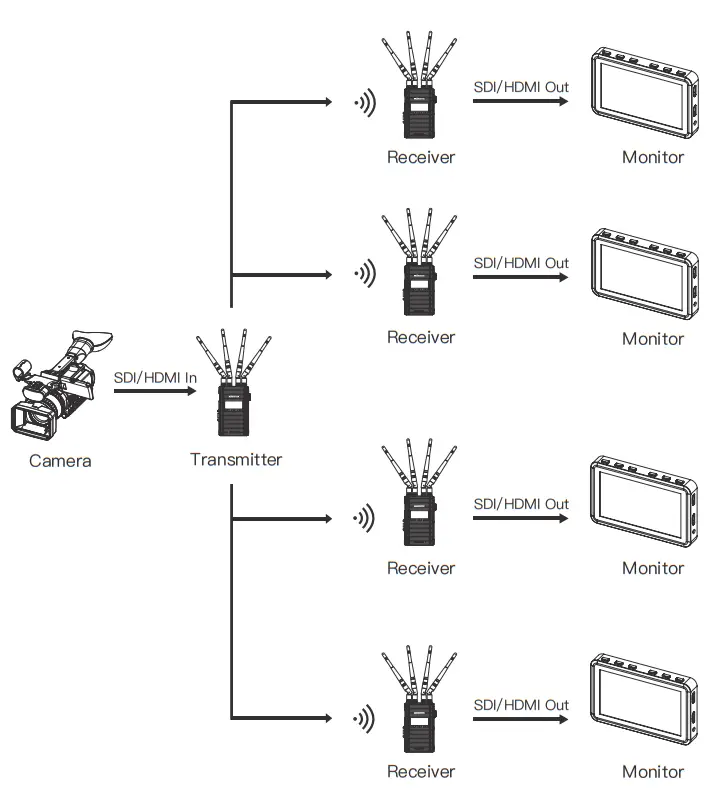
Operation Instructions
Install Instructions
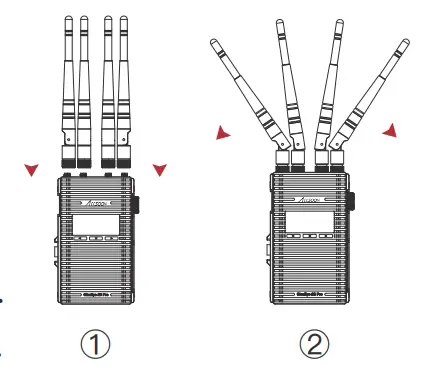
- Install the antennas as demonstrated.
- Use the hot/cold shoe mount adapter to install the CineEye 2S Pro onto the camera or camera cage.
- Use an NP-F970/F750/F550 battery or DC source to power the CineEye 2S Pro.
- Connect camera output via HDMI to transmitter HDMI input port.
- Connect the receiver to the monitor (monitor not included in this product).
Turn On/Off
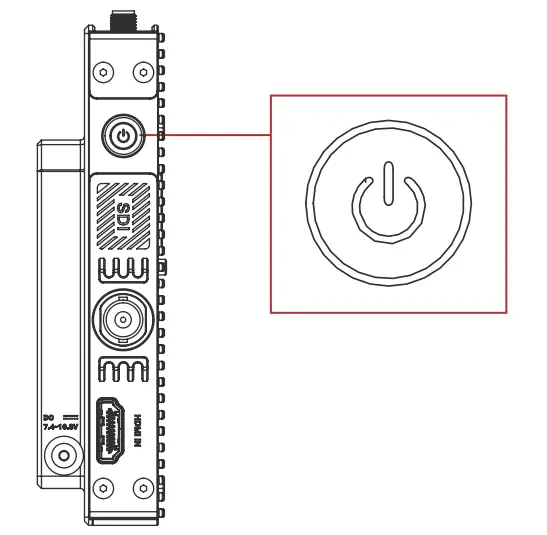
 Turn on – Hold the power button for 1 second
Turn off – Hold the power button for 3 seconds
Group Settings
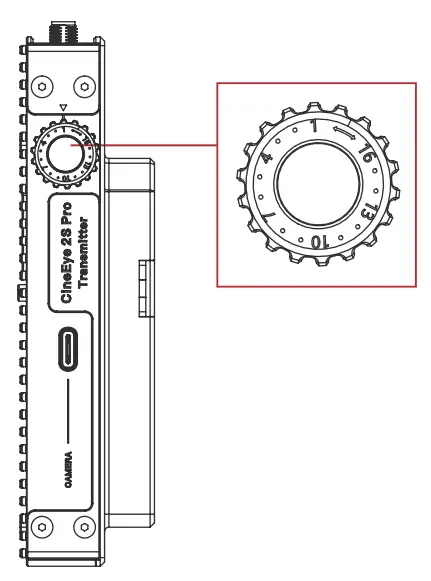
- CineEye 2S Pro uses a group knob to pair the transmitter and receiver, both the transmitter and the receiver have a group knob on the side. The transmitter and receiver will pair automatically if their group knobs are in the same position (group number is the same), otherwise they will not pair and cannot communicate.
- If users want to connect more than one receiver to the same transmitter, set all of the receiver’s group numbers to the same as the transmitter. Up to four receivers can be paired to the same transmitter.
- If multiple CineEye 2S Pro units are being used in the same area,each transmitter and receiver pairings needs to have a different group number.
Note: If the group setting has changed, please bring the transmitter and receiver in close range, or the pairing may fail. If group setting has changed after power on, the change will take effect after reboot.
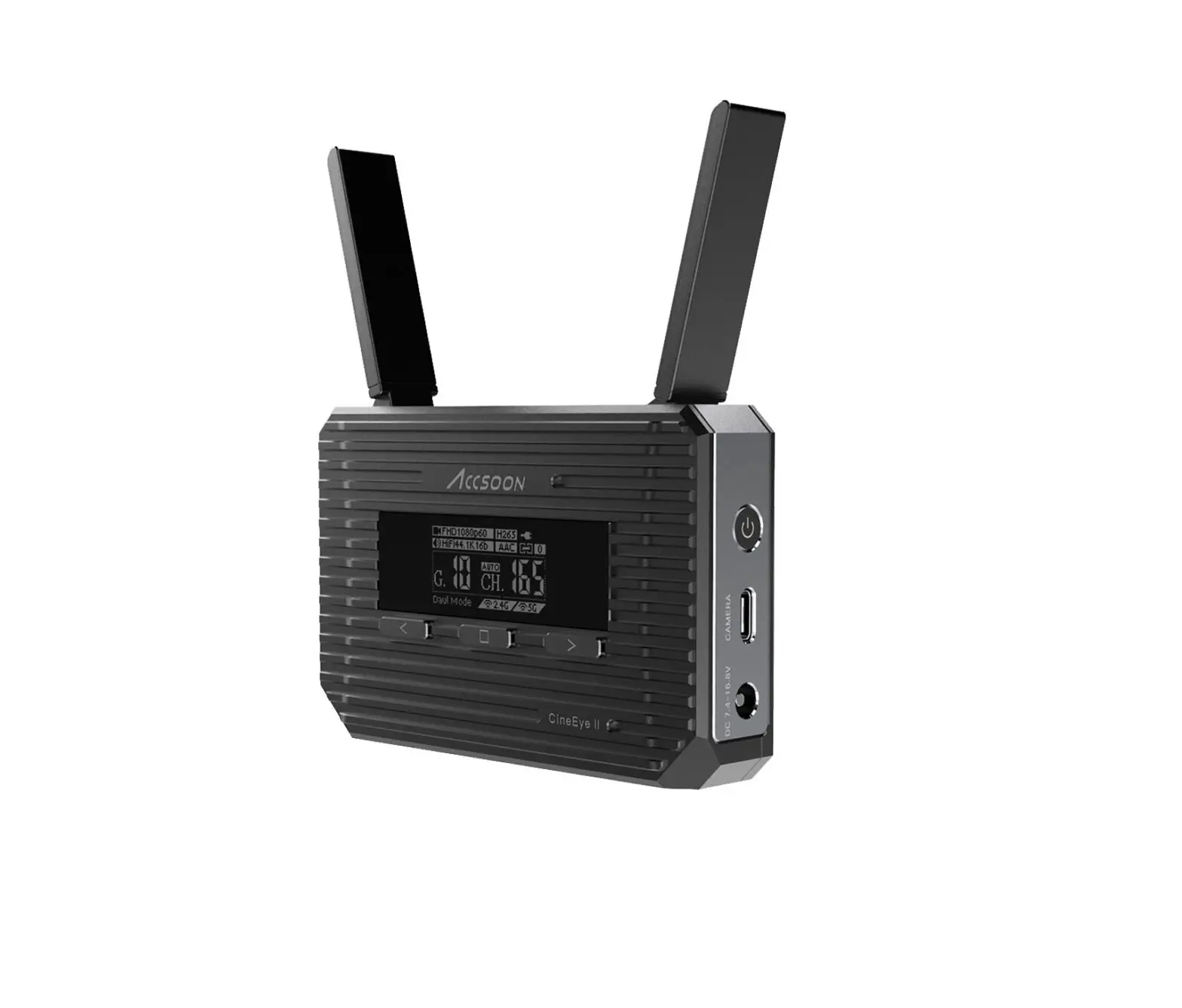
OLED Display
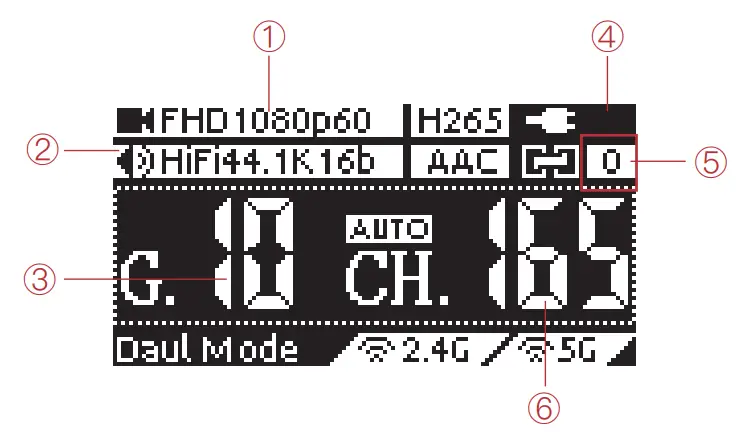
- Input video info
- Input audio info
- Current group setting
- Battery level/DC input
- Connection status
- Current 5G WiFi channel
Connection Status:
Transmitter: The connection status indicates how many devices are connected, if no devices are connected the unit will display “0”.
Receiver: The connection status will display “1” if the receiver is connected to a transmitter, or will display “0”.
Data Rate Setting
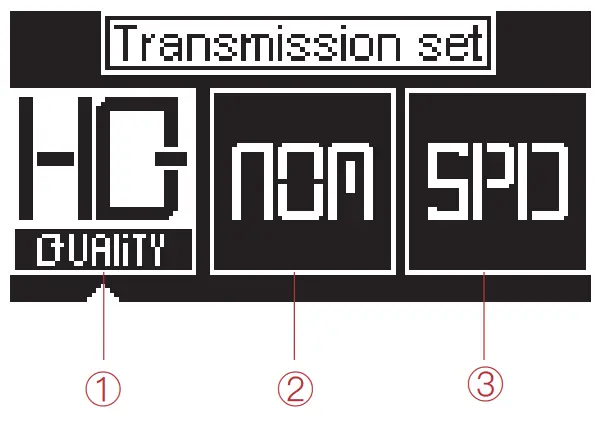
- High Quality Mode
- Normal Mode (Default setting)
- Speed Mode
Setting steps:
Click the “Menu” button to enter “Data Rate Setting” → choosing a data rate mode → click “Menu” button to take effect.
Channel Setting
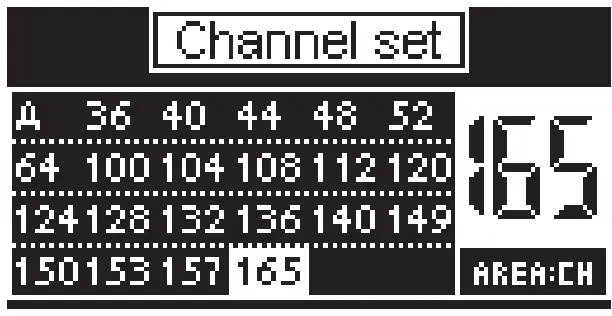
- Only the transmitter has the “Channel Setting” menu.
- The default setting is “Auto” which means the transmitter will select a channel with the least interference automatically after power on.
- If users want to select a channel manually, please follow below steps: Click “Menu” button to enter “Channel Setting” menu->choosing a channel → click “Menu” button to confirm → Choosing “Yes” → Click “Menu” button to reboot the transmitter and the setting will take effect.
Network Reset
Only the transmitter has the “Network Reset” menu. Users can reset the WiFi SSID and password to factory settings by “Network Reset” menu.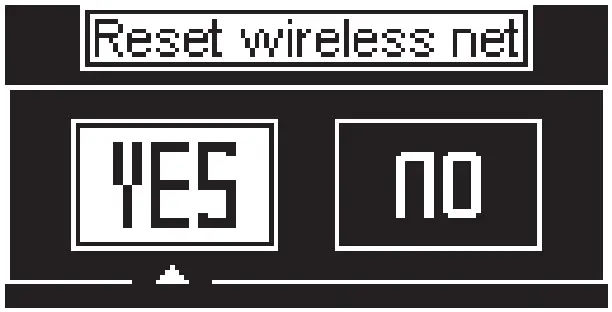
Setting steps:
Click “Menu” button to enter “Network Reset” menu → choosing “Yes” → click “Menu” button to confirm → Choosing “Yes” → Click “Menu” button to reboot, the SSID and password of the 5G WiFi will be reset to factory settings.
App Monitoring

- App download
Please download the App (Accsoon Go) from the Google Play or iOS App Store. - Connect the App to the CineEye 2S Pro transmitter
Launch the “Accsoon Go” app and then select “CineEye 2S Pro”, open the WLAN (Wirless/WiFi) settings page of the mobile devices, then choose the CineEye 2S Pro WiFi and connect to it. The name of the CineEye 2S Pro WiFi is “CineEye2Pro_XXXX” and the default password is“12345678”.
- Monitoring
Return to Accsoon Go and ensure CineEye 2S Pro is selected, click “Monitor” to enter the monitoring page and you will be able to monitor the live feed of the camera.

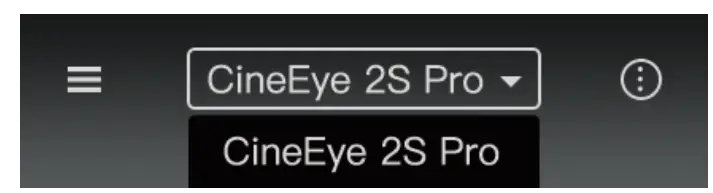
Note:CineEye 2S Pro has two WiFi signals, one is 2.4G and another is 5G, the 2.4G WiFi name is “CineEye2-Pro-GroupX”, please don’t connect to this WiFi.
Firmware Update
- Firmware download
Make sure your mobile phone has internet access, then launch “Accsoon Go” and select “CineEye 2S Pro”, Click “Firmware Update”, then the App will check if there is an update. Click “Download” button to download the firmware if there is an update available.
- Update
After the firmware is downloaded, connect the CineEye 2S Pro receiver to the transmitter and then connect the mobile devices to the transmitter. Go back to the App and click “Next” to update.
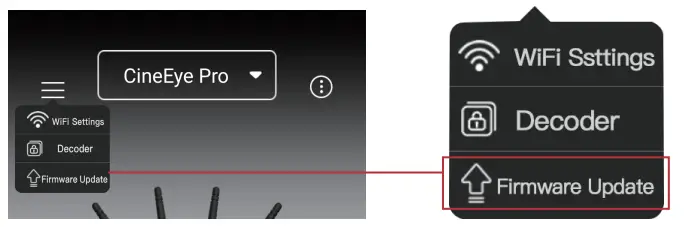
- The battery level of the CineEye 2S Pro should be above 50% before updating.
- Don’t turn off the CineEye 2S Pro before the updates are complete.
Specification
| Transmitter | Receiver | |
| Video Input | SDI/HDMI | |
| Video Output | SDI/HDMI | |
| Video Formot | HDMI: 1080p 23.98/24/25/29.97/30/50/59.94/60fps 1080i 50/59.94/60fps 720p 50/59.94/60fps 480p 59.94/60fps | HDMI: 1080p 24/25/30/50/60fps 1080i 50/60fps 720p 50/60fps 480p 60fpsb |
| SDI(Level A): 1080p 23.98/24/25/29.97/30/50/59.94/60fps 1080P 23.98/24/25/29.97/30PsF 1080i 50/59.94/60fps 720p 50/59.94/60fps 480p 59.94/60fps | SDI(Level A): 1080p 24/25/30/50/60fps 1080i 50/60fps 720p 50/60fps 480p 60fps | |
| Audio | 44.1 KHz/48KHz 16bit/24bit PCM |
| Antenna Connector | 4 RP-SMA Male |
| Latency | <0.06 seconds(Camera latency not included) |
| OLED | 1.3 inch OLED |
| Transmission Power | 17-20dBm |
| Transmission Range | 1200 feet(no obstacles, no interference) |
| Camera Control | Yes None |
| Power Consumption | 4.5 Watt (Typical) 5.5 Watt(Typical) |
| Operating Temperature | -10-40°C |
| Dimensions | 125mmx77mmx31mm (Antenna not included) |
| Weight | Transmitter 260 gram/Receiver 260 gram (Antenna not included) |
Warranty
Warranty Period
- If there is a quality problem that occurs within 15 days after receiving the product, we will provide complimentary maintenance or replacement.
- The warranty period for transmitter and receiver units is one year. Within the warranty period, if under the usage of instruction manual for any product problem Accsoon will offer repair service for free.
- The accessories and cables warranty period is 3 months.
Warranty Exclusions
- Unauthorized maintenance, misuse, impact damage, liquid infiltration, or modification.
- Incorrect use of the product or altering the label and warranty sticker.
- The warranty period has been exceeded.
- Damage due to fire, flood, lightning, etc.
Warranty Process
Customer shall contact the local dealer to solve their problem. If there is no local dealer available, please contact Accsoon directly via email ([email protected]) or our website (www.accsoon.com). You will get detailed information, and Accsoon reserves the right to review the damaged products.
Q&A
Receiver cannot connect to transmitter
- Please make sure the transmitter and receiver have the same group setting.
- Please check that all antennas are tightened well.
No video displayed
- Please ensure the SDI/HDMI cable is plugged into the “SDI/HDMI In” port of the transmitter.
- Please check if the output format of the camera is compatible with the CineEye 2S Pro input formats and check if the camera has video output enabled via the SDI/HDMI port.
Video is choppy
- Please check if the antennas are tight.
- Please make sure there is no cable around the antenna.
- Please switch to another channel manually.
Mobile devices can’t see the CineEye 2S Pro WiFi
- Please check if your mobile devices support 5G WiFi.
Mobile devices can’t connect to CineEye 2S Pro
- CineEye 2S Pro has two WiFi networks available, one is 2.4G and another is 5G, the 2.4G WiFi name is “CineEye2-Pro-GroupX”, please don’t connect to this WiFi.
Federal Communications Commission Interference Statement
This equipment has been tested and found to comply with the limits for a Class B digital device, pursuant to Part 15 of the FCC Rules. These limits are designed to provide reasonable protection against harmful interference in a residential installation. This equipment generates, uses and can radiate radio frequency energy and, if not installed and used in accordance with the instructions, may cause harmful interference to radio communications. However, there is no guarantee that interference will not occur in a particular installation. If this equipment does cause harmful interference to radio or television reception, which can be determined by turning the equipment off and on, the user is encouraged to try to correct the interference by one or more of the following measures:
- Reorient or relocate the receiving antenna.
- Increase the separation between the equipment and receiver.
- Connect the equipment into an outlet on a circuit different from that to which the receiver is connected.
- Consult the dealer or an experienced radio/TV technician for help.
 |  |  |
| http://www.accsoon.com | https://www.facebook.com/accsoon/?ref=bookmarks | https://www.youtube.com/channel/UC2qKRcJgak8rcqt9IyeSD5g |
Certificate of Quality
This product is confirmed to meet quality standards and permitted for sale after strict inspection.
 More details about the product please visit www.accsoon.com
This document is subject to change without notice.
Accsoon is a trademark of Accsoon Technology Co., Ltd.
Copyright 2020 Accsoon. All rights reserved

 Accsoon - Accsoon Wireless Transmission Solution