Contents hide

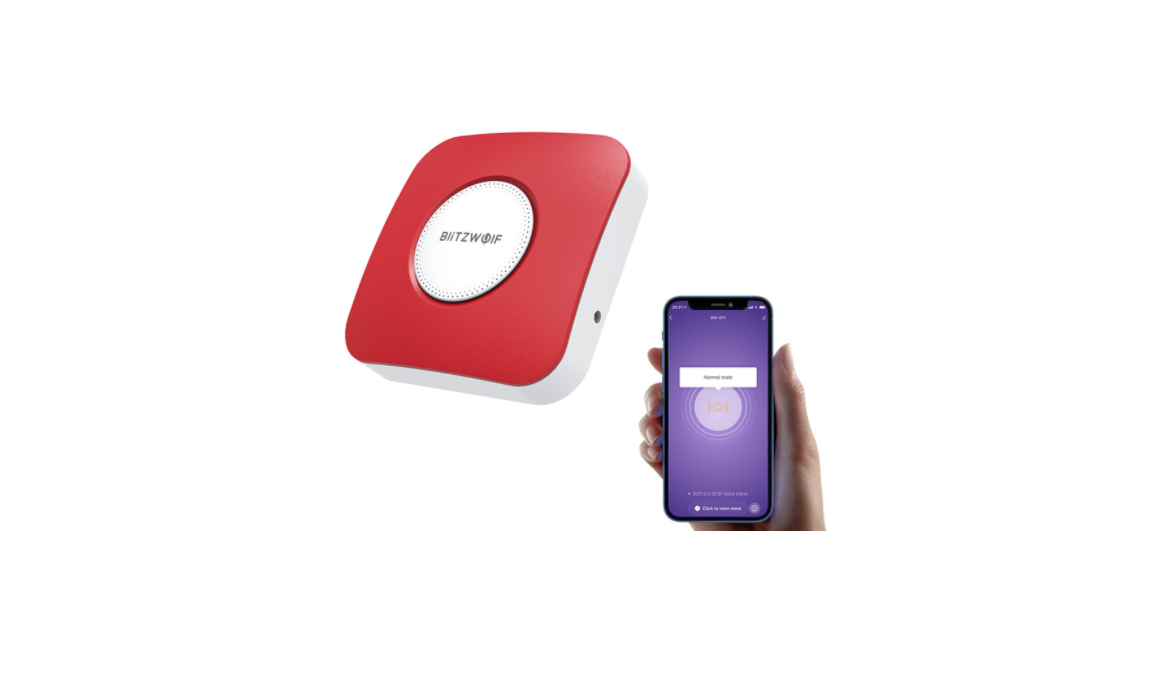
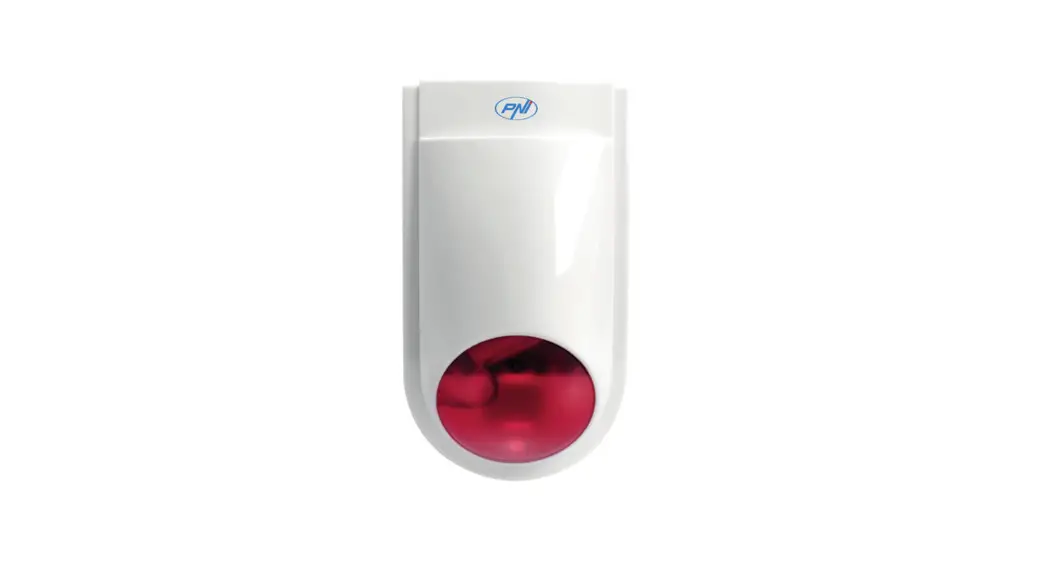
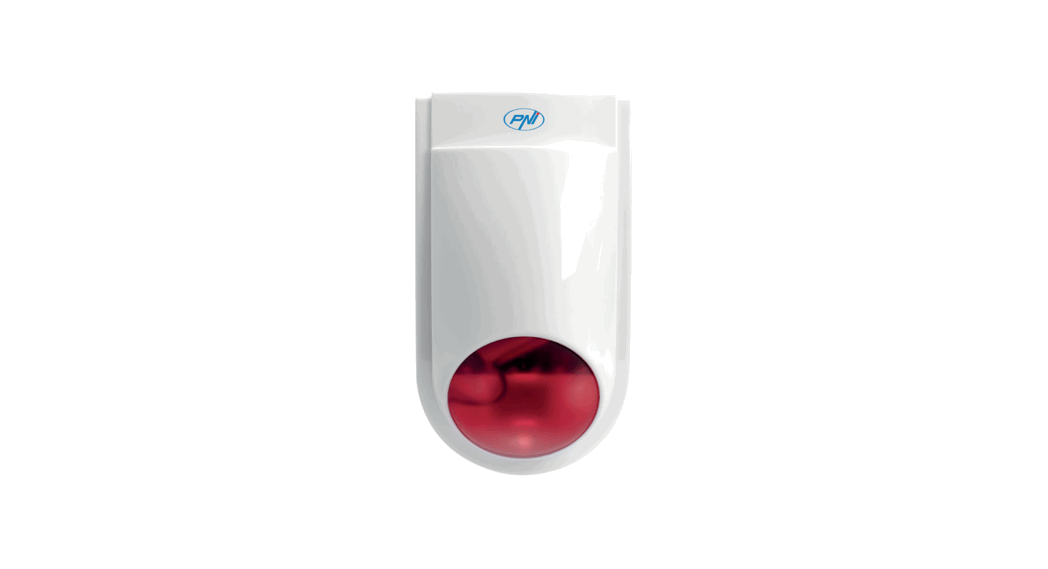
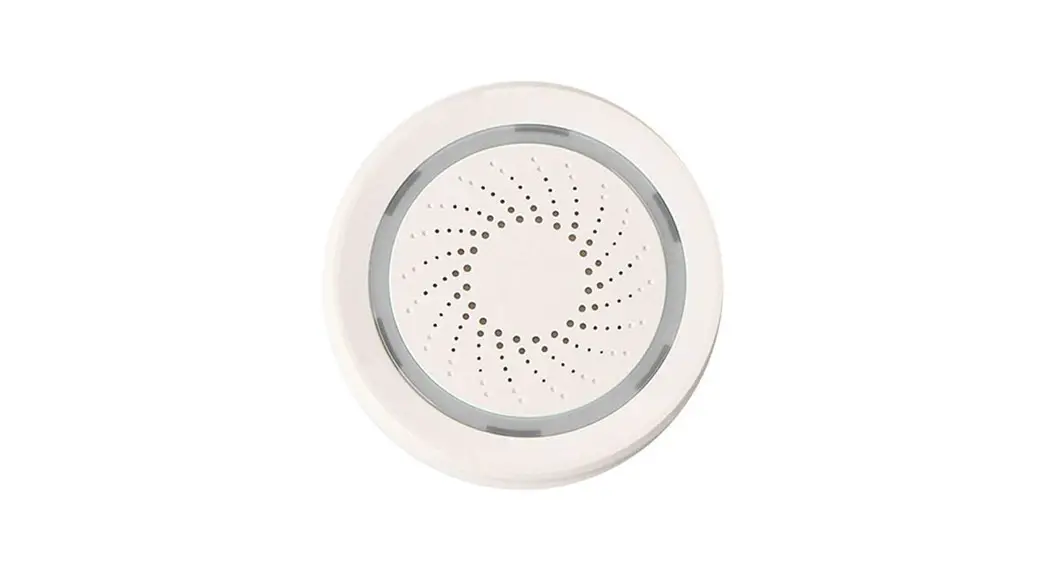
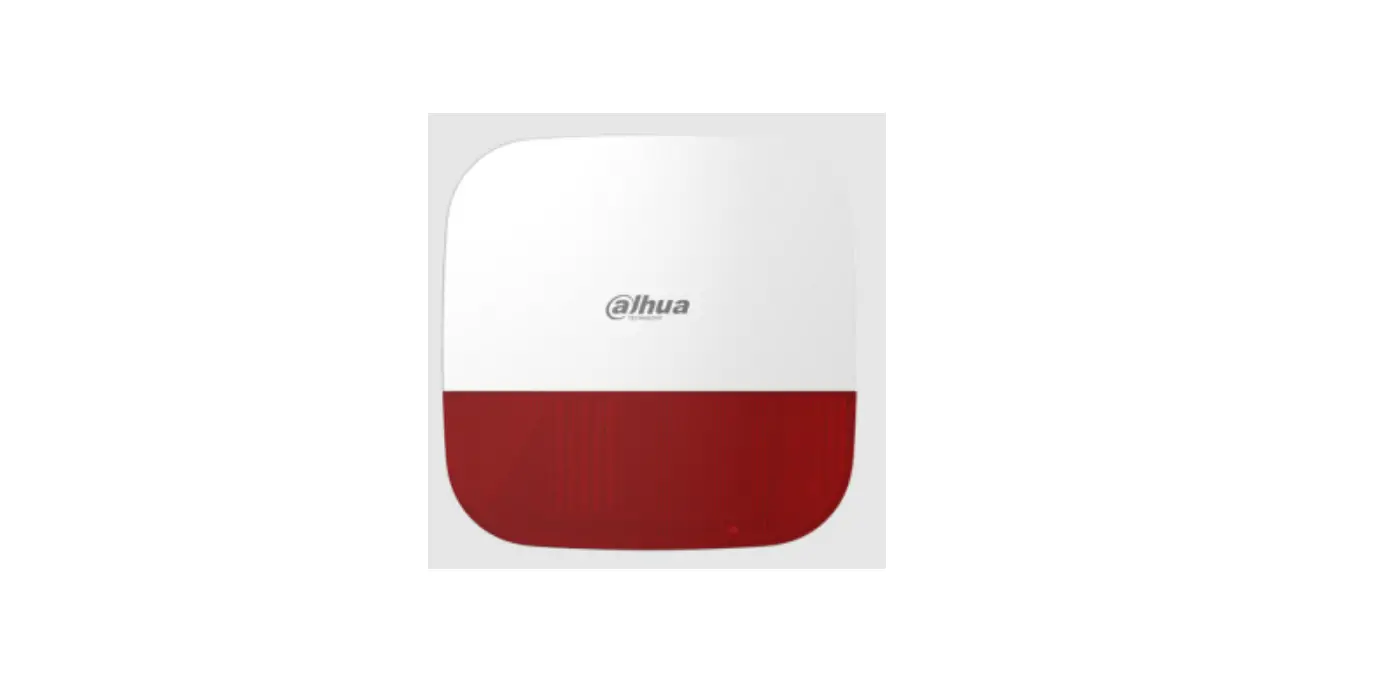
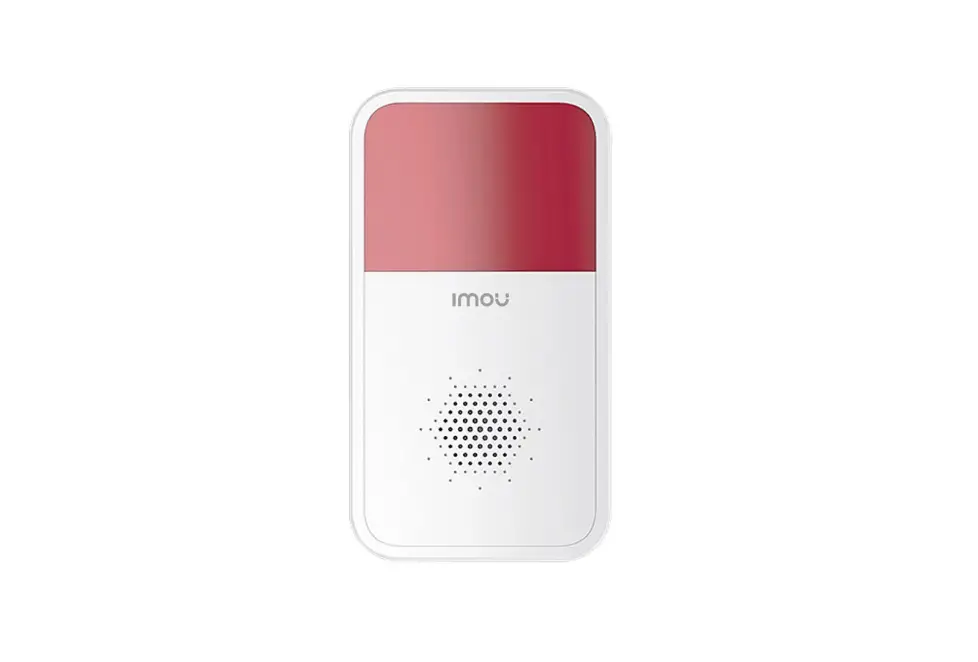
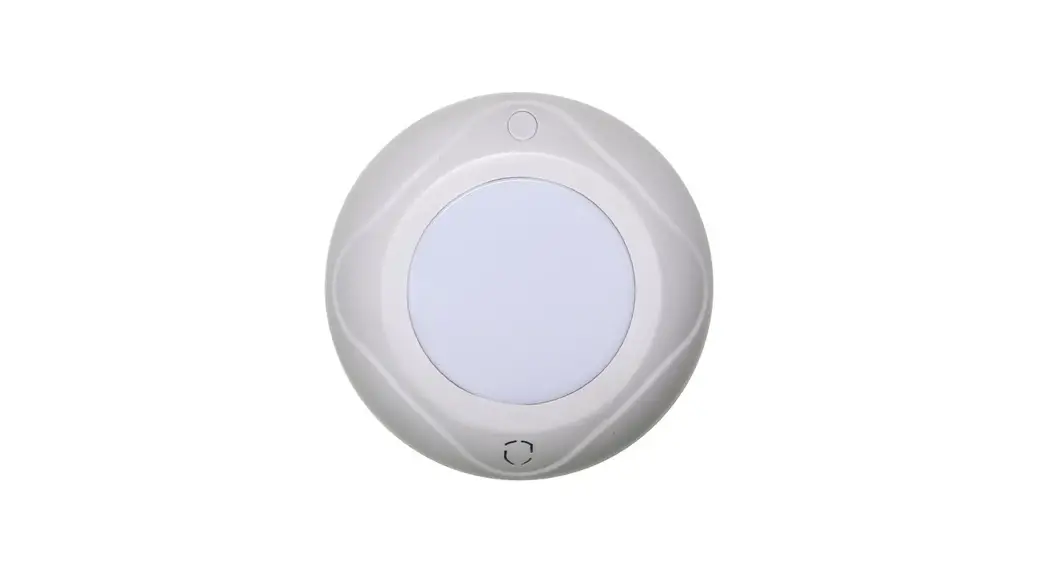
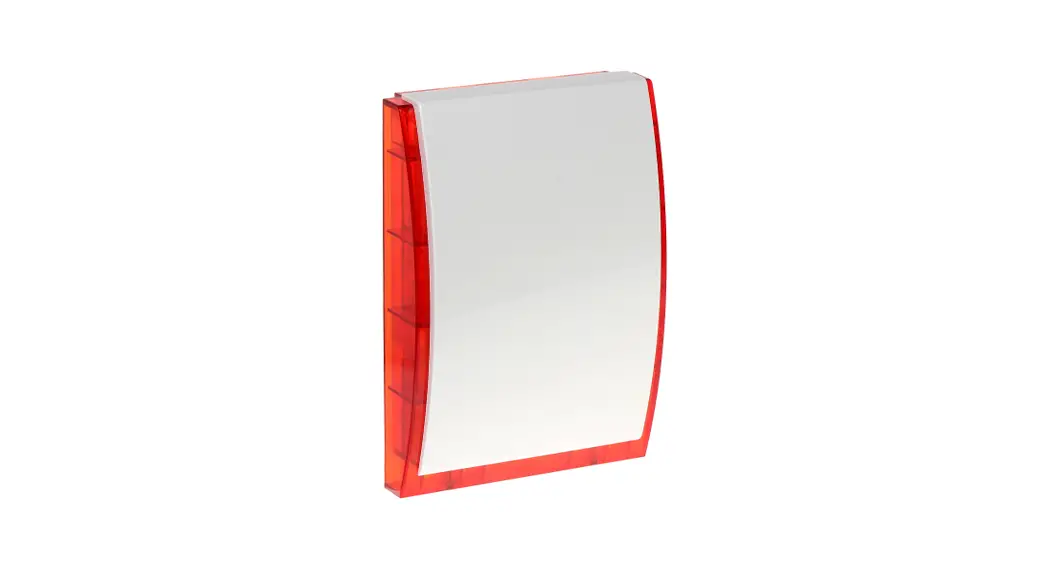
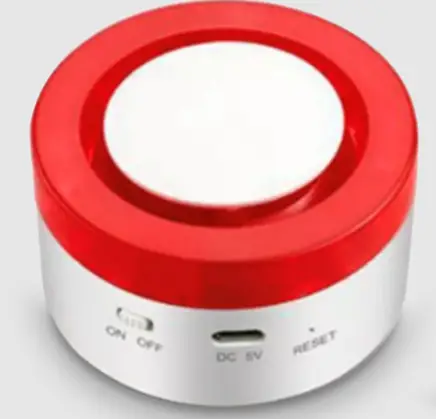
expert4house H1 WiFi Smart Siren
Features
- Based on the TUYA smart home platform, work with most of the TUYA smart-based smart products.
- On-site high-decibel alarm, flashing lights, and other alarm modes.
- Home Arm, Away Arm, Disarm
- Low-battery detection
- System power off detection.
- Tamper detection.
- Built-in battery.
Download the app and register
Search for ” TuyaSmart” or scan the QR code below to download the app and register.

How to connect WiFi network.#1: Default mode”
- Open the APP homepage, press “+” in the upper right corner to add devices select “ALL devices” select “Alarm system”
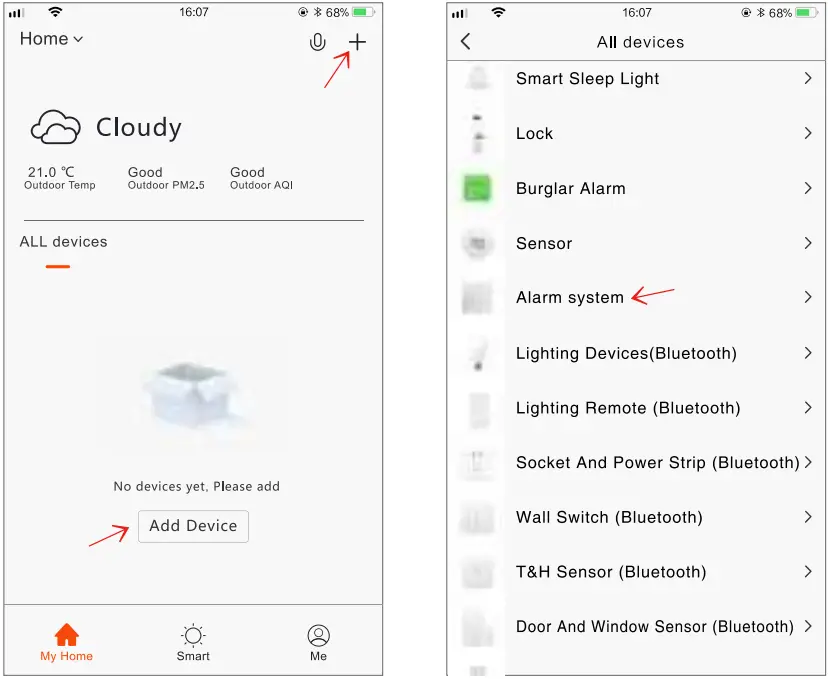
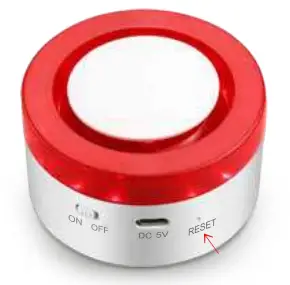
- Re-open the smart siren switch, reconnect the power, and press and hold the RESET button for 5 seconds, the indicator flashes quickly, ready to connect WiFi.
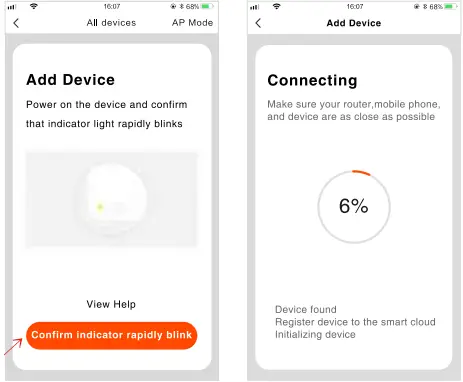
- Confirm indicator quickly blink”Enter WiFI password (2.4G WiFi only) OK
How to connect WIFI network, #2: compatibility mode”
If the default way to connect WIFI is unsuccessful, you can select “AP Mode”.
- Open the APP homepage, press ” + ” in the upper right corner to add devices select “ALL devices” select “Alarm system”
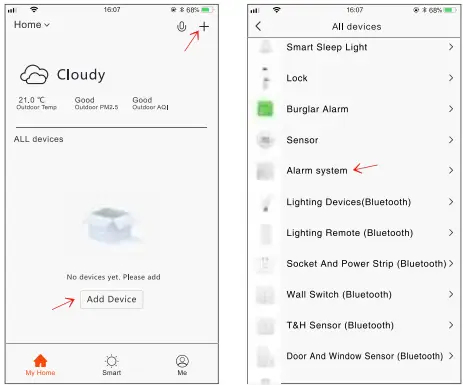
- Click on ” AP Mode ” at the top right of the app.
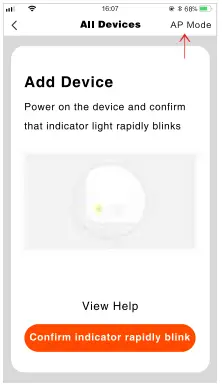
- Re-open the smart siren switch, re-connect the power, press and hold the RESET button for 5 seconds, the indicator light flashes quickly, continue to press and hold the RESET button for 5 seconds, the indicator light flashes slowly, ready to connect.
- Confirm indicator slowly blink” Enter the network password (2.4G WiFi only) OK Go connect.
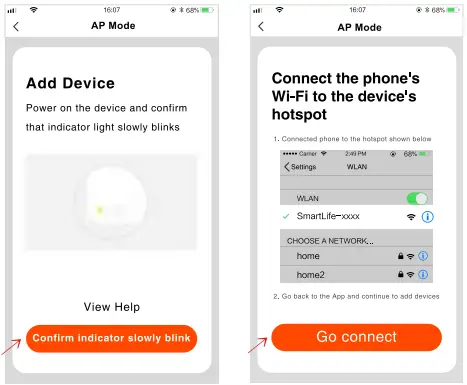
- Find ” SmartLife-xxx ” in the wifi list of your mobile and click Connect Return to the ” TuyaSmart ” APP.
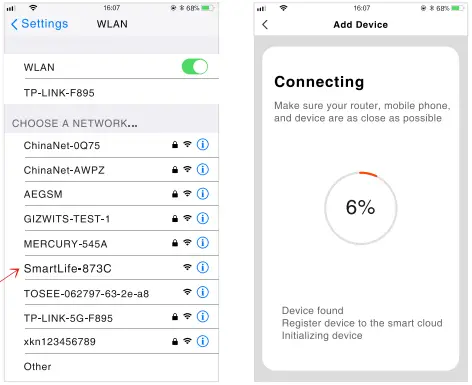
WiFi connection notes
- Does not support a 5G router.
- If the above two-way connection fails, please try to restart the router.
- Siren host and mobile phone as close as possible to the router.
Add detectors and remotes
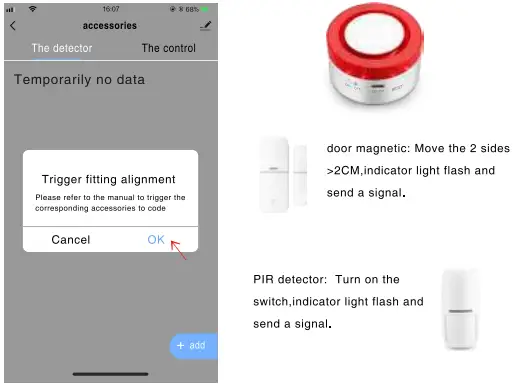
- Click on the APP homepage ” accessories ” select ” The detector “or ” The control ” and click on ” add”
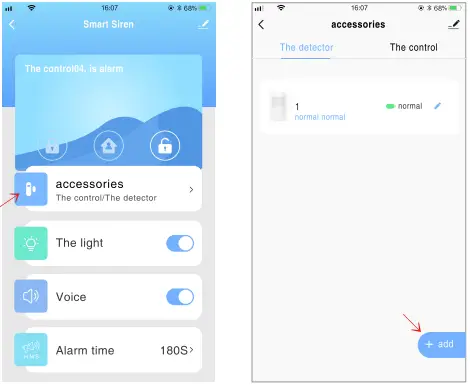
- Click ” OK”> smart siren light keep on accessories send signals smart siren light flashes 3 times, adding is successful.
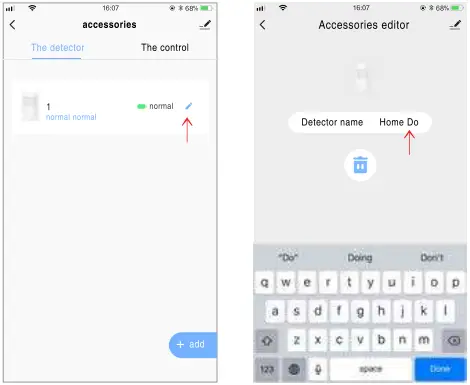
Edit the accessory name
In order to make it easier to distinguish different alarm events, edit the accessory name (within 24 characters).
Specifications
- Arm: alarm with sound and light flash
- Home Arm: only light flash to alarm
- Disarm: only SOS alarm available
- Remote controls: max 8
- Detectors: max 24
- Volume: high/ medium / low
- Beep time: 1-180 seconds adjustable
- Timing control: arm/ home arm / disarm
- Accessories frequency: 433Mhz (can be customized to any frequency between 300-912M)