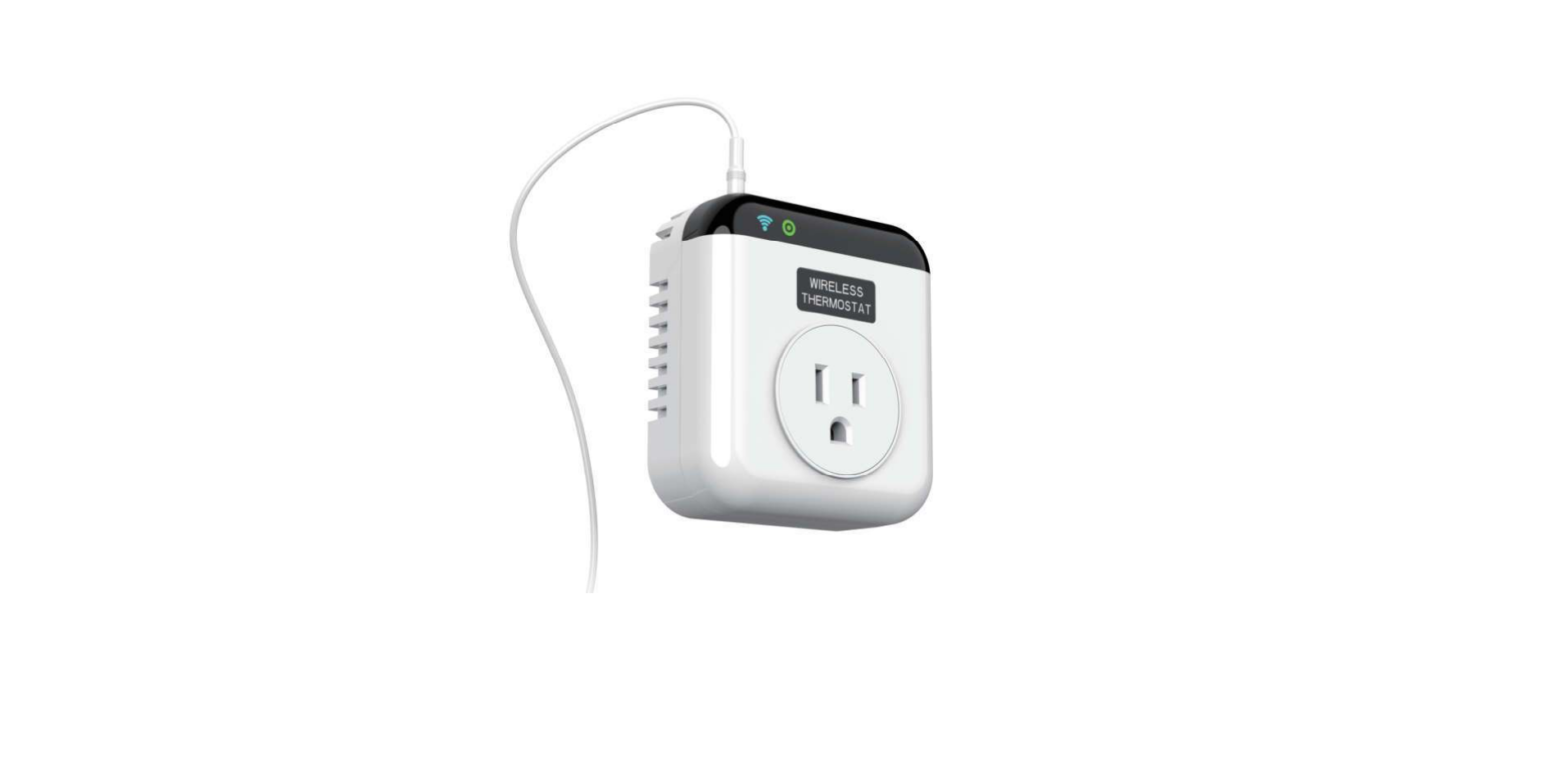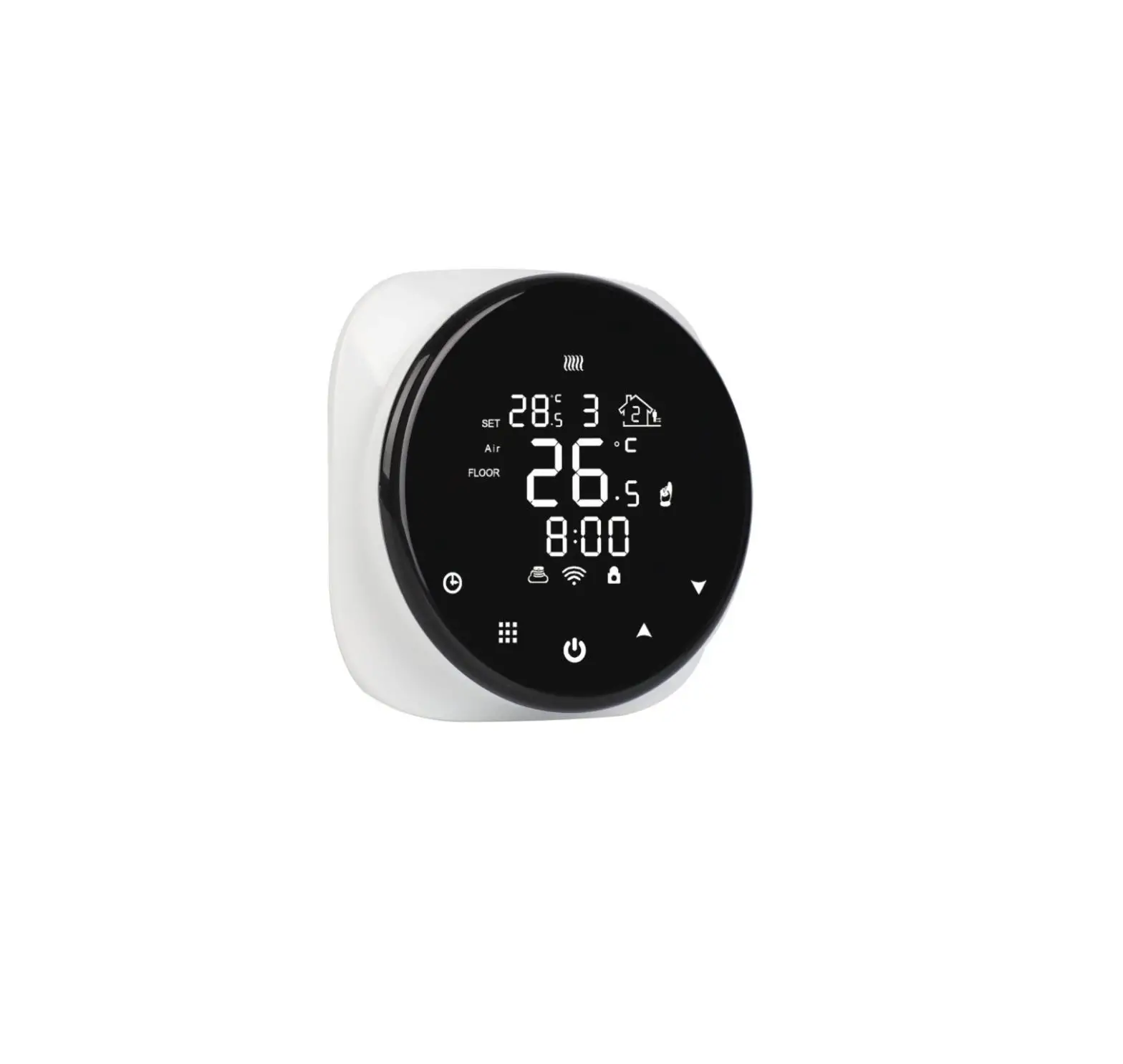

tuya SimPal-TY130 WiFi Thermostat Socket
Package contents
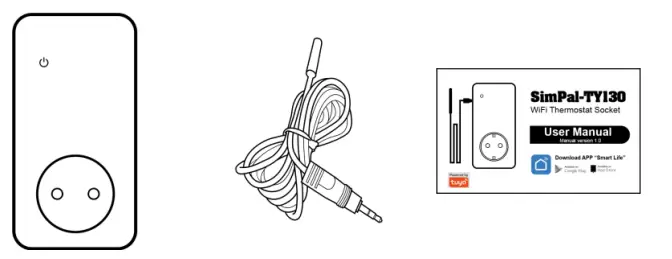
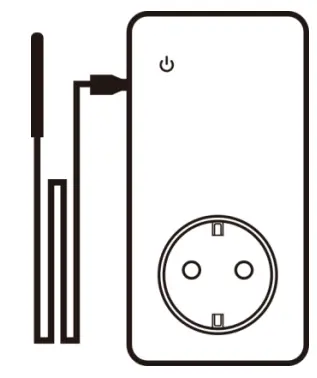
- WiFi thermostat socket (1 unit)
- Temperature sensor (1 unit)
- User Manual (1 unit)
Socket instruction
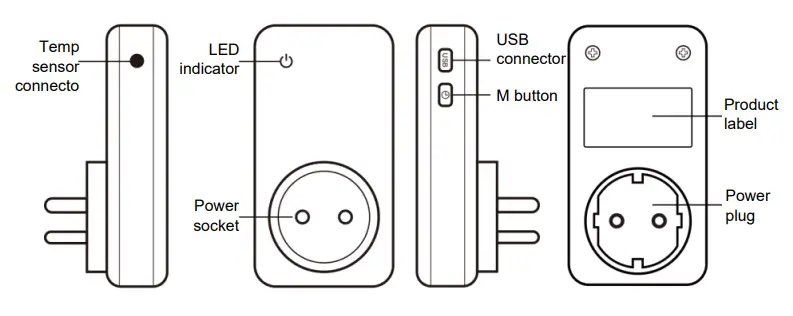
Light indicator
| Color | Power Status | Action | Status | |
| Blue | Power OFF | Constant light | Power OFF and work in standby mode | |
| Red | Power ON | Constant light | Power ON and work in standby mode | |
| Blue & RED | Flash fast | Waiting to set WiFi | ||
Install APP and add device
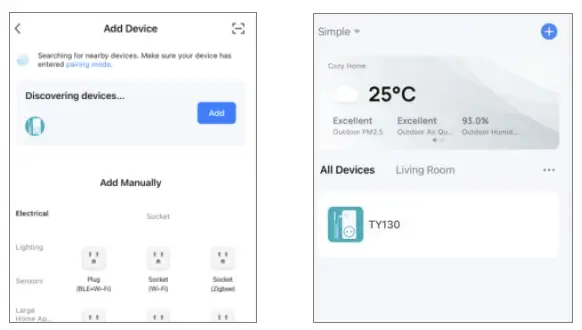
Download Tuya Smart Life APP and install on your Android or iOS smartphone. All operation and settings will be done on APP.
The method to add device as follows
- Plug the TY130 socket onto 110 230V AC power, the LED will flash slowly, then its waiting to set WiFi. If the LED constant light, it means already set WiFi before. It needs to keep press the M button for 10 seconds to reset. After reset, the LED will slowly flash.
- Register the APP account and log in, after logging in, click the icon to add a device.
- It will auto-display Discovering device click Add button to add this device, select local WiFi SSID and input Password, then it can add device success.
Manual power on/off
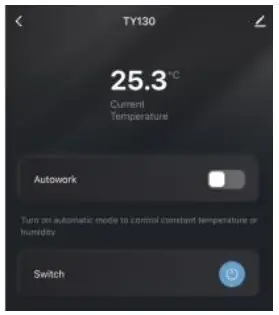
It will display current temperature on the device home page. Turn the Autowork function off, then it can manually power on/off. When the power button in grey, it means power OFF ””, click the power button, it will turn power on and display power icon in blue color.
Thermostat control
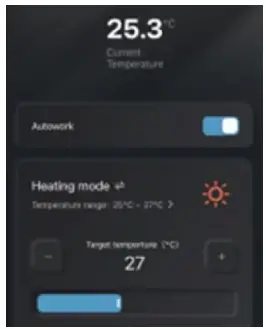
Turn the Autowork function ON, it will display thermostat control de tails. Select the Heating or Cooling mode, set the target temperature, then it will auto-turn on/off according to temperature value.
Timer control
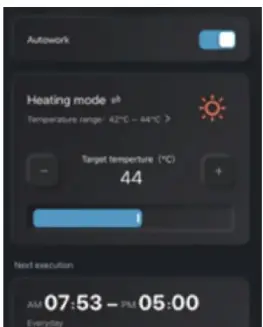
It can set a schedule to make device auto process thermostat control. The timer Control fun ction only can set when Autowork function is turned on. Select the ” icon to set timer control. It allow temporarily manual turn on/off power, but the timer control will process again when it reach next action time.
Temperature alert
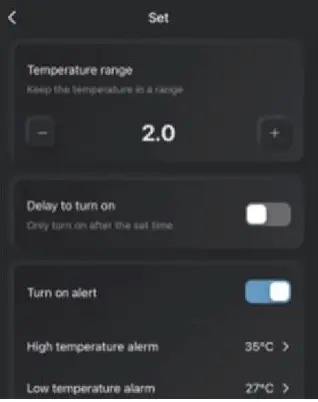
Click the  button to set the temperature alert. When the temperature lower or higher the setting range, it will send message to alarm.
Check temperature record
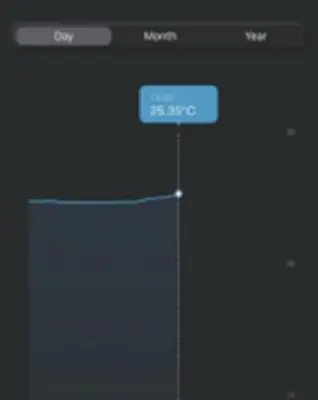
Click  icon to check temperature record. It can check day, week or month temperature record.
Reset factory settings
Reset factory settings will make the device removed from all registered APP account, need to set wifi and add device again on APP after reset. Keep press the M button for 10 seconds, device will reset factory settings.
Technical specification
- Product size: 12 0 60* 4 0 mm No included plug)
- WiFi protocol: 802.11 b/g/n
- Power input: AC 110~2 5 0V
- Temperature sensor range: 2 0 1 0 5
- Indicator: Power output and wireless signal in Blue
- Max power loading: 16A or 3500W
- Standby power consumption: 25mA
Download APP Smart Life

 SimPal Finland – Etäohjattavat GSM-pistorasiat, lämpötilavahdit ja hälytinlaitteet.