tekmar 561 WiFi Thermostat User Manual
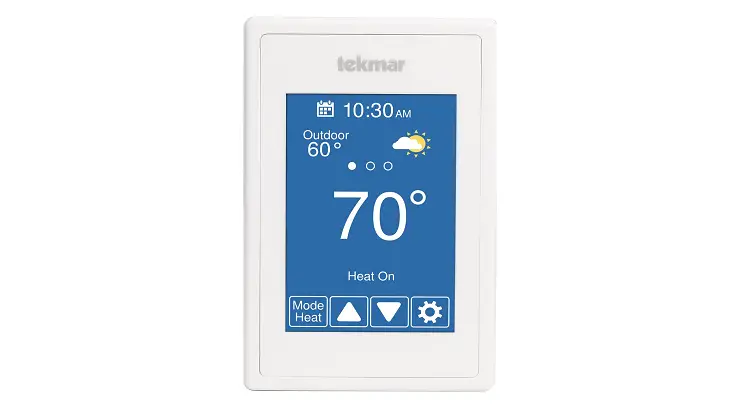
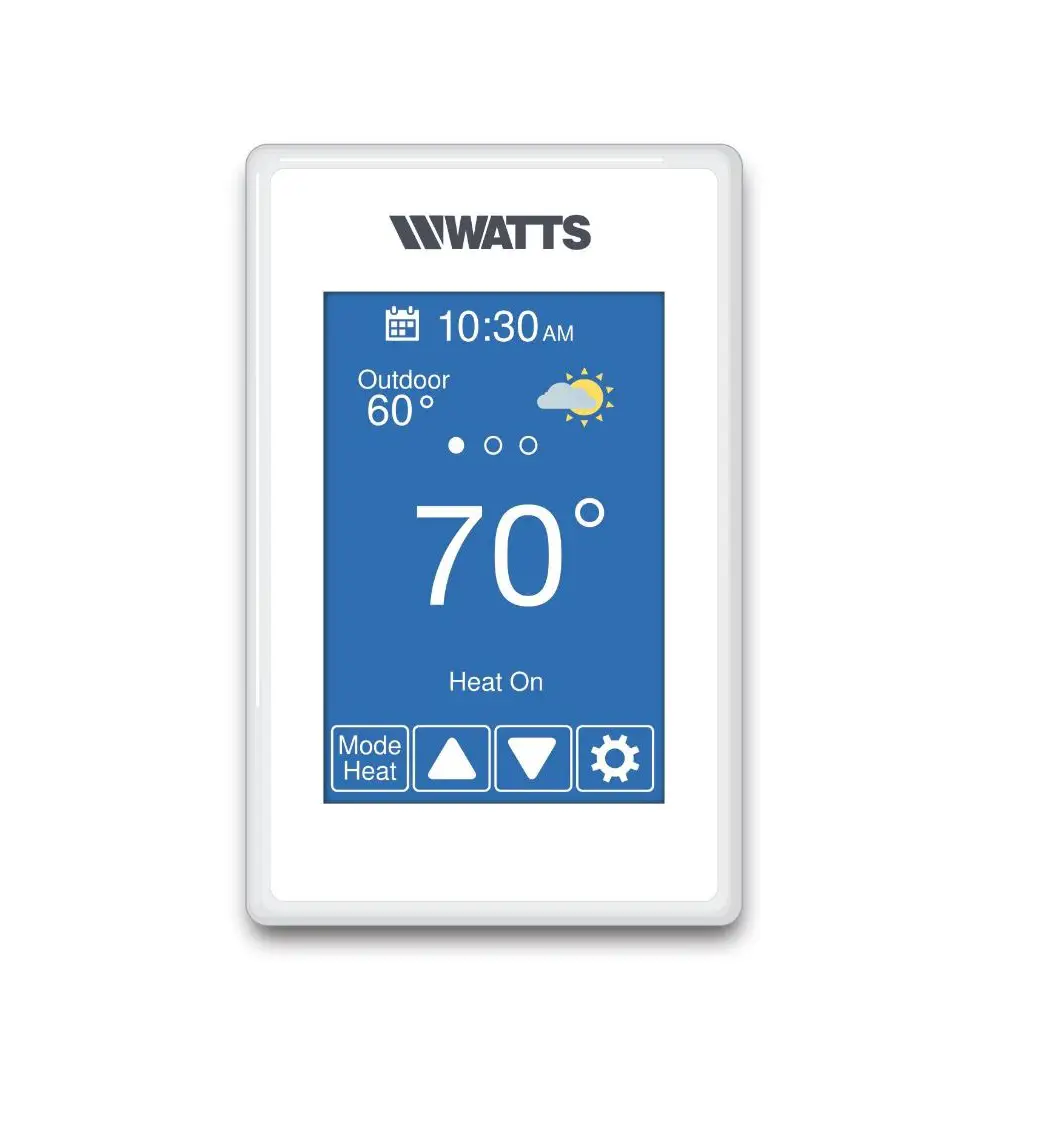
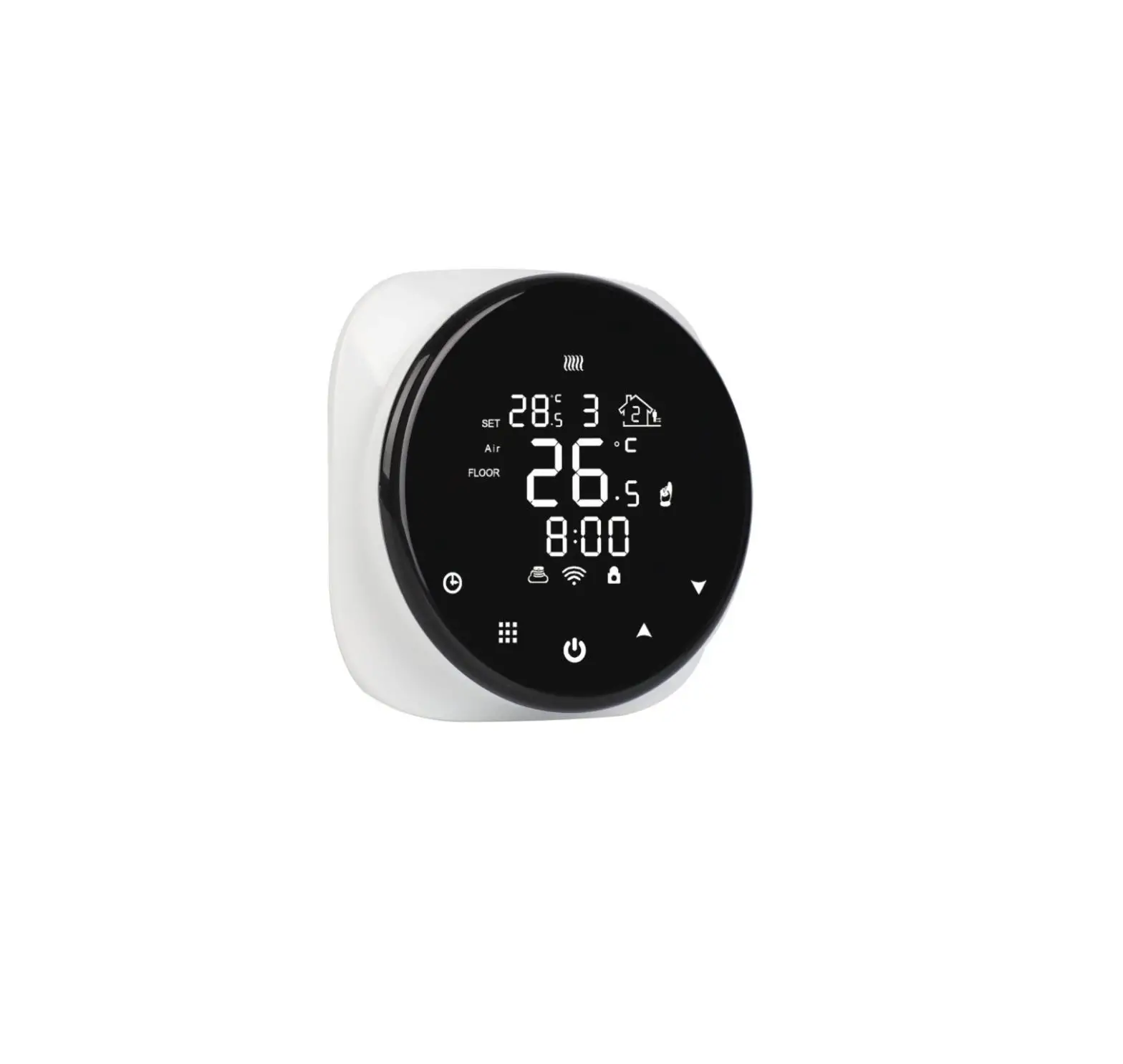
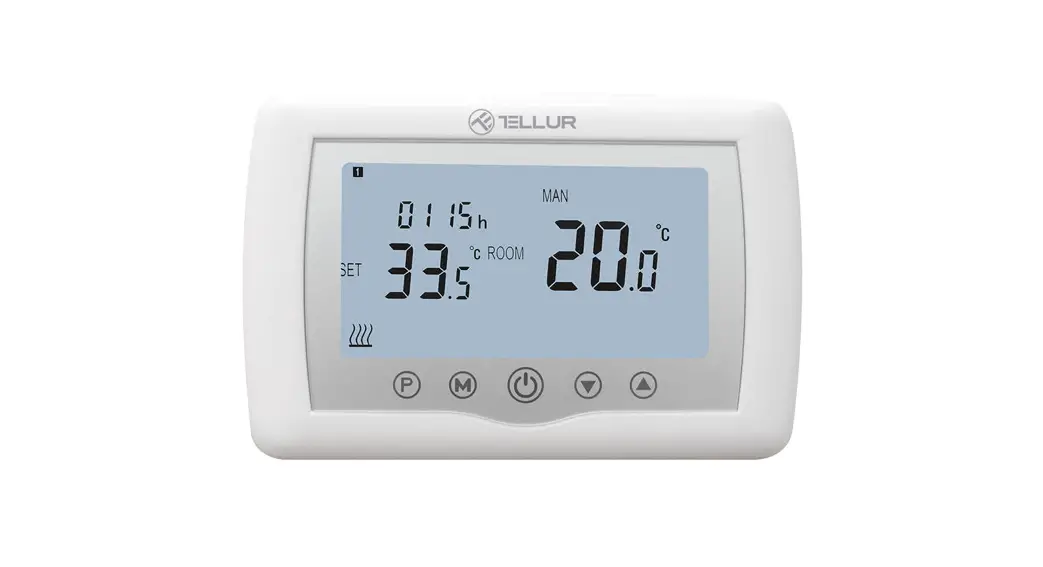
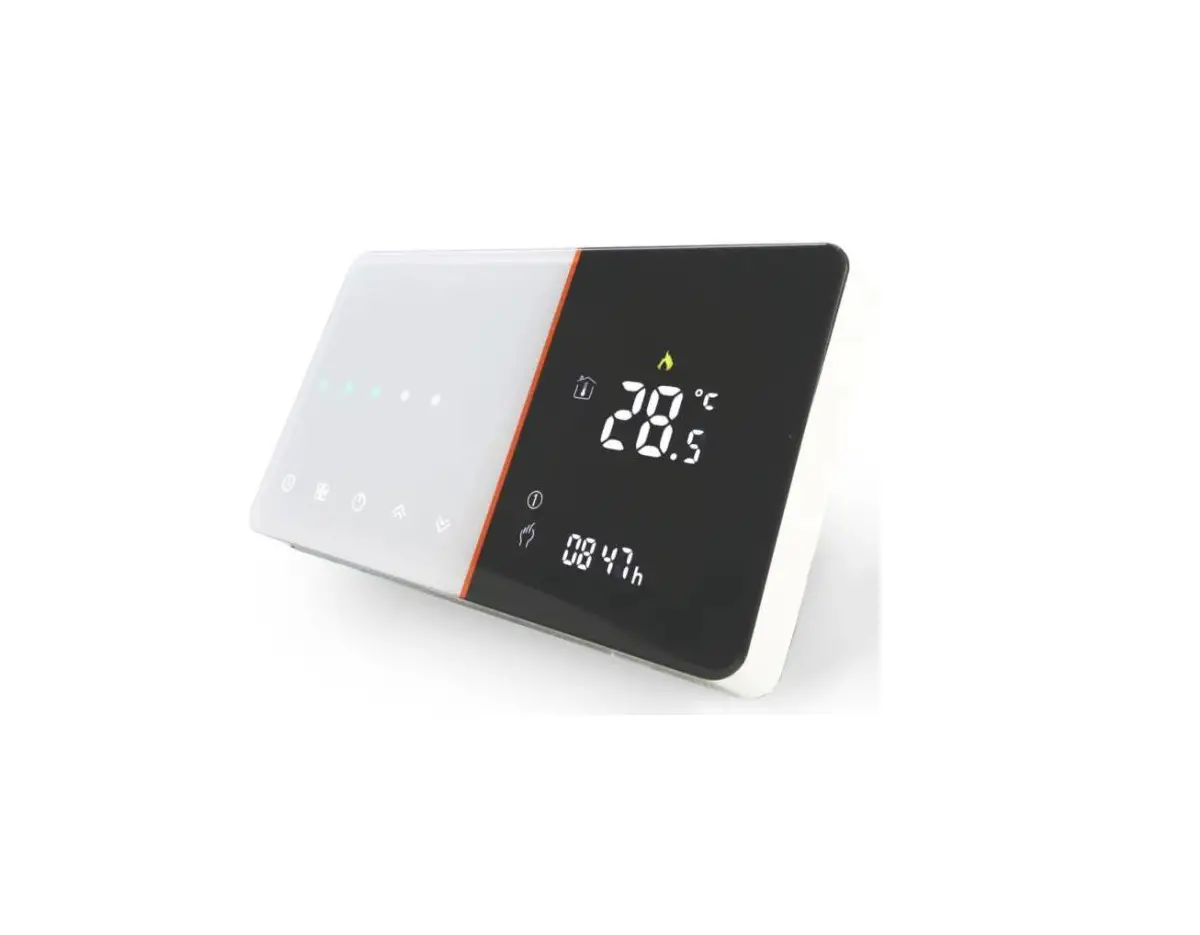
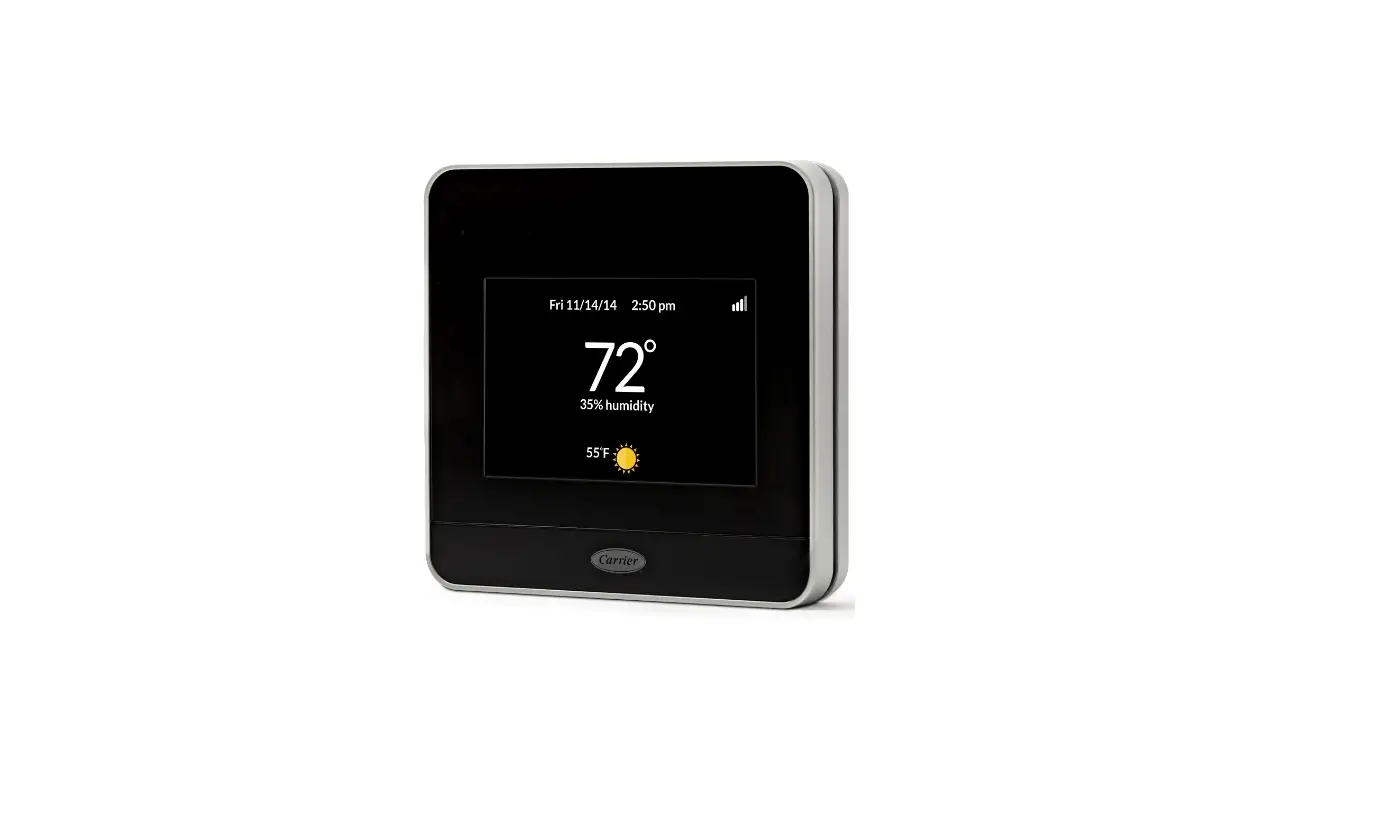
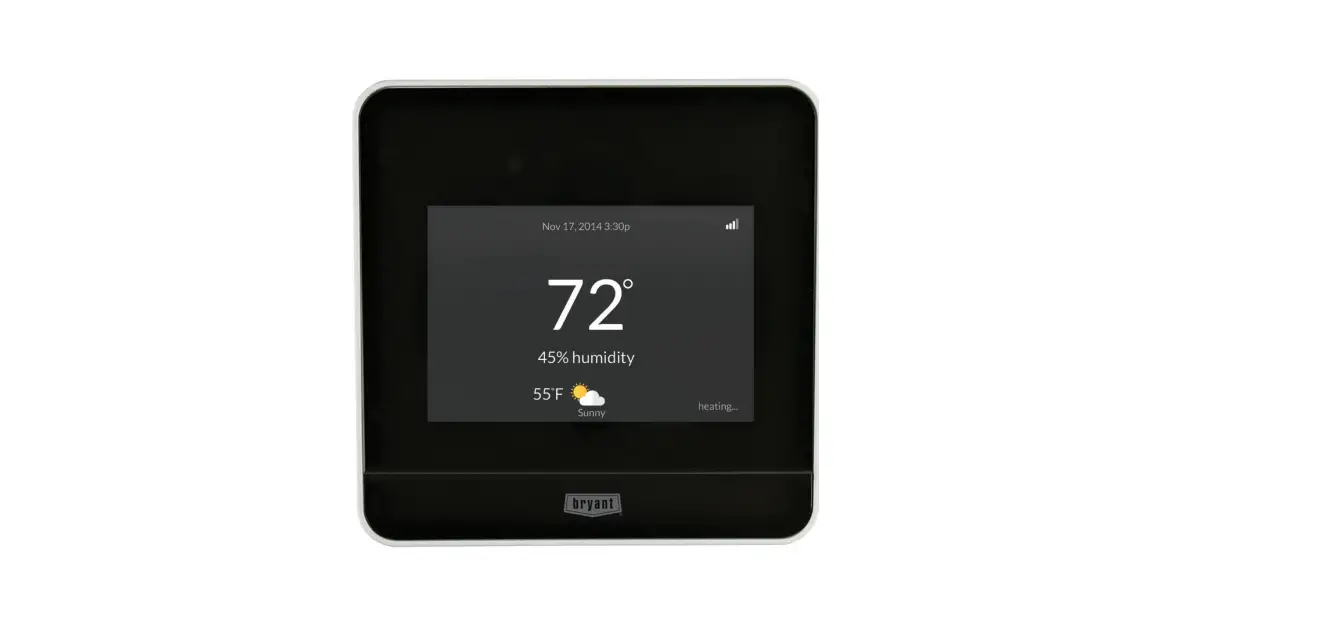
Home Screen
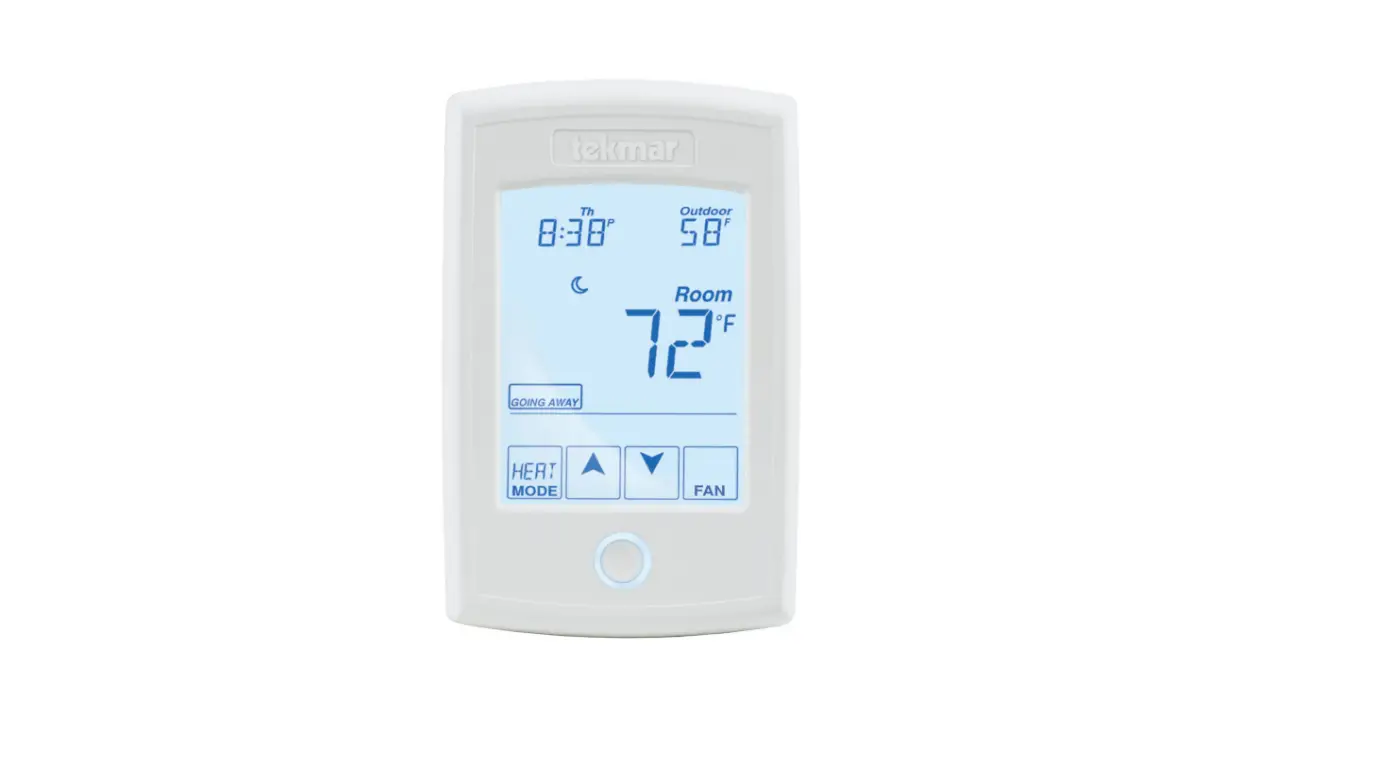
After 60 seconds of inactivity, the thermostat home screen displays only the time and the temperature.
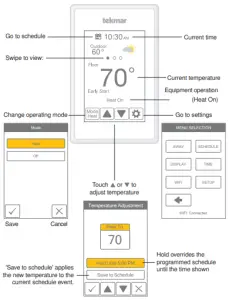
- Weather
- Outdoor temperature
- Floor temperature
- Heat To setting
User Settings
Away
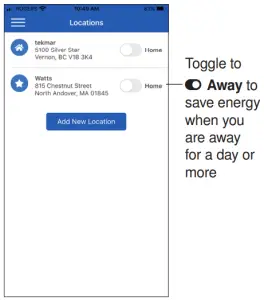
Use the Away setting to save energy when the building is unoccupied.
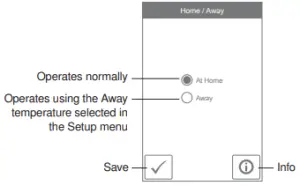
- Selecting the Away setting on a thermostat or the mobile app will affect all devices linked to that location through the app.
- The Away temperature can be adjusted in the Setup / Temps menu.
Schedule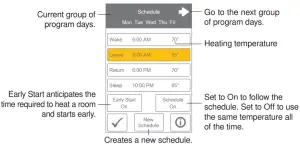
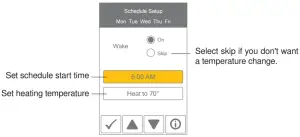
Display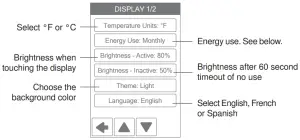
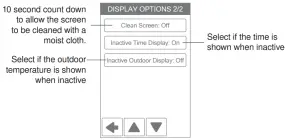
Energy Use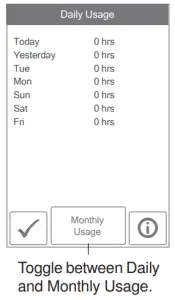
Time
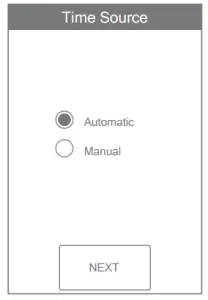
When connected to the Internet, the time can be set automatically.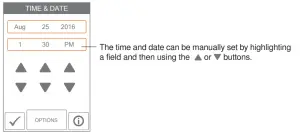
Time options are:
- 12 hour or 24 hour time format
- Automatic or manual time setting
- Time zone
- Daylight savings time
NOTICE:
Incorrectly setting the time and date manually may prevent the thermostat from communicating to the mobile app. Automatic time source is recommended when using an Internet connection.
WiFi
NOTICE:
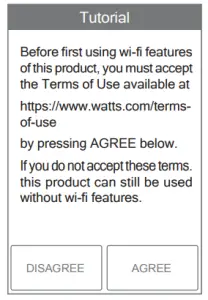
Before using the WiFi features of this product, you must accept the Terms of Use, as amended from time to time and available at Watts.com/terms-of-use. If you do not accept these terms, this product can still be used without WiFi features.
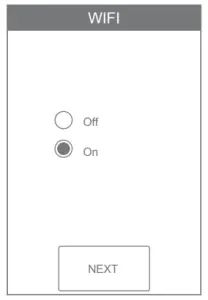
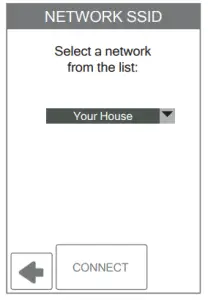
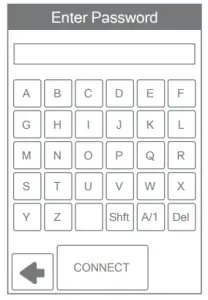
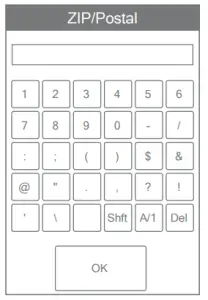
The thermostat includes a step by step tutorial to setup the WiFi connection.
- Step 1
Agree to Terms of Use
- Step 2
Turn on WiFi - Step 3
Enter wireless network name. It must support WPA2 security encryption. - Step 4
Enter WiFi password. - Step 5
Enter ZIP or postal code. This determines your location for weather information. - Step 6
Select if the time is set automatically from the Internet or manually.
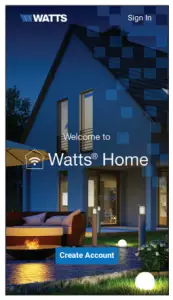
Watts® Home App
To view and adjust the WiFi Thermostat using a mobile phone or tablet, download the Watts Home mobile app from the Apple® iTunes® Store or from the Google Play® Store.
Add Thermostat to App
- Step 1
Create a new account. Then login using your username and password.
- Step 2
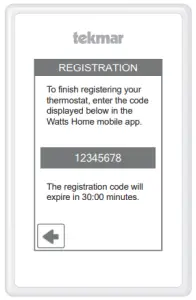
On the thermostat, go to WiFi menu and press Register Device.
- Step 3
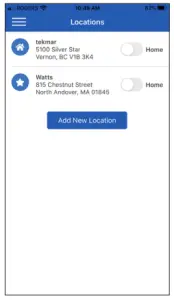
Swipe left (Apple) or long hold (Android) to edit the Location name.
- Step 4
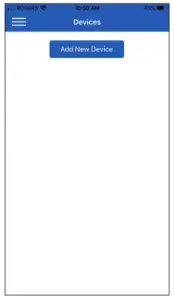
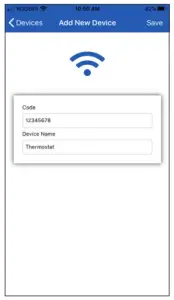
Press the Location name and Add New Device. - Step 5
Enter the 8 digit code from the thermostat into the mobile app. Then enter the thermostat’s room name.
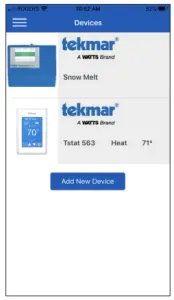
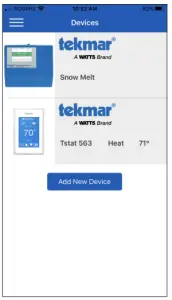
The thermostat is now listed on the Devices page.
Using the App
- Settings
Press Bars for settings
Locations
Swipe left or long hold to edit or remove location
- Devices
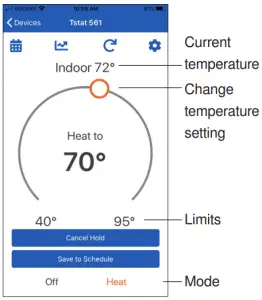
Swipe left or long hold to edit or remove device - Thermostat
- Edit schedule

- Energy use

- Refresh

- Thermostat settings

- Edit schedule
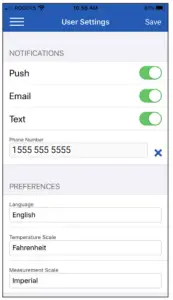
- Settings
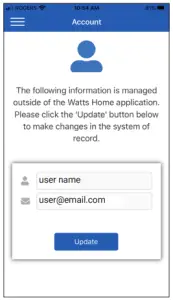
Change the notification and unit settings for your account - My Account
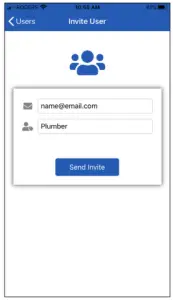
Update your user name - Invite Users
Invite other users to access all the devices at a location
 Bars for settings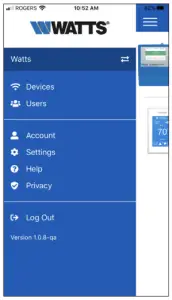


Need help? Go to our website or contact us.
tekmarControls.com
[email protected]
1-800-438-3903