WIKI BATOCERA Pair Bluetooth Controllers Instructions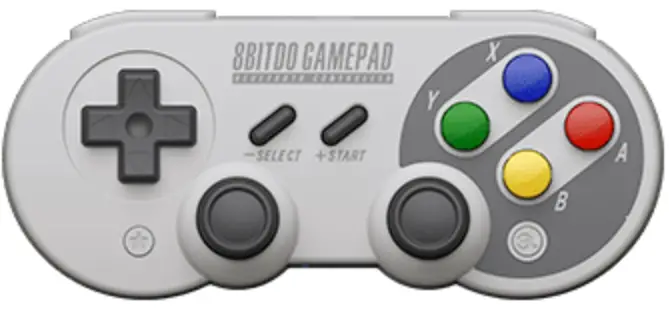
First ensure that Bluetooth is enabled on your device. The line controllers. bluetooth.enabled=1 should be present in your batocera.conf and not commented out. If it is missing, add it in. Note that doing this won’t suddenly make a non-functional Bluetooth dongle start working, only the ones that are already compatible with the Linux kernel and the drivers included in Batocera.
Establish an SSH connection (or open up Xterm) to start the manual connection process. Get started by typing bluetoothctl and hitting [Enter].
Now you are in the Bluetooth control unit. Type following commands and confirm every single one with [Enter]
agent ondefault-agentpower onscan on
Now set the controller in pairing mode! This strongly depends from your controller type.
An example of the output you would see from running all the commands successfully:
[root@BATOCERA /userdata/system]# bluetoothctlAgent registered[bluetooth]# agent onAgent is already registered[bluetooth]# default-agentDefault agent request successful[bluetooth]# power onChanging power on succeeded[bluetooth]# scan onDiscovery started[CHG] Controller 43:45:C0:00:1F:AC Discovering: yes[NEW] Device E4:17:D8:C2:0B:0E 8BitDo M30 Modkit
 If you’re having trouble detecting devices, check out the Bluetooth.
Now we want to connect to our controller. So we type following commands to connect to discovered controller with MAC address E4:17:D8:C2:0B:0E properly. Wait a few seconds after entering the commands in order to ensure they are processed successfully.
pair E4:17:D8:C2:0B:0Econnect E4:17:D8:C2:0B:0Etrust E4:17:D8:C2:0B:0E
This would be the output from our example:
[bluetooth]# pair E4:17:D8:C2:0B:0EAttempting to pair with E4:17:D8:C2:0B:0E[CHG] Device E4:17:D8:C2:0B:0E Connected: yes[CHG] Device E4:17:D8:C2:0B:0E Modalias: usb:v2DC8p5101d0100[CHG] Device E4:17:D8:C2:0B:0E UUIDs: 00001124-0000-1000-8000 00805f9b34fb[CHG] Device E4:17:D8:C2:0B:0E UUIDs: 00001200-0000-1000-8000 00805f9b34fb[CHG] Device E4:17:D8:C2:0B:0E ServicesResolved: yes[CHG] Device E4:17:D8:C2:0B:0E Paired: yes Pairing successful
[bluetooth]# connect E4:17:D8:C2:0B:0EAttempting to connect to E4:17:D8:C2:0B:0EFailed to connect: org.bluez.Error.Failed[CHG] Device E4:17:D8:C2:0B:0E Connected: yesAuthorize service (yes/no): yes
Authorize service 00001124-0000-1000-8000 00805f9b34fb[8BitDo M30 Modkit]# trust E4:17:D8:C2:0B:0E[CHG] Device E4:17:D8:C2:0B:0E Trusted: yesChanging E4:17:D8:C2:0B:0E trust succeeded
Type devices to see a list of devices configurated in your BT setup.
Type remove MAC-ADRESS to remove single devices
Type yes if you are asked for authorization progress or enter PIN
If you have multiple Bluetooth adapters on your machine and you want to tell which one is used, you can use the command hcitool dev to list them all. On my setup, hci0 is the internal BT on my Pi4, and hci1 is an additional USB BT module:
# hcitool devDevices:hci1 90:80:62:00:88:00hci0 DC:A6:32:04:10:7F# bluetoothctlAgent registered[bluetooth]# scan onDiscovery started[CHG] Controller 90:80:62:00:88:00 Discovering: yes
Batocera is automatically pairing a device I don’t want it to!
Some devices out there break Bluetooth protocol and are always in “pairing” mode, common with modern “smart” TVs. Since Batocera will automatically connect to any device in pair mode, this could cause unintended connections.
To work around this, it is possible to pair to only strictly pads. Put your controller into its pairing mode and then run the following:
batocera-bluetooth trust-pad
Batocera will explicitly only search for and connect to Bluetooth controllers. This may take a while as it methodically goes through, parses and accepts/rejects devices in the background. Once the pad is found, Batocera will attempt to pair to it:
[root@RPI3-BATOCERA /userdata/system]# batocera-bluetooth trust-padPairing 8BitDo M30 gamepad...Trusting 8BitDo M30 gamepad...[root@RPI3-BATOCERA /userdata/system]#
The Bluetooth controller can now be used with Batocera.
Conversely, the same can be done to connect strictly to audio devices:
batocera-bluetooth trust-audio
Blacklisting a device in Batocera v33
 The functionality of this has been supplanted by trust-pad method described above. These instructions are retained here specifically for Batocera v33 and no other version.
There might be some device that is perpetually in pairing mode that you don’t want your Batocera machine to connect to (such as your neighbor’s “smart” TV). You can block such devices by utilizing the blacklist.
In order to do this via SSH, run the following command:
batocera-bluetooth blacklist
For example:
 Fix Me!
To show a list of all the currently blacklisted devices:
batocera-bluetooth list_blacklistable
To remove a device from the blacklist:
batocera-bluetooth unblacklist
Using batocera-bluetooth
 Still needs further investigation/testing.
Print the list of currently batocera-bluetooth list trusted and saved Bluetooth devices.
Scan for and trust a new, batocera-bluetooth trust randomly(?) selected device. Good luck!
Scan for and trust only batocera-bluetooth trust-pad controllers.
Scan for and trust only batocera-bluetooth trust-audio audio devices.
Removes (untrusts) batocera-bluetooth starttrust batocera-bluetooth stoptrust batocera-bluetooth remove specified Bluetooth device from the list and removes its connection frommemory.
Saves the newly trusted batocera-bluetooth save device to memory.
Undoes any trusted but not batocera-bluetooth restore currently saved device and restores from memory.
Lists all current nearby batocera-bluetooth live_devices devices in pairing mode.
v33 specific commands
Print the list of batocera-bluetooth list_blacklistable currently blacklisted Bluetooth devices.
Adds a batocera-bluetooth blacklist <device address> <device name> device to the blacklist, preventing it from being paired to.
From:
https://wiki.batocera.org/ – Batocera.linux – Wiki
Permanent link:
https://wiki.batocera.org/bluetooth_controllers_-_manual_setup?rev=1659875524
Last update: 2022/08/07 12:32
 start [Batocera.linux - Wiki]