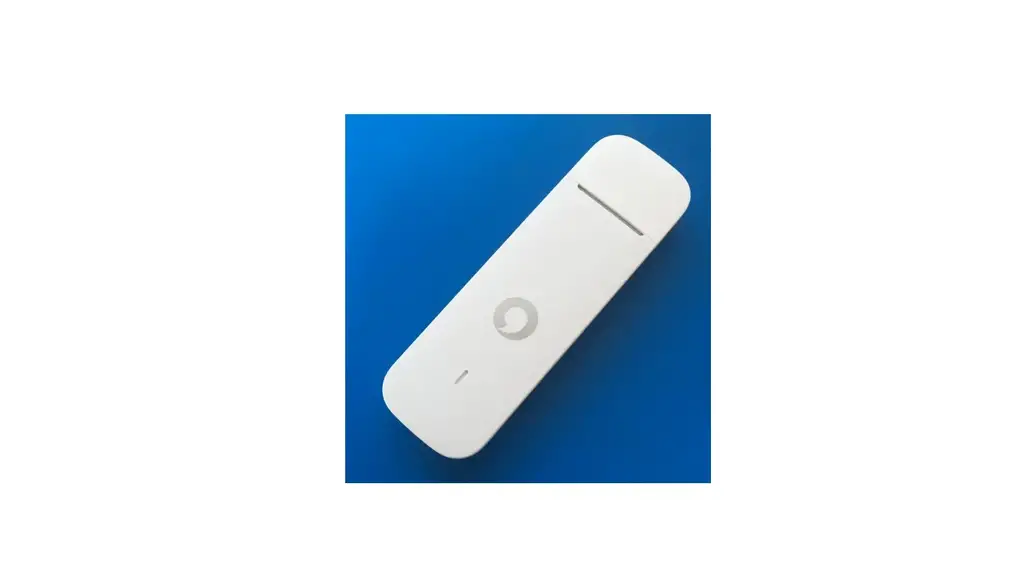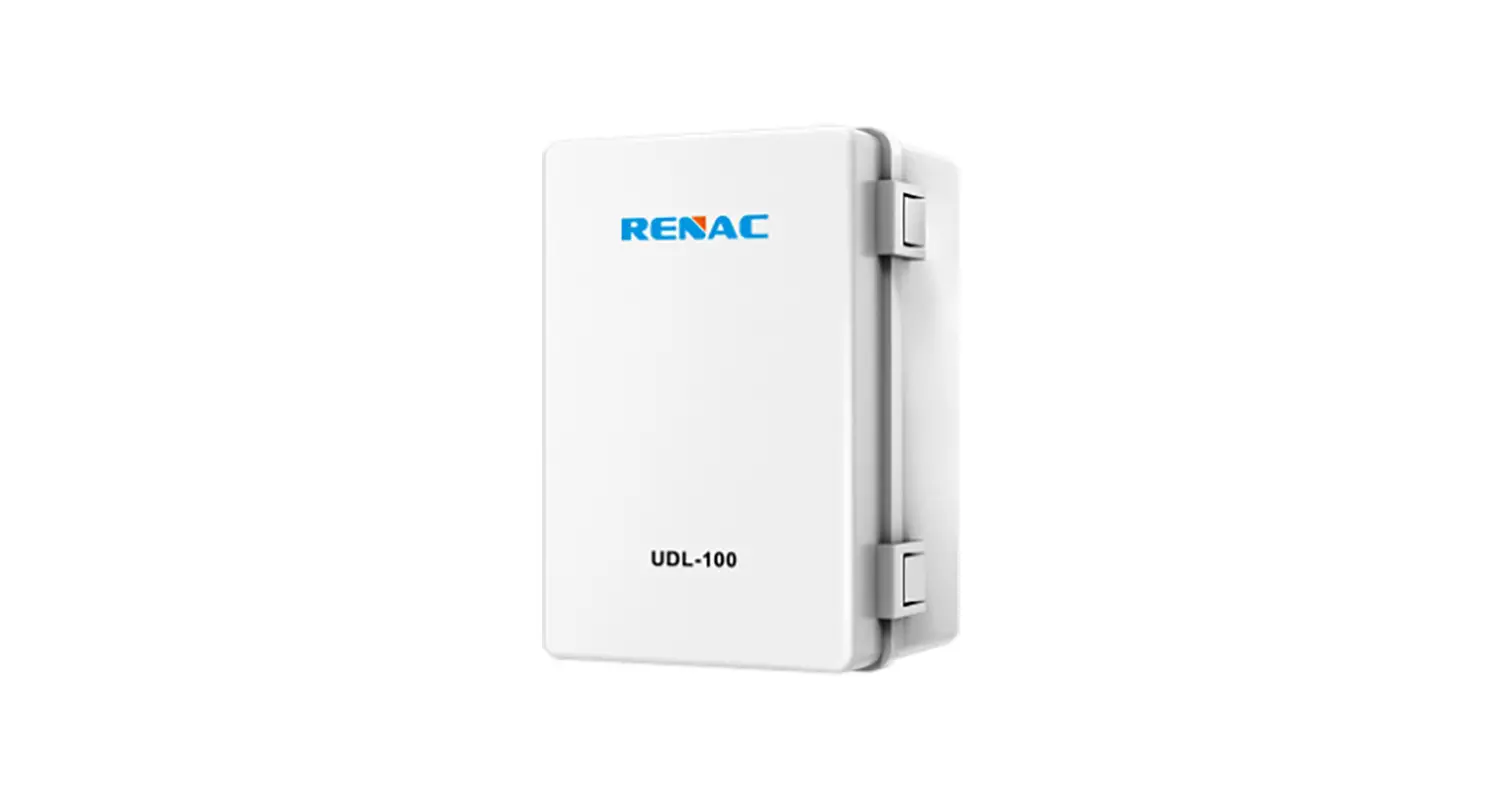

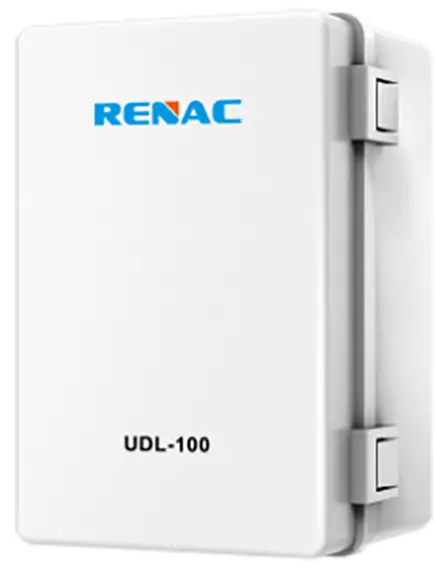
RENAC 4G Stick Module
Technical Data
| Model | 4G-G1 |
| Working frequency | LTE -FDD/LTE-TDD/WCDMA TD-SCDMA/CDMA/GSM |
| Remote Communication Interface | 4G |
| Working Voltage | DC 5V-12V |
| Working Power | <4W |
| Local Communication | RS485 |
| Data Uploading Interval | Default: 5 mins |
| Memory | 64M |
| SIM Card | MicroSIM(25mm*15mm) |
| Antenna | 4G Small Antenna |
| Working Temperature | -30~+60℃ |
| Working Humidity | 0~100% RH |
| Altitude | ≤4000m |
| Size (LxWxH) | 103mm*42mm*30mm |
| Protection class | IP65 |
Product Usage Instructions
- Connect the 4G-G1 module to a power source with DC voltage between 5V and 12V.
- Install a SIM card in the module.
- Connect the antenna to the module.
- The module will automatically connect to the network and establish a remote communication interface.
- The module can now be used for remote data communication.
Installation instructions
Connecting Inverter
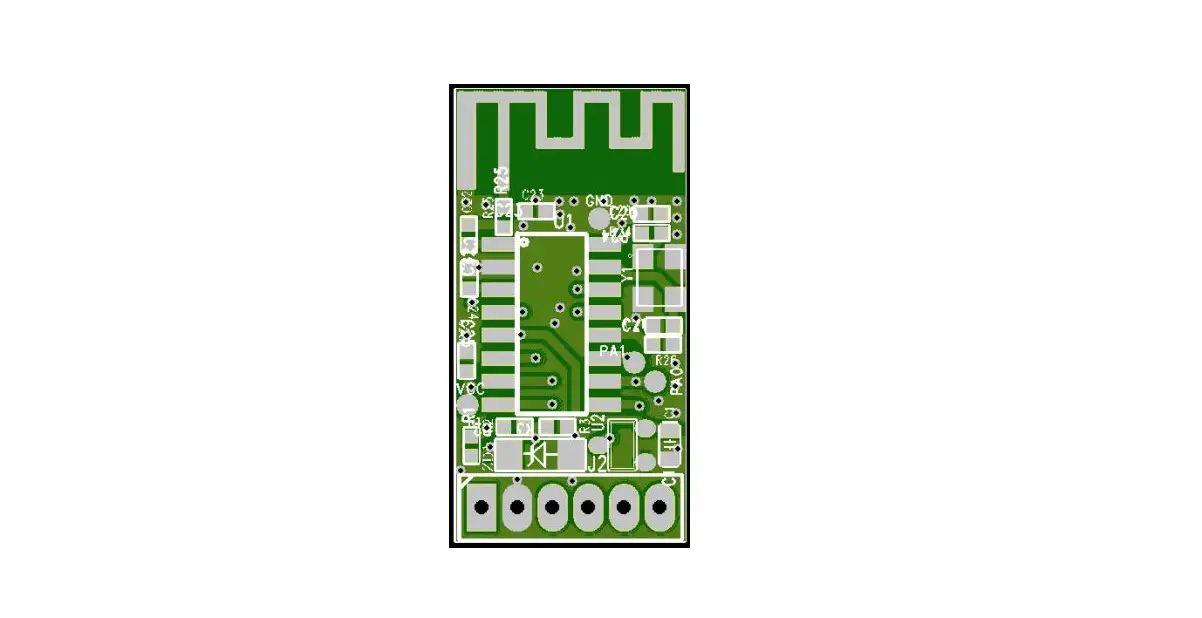
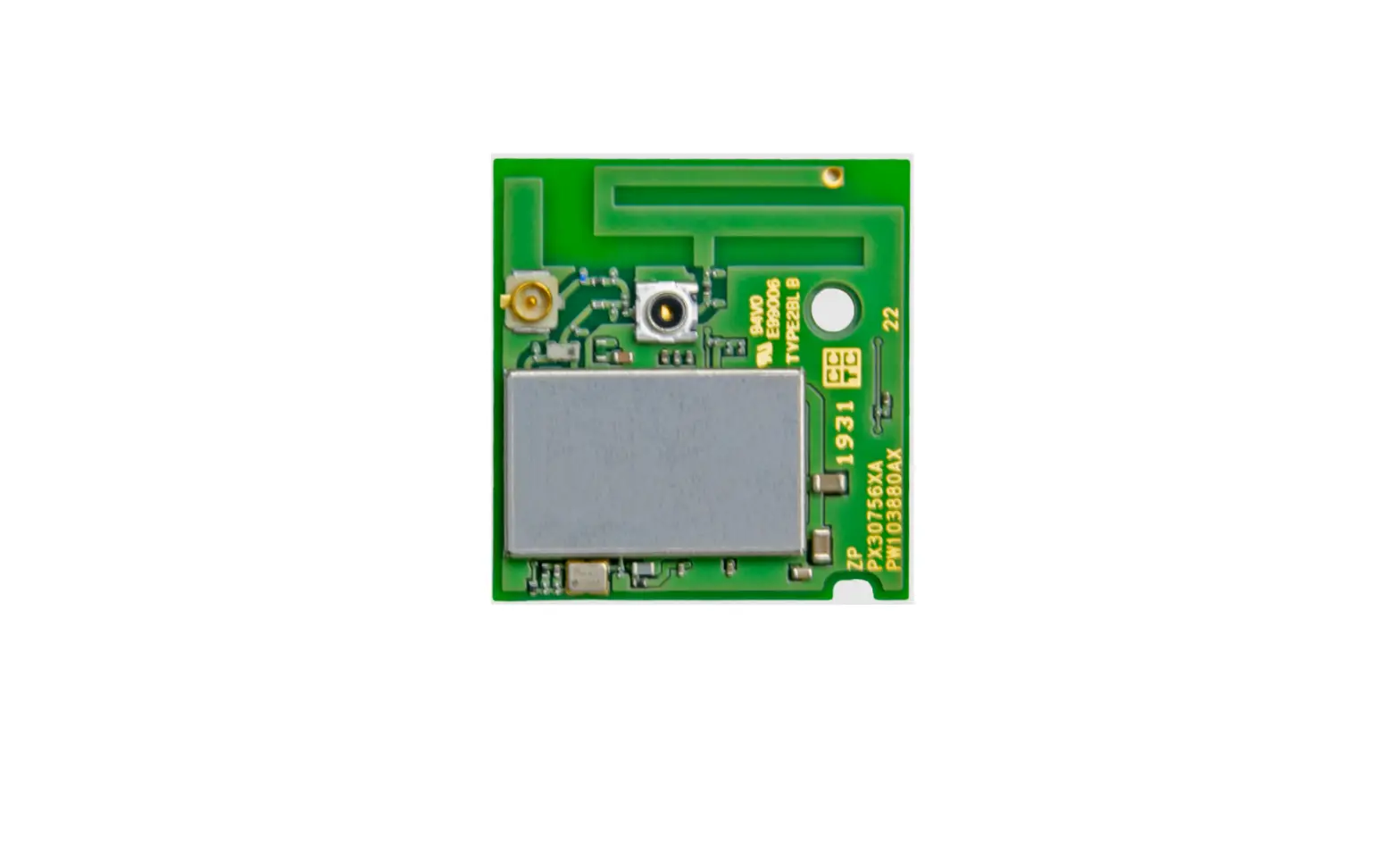
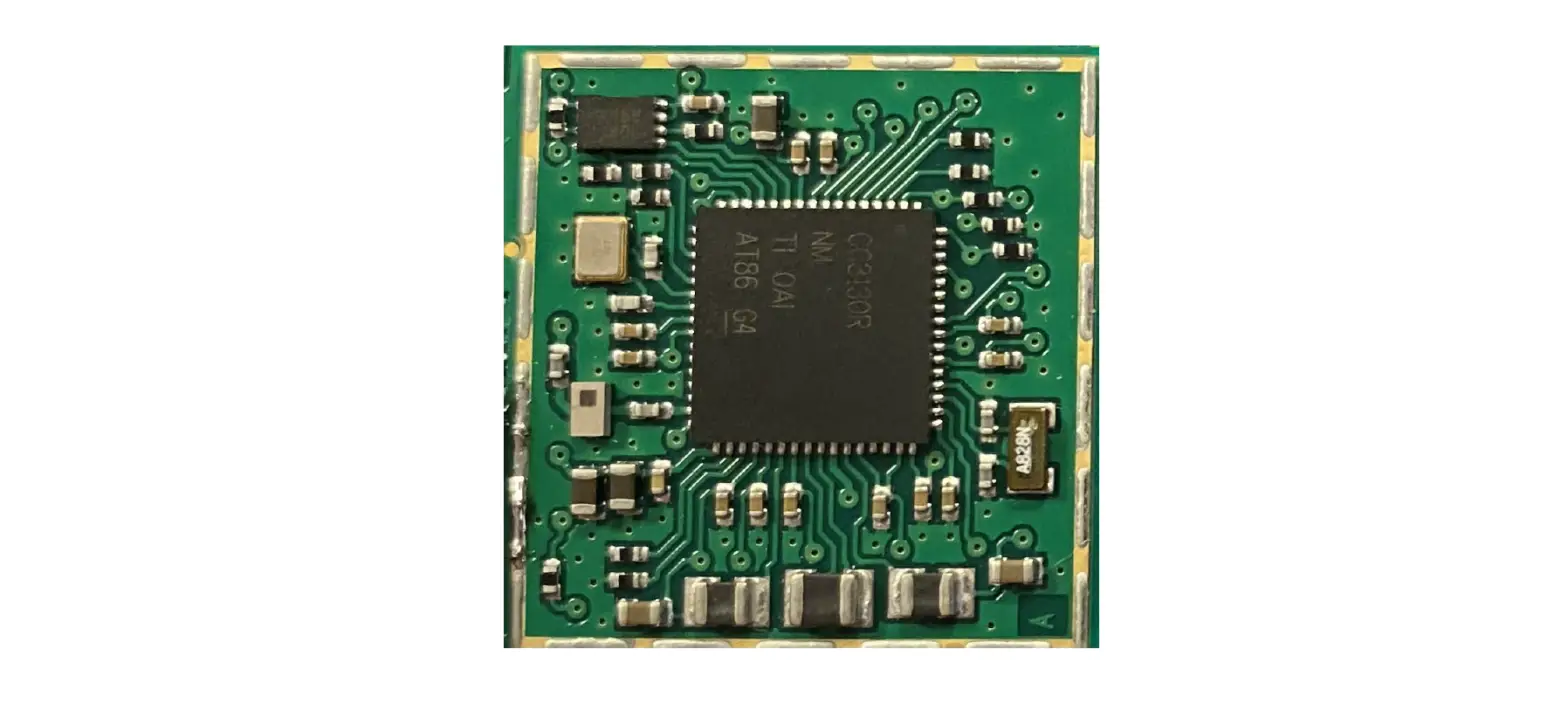
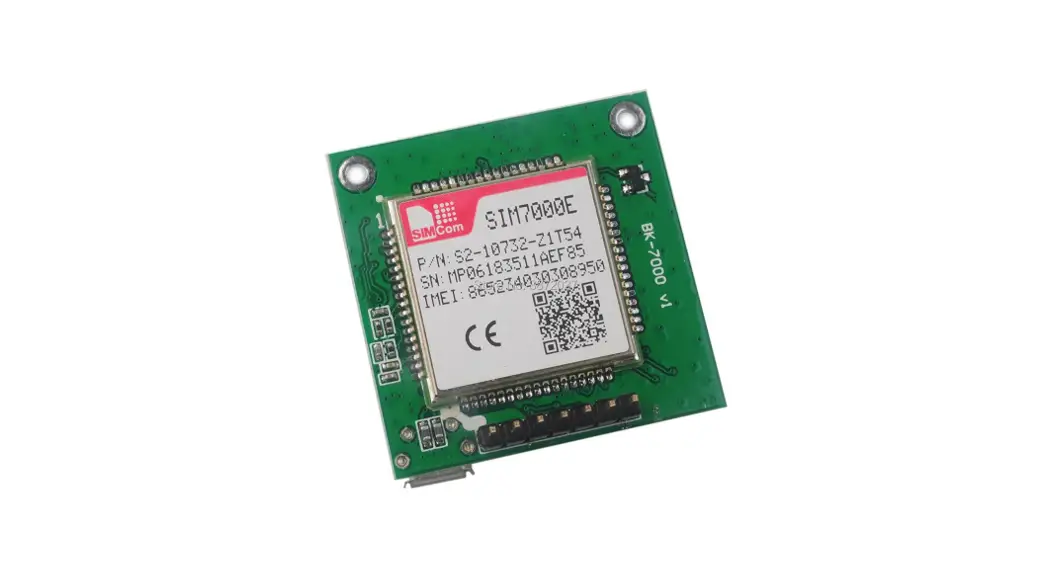
Pull out the 4G PCBA from the enclosure as below figure 1 , and insert the SIM card into SIM slot, then plug in the 4G enclosure.Plug the 4G-G1 module into the COM port of the inverter.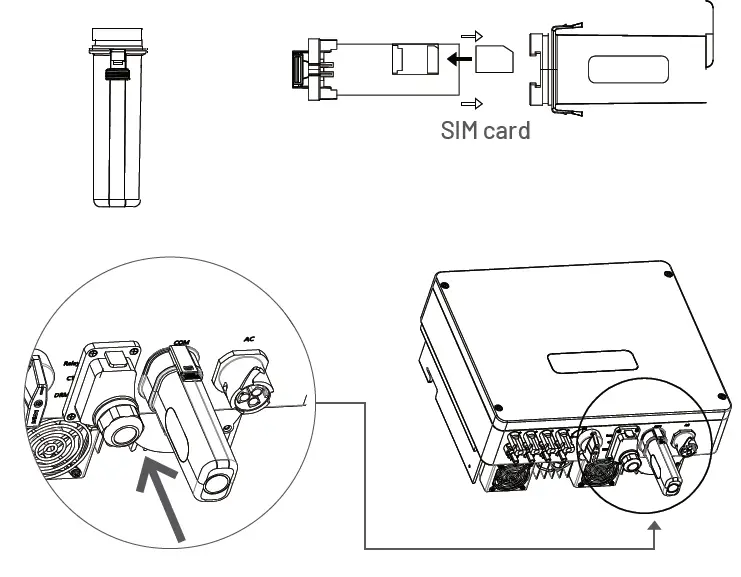
Download mobile APP
There are two ways to download Renac SEC:
- a. Download and install <Renac SEC> mobile app by scanning the QR code below.
- b. Download <Renac SEC> from Apple Store / Google Play.
Device Registration
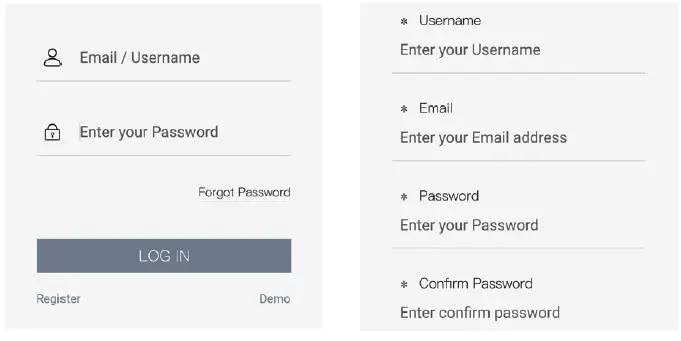
- Open the APP, fill out requirement information to create a new account, then click “Submit”.
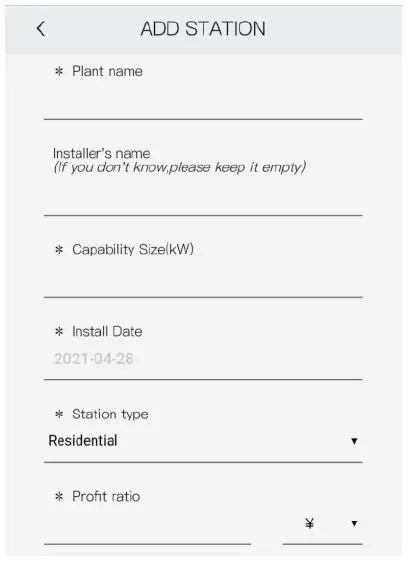
- Add the power station page, fill in the corresponding information, click [Add station] at the bottom to add a new power station (If you do not need to associate the installer account, the “installer” item can be ignored. with red is required *).
- Click “+” and scan the QR code (inverter serial number) on the device label to add a device.
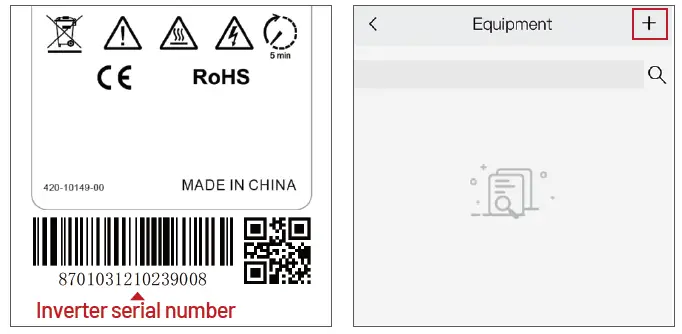
- After adding the power station, back to home page, and the newly added power station will be shown in the station list.
- On the home page, click “Statistics” to enter into the equipment list.
- After the device is successfully added, wait for 5 minutes,while the inverter status is green, means that the 4G monitoring is successful.
Indicator Description
| LED Color | LED Status | Description |
| Off | Off | Power supply of module is abnormal or damaged |
| Red | On | Antenna or SIM card is initializing |
| Red | Flashing | Firmware upgrade |
| Green | On | Connection fault between module and server |
| Green | Flashing | Module works in normal status |
| Yellow | Flashing | Received data from the inverter |