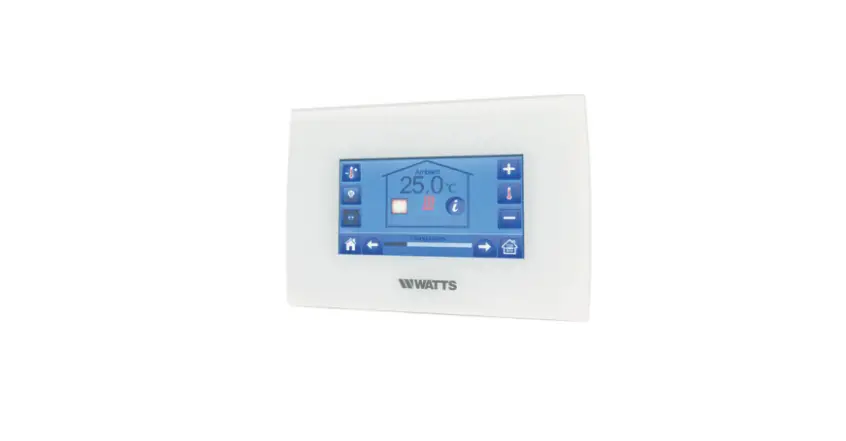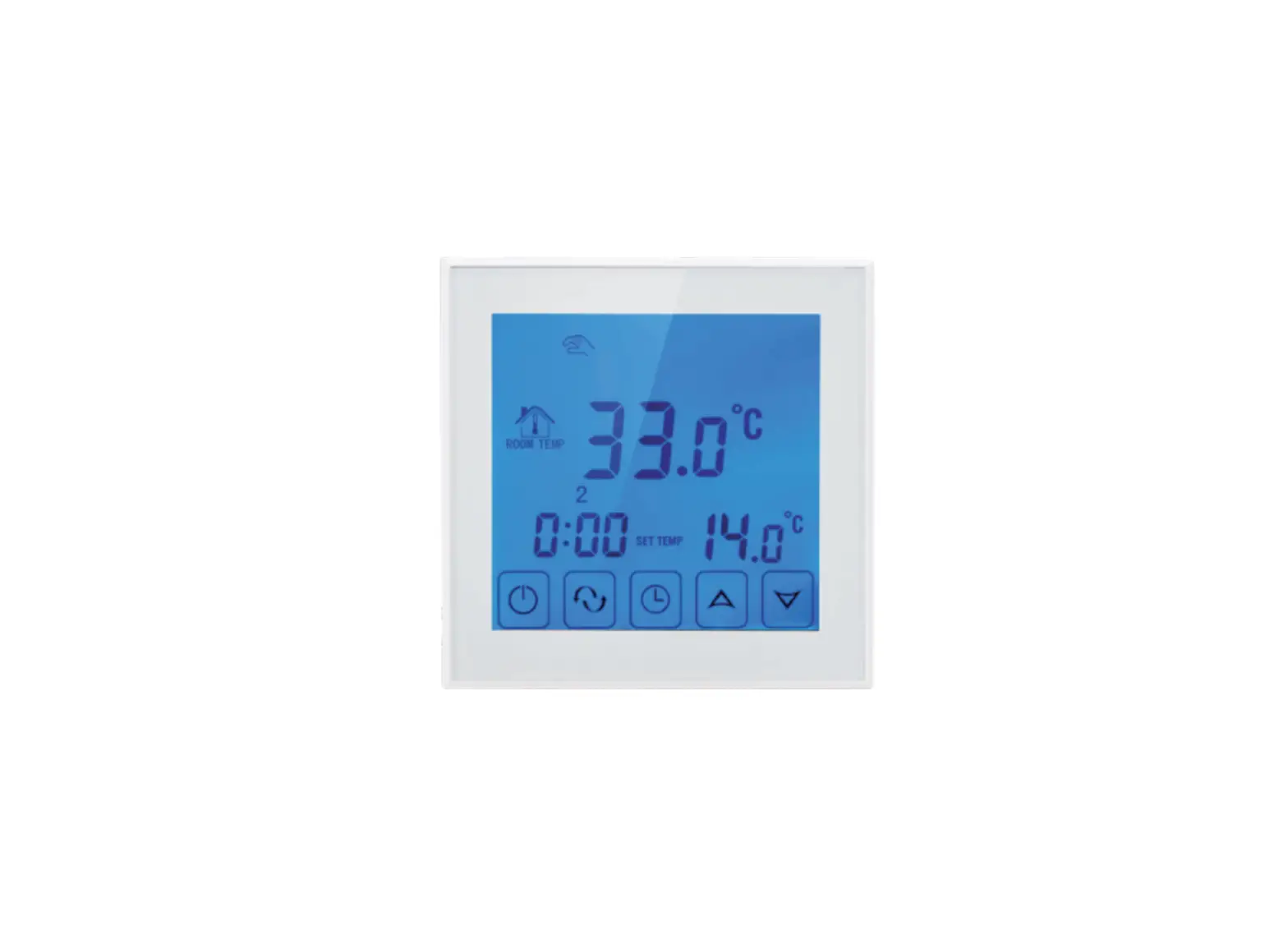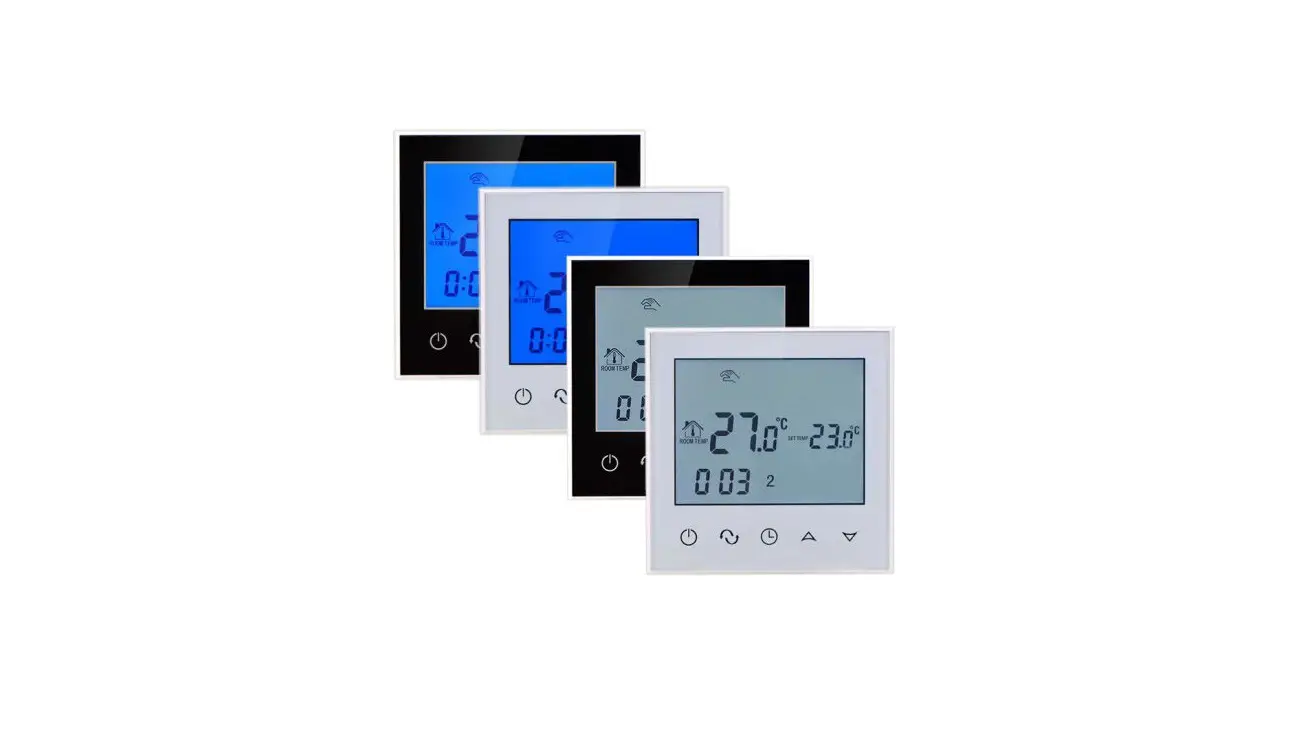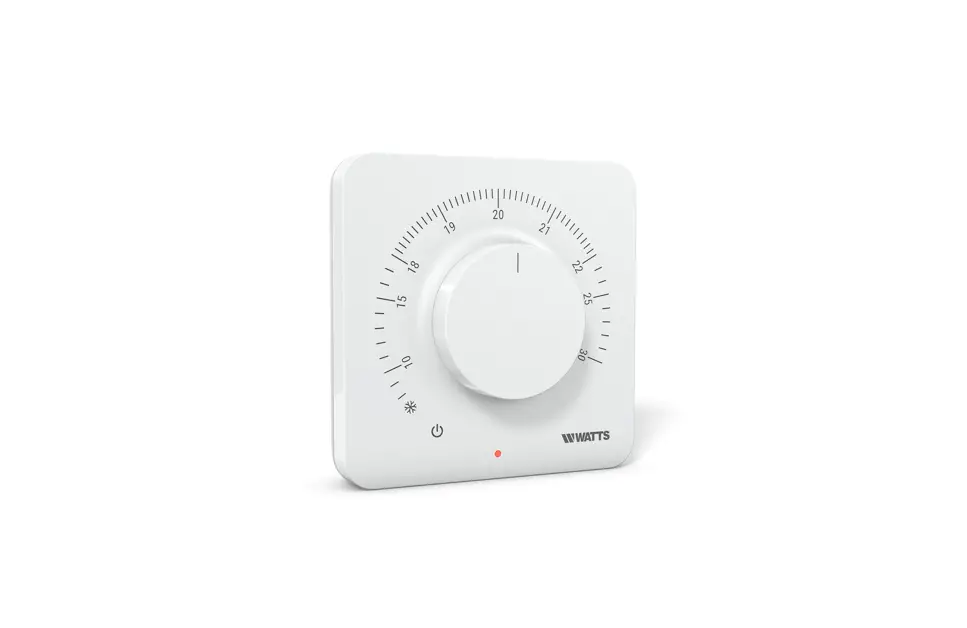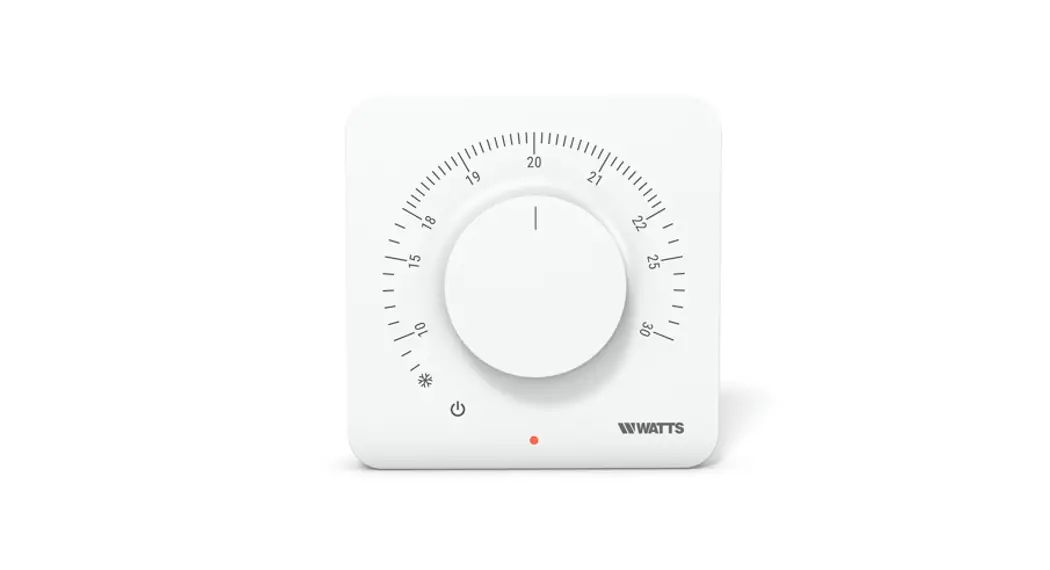
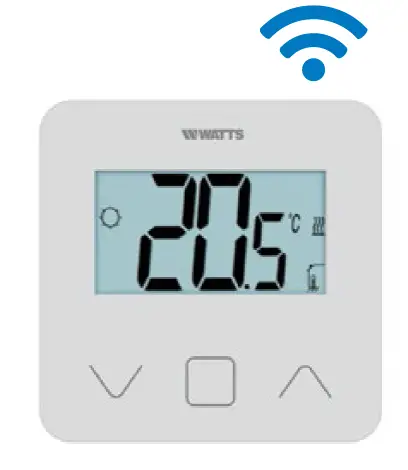
WATTS BT-D03 RF Wireless Thermostat with Glass Touch Screen
GENERAL INFORMATION
Safety warnings and operating instructions
- This product should be installed preferably by a qualified professional. Subject to observation of the above terms, the manufacturer shall assume the liability for the equipment as provided by legal stipulations.
- All instructions in this Installation & Operation manual should be observed when working with the thermostat. Failures due to improper installation, improper use or poor maintenance are voiding manufacturer liability.
- Any attempt to repair voids the responsibility and the obligation to guarantee and replacement from the manufacturer.
- Do not cover the thermostat for accurate measurement of ambient temperature. Therefore the sensor must never be hidden behind thick curtains, furniture, etc… Alternatively, a remote sensor should be used.
- Batteries may explode or leak, and cause burn injury, if recharger, disposed of fire, mixed with a different battery type , inserted backwards or disassembled. Replace all used batteries at the same time. Do not carry batteries loose in your pocket or purse. Do not remove the battery label. Keep batteries away from children. If swallowed, consult a physician at once.
- 2012/19/EU (WEEE directive): Products marked with this symbol cannot be dis-posed of as unsorted municipal waste in the European Union. For proper recycling, return this product to your local supplier upon the purchase of equivalent new equipment, or dispose of it at designated collection points. For more information see: www.recyclethis.info
- • 2006/66/EC (battery directive): This products contains a battery that cannot be disposed of as unsorted municipal waste in the European Union. See the product documentation for specific battery information. The battery is marked with this symbol, which may include lettering to indicate cadmium (Cd), lead (Pb), or mercury (Hg). For proper recycling, return the battery to your supplier or to a designated collection point. For more information see: www.recyclethis.info
Application
The thermostat have been designed for use in residential rooms, office spaces and industrial facilities. Verify that the installation complies with existing regulations before operation to ensure proper use of the installation.
Please refer to “Quick Installation Guide” for thermostat installation
PRESENTATION
- Connected thermostat WATTS Vision® system compatibility.
- 3 sensitive touch buttons.
- Wireless bidirectional communication 868 MHz.
- Different temperature modes setting.
- Anti freeze function.
- Configurable Hysteresis or PWM regulation.
- Pin Code & screws lock for public area.
- EEPROM non volatile memory.
- 2×1,5V AAA batteries (LR3).
- 2 parameter menus: User and Installer.
In option
External sensor with several possibilities of regulation (Floor, remote, combined…).
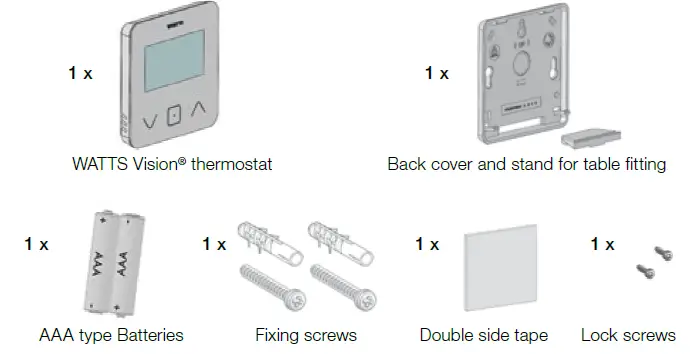
BOX CONTENTS
FIRST INSTALLATION
See quick installation guide for installation.
Batteries installation
- Open the cover and insert the 2 AAA supplied batteries.
- Close the cover.
Thermostat pairing, RF wireless communication initialization.
You must put your receiver or WATTS Vision® touch screen in radio pairing mode (refer to the device leaflet).
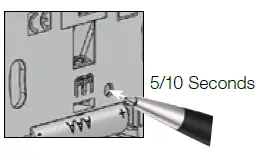
On the back, push 5 sec the button for direct access to initialization menu.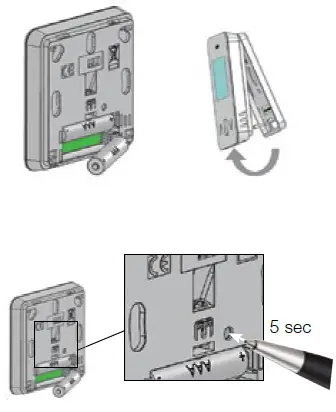
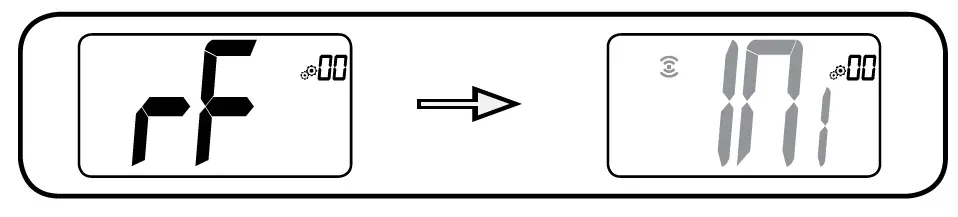
Following screens are displaying:
 Other method from parameter menu:
- Press
 key to wake-up the thermostat 3 Press key to enter in initialization
 - Press 5 sec key to enter parameter menu
Following screens are displaying:
 Note:
Note:
After few seconds, the thermostat and the receiver/touch screen should exit from the RF init mode, this is the normal procedure to confirm a correct pairing.
To make the installation easier, it will be better to have the thermostat near to the receiver or touch screen during the configuration mode.
PRODUCT DESCRIPTION
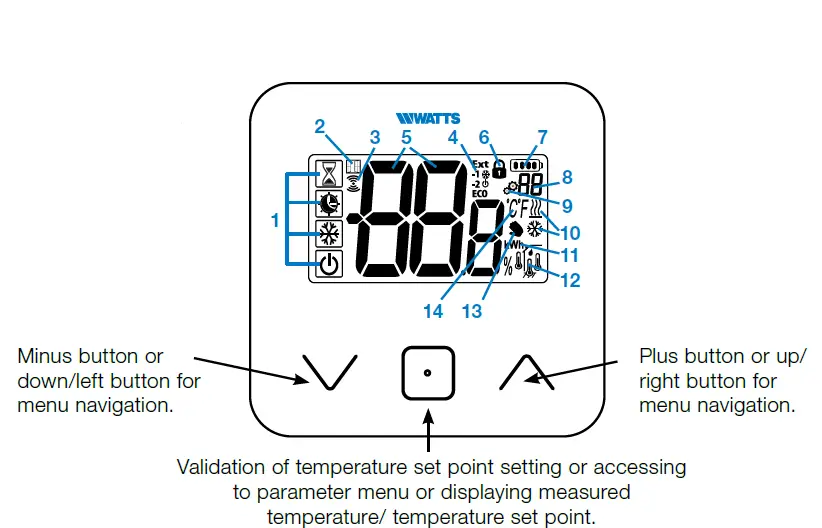 LCD logo description:
- I con showing current operating mode of thermostat with left to right:
 Boost/timer mode
Auto mode
Comfort mode
Reduced / ECO mode
Frost protection mode
Off mode
- Open window function
- RF communication
- Displaying of pilot wired order or reduced auto mode,
EXT order is applied to heating system
-1 order of comfort minus 1°C
-2 order of comfort minus 2°C
ECO order of reduced set point or Auto reduced mode order of anti-freeze set point
 order of stop
 - Measured temperature/ temperature set point / remaining time for boost mode.
- Locked keyboard.
- Battery level.
- Parameter menu number.
- Parameter menu.
 Indication of heating & cooling demand
- kWh Unit for power consumption.
- Type of measured data & sensor used for system regulation:
 Humidity measurement & control
Internal temperature sensor
Ambient temperature sensor
Floor temperature sensor
External temperature sensor
- User derogation or “adaptive start” during Auto mode application
- Temperature units
 measurement of humidity rate.
 Boost/timer mode
 order of anti-freeze set point
 order of stop
 Indication of heating & cooling
  Humidity measurement & control
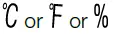 measurement of humidity rate.
MODE SELECTION
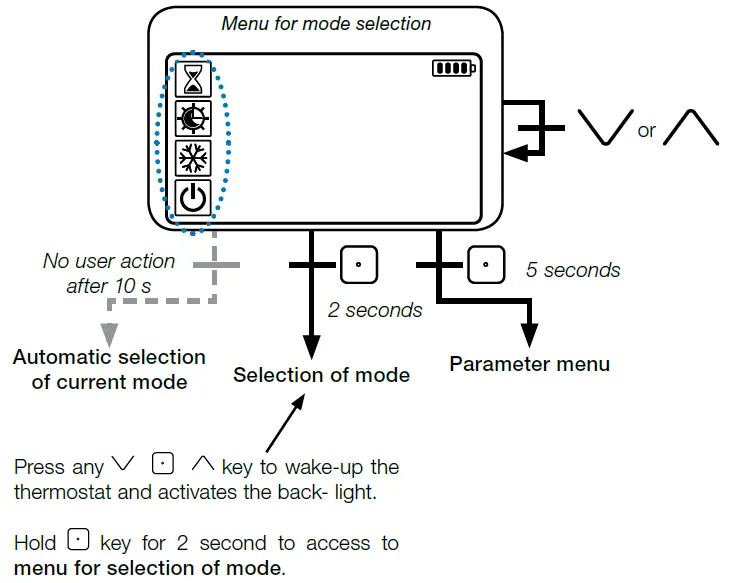 Press
Press permits to change navigate in different mode.
If “basic navigation” is activated (menu #03), navigation menu will be:
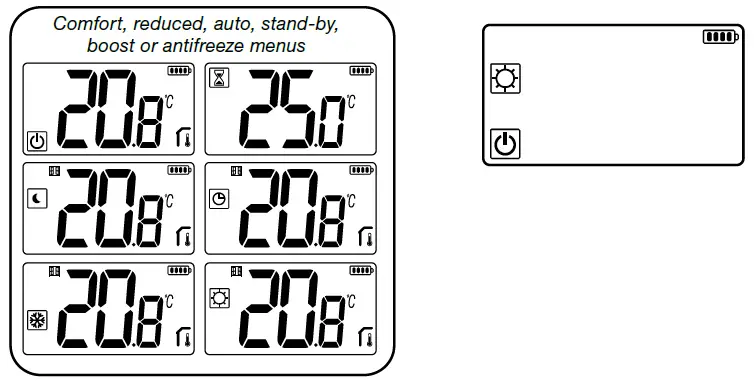 Change temperature setting
Wake-up the thermostat by pressing any key.
Press , to change the temperature set point (digits starts to blink).
By pressing  key, temperature set point value is validated.
Boost/Timer mode
In mode boost, set point temperature is applied during a selected time.
After this time, thermostat will return to former mode.
You can first adjust, the desired setting temperature with , press key, to validate, default value 24°C.
In a second time, you can adjust the duration in hours “H” if below 24H, then in day “d”.
AUTO mode
This mode is activated only when thermostat is paired with a WATTS Vision® touch screen BT-CT02.
In Auto mode, the heating system will follow program according to the current time and the Comfort and Reduced setting temperatures. By pressing keys
Boost/timer mode is selected, it override the temperature set point (1h)
Comfort mode
In this mode, comfort temperature set point will be followed all the time.
Reduced / ECO mode
In this mode, reduced temperature set point will be followed all the time.
Note: In cooling mode, reduced mode acts like the OFF mode (system is stopped, NC actuators close).
Anti-freeze mode
Use this mode if you want to protect your installation against freezing. (default value 7°C).
Remark: in cooling mode, Anti-freeze mode acts like the OFF mode (installation is stopped).
OFF mode
Use this mode if you need to switch off your installation.
Be Careful: In this mode your installation can freeze.
FUNCTIONS HIGHLIGHTS
Access user parameter menu
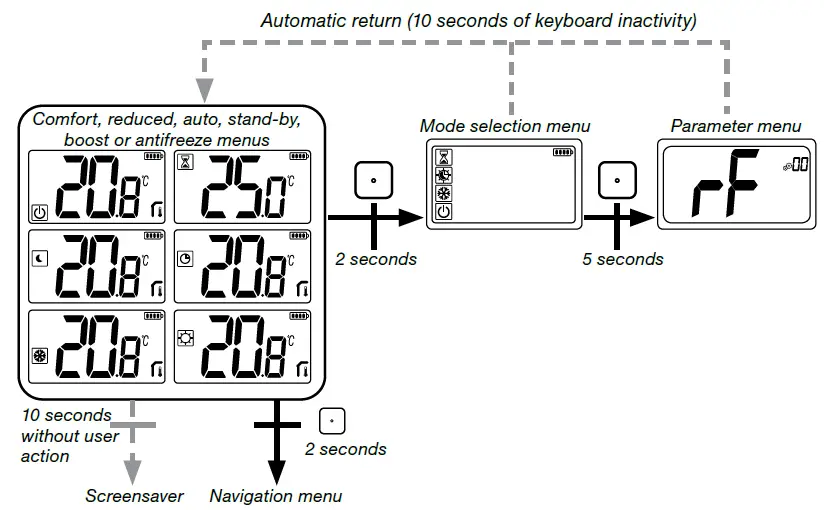 Press any key to wake-up the thermostat and activates the backlight.
By pressing key during 5 seconds, user can access to parameter menu.
The menu scroll is done with keys
Menu is selected by pressing key , value starts blinking. Once in the menu, the parameter value is changed with the keys .
Pressing again key sets the parameter value.
Note: Thermostat parameters are divided into two groups: user and installer (advanced menu).
Reversible mode
Reversible menu access is only possible on two conditions:
- – thermostat isn’t associated to a touch screen or 6Z master
- – « reversible menu » is activated in the user parameter menu.
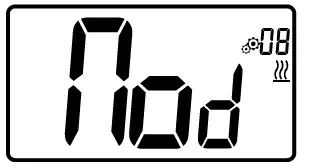
Enter user parameter 08, use keys , to select operating mode of the thermostat:
- – Hot: Heating regulation mode
- – CLd: Cooling regulation mode
- – rEv: activation of reversible mode in menu
- – Aut: automatic Heat/Cool mode.
Pressing key confirms the selection and switches to comfort mode.
A user inactivity of some seconds confirms current selection and returns to old selected mode.
By pressing key , temperature set point value is validated.
Once the reversible mode has been selected, the change of mode is made as follows:
Press 2s on to access the menu mode selection menu. Then go down below the OFF mode until the 4 blank icons are displayed:
Select with then select the «Hot» heating mode or «Cld cooling mode using keys.
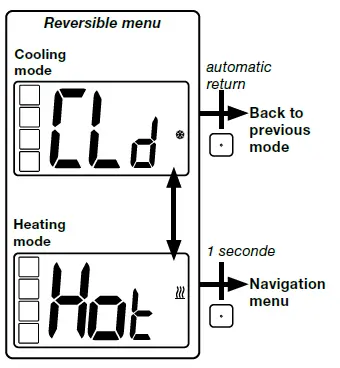
Pressing the key for 1s confirms the mode selection.
User inactivity of a few seconds keeps the thermostat in the previous mode.
Opened windows detection
Enter user parameter 07.
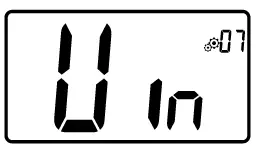 When activated and a detection is running, the icon
  will appear and blink on the screen!; This function is done by measuring and recording the temperature
evolution.
When an opened window is detected, the thermostat applies to heating system anti- freeze temperature set point. User can restart heating system, and stops window detection by pressing on a key.
Reset
By holding the button on the back of thermostat, user can:
- – Unlock pin code
- – Go directly to pairing menu (5 seconds)
- – Reset thermostat with user parameter value equal to factory setting. (10 seconds).
 Keyboard locking
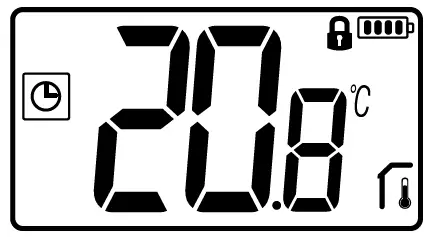
Wake-up the thermostat (lighted back- light),
Press and hold keys simultaneously.
Once locking is activated, logo  appears on the LCD screen:
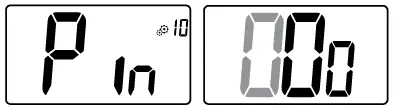
 PIN code
To activate this function enter user parameter 10.
The PIN code protect the thermostat from any change of the setting as temperature or mode.
When user pushes a key, “PIN” will be dis-played. If user press another time a touch, he has to enter PIN number.
 Other informations
Heating and cooling indications
Logos used to indicate than system requires:
- heating is cooling is
LED indication
When user modify set point temperature in functioning mode, behavior information is displayed with a LED RGB located on the middle of validation key.
Blue Azure Green Yellow Red <18°C <20°C <22°C <24°C <37°C
Wireless communication functioning
When digital thermostat sends an RF frame, LCD logo  blinks during transmission.
RF frame is sent:
- – When user press any key of the thermo-stat.
- – When user press key in Central Touch screen to update the thermostat.
- – Automatically every 3-4 minutes.
USER PARAMETER DESCRIPTION
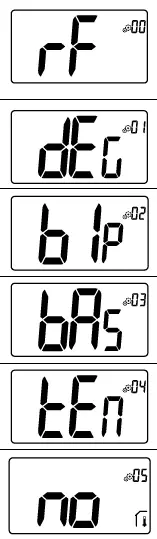 RF pairing activation:
Pressing the key starts communication initialization:
Another press of key will exit this mode. 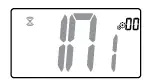
Degree unity for displaying:
➤ °C: Celsius
➤ °F: Fahrenheit Default value: °C Values: °C / °F
Buzzer activation:
“Yes”: activation of function “no”: no activation
Default value: no Values: Yes / no
“basic navigation” mode:
“Yes”: activation of function, restrict to comfort and off mode. “no”: no activation
Default value: no Values: Yes / no
Room temperature display:
“Yes”: remote displays measured temperature “no”: remote displays set point temperature Default value: Yes Values: Yes / no
Calibration of internal room sensor (remote):
Calibration must be done after a given order has been operating for a day. Place the thermometer in the middle of the room at about 1.5 m above the floor. Record the temperature shown after 1 hour. When you enter calibration mode for the first time, the indicator says “no”, which means no calibration has been performed yet. Enter the reading on your thermometer using the keys and (step of 0.1°C).
The setting is validated with key . YES appears to indicate that calibration.
Important note: a large temperature deviation may indicate an inappropriate installation of the thermostat. If the temperature differ-ence is too big, this could mean your thermostat was not installed properly e.g. in the right place.
NOTES: If user press simultaneously the keys and , sensor calibration is reset. No is displayed.
Default value: no for offset of 0.0°C
Range values: Yes: for offset included between -3.0°C and 3.0°C.
Calibration of external room sensor (remote):
This menu is only displayed if parameter rEG (#20) is set with “Amb”. Calibration must be done after a given order has been operating for a day. Place the thermometer in the middle of the room at about 1.5 m above the floor. Record the temperature shown after 1 hour. When you enter calibration mode for the first time, the indicator says “no”, which means no calibration has been performed yet. Enter the reading on your thermometer using the key (step of 0.1°C).
The setting is validated with key .
YES appears to indicate that calibration.
Important note: A large temperature deviation may indicate an inappropriate installation of the thermostat. If the temperature difference is too big, this could mean your thermostat was not installed properly e.g. in the right place.
NOTES: If user press simultaneously the keys , sensor calibration is reset. No is displayed.
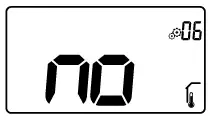
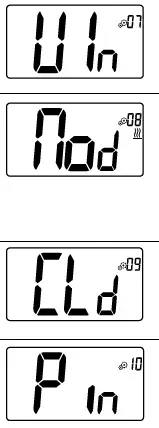
Open window detection:
“Yes”: activation of function
“no”: no activation
More information is in paragraph “Opened window detection”
Default value: Yes Values: Yes / no
Operating mode of thermostat:
– Hot: heating mode
– CLd: cooling mode
– rEv: activation of reversible menu
– Aut: automatic mode
This parameter menu appears only if digital thermostat isn’t associated with a Touch screen BT-CT02 or a 6Z master.
Authorization or not of cooling mode:
This parameter menu appears only if digital thermostat is associated with a Touch screen BT-CT02 or a 6Z master. It permits to allow or not cooling system in remote room.
Factory setting value: Yes Other values: no
PIN code activation:
“Yes”: activation of function
“no”: no activation
More information is in paragraph “code PIN description”
Factory setting value: no Values: Yes
 Setting value for PIN code:
User has to configure values of the three digits with and validate its choice with validation key.
Factory setting value: 000 Value range: 000 to 999
Reset user settings:
Press and hold for 5 seconds to reset, all segments light up, showing that the thermostat has been reset with the factory default setting:
➤ Set point temperatures in  modes,
➤ All user parameters with their factory values.
When button is hold:
Zone number displaying:
This function is available only if digital thermostat is associ-ated with a multi-zone receiver.
Displaying client software version:
Pressing and maintaining key displays software qualification version and debug information.
Reminder: software version is written: Vxx.xx.
Professional menu:
This menu permits to access to installer parameter menus.
Pressing and maintaining key displays first parameter of installer menus.
When button is hold:
User menu exit:
Press key to exit user menu and return to the main screen.
INSTALLER PARAMETER DESCRIPTION
To access to these installer parameters, installer has to go to user parameter number 15.
After, he presses and holds validation key during 5 seconds:
Accessing to installer parameters

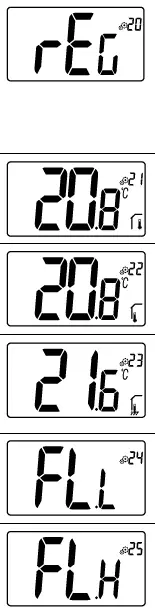 Selecting temperature sensor used for the regulation:
– AIR: regulation with internal sensor
– Amb: regulation with external sensor
– FLR: regulation on floor sensor (external sensor of remote, only when thermostat is connected to master) or embedded sensor on receiver
– FLL: regulation with floor sensor and air sensor
Factory setting value: Air Other values: Amb / FLL / FLR
Displaying of measured temperature by internal sensor:
If “Err” is displayed, internal sensor is damaged.
Displaying of measured temperature by external sensor:
FLOOR temperature / AMBIENT temperature
If “Err” is displayed, external/ambient sensor isn’t connected or damaged.
Displaying of measured temperature by floor sensor connected to receiver (only with specific bidirectional system)
If “Err” is displayed, thermostat isn’t associated to a received with floor sensor or this sensor is damaged.
Lower limit of floor temperature (FL.L)
This value is used when parameter 20 is FLL Factory setting value: “no”: not activated Other values: 5°C to “FL.H”
High limitation of floor temperature (FL.H)
This value is used when parameter 20 is set on “floor limit” FLL.
Factory setting value: “no”: not activated
Other values: “FL.Lo” to 40°C
 Regulation type:
– HYs: regulation of hysteresis
– bP: regulation of proportional type
Factory setting value: bP Other values: HYs
Hysteresis value:
This menu is displayed only if parameter “typ” is equal to
“HYs”. Use and keys to set hysteresis value. The setting is validated with key .
Default value: 0.3°C Value range: 0.2°C to 3°C
Choice of concrete type:
Two choices are possible:
– uf1: for thin liquid concrete < 6 cm
– uf2: for traditional concrete with a thickness higher than 6 cm if parameter #26 is set to “HYs” this menu is not available.
Factory setting value: uf1 Other values: uf2
Choice of coating:
Two choices are possible:
– bP1: for tiling
– bP2: for wooden floors (floating or not) if parameter #26 is set to “HYs” this menu is not available.
Factory setting value: bP1 Other values: bP2
Function of pilot wire:
This option is used to enable the pilot wire functionality if it’s used on your installation.
Factory setting value: no Other values: yes
Minimum value of setting range of the set point temperature:
Factory setting value: 5.0°C Other values: 5.0°C to 15.0°C
Maximum value of setting range of the set point temperature:
Factory setting value: 37.0°C Other values: 20.0°C to 37.0°C
Humidity set point (Optional)
Factory setting value: 75 % Other values: 0% (“no”) to 100%
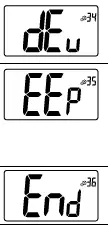 Anti-condensation function of the installation:
When condensation is detected, air conditioning is stopped or/and dehumidifier is activated.
Factory setting value: yes Other values: no
EEPROM clearing:
All thermostat parameters will be loaded with factory settings. RF wireless communication will be reset too. Pressing and maintaining key displays: User menu exit:
Press key to exit user menu and return to the main screen.
TROUBLESHOOTING & SOLUTION
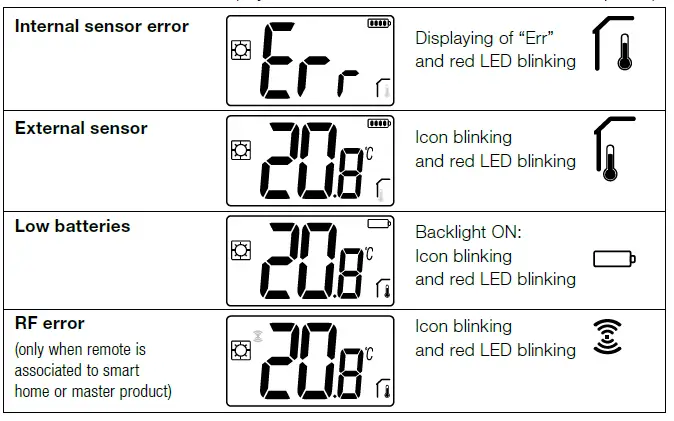
Description of thermostat errors displaying
Remote errors are:
- Error of temperature measurement
o Internal sensor;
o External sensor. - Low batteries
- Loss of RF communication (only when remote is associated to Touch E3 or to master product).
 My Thermostat seems work correctly but the heating or the cooling doesn’t work correctly
Output
- On the receiver
- Check the good reception of RF signal.
- Check the connections.
- Check the power supply of the heating element.
- Contact your installer.
RF communication
- Check the following points:
- The receiver must be put at a minimum distance of 50 cm of all others electrical or wireless materials (GSM, Wi-Fi..)
- The receiver shouldn’t be fixed on a metallic part or too close of hydraulic pipes… (Copper…)
Sensor calibration
- Try to calibrate your thermostat (refer to user parameter 05).
- Contact your installer, to check & adjust the regulation parameters with your heating system.
Configuration
- The logo blinks:
- Cooling request is made by the central (BT-CT02) but the thermostat doesn’t allow (refer to user parameter 08).
MAINTENANCE
Battery level indication
The batteries are considered weak when voltage level is too low for a correct product functioning.
The icon  will blinked on LCD screen.
Cleaning of the thermostat
Gently dust the outside of the thermostat with a soft, lint-free cloth.
If the thermostat needs a more thorough cleaning:
- Lightly dampen a soft and clean cloth with water.
- Wring out any excess water from the cloth.
- Gently wipe the display and sides of the thermostat, making sure no drops of water accumulate around the product.
Important: Do not spray thermostat direct-ly with water, or use cleaning solutions or polishes, as doing so may damage the thermostat.
TECHNICAL CHARACTERISTICS
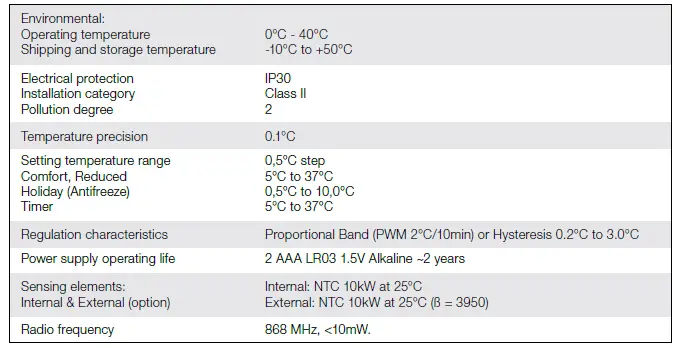
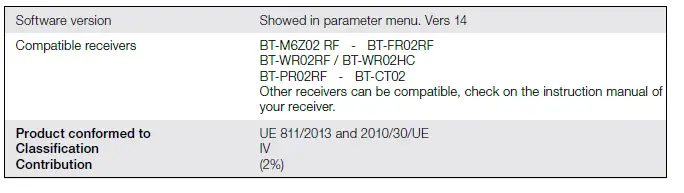 Dimensions & weight
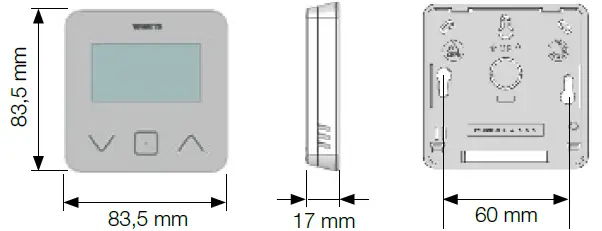 Weight: 115g (thermostat only) – all inluding box 220g
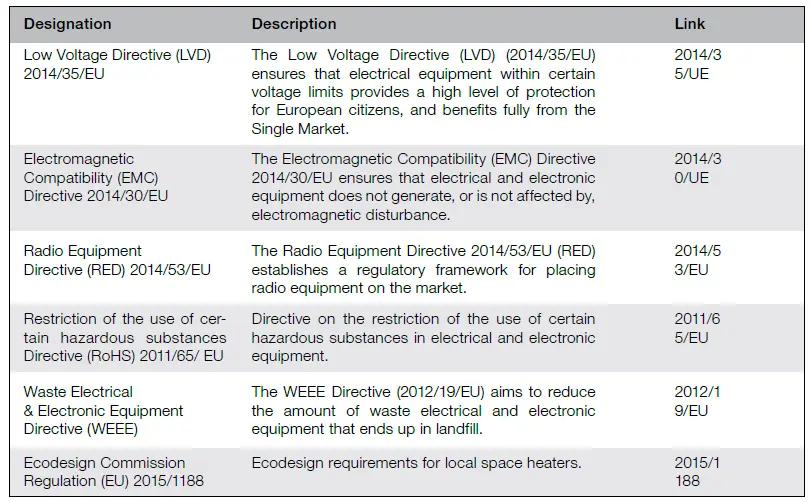
DIRECTIVES
 Watts Industries UK Ltd
Colmworth Business Park
Eaton Socon
St. Neots
PE19 8YX United Kingdom
T: +44 (0) 1480 407074
F: +44 (0) 1480 407076
Email: [email protected]
http://wattswater.co.uk
The descriptions and photographs contained in this product specification sheet are supplied by way of information only and are not binding. Watts Industries reserves the right to carry out any technical and design improvements to its products without prior notice.” Warranty: All sales and contracts for sale are expressly conditioned on the buyer’s assent to Watts terms and conditions found on its website at www.wattswater.eu Watts hereby objects to any term, different from or additional to Watts terms, contained in any buyer communication in any form, unless agreed to in a writing signed by an officer of Watts
Watts Electronics S.A.S
B.P. N°10 – Z.A. des Tourettes, 43800 ROSIERES, France, T: +33(0) 471 57 40 49, F: +33(0) 471 57 40 90,
www.wattswater.eu
© 2021 Watts