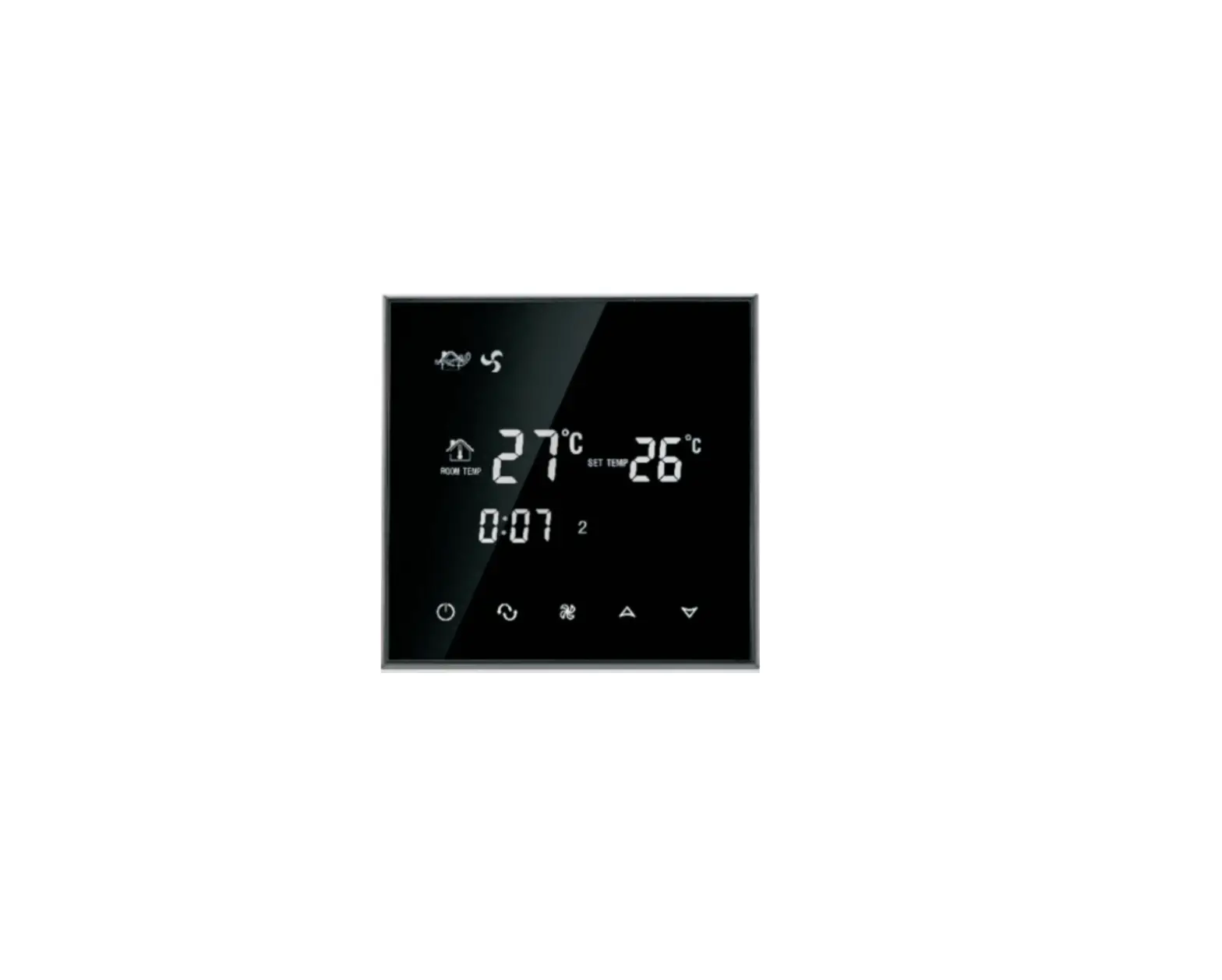
Touch Screen Room Thermostat
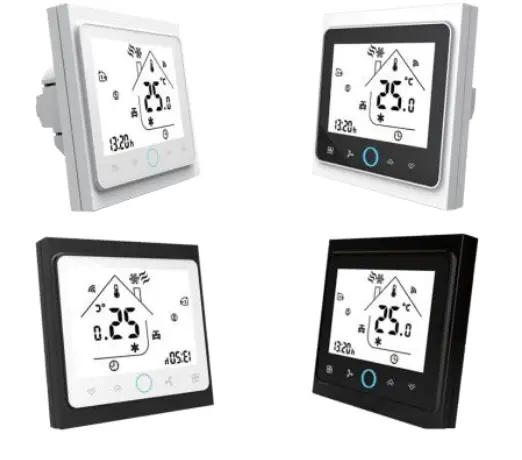
User Guide
Model: TW02
Welcome
Thank you for your purchase. Your new thermostat will provide uniform and comfortable temperature control throughout every room on your property. We bring together technology, craftsmanship and the highest quality materials to provide you with a safe, reliable product combined with sleek, contemporary design. Please read this installation/ programming manual for comprehensive instructions on installing and operating your thermostat. Please ensure a suitably qualified person installs your thermostat and complies with all local regulations.
In the box, you will find
Thermostat 1pc
Screws 2pc
User Guide/manual 1pc
Wall plate 1pc
3m External (Floor) Sensor(optional) 1pc
Service
We offer a warranty of 24 months from the sales day. If it is not the problem of quality or beyond the warranty time, we will charge for the after-sale service.
About your thermostat
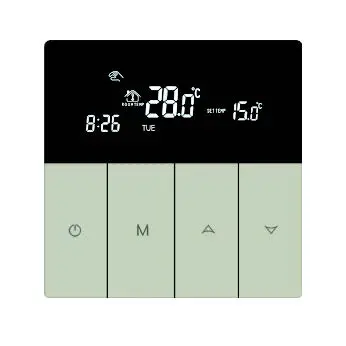
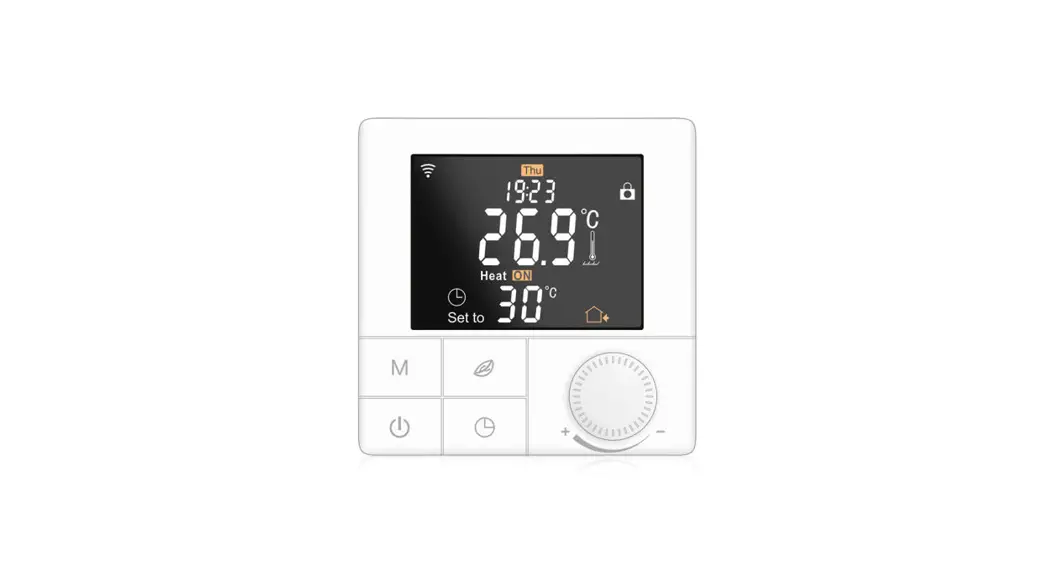
The TW02 series thermostat range has been developed to control electric underfloor or water heating or water/gas boiler system. These units are designed for use in commercial, industrial, civil, and domestic properties.
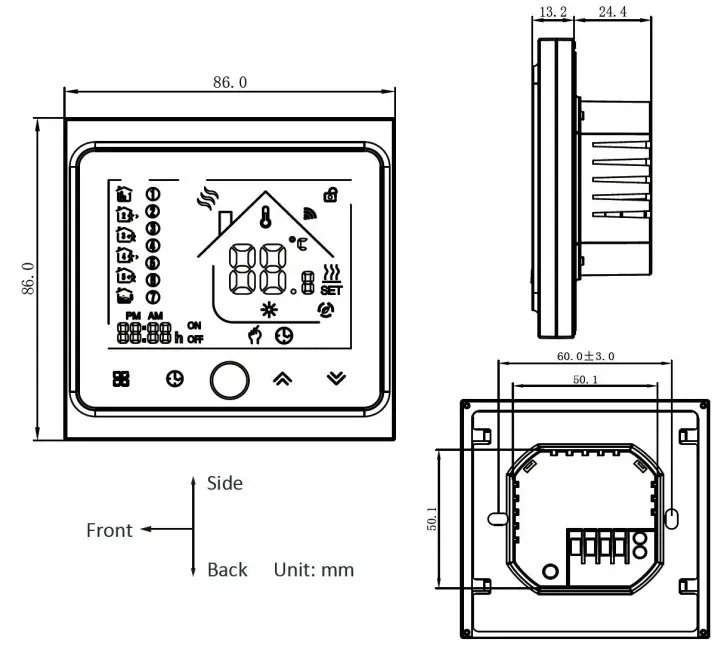
Dimension of your thermostat
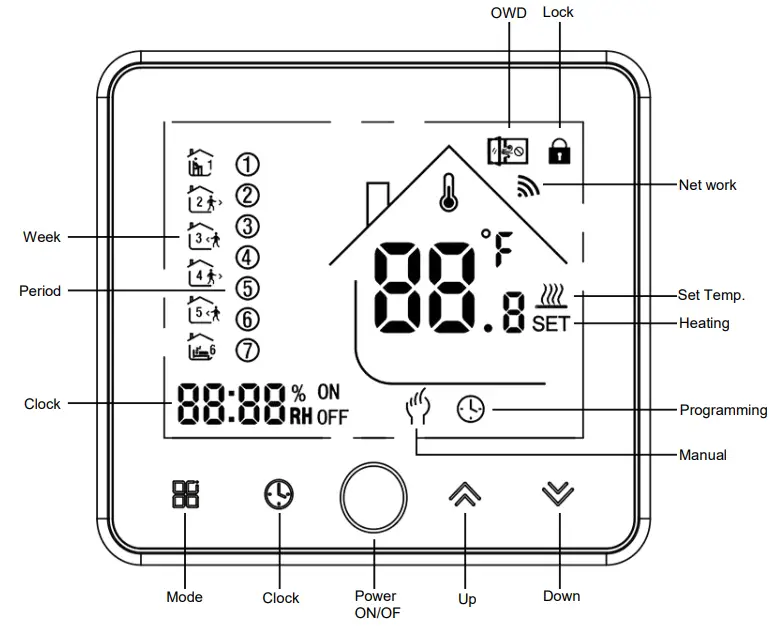
Home screen quick reference
Technical Data of your thermostat
Sensor: NTC Accuracy:±1℃
Set Temp. Range:5-45℃
Room Temp. Range:5-99℃
Power Consumption:< 1.5W Timing Error:<1%
Power Supply:95 ~ 240VAC, 50 ~60Hz
Current Load:3A(water heating, water/gas boiler), 16A(electric heating)
Shell material:PC+ABS (flame retardant)
Dimension:86x86x13.2mm
Ambient Temp.:0-45℃,5-95%RH(Non-condensing)
Storage Temp.:-5-55℃
Installation Hole distance: 60mm
Operation/programming of your thermostat
- Power on/off
Press to turn on/off.
 - Adjusting/setting the temperature
Press ︽ or ︾ to set the desired temperature. - Adjusting/Setting the clock
Touch the button to set the minute, hour, and weekday (1 = Monday, 2 = Tuesday, etc.) by using the ︽ or ︾arrows. Press once more to confirm and exit.
 - Locking your thermostat
Press and hold the ︽ a ︾ arrows for 5 seconds to lock/unlock
your thermostat. - Mode setting
Touch (Mode) button to change between manual mode and program mode. In manual mode, the icon
  will show on the screen. In the program mode, the icon will show on the screen.
 - Adjusting the weekly programmable
Your thermostat provides six scheduled heating periods each day, you can set them free. Under the power on situation, press, and hold and buttons together for 5 sec, into weekly programming mode, Then press to change the different items.Press ︽ or ︾ to set the relative values.
The order is Time adjusting→ Temperature adjusting→ Period setting → week adjusting (“12345”,”6”,”7”, is “5+1+1” programmable mode, every mode has six times zones and six times temperature setting).The default setting for the program schedule
Time
displayWEEKDAY (MONDAY — FRIDAY)
(1 2 3 4 5 shows on screen)WEEKEND (SATURDAY) (6 shows on screen) WEEKEND (SUNDAY) (7 shows on screen) TIME TEMPERATURE TIME TEMPERATURE TIME TEMPERATURE Period 1 6:30 21°C 6:30 21°C 6:30 21°C Period 2 8:00 18°C 8:00 18°C 8:00 18°C Period 3 11:30 21°C 11:30 21°C 11:30 21°C Period 4 12:30 18°C 12:30 18°C 12:30 18°C Period 5 18:00 21°C 18:00 21°C 18:00 21°C Period 6 22:30 16°C 22:30 16°C 23:00 16°C In the mode of programmable, only the temperature can be adjusted temporarily, the time could not be adjusted.
Open window detect function(OWD function)
When the Open Window Detect(OWD) mode is enabled in the parameter setting, the system will automatically stop heating when it detects a sudden drop of room temperature (2°C in 5 minutes as default). This is normally caused when a window or door is opened without turning off the heating device.In order to save energy, the device will turn off heating and the icon
 will show on the screen automatically, it will return to the previous mode of operation after 30mins, then the icon disappears. Pressing any button will exit the OWD function during the heating-off period.
 will show on the screen. In the program mode, the icon
  will show on the screen automatically, it will return to the previous mode of operation after 30mins, then the icon
 Advanced setting
Under the power off status, press  &
& simultaneously for 5 seconds for coming into the advance setting mode, the screen will display all the related No. & dates, then press ︽ or ︾ for dates, change, then press
 to come to the next setting, All of the parameters will be kept in the record after press after finish setting.
| Code | Option | Default parameters | Details |
| 1Adj | Room Temperature compensation | -2 | -9°C-+9°C |
| 2Sen | Sensor type | In | In: internal sensor (to control and protect the temperature ) OU: external sensor (to control and protect the temperature ) AL: internal/external sensor ( internal sensor is for room temperature control, the external sensor is for temperature protection) |
| 3Lit | Temperature limitation | 50.0 | 5-60°C, the sensor should choose AL, when it detects the temperature is higher than this limitation, it will close the output and only the temperature lowers the limitation, the output will resume. |
| 4dif | Switching Deviation | 1 | 1-5°C |
| 5Ltp | 51-4) Anti-freezing function | Off | On: start the Anti-freezing function Off: closed the Anti-freezing function |
| 6Hit | temperature upper limit setting | 45 | 35-95°C |
| 70EN | Open window detect function (OWD) | OFF | On: start the OWD function Off: closed the OWD function |
| 8011 | OWD Detect Time | 15 | Range: 2-30min |
| 9Otp | OWD Drop temp. select (within detect time) | 2 | Range: 2-4°C |
| Pdt | OWD Delay time select (Return to previous working status) | 30 | Range: 10-60min |
| AFLAC | Factory Reset | – | when the show”-“and kee press “ ” for 5 seconds until the show”- – -“, it means a return to the restore factory reset |
Wiring your thermostat
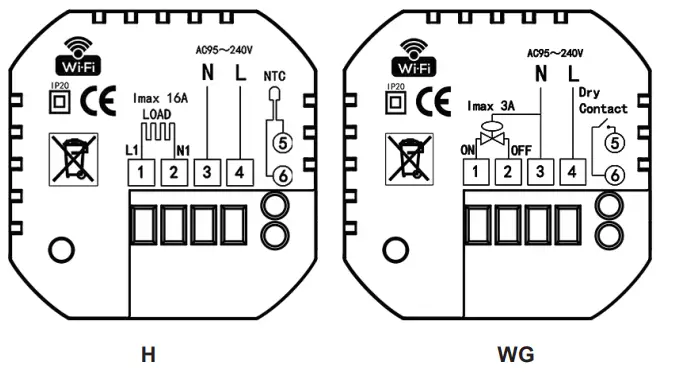
Please note:
Do not over-tighten the terminals in your thermostat as damage may occur.
H for electric heating, External Sensor is optional.
WG for water & gas boiler.
Installing your thermostat
This product is suitable for standard 86mm wall boxes or European 60mm round boxes.
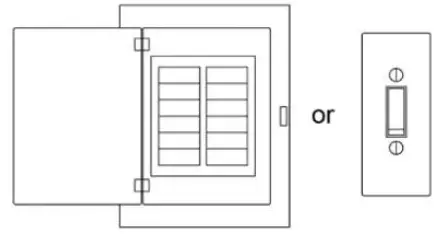
- Keep power off.

- Connect the wire of power and other equipment into the terminals.

- Fix the wall plate into the wall box with a screwdriver

- Connect the LCD board to the wall plate.

 WARNING: Please arrange a professional technician to install this product according to the installation drawing and instructions.
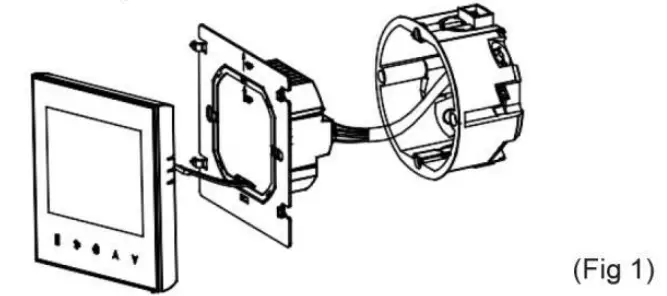
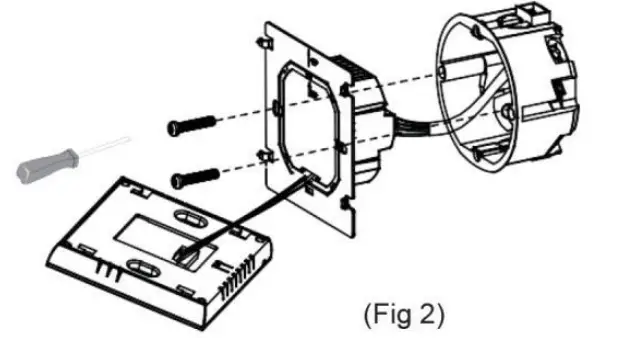
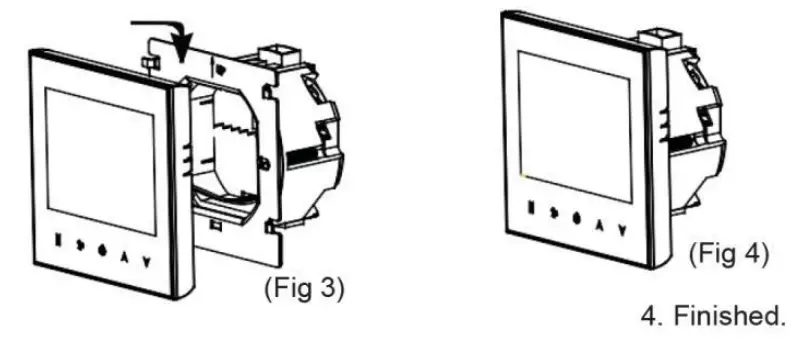
 WARNING: Please arrange a professional technician to install this product according to the installation drawing and instructions.
RISK OF ELECTRICAL SHOCK. Disconnect the power supply before making an electrical connection. Contact with components carrying hazardous voltage can cause electrical shock and may result in severe personal injury or death instruction.
WiFi Connection(FOR WIFI MODEL ONLY)
Before using your WIFI thermostat for the first time, you must configure the WIFI signal and set it through your smartphone or tablet. This will allow communication between your connected devices.
Step 1. Download your App
For IOS devices, search for Smart Life/Tuya Smart in Apple Store and download.
 |  |
For Android devices, also can search for Smart Life/Tuya Smart in Google Play and download it.
Step 2 Register and login to your account
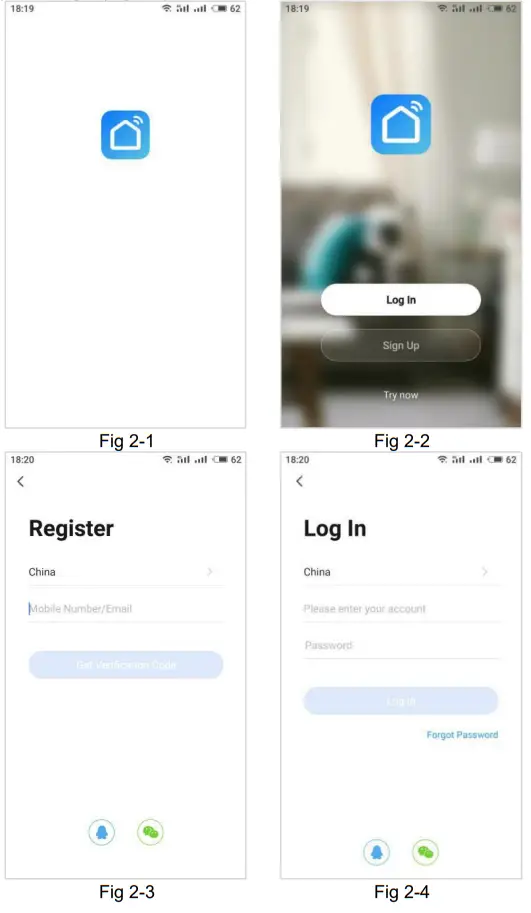
Open your Smart Life/Tuya Smart, you will get a page of login and Sign Up. Press Sign Up and enter your phone no. or email (Fig 2-3) then you can get a verification code. Input your password and confirm to complete your registration. If you have an account, please log in(Fig 2-4).
Step 3 Connect your Wi-Fi signal
On your thermostat
With power on, press and ︽ together and hold them for five (5) seconds, The icon will flash.
Then, go back to the home page of your app
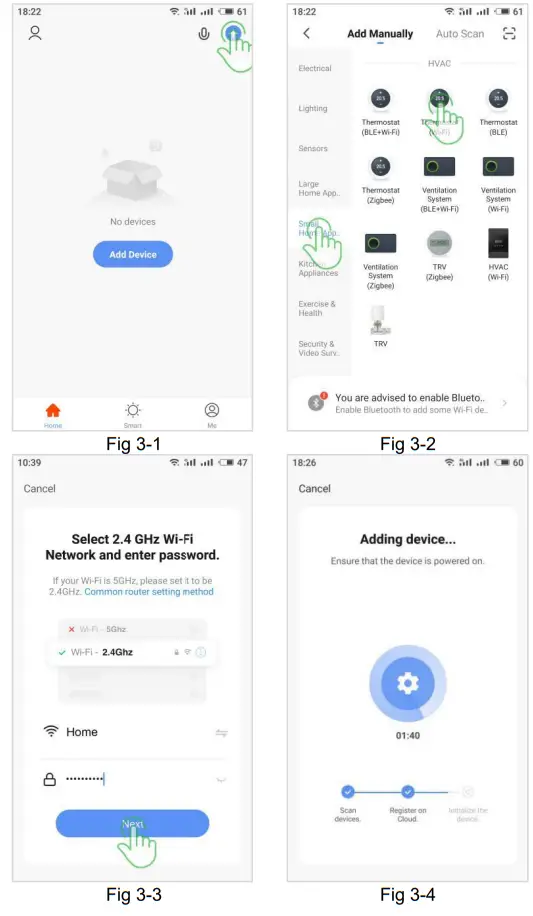
Press the + on the upper right corner of the page (Fig 3-1) to add your device. Select “Small Home Application”, then click and “Thermostat” (Fig 3-2), then select your network and back to your app to enter the password of your wireless router and confirm, the app will connect automatically(Fig 3-3). This may typically take up to 5~90 seconds to complete(Fig 3-4).
Your room name could be edited when the device is connected.
When your room is established successfully, it will display on the home screen, the function of the buttons are as the following:
 Power on/off button, press it to turn on/off the thermostat.
 Mode button, press it to switch the thermostat between “Manual mode” and “Programming mode”.
 Week program setting button, press it to set the week programming.
 Advanced setting button, press it to set the advanced settings.
PROGRAMMING YOUR THERMOSTAT IN THE APP
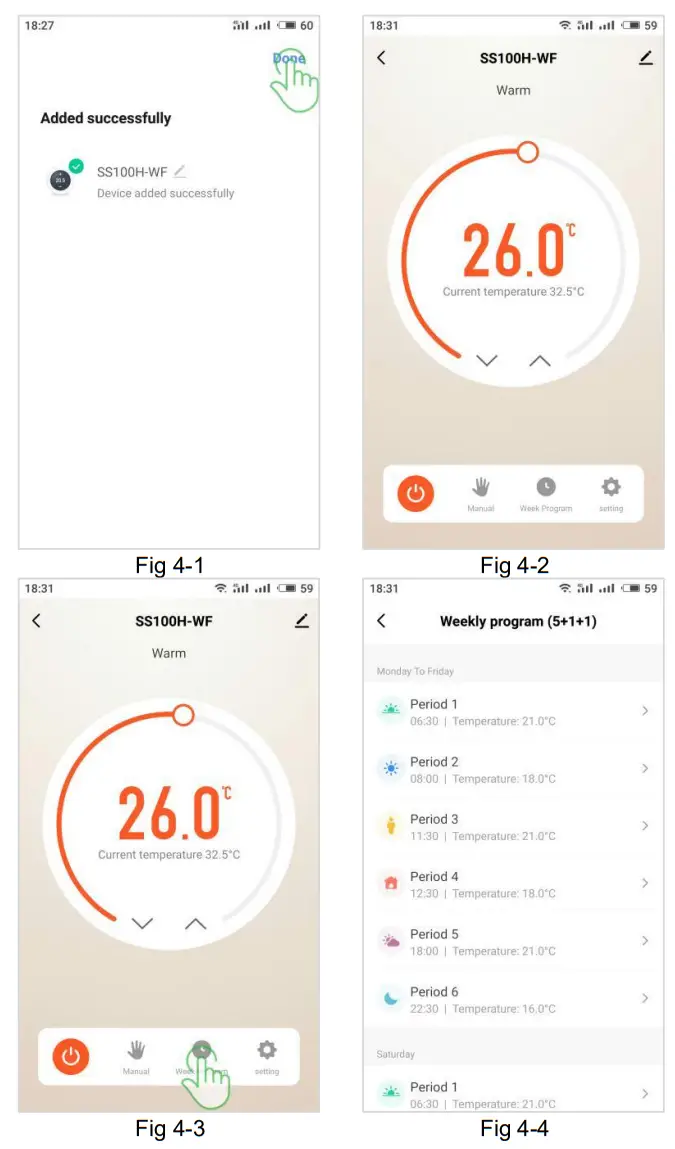
After WiFi-connected successfully, press on the app’s main control interface(Fig 4-3), clink “Week Program” to enter the weekly programming setting(Fig 4-4).
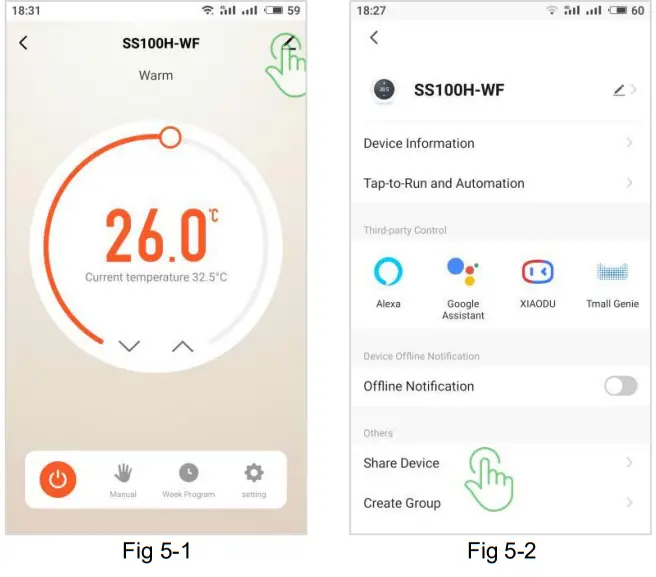
How to share the device?
Press the upper right corner button in the main control interface into the page(Fig 5-1). Click “Share Device” (Fig 5-2) to add the account you want and confirm.
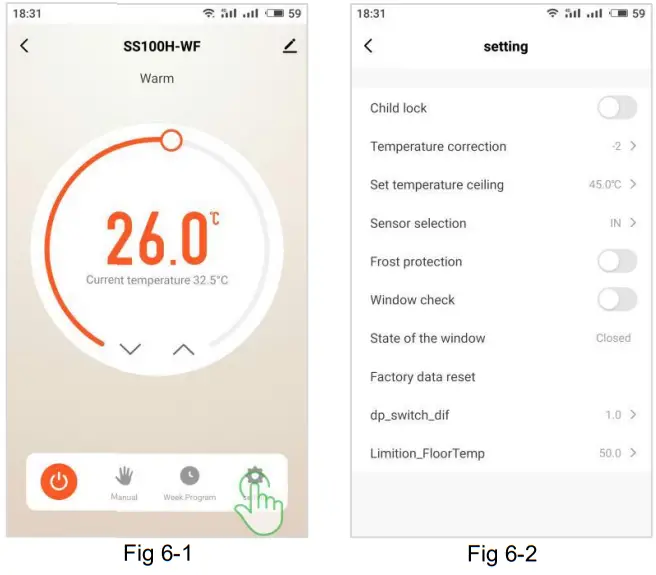
How to set the advanced setting?
press in the app main control interface(Fig 6-1), click “Setting” to enter advanced settings(Fig 6-2).
Please note, in order to prevent misoperation, the advanced settings can be set and saved only when the thermostat is turned off.
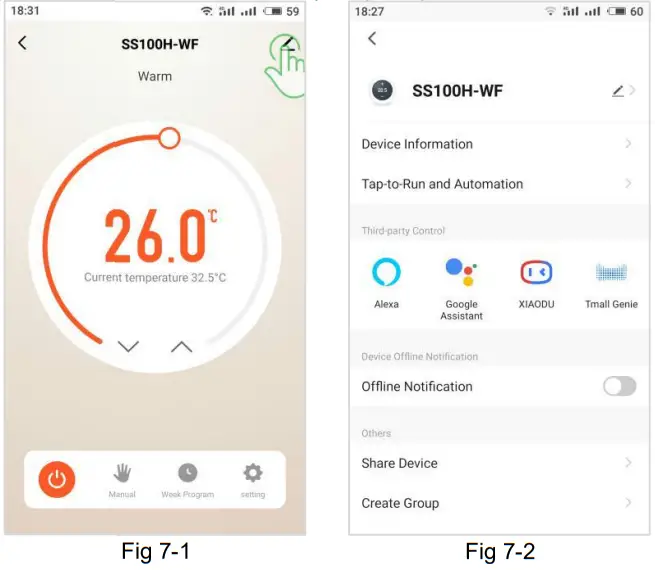
How to connect your thermostats to a smart voice assistant?
Press the upper right corner button in the main control interface into the page(Fig 7-1). Select and click the smart voice devices you want to add and follow the prompt steps to connect.
SIMPLE EXCEPTION HANDLING
| No. | Phenomenons | Handling |
| 1 | Power is on but without display. | * Check if the terminals between the LCD panel and Power Unit Box are loosened. |
| 2 | Without output display works. | * Use a new LCD panel or new Power Unit Box to replace the old one. |
| 3 | Room Temp. Is it a little different from the actual? | * Do temperature calibration in item 1 of Advanced Setting |