THERMAEGH-ET72 Thermaegh Wifi Programmable Touchscreen Thermostat
Product Information
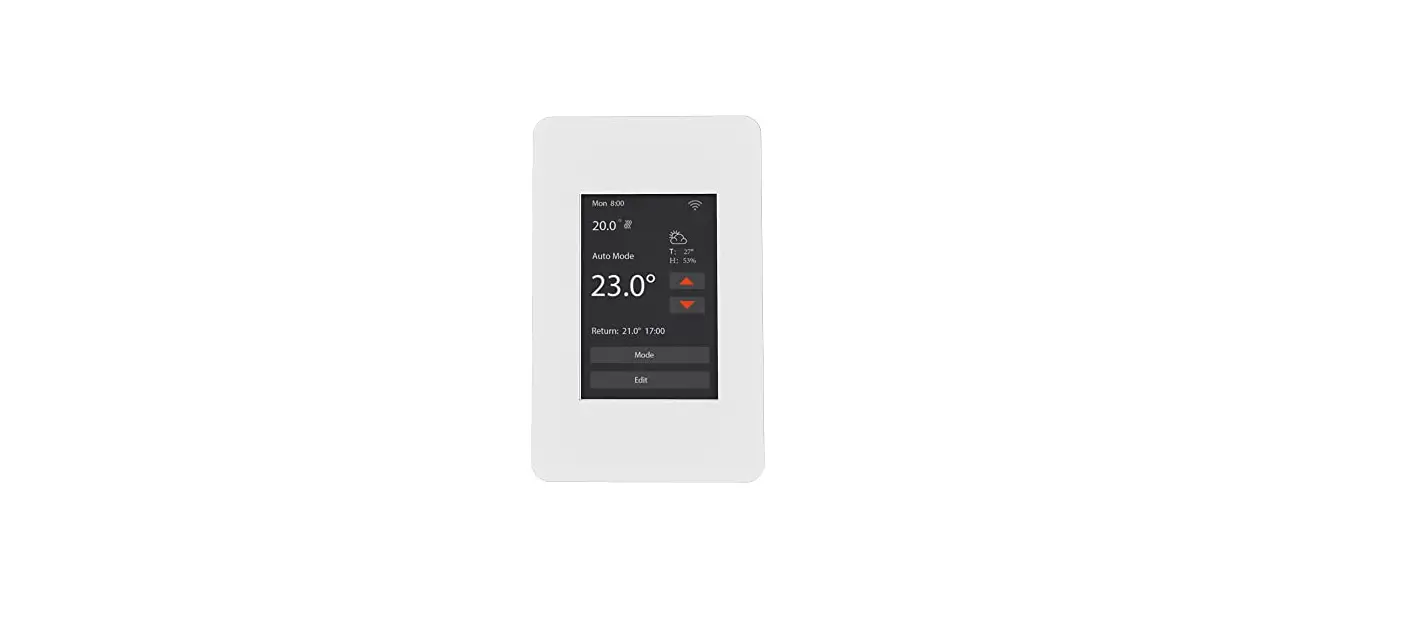
The THERMAEGH is a WiFi thermostat that allows you to control
and monitor the temperature in your home remotely. It features a
ground fault circuit interrupter (GFCI) and various functions such
as mode selection, temporary override temperature, key lock, and
weekly program parameter setting.
Symbols
- On/Off/GFCI reset button
- GFCI test button
- Mode
- Temperature
- Sensor selection
- WiFi indicator
- Setpoint
- Event
- Day and time
- Touch key
Functions and Operation
On/Off: The GFCI Reset button acts as the
switch button. Press the [Reset] button to switch the thermostat on
and off.
Temporary Override Temperature: In automatic
intelligent mode, you can temporarily override the set temperature
without changing the parameters in the Event. To modify the set
temperature, tap the up or down arrow buttons under the real-time
temperature interface. Tap OK to confirm and return to the
interface showing the real-time temperature.
Mode Selection: The thermostat provides three
operating modes: manual mode, automatic mode, and freeze protection
mode. To set the mode, tap OK in the interface displaying the
real-time temperature. The Mode option will start flashing. Tap OK
to enter the mode selection. Use the up or down arrow buttons to
change the mode. Tap OK to confirm your selection. If you select
manual mode or freeze protection mode, you will also need to set
the desired temperature using the arrow buttons. Tap OK to return
to the interface showing the real-time temperature.
Key Lock: The thermostat offers a key lock
function to prevent accidental modification of the thermostat
settings. To activate the key lock mode, press and hold the [Reset]
button until the lock symbol appears on the screen or tap OK in the
real-time temperature interface, enter the first level menu, and
select Key Lock. Tap OK to confirm. To cancel the key lock mode,
press and hold the [Reset] button until the lock mark disappears
from the screen.
Weekly Program Parameter Setting: In automatic
mode, the thermostat follows the setting parameters of the weekly
program. The weekly program parameters include Schedule and Event.
You can assign two different schedules: 5+1+1 (same Event
parameters from Monday to Friday with separate Event parameters on
Saturday and Sunday) or 7 (separate Event parameters every
day).
Product Usage Instructions
- Scan the QR code or download the Warmme app from the App Store
or Google Play. - Register and log in to the app using your mobile number or
email address. Make sure to read and agree to the Privacy Policy
and Service Agreement before registration. - Open the app and follow these steps to add your device:
- Click “Add Device” or “+” on the top-right corner.
- Select “WiFi thermostat.”
- Operate the thermostat. If the WiFi indicator flashes quickly,
click “Press to connect.” - Enter your WiFi password and click “Confirm.”
- If the device is added successfully, you can change the device
name and set the region. Click “Done.” If the device addition
fails, make sure your WiFi is the 2.4G version and check the WiFi
signals. Then, use the “AP mode” in the top right corner to connect
again. - You can now check the real-time temperature and set temperature
on the control interface.
User manual
Step 3: Click `Add Device’ or `+’ on the top-right to add device.
Step 4: Click `WiFi thermostat’.
Step 5: Operate thermostat. If the WIFI icon flash quickly, Click `Press to connect’.
Step 6: Enter Wifi password, and click `Confirm’.
Step 7: If device added successfully, you can change the device name and set region, then, click `Done’. Attention: If failed, please confirm the Wifi is 2.4G version and check the Wifi signals, then, use the `AP mode’ in the top right to connect again.
Step 8: You can check the real-time temperature and set temperature etc. at the control interface.
THERMAEGH English V1.2
Instruction
The THERMAEGH thermostat controls the floor heating system based on built-in weekly program. The weekly program runs in 4 or 2 stages per day, 7 days a week. The default weekly program parameters can satisfy most usage scenarios. If your living habits are different, you can also modify the weekly program parameters in the thermostat or APP. When there is no one in the house, it is recommended to set the temperature down to save energy. Besides, the thermostat has built-in adaptive function. When this function acts, the thermostat heats or stops heating in advance of next stage to bring the room temperature to the set temperature of the next stage. Please note that after turning adaptive on, the thermostat takes a few days to learn the time required.
Symbols
1 On/Off/GFCI reset button 2 GFCI test button 3 Mode 4 Temperature 5 Sensor selection
6 WiFi indicator 7 Setpoint 8 Event 9 Day and time 10 Touch key
Ground Fault Circuit Interrupter (GFCI)
This thermostat has a built-in GFCI function that protects people from electric shock. It is very important to check whether the GFCI function is normal or not every month. Here are the check steps: 1. Confirm that the thermostat is turned on. 2. Press the [Test Monthly] button. If a red light appears in the upper left corner of the thermostat and GROUND FAULT appears on the screen, the GFCI function is normal. If there is no response, it means the function is invalid, please contact the dealer or electrical installer. Note: Do not press and hold the [Test Monthly] button. 3. Press the [Reset] button. The red light is off and the screen shows the power off state. 4. Press the [Reset] button again. The thermostat is turned on. If in daily use, the red light is on and the screen appears GROUND FAULT. Then you need to check if the ground fault is present by pressing the [Reset] button. If the red light is off and the screen shows the shutdown status, it is nuisance tripping. If not, it means that ground fault has occurred. Please contact your dealer or professional technician immediately.
WiFi connection(Only for THERMAEGH)
Step 1: Scan the QR code or download Warmme from APP store/Google browser.
Step 2: Register and log in with mobile number or email address in the APP. Attention: Please read and agree “Privacy Policy and Service agreement” before registration.
Functions and operation
On/Off
The GFCI Reset button is also the switch button. Press the [Reset] button to switch on and off.
Temporary Override Temperature
This function is enabled in the automatic intelligent mode, when the temperature demand changes at this moment, the setting temperature is enabled, but the parameters in the Event are not changed. Operation method: Under the interface showing the real-time temperature, tap or to modify the set temperature. Tap OK to confirm and return to the interface showing the real-time temperature.
Mode selection This thermostat provides three operating modes:
Automatic mode: According to the weekly program, the thermostat automatically adjusts the set temperature operation. Manual mode: The thermostat runs continuously according to the set temperature. Frost protection mode: The temperature controller runs at a lower set temperature. The temperature range is set from 41°F to 59°F in this mode. This mode is used when you want to keep your room at a lower temperature when you are on vacation.
How to set the mode selection: In the interface displaying the real-time temperature, tap OK to enter the first level menu, and Mode is flashing. Tap OK to enter the mode selection. Tap or to change the mode. Tap OK to confirm your selection. If you select manual mode or freeze protection mode, you also need to tap or to set the temperature. Tap OK to return to the interface showing the real-time temperature.
Key lock
The thermostat provides a key lock function to prevent the thermostat setting parameters from being incorrectly modified. Note: the [Reset] button and the [Test Monthly] button can still operate normally so as to response to an emergency.
Set the key lock mode: 1. Under real-time temperature interface, press and hold until the lock symbol appears. 2. Under real-time temperature interface, tap OK to enter the first level menu, and Mode is flashing. Tap or to select Key Lock. Tap OK to enter the key lock setting. Tap OK to confirm. Tap OK to return to the interface showing the real-time temperature. Cancel the key lock mode: Under real-time temperature interface, press and hold until the lock mark on the screen disappears.
Weekly program parameter setting
In the automatic mode, the thermostat runs automatically according to the setting parameters of the weekly program. The weekly program parameters contain two parameters: Schedule and Event.
1. Schedule
Assign seven days a week to the following two schedules: 5+1+1: The Event parameter is the same from Monday to Friday, with separate Event parameters on Saturday and Sunday. 7: With separate Event parameters every day.
Schedule parameter setting method: Under real-time temperature interface, tap OK to enter the first level menu, and Mode is flashing. Tap or to select Schedule. Tap OK to enter the parameter settings. Tap or to select a parameter. Tap OK to confirm. Tap OK to return to the real-time temperature interface.
2. Event In the Home scenario, the day is divided into four events: Wake-(In the Office scene, the day is divided into two phases: on work-temperature for each stage can be set separately.
Leave– Return– Sleep-off work– ). The set
Event parameter setting method:
Under real-time temperature interface, tap OK to enter the first level menu, and Mode is flashing. Tap or to select Event.
Tap OK to enter the week selection. Tap or to select the day you want to modify the parameters.
Tap OK to enter the stage selection for the day. Tap or to select the stage that you want to modify the parameters.
Tap OK to enter the temperature setting of the current phase. Tap or to select the temperature value you want to set.
Tap OK to enter the hour setting for the start time of the current phase. Tap or to select the hour of the start time.
Tap OK to enter the minute setting for the start time of the current phase. Tap or to select the minute of the start time.
Tap OK to return to the stage selection for the day.
Note: Return to the interface of the real-time temperature and tap multiple times.
Event default parameter list
Home Week
Wake
Leave
Return
Sleep
Start time
Temperature
Start time
Temperature
Start time
Temperature
Start time
Temperature
Mon–Fri 6:00
78°F
8:00
69°F
17:00
78°F
22:00
69°F
Sat–Sun 8:00
78°F
8:30
79°F
Office
Week
on-work
off-work
Start time
Temperature
Start time
Temperature
Mon–Fri 7:00 Sat–Sun 7:00
78°F 68°F
18:00 18:00
69°F 69°F
17:30
78°F
22:00
69°F
Settings
In addition to the above common functions, the thermostat also provides a number of settings for more occasions. It should be noted that such settings need to be set by professional technicians to avoid damage caused by abnormal settings.
Settings access method: Under real-time temperature interface, tap OK to enter the first level menu, and Mode is flashing. Tap or to select Settings. Tap OK to enter Settings. Settings contains the following items:
1.Time
Set the current real time and day of the week.
Note: The WiFi version of the thermostat will automatically update to local time after networking.
Time setting method: After entering Settings, tap or to select Time. Tap OK to enter the hour setting for the time. Tap or to select the hour value for the current time. Tap OK to enter the minute setting for the time. Tap or to select the minute value for the current time. Tap OK to enter the day of the week setting. Tap or to select the day of the week. Tap OK to enter the hour setting for the time.
Tap multi times to return to the real-time temperature interface.
2. Temp unit
°F or °C can be selected as the temperature unit.
Temp Unit setting method: After entering Settings, tap or to select °F/°C. Tap OK to enter the selection. Tap or to select the desired temperature unit. Tap OK to confirm.
Tap OK to return to the real-time temperature interface.
3.Sensor type
This thermostat can be connected not only to the floor sensor but also to two other commonly used floor sensors. When replacing the old thermostat, there is no need to replace the
floor sensor for easy installation.
Sensor Type setting method: After entering Settings, tap or to select Sensor Type. Tap OK to enter the selection. Tap or to select the type of floor sensor you are currently using. Tap OK to confirm.
Tap OK to return to the real-time temperature interface.
No.
Sensor Type
Parameters
00
3950(default)
01
3600
02
3700
R(25°C)=12k R(10°C)=22.2k R(25°C)=10k R(10°C)=19.1k
4.Sensor selection In addition to the floor sensor, this thermostat has built-in sensors to detect room temperature. Therefore, three sensor applications are available:
Room: Controls room temperature based solely on built-in sensors. Floor: Controls the floor temperature based solely on the floor sensor. Room.Limit: Controls the room temperature based on the built-in sensor while monitoring the floor temperature not to exceed the upper limit. This application, like Floor, can be used in places such as wood floors where floor temperature is critical.
Sensor Selection setting method: After entering Settings, tap or to select Sensor Selection . Tap OK to enter the selection. Tap or to select the sensor application type. Tap OK to confirm. Tap OK to return to the real-time temperature interface. Note: If Room.Limit is selected, you need to set the maximum temperature that the floor can accept.
5. Calibration
This thermostat has built-in probe and floor sensor calibration function. In the case of demand for
higher precision
Calibration setting method: After entering Settings , tap or to select Calibration .
Tap OK to go to select Room or Floor . Tap or to select Compensate Built-in Probe or Floor Sensor. Tap OK to enter the compensation setting. Tap or to adjust the real-time temperature to match the displayed temperature value of the calibration instrument.
Tap OK to return to the setting item selection.
6. Location This thermostat is suitable for use in both homes and offices. For the office, a set of weekly program parameters is built in. See the Weekly Program Parameters section for details. Location setting method: After entering Settings, tap or to select Location. Tap OK to go to select Office or Home. Tap or to select one. Tap OK to confirm. Tap OK to return to the real-time temperature interface.
7.Adaptive This thermostat has an adaptive function. When this function is enabled, the thermostat heats up or stops heating in advance so that the next stage comes and the temperature just reaches the set temperature. Adaptive setting method: After entering Settings, tap or to select Adaptive. Tap OK to enter the selection. Press or to get Yes or No.
Tap OK to confirm. Tap OK to return to the real-time temperature interface.
8.Readout This thermostat has the function of calculating the percentage of heating time over a period of time. The relevant parameters can be queried through the Readout item. Readout query method: After entering Settings, tap or to select Readout. Tap OK to enter the selection. Tap or to select 1Day, 30Days or 365Days to query. Tap OK to return to the setting item selection.
9.Factory reset This thermostat has the function of restoring factory parameters.
Factory Reset setting method: After entering Settings, tap or to select Factory Reset. Tap OK to enter the selection. Tap or to select Yes or No. Tap OK to confirm. Tap OK to return to the real-time temperature interface.
Settings default parameter list
NO. Name
1
Time
2
°F/°C
3
Sensor Type
4
Sensor Selection
5
Calibration
6
Location
7
Adaptive
8
Readout
9
Factory Reset
Default Parameter / °F
00 3950
Floor 0°F Home No / No
Setting Range
/
°F °C 00 3950 01 3600 02 3700
Room FLoor Room.Limit
-9°F — 9°F
Home Office Yes No
/ Yes No
Troubleshooting
E1: Built-in probe failure, please contact your dealer or professional technician. E2: External probe failure, please contact your dealer or professional technicia
Installation
1.Loosen the bottom screw by a Phillips screwdriver. Then open the thermostat from the upper right side as shown. Note: Screw the nut out of the groove and do not need to unscrew it.
2. Wire as shown: L/N lead: Connect the power cord using the terminal block. L1/N1 lead: Use a terminal block to connect the load line. IN/SNR terminal: Connect the floor sensor. OUT terminal: Connect to IN/SNR of Power Module.
Note: Disconnect the main power supply before wiring. If an electric floor heating cable or mat system requires more than 15 Amps, install a power module. Wiring diameter: 12 to 22 AWG.
3. Install the back cover into the
terminal box and secure it with the set screw.
4. Fit the left side of the front and rear covers as shown.Rotate to the right again and press the upper half of the right border until you hear a click. Use a screwdriver to secure the bottom screw. Turn on the power and test the GFCI function.
WARNINGS
To avoid risk of electric shock, disconnect all power coming to heater at main service panel before installation of the thermostat. Keep air vents of thermostat clean and free from obstructions. All wiring must conform to local and national electrical codes and ordinances. Installation must be carried out by qualified personnel.
Classification
The thermostat is a Class II device (reinforced insulation) and used for controlling electrical floor heating. The product must be connected to the following leads: L/N lead: Connect the power cord using the terminal block. L1/N1 lead: Use a terminal block to connect the load line(Max 15A). Note: Electric floor heating cable/mat must be in accordance with the supply voltage. The terminals are designed to handle a cross-section of wire measuring 12-22AWG.
Technical specification
Supply voltage:
120/240 VAC 50/60 Hz
GFCI:
Class A (5 mA trip level)
Temperature range: +5 to +45°C / +41 to +113°F
Load: Setpoint range:
max.15 A (resistive load) +5 to +40°C / +41 to +104°F
Dimension(Inch)
Quick Guide of Using Google Home to Control Smart Devices
1. What you need to get started
Before using Google Home to control your devices, make sure you meet the following conditions. A Google Home device, or Android phone with Google Assistant. Latest Google Home app. Latest Google app (Android only) A Google account. The device display language must be set to English US. Smart Life app and a related account. Smart devices.
2. Add devices in Smart Life app (Refer to App Instruction)
You can skip this part if you’ve already add some devices to your Smart Life account, and in the meantime the devices’ name are easily recognized.
2.1 Download Smart Life app (Refer to App Instruction)
You can scan the QR code below to download the Smart Life app
You can also search “Smart Life” in either App Store or Google Play to install the app.
2.2 Register a Smart life account and sign in the app (Refer to App Instruction)
Open the Smart Life app, tap “Register” to register an account, then sign in the app.
2.3 Add device and change device’s name (Refer to App Instruction)
Sign in with the Smart Life account, add the device, then change device name to a easily recognized word or phrase, like “bedroom light”.
3. Set up Google Home and configure in Home Control
Configuration needs Google Home app. Search “Google Home” in App Store or Google Play to install the app.
3.1 Set up Google Home with Google Home app
You can skip this part if your Google Home is already set up. 1. Make sure your Google Home is energized. 2. Open the Google Home app by tapping the app icon on your mobile device. 3. Tap “ACCEPT” to agree to the Terms of Service and Privacy Policy. Allow Google Home app to
access the device location to discover and set up nearby devices.
4. Tap “SIGN IN”, choose one Google account that you already logged in on your mobile device. Or follow the instructions to sign in with a new Google account.
5. The Google Home app scans nearby devices that are energized and are ready to set up. Tap “SET UP” to set up your Google Home.
6. When Google Home app is successfully connected to the Google Home device, tap “PLAY TEST SOUND”, it will play a test sound to confirm you are connected to the right device.If you heard the test sound, tap “I HEARD IT”.
7. Select the Room (ex Living Room) where your Google Home is located. This helps you identify the device when you want to cast to it. Choose the Wi-Fi network you want to connect to your Google Home. To automatically fetch the password for this network on this device, tap “OK”, then the password will populate in the password field. You can also manually enter your password. Then tap “CONTINUE”.
8. Google Home will now attempt to connect to the provided Wi-Fi network. When Google Home is successfully connected to your Wi-Fi network, tap “CONTINUE”.
9. In order for the Google assistant to answer your questions and to enjoy a personalized experience, you must sign into your Google account, then tap “SIGN UP”. Choose the Google account you want to link to your Google Home device, then tap “CONTINUE AS XXX”. Enter the address where this Google Home is installed, and select your default music service.
10. Tap “SKIP TUTORIAL” to finish the setup. You can also tap `CONTINUE` to watch the Google Home tutorial.
3.2 Link Smart Life account in Home Control
1. Tap “Home Control” in the hamburger menu on the Google Home app’s home page, then tap “+”.
2. Find “Smart Life” in the list. In the new window, select your Smart Life account’s region, type your Smart Life account and password, then tap “Link Now”. After you assign rooms for devices, your devices will be listed in the Home Control page.
4. Control your smart devices through Google Home
Now you can control your smart devices through Google Home. Take bedroom light as the example, the supported voice commands are as below: Ok Google, turn on/off bedroom light. Ok Google, set bedroom light to 50 percent. Ok Google, brighten bedroom light. Ok Google, dim bedroom light. Ok Google, set bedroom light to red.
3-YEAR LIMITED WARRANTY FOR MP GLOBAL THERMOSTATS
MP Global warrants this product to be free from defects in the workmanship or materials, under normal use and service, for a period of three (3) years from the date of purchase by the consumer. If at any time during the warranty period the product is determined to be defective or malfunctions, MP Global shall repair or replace it (at MP Global’s option).
If the product is defective: (i) return it, with a bill of sale or other dated proof of purchase, to the place from which you purchased it, or (ii) call MP Global Customer Care at 1-888-379-9695. Customer Care will make the determination whether the product should be returned to the following address: MP Global Return Goods, 2500 Old Hadar Rd., Norfolk, NE 68701, or whether a replacement product can be sent to you.
This warranty does not cover removal or reinstallation costs. This warranty shall not apply if it is shown by MP Global that the defect or malfunction was caused by damage which occurred while the product was in the possession of a consumer. MP Global’s sole responsibility shall be to repair or replace the product within the terms stated above. MP GLOBAL SHALL NOT BE LIABLE FOR ANY LOSS OR DAMAGE OF ANY KIND, INCLUDING ANY INCIDENTAL OR CONSEQUENTIAL DAMAGES RESULTING, DIRECTLY OR INDIRECTLY, FROM ANY BREACH OF ANY WARRANTY, EXPRESS OR IMPLIED, OR ANY OTHER FAILURE OF THIS PRODUCT. Some states do not allow the exclusion or limitation of incidental or consequential damages, so this limitation may not apply to you.
THIS WARRANTY IS THE ONLY EXPRESS WARRANTY MP GLOBAL MAKES ON THIS PRODUCT. THE DURATION OF ANY IMPLIED WARRANTIES, INCLUDING THE WARRANTIES OF MERCHANTABILITY AND FITNESS FOR A PARTICULAR PURPOSE, IS HEREBY LIMITED TO THE THREE-YEAR DURATION OF THIS WARRANTY. Some states do not allow limitations on how long an implied warranty lasts, so the above limitation may not apply to you.
This warranty gives you specific legal rights, and you may have other rights which vary from state to state.
If you have any questions concerning this warranty, please write MP Global Customer Relations, 2500 Old Hadar Road, Norfolk, NE 68701 or call 1-888-379-9695.
THERMO 0318

![Honeywell Ret97c Series Touchscreen Programmable Thermostat [rth7600] User Manual](https://static-data1.manualsee.com/1/img/115/17244/2020/12/Honeywell-RET97C-Series-Touchscreen-Programmable-Thermostat-RTH7600.jpg "Honeywell Ret97c Series Touchscreen Programmable Thermostat [rth7600] User Manual")