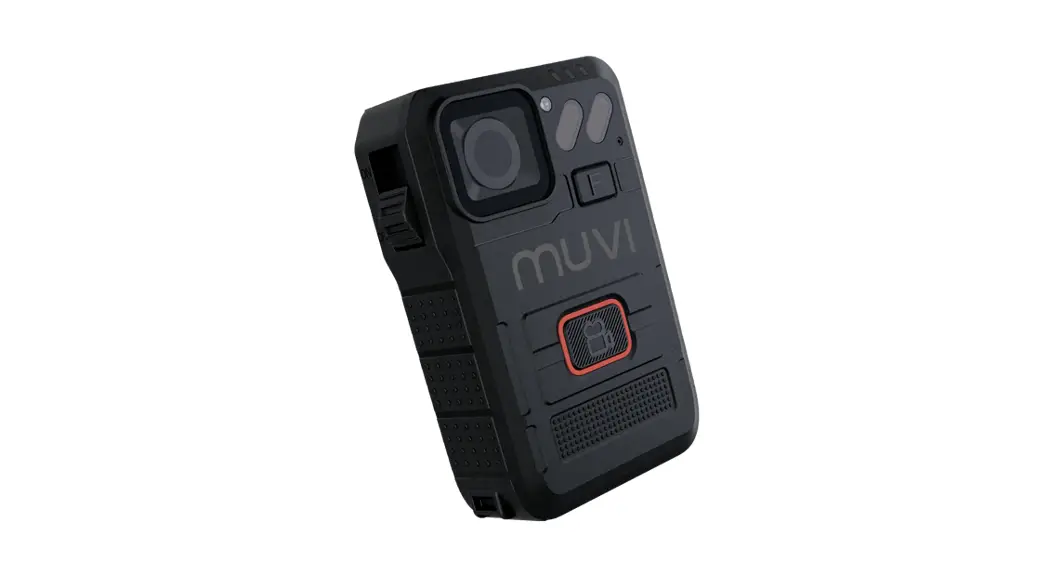
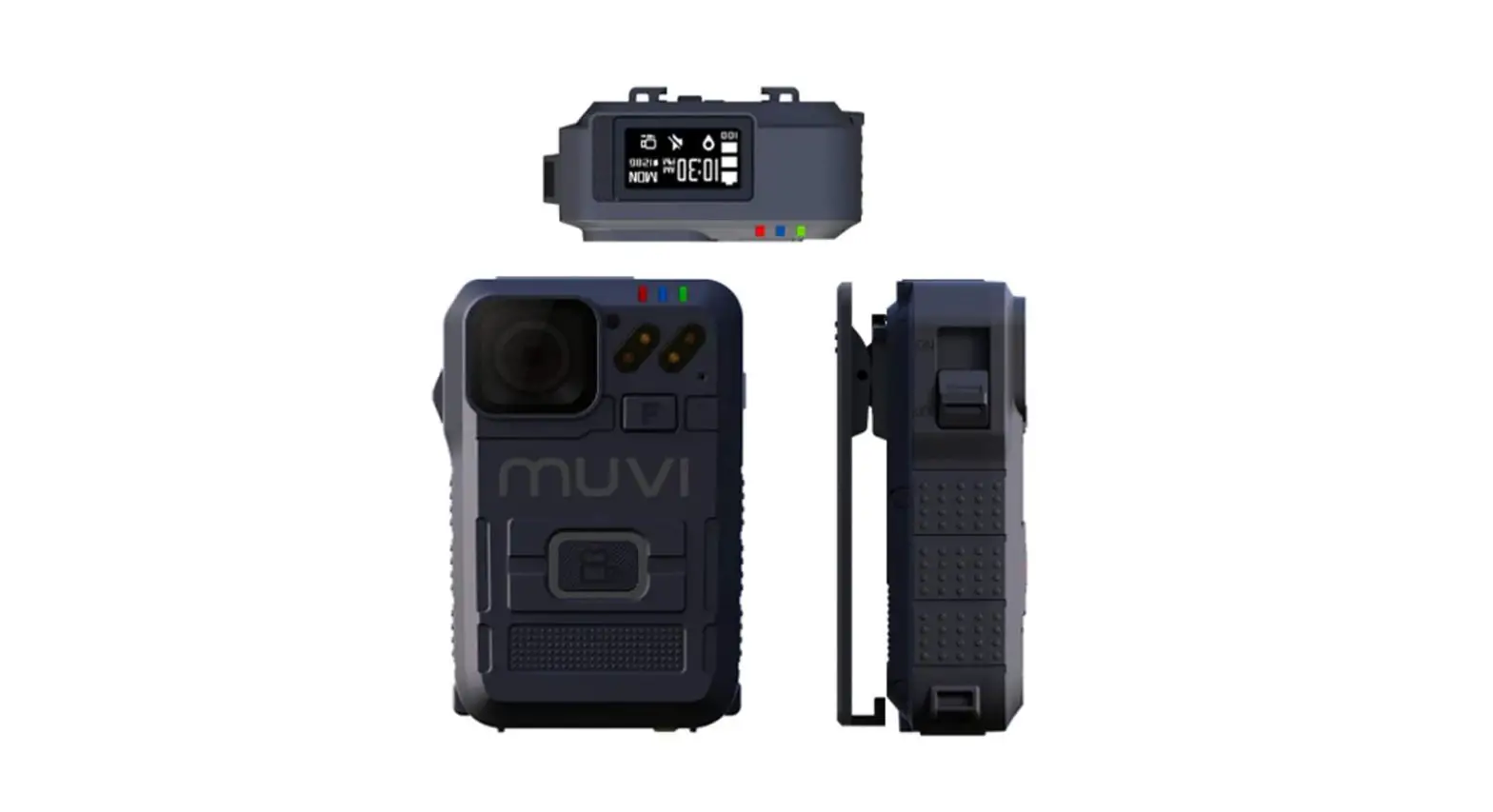
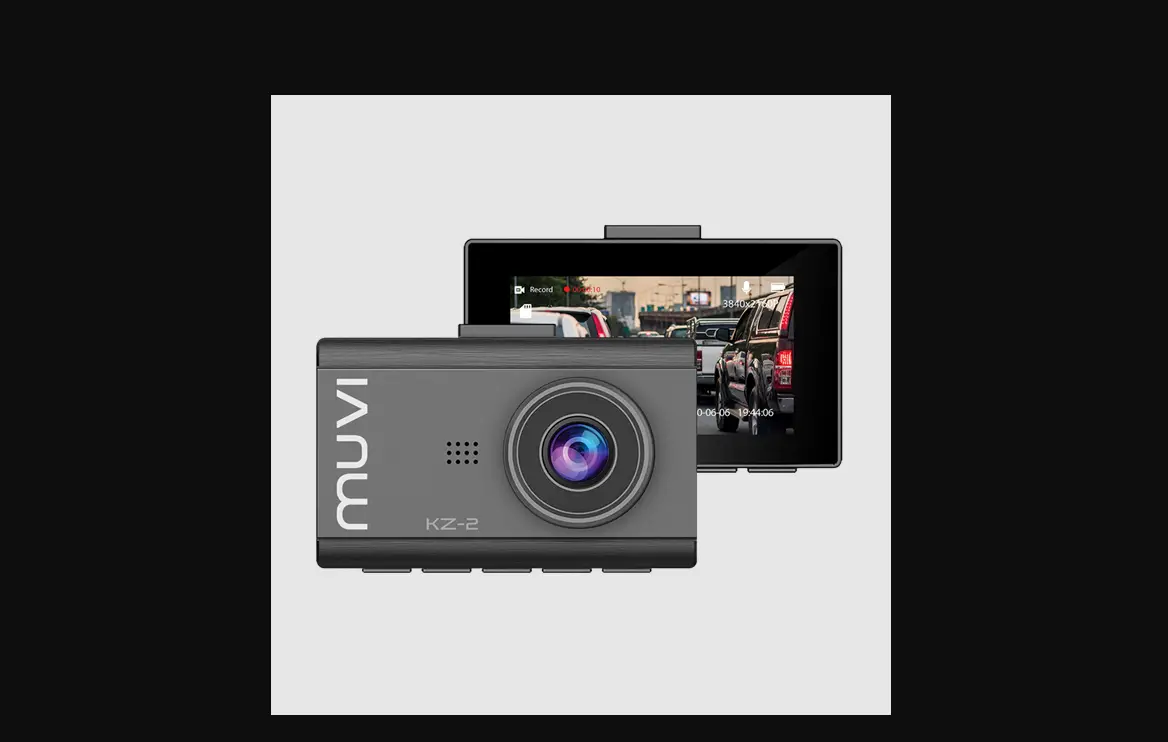
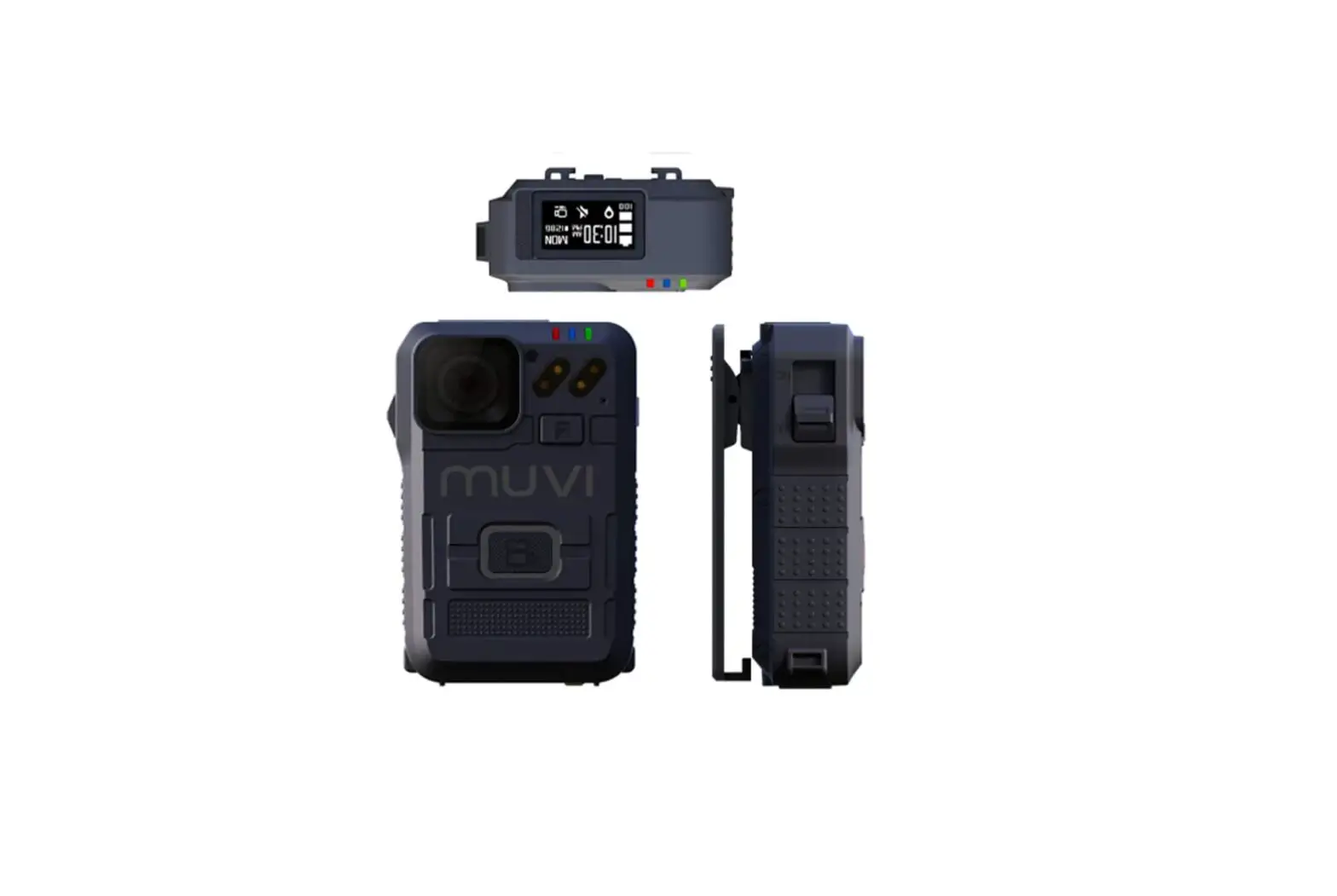
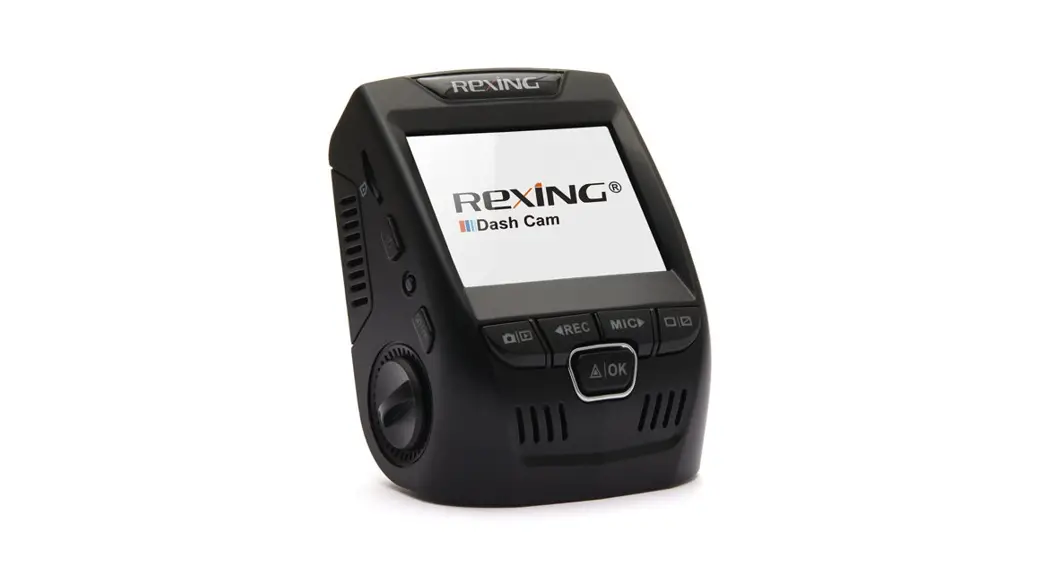
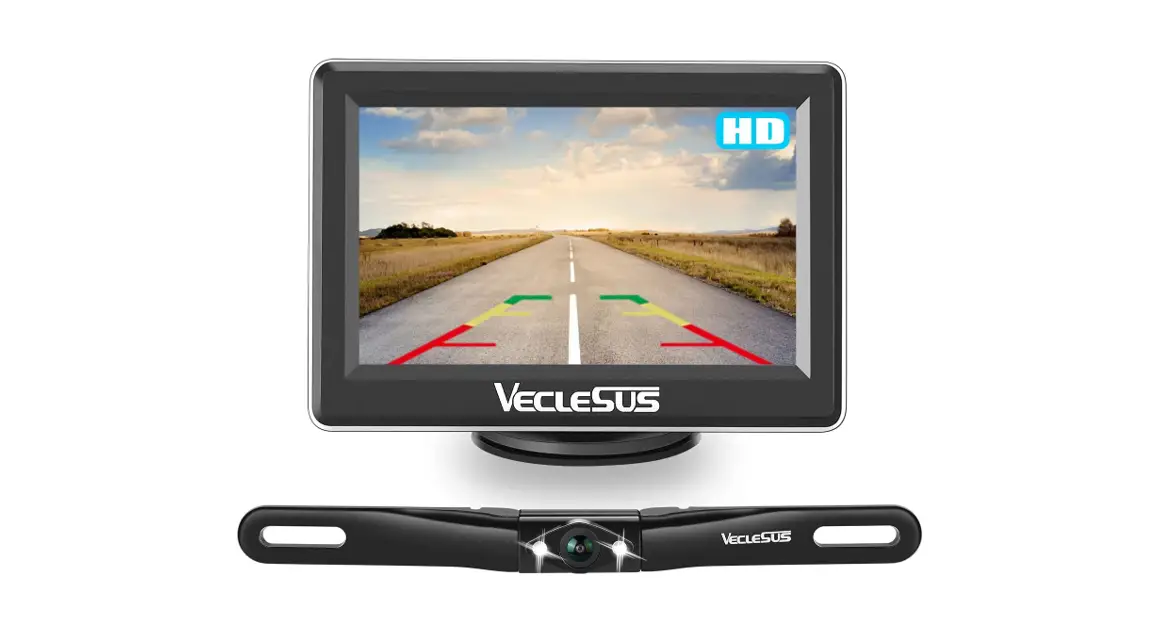
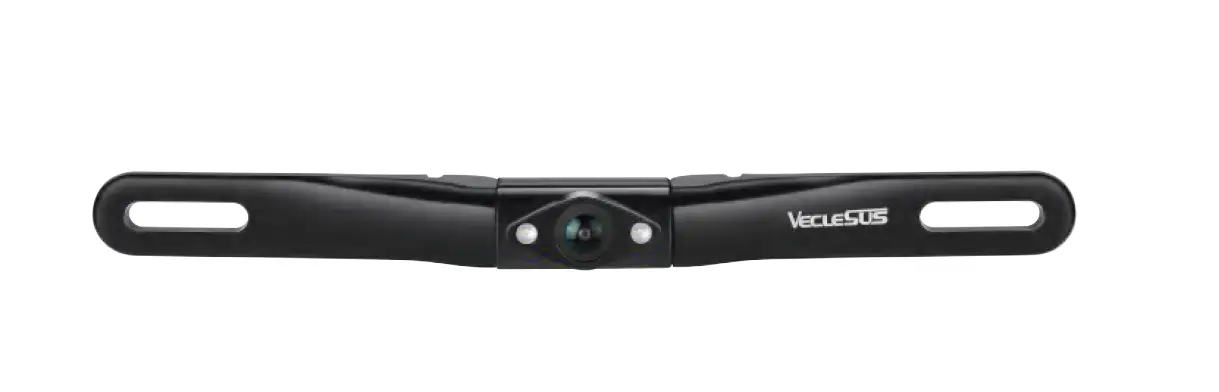
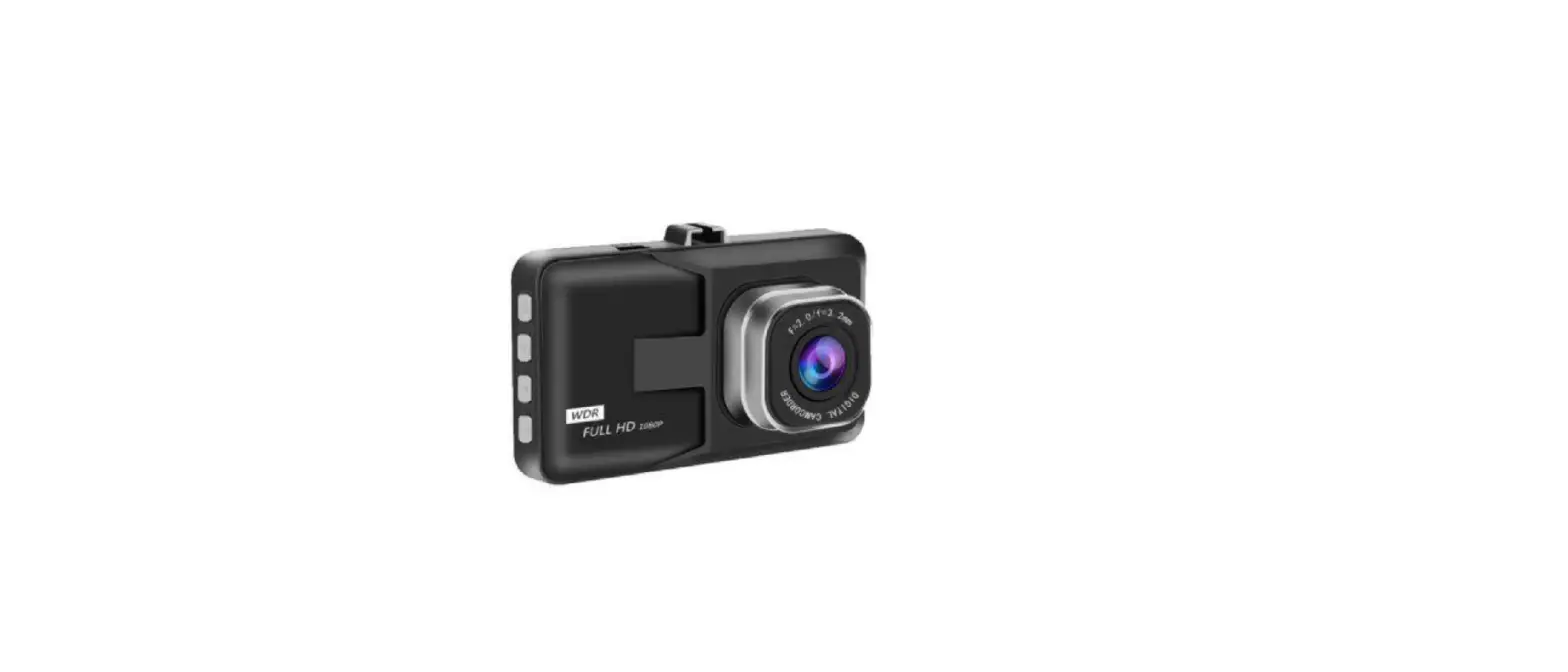
VDC-001-KZ1-F Muvi Drive Cam
Product Information
| Product Name | VDC-001-KZ1-F Muvi Drive Cam | ||||||||||||||||||||||||||||||||||
|---|---|---|---|---|---|---|---|---|---|---|---|---|---|---|---|---|---|---|---|---|---|---|---|---|---|---|---|---|---|---|---|---|---|---|---|
| Resolution | Full HD 1080p | ||||||||||||||||||||||||||||||||||
| Package Contents |
| ||||||||||||||||||||||||||||||||||
| Controls |
| ||||||||||||||||||||||||||||||||||
| LED Indicators |
|
Product Usage Instructions
- Installing the Drive Cam:
- Ensure both the inside and outside of the windscreen are clean
and dry, this will ensure the mount sticks securely, and that the
camera’s view is not obstructed. - Position the camera so that it will not obstruct the driver’s
view (we recommend behind the rear-view mirror). - Stick the mount into position, ensuring it is fully
secure.
- Ensure both the inside and outside of the windscreen are clean
- Charging the Drive Cam:
- We recommend fully charging the Muvi Drive Cam before its first
use. To charge the camera, use the 12v cable supplied and attach
the corresponding ends into the corresponding ports. - We recommend leaving the camera connected to a power source at
all times when in use.
- We recommend fully charging the Muvi Drive Cam before its first
- Using the Drive Cam:
- Power on/Power off: Press the ‘Power Button’
once to power on the camera; a solid red indicator light will
appear and the device loading screen will turn on. When using the
camera for the first time, you will be prompted to set the
language, time, and date. The GPS will sync automatically. Once on,
press the ‘Power Button’ once to view ‘Path Analysis’ screen. This
will show you the statistics of your drive.
- Power on/Power off: Press the ‘Power Button’
VDC-001-KZ1-F
1
Introduction
1. What’s in the box?
The Muvi Drive Cam is perfect to capture your journey in full HD 1080p. This manual will show you how to operate the camera, the Muvi Drive Cam app, and maintenance tips for your camera.
Please read and follow this manual carefully to ensure that you maximise every capability of the Drive Cam. Keep this manual safe for future reference.
Veho cannot guarantee that all incidents will be captured by the Muvi Drive Cam.
1
2
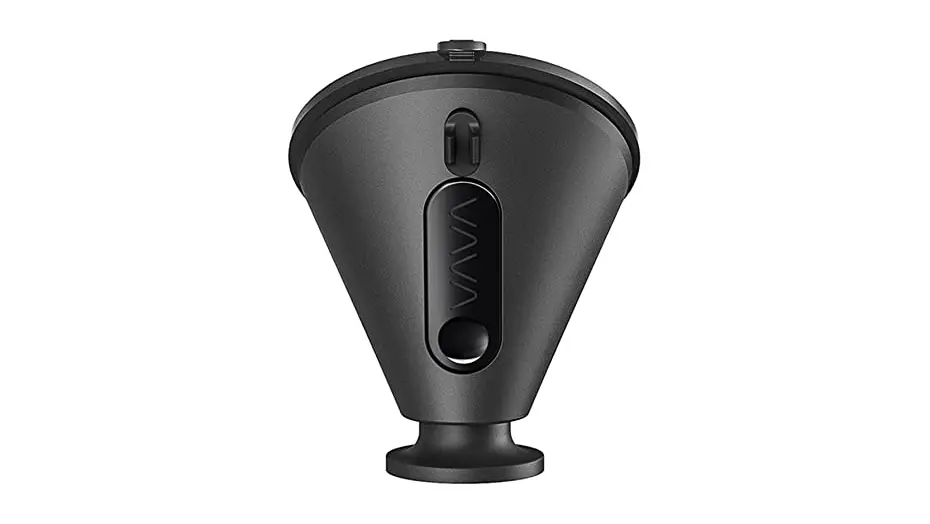
1. Muvi Drive Cam camera 2. 12v Power adapter 3. Adhesive windscreen bracket 4. Quick start guide 5. Software/manual CD 2
EN
3
3
2. Guide to controls
43
21
8
9
12
7
13
10
14
11
16
15
1. Mode 2. Power button 3. AV in 4. Micro USB/Power port 5. MicroSD slot 6. Reset 7. HDMI output slot 8. Arrow keys
4
9. Snapshot 10. Volume 11. SOS file lock 12. Menu/Return 13. Wifi 14. Rec/OK 15. Microphone 16. Display sleep
EN
Mode
Switch between recording or playback modes
Power button
Switch on/off
AV in
Rear camera connection port
Micro USB/Power port
For supplied power adaptor or USB data cable
MicroSD slot
Supports Class 10 (up to 128GB capacity)
Reset
Force camera to reboot
HDMI output
Outputs to external display
Arrow keys
Navigate menus and select videos for playback,
5
or forward/rewind during playback
6
Snapshot
Capture snapshot of current recording
Volume
Change notification/alert volume
SOS file lock
Protects file from being overwritten
Menu/Return
Press while recording to activate parking surveillance
Wifi
Turn on wifi access
Rec/OK
Stop/start recording, pause/play in playback, OK button in menu
Microphone
To turn audio recording on/off
Display sleep
Press & hold to turn on/off display. This will not affect the recording status
5
3. Installing the Drive Cam
4. Charging the Drive Cam
EN
1. Ensure both the inside and outside of the windscreen are clean and dry, this will ensure the mount sticks securely, and that the cameras view is not obstructed.
2. Position camera so that it will not obstruct the driver’s view (we recommend behind the rear-view mirror).
3. Stick the mount into position, ensuring it is fully secure.
We recommend fully charging the Muvi Drive Cam before its first use. To charge the camera use the 12v cable supplied, attach the corresponding ends into the corresponding ports. We recommend leaving the camera connected to a power source at all times when in use.
12v Suggested cable routing for front camera. 6
12v
7
5. LED indicators
Understanding the LED indicator lights:
Steady blue Steady pink Steady red
Unit is off and charging Unit is on and charging but not recording Unit is on but not charging or recording
Flashing red
Unit is recording and battery is full
Flashing between blue and pink
Unit is recording and charging
Flashing blue
Charging malfunction
8
6. Using the Drive Cam
EN
Power on/Power off
Press the `Power Button’ once to power on the camera; a solid red indicator light will appear and the device loading screen will turn on.
When using the camera for the first time you will be prompted to set the language, time, and date. The GPS will sync automatically. Once on, press the `Power Button’ once to view `Path Analysis’ screen. This will show you the statistics of your drive.
Powering off the camera is done by pressing and holding the `Power Button’ for approximately two seconds; the red indicator light will disappear and the screen will shut down before the camera turns off.
Video recording
When on the home screen to begin recording press the `Record Button’ for approximately one second; the indicator LED will flash slowly and the timer will appear on the screen.
The camera will also automatically switch on and begin recording when connected to the power source.
9
To stop recording press the `Record Button’ once again, the file will be saved to the microSD card automatically; the LED indicator will turn solid red and the timer will stop.
The camera automatically loop records, overwriting the oldest footage on the card replacing it with new footage. If you wish to save footage from the SD card, you will need to save it externally.
Audio recording
Press the `MIC Button’ to mute or unmute the microphone. A microphone icon will appear on the screen indicating whether the microphone is on or off.
You can also use the `MIC Button’ to turn the display on or off by holding it down for two seconds.
Playback mode
To playback footage on the camera press the `Mode Button’ once, this will bring up the latest recorded file; use the up and down arrows to scroll through all the saved footage.
To play footage press the `OK Button’, to pause the footage at any point please press the `OK Button’ again.
To get back to the home screen press the `Menu Button’.
10
MicroSD card
Before using a new microSD card you will need to format the card in the camera settings. We recommend formatting your microSD card at least once every two weeks, this will ensure invisible memory is cleared and also reduce the risk of file corruption. Formatting the card will completely wipe all data from the card, ensure that any files you wish to keep are saved externally. If formatting through a computer ensure the card is in FAT32 format.
Supports microSD cards up to 128GB.
Please note Veho is not responsible for the loss of any data.
EN
11
7. Settings
8. Drive Cam App
EN
To access the camera settings press the `Menu Button’. Browse the menus by using the `Up and Down’ arrows. To select a category press the `OK Button’.
Below are some of the settings you can edit:
n Date/Time n Volume n Language n Screen Saver n Display Brightness n Flicker Reduction n Format Memory Card n Factory Reset n Firmware Version
To exit the menu press the `Menu Button’ again, this will return you to the home screen.
WARNING
DO NOT USE THE APP WHILST DRIVING!
Downloading and installing
On your mobile device, turn the wifi on and download the `Muvi Drive Cam’ app from Google Play or Apple Store.
Connecting to the App
1. Firstly, press and hold the `Wifi Button’ on the camera until you see a wifi activation message.
2. Go to wifi settings on your mobile device, find and select the network `MuviDriveCam’, enter the password: `12345678′. A blue LED indicator light will appear on the camera and the screen will read `Wifi Connected’.
3. Launch the Muvi Drive Cam app and click on the `Camera Button’ in the app. The first time you use the app you may be asked to set preference settings.
4. You can now use the Muvi Drive Cam app. 5. To disconnect the wifi, press the up or down arrow.
12
13
Using the App
Once you have successfully selected the camera, the home screen will open displaying a live view from the camera. Use the following icons to navigate the app.
Screen Display Choose which cameras are shown on the home screen. You can select split screens to view more than one camera. Snapshot Capture a real time image during recording.
Dimmer Switch Dim the brightness of the app.
Microphone Mute or unmute the microphone.
Connection Control Panel Select which cameras are connected, also use to browse saved files and change each camera setting. Browse Files Browse footage or images previously captured.
EN
Record Start or stop recording. Can also be used for capturing images when in photo mode. Camera Settings View or edit settings, these can be adjusted to your personal preferences or according to the driving conditions. Map View your current location on the map.
14
15
9. Drive Cam Player
Installing the Player
To install the Muvi Drive Cam Player insert the supplied software CD into your PC; if you do not have a CD drive you can download the software from our website at: https://veho-world.com/downloads
Connecting to the Player
Use the supplied Micro USB data cable to connect your Muvi Drive Cam to your PC. Next, open the Muvi Drive Cam Player, the shortcut icon should be on your home screen.
Using the Player
Once open, use the player to browse previously recorded footage using the dropdown menu File > Open, the footage will open in the player window. Use the icons to play, skip forward, skip backwards, pause, capture screenshots and view route map.
Note: If you can not see the files when browsing try changing the search to `MP4′ files.
Icons
Play or pause footage
Skip forward 10 seconds
Skip back 10 seconds
Capture a screenshot
16
View all captured screenshots Open route map Adjust volume Change player settings Add files to the player Remove files from the player Export files from the player
EN
17
10. Specifications
Camera
Image sensor Lens Lens aperture Lens angle Screen ISO sensitivity G-Sensor
Video
Video resolution Auto record Video format AV In
Photo
Photo resolution Photo format
18
Sony STARVIS – 2 Mega Pixels CMOS 6G six element sharp lenses f1.6 120° 3.0″ 16:9 TFT LCD Up to ISO 12800 3 Axis
Full HD 1080@60fps Yes MP4 Mini 8Pin
1920 x 1080 JPEG
Storage
Media
Connectivity
Wifi GPS
Power
Battery Car charger
Other
Dimensions Weight Working temp Storage temp
Micro SDHC (up to 128GB)
2.4G 802.11b/g/n 10HZ
900mAh DC 12v -24v
114.4mm x 71.9mm x 37mm 149.6g -25°C to 65°C -30°C to 70°C
EN
19
11. Maintenance tips
Other Veho products
EN
n Do not disassemble, repair, modify your camera or power related accessories. n Do not adjust or operate camera whilst driving. n Avoid installing the camera where it may obstruct the driver’s view or airbag
deployment. n Avoid exposing your camera to extended periods of humidity and/or heat. This may
reduce the product’s lifespan. n Do not spray water or cleaning agents directly onto the camera. This may cause a fire,
electric shocks, or other malfunctions. n Only use the Muvi Drive Cam power adapter supplied with your camera. Other power
adapters may create a safety hazard or damage the camera. n Do not use damaged power adapters or cables. n In certain cars, the power may be constantly supplied to the camera even with the
engine turned off. This may drain the vehicle’s battery. n Keep the camera away from heaters or other hot objects. Store at lower temperatures
to reduce the rate of self-discharge of the battery. n Do not leave the camera in the car when not in use.
Muvi Rear Facing Dash Camera VDC-002-KZR
Pebble Endurance 15,000mAh Portable Power Bank VPP-008-E
Cave Smart Home Starter Kit VHS-001-SK
20
21
Support
In the event you need to contact Veho for support or troubleshooting for your Muvi Drive Cam, please contact us via our Live Chat on our website at:
veho-world.com
 Veho
Veho