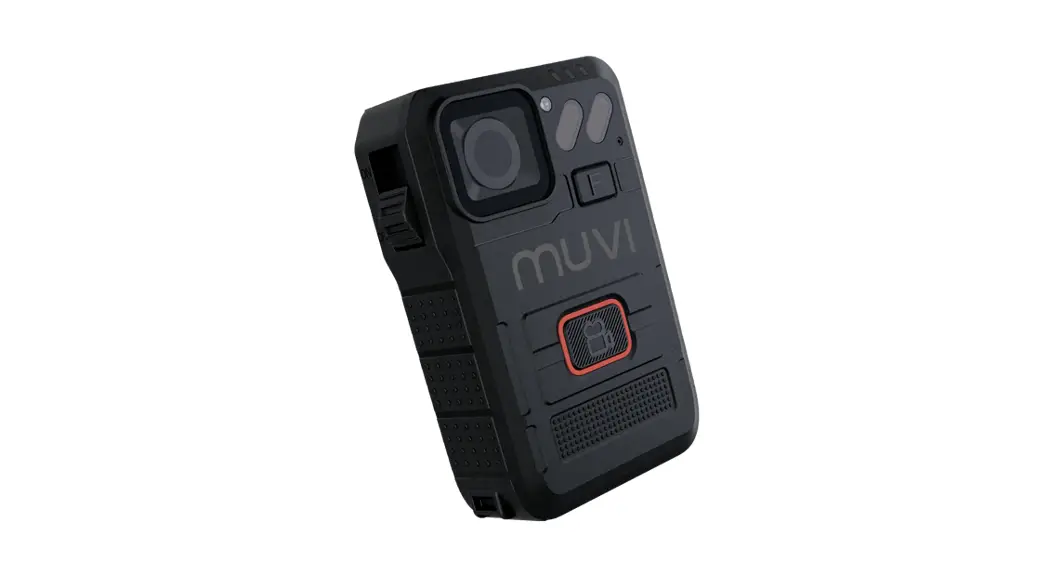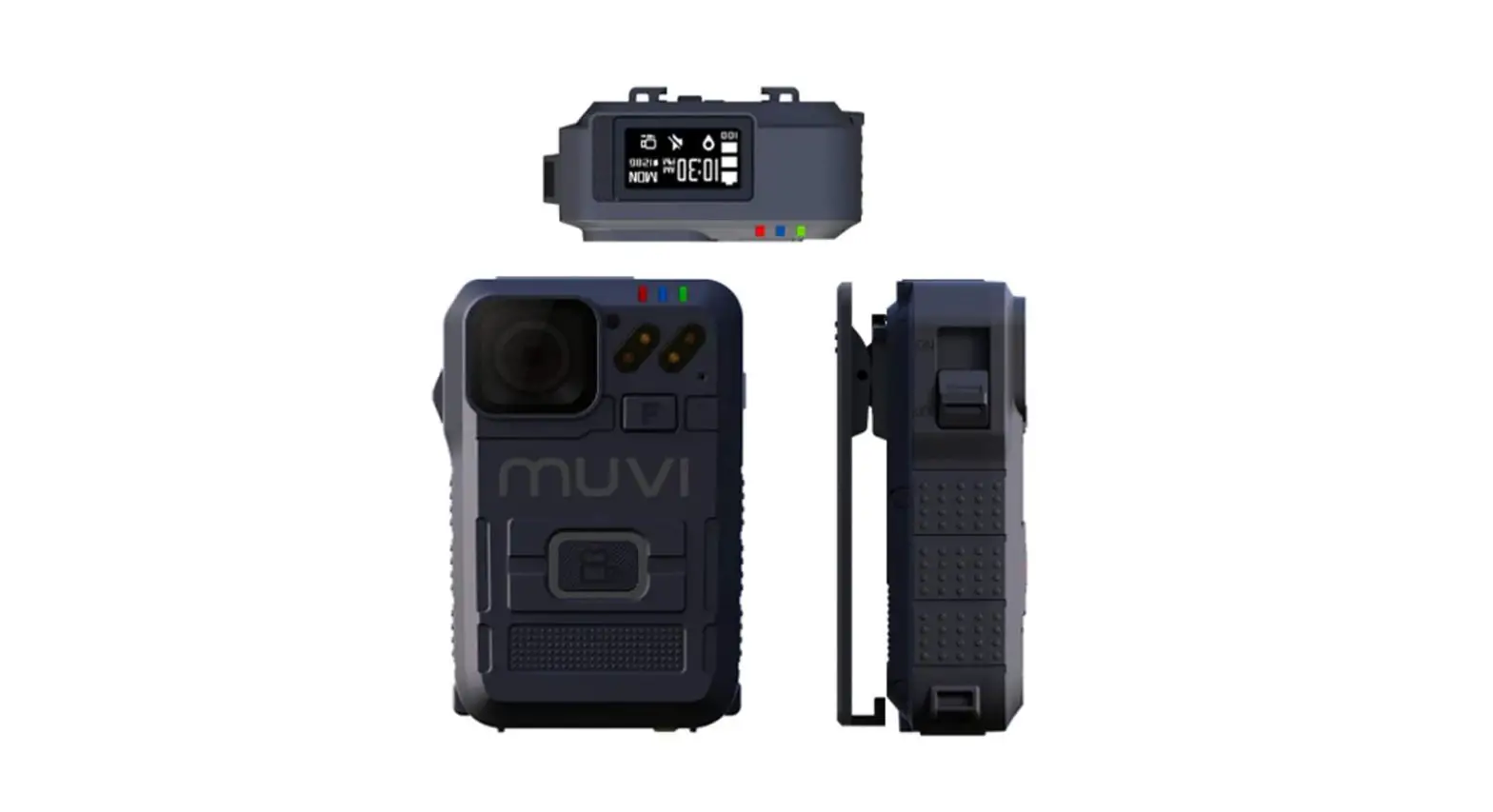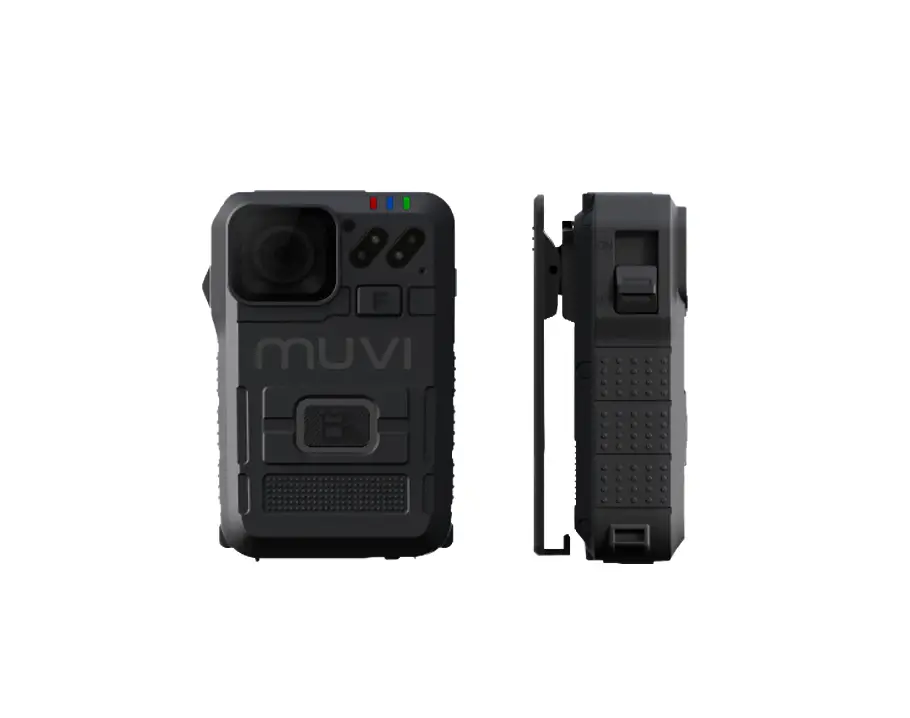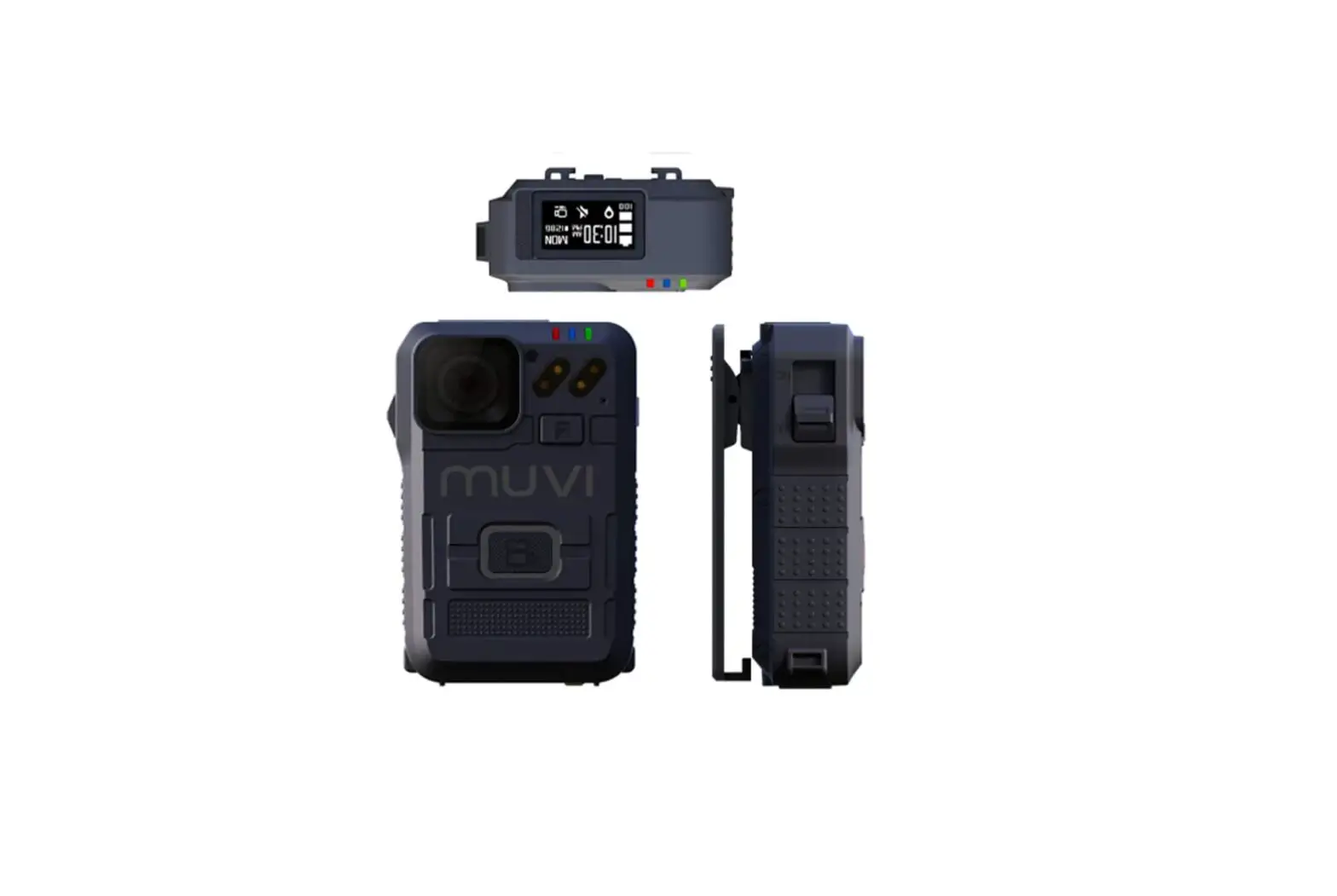
Titan muvi HD PRO3 Titan Bodyworn Camcorder
Firmware Update Instructions
Firmware Installation
- Run the Muvi HD Pro 3 software and then connect the camera to your PC (ensure the camera is switched off)
- Enter your six-digit password, select the `Removable Disk’ option, and click `Apply’
- . Drag and drop the `SD_CarDV.bin’ file into the opened USB Drive folder
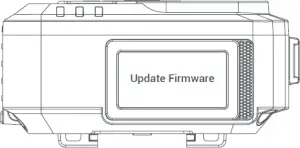
- Disconnect the HD Pro 3 from your PC, allowing the camera to shut down. Plug the camera back into your PC, the `Update Firmware’ screen will appear. The unit will shut down once updated Update Firmware

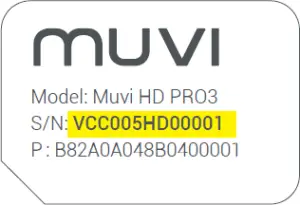
Camera ID Update
- Download and run the `HDA Device ID Tool’ software. Please note, you must ensure the Muvi HD Pro 3 software has been closed for this to operate
- Connect the camera to your PC as prompted
- Insert your device ID into the text box and click `Configure’

- Enter your camera password then click `OK’, you should see a configuration success prompt
- Disconnect the camera and close down the software