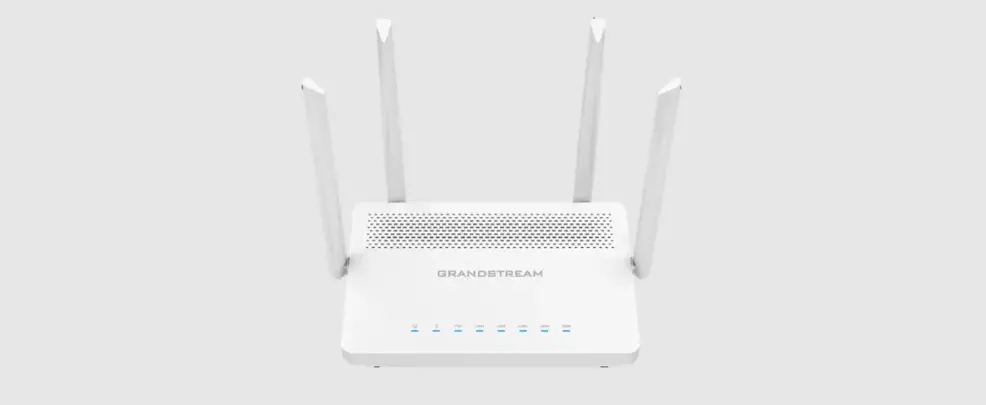
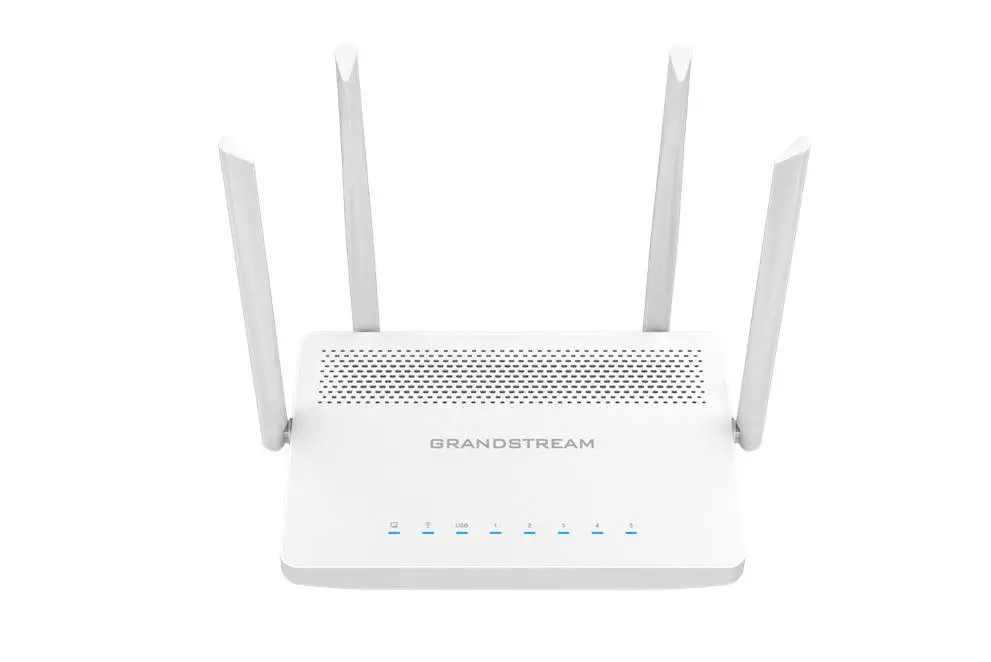
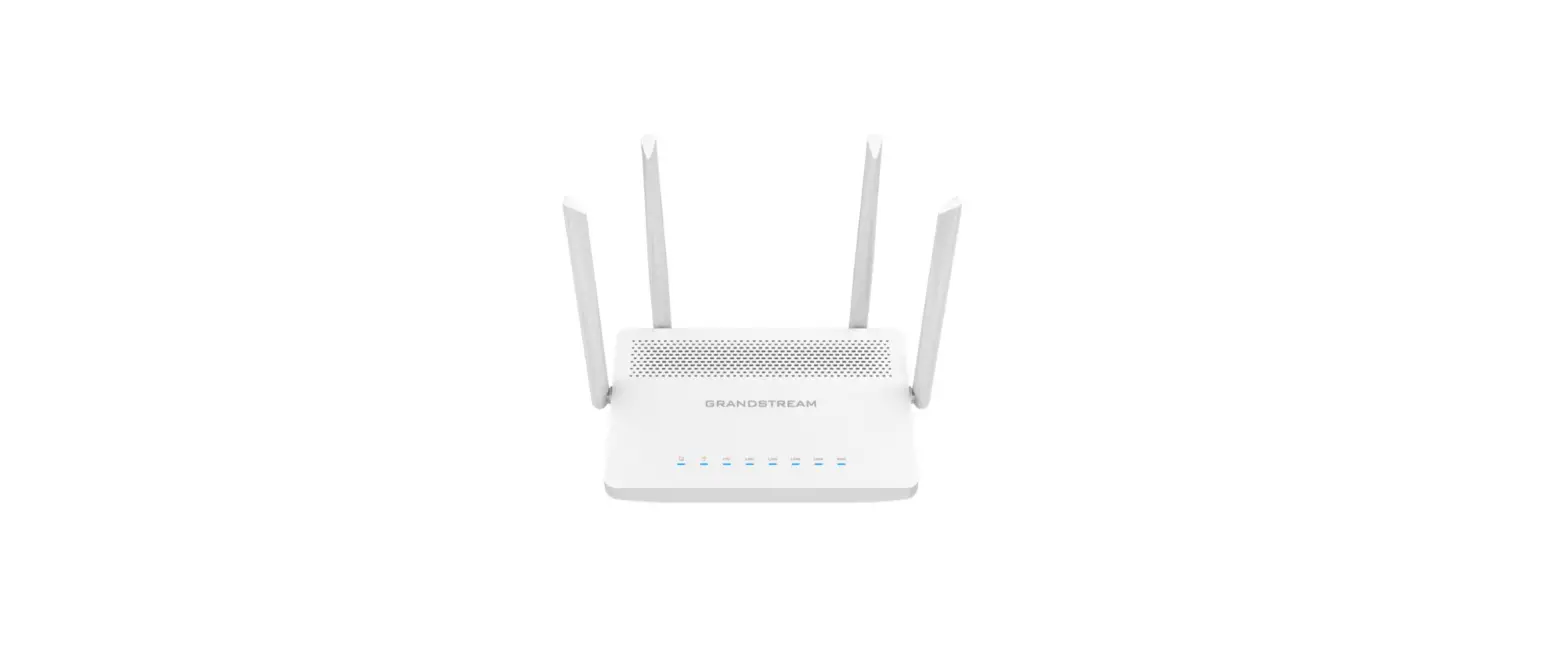
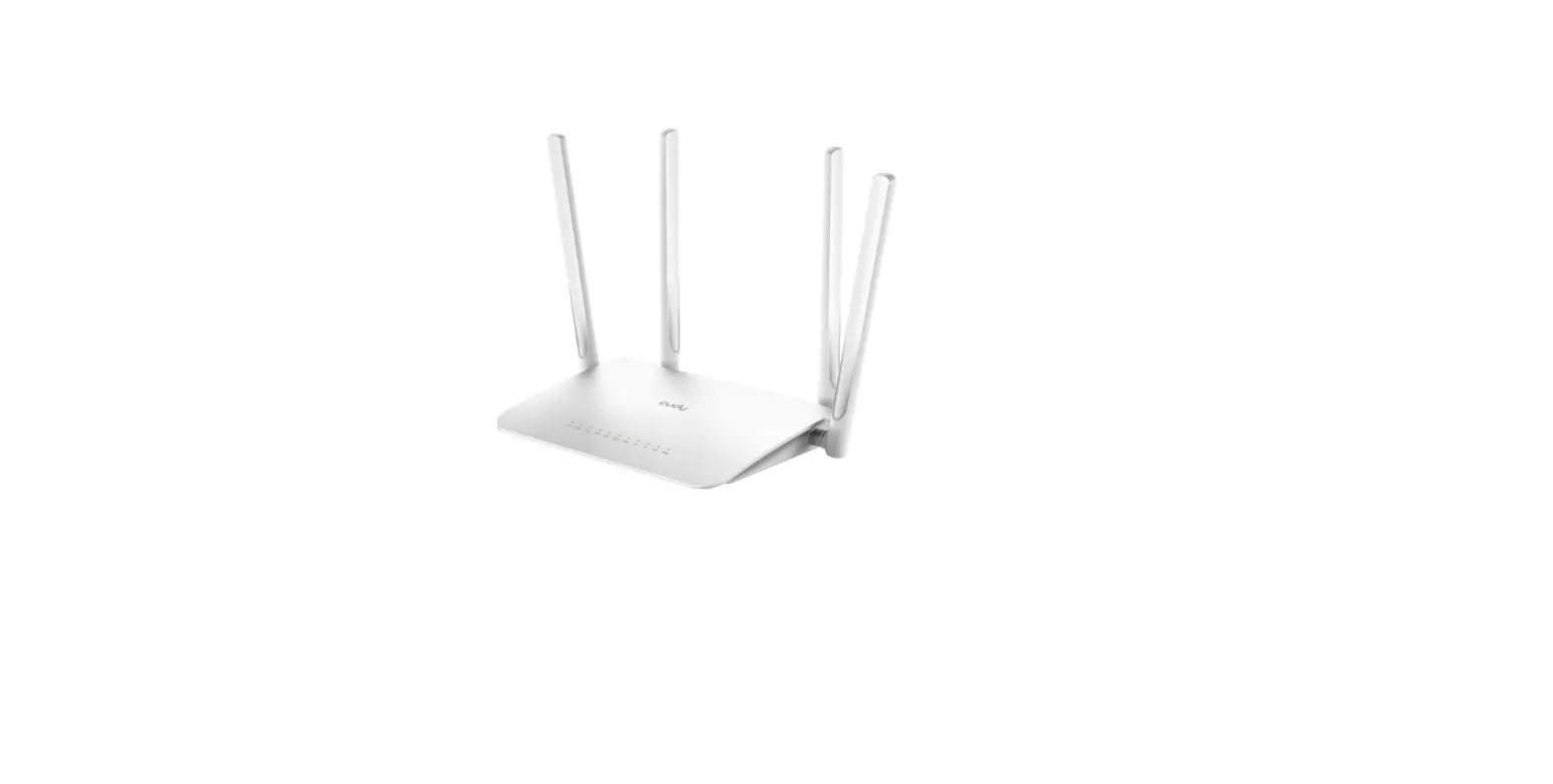
NP2035G Dual Band WiFi GPON Terminal
Product Information
Product Name: NP2035G
Package Content:
- NP2035G x 1
- Optic Cable x 1
- Power Adapter x 1
- Ethernet Cable x 1
- Telephone Cable x 1
- Quick Installation Guide x 1
Ports and Indicators:
Dual Band WiFi GPON Terminal
Product Usage Instructions
1. Hardware Connections
To set up the device, follow these steps:
- Connect a fiber optic cable to the PON port.
- (Optional) Connect a computer to the GE port using the Ethernet
cable. - (Optional) Connect a telephone to the TEL port using the
telephone cable.
2. WiFi Connection
Using SSID:
- Use the SSID and Wireless Key on the device label to connect
wirelessly to the device. - On your smartphone or notebook, find this SSID.
- Enter the Wireless Key to connect.
Using WPS:
- Press the WPS button on the device and the WPS indicator will
blink. - Press the WPS button on the client device.
- If the WPS method fails, use the SSID and wireless key to set
up a WiFi connection.
3. Configure on the Web
To configure the device, follow these steps:
- Open a web browser.
- Enter the IP address, default User Name, and Login Password
from the device label. - Click Login to access the device’s web page.
4. LED Indicator Explanation
LED Indicator Name: State: Description:
| Name | State | Description |
|---|---|---|
| Power | On | The device has been turned on. |
| Power | Off | The device has not been turned on. |
| Internet | On | In Routing mode and WAN connection is up. |
| Internet | Blinking | Attempt to get an IP address. |
| Internet | Off | No internet connection or the modem router is operating in Bridge mode. |
Name: Explanation:
| Name | Explanation |
|---|---|
| RESET | Hold down for more than 5 seconds and release to restore the factory settings. |
| WPS | Press the button to connect the device through WPS. |
| WLAN | Enable/disable wireless network. |
6. Environment
Operating Temperature: 0~40°C
Storage Temperature: -40~70°C
Relative Humidity: 10%~90%, non-condensing
Storage Humidity: 5%~95%, non-condensing
FCC Statement
— Reorient or relocate the receiving antenna.
— Increase the separation between the equipment and
receiver.
— Connect the equipment into an outlet on a circuit different
from that to which the receiver is connected.
— Consult the dealer or an experienced radio/TV technician for
help.
FCC Radiation Exposure Statement
This device complies with FCC radiation exposure limits set
forth for an uncontrolled environment. This equipment must be
installed and operated in accordance with provided instructions and
the antenna(s) used for this transmitter must be installed to
provide a separation distance of at least 20 cm from all persons.
This device complies with Part 15 of the FCC Rules. Operation is
subject to the following two conditions:
NP2035G
Quick Installation Guide
Package Content
NP2035G x 1 Optic Cable x 1 Power Adapter x 1
Ethernet Cable x 1 Telephone Cable x 1 Quick Installation Guide x 1
Ports and indicators
Dual Band WiFi GPON Terminal
1. Hardware connections
Connect a fiber optic cable to the PON port. Connect a computer to the GE port using the Ethernet cable (optional). Connect a telephone to the TEL port using the telephone cable (optional).
2. WiFi connection
Using SSID Use the SSID and Wireless Key on the device label to connect wireless to the device. On your smartphone or notebook, find this SSID. Enter the Wireless Key to connect.
Using WPS Press the WPS button on the device and the WPS indicator will blink. Then press the WPS button on the client. If the WPS method fails, use the SSID and wireless key to set up a WiFi connection.
3. Configure on the web
Configure the device on the web page according to the information on the device label. Open a web browser, enter the IP address, default User Name and Login Password, and then click Login.
4. LED Indicator Explanation
Name State Description
On
The device has been turned on.
Power Off
The device has not been turned on.
Internet
PON LOS WIFI WPS
On
Blinking
Off
On Blinking Off Blinking Off On Blinking Off
On
In Routing mode and WAN connection is up. Attempt to get an IP address. No internet connection or the modem router is operating in Bridge mode. The device has been registered. Optical signal is detected. No optical signal is detected. No optical signal is detected. Optical signal is detected. Wi-Fi has been turned on. Wi-Fi data is being transmitted. Wi-Fi has been shut down. The device is successfully connected through WPS
TEL1TEL2
LAN1LAN4
function.
The device is being connected Blinking
through WPS function.
The WPS function is not enabled,
or the device is successfully Off
connected through WPS
function.
The VOIP server has been On
registered.
Blinking The voice service is in use.
Off
The VOIP server is not registered.
The LAN port is properly On
connected.
Blinking Data are being transmitted.
Off
The LAN port is not connected.
5. Button Explanation
Name
Explanation
RESET
Hold down for more than 5 seconds and release to restore the factory settings.
Press the button to connect the device WPS
through WPS.
WLAN
Enable/disable wireless network.
6. Environment
Operating Temperature: 0~40 Storage Temperature: -40~70 Relative humidity: 10%~90%, non-condensing Storage humidity: 5%~95%, non-condensing
FCC Statement
This equipment has been tested and found to comply with the limits for a Class B digital device, pursuant to part 15 of the FCC Rules. These limits are designed to provide reasonable protection against harmful interference in a residential installation. This equipment generates, uses and can radiate radio frequency energy and, if not installed and used in accordance with the instructions, may cause harmful interference to radio communications. However, there is no guarantee that interference will not occur in a particular installation. If this equipment does cause harmful interference to radio or television reception, which can be determined by turning the equipment off and on, the user is encouraged to try to correct the interference by one or more of the following measures:
— Reorient or relocate the receiving antenna. — Increase the separation between the equipment and receiver. — Connect the equipment into an outlet on a circuit different from that to which the receiver is connected. — Consult the dealer or an experienced radio/TV technician for help.
FCC Radiation Exposure Statement
This device complies with FCC radiation exposure limits set forth for an uncontrolled environment. This equipment must be installed and operated in accordance with provided instructions and the antenna(s) used for this transmitter must be installed to provide a separation distance of at least 20 cm from all persons. This device complies with Part 15 of the FCC Rules. Operation is subject to the following two conditions:
(1) this device may not cause harmful interference, and (2) this device must accept any interference received, including interference that may cause undesired operation.
Caution!
Any changes or modifications not expressly approved by the party responsible for compliance could void the user’s authority to operate the equipment.