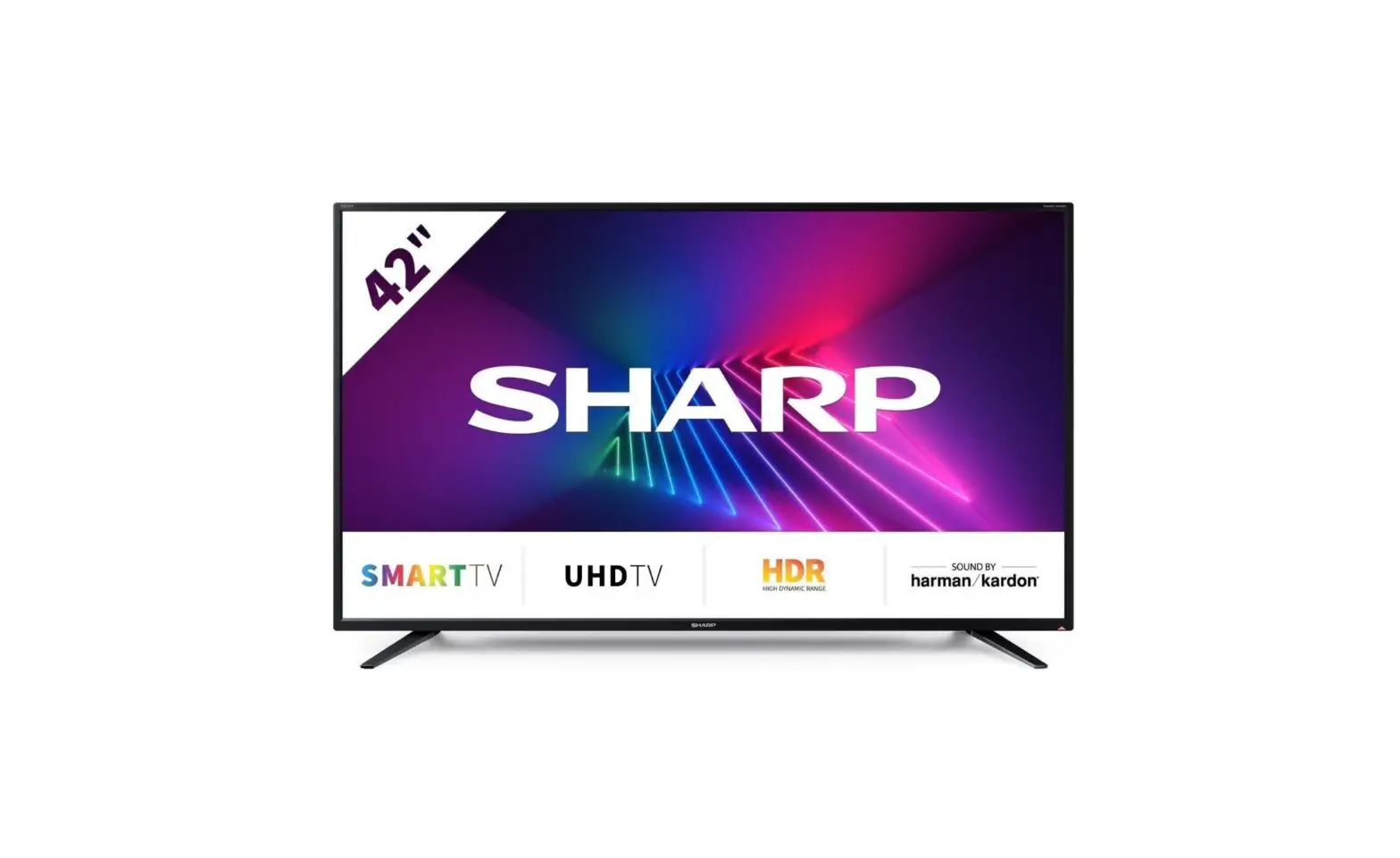
42EH2K 42 Inch 4K Ultra HD Smart TV
Product Information
The product is a TV with various model numbers and sizes. It
comes with a quick start set-up guide and an operating instructions
manual that can be downloaded online. The TV also includes a
soundbar (model number SHA/QSW/0253) as a prize for registering the
manufacturer’s guarantee within 14 days of purchase.
The TV can be set up easily using the included remote control.
It has features such as standby switch, input/source menu, number
buttons for direct channel selection, mute option, TV guide, OSD
menu, favorites menu, channel information display, on-screen menu
navigation, back button, apps menu access, volume and channel
control, access to Netflix, Prime Video, YouTube, and Freeview Play
apps, sound mode options, subtitle switch, Teletext function, and
digital channel switching. Some models also have integrated DVD
players and USB playback functionality.
If you wish to use your Sky remote control to operate the TV’s
basic functions, you will need to program it with the code 2134 for
Sky remote or code 4170 for Sky Q remote.
The TV has different technical specifications based on the model
and size. The power consumption ranges from 69W to 130W. The screen
sizes vary from 43 inches to 55 inches. The resolution is 3840 x
2160 for some models. It supports different types of antenna,
analog, DVB, and satellite signals. It also has digital optical
audio output and a headphone jack.
Product Usage Instructions
To set up the TV for the first time:
- Refer to the quick start set-up guide and operating
instructions manual for detailed instructions. - Attach the stand to the TV.
- Connect other devices to the television.
To use the TV’s features with the remote control:
- Use the standby button to switch on the TV or vice versa.
- Press the source button to display the input/source menu.
- Use the number buttons (0-9) to select a TV channel
directly. - Press the mute button to mute or unmute the sound.
- Open the 7-day TV guide by pressing the guide button (available
in digital TV mode). - Access the OSD menu by pressing the menu button.
- Display the favorites menu by pressing the FAV button.
- Get now/next channel information by pressing the INFO button
once, or information about the current program by pressing it
twice. - Use the BACK button to go back to a previous step.
- Access the Apps menu by pressing the APPS button.
- Exit all menus by pressing the EXIT button.
- Adjust the sound level by tilting the VOL (+/-) buttons.
- Change channels by tilting the CH (+/-) buttons.
- Access different apps such as Netflix, Prime Video, YouTube,
and Freeview Play using the corresponding dedicated buttons. - Scroll through sound mode options using the AUDIO button.
- Switch subtitles on or off using the SUB button.
- Enter or exit Teletext mode using the TEXT button.
- Switch to digital channels using the TV button.
- Control playback functions (play/pause, fast rewind, fast
forward, stop) using the appropriate buttons. - Execute corresponding functions using the color buttons
depending on the context.
If you need further assistance with setting up or using your TV,
you can contact the UK & ROI Helpline by calling UK 0330 024
0803 or ROI 01443 3323. Online support is available at
www.umc-uk.co.uk, and you can also reach out via email at
[email protected].
Note: The telephone opening hours may vary, and it is
recommended to check the latest information provided by the
manufacturer.
Quick Start Set Up Guide
For information on using the TV’s features, please refer to the Operating Instructions. (Available online to download.)
Register your manufacturers guarantee online within 14 days of purchase at www.registertoday.co.uk/sharp and enter into a prize draw to
Win a
SHA/QSW/0253
Soundbar
Model Numbers
42EH2K 43EH2K 50EH2K 55EH2K 42EH4K 43EH4K 50EH4K 55EH4K 42EH6K 43EH6K 50EH6K 55EH6K 42EH7K 43EH7K 50EH7K 55EH7K
Quick & easy guide for setting up your TV What is included in the box Using the remote control Setting up the TV for the first time – including attaching the stand Connecting other devices to the Television
Need help setting up or using your TV?
Please contact the UK & ROI Helpline* Telephone UK 0330 024 0803 or ROI 01443 3323 Online support at: www.umc-uk.co.uk Email support at: [email protected]
*Calls to 0330 numbers are charged at standard call rates and are included as part of any bundled minutes with your phone provider. Hours are correct at time of this document being published. Please note these hours are subject to change periodically. Calls to the ROI number are charged at the local call rate.
Using the remote control
Key
For models with integrated DVD players.
1
For models with USB Playback.
1
STANDBY – Switch on the TV when in standby or vice versa.
SOURCE – To display the input/source menu.
2
2
NUMBER BUTTONS – 0-9 to select a TV channel directly.
MUTE – Mute the sound or vice versa
GUIDE – Opens the 7 day TV guide (digital TV mode).
MENU – Displays the OSD menu.
3
FAV – Displays the favourites menu.
INFO – Press once for now/next channel information.
– Press twice for information about the current programme.
– Allows you navigate the on-screen menus and adjust
3
the system settings to your preference.
BACK – To go back a previous step.
APPS – Access the Apps menu.
EXIT – To exit all menus.
VOL (+/-) – Tilt to increase/decrease the sound level.
CH (+/-) – Tilt to move up or down the channel being watched.
NETFLIX – Access the Netflix App.
PRIME VIDEO – Access the Prime Video App.
4
YOUTUBE – Acess the YouTube App.
FREEVIEW PLAY – Access the Freeview Play App.
AUDIO – Scrolls through the sound mode options
SUB – To switch the dialogue at the bottom of the screen (on/off).
TEXT – To enter/exit Teletext.
TV – To switch to digital Channels
4
To play/pause
To play in fast rewind mode
To play in fast forward mode
To stop the playback
COLOUR BUTTONS – Execute corresponding function at that time
Sky Remote Code
If you wish to use your Sky remote to operate the TV’s basic functions, you will need a Sky remote control (Revision 9 or later) and you will need to program it with the code 2134. If you wish to use your Sky Q remote to operate the TV’s basic functions, you will need to program it with the code 4170.
The telephone opening hours are:
Monday to Friday: 8.30am 6pm
9am 5pm
10am 4pm
Closed Christmas and New Years day.
Saturday :
Bank Holidays:
Technical Specification
55EH2K 55EH4K 55EH6K 55EH7K
81 W 130 W 139 cm / 55 inches
50EH2K 50EH4K 50EH6K 50EH7K
69 W
105 W
G
G
3840 x 2160
108 cm / 43 inches 126 cm / 50 inches
75 ohm Antenna / Analog / DVB / Satellite
4 x HDMI · 2 x USB · 1x Micro SD card reader · 1 x RJ45 LAN/Ethernet 1x Composite/CVBS Video + Audio Input
1 x Digital Optical Audio output, 1 x 3.5mm Headphone
2 x 10 / 2 x 8
AC 220V ~ 240V; 50Hz AC 220V ~ 240V; 50Hz AC 220V ~ 240V; 50Hz AC 220V ~ 240V; 50Hz
81/135/160W
69/95/115W
(home mode/standard/ (home mode/standard/ (home mode/standard/ (home mode/standard/
max)
max)
(<0.5W in Standby) (<0.5W in Standby) (<0.5W in Standby) (<0.5W in Standby)
1240W x 766H x 230D 13.7
VESA 400 x 200 (mm)
1124W x 699H x 230D 12.2
43EH2K 43EH4K 43EH6K 43EH7K
52 W
71 W
52/71/92W
max)
967W x 610H x 194D 7.4
VESA 200 x 200 (mm)
42EH2K 42EH4K 42EH6K 42EH7K
51 W 74W 106 cm / 42 inches
51/75/95W
max)
SHA/QSW/0253
Energy Efficiency Class (SDR) Power consumption (SDR) Energy Efficiency Class (HDR) Power consumption (HDR) Screen resolution (pixels) Screen Size (diagonal) RF Inputs
Speaker*/ Amplifier Watts (RMS)
Voltage and power consumption
Dimensions including stand (mm) 953W x 576H x 185D
6.7
*Built-in Harman Kardon speaker systems (Full-range speaker and tweeter).
Manufactured under license from Dolby Laboratories. Dolby, Dolby Audio, and the double-D symbol are trademarks of Dolby Laboratories Licensing Corporation.
Online Manual
To launch the Online Manual, press the [MENU] button and then select: Settings > Setup > Help Information
What is included in the box
Accessories
Included with this TV are the following accessories
1 x Quick Start Guide 1 x Safety Leaflet
1 x Remote Control and 2 x AAA Batteries 1 x Stand installation pack
Additional Accessories
If you don’t have the RF cable shown below, then you can purchase one from www.umc-uk.co.uk/cables If you are intending to connect your TV to an RF socket in order to receive Freeview you will need this cable.
RF Cable
Microsoft PlayReadyTM
This product contains technology subject to certain intellectual property rights of Microsoft. Use or distribution of this technology outside of this product is prohibited without the appropriate license(s) from Microsoft.
Content owners use Microsoft PlayReadyTM content access technology to protect their intellectual property, including copyrighted content. This device uses PlayReady technology to access PlayReady-protected content and/or WMDRM-protected content. If the device fails to properly enforce restrictions on content usage, content owners may require Microsoft to revoke the device’s ability to consume PlayReady-protected content. Revocation should not affect unprotected content or content protected by other content access technologies. Content owners may require you to upgrade PlayReady to access their content. If you decline an upgrade, you will not be able to access content that requires the upgrade.
Freeview Play brings together live TV viewing with “catch up” TV services such as BBC iPlayer, ITV player, More4 and Demand 5. The Freeview Play Explore app features a carousel of genres to select from when searching for programmes, such as sport, comedy, dramas and soaps, etc. Content is made up from recommendations of the major broadcasters and offers an alternative means of searching.
Note that to use the full functionality of Freeview Play your set must be connected to the internet.
Please save your box/packaging as you will need this in the event of warranty/service repair or support. We are unable to carry out warranty/service if you are unable to package it correctly. The safest way to package your item in the event of warranty/service repair is in it’s original box/packaging.
The terms HDMI, HDMI High-Definition Multimedia Interface, HDMI trade dress and the HDMI Logos are trademarks or registered trademarks of HDMI Licensing Administrator, Inc.
Sound Outputs
Net weight (Kgs)
Wall Mounting
Harman Kardon is trademark of HARMAN International Industries, Incorporated, registered in the United States and/or other countries.
Setting up the TV set for the first time
1 Fitting the stand
TV panel must be facing downwards.
For the stand installation, there is one type of screw provided as shown below.
Note: To complete the stand installation you will require a cross head screw driver.
4 x
Used for attaching the stand to the TV set (fig.2)
R
L
1 Place the TV set on a flat and clean surface with the panel facing downwards to avoid damage.
Back/Shortest
Front/Longest
2 When the stand feet are installed correctly the stand feet will be longest at the front of the TV and shortest at the back with the feet pointing away from each other.
2 Connecting your set
1
2
3 Powering On the TV
TV Control Stick
3 4
1 2
4 x
3 When the stand/feet are in the correct position, secure the feet to the underside of the TV set using 4 screws provided.
Remote Control: Installing Batteries
4
3
2
ETHERNET
OPTICAL
VIDEO
L
R
DIGITAL AUDIO OUT
1 Connect the TV to your power socket.
2 If you wish to use the TV to receive Freeview/Saorview channels, connect the RF input from the TV to your outdoor Digital TV aerial. If you do not wish to receive Freeview/ Saorview, skip this step.
4 First time installation
1
TV control stick
Switch on the television by pressing the TV control stick located on the TV set.
Insert the batteries supplied into the remote control and press the standby button to power on the TV.
2
3
Register your manufacturers guarantee online within 14 days of purchase at
www.registertoday.co.uk/sharp and enter into a prize draw to win a Sharp Soundbar
Terms and conditions apply. Online registration only.
Wall Mounting the TV
Image for illustration only. For the dimensions of the VESA mounting, please refer to the Technical Specifications
section of this document.
1 Remove the four screws that are supplied in the wall mounting holes.
2 The wall mount can now be easily attached to the mounting holes on the rear of the TV.
3 Install the wall mounting bracket to the television as advised by the bracket manufacturer.
The picture shows the use of spacers, which are not applicable to all sets/installations.
Connectivity
Introduction & Language When the set first turns on, it enters the First Time Installation mode. This can be
restarted by restoring the set to default settings in the `About TV’ Menu. Select your preferred on-screen display language. This will change the language in
which the menus and associated information is displayed in.
4
Country Select the correct country in which the set will be used in. This will enable the set to
correctly install the functions applicable in the country of use.
5
PIN This needs to be set to establish parentol controls.
6
Time Zone
Set the Time Zone in which the TV will reside. This may be dependent on the country you select in step 2.
Updates Notice
You will need to agree to certain information collection for the TV set to operate as intended.
Note: In home mode,
7
the TV will switch off automatically after 4
8
hours in the event that
no buttons are pressed
on the TV or remote
control.
Network Set Up You can connect the TV to your broadband router or wireless network
in order to take advantage of the Smart functions. If you connect the TV to your router using an Ethernet cable, the Wifi set up will be
skipped.
9
Set up Netflix
If you have a Netflix account, it can be set up on the television here. Once set up and validated, the First Time Installation returns to the next step.
TV Mode
Home Mode: For normal use, by default it is set to a power saving mode which reduces the energy used by up to 25%
(by reducing the power to the LED/LCD panel). This can be changed in the picture mode settings.
Channel Scan
Choose to install terrestrial channels via Digital or Analog signals.
Note: Analog signals in the United Kingdom have been turned off. Only Digital signals are available.
4
3
2
ETHERNET
OPTICAL
VIDEO
L
R
DIGITAL AUDIO OUT
N M L K
J
ARC 1
4
3
2
C
D
E
I
ETHERNET
OPTICAL
VIDEO
L
R
H
A
B
DIGITAL AUDIO OUT
G
F
A
Ethernet/LAN*
B
Digital Audio
C
HDMI 4
D
HDMI 3
E
HDMI 2
F
Video / L+R
G
SAT IN
Network connection
Digital Optical Audio Output
HDMI input
HDMI input
HDMI input Composite/CVBS Video + Audio Input Satellite input
H
RF in
I
HDMI 1
J
Earphones
K
Service Input
L
SD
M
CI card in
N
USB
RF / TV aerial input
HDMI input (ARC)
Earphone input Input is used only by service centres SD card input Slot for Conditional Access Module (CAM) USB port 2.0 x2
 registertoday.co.uk
 UMC - Product Support, Sharp, Blaupunkt, Technika, e-motion, Eternity, JMB and Bush