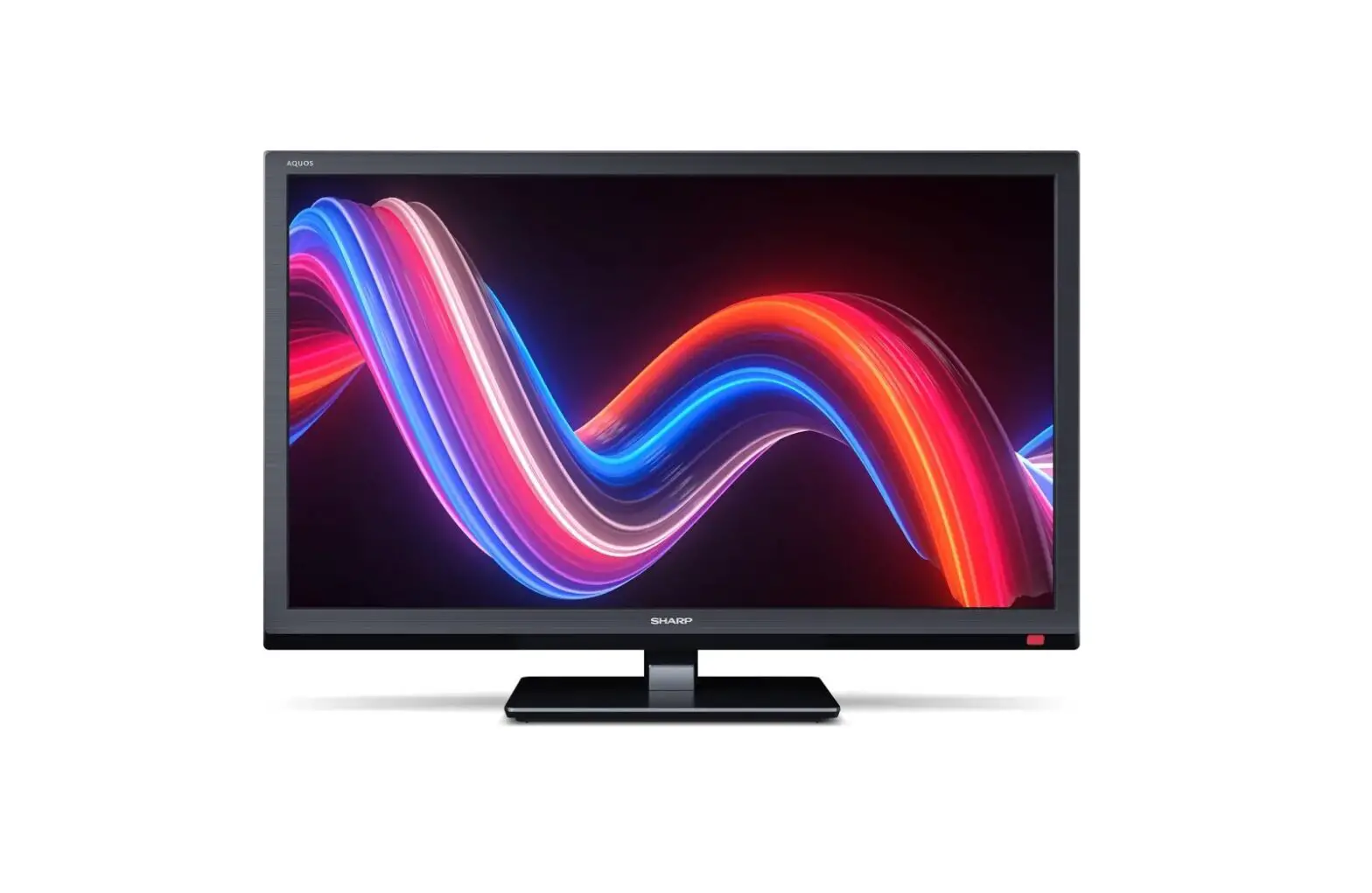
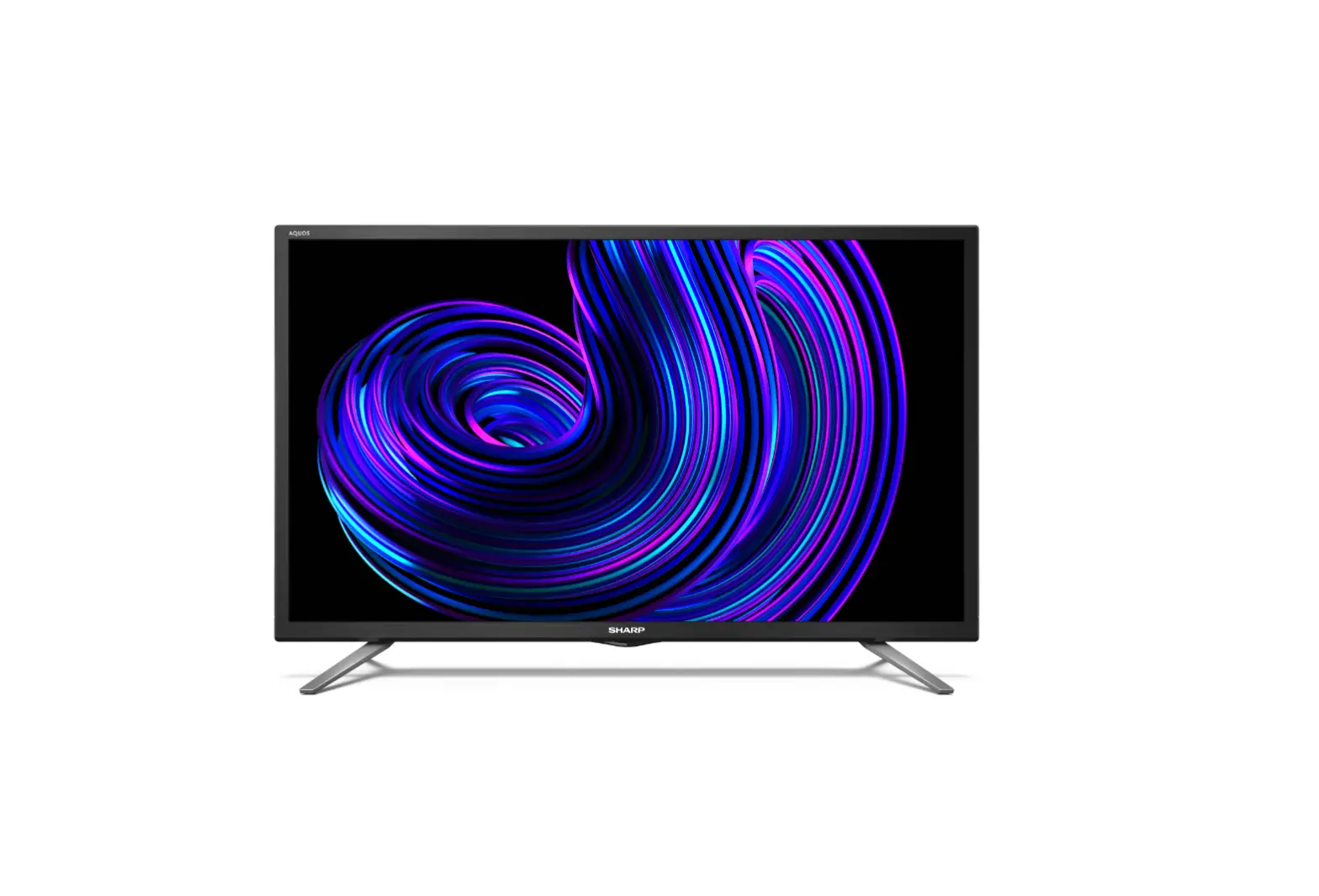
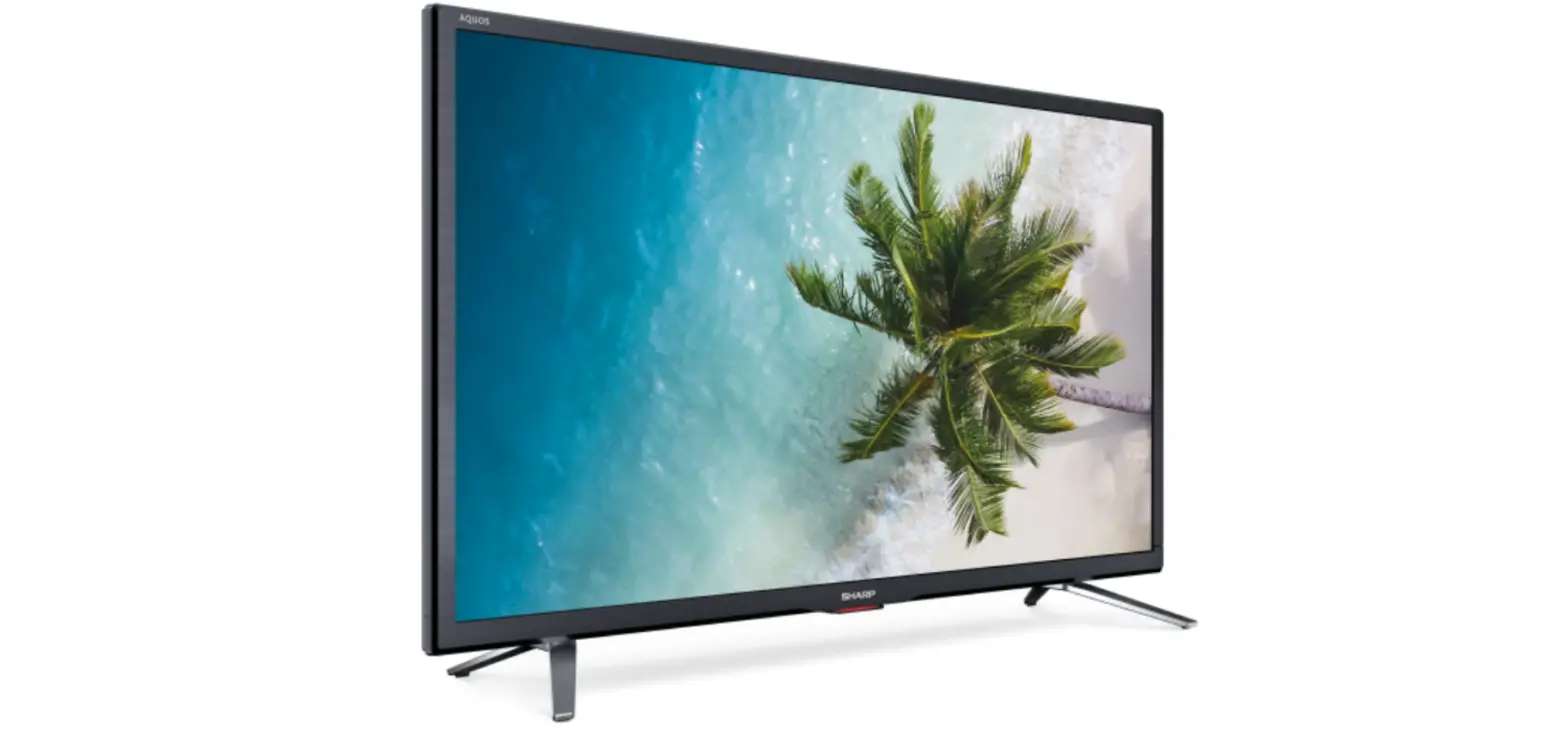
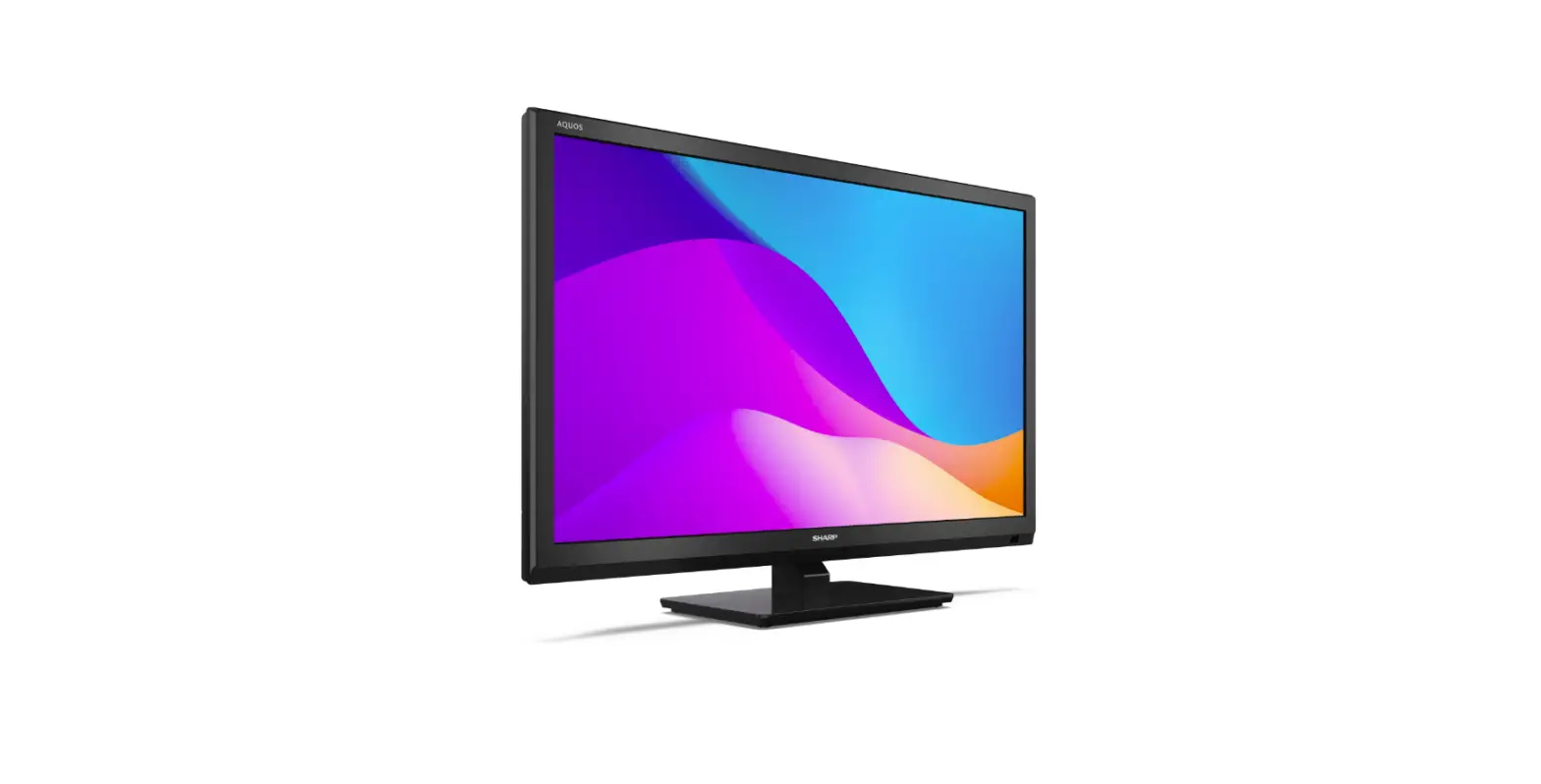
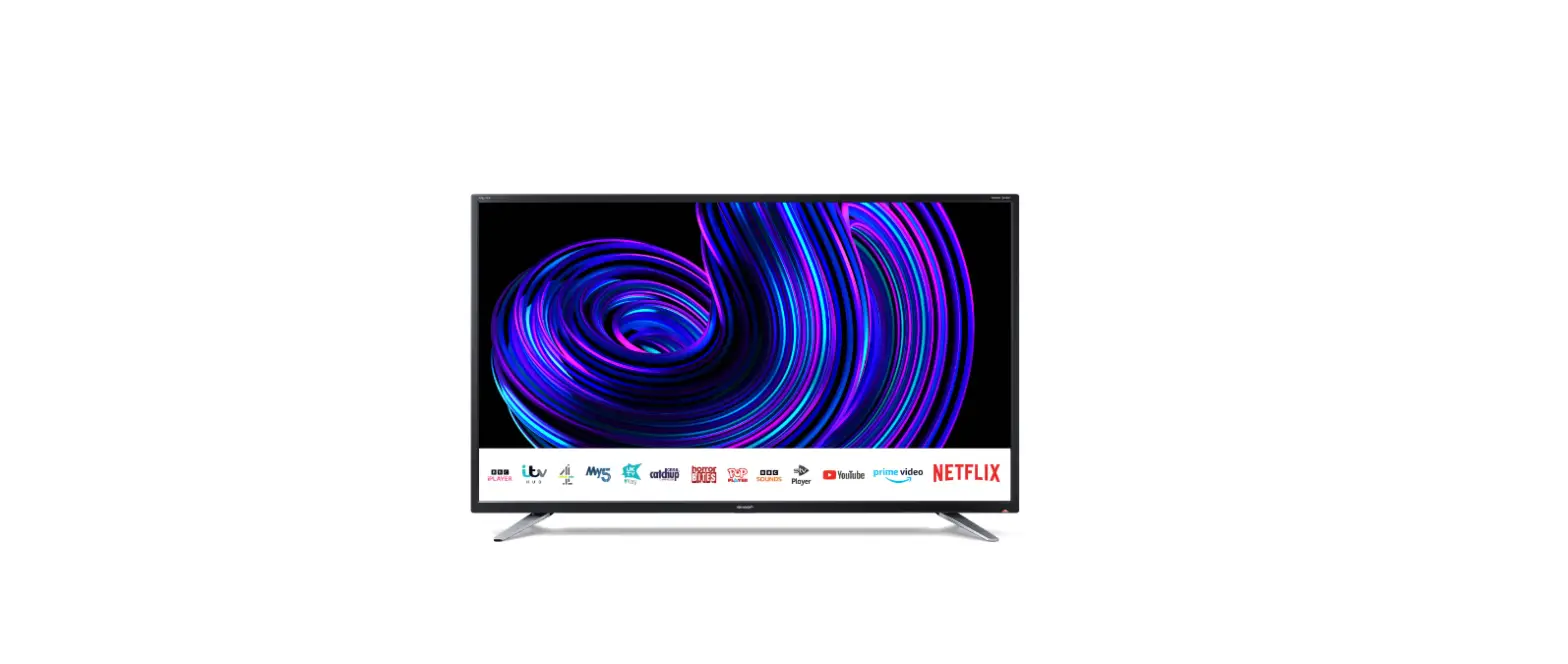
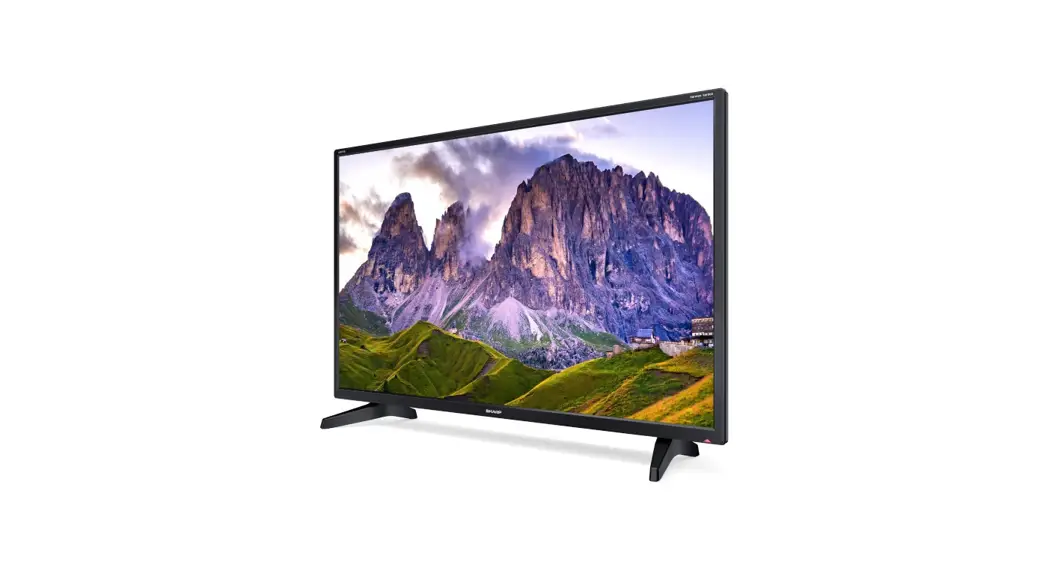
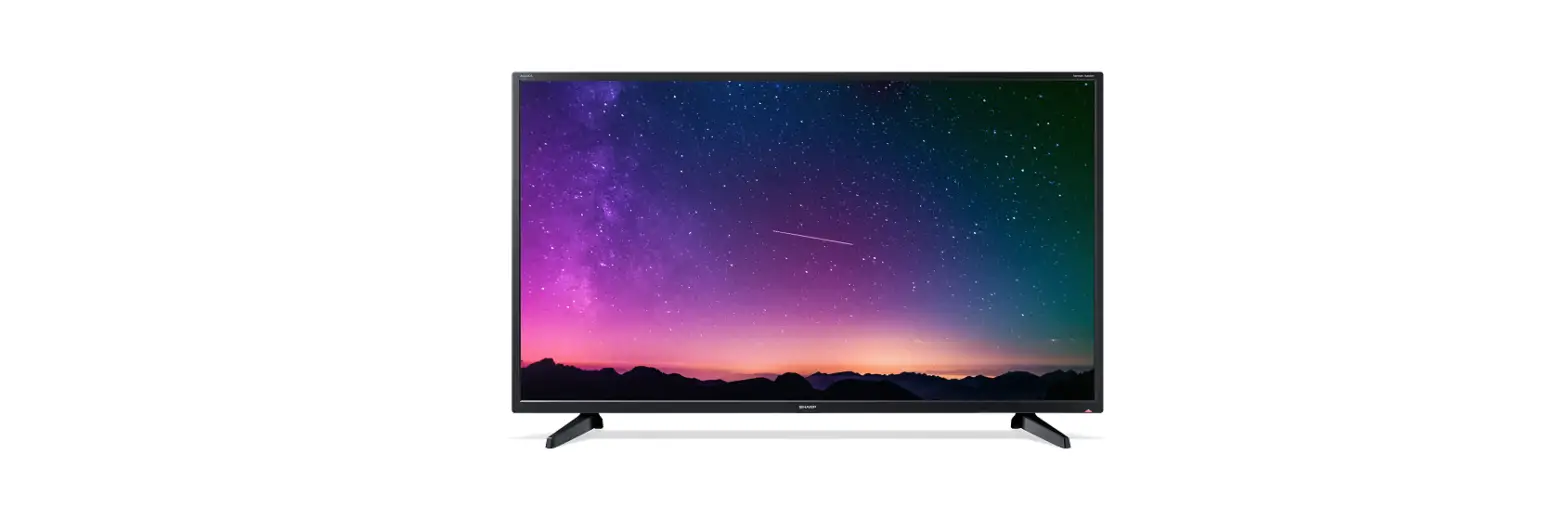
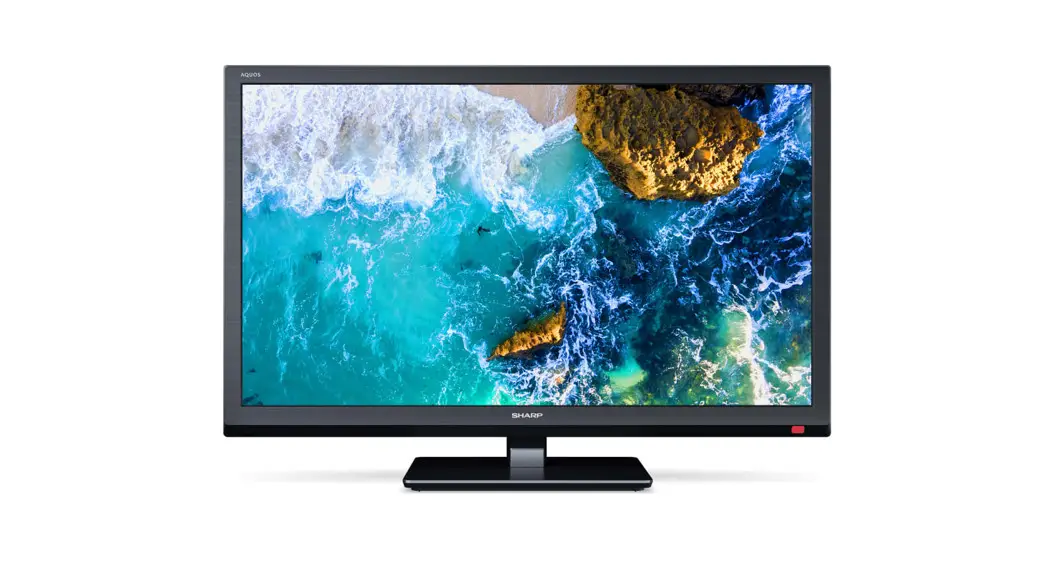
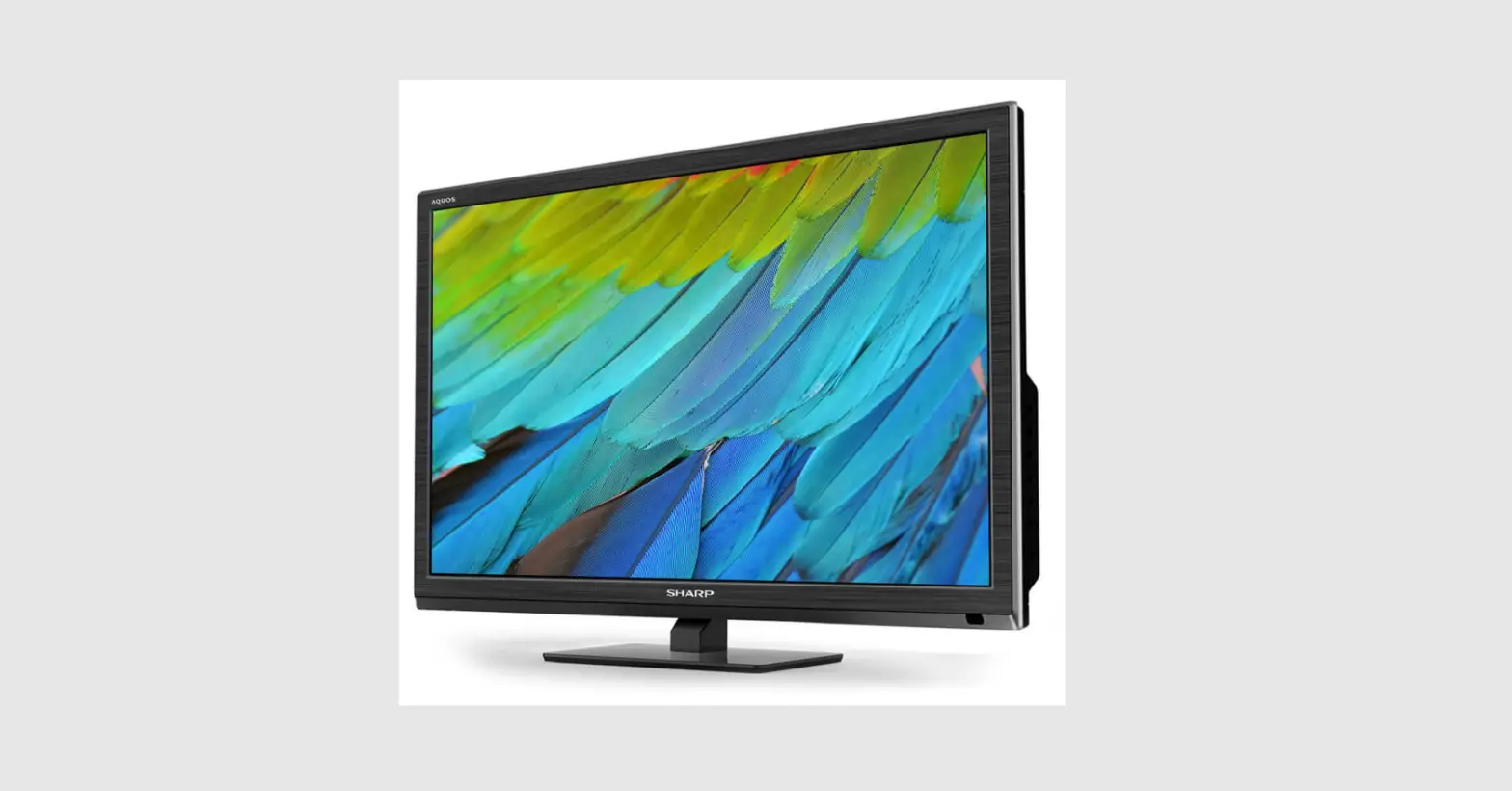
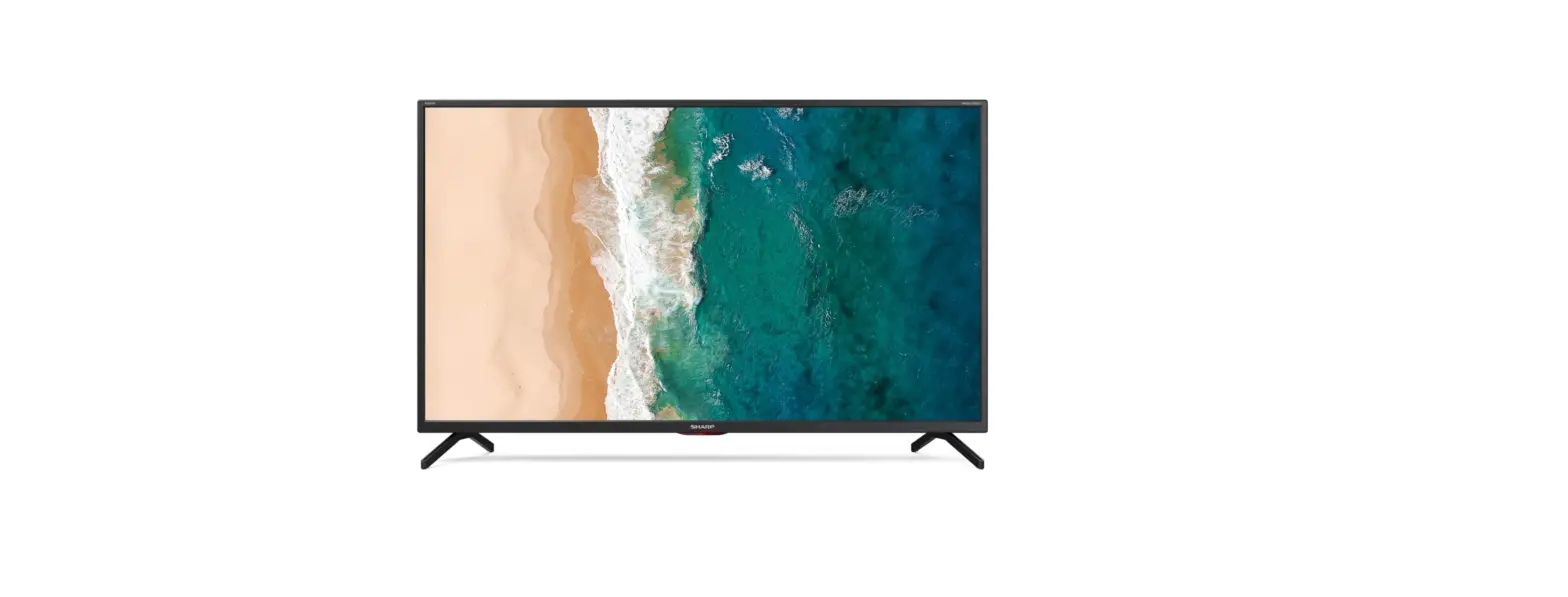
24EA3K Smart 24 Inch HD Ready TV
Product Information
This product is a TV manufactured by Sharp. It comes with
various features and functions that enhance the viewing experience.
The TV includes a remote control for easy operation. The package
also includes a stand for setting up the TV.
To register your purchase and enter a prize draw to win a
Soundbar, you need to visit the website
www.registertoday.co.uk/sharp within 14 days of purchase. Please
note that terms and conditions apply, and online registration is
required.
If you require assistance with setting up or using your TV, you
can contact the UK & ROI Helpline. The telephone numbers are
UK: 0330 024 0803 and ROI: 01443 3323. Online support is available
at www.umc-uk.co.uk, and you can also reach out via email at
[email protected].
Product Usage Instructions
Setting up the TV
- Unbox the TV and locate the stand.
- Attach the stand to the TV according to the provided
instructions.
Using the Remote Control
The remote control included with the TV allows you to control
various functions. Here are some of the key buttons and their
corresponding actions:
- STANDBY: Switches the TV on or off when in
standby mode. - MUTE: Mutes or unmutes the sound.
- DTV: Switches to the Freeview source.
- RADIO: Switches to radio while in Freeview
source. - USB: Switches to the USB source.
- DVD: Switches to the DVD source.
- NUMBER BUTTONS (0-9): Allows you to select a
TV channel directly. - TV GUIDE: Opens the 7-day TV Guide in Freeview
mode. - VOL (+/-): Increases or decreases the sound
level. - P.MODE: Scrolls through picture mode
options. - S.MODE: Scrolls through sound mode
options. - FAV: Displays the favorite menu.
- CH (+/-): Increases or decreases the currently
watched channel. - MENU: Displays the OSD menu.
- EXIT: Exits all menus.
- ( / / / / OK ): Navigates the on-screen menus
and adjusts system settings. - SOURCE: Displays the input/source menu.
- INFO: Press once for now/next channel
information, twice for program information about the current
program. - ASPECT: Switches the screen between different
picture formats. - SLEEP: Cycles through sleep options when
pressed repeatedly. - AUDIO: Changes the audio language if
available. - SUBTITLE: Switches the dialogue at the bottom
of the screen on or off. - TEXT: Enters or exits text mode.
- TEXT HOLD: Holds the current page displayed in
analogue TV teletext mode. - DISPLAY: Switches off the screen when
listening to radio. - TEXT/DVD ZOOM: Zoom function for teletext and
DVD. - DVD MENU/RECORD: Accesses the DVD root menu
and USB record function. Also used to restart the current chapter,
advance forward to the next chapter, stop playback/eject disc
(press/hold for 4 seconds to eject), play in fast rewind mode, play
in fast forward mode, and play/pause. - DVD SETUP/REC LIST: Opens the DVD Menu or
displays the list of previously recorded content. - GOTO: Navigates to a specific chapter.
- A-B: Sets a start point and creates a loop
when pressed a second time. - ANGLE: Selects different angles/content on the
DVD if available. - REPEAT: Repeats playback.
Please note that the functionality of certain buttons may vary
depending on the model and additional features.
Quick Start Set Up Guide
For information on using the TV’s features, please refer to the operating Instructions.
Register your manufacturers guarantee online within 14 days of purchase at www.registertoday.co.uk/sharp and enter into a prize draw to
Win a
Soundbar
Terms and conditions apply. Online registration only.
Quick & easy guide for setting up your TV What is included in the box Using the remote control Setting up the TV for the first time – including attaching the stand Connecting other devices to the Television
SHA/QSW/0250
Need help setting up or using your TV?
Please contact the UK & ROI Helpline* Telephone UK 0330 024 0803 or ROI 01443 3323 Online support at: www.umc-uk.co.uk Email support at: [email protected]
*Calls to 0330 numbers are charged at standard call rates and are included as part of any bundled minutes with your phone provider. Hours are correct at time of this document being published. Please note these hours are subject to change periodically. Calls to the ROI number are charged at the local call rate.
REMOTE CONTROL
STANDBY – Switch on TV when in standby or vice versa
1
MUTE – Mute the sound or vice versa
DTV – Switch to Freeview source
1
RADIO – Switch to radio whilst in Freeview source
USB – Switch to USB source
DVD – Switch to DVD source
NUMBER BUTTONS – 0-9 to select a TV channel directly.
2
TV GUIDE – Opens the 7 day TV Guide (Freeview mode)
– To return to the previous channel viewed
2
VOL (+/-) – to increase / decrease the sound level
3
P.MODE – Scrolls through picture mode options
S.MODE – Scrolls through sound mode options
FAV – To display favourite menu
CH (+/-) – To increase or decrease the channel being watched
MENU – To display OSD menu
EXIT – To exit all menus
( / / / / OK ) – Allows you to navigate the on-screen menus and
adjust the system setting to your preference
SOURCE – To display the input/source menu
INFO: Press once for now/next channel information.
Press twice for programme information about current programme
3
4
ASPECT – to switch the screen between the different picture formats SLEEP – Press repeatedly to cycle through the sleep options
AUDIO – to change the audio language (if available)
SUBTITLE – To switch the dialogue at the bottom of the screen (on/off)
TEXT – To enter/exit Text
TEXT HOLD – Teletext mode – Hold current page which is displayed
(analogue TV)
DISPLAY – To switch off the screen when listening to radio
TEXT/DVD ZOOM – Zoom function for teletext and DVD DVD MENU/RECORD – Access the DVD root menu and USB record function
– To restart the current chapter
– To advance forward to the next chapter
– To stop the playback/Eject Disc
(To EJECT the disc press/hold the
button for 4 seconds)
– To play in fast rewind mode
– To play in fast forward mode
– To play/pause
4
DVD SETUP/REC LIST – Opens the DVD Menu or opens the list of what has
been previously recorded
GOTO – To go to a specific chapter
A-B – Press once to set a start point, press a second time to set a loop
ANGLE – Select different angles/content on the DVD (if available)
REPEAT – To repeat playback
Key
For models with integrated DVD players For models with PVR Function For models with USB Playback
Sky Remote Code
If you wish to use your Sky remote to operate the TV’s basic functions, you will need a Sky remote control (Revision 9 or later) and you will need to program it with the code 2134. If you wish to use your Sky Q remote to operate the TV’s basic functions, you will need to program it with the code 4170.
Model Numbers
24EA3K 24EA3KD 24EA4K 24EA4KD
The telephone opening hours are:
Monday to Friday: 8.30am 6pm
9am 5pm
Bank Holidays: 10am 4pm
Closed Christmas and New Years day.
Saturday:
Technical Specification
24EA3KD 24EA4KD
E
17 W 1366 x 768 60 cm / 24 inches 75 ohm Antenna / Analog / DVB / Satellite 2x HDMI · 1x USB · 1 x SCART 1x Mini Composite/Video & L/R Audio shared for Composite/Video & Component/YPbPr · 1x Mini Component/YPbPr
1 x Digital Optical Audio output · 1 x 3.5mm Headphone 2×5/2×3
AC 220V ~ 240V; 50Hz 17/50W
(home mode/max) (<0.5W in Standby)
4.2
560W x 385H x 140D
VESA 100 x 100 (mm)
24EA3K 24EA4K
AC 220V ~ 240V; 50Hz 17/40W
(home mode/max) (<0.5W in Standby)
What is included in the box
Accessories
Included with this TV are the following accessories
1 x Quick Start Guide 1 x Remote Control and 2 x AAA Batteries
1 x Safety Leaflet
1 x Stand installation pack
1 x Stand neck
1 x Stand base plate
3 x M (4×12) For attaching the stand neck to the TV.
4 x ST (4×12) For attaching the stand base to the stand neck.
Additional Accessories
Should you wish to connect older/analogue devices to your television, you can purchase the necessary cables either from your retailer or at www.umc-uk.co.uk/cables
Mini Composite/AV Cable Required if you wish to connect a device with AV/Composite/CVBS output to the TV’s Mini AV Input
RF Cable
Mini YPbPr Cable Required if you wish to connect a device with YPbPr/ Component output to the TV’s Mini YPbPr Input
Connecting Component/YPbPr – you will need both the Mini YPbPr Cable and the Mini Composite/AV Cable. The YPbPr cable will be used exclusively for video (red/green/blue) and the AV cable will be used for audio (Red/White while Yellow stays unconnected).
Connecting Composite/AV – Mini Composite/AV Cable will be enough for both video and sound.
Please save your box/packaging as you will need this in the event of warranty/service repair or support. We are unable to carry out warranty/service if you are unable to package it correctly. The safest way to package your item in the event of warranty/service repair is in it’s original box/packaging.
3.8
Manufactured under license from Dolby Laboratories. Dolby, Dolby Audio, and the double-D symbol are trademarks of Dolby Laboratories Licensing Corporation.
Energy Efficiency Class (SDR) Power consumption (SDR) Screen resolution (pixels) Screen Size (diagonal) RF Inputs
Sound Outputs Speaker*/ Amplifier Watts (RMS) Voltage and power consumption
Dimensions including stand (mm) Net weight (Kgs) Wall Mounting
The terms HDMI, HDMI HighDefinition Multimedia Interface, HDMI trade dress and the HDMI Logos are trademarks or registered trademarks of HDMI Licensing Administrator, Inc.
SHA/QSW/0250
Setting up the TV set for the first time
1 Fitting the stand
For stand installation, there are two types of screws provided as shown below. To complete the stand installation you will require a cross head screw driver.
Place the TV set on a flat and clean surface with the panel facing downwards to avoid damage.
3 x M (4×12)
3 x M (4×12)
Used for attaching the stand neck to the TV (fig.1)
2A
4 x ST (4×12)
Used for attaching the stand base
1 Attach the stand neck to the rear
to the stand neck (fig.3)
of the TV set using the 3 x M(4×12)
screw.
1
1/2
2 Peel off the protective plastic cover then attach the stand base to the stand neck.
4 x ST (4×12)
3 Secure the base to the neck by using the 4 x ST(4×12) screws provided.
HELPFUL ADVICE FOR FIRST TIME STAND INSTALLATION
! When securing the self-tapping screw/s into the base of the stand (on first installation) the screw/s will be naturally tight as they create a thread in the plastic of the stand neck in order to support a TV of this size.
! Ensure the cross head screw driver tip fits correctly into the head of the screw and that it is not too big or small.
! Screw in all screws individually and partially before tightening all of the screws fully.
! If they become very tight try loosening them slightly and then re-tightening them once again as this will continue the process of creating the thread for the screws.
Register your manufacturers guarantee online within 14 days of purchase at
www.registertoday.co.uk/sharp and enter into a prize draw to win a Sharp Soundbar
Terms and conditions apply. Online registration only.
2 Connecting your set
1
2
3 Installing Batteries
SCART
1
2 (ARC)
DIGITAL
AUDIO OUT
OPTICAL
L
R
VIDEO/Y
Pb
Pr
1 Connect the TV to your power socket.
2 If you wish to use the TV to receive Freeview/Saorview channels, connect the RF input from the TV to your outdoor Digital TV aerial. If you do not wish to receive Freeview/Saorview, skip this step.
4 First time installation
Insert the batteries supplied into the remote control and press the standby button to power on the TV.
When you first turn on the set, you will be welcomed by the First Time Installation screen as shown.
1
2
Button layout
1 Stop/Eject DVD*
1
2
2 Play/Pause DVD*
3 Volume up and menu right
3
4 Volume down and menu left
4
5 Programme/Channel up and menu up
5
6 Programme/Channel down and menu down
6
7 Displays Menu/OSD
7
8 Displays the input source menu
8
9 Standby Power On/Off 9
*For models with built in DVD player
TUNING SETUP
Tuning Mode DVB Antenna Operator Scan Type Network ID Frequency Symbol Rate
DTV DVB-T Others
Full Auto Auto Auto
STANDBY
Wall Mounting the TV
Image for illustration only. For the dimensions of the VESA mounting, please refer to the Technical Specifications
section of this document.
1 Remove the four screws that are supplied in the wall mounting holes.
2 The wall mount can now be easily attached to the mounting holes on the rear of the TV.
3 Install the wall mounting bracket to the television as advised by the bracket manufacturer.
The picture shows the use of spacers, which are not applicable to all sets/installations.
Connectivity
CI CARD IN
D-LINK
EARPHONE
L K J
I H
USB (2.0)
5 V 500mA MAX
OPTICAL
DIGITAL AUDIO OUT
Once you have decided the options as described below, select Auto Tuning and press OK on the remote control.
Language: Select your preferred on-screen display language. This will change the language in which the menus and associated information is displayed in.
Country: Select the country which the TV is to be used in.
Environment: Use this option to select either Home or Store mode.
Home Mode: Power saving mode which reduces the energy used (by reducing the power to the LED/LCD panel).
Store Mode: The picture will be brighter and you can personalise the settings within the picture settings menu (Contrast, Brightness, Colour etc.
Note: In Home Mode, the TV will switch itself to the standby mode after 4 hours in the event that the buttons on the remote control or TV are not used.
Auto-Tuning: Starts the tuning process with the selected parameters.
Sorting by LCN: Automatically sorts the channel listing in logical order where main channels on 1, 2, 3, 4, 5 etc will be BBC 1, BBC 2, ITV, Channel 4, Channel 5 etc.
The next screen allows you to choose the tuning mode of the TV. For normal broadcast TV such as Freeview, the Tuning Mode should be DTV (Digital TV) Press OK on the remote to begin the tuning process. The TV will show you a progress indicator displaying which channels have been found.
YPbPr IN
AV IN
AB
A Video/YPbPr B AV In C Scart D HDMI 1 (ARC) E HDMI 2 F SAT IN G RF In
SCART
C
ARC 1
D
YPbPr video input Audio/Video input Scart Input HDMI Input HDMI Input Satellite Input RF / TV Aerial input
2
SAT IN
RF IN
E
F
G
H Optical Audio Output
Digital Optical Optical Output
I 1 x USB
USB Port
J Earphone K Service Input L CI Card In
Earphone Input
Input used by service centers only Common Interface module
 registertoday.co.uk
 UMC - Product Support, Sharp, Blaupunkt, Technika, e-motion, Eternity, JMB and Bush