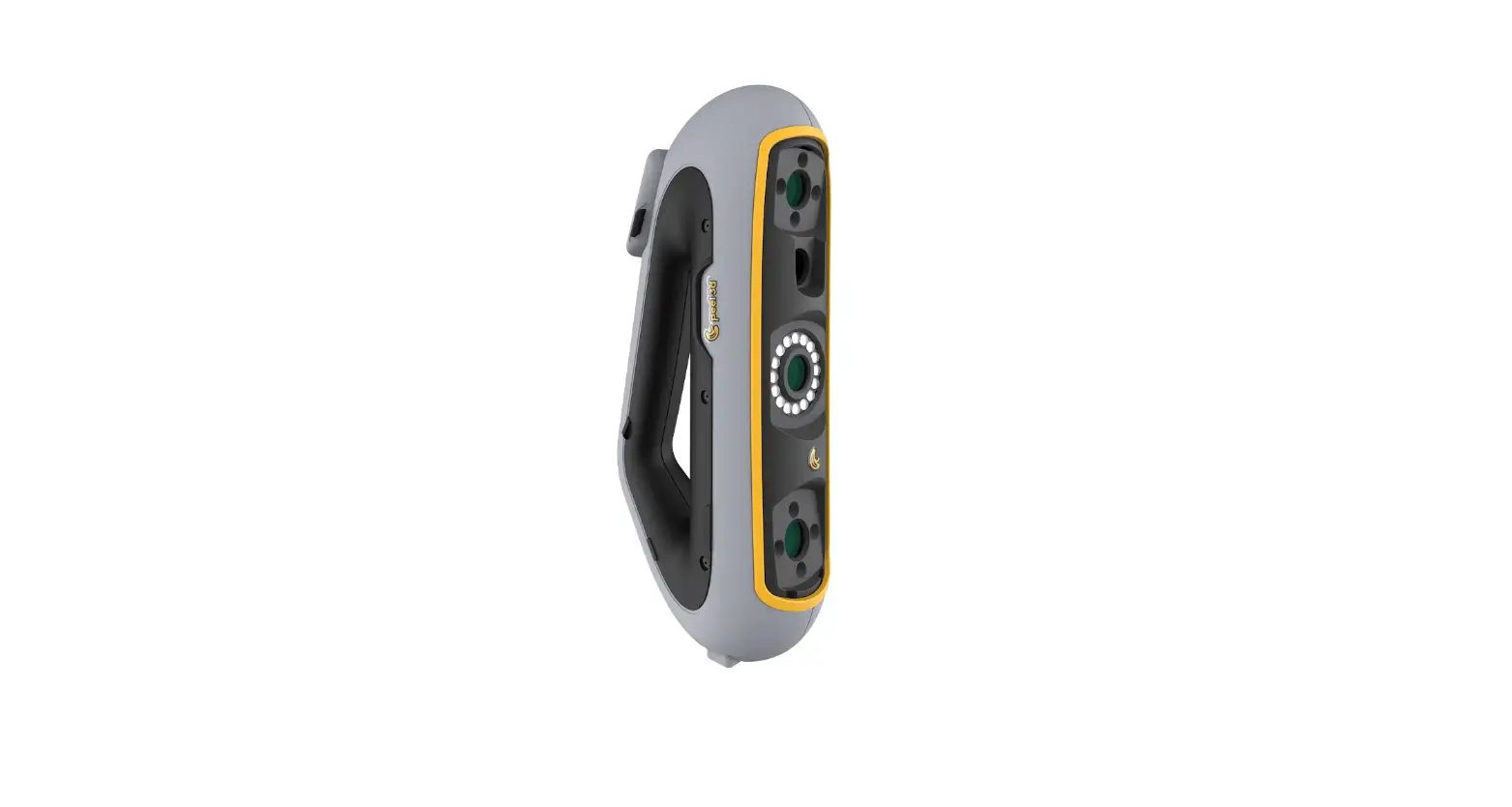
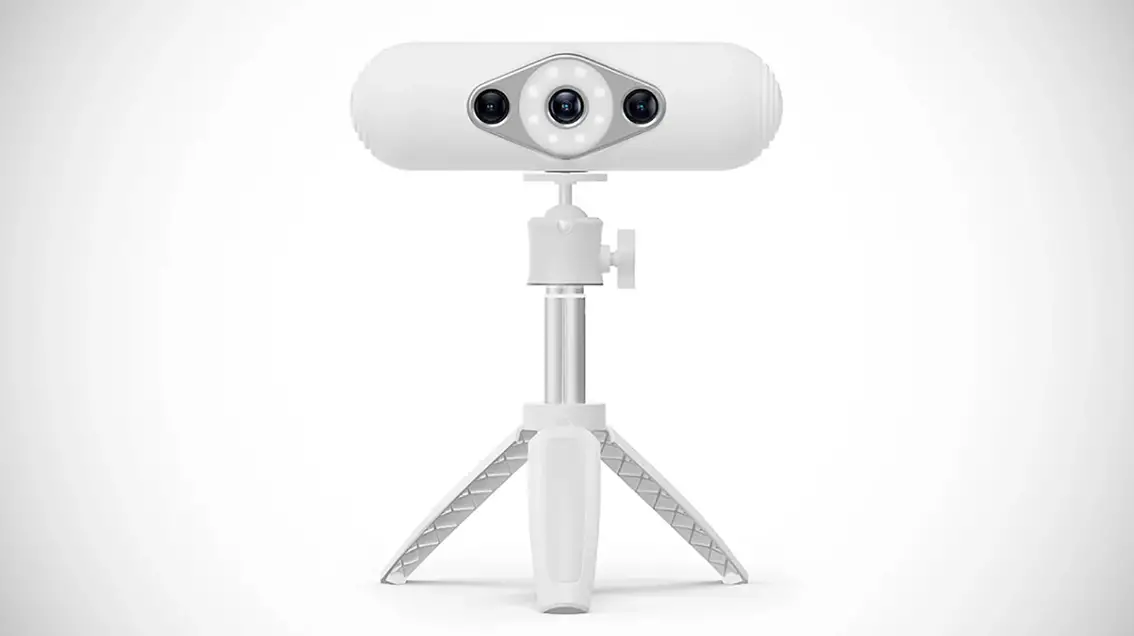
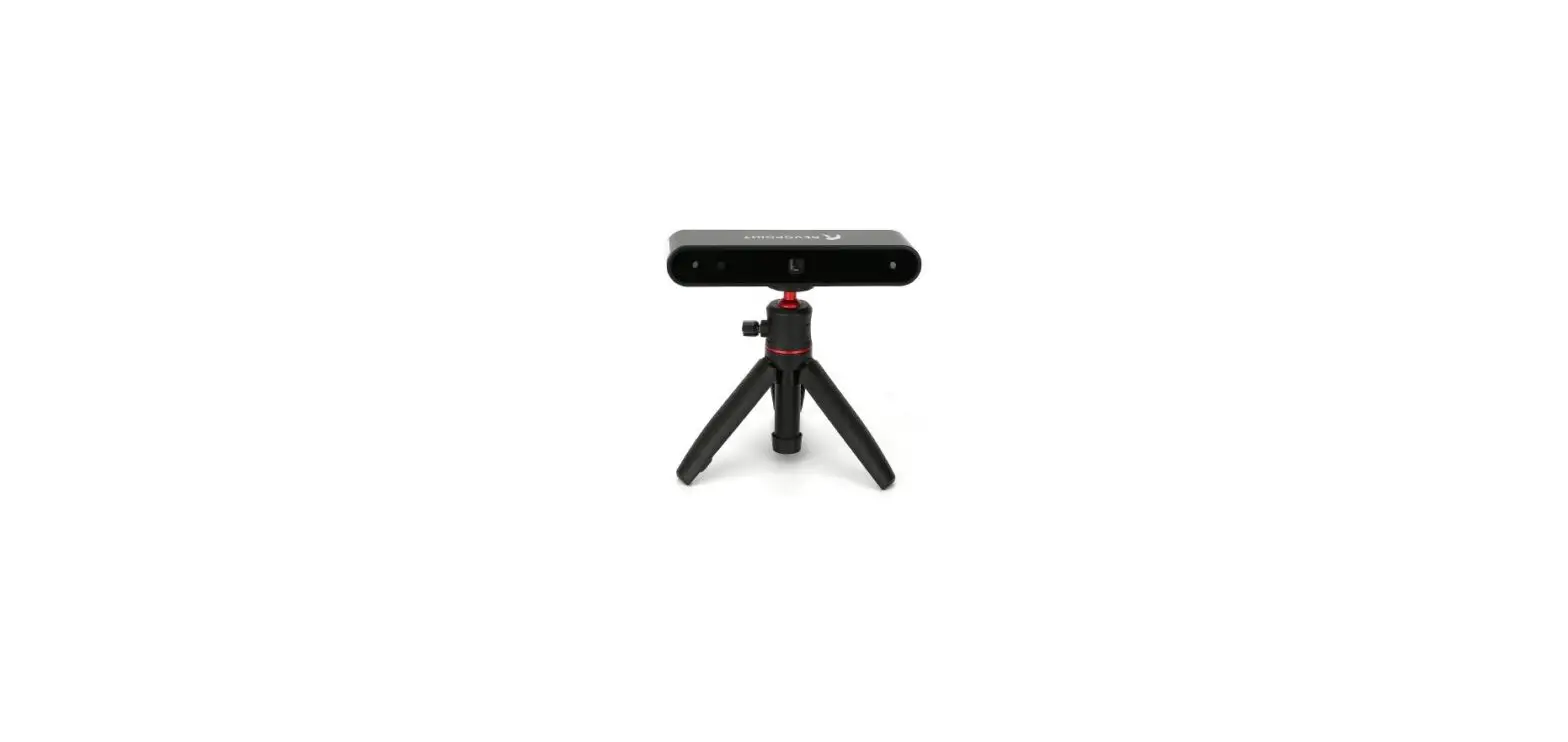
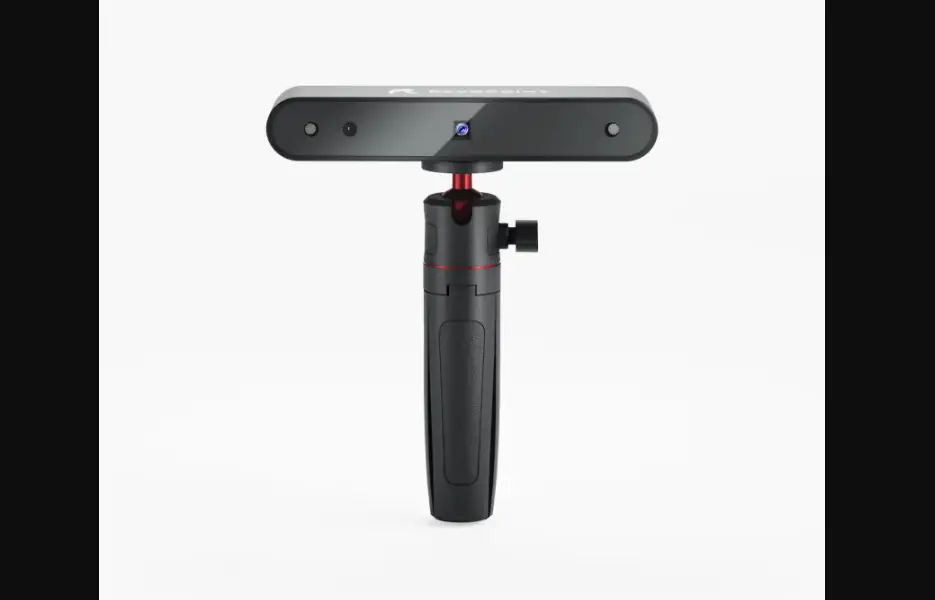
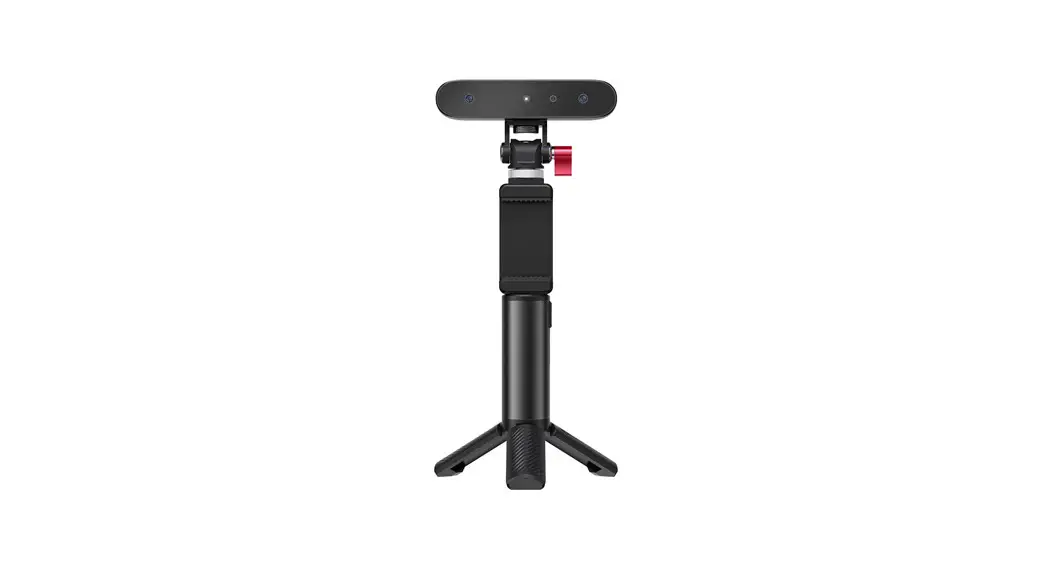
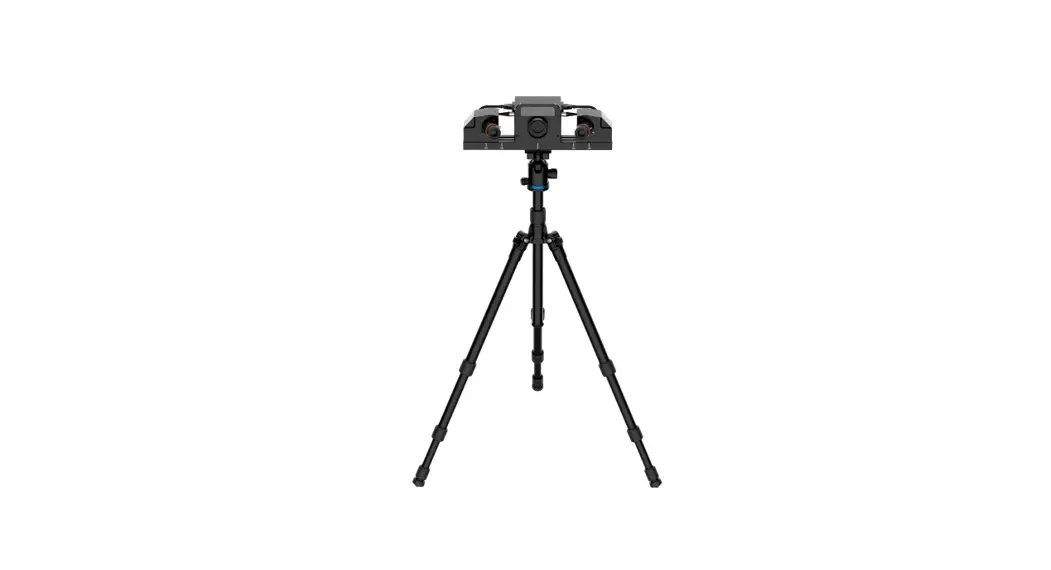
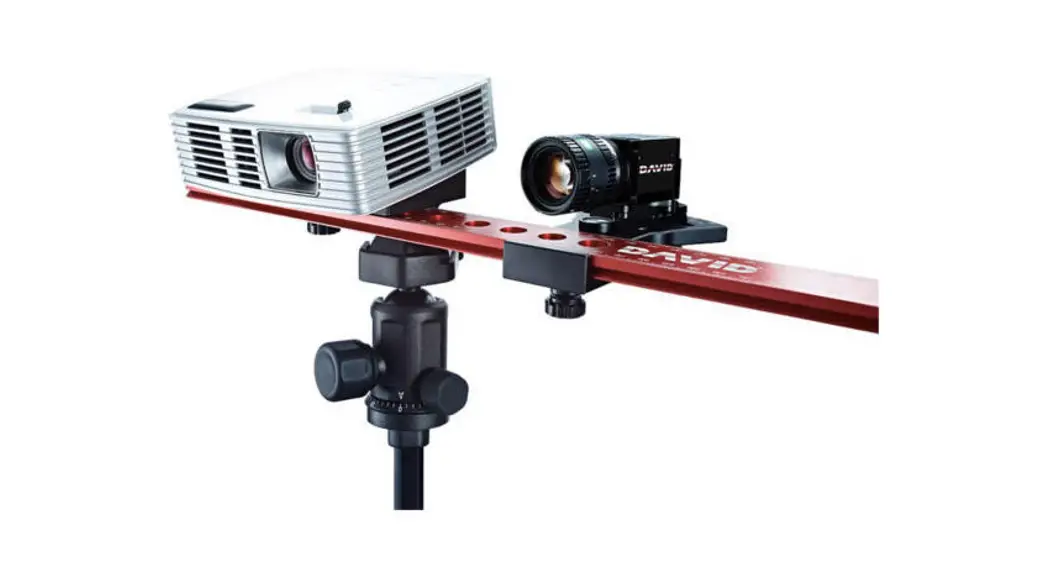
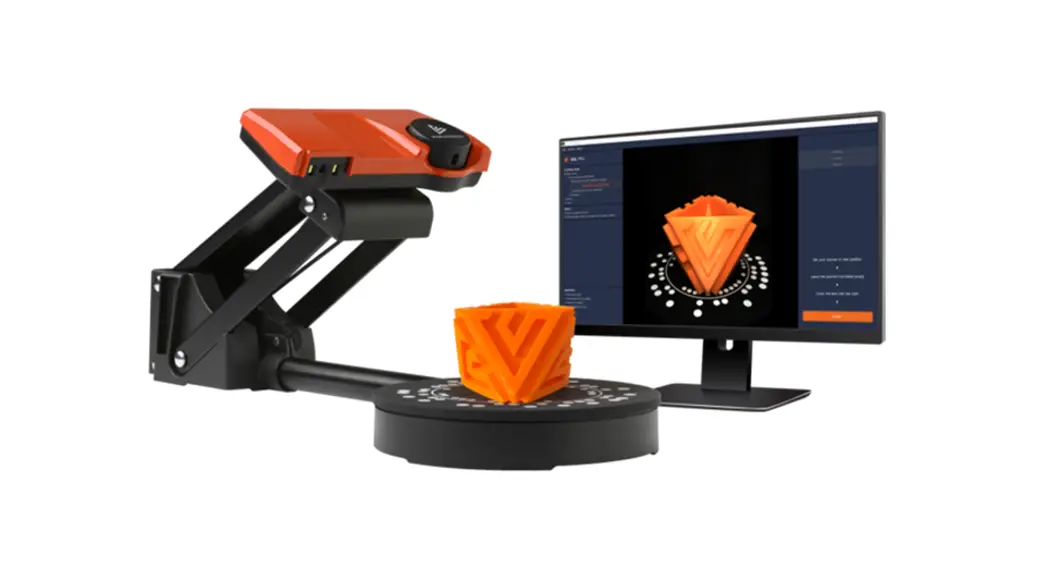
Carbon X Flexible Field of View 3D Scanners
Product Information: Carbon X 3D Scanner
The Carbon X 3D scanner system is a powerful scanning solution
that allows users to capture high-quality 3D scans of objects. It
comes with a range of accessories and features to ensure accurate
and efficient scanning.
Package Contents:
- Carbon X Scanner
- ScanBox
- Active USB Cable (A to B Cable) x2
- USB 3.0 Cable (A to Micro-B Cable) x2
- Camera Trigger Cable
- Mounting Rail x2
- Cameras x5
- M6 Allen Key Head Screws x4
- M6 Washers x2
- Allen Keys (M2.5 + M6)
- Tripod with Tripod Head
- DC Power Supply
- DC Power Supply Cord
- Power Extension Cable
- FlexScan 3D License Dongle
- Calibration Board: 5mm, 10mm, 15mm, 20+25mm
- Calibration Board Holder: Small, Large
Product Usage Instructions:
Step 1: Assemble Scanner Box
- Mount the Camera Rail onto the Scanner Body using the provided
M6 screws, washers, and Allen Key found in the Hardware Kit. - Line up the threads and mount the Scanner Body assembly onto
the Tripod Head and Tripod. - Slide the Cameras onto the Camera Rail and secure them by
turning the Camera mounting brackets clockwise until snug, ensuring
that the cameras are in symmetrical positions on the rail.
Step 2: Connect Power Cables
- Connect the Camera Cables from the Cameras to the back of the
ScanBox. - Connect the Camera Trigger Cables to the back of the Scanner
Box, ensuring that the notches on the connectors are lined up. - Connect the DC Power supply to the back of the Scanner
Box. - Press the power button. The LED will turn and stay blue once
the scanner is booted up correctly.
Step 3: Download FlexScan3D
- Plug in the USB license dongle that comes with the scanner
system into your PC. - Log into your Polyga account page and download the latest
version of FlexScan3D Software. - Connect the Active USB Cable from your PC to the back of the
Scanner Box. - Note: Carbon X will not work with FlexScan3D Version 3.5.5.4 or
older.
Step 4: Create New Project
- Open FlexScan3D Software.
- Go to the Scanners tab and click on “New”.
- Select “Compact/Carbon” type from the dropdown menu.
- Go to the Project tab and create a new project, giving it a
name that you can remember. - Note: Leave Z-index Configuration (Depth of field) at
default.
Step 5: Place Scanner
For the first time using the scanner:
- Place the object at the default calibration medium standoff
distance of 700mm measured from the front of the rail. - Ensure that the Cameras are in a symmetrical distance on the
rail from each other. - Change the projection pattern to focus from the Scanner
window. - If the red crosshairs are aligned with the projection center,
it can be verified that the object is in perfect focus. If not,
adjust the distance between the object and scanner until they
align.
Note: For different object sizes, camera positioning and focus
adjustments may be required, and a recalibration is needed whenever
any adjustment is made.
Quick Start Manual
Carbon X
Getting started with the Carbon X
Assemble and prepare the system. Take out parts from the travel case and double check the contents with the packing list, making sure everything is present.
This quick-start guide provides you with the resources to get started on the Carbon X 3D scanner system.
CARBON X CONTENTS: INSIDE TRAVEL CASE
3D Scanner
Carbon X Scanner ScanBox Active USB Cable (A to B Cable) x2 USB 3.0 (A to Micro-B Cable) x2 Camera Trigger Cable Hardware
Mounting Rail x2 Cameras x5 M6 Allen Key Head Screws x4 M6 Washers x2 Allen Keys (M2.5 + M6) Tripod with Tripod Head
Power Supply
x1 DC Power Supply Cord x1 Power Extension Cable
Other Accesories
FlexScan 3D License Dongle x4 Calibration Board: 5mm, 10mm, 15mm, 20+25mm x2 Calibration Board Holder: Small, Large
SCAN TO DOWNLOAD FLEXSCAN3D
WHATS INCLUDED
x 1
x 1
Carbon X Scanner ScanBox
x 1
Mounting Rail with Scanner Cameras
x 1
DC Power Supply with Extension Cable
x 2
USB 3.0 Cable (A to Micro B)
x 2
Tripod with Tripod Head x 1
Camera Trigger Cable (4 Prong Notched)
x 1
Active USB 3.0 Cable (A to B Cable)
x 1
DOWNLOAD
1 STEP 1: ASSEMBLE SCANNER BOX
Mount Camera Rail onto Scanner Body using x5 M6 screws, x4 washers, with Allen Key found in Hardware Kit. Line up threads and mount Scanner Body assembly onto Tripod Head and Tripod.
Slide x2 Cameras onto Camera Rail and secure by turning Camera mounting brackets clockwise untill snug making sure cameras are in symmetrical positions on rail.
USB License Dongle
1
Hardware Set (M2.5, M6)
2
2 STEP 2: CONNECT POWER CABLES
Connect x2 Camera Cables from Cameras to back of Scanbox.
Connect Camera Trigger Cables to back of Scanner Box. Note: Make sure to line up notches on connector.
Connect DC Power supply to back of Scanner Box.
Press the power button. The LED will turn and stay blue once
1
2
the scanner is booted up correctly.
3 STEP 3: DOWNLOAD FLEXSCAN3D
Plug in the USB license dongle that comes with the scanner system into PC. (Can be found in the travel case) Log into Polyga account page and download the latest version of FlexScan3D Software. Connect Active USB Cable from PC to back of Scanner Box. ! Carbon X will not work with FlexScan3D Version 3.5.5.4 or older.
4 STEP 4: CREATE NEW PROJECT
Open FlexScan3D Software. Go to the Scanners tab. Click New. Select Compact/Carbon type from dropdown menu. Go to the Project tab. Create a new project and name it something you can remember. ! Leave Z-index Configuration (Depth of field) at default.
3
4
1
2
1
2
5 STEP 5: PLACE SCANNER
For the first time using the scanner, place the object at the default calibration medium standoff distance of 700mm measured from front of rail. Cameras should always be in a symmetrical distance on rail from eachother.
Change projection pattern to focus from the Scanner
window. If the red crosshairs are aligned with the projection
centre, it can be verified that the object is in perfect focus. If not, move the object and scanner closer or farther apart to
1
2
align them.
For different object sizes, the camera positioning and focus need to be adjusted, and a recalibration is required whenever any adjustment is made.
! Carbon X is calibrated from the factory but Calibration is needed whenever cameras are moved. See Step 7 for the
calibration steps.
3
4
6 STEP 6: TAKE SCANS
Change projection pattern to phase. Make sure the object is not overexposed or underexposed in the live view.
Take a test scan. Right click on the scan thumbnail -> View Images.
Change the view mode from Zoom to Lines to access
intensity map. If the light intensity is saturating on some of the images, increase or decrease the exposure time / bright-
1
2
ness accordingly.
! Repeat step 7 if a different object with different color or texture is being scanned, or the ambient lighting condition changed.
7A STEP 7A: CALIBRATION POSITION
Add the scanner as Advanced type from the Scanners tab. Select Projector from dropdown in Projector window.
Change the distance between the two cameras or Camera Baseline based on size of the object to be scanned. Cameras should always be in a symmetrical distance on rail from eachother.
! See reference table below for suitable FOV and object size.
Field of View
Camera Baseline
Minimum – 220 mm 12 cm
Object Size (cm)
5 to 15
Medium – 555 mm 25 cm
15 to 40
Maximum – 975 mm 43 cm
80+
3
4
1
2
3
4
7B STEP 7B: ADJUST APERTURE/FOCUS
Using a white surface and focus pattern, adjust the projector by turning the projector lense until focus pattern is sharp.
Choose a reference object and any projection pattern. Any object can be used including a calibration board as seen in example.
Adjust the aperture (front knob) and focus (back knob) by turning knobs counter-clockwise to loosen. Adjust camera lense. Aperture knob will turn with barrel.
1
2
Both cameras should have the same brightness. Adjust the foci until the sharpest images are seen.
Turn knobs clockwise to secure adjustments once complete so settings do not move.
! Repeat step 7 if a different object with different color or texture is being scanned, or the ambient lighting condition changed.
X
7C STEP 7C: TAKE CALIBRATION IMAGES
Choose either white, phase or focus pattern and depth of field while making sure the camera preview at the front and
back planes are not blurry.
Choose the calibration board size that is most suitable for your field of view (Approximately ~ – ½ of the camera width).
Place the chosen calibration board within the field of view. Move the board around to cover 9 positions in the front-mid-
1
2
far planes for a total of 27 positions.
! Make sure to have some overlap between neighboring positions shown in red (figure 3) for full coverage.
Press capture button to take calibration images. Take 3 different angles of each position facing left, right, and forward for a total of 81 images.
WATCH OUR STEP BY STEP CALIBRATION VIDEO
3
4
WATCH NOW
5
7D STEP 7D: SAVE RESULTS TO SCANNER
After capturing all planes, click calibrate to see results. Ideally the Calibration space coverage should be over 80%.
Upload the calibration to the scanner: Export -> To Scanner
Exit Advance mode: Export -> Convert to Compact / Carbon
Success! Scanner should be fully calibrated and ready to scan.
Return to step 6 to take new scans.
1
2
3
4
*5-003001-3*
Copyright © Polyga Inc.
5-003001-3
Have an Issue? Contact Customer Support at [email protected]
Available Monday – Friday | 8AM – 4PM (PST) | +1 604 293 1767 Copyright © Polyga Inc. 2023
 My Account - Polyga