ENDLESS POOLS D40092 FIT@HOME Swim Workout App
Installation & Set Up
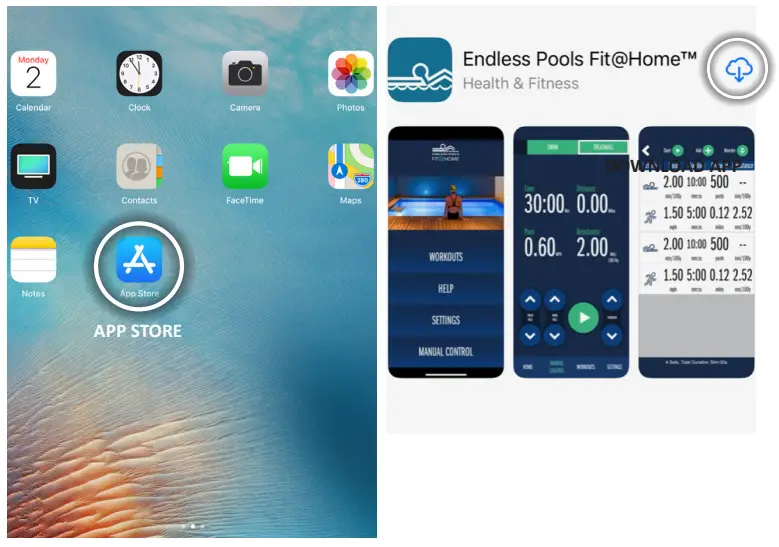
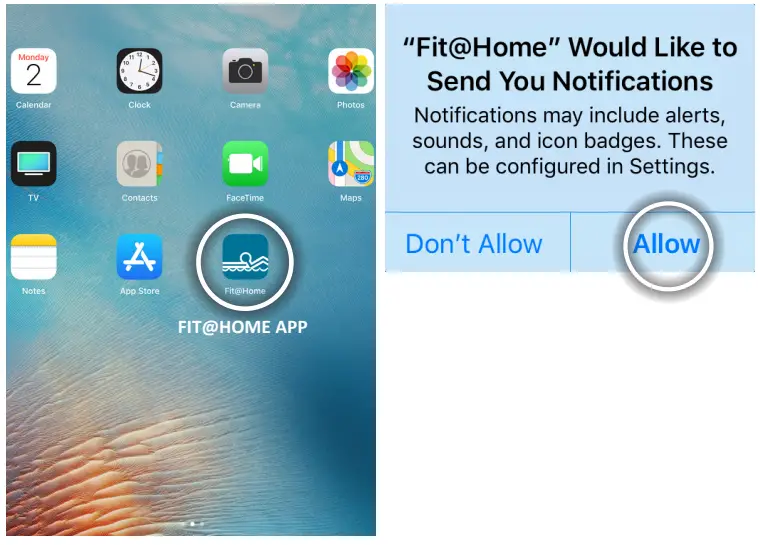
- Press the App Store icon on the mobile device. Search for Endless Pools Fit@Home and download the mobile app.

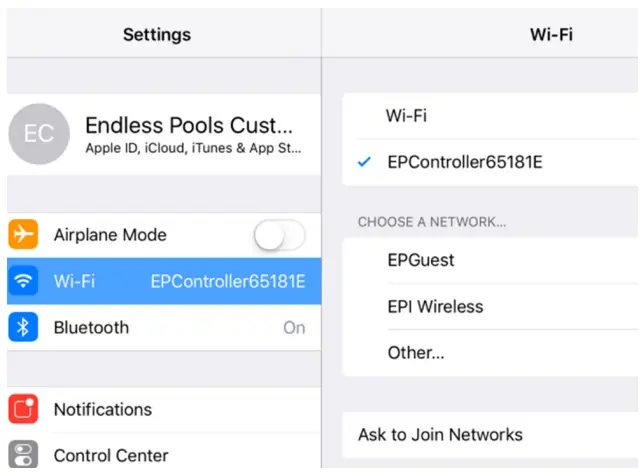
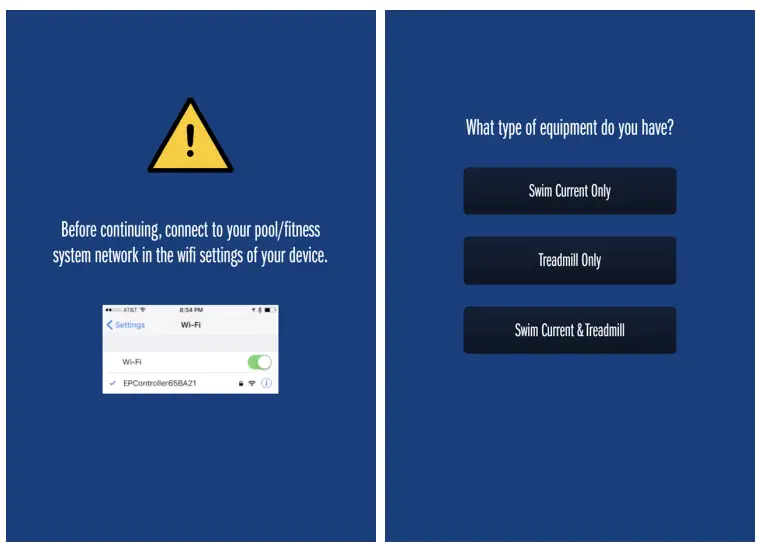
- Before opening the Fit@Home app, go into the Wi-Fi settings in the mobile device. Select the network “EPController” and type in the default password “swimcurrent.” The password should be typed as one word and all lower case as shown. Once connected, “EPController” will appear as the current Wi-Fi network.

- Open the Fit@Home app. A pop up window will appear regarding push notifications. Press “Allow.”

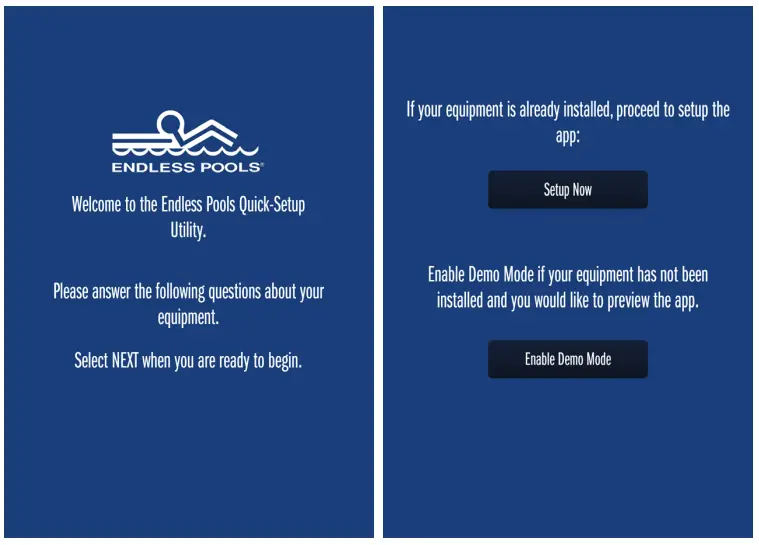
- Press “Next” to configure your Endless Pools Equipment. If the equipment has already been installed, select “Setup Now.” If the equipment has not been installed and you would like to preview the app, select “Enable Demo Mode” to explore the features and functions of the app.

- If “Setup Now“ is selected, confirm the mobile device is connected to the “EPController” Wi-Fi network and press “Next.” Select the equipment that has been purchased.
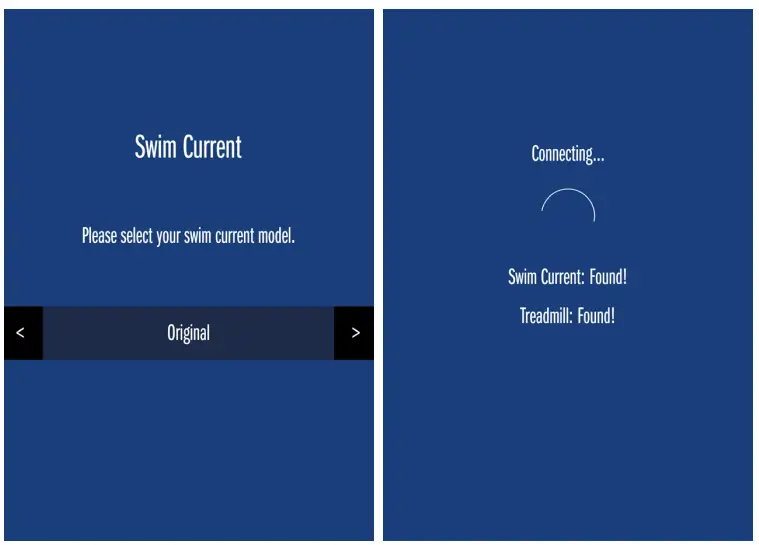
- If Swim Current is selected, select the Endless Pools model that was purchased and press “Next.” The app will then attempt to locate the equipment. If the screen does not automatically advance, press “Next” when the equipment has been found.
If the equipment CANNOT be found:
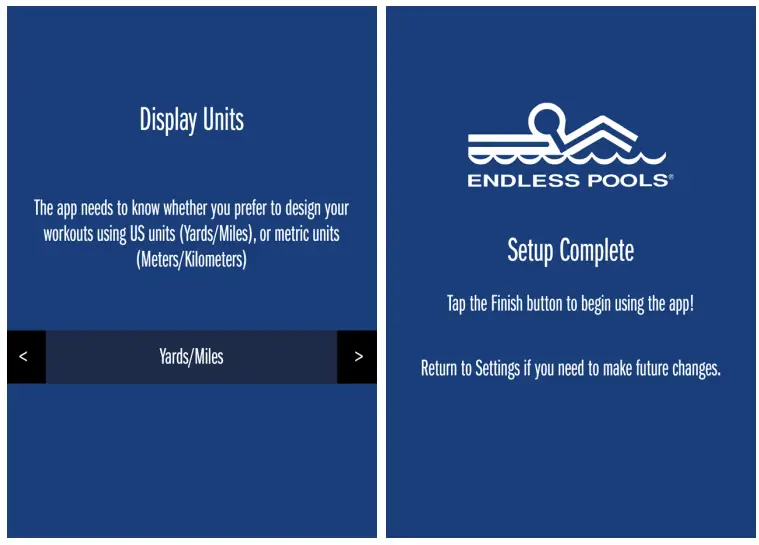
• Force quit the app, verify the mobile device is connected to the EPController Wi-Fi network, and then re-open the app. - Select the desired units of measure for your workouts. Press “Next” to complete the setup. Press “Finish” to begin using Fit@Home.
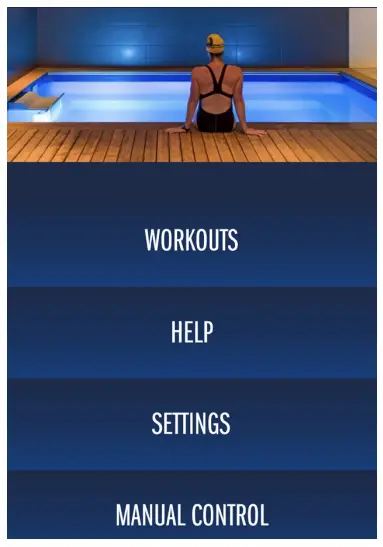
- The Fit@Home app is now configured and ready to used. The controller for the app can be connected through the home network following the instructions below. This step is optional. Proceed to Manual Control or Creating Workouts to begin using Fit@Home.

Connecting to Home Network (optional)
- When your mobile device is connected to the EPController Wi-Fi network, the Internet will be unavailable. If you plan to use the internet while working out, the controller for the app will need to be connected through the home Wi-Fi network. In addition, it is recommended to connect through the home Wi-Fi network if a personal mobile device (everyday device) is being used as opposed to a dedicated device for the Endless Pools equipment. This prevents the user from switching back and forth between the home network and EPController network when using the app.
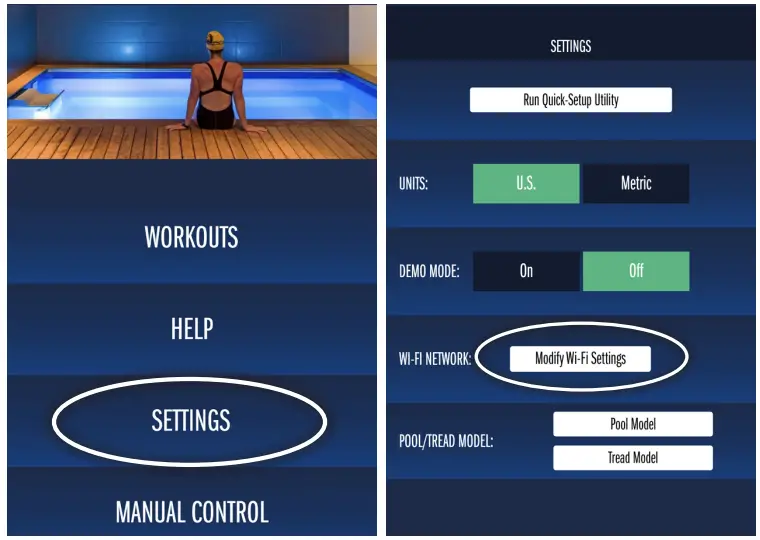
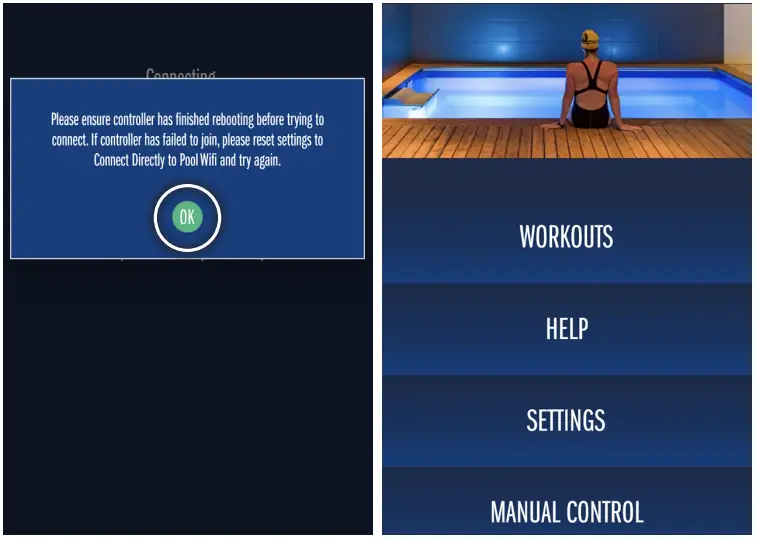
To connect through your home Wi-Fi network, press “Settings” and then select “Modify Wi-Fi Settings.
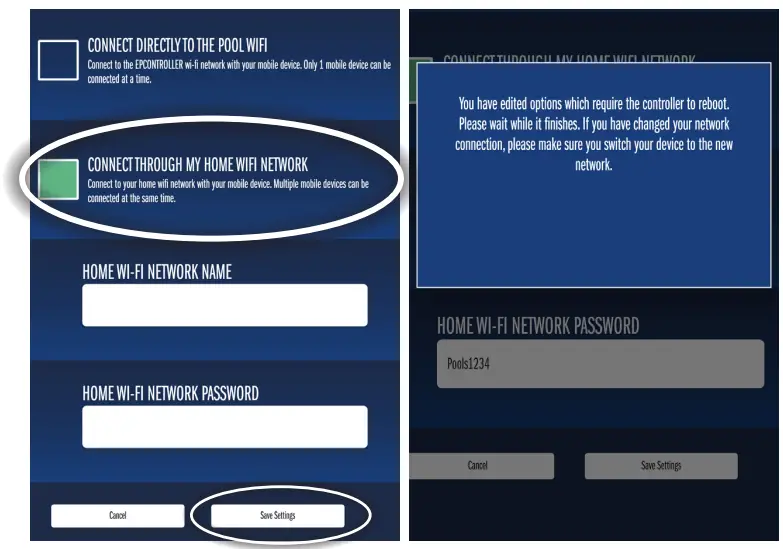
- On the Wi-Fi settings page, select “Connect Through My Home Wi-Fi Network” and enter your home Wi-Fi network name and password. These fields are case sensitive. Press “Save Settings.” At this time the controller for the app will re-boot which takes approximately 45-60 seconds.

- A prompt will appear when the controller is almost ready. Wait another 15-20 seconds and then press “OK.” The Fit@Home app is now configured and ready to use.

Manual Control Mode (Swim Current)
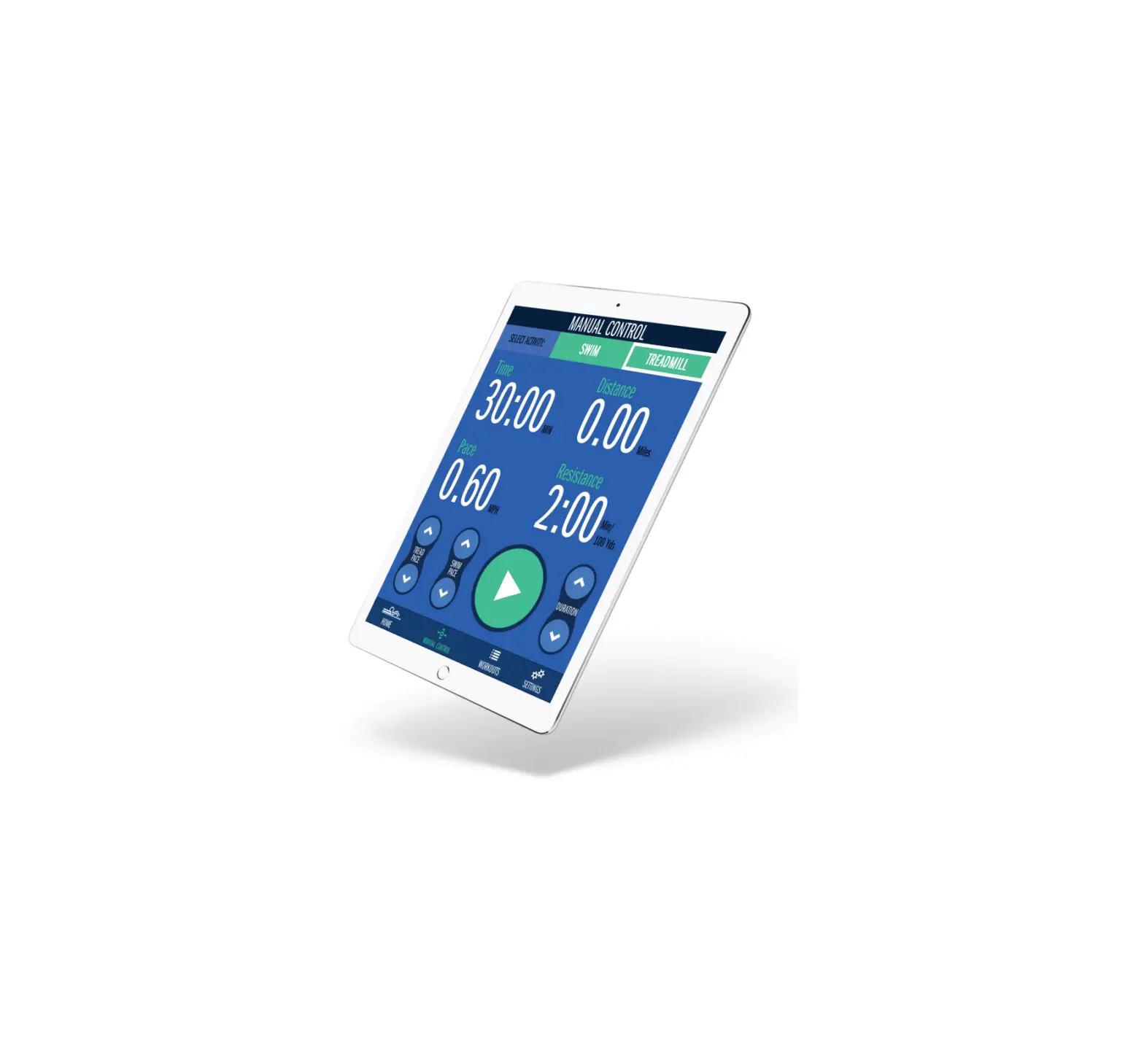
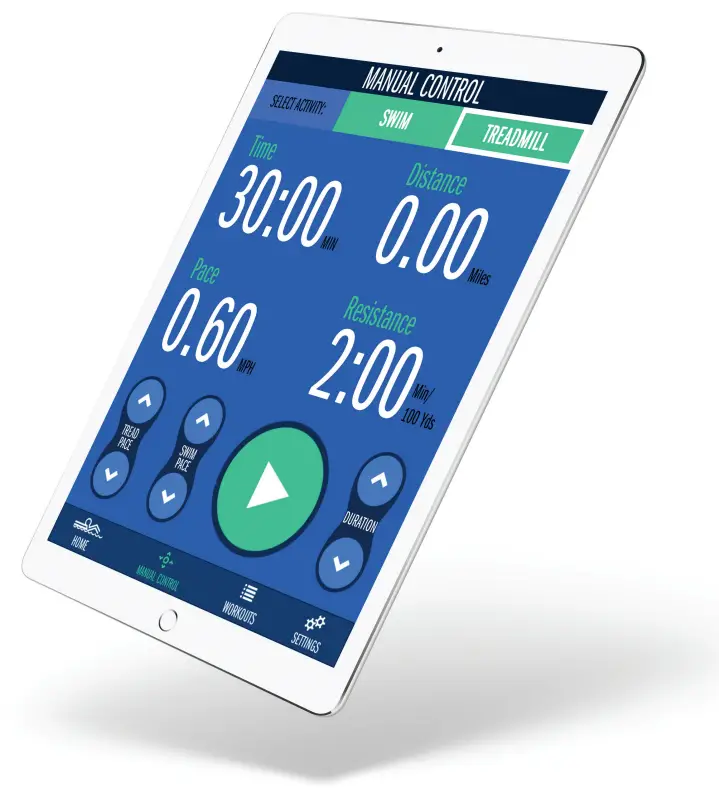
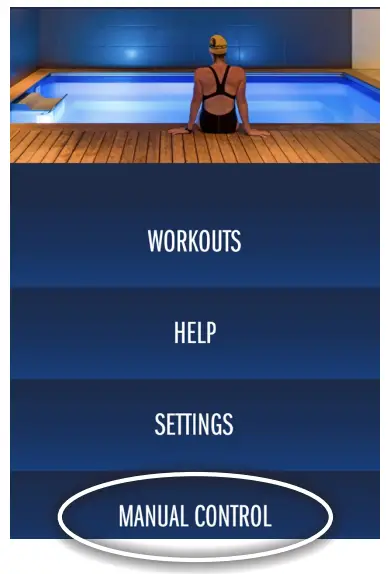
- Manual Control mode can be used for a quick swim or treadmill workout. Press “Manual Control” on the app home screen.

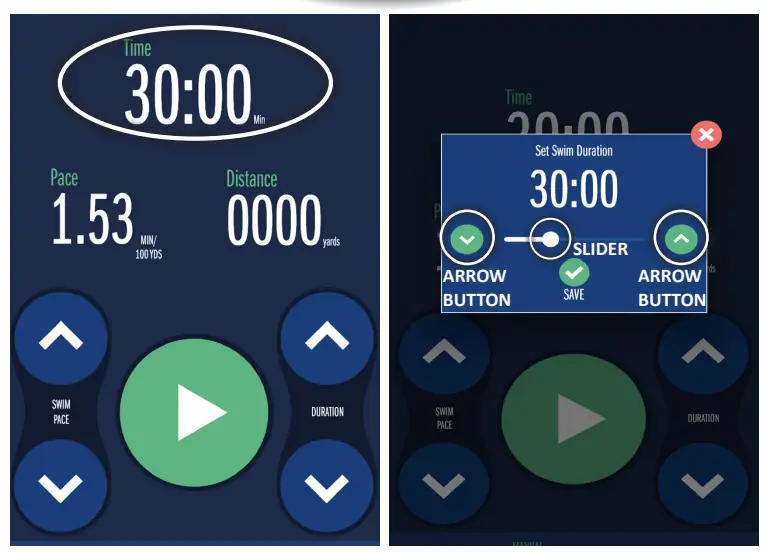
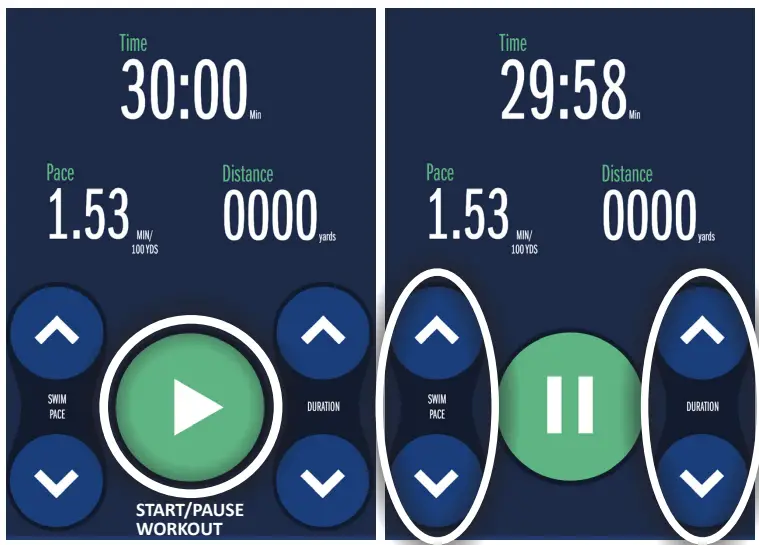
- Set the desired swim duration by tapping the time value. Adjust the duration using the slider or the arrow button controls and press “Save.”

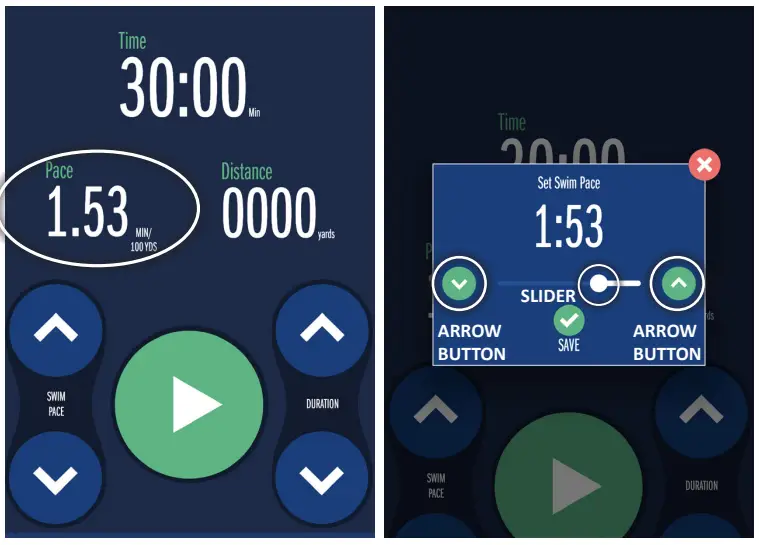
- Set the desired pace (speed of the swim current) by tapping the pace value.
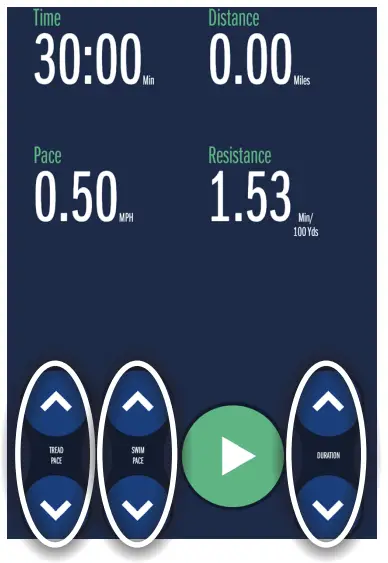
Adjust the pace using the slider or the arrow button controls. The lower the time, the faster the pace. Once set, press “Save.” - To begin the workout, press the play arrow. Both the swim pace and swim duration can be fine tuned before or during the workout using the controls at the bottom of the screen or by tapping the values and adjusting with the slider or arrow button controls. Fit@Home will calculate the distance while the timer counts down.
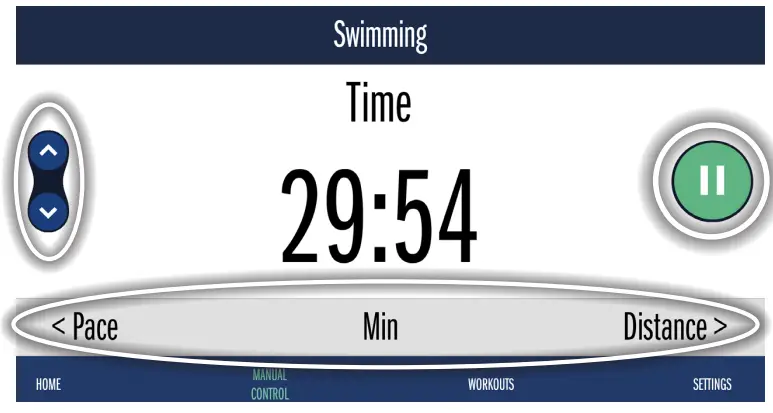
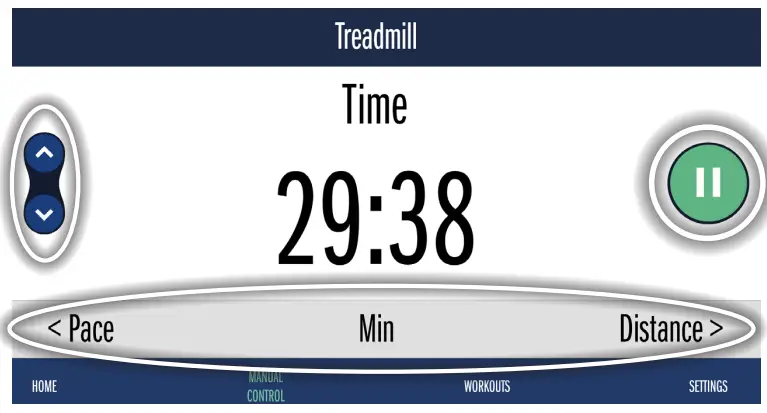
- For a larger display, rotate the mobile device for a landscape view. Press the play/pause button to begin or pause the workout. Adjust the swim duration and swim pace by toggling through the parameters at the bottom of the page. Use the controls to the left of the value or tap the gray bar directly under the value and use the slider or arrow button controls to adjust. To show ALL settings and controls, rotate the mobile device back to the portrait view.

Manual Control Mode (Treadmill)
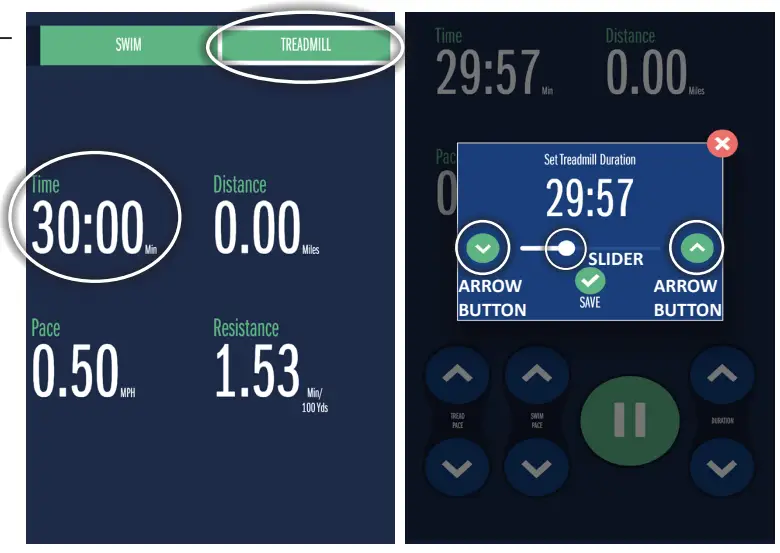
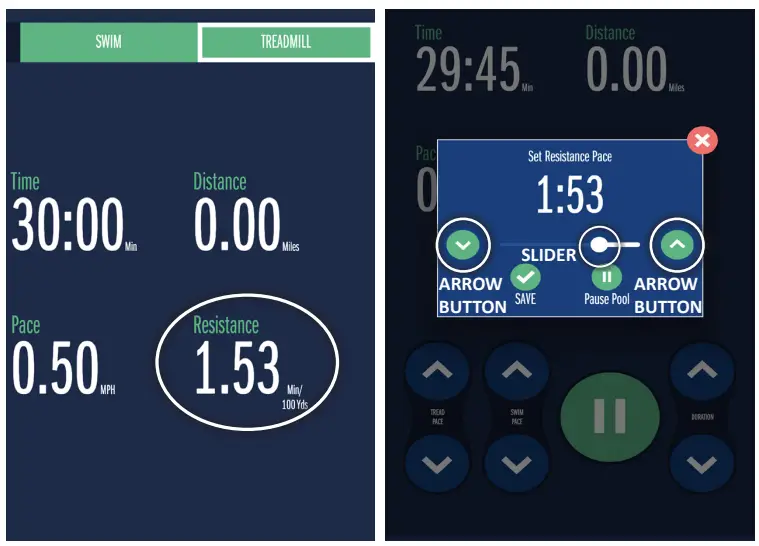
- Select the treadmill tab at the top of the screen for a quick treadmill workout. Set the workout duration by tapping the time value. Adjust the duration using the slider or the arrow button controls and press “Save.”

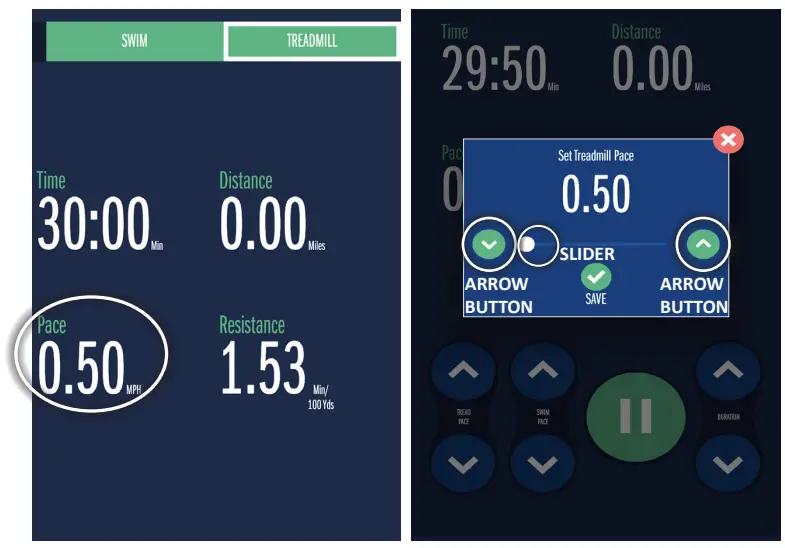
- To begin the workout, press the play arrow. Once the treadmill is activated, the treadmill pace can be adjusted by tapping the pace value. Adjust the treadmill using the slider or arrow button controls and press “Save.”

- Utilize the swim current (if present) for added resistance by tapping the resistance value. Adjust the resistance pace using the slider or arrow button controls. Press “Start Pool” to activate the swim current.

- . The treadmill pace, treadmill duration, and swim current pace can be fine tuned using the controls at the bottom of the screen or by tapping the values and adjusting with the slider or arrow button controls. Fit@Home will calculate the distance while the timer counts down.

- For a larger display, rotate the mobile device for a landscape view. Press the play/pause button to begin or pause the workout. Adjust the treadmill duration, treadmill pace, and resistance by toggling through the parameters at the bottom of the page. Use the controls to the left of the value or tap the gray bar directly under the value and use the slider or arrow button controls to adjust. To show ALL settings and controls, rotate the mobile device back to the portrait view.

Creating Workouts
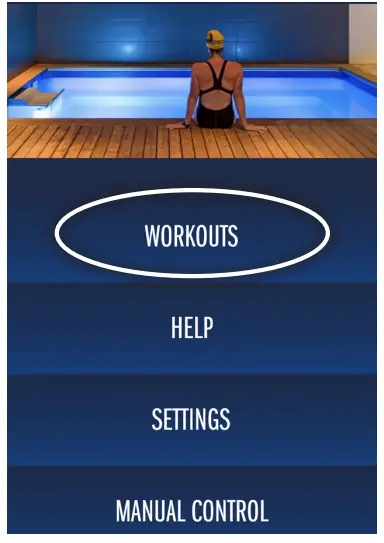
- To create a customized programmed workout, select “Workouts” on the home page.

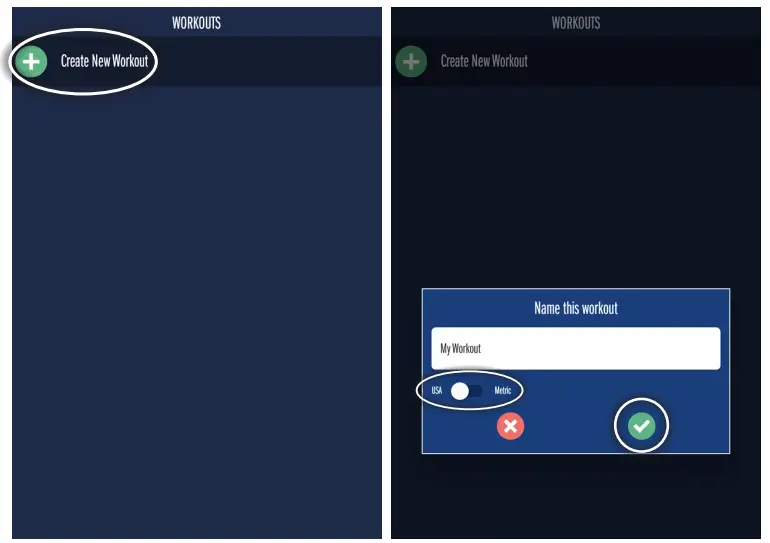
- Press “Create New Workout” and name the workout. Choose the desired units of measure using the slider and press “Save.”

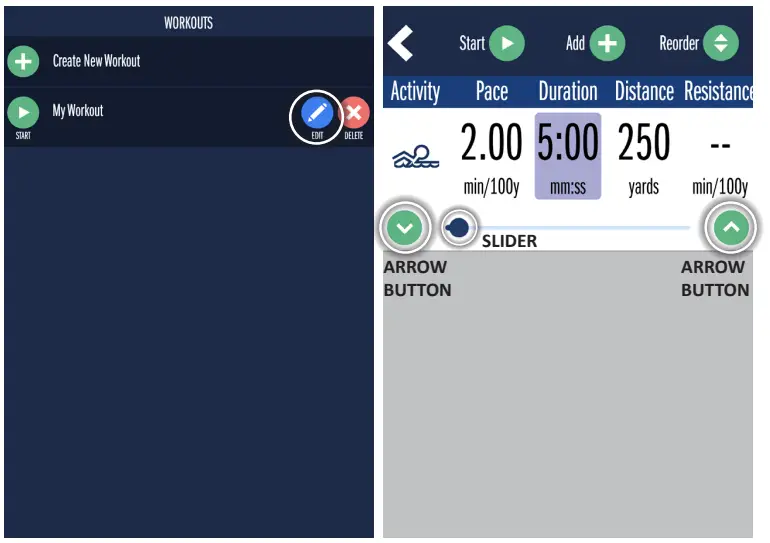
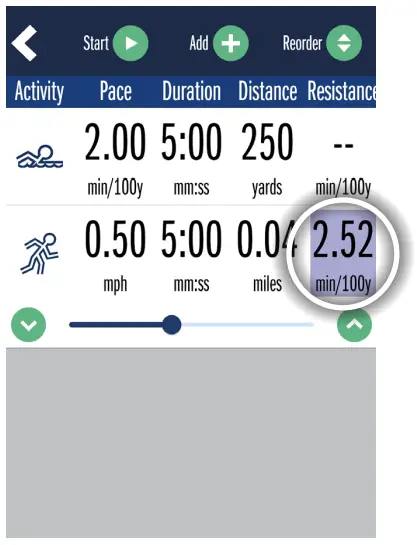
- Press “Edit” to customize the workout. Set the pace, duration, distance, and resistance (if applicable) by tapping the value. Adjust the parameter using the slider or arrow button controls.
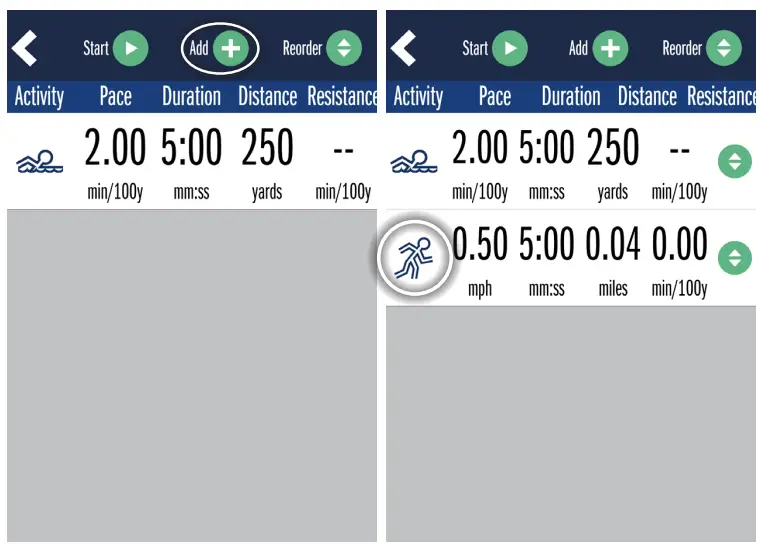
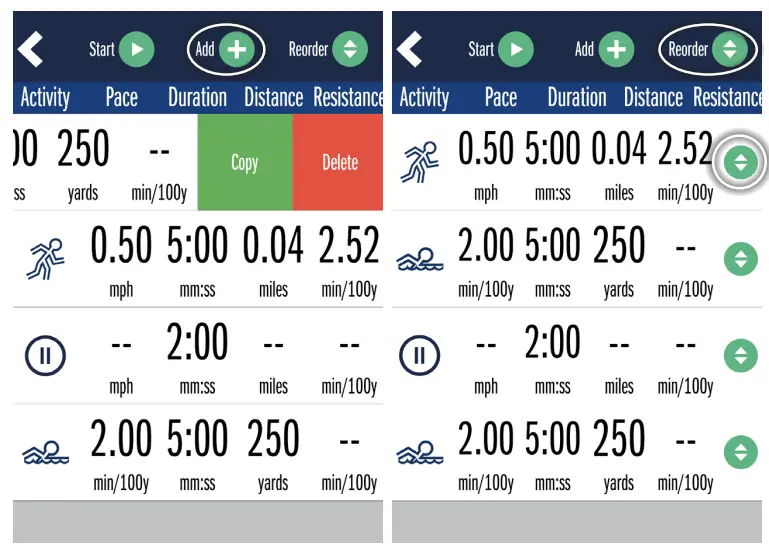
- To create additional intervals in the workout, press “Add.” Change the activity from swim current to treadmill by tapping the activity icon. There is a maximum of 19 intervals per workout.
- For treadmill workouts, tap and adjust the resistance value to enable the swim current if additional resistance is desired. This feature is only applicable if a swim current and treadmill are present.

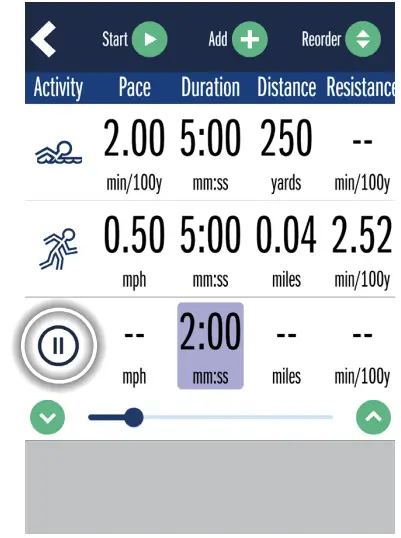
- To add a rest step, press “Add” and tap the activity icon until you see the pause icon. Set the duration of the rest step.

- Workout activities can be copied and deleted by swiping the right side of the row. Workout activities can be reordered by tapping the “Reorder” button and then dragging the arrow icons on the right side of the activity row.

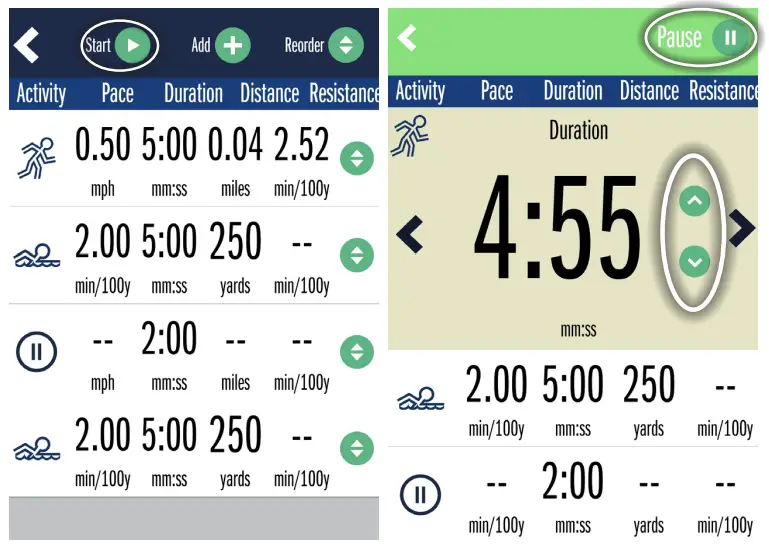
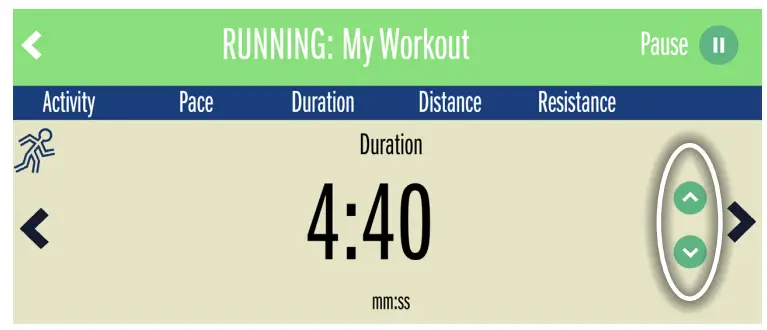
- Once the workout has been built and customized, press “Start” to begin the workout. Pause and resume the workout at any time by pressing the “Pause” and “Start” buttons. Fine tune the parameters of the workout using the controls to the right of the value.
- Rotate the mobile device at any time for a larger display mode. Fine tune the parameters using the controls to the right of the value.

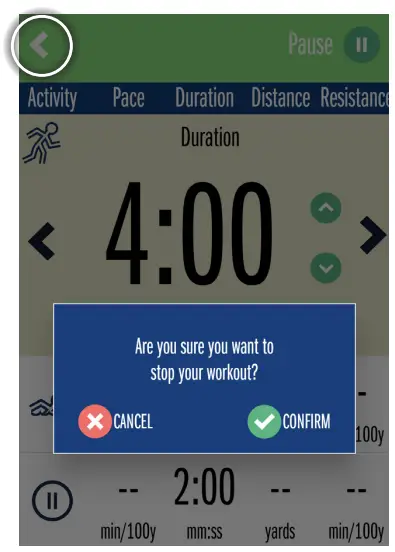
- End the workout at any time by tapping the back tab button in the upper left corner of the screen.

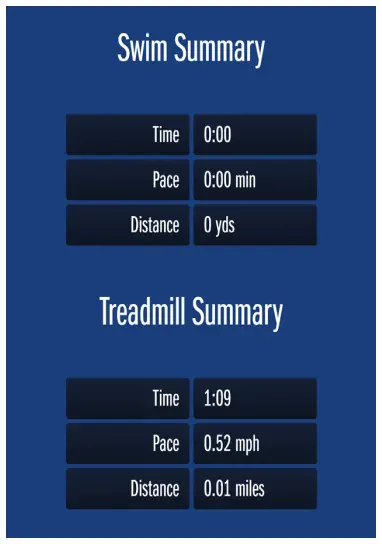
- A workout summary is provided at the end of the workout.