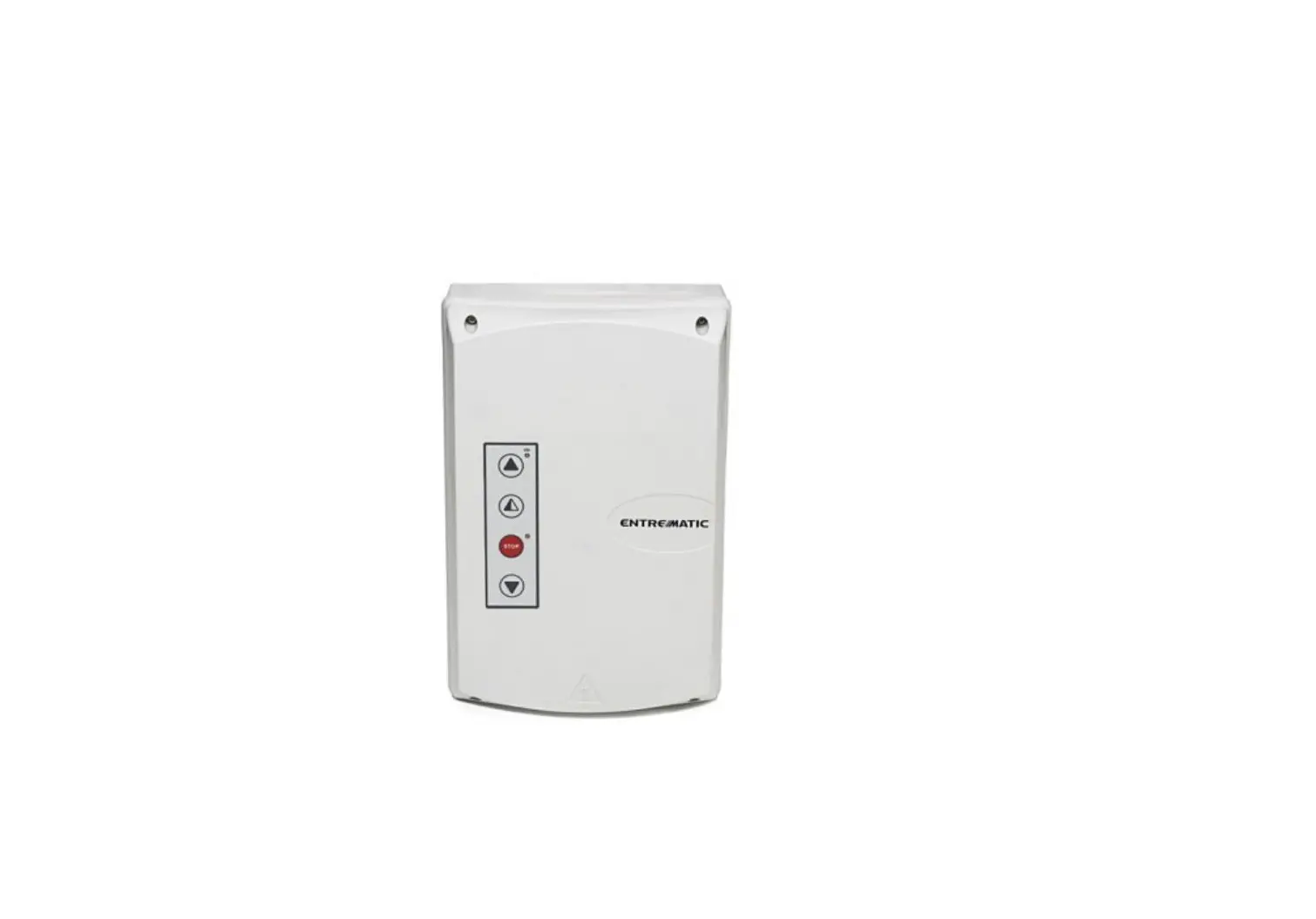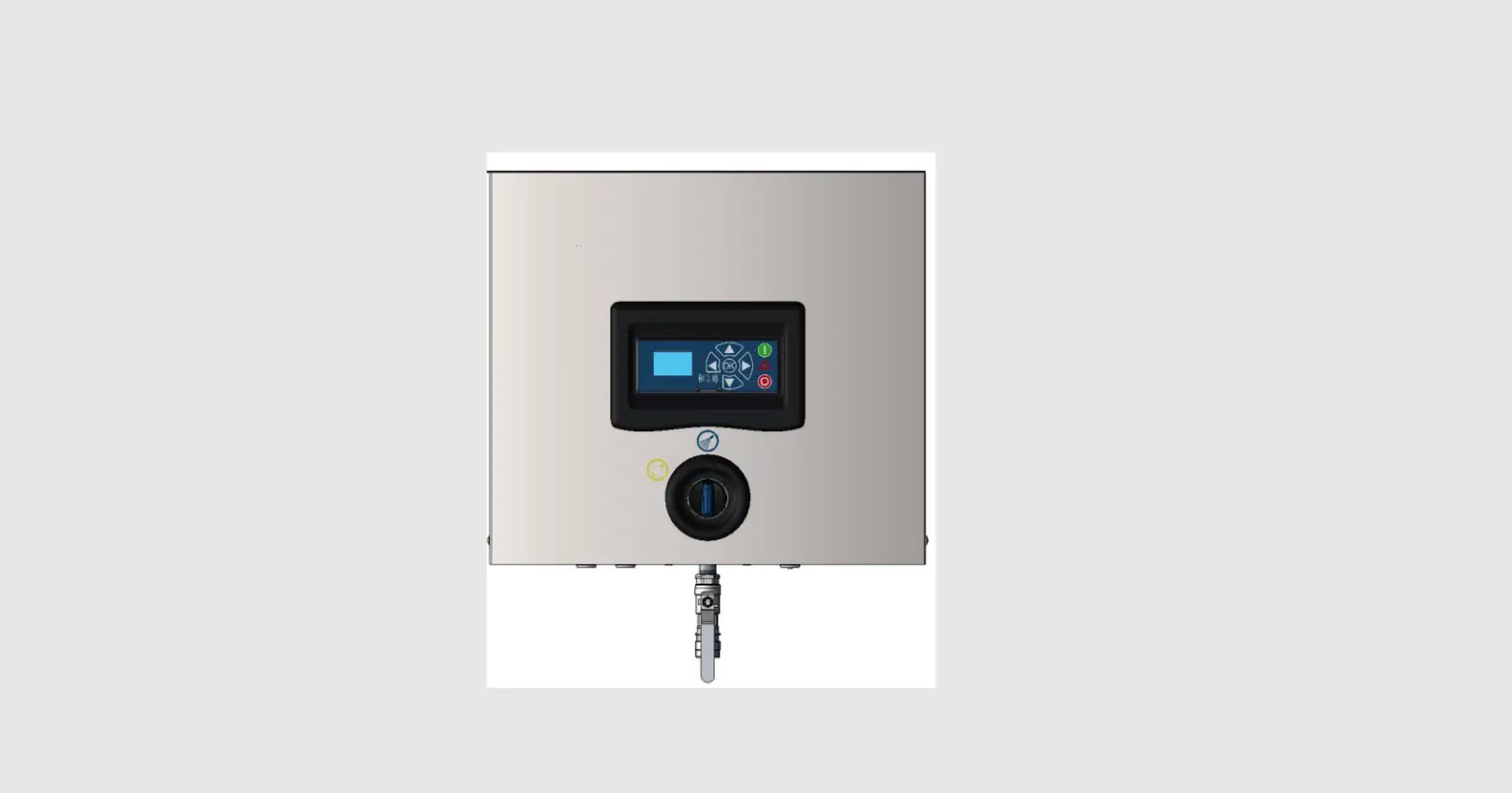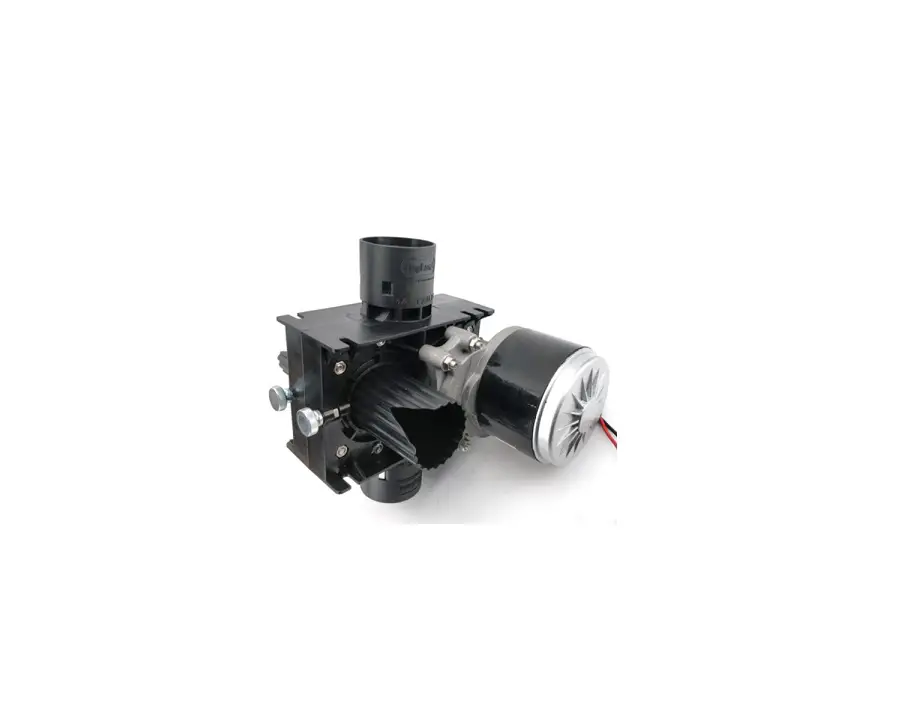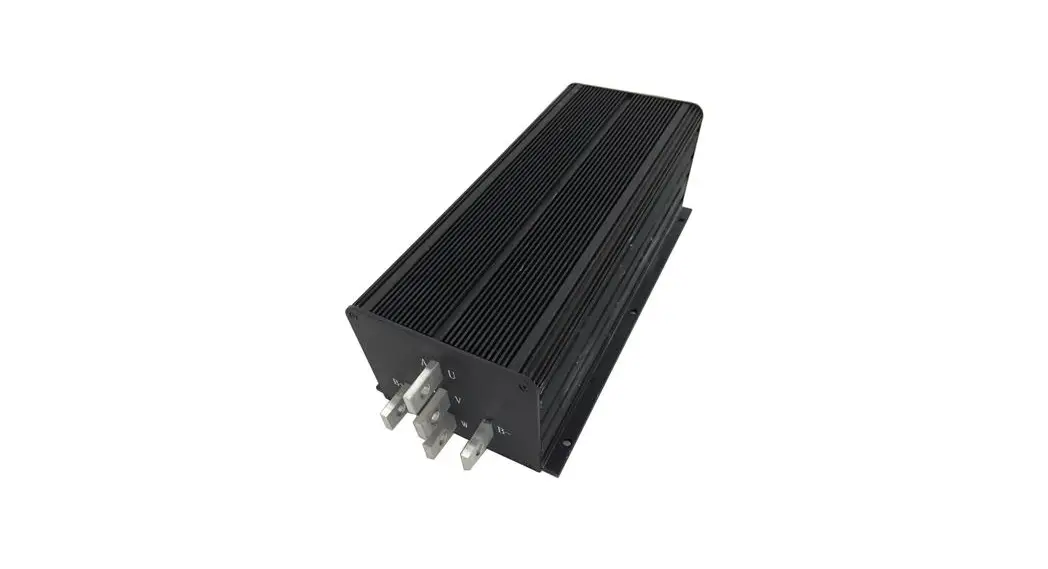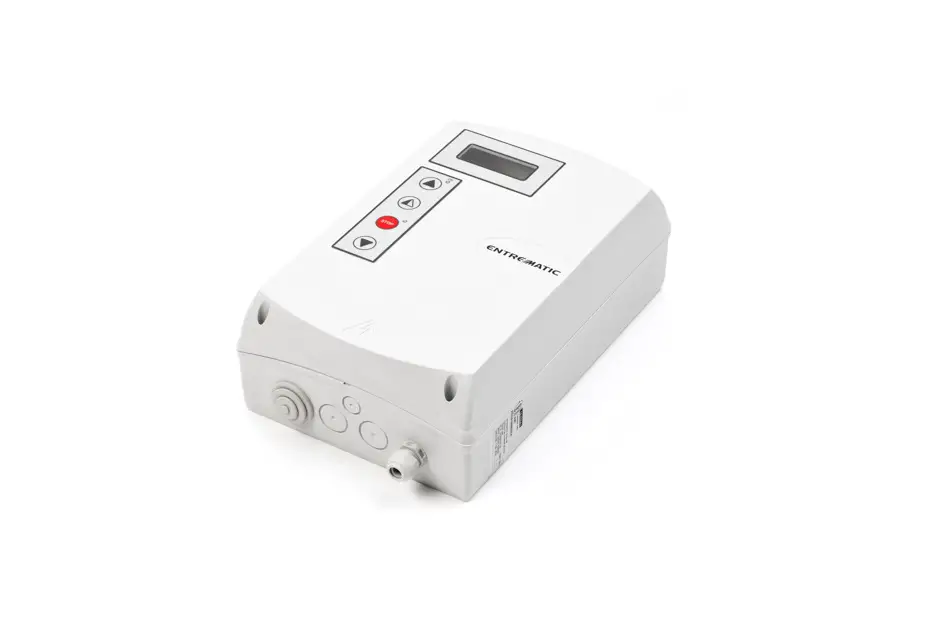
Ditec 52E Control Panel with K22INV and K10INV motors with Limit Switches Group Instruction Manual
GENERAL SAFETY PRECAUTIONS
 This installation manual is intended for professionally competent personnel only. Installation, electrical connections and adjustments must be performed in accordance with Good Working Methods and in compliance with the current standards.
Read the instructions carefully before installing the product. Incorrect installation could be dangerous. The packaging materials (plastic, polystyrene, etc.) should not be discarded in the environment or left within reach of children, as they are a potential source of danger.
Before installing the product, make sure it is in perfect condition. Do not install the product in explosive areas and atmospheres: the presence of inflammable gas or fumes represents a serious safety hazard. Before installing the door, make all the structural modifications necessary in order to create safety clearance and to guard or isolate all the crushing, shearing, trapping and general danger areas.
Make sure the existing structure is up to standard in terms of strength and stability. The safety devices (photocells, safety edges, emergency stops, etc.) must be installed taking into account current laws and directives, Good Working Methods, the installation environment, the system operating logic and the forces developed by the motorised door or gate.
The safety devices must protect any crushing, shearing, trapping and general hazardous areas of the door. Display the signs required by law to identify hazardous areas.
Each installation must clearly indicate the door identification data. Before connecting the power supply, make sure the plate data correspond to those of the mains power supply. An omnipolar disconnection switch with a contact opening distance of at least 3mm must be fitted on the mains supply.
Check there is an adequate residual current circuit breaker and overcurrent cutout upstream of the electrical system.
Connect the door to an efficient earthing system that complies with current safety standards. The door manufacturer declines all responsibility if components not compatible with safety and good functioning are installed, or modifications of any kind are made that have not been specifically authorised by the manufacturer. Use only original Ditec spare parts when repairing or replacing products. The installer must supply all information concerning the automatic, manual and emergency operation of the motorised door or gate, and must provide the user with the operating instructions.
- Optional accessory
- Comfort Safety
- Top Safety
All rights reserved
The data given have been compiled and checked with the greatest care. We\ cannot, however, assume any responsibility for any errors, omissions or approximations due to technical or graphical requirements.
52E CONTROL PANEL (INVERTER) – Connections
| INPUTS | |||
| Command | Function | Description | |
1 2 2 | NC | STOP | If on the programming menu (page 15 point 16)With contact 1-2 enabled, the opening of the contact STOPS the door |
1  3 3 | NO | Opening | The closure of the contact activates the opening operation. |
| 1 4 | NO | Closure | The closure of the contact activates the closing operation. |
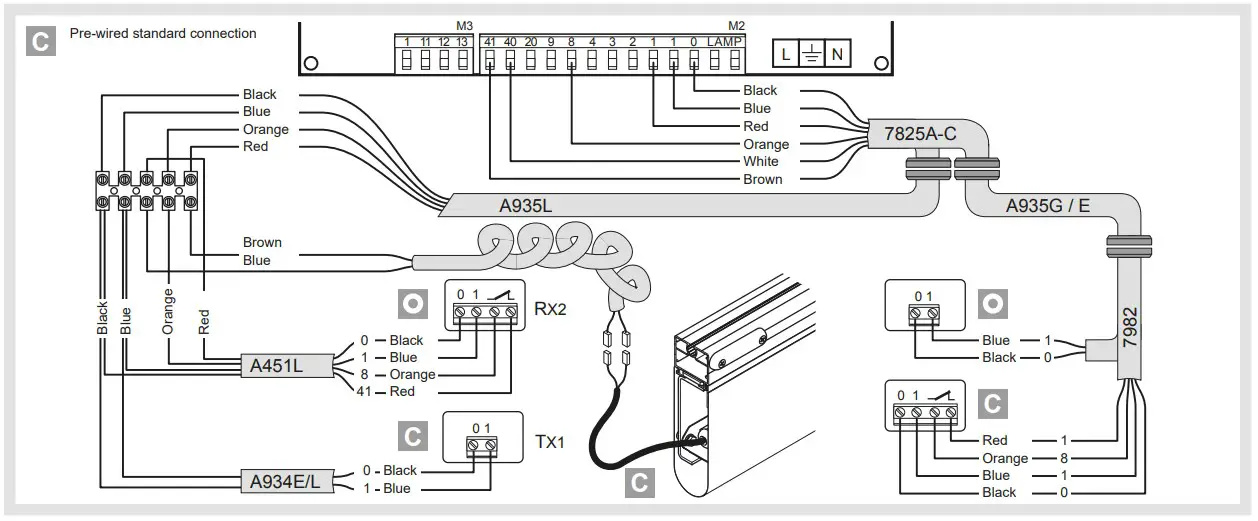
| 4140 | NC | Reversal safety contact | The opening of the safety contact triggers a reversal of the movement (reopening) during the closing operation. |
| 18 | NC | Reversal safety contact | The opening of the safety contact triggers a reversal of the movement (reopening) during the closing operation. |
| 120 | NO | Partial opening | The closure of the contact activates a partial opening operation of the duration set with the advanced menu. |
| 111 | NC | Closing limit switch | The opening of the contact stops the closing operation. |
| 113 | NC | Opening limit switch | The opening of the contact stops the opening operation. |
| 112 | NC | Deceleration limit switch | The opening of the contact activates deceleration during opening. |
| 19 | NO | Closure enabling with SLEC | In the case of doors with SLEC, the opening of the contact allows the door to work only when someone is present. |
CONTROL PANEL CONNECTORS
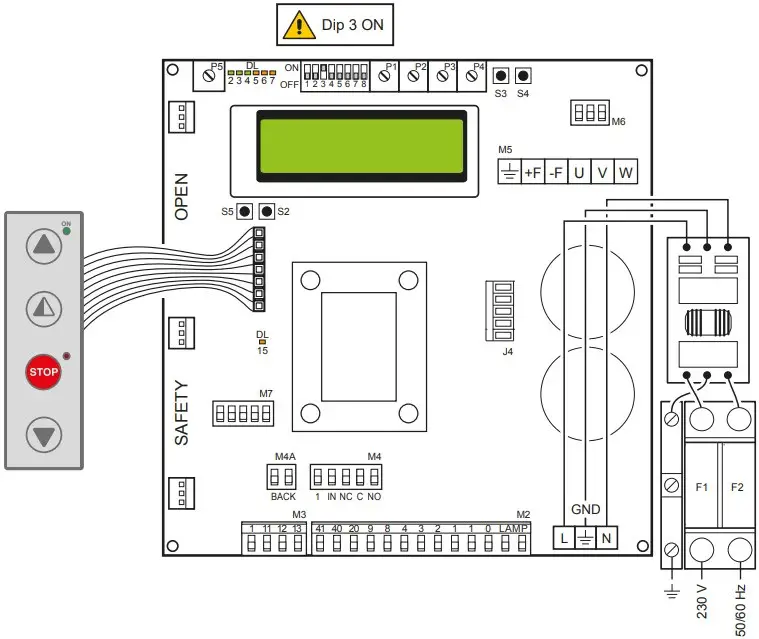
| M2 | Safety device / Commands |
| M3 | Position signal |
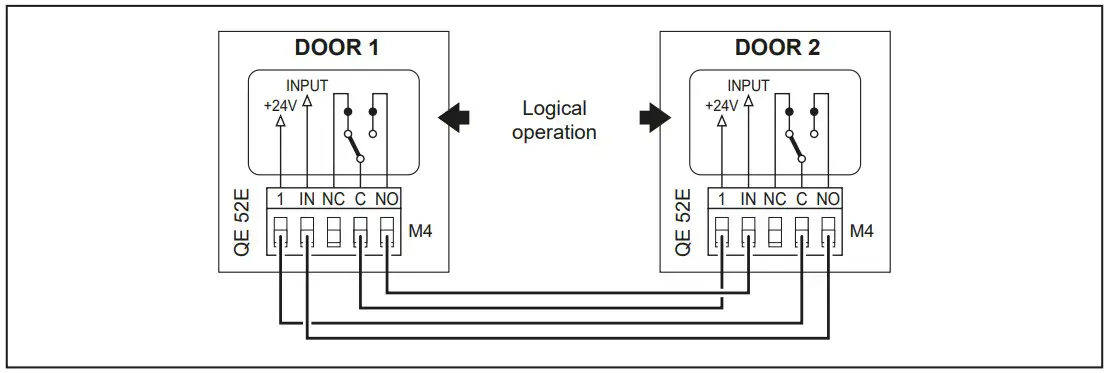
| M4 | Interlock |
| M4A | Back |
| M5 | Motor / brake motor |
| J4 | Brake resistance |
| OPEN | Auxiliary panel card |
| SAFETY | Auxiliary safety card |
| OUTPUTS | ||
| Output | Value | Description |
1 + +0 – | 24V = / 0.5A | Power supply to accessories.Power supply output for external accessories, including automation status lamps. |
 LAMP LAMP | 230 V~ | Flashing light (FLM).Non-flashing signal (jumper ON on FML).Activated during opening and closing operations. |
-F  +F +F | 200V= / 0.2Aor24V = / 0.5A | Electric motor brake.Automatically set with the choice of door model in the programming menu.The output is active for the duration of both the opening and closing operations. |
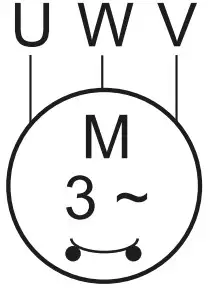 | 230V~ / 6A | Three-phase motor. |
ADJUSTMENTS AND SETTINGS
| Trimmer | Description |
P1 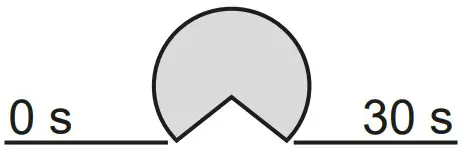 | Opening speed |
P2 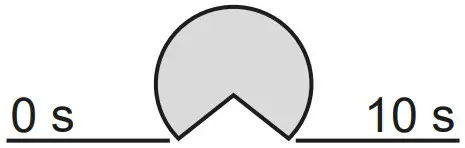 | Closing speed |
P3 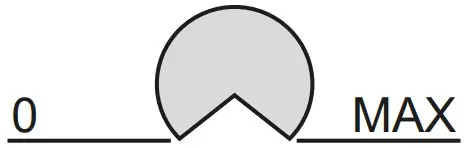 | Deceleration during opening |
P4 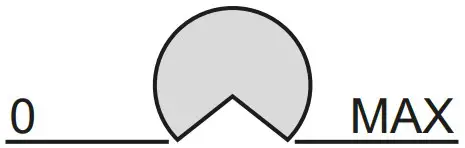 | Adjustment of deceleration during closure |
P5 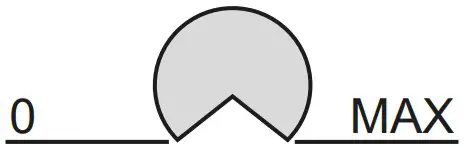 | Adjustment of display contrast. |
| Dip-switches | Description | OFF | ON |
| DIP 1 | Future use | – | – |
| DIP 2 | Access to advanced menu | Disabled | Enabled |
| DIP 3 | Trimmer enabling | Disabled | Enabled |
| DIP 4 | CounterTOT: Number of operationsSVC: Number of operations left until service | Disabled | Enabled |
| DIP 5 | Access to service menu | Disabled | Enabled |
| DIP 6 | Door operating data display(F working, I Bus, I peak, V Bus) | Disabled | Enabled |
| DIP 7 | Future use | – | – |
| DIP 8 | Cyclic operation menu | Disabled | Enabled |
| LED | On |
| DL2 | Closing position |
| DL3 | Deceleration |
| DL6 | Partial opening |
| DL7 | Opening position |
| DL15 | Autostart |
| Buttons | Description |
| S2 | USED FOR PROGRAMMING |
| S3 | NOT USED |
| S4 | NOT USED |
| S5 | USED FOR PROGRAMMING |
| Operating mode Standard | Programming Operating | |
| Button | LED | Button |
 Starts the opening operation. Starts the opening operation. |
| Menu scrolling |
 Starts the partial opening operation. Starts the partial opening operation. | Confirm | |
 Starts and stops the STOP operation. Starts and stops the STOP operation. |
| |
 Starts the closing operation. Starts the closing operation. | Menu scrolling |
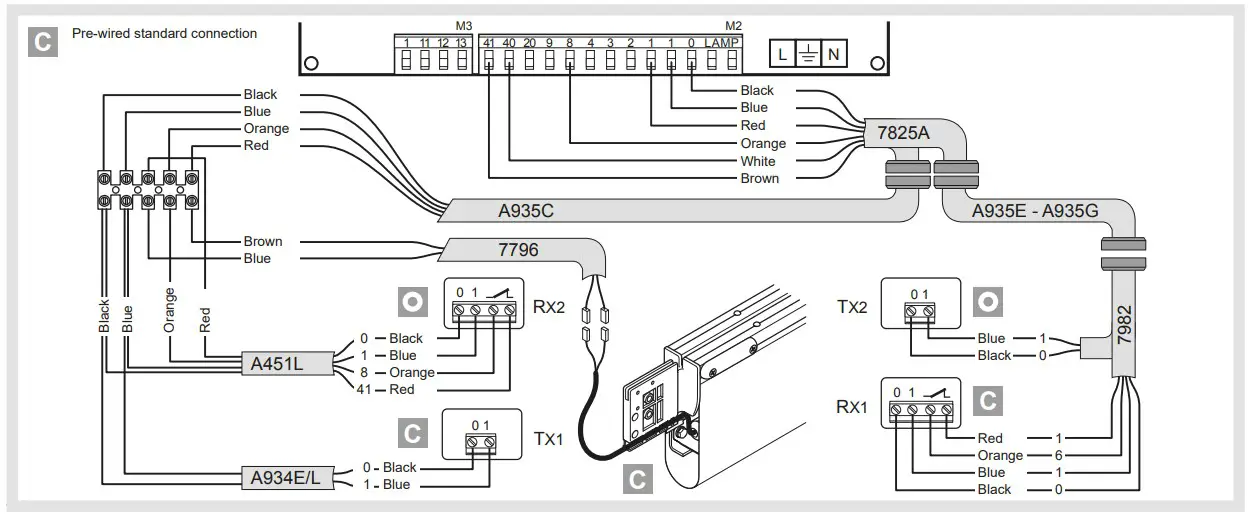
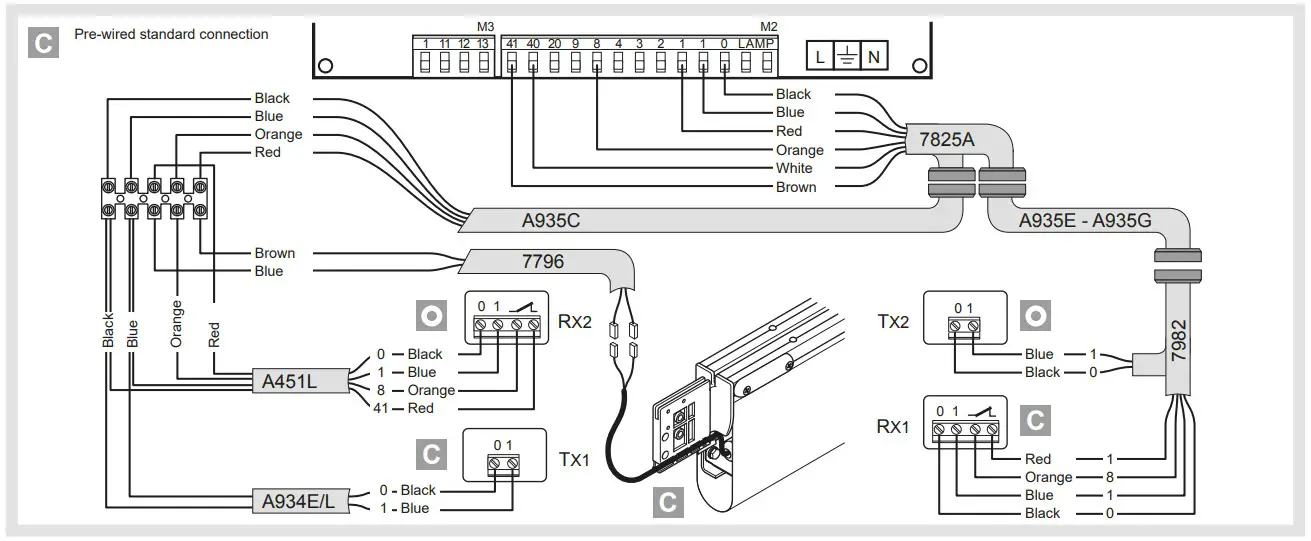
ELECTRICAL CONNECTIONS
SMART RESET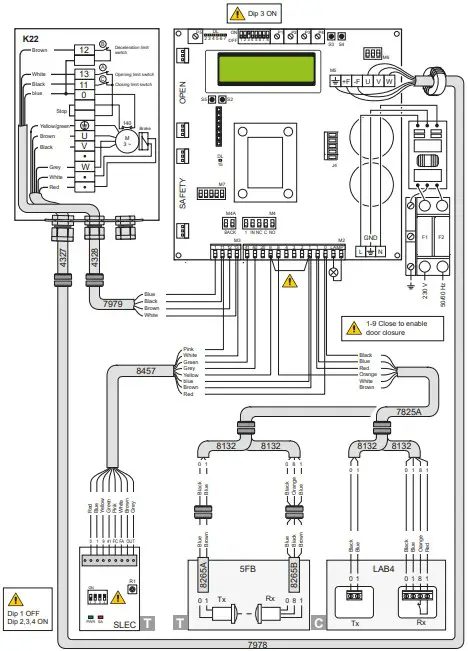
SECTOR RESET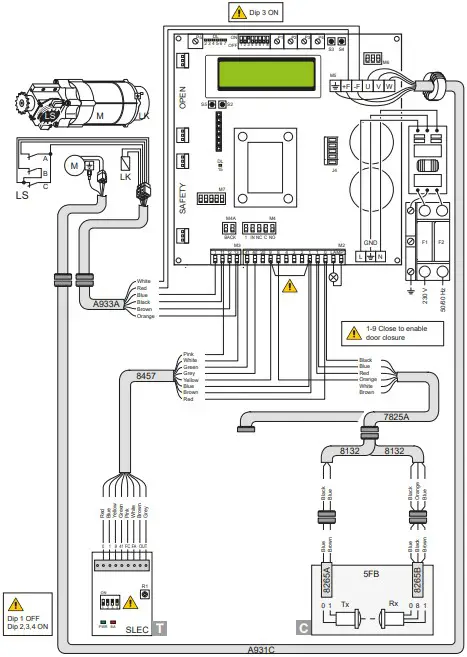
SMART PLUS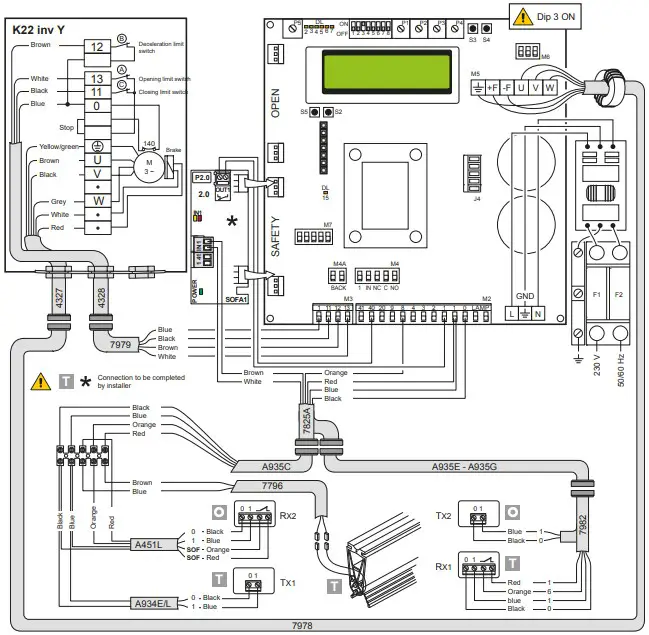
SECTOR PLUS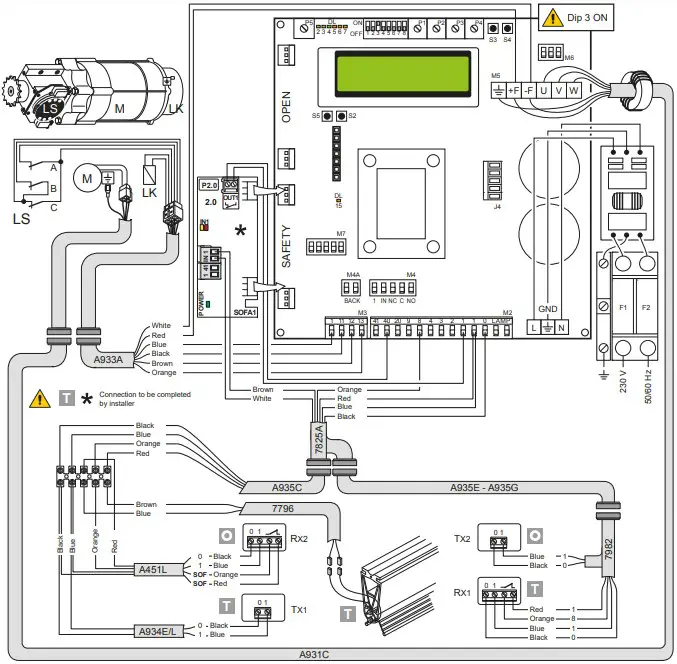
TRAFFIC C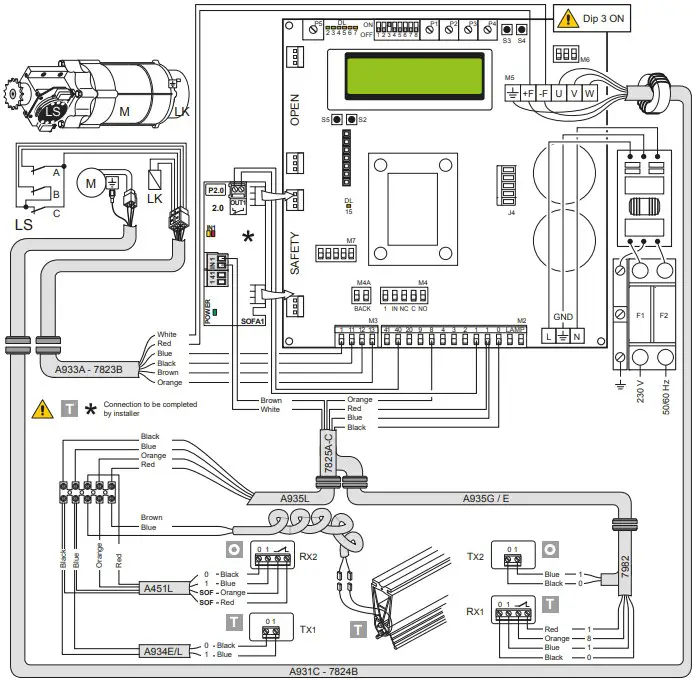
| FUSES | |||
| ID | Value | Size | Circuit |
| F1 – F2 | 12A – 500V | 10.3 x 38 | Single phase line |
LIMIT SWITCH ADJUSTMENT
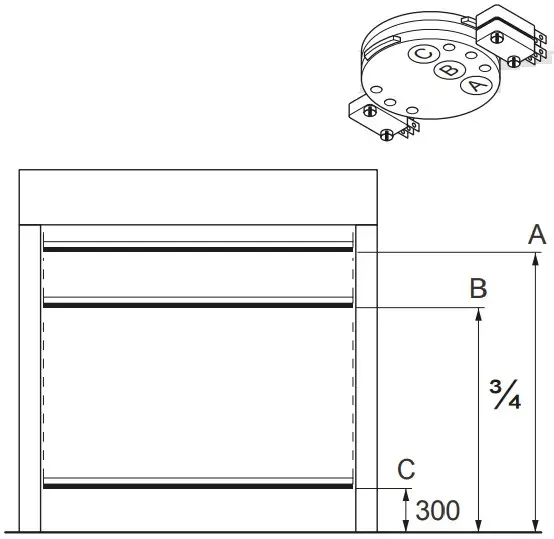
- Set the deceleration ramps at zero (P3 – P4)
- Set the limit switch (C) on the gearmotor so that the door stops about 200/300mm from its closure point.
- Set the opening limit switch (A) at the opening point.
- Set the deceleration limit switch (B) so it is triggered at about ¾ of the opening stroke.
- Set the opening and closure speeds using trimmers (P1) and (P2) respectively.
- Set the trimmers of the deceleration ramps – (P3) for opening and (P4) for closure – to ensure the door stops at its actual “open” and “closed” positions.
TROUBLESHOOTING
| Display message | Problem | Check |
| Current limit exceeded | Requested motor torque exceeds available torque. |
|
| Insert brake resistance | Voltage on BUS exceedsthreshold |
|
| Max. BUS voltage | BUS voltage exceedsthreshold |
|
| Stand by Encoder | Installation of a new control/ replacement control already programmed previously Absolute Encoder not connected. | To reset the control panel follow the procedure:
|
PROGRAMMING
INSTALLATION MENU
When the control panel is switched on, after showing the messages DITEC and microprocessor and card FW VERSION, the device automatically enters the installation menu and displays the message SELECT LANGUAGE
Confirm with 
Remove cables from PIN 3, 4, 20 during programming
| STEP | 1st level options | 2nd level options | Menu scrolling | Notes |
| 1 | Select language |  | Confirm with: | |
| Confirm with: | ENGLISH | |||
| ITALIAN | ||||
| FRANÇAIS | ||||
| DEUTCH | ||||
| ESPANOL – POLSKACESKY – MAGYAR | ||||
| 2 | Door model | | Confirm with: | |
| Confirm with: | SOFT RESET | |||
| SECTOR RESET | ||||
| SMART PLUS | ||||
| SECTOR PLUS | ||||
| TRAFFIC C | ||||
| SMART RESET | ||||
| 3 | Position control | | Confirm the Limit Switch optionwith: | |
| Confirm with: | LIMIT SWITCH | |||
| ENCODER | ||||
| 4 | Calibrating positions | | The door will move to the required position in operator present mode and at low speed. Confirm the Limit Switch position after setting | |
| Confirm with: | CLOSED POSITION | |||
| PARTIAL POSITION(indicates the deceleration start position) | ||||
| OPEN POSITION | ||||
| 5 | Command mode | | Confirm with: Selecting 1-9: if 1-9 is closed, the command mode will be impulsive, if 1-9 is open the command mode will be “dead man” | |
| Confirm with: | IMPULSIVE | |||
| MAN PRESENT | ||||
| INPUT 1-9 | ||||
| 6 | CONFIRM DATA | | Confirm with: |
PROGRAMMING COMPLETED
The door is now programmed and operating with the set default speed values. With the door MOVING, the voltage and current values will be displayed on the BUS.
ADVANCED MENU
The advanced menu allows you to modify the position of the limit switches which have previously been set and modify the set default parameters.
To access the Advanced Menu: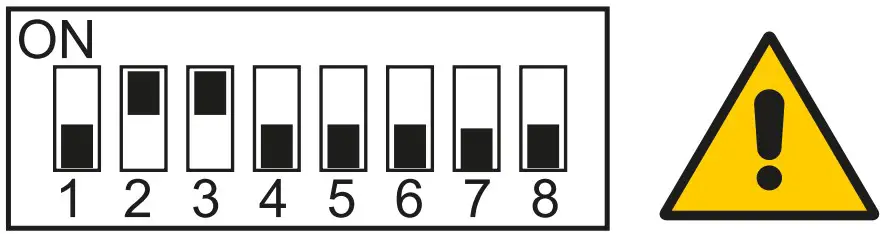
- STOP the door
- Set DIP 2 to ON
“LIM. SWITCH CAL.”, the first item in the advanced menu, will appear on the display.
ONCE PROGRAMMING HAS ENDED, SET DIP2 TO OFF
Remove cables from PIN 3, 4, 20 during programming
| STEP | 1st level options | Scrolling | Confirm | 2nd level options | Notes |
| 1 | Encoder Calibration | | | Closed position | | The door will move to the desired position in man present mode and at low speed. All the positions (closing, partial opening, opening) must be set. |
| 2 | Photocell excluded (step present only for Reset doors) | | | Change value (1 unit @ 3mm) | | By increasing the value, the position of the photocell by-pass is raised |
| 3 | Primary safety device excluded | | | Change value (1 unit @ 3mm) | | By increasing the value, the position of the primary safety by- pass is raised |
| 4 | Automatic closing (default SI with T= 5 s) | | | YES | | |
| NO | ||||||
| 5 | Automatic closing time | | | Time variant | | Option available only if YES hasbeen selected for point 4).Value ranging from 0 to 100 sec. |
| 6 | Command mode | | | Impulsive | | Selecting 1-9: if 1-9 is closed, the command mode will be impulsive, if 1-9 is open the command mode will be “dead man” |
| Man present | ||||||
| INPUT 1-9 | ||||||
| 7 | Opening safety device | | | YES | | If set to YES, the closed door that receives an opening command does not open if the photocell is activated. |
| NO | ||||||
| 8 | Interlock | | | NO INTERLOCK | | AIRLOCK: door 2 opens with ex- ternal command only if door 1 is closed. INTERLOCK: door 2 opens auto- matically when door 1 has closed |
| AIRLOCK | ||||||
| INTERLOCK | ||||||
| 9 | Pre-flashing whenopening (default no) | | | YES | | Pre-flashing has a set time of3 sec. |
| NO | ||||||
| 10 | Opening ramp advance | | | CHANGE VALUE(1 unit @ 3mm) | | When the value increases, the deceleration distance when opening increases. |
| 11 | Opening speedin (Hz) | | | CHANGE VALUE | | The setting of values that are higher than the default ones must be assessed according to door dimensions and operating conditions. |
| 12 | Closing speedin (Hz) | | | CHANGE VALUE | | The setting of higher values must be assessed according to door dimensions and operating conditions. |
| 13 | Service Alarm | | | YES | | |
| NO | ||||||
| RESET? | Restart the service count down | |||||
| 14 | Service thresh | | | CHANGE VALUE | | Option available only if YES hasbeen selected for point 13).Set value to steps of 1000 cycles Max 200,000 cycles |
| 15 | Enable stop 1-2 | | | YES | | If set to YES, opening of thecontact 1-2 STOPS the door. |
| NO | ||||||
| 16 | Brake resistance (default NO) | | | YES | | Set to YES when the door is supplied with brake resistance. |
| NO | ||||||
| 17 | PARAMETER RESET | | | CONFIRM | | Confirm to go back to theinstallation menu. |
ONCE PROGRAMMING HAS ENDED, SET DIP2 TO OFF
Timed opening menu
With door in STOP position and DIP 8 ON you enter the menu CYCLIC MODE. By activating this mode it is possible to set a timed opening at regular time intervals. Once the mode is set put DIP 8 OFF.
| STEP | 1st level options | Scrolling | Confirm | 2nd level options | Notes |
| 1 | CYCLIC MODE | | | TIMER OFF | | Timer not active |
| TIMER ON | Timer active | |||||
| 2 | TIME UNIT | | | MIN. | | Timer by minuts |
| SEC. | Timer by seconds | |||||
| 3 | OPENING TIME | | | 1 …200 | | Set the regular time intervals |
| 4 | AUTO CLOS.TIME | | | 1….200 | | Set the time during which the door remains open |
| 5 | TOT | | | VALUE | | Cycle counter |
| 6 | RESET CYCLES | | | RESET? | | Cycle counter reset |
When CYCLIC MODE is active, the display shows every 2 sec:
TOT cycle – count down to next open/OPENING TIME
Service menu (password required)
To access the Service menu: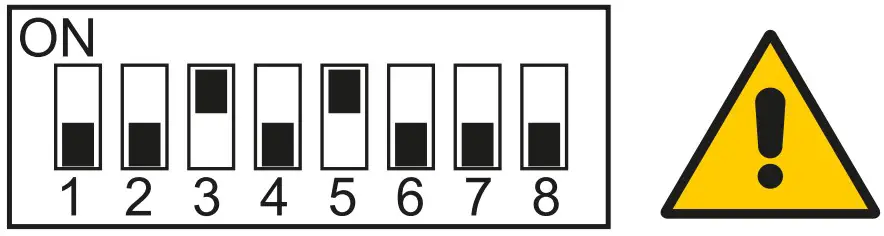
- STOP the door
- Set DIP5 to ON
- Enter the PW: button sequence OPEN- OPEN- CLOSE- PARTIAL OPENING
Remove cables from PIN 3, 4, 20 during programming
| STEP | 1st level options | Notes |
| 1 | MIN BRAKING VOLT. Default 340Vdc | Threshold for partial intervention of braking resistance |
| 2 | MAX BRAKING VOLT. Default 380Vdc | Threshold for total intervention of braking resistance |
| 3 | OVERCURRENT LIMITDefault 10A | If the current on the BUS exceeds the set threshold, the door opens athalf the speed to reduce absorption. |
| 4 | RAMP SLOPE DURING OPENING | Changes the slope of the deceleration ramp when opening. Default 15. (If the value is increased, the ramp distance is reduced). |
| 5 | BATTERY LEVEL | Visualizes the encoder battery charge level from 0% to 100% |
| 6 | ALARM LIST | The last 50 alarms are displayed: Overcurrent; bus voltage exceeds limit, Intervention of brake resistance, inverter overtemperature, faulty motor driver (encoder). To exit, press partial opening |
ONCE PROGRAMMING HAS ENDED, SET DIP5 TO OFF
ALARMS
| MESSAGE | SITUATION | NOTES |
| Ditec | door closed waiting for command | |
| Opening of VBUS IBUS | door opening | |
| Door open – automatic closing time | Door open | |
| Closing of VBUS IBUS | door closing | |
| Input 40 closed; input 8 open | intervention of photocell | When door is moving |
| input 40 open; input 8 closed | Primary safety device intervention(SLEC / SAFETY EDGE) | When door is moving |
| Limit switches open | Intervention of safety microswitch on manual opening device / intervention of thermal protection on motor / opening (A) and closure(C) limit switches simultaneously active. | |
| Opening safety device activated | photocell engaged when door is closed and door does not open | Message that only appears if the “safety in open” function is set to YES on the advanced menu (step 7). |
| Door stopped | stop command activated | |
| Stand by encoder | New control panel power on / replacing control panel power onAbsolute Encoder not connected. | Control panel already programmed to work with motor having absolute encoder. To reset see troubleshooting chapter. |
INTERLOCK