Lenovo LDI Device Intelligence User Guide
Copyright/Disclaimer
Copyright © 2022, Lenovo. All rights reserved.
This document contains proprietary information of Lenovo that is protected by copyright and other intellectual property law which restricts its usage. The content in this document is subject to change without notice. If you find any issues in the documentation, please report to us in writing. Lenovo gives no representations or warranties of any kind regarding its content, including accuracy or completeness.
Please do not reproduce or transmit any part of this document in any form or by any means, electronic or mechanical, for any purpose, without a written approval from Lenovo
Onboard Your Fleet
Onboard Your Fleet
This chapter helps you smoothly onboard the fleet of devices in your organization to the LDI platform
Software Requirements
Client software for this solution has a few requirements that the device must meet.
| Category | Requirement |
| Manufacturer | Any device manufacturer is supported, though some features may only be available or verified on the Lenovo devices. |
| Operating System | Windows 10 version 1809 (October 2018 Update) or newer Windows 11 64-bit OSS pecial editions such as 10S or 10x are not currently supported |
| Hardware |
|
| Environment | Access to the Internet – *.uds.lenovo.com on ports 443
. Devices may require additional configuration to support. |
| Category | Requirement |
| Proxy Support | You must configure the proxy through WinINet (WinHTTP or a third-party application/browser extension).· Proxy server can reach *.uds.Lenovo.com on ports 443o Port 8883 needed for devices with UDC agent older than 22.10.0.5DNS name resolution is available on each managed device. You cannot set an authentication on the proxy server. |
Download Provisioning Package
You can onboard fleet of devices to LDI platform through:
- Instructions and Agents (Preferred)
- Devices page (optional)
Click Help & Resources and then click Instructions & Agents. The Instructions
& Agents page appears.
- Select Windows (Physical) to onboard a physical device. For further details, refer to Install a Physical Device.
Install a Physical Device
- Follow the instructions in Download Provisioning Package.
- Click Confirm.
- In the Maximum Usage drop-down list, select the number of devices on which you can download the provisioning package.
- In the Installer Expiration drop-down list, select the days for which the provisioning pack installation is valid.
- Click Download Pack. The pack is downloaded on the device, which access the portal.

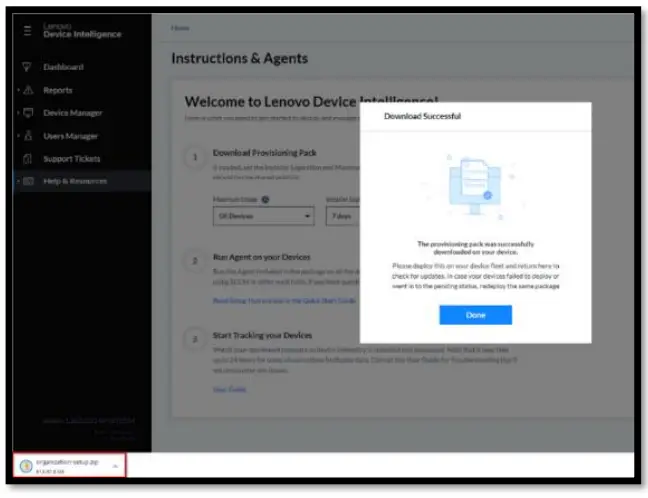
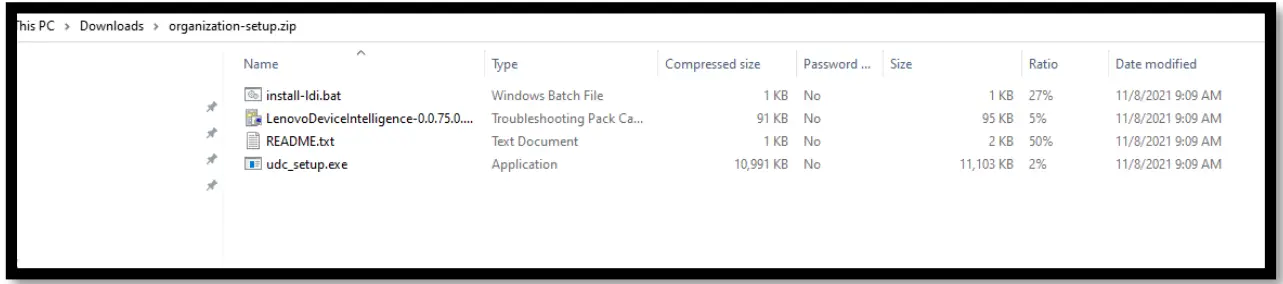
The package, organization-setup.zip which has the following components:
- install-ldi.bat – A script that has series of commands for installation for LDI software.
- A Windows-based troubleshooting file package, LenovoDeviceIntelligence 0.0.75.0. diagcab. To know more about how to install, run, and create the Lenovo Device Intelligence. diagcab file, refer to Troubleshooting.
2. README.txt file - udc_setup.exe – UDC setup, UDC Service information, and task control settings

Install Software Agent on Device
Note: The setup is unique for the organization and must not be shared.
Execute the following steps on every device in the fleet.
- Copy the following files to an empty folder in the device, e.g., C:\temp\LDItemp
- udc_setup.exe
README.txt - install-ldi.bat
- udc_setup.exe
- Execute the batch file as an Administrator.
- Open the command prompt as an Administrator
- Execute cd C:\temp\LDItemp
- \install-ldi.bat
- Confirm whether device onboarding was successful or not by checking for an
error in the registry.
UDC records the error in the Windows Registry at
HKLM\SOFTWARE\LENOVO\UDC\Critical Transcript when onboarding fails.
If there is an error during installation, check the following error code table to identify the error and rectify it by following the remedial tips:
| UDCSignificant Event Codes | Error Name | Remedial Tip |
| None | Ok | |
| 1016:12007 | Portal Unreachable | Ensure you have a proper network connectivity and check the connection to the UDS portal. |
| 1001:80 | Certificate Mismat ch | Portal certificate is not valid. Check for https proxy (like Fiddler) that overrides server certificate.Otherwise, contact Lenovo, because server certificate could have been changed. |
| 1001:85 | Token Expired | LDI portal token has expired, or the device registration limit set for this token is over. Request for a new provisioning package with a new token. |
| 1001:86 | Token Not Validate d | UDS does not accept provided token. Create another provision package or contact the administrator. |
| 1016 | Registered To Auto maticOrg | The device was registered to an automatic organization. Restart UDCS ervice and log in again. If it fails, contact the administrator. |
| Device Already Regi stered | This device was already registered in the portal. No other action may be needed, but we recommend you follow the uninstallation steps including deletion from the portal before attempting to reinstall and register the device to the portal. Refer to Uninstall UDC. | |
| 1016 | Unable To Retrieve Claim Code | The script /UDC was unable to retrieve the activation code required for registration of the device in the |
Track Device on LDI
- Check the Devices page to track whether the device has been onboarded to the LDI or not.
- Check the device status. If the status is:
- Pending – The device could not be onboarded because of an error. Check for the type of error code in the registry and follow the remedy tip provided for it in the error code table. This also includes devices that don’t have an assigned license.
- Active – Device has successfully onboarded and is currently online.
- Offline – Device has successfully onboarded and is currently offline.
Note: To get a license, follow these steps:
- Select Device Manager → Devices.
- Search for the device with ‘Unassigned License’.
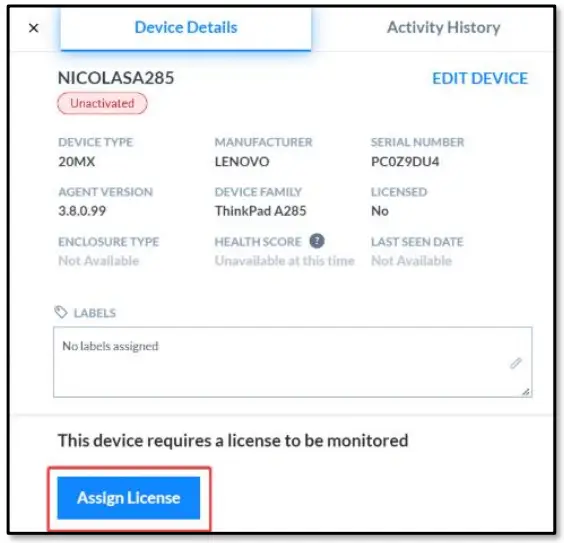
- Click Assign License.
Offline – Devices that do not send data to the system for 1 hour. These devices are moved from Active Status to Offline Status. If the device does not have a license, it becomes Unactivated with status Pending.
Raise a Ticket
Raise a ticket if the error persists even after following the remedial tip from the error code table.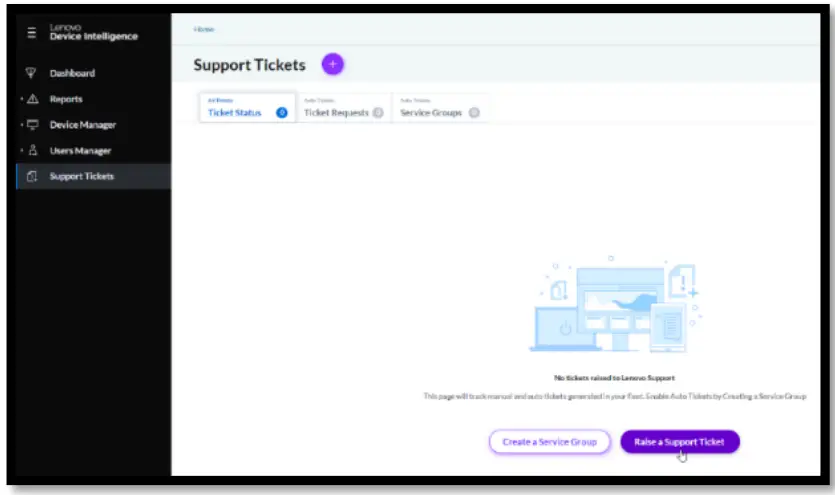
Onboard Fleet from Devices Page (Optional)
You can also onboard the fleet of devices in your organization to LDI platform from the Devices page.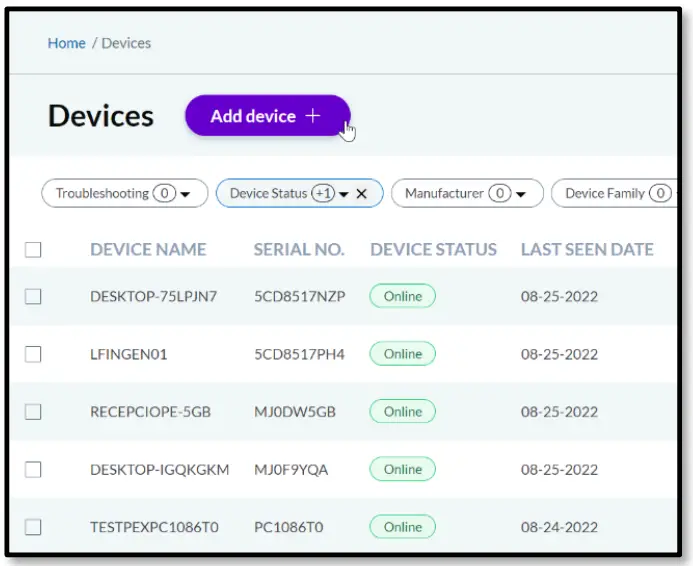
In the Devices page, click . The Instructions & Agents window appears. For
more details, refer to Download Provisioning Package.
Proxy
UDC uses a security feature called certificate pinning. UDC does not support the scenario where a proxy service in your environment performs TLS inspection (decrypting and reencry pting traffic using an alternate certificate). You must completely exclude the traffic for *.uds.Lenovo.com from the proxy or disable TLS inspection permanently for that endpoint. Please refer to your proxy service documentation for how to achieve this.
Current Support Matrix
- Leverages OS level proxy configuration
- Usage: Configure proxy information in OS using pac file or manual proxy setupc
| Scenario | Configure UDC to use proxy | For UDC to work and If TLS inspection is enabled |
| Reaching to internet requires proxy | Use the OS level configuration * Pac file as well as manual proxy setup | In proxy server, whitelist*.uds.lenovo.com: 443 (include port 8883 if UDC agent older than 22.10.0.5) |
| Internet is reachable but proxy is also required to be setup | Use the OS level configuration * Pac file as well as manual proxy setup | Whitelist *.uds.lenovo.com at device levelORWhitelist *.uds.lenovo.com at proxy server |
Troubleshooting
When you are unable to register your device in the LDI tool, you can run a tool that executes some routine checks, collect logs, and other device information that can be used to analys the problem offline. Use the Lenovo Device Intelligence. diagcab file for troubleshooting, which you get with the Provisioning Package.
Pre-install Validation
Note the following information for the API accessibility in different settings:
| APIReachability | Test-NetConnection-Port 443 api.naea1.uds.lenovo.comTest-NetConnection-Port 443 api.euwe1.uds.lenovo.com |
Troubleshooting Process
Follow these steps to troubleshoot:
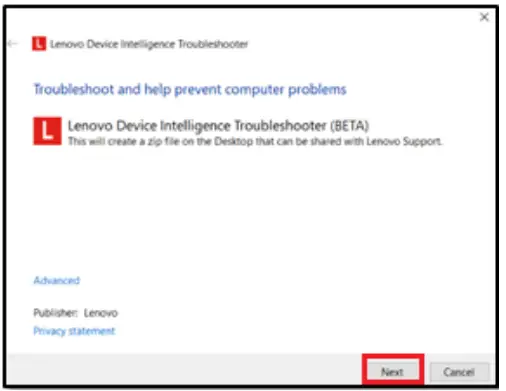
- Double-click the Lenovo Device Intelligence. diagcab file. The following window appears.

- Click Next to complete the installation.
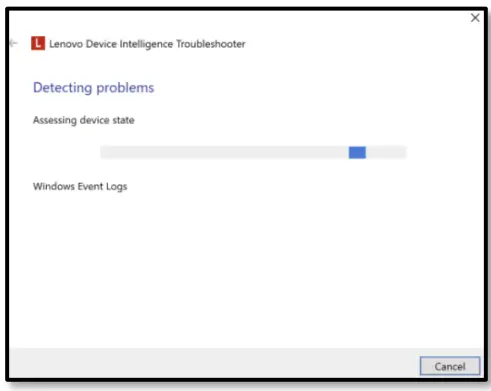
- After successful installation, the Troubleshooting report window appears.

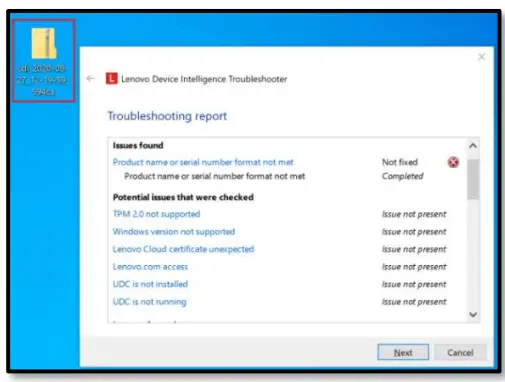
Note: By default, the output is a zip file, and it also displays the location where the file is saved.
Uninstall UDC
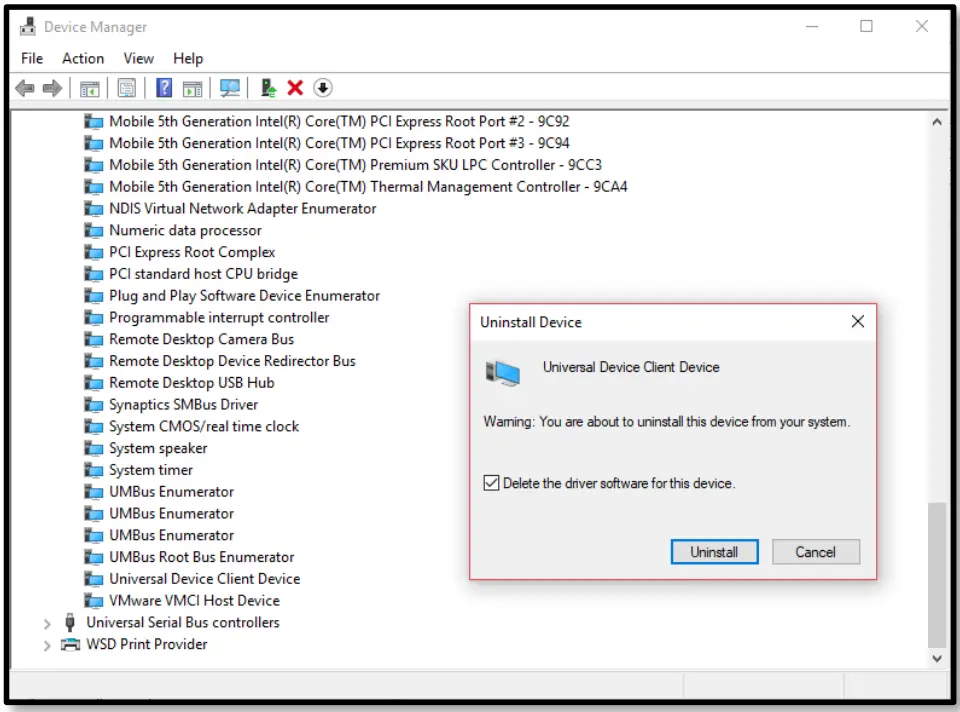
Note: We recommend you use the Device Manager option to uninstall Universal Device Client (UDC) that ensures removal of UDC from both Windows and Driver Store.
- In the device, open the Device Manager page.
- Select System devices and right-click Universal Device Client Device.
- Select Uninstall.
Note: Select the Delete the driver software for this device check box.
- Verify that there is no Universal Device Client Service in Device Manager or running service.
- Restart the device.
- In the LDI portal, select Device Manager → Devices, search for that device and click Delete.
Onboard Your Fleet in a Proxy Environment
You can onboard your device using proxy setups. Manual Proxy Setup section:
- In the Address field, enter *.uds.lenovo.com
- In the Port field, enter 443.
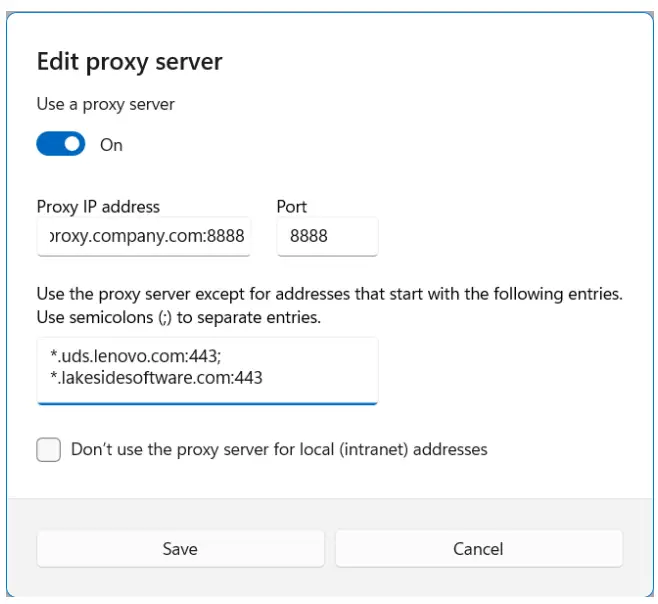
UDC and LDI support the following proxy configurations:
- You must configure proxy through WinINet (vs WinHTTP or a 3rd party application / browser extension)
- Proxy server can reach *.uds.lenovo.com:443 (include port 8883 if UDC agent older than 22.10.0.5)
- Proxy server does DNS resolving for client
- Proxy server does NOT support authentication
Note: UDC can register and sync telemetry on proxy environment by auto-detect the browser proxy settings (except if a user/password is required for such proxy access, which it is not supported). UDC always imports whatever is configured in the browser settings (WinINet) automatically, though manual setting is done for Win HTTP.