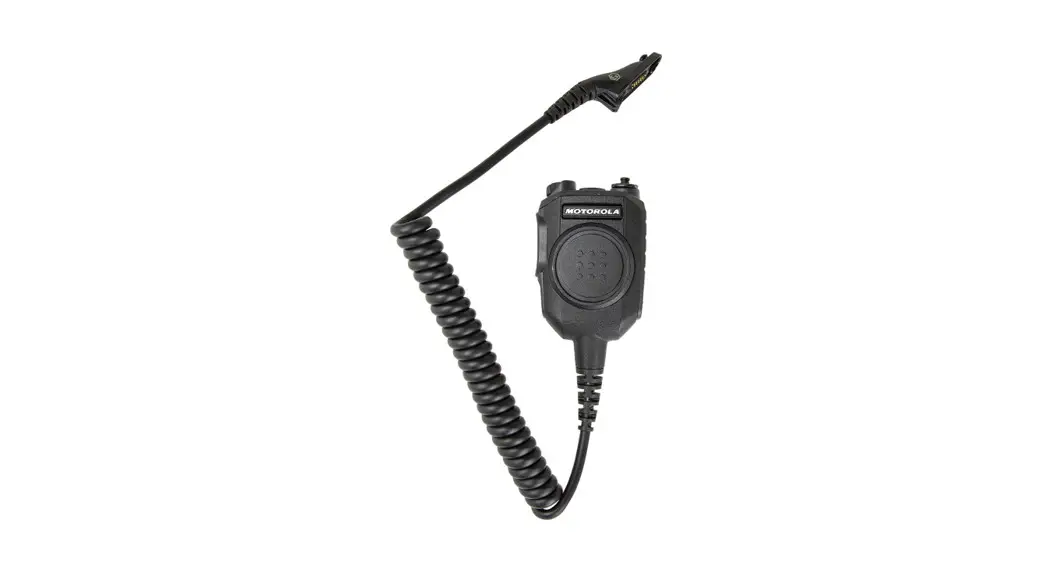
 WM500
WM500
Remote Speaker
Microphone PMMN4127_
Addendum for
MOTOTRBO ION
MOTOROLA, MOTO, MOTOROLA SOLUTIONS, and the Stylized M Logo are trademarks or registered trademarks of Motorola Trademark Holdings, LLC and are used under license. All other trademarks are the property of the irrespective owners. © 2020 and 2021 MotorolaSolutions,Inc. All rights reserved.
Printed in

Accessory Manager App Introduction
Download and Install the Accessory Manager application from Google Play Store for future software upgrades and new feature releases. 
https://play.google.com/store/apps/details?id=com.Motorolasolutions.ama
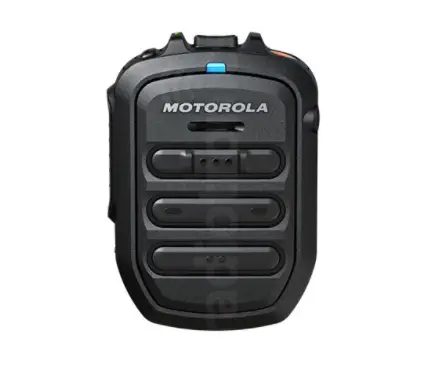
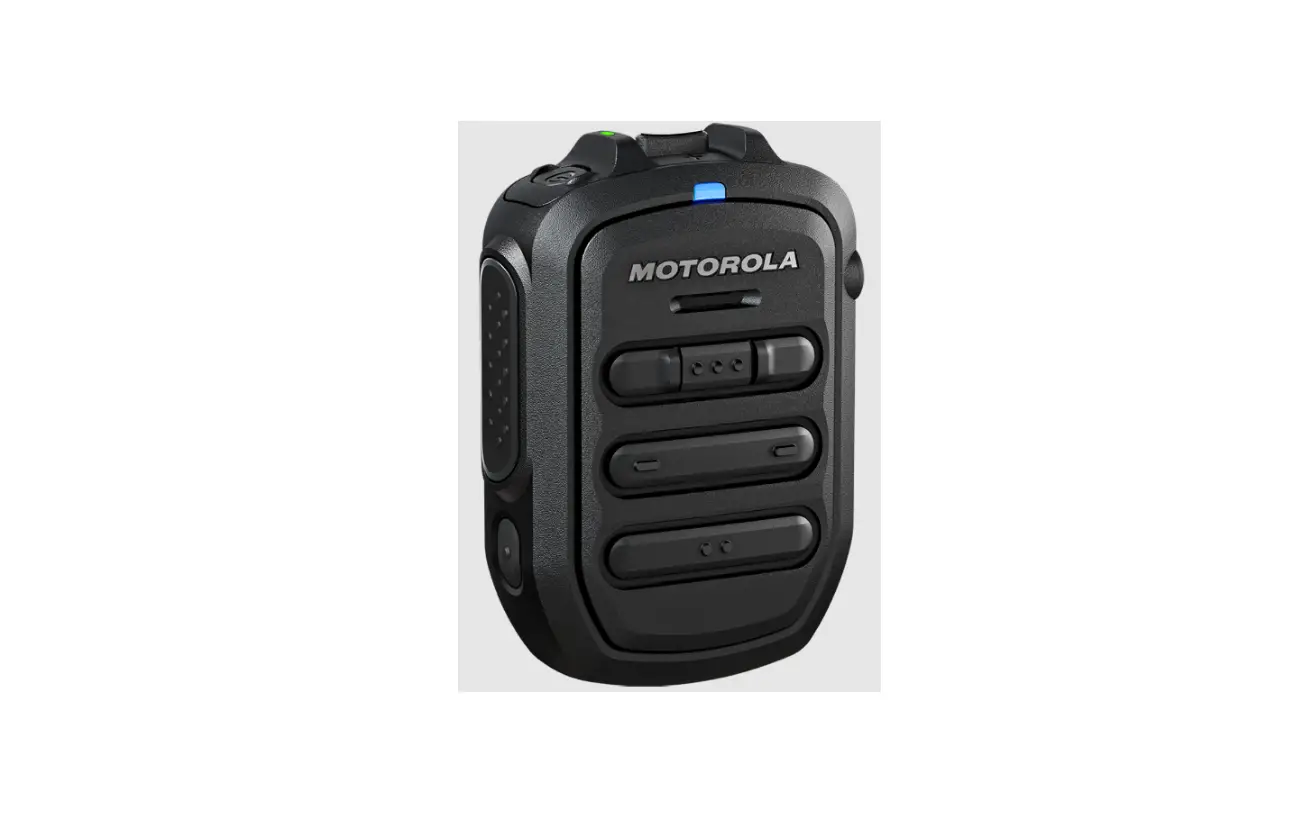
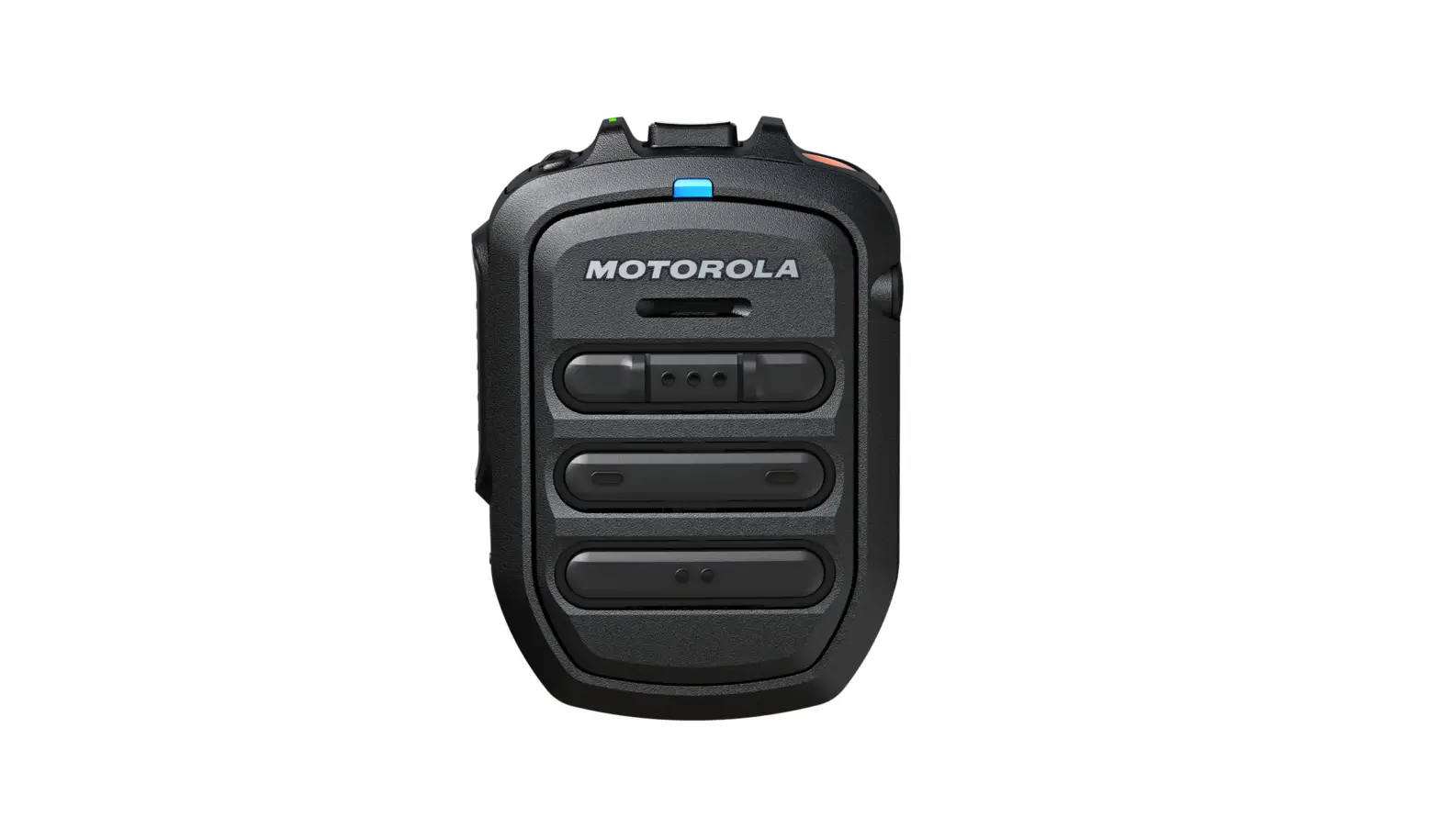
RSM Overview
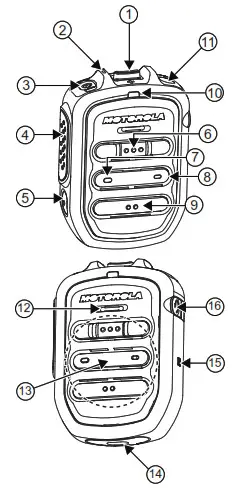
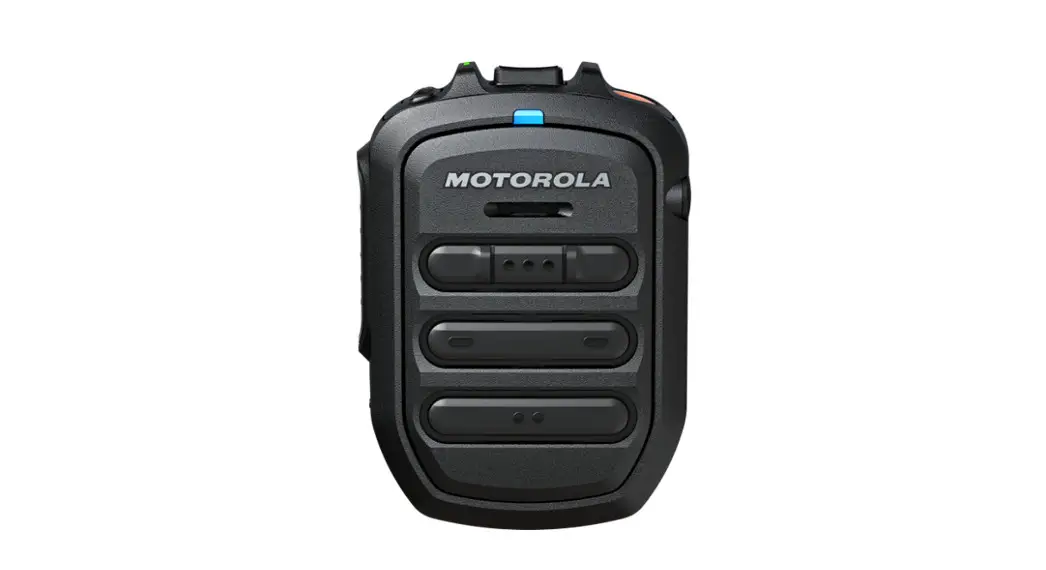
Table 1: RSM Overview and Description
| No. | Description |
| 1 | Volume toggle |
| 2 | Power Indicator |
| 3 | Power button |
| 4 | Push-To-Talk (PTT) button |
| PTT call can be either transmitted to a talk group or individual user | |
| 5 | Multifunction (MFB) Button |
| Available multiple functions: To change language/tone in a disconnected state To answer calls upon incoming call To reject calls upon incoming call To end calls while a call is active To mute/unmute microphone while a call is active | |
| 6 | P1 button |
| Function configured on the host or the WAVE application. WAVE default function: WAVE OSM | |
| 7 | P2 button |
| Function configured on the host or the WAVE application. WAVE default function: Channel Down |
| 8 | P3 button |
| Function configured on the host or the WAVE application. WAVE default function: Channel Up | |
| g | P4 button |
| Function configured on the host or the WAVE application. WAVE default function: WAVE OSM | |
| 10 | Audio/Bluetooth Indicator |
| 11 | Emergency button |
| 12 | Microphone |
| 13 | Speaker |
| 14 | Charging port |
| 15 | NFC Location |
| 16 | Audio jack |
Note:
* Operational Status Messaging(OSM) requires pre-configuration in the WAVE Application.
* Answer/reject/end call and microphone mute functionalities are not applicable for the radios.
*More programmable functions may be added to the WAVE application in the future. Please refer to Kodiak User Guide for detail.
Pairing the RSM to a MOTOTRBO ION Radio
- While RSM is power off, press and hold the Power button until you hear “Power On” followed by “RSM Battery Level” and lastly “Searching for Host”, and the blue LED
blinks. - From the MOTOTRBO ION, search and select “WM500_xxxx” from the Bluetooth list. (XXXX denotes the alphanumeric MAC address of your WM500 RSM)
- From the MOTOTRBO ION, tap “Pair” when prompted to initiate Bluetooth Classic connection.
- Once the devices are paired successfully, a tone is played.
- A voice prompt from the RSM indicates that the device is “Connected”.
- Wait for MOTOTRBO ION to prompt another request for Bluetooth Low Energy (BLE) to be paired with RSM.
- Tap “Pair” when prompted and a tone will be played from RSM once successful.
- Now both devices are ready to be used.
Note: MOTOTRBO ION is unable to support RSM through NFC.
Note: Always unpair the RSM from the Bluetooth host and ensure that the paired device is “Cleared” before starting another pairing process.
FCC ID: AZ489FT6023
IC: 109U-89FT6023
For other WM500 manuals, refer to our Learning
eXperience Portal: https://learning.motorolasolutions.com
•MN006039A01 – User Manual, English (Printed)
•MN006538A01 – User Manual, Multilingual (Online)
•MN006126A01 – Installation Guide, English(Online)
References
 Motorola Login
 Motorola Solutions
-
Motorola Solutions
-
($V>Main - English)
-
RSS-102 — Radio Frequency (RF) Exposure Compliance of Radiocommunication Apparatus (All Frequency Bands)
-
Radiofrequency Energy and Safety
-
Motorola Solutions
 Federal Communications Commission | The United States of America
-
Mission Critical Communications - Motorola Solutions
-
Governance and Compliance - Motorola Solutions
 Home | Occupational Safety and Health Administration
 Motorola Login
 Motorola Solutions
 ($V>Main - English)
 Federal Communications Commission | The United States of America
 Mission Critical Communications - Motorola Solutions
 Home | Occupational Safety and Health Administration