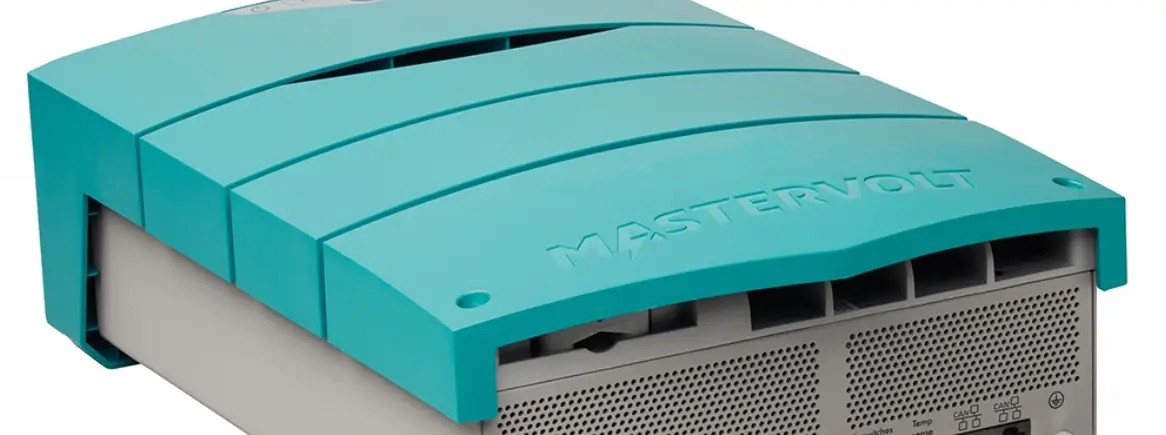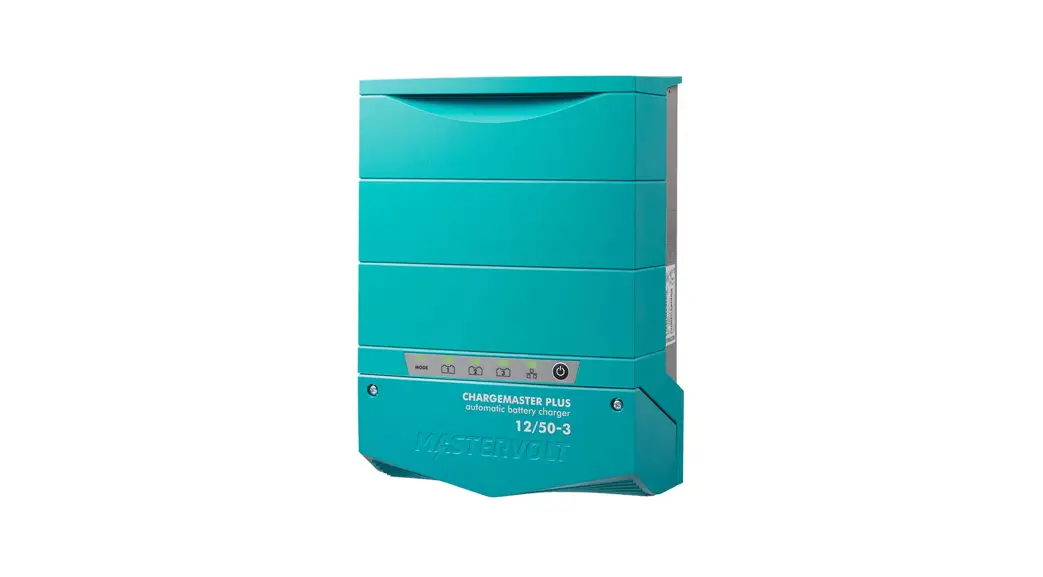

CHARGEMASTER PLUS
ChargeMaster Plus 12/35-3, 12/50-3, 24/20-3, 24/30-3
AUTOMATIC BATTERY CHARGER
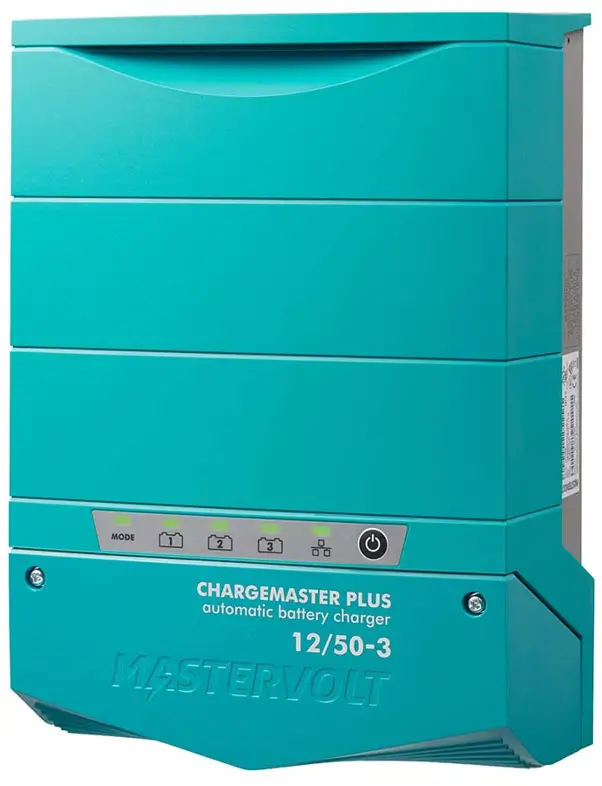
USER AND INSTALLATION MANUAL
10000016594/04
 |  |  |
For the latest version of this manual, visit our website:
www.mastervolt.com
GENERAL INFORMATION
1.1 Use of this manual
This manual serves as a guideline for the safe and effective operation and maintenance of the following ChargeMaster Plus models:
| Part number | Model |
| 44310355 | 12/35-3 |
| 44310505 | 12/50-3 |
| 44320205 | 24/20-3 |
| 44320305 | 24/30-3 |
These models are further referred to as “ChargeMaster Plus”.
1.2 Liability
Advanced Systems Group can accept no liability for:
- Consequential damage resulting from the use of the ChargeMaster Plus.
- Possible errors in the included manual and the consequences of these.
- Use that is inconsistent with the purpose of the product.
1.3 Warranty
The Advanced Systems Group product warranty covers the ChargeMaster Plus for the first two years after the purchase date, on the condition that the product is installed and used according to the instructions in this manual. Installation or use that does not comply with these instructions may result in underperformance, damage, or failure of the product and may void this warranty. The warranty is limited to the cost of repair and/or replacement of the product. Costs of labor or shipping are not covered by this warranty.
1.4 Disclaimer
Our products are subject to continual development and improvement. Therefore, additions or modifications to the products may cause changes to the technical data and functional specifications. No rights can be derived from this document. Please consult our most current Terms & Conditions of Sale.
1.5 Identification label
The following picture is only an example!
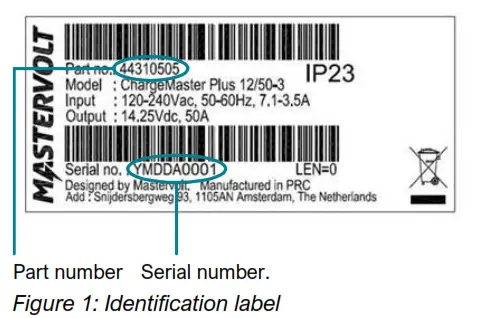
The identification label is located on the righthand side of the ChargeMaster Plus. Important technical information required for service, maintenance & secondary delivery of parts can be derived from the identification label.
 CAUTION!
Never remove the identification label. This will void the warranty.
1.6 Correct disposal of this product This product is designed and manufactured with high-quality materials and components, which can be recycled and reused.
Please be informed about the local separate collection system for electrical and electronic products.
Please act according to your local rules and do not dispose of your old products with your normal household waste. The correct disposal of your old product will help prevent potential negative consequences to the environment and human health.
SAFETY INSTRUCTIONS
IMPORTANT SAFETY INSTRUCTIONS SAVE THESE INSTRUCTIONS
 WARNING!
Read the entire manual before using the ChargeMaster Plus. Keep this manual in a secure place. This chapter describes important safety and operating instructions for use of a ChargeMaster Plus in a residential, recreational vehicle (RV), and marine applications.
2.1 General
- The appliance is not to be used by children or persons with reduced physical, sensory or mental capabilities, or lack of experience and knowledge unless they have been given supervision or instruction.
- This appliance can be used by children aged 8 years and above and persons with reduced physical, sensory or mental capabilities or lack of experience and knowledge if they have been given supervision or instruction concerning the use of the appliance in a safe way and understand the hazards involved.
- Children shall not play with the appliance.
- Cleaning and user maintenance shall not be made by children without supervision.
- To reduce the risk of electric shock – Do not expose the ChargeMaster Plus to rain, snow, spray, moisture, excessive pollution, and condensing circumstances. To reduce the risk of fire hazards, do not cover or obstruct the ventilation openings. Do not install the ChargeMaster Plus in a non-ventilated room, as overheating may result.
- Use of an attachment or spare part not recommended or sold by Advanced Systems Group may result in a risk of fire, electric shock, or personal injury.
- UL 1236 requirements do not cover the investigation of charging Lithium-ion type batteries.
- The ChargeMaster Plus is designed to be permanently connected to an AC and DC electrical system. Installation of, and work on the ChargeMaster Plus, may be carried out only by qualified and trained personnel, consistent with the locally applicable standards and regulations.
- Make sure that all wiring is properly installed, in good electrical condition, and correctly sized to match the AC ampere rating of the ChargeMaster Plus. Check the wiring on a regular base, at least once a year. Do not use the ChargeMaster Plus when the wiring is undersized or damaged.
- Do not operate the ChargeMaster Plus if it has received a sharp blow, been dropped, or otherwise damaged in any way; take it to a qualified serviceman.
- Except for the connection compartment, see chapter 3, the ChargeMaster Plus may not be opened or disassembled. There are no serviceable parts inside the cabinet. Take it to a qualified, authorized, and trained serviceman when service or repair is required. Incorrect reassembly may result in a risk of electric shock or fire.
- To reduce the risk of electric shock, disconnect the ChargeMaster Plus from both AC and DC electrical systems before attempting any maintenance or cleaning. Turning off controls will not reduce this risk. Be sure that third parties cannot reverse the measures taken.
- The ChargeMaster Plus must be provided with an equipment-grounding conductor to the AC input ground terminal. Grounding and all other wirings must comply with local codes and ordinances.
- Short-circuiting or reversing polarity will lead to serious damage to batteries, ChargeMaster Plus, wiring as well as accessories. Fuses cannot prevent damage caused by reversed polarity and the warranty will be void.
- In case of fire, you must use the fire extinguisher which is appropriate for electrical equipment. 16 If applied in a marine application in the United States, external connections to the ChargeMaster Plus shall comply with the United States Coast Guard Electrical Regulations (33CFR183, Subpart I).
2.2 Explosive gases
- WARNING – RISK OF EXPLOSIVE GASES. WORKING IN VICINITY OF A LEAD-ACID BATTERY IS DANGEROUS. BATTERIES GENERATE EXPLOSIVE GASES DURING NORMAL BATTERY OPERATION. FOR THIS REASON, IT IS OF UTMOST IMPORTANCE THAT EACH TIME BEFORE USING THE ChargeMaster Plus, YOU READ THIS MANUAL AND FOLLOW THE INSTRUCTIONS EXACTLY.
- To reduce the risk of battery explosion, follow these instructions and those published by the battery manufacturer and the manufacturer of any equipment you intend to use in the vicinity of the battery. Review cautionary marking on these products and on engines.
- DANGER: To reduce the risk of explosion – Never use the ChargeMaster Plus in situations where there is a danger of gas or dust explosion or areas in which ignition-protected equipment is required.
2.3 Personal precautions
- Consider having someone close enough by to come to your aid when you work near a lead-acid battery.
- Have plenty of fresh water and soap nearby in case battery acid contacts skin, clothing, or eyes.
- Wear eye and clothing protection. Avoid touching eyes while working near the battery.
- If battery acid contacts skin or clothing, wash immediately with soap and water. If acid enters the eye, immediately flood the eye with running cold water for at least 10 minutes and get medical attention immediately.
- NEVER smoke or allow a spark or flame in the vicinity of the battery or engine.
- Be extra cautious to reduce the risk of dropping a metal tool onto the battery. It might spark or shortcircuit a battery or another electrical part that may cause an explosion.
- Do not wear watches, bracelets, necklaces, or other metal objects when working on batteries.
2.4 Warnings regarding the use of batteries
- Only use the ChargeMaster Plus for charging Lead-Acid or lithium-ion batteries and the supply of consumers attached to these batteries, in permanent systems. Do not use
the ChargeMaster Plus for charging dry-cell batteries that are commonly used with home appliances. These batteries may burst and cause injury to persons and damage to
property. Make sure lithium-ion batteries used for this charger are certified to EN standards. - NEVER charge non-rechargeable batteries.
- NEVER charge a frozen battery.
- Excessive battery discharge and/or high charging voltages can cause serious damage to batteries. Do not exceed the recommended limits of the discharge level of your batteries.
- If it is necessary to remove a battery, always remove the grounded terminal from the battery first. Make sure all accessories are off, so as not to cause an arc.
- Be sure that the area around the battery is well ventilated while the battery is being charged. Refer to the recommendations of the battery manufacturer.
- Batteries are heavy! It may become a projectile if it is involved in an accident! Ensure adequate and secure mounting and always use suitable handling equipment for transportation.
2.5 Charger location
- Never place charger directly above battery being charged; gases from battery will corrode and damage the charger.
- Never allow battery acid to drip on charger when reading electrolyte specific gravity or filling battery.
- Do not operate the charger in a closed-in area or restrict ventilation in any way.
- Do not set a battery on top of the charger.
2.6 DC connection precautions
- Connect and disconnect DC output clips only after setting any charger switches to “off” position and removing AC cord from the electric outlet. Never allow clips to touch each other.
- Attach clips to battery and chassis as indicated in section 2.7, steps 5 and 6, and 2.8 steps 2 through 4.
2.7 When battery is installed in the vehicle
A SPARK MAY CAUSE BATTERY EXPLOSION.
To reduce the risk of a spark near the battery:
- Position AC and DC cords to reduce the risk of damage by the hood, door, or moving engine part.
- Stay clear of fan blades, belts, pulleys, and other parts that can cause injury to persons.
- Check the polarity of battery posts. POSITIVE (POS, P, +) battery post usually has a larger diameter than NEGATIVE (NEG, N, –) post.
- Determine which post of the battery is grounded (connected) to the chassis. If the negative post is grounded to the chassis (as in most vehicles), see (5). If the positive post is grounded to the chassis, see (6).
- For a negative-grounded vehicle, connect the POSITIVE (RED) clip from the battery charger to the POSITIVE (POS, P, +) ungrounded post of the battery. Connect NEGATIVE (BLACK) clip to vehicle chassis or engine block away from the battery. Do not connect the clip to the carburetor, fuel lines, or sheet-metal body parts. Connect to a heavy gauge metal part of the frame or engine block.
- For a positive-grounded vehicle, connect the NEGATIVE (BLACK) clip from the battery charger to the NEGATIVE (NEG, N, –) ungrounded post of the battery. Connect POSITIVE (RED) clip to vehicle chassis or engine block away from the battery. Do not connect the clip to the carburetor, fuel lines, or sheet-metal body parts. Connect to a heavy gauge metal part of the frame or engine block.
- When disconnecting the charger, turn switches to off, disconnect the AC cord, remove the clip from vehicle chassis, and then remove a clip from the battery terminal. 8 See operating instructions for length of charge information.
2.8 When a battery is an outside vehicle
A SPARK MAY CAUSE a BATTERY EXPLOSION. To reduce the risk of a spark near the battery:
- Check the polarity of battery posts. POSITIVE (POS, P, +) battery post usually has a larger diameter than NEGATIVE (NEG, N, –) post.
- Attach at least a 24-inch-long 6-gauge (AWG) insulated battery cable to the NEGATIVE (NEG, N, –) battery post.
- Connect POSITIVE (RED) charger clip to POSITIVE (POS, P, +) post of the battery.
- Position yourself and the free end of the cable as far away from the battery as possible – then connect the NEGATIVE (BLACK) charger clip to the free end of the cable.
- Do not face battery when making the final connection.
- When disconnecting the charger, always do so in the reverse sequence of connecting procedure and break the first connection while as far away from the battery as practical.
2.9 Preparing to charge
- If it is necessary to remove the battery from the vehicle to charge, always remove the grounded terminal from the battery first. Make sure all accessories in the vehicle are off, so as not to cause an arc.
- Be sure the area around the battery is well ventilated while the battery is being charged.
- Clean battery terminals. Be careful to keep corrosion from coming in contact with eyes.
- Add distilled water in each cell until battery acid reaches the level specified by the battery manufacturer. Do not overfill. For a battery without removable cell caps, such as valve-regulated lead-acid batteries, carefully follow the manufacturer’s recharging instructions.
- Study all battery manufacturer’s specific precautions while charging and recommended rates of charge. Note that the ChargeMaster Plus charge specifications are based on Mastervolt batteries. Specifications for the given chemistry of a different manufacturer may vary. If connecting batteries of a different manufacturer, make sure the manufacturer’s recommendations are met.
- Determine voltage of battery by referring to car owner’s manual and make sure that output voltage selector switch is set at the correct voltage. If a charger has an adjustable charge rate, charge battery initially at lowest rate. Exception: For a charger not having an output voltage selector switch, determine voltage of the battery by referring to the car owner’s manual and make sure it matches the output rating of the battery charger.
2.10 Grounding instructions
This battery charger should be connected to a grounded, metal, permanent wiring system; or the equipment-grounding conductor should be run with circuit conductors and connected to the equipment-grounding terminal or lead-on battery charger. Connections to the battery chargers should comply with all local codes and ordinances.
2.11 Warning regarding life support applications
Mastervolt products are not designed to be used as components of medical equipment unless negotiated in the form of a written agreement between the customer and/or manufacturer and Advanced Systems Group. Such agreement will require the equipment manufacturer either to contract additional reliability testing of the Mastervolt parts and/or to commit to undertaking such testing as a part of the manufacturing process. Furthermore, the manufacturer must agree to indemnify and not hold Advanced Systems Group responsible for any claims arising from the use of the Mastervolt parts in the life support equipment.
INSTALLATION
During installation and commissioning, the safety instructions are applicable at all times.
3.1 Unpacking
In addition to the ChargeMaster Plus the delivery includes:
- Mounting bracket to mount the ChargeMaster Plus to a wall;
- Battery temperature sensor;
- Drop cable CZone/MB (1m);
- MasterBus Terminator;
- User and installation manual.
After unpacking, check the contents for possible damage. Do not use the product if it is damaged. If in doubt, contact your supplier Check from the identification label (see section 1.5) whether the battery voltage is the same as the nominal output voltage of the ChargeMaster Plus (e.g. 24V battery set for a 24V battery charger).
3.2 Location
- The ChargeMaster Plus is designed for indoor use only.
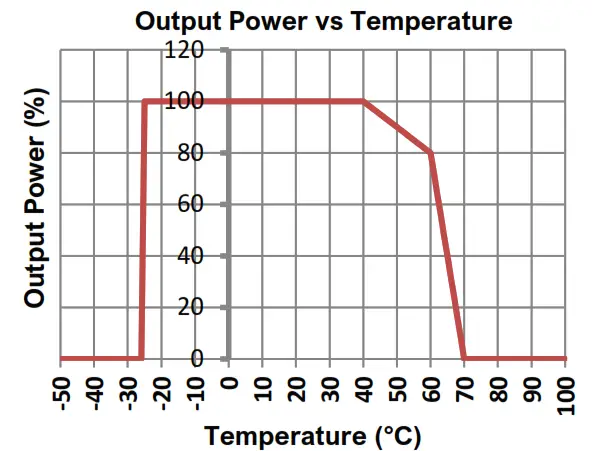
- Ambient temperature: -25°C … 80°C / -13°F … 176°F; (power derating above 40°C / 104°F to decrease the internal heat sink temperature).
- Humidity: 0-95% non-condensing
- Mount the ChargeMaster Plus vertically, with the connecting cables downwards.
- Do not expose the ChargeMaster Plus to excessive dust, aggressive environments, ammonia, or salt.
- Make sure that the hot air that is developed during operation can be discharged. The ChargeMaster Plus must be mounted in such a way that obstruction of the airflow through the ventilation openings will be prevented.
- This device requires a minimum of 100mm (4″) of clearance on every side.
- If added to a CZone or MasterBus network, take the network powering into consideration.
- Never place the ChargeMaster Plus directly above the battery being charged, as gases from the battery will corrode and damage the ChargeMaster Plus.
- If the ChargeMaster Plus is installed in the immediate vicinity of living areas, take into account that even though we took the highest care, the fan of the ChargeMaster Plus can produce noise when operating.
- Although the ChargeMaster Plus fully complies with all applicable EMC limits, it may still cause harmful interference to radio communication equipment. If such interference appears, it is recommended to increase the separation between the ChargeMaster Plus and the equipment, relocate the receiving antenna, or to connect the equipment to a circuit different from that to which the ChargeMaster Plus is connected.
WARNING!
The wire sizes stated in this manual are given as guidelines only. Always comply with all local rules and regulations.
3.3.1 DC wiring
Keep in mind that a high current will pass through the DC wiring. Keep the cable length as short as possible, this will keep the system efficiency as high as possible. The recommended minimum cross-section of the battery cables is:
| ChargeMaster Plus model | DC Cable cross section: | |
| <3m 10ft | 3-5m 10-16ft | |
| 12/35-3 | 10 mm2 8 AWG | 16 mm2 6 AWG |
| 12/50-3 | 16 mm2 6 AWG | 25 mm2 4 AWG |
| 24/20-3 | 6 mm2 10 AWG | 10 mm2 8 AWG |
| 24/30-3 | 10 mm2 8 AWG | 16 mm2 6 AWG |
Use the following wire colors for DC wiring color or at least different colors to make a clear the distinction between the positive and negative the wire from the battery:
| Wire color | Meaning | Connect to: |
| Red | Positive | + (POS) |
| Black | Negative | – (NEG) |
Run the positive and negative cables next to each other to limit the electromagnetic field around the cables. The negative cable should be connected directly to the negative post of the battery bank or the ground side of a current shunt. Do not use the chassis frame as the negative conductor. Tighten securely. The positive battery cable must be fused and
connected to the positive post of the battery bank.
The recommended DC fuses for DC 1/2/3 OUT are:
| Model | DC fuse | Model | DC fuse |
| 12/35-3 | 40 A | 24/20-3 | 25 A |
| 12/50-3 | 60 A | 24/30-3 | 40 A |
The fuse with the fuse-holder is available from your local Mastervolt distributor or Customer Service Representative.
3.3.2 AC wiring
WARNING!
On first connecting to power, make sure the ChargeMaster Plus is in a well-ventilated area as it might spark.
For a safe installation, the correct wire cross-section must be applied. Don’t use a cross section that is smaller than indicated. See the following table to select the appropriate cross-section for the AC wiring (up to 6m / 20ft length):
| Wire size | Max. current | |
| Solid wire (3x) | 1.5 – 6 mm² 14 – 10 AWG | 15A |
| Stranded wire (3x) | 1.5 – 6 mm² 14 – 8 AWG | 15A |
| Ferruled wire (3x) | 1.5 – 4 mm² 14 – 10 AWG | 15A |
Connection of AC wiring and recommended wire colors:
- 240VAC, 50/60Hz installations:
| Wire color | Meaning | Must be connected to: |
| Brown or black | Phase | L |
| Blue | Neutral | N |
| Green/Yellow | Earth |  |
- 120VAC, 50/60Hz installations (single phase):
| Must be connected to: | ||
| Wire color | Meaning | |
| Black | Hot or Line | L |
| White | Neutral | N |
| Green | Ground | |
- 240VAC, 50/60Hz (split phase 120/240VAC):
| Wire color | Meaning | Must be connected to: |
| Black | Hot or Line | L1 |
| Red | Hot or Line | L2 |
| Green | Ground | |
Note: An accessible disconnection device (switch or circuit breaker for example) must be incorporated in the AC wiring, in accordance with wiring rules.
3.3.3 AC safety grounding
WARNING!
The ground wire offers protection only if the enclosure of the ChargeMaster Plus is connected to the safety ground. Connect the ground terminal (PE / GND) to the hull, chassis, or Distribution Apparatus. CAUTION!
According to local regulations, an RCD/Breaker (also known as GFCI) must be placed in the AC input circuit of the ChargeMaster Plus.
For Australia and New Zealand, the wiring rules are in accordance with AS/NZS 3000.
3.3.4 Network wiring (CZone/MasterBus)
The ChargeMaster Plus can be connected to a CZone or MasterBus network. Use an RJ45 Drop cable CZone/MB or MasterBus cable and daisy chain the ChargeMaster Plus to the other devices, forming a local data network. Both networks need a terminating device on both ends of the network. Do not make ring networks or T-connections.
- CZone network
Points to consider:
˗ Up to 40 devices can be connected together on a single backbone.
˗ Make sure the CZone network has two terminating resistors, one at each open end of the backbone.
˗ The electric power for the network comes from a battery or power supply. Make sure that it delivers enough power and is positioned as close to the middle of the backbone as possible to reduce voltage drop. - MasterBus network
Points to consider:
˗ Connections between the devices are made by standard MasterBus cables (straight UTP). Advanced Systems Group can supply these cables.
˗ Up to 63 MasterBus devices can be connected together.
˗ The electric power for the network comes from the connected devices according to the rule: 1powering / 3 non-powering. Spread the powering devices over the network.
For more details on networks, please contact your Mastervolt supplier.
3.4 Batteries
Always follow the instructions published by the battery manufacturer.
| Model | Minimum battery capacity | MVG (Mastervolt Gel battery) |
| 12/35-3 | 70 Ah | 85 |
| 12/50-3 | 100 Ah | 120 |
| 24/20-3 | 40 Ah | 55 |
| 24/30-3 | 60 Ah | 85 |
3.5 Materials needed
Make sure you have all the parts you need to install the ChargeMaster Plus:
- ChargeMaster Plus (included).
- Battery temperature sensor with cable and plug (included).
- DC cables to connect the ChargeMaster Plus to the batteries and common negative; see section 3.3.1 for specifications.
- DC fuse holder with a DC fuse, to be integrated into the positive DC cable; see section 3.3.1 for specifications.
- Screws/bolts (Ø 6mm with plugs) to mount the ChargeMaster Plus to a surface. Use mounting materials which are suitable to carry the weight of the ChargeMaster Plus.
- AC cable to connect the AC input to an AC power source. See section 3.3.2.
- Batteries. See section 3.4.
- Appropriate and reliable cable terminals, cable lugs, battery terminals, and cord end terminals.
- For CZone setup, an RJ45-M12 Drop cable CZone/MB (included) and a tee connector (not included). When connecting several drop cables in a similar location, use a 2-way or 4-way tee connector
- For MasterBus setup, an RJ45 MasterBus cable (not included). We recommend as a minimum tool kit:
- Socket wrench (10mm) to fix the main DC cables.
- Socket wrench (10mm) to fix the Safety ground connection.
- Flat blade screwdriver (3mm or 1/8″) to fix the spring-clamp terminals of the AC wiring.
- Tools to fix the screws/bolts (Ø 6mm) with plugs to mount the ChargeMaster Plus to a surface.
- Philips screwdriver number 2 to open the connection compartment.
3.6 Overview of the connection compartment
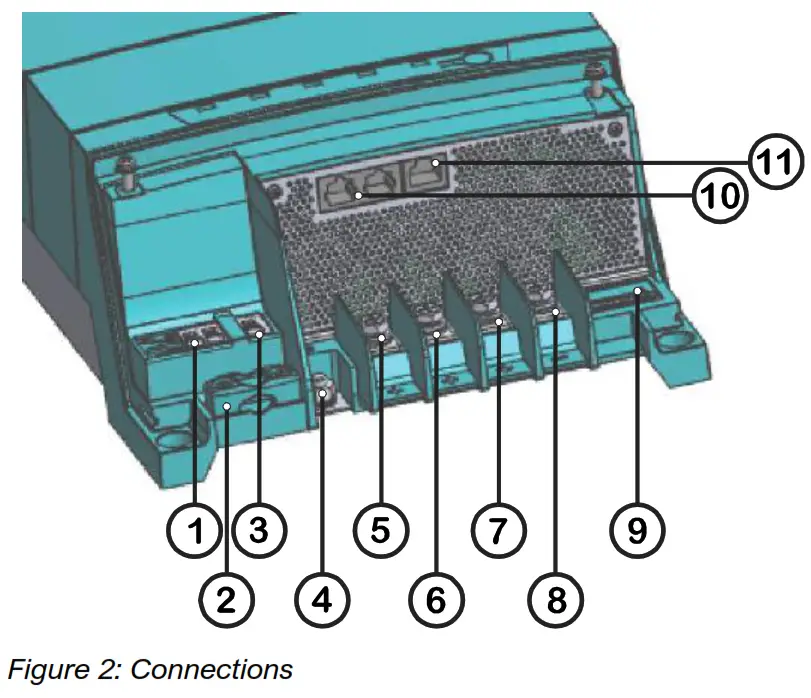
- Spring cage terminal AC input
- Strain relief for AC wiring (M3)
- Safety ground connection 1*
- Safety ground connection 2*
- M6 Positive terminal charge output 1; DC 1 OUT
- M6 Positive terminal charge output 2; DC 2 OUT
- M6 Positive terminal charge output 3; DC 3 OUT
- Common negative output terminal
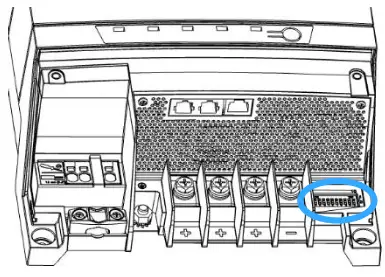
- DIP switches
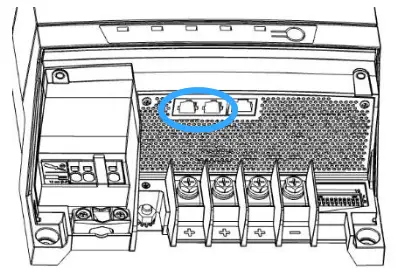
- Network connection (CZone/MasterBus)
- Temperature sensor connection
* There are two safety ground connections. Use only one of them. For details see section 3.7 Connection example.
3.7 Connection example
This schematic illustrates the general placement of the ChargeMaster Plus in a circuit. It is not meant to provide detailed wiring instructions for any particular electrical installation.
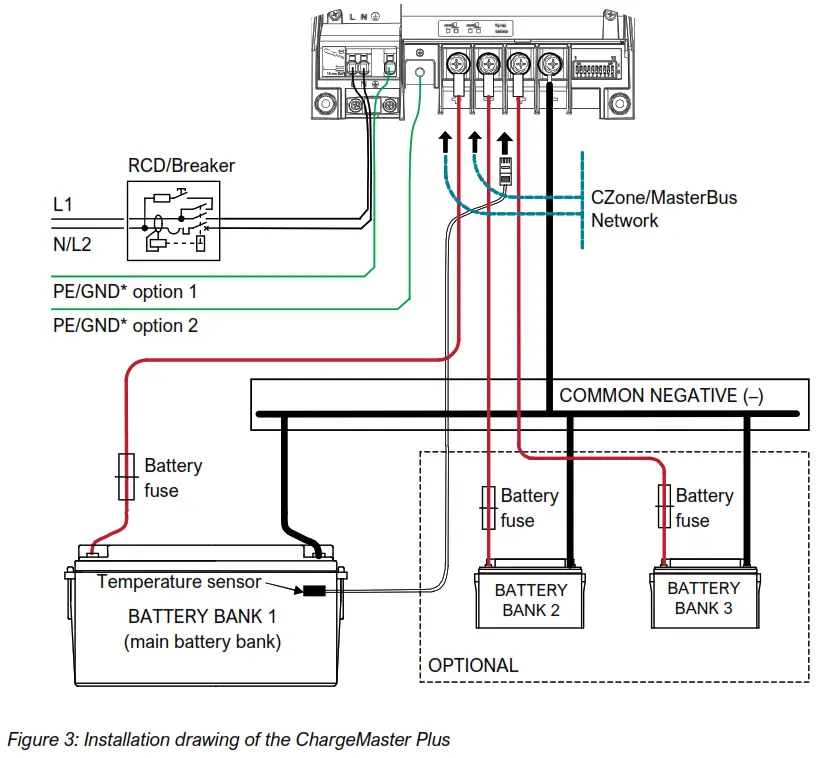
* Use only one of the two options.
When installing the AC wires, keep extra length available for the PE, ensuring the PE will be the last wire to get taut if the wire slips through the anchorage.
Notes:
- If the battery temperature remains within 15-25°C (59-77°F), the connection of the battery temperature sensor is optional.
- Lithium-ion batteries require no temperature sensor.
- If creating a parallel system of multiple ChargeMaster Plus units, the units should be excluded from any isolation measurement system.
WARNING!
All electrical systems (AC and DC) must be disconnected from any power source during the entire installation! CAUTION!
Too-thin cables and/or loose connections can cause dangerous overheating of the cables and/or terminals. Therefore, tighten all connections well, in order to limit transition resistance as far as possible. Use cables of the correct size. CAUTION!
Short-circuiting or reversing the polarity may lead to serious damage to the batteries, the ChargeMaster Plus, the cabling, and/or the terminal connections. Fuses between the batteries and the ChargeMaster Plus cannot prevent damage caused by reversed polarity. The damage as a result of reverse polarity is detectable by the service department and is not covered by the warranty.
3.8 Installation step-by-step


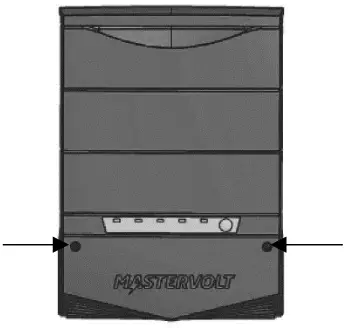
- Open the connection compartment by loosening the two screws.

- Fix the enclosure to the wall by fastening two screws at the lower side of the ChargeMaster Plus as well.

- Connect the AC wiring to the spring clamp terminals:1 Push a flat-blade screwdriver (3mm / 1/8″) into the square hole to open the related wire port.
 2 Insert the wire 15mm / 0.6″ into the opening.
3 Remove the screwdriver.
Fasten the cable with the strain relief.
- Integrate a fuse holder in the positive battery wire but do not place the fuse yet!
Fit crimp-on cable lugs to the DC cables. Connect the DC cabling of battery bank 1, positive to +, negative to –. Tightening torque: 4.9 – 5.4 Nm [43 – 47 In-lb]
Repeat steps for output 2 and 3. - Attach the battery temperature sensor to the casing of battery bank 1. Plug the temperature sensor cable into the “Temp sense” jack.

- Option: Connect the ChargeMaster to the CZone or MasterBus network.

Adding to a CZone network
1 Disconnect the backbone at the closest backbone connection and add in a tee connector.
2 Reconnect the backbone connection(s) with the new tee connector in place.
3 Connect the RJ45 CZone/MB drop cable to the black coupler on the tee and then connect to the ChargeMaster Plus. Plug the connectors into either of the ports.
Adding to a MasterBus network
1 Disconnect a MasterBus cable or Terminator from the closest MasterBus device and connect it to the ChargeMaster Plus.
2 Connect the new MasterBus cable to the other MasterBus device and then connect to the ChargeMaster Plus. Ensure that the network is properly terminated. - If required, use a small screwdriver to change DIP switch settings. See section 4.1.

- Check all wiring; see also Figure 3 for wiring details. If all wiring is OK: Place the DC fuses.
- Close the connection compartment by fixing the screws.

- Continue with section 3.9 for the commissioning of the ChargeMaster Plus.
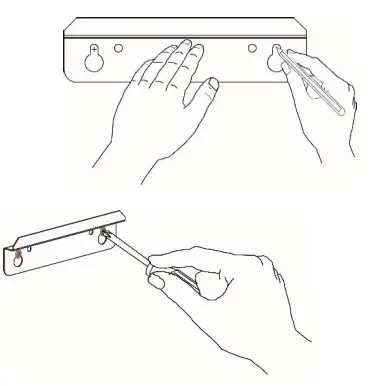
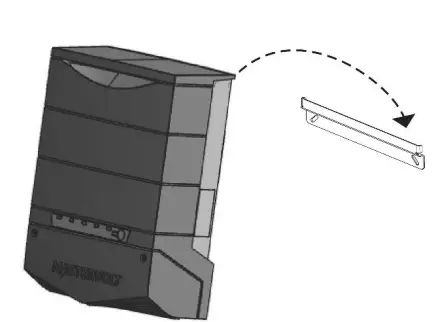
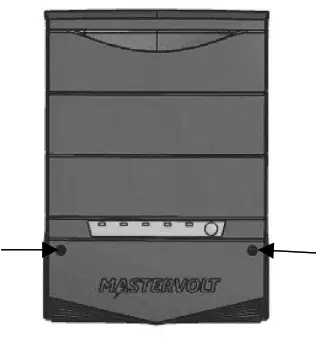
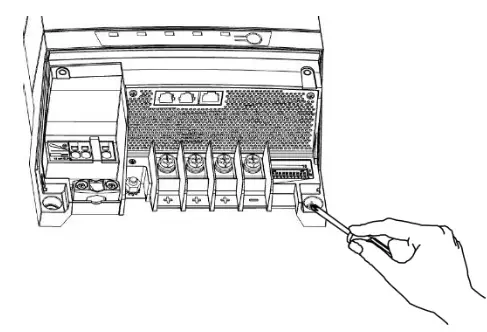
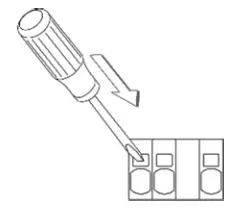 2 Insert the wire 15mm / 0.6″ into the opening.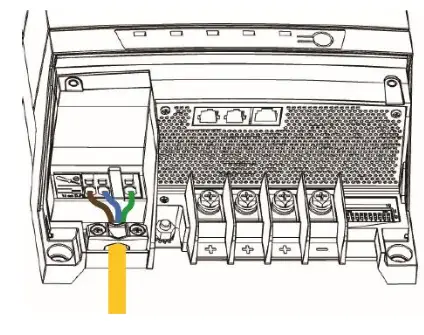
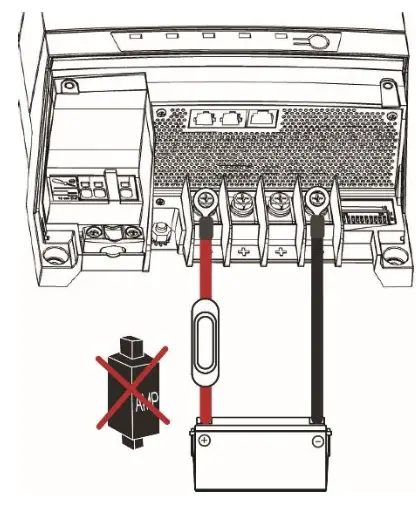 Tightening torque: 4.9 – 5.4 Nm [43 – 47 In-lb]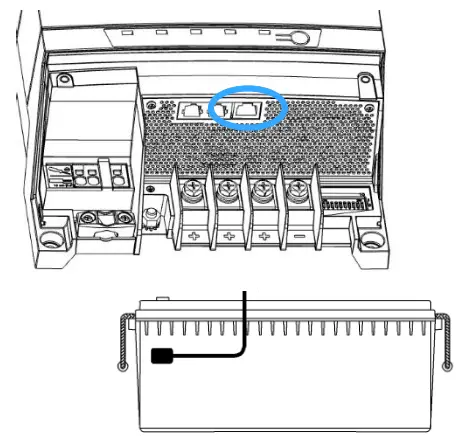
3.9 Commissioning after installation
- Check the wiring; positive connected to positive (red cables), negative connected to the negative (black cables).
- When all wiring is OK, place the DC fuse(s) to connect the batteries to the ChargeMaster Plus. WARNING!
When placing this fuse, a spark might occur, caused by the capacitors used in the ChargeMaster Plus. This is particularly dangerous in places with insufficient ventilation. Due to the gassing of the batteries, an explosion can occur. Avoid having flammable materials close by. - Switch on the AC power supply.
Note: when new, the ChargeMaster Plus will not start charging batteries before being activated with the ON/OFF button. See step 6. - Check the DIP switches. See chapter DIP switch settings on page 16.
- Check and adjust the settings of the ChargeMaster Plus with MasterAdjust (MasterBus network) or with the CZone Configuration Tool (CZone network). See chapter SETTINGS on page 16.
- When the settings meet the power system’s needs, press and hold the ON/OFF button for 3 seconds to switch the charger on and initiate the charging process.
SETTINGS
Adjustments to the settings of the ChargeMaster Plus can be made in two different ways:
- By means of DIP switches.
- From a laptop or notebook connected to the ChargeMaster Plus via a USB Interface. Some settings can only be changed in this way.
CAUTION!
Invalid settings of the ChargeMaster Plus can cause serious damage to your batteries and/or the connected load! Only authorized personnel may adjust settings.
When required, the ChargeMaster Plus can be restored to factory settings (see section 4.2).
4.1 DIP switch settings
Use a small screwdriver to carefully set the required settings.
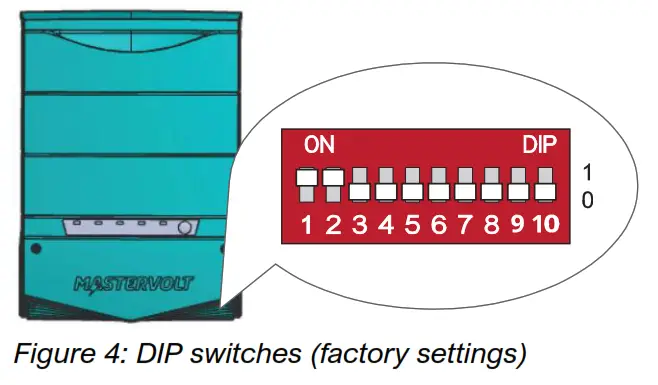
In a CZone network:
Set DIP switches 1 and 2 to OFF. DIP switches 3 to 10 must match the unique address used in the CZone network; the dipswitch. At least one of DIP switches 3 to 10 must be ON. See the CZone Configuration Tool Instructions manual for more information.
In a MasterBus network:
Set DIP switch 1 to ON. DIP switch 2 is MasterBus Powering ON (1) or OFF (0). DIP switches 3 to 5 are used for battery type selection:
| DIP switch | 3 | 4 | 5 |
| MasterBus settings (Flooded)1 | 0 | 0 | 0 |
| Flooded (fixed settings) | 0 | 0 | 1 |
| AGM (fixed settings) | 0 | 1 | 0 |
| Gel (fixed settings) | 0 | 1 | 1 |
| Lithium-ion (fixed settings) | 1 | 0 | 0 |
| Constant voltage (13.25/26.50V)2 | 1 | 1 | 1 |
¹If all DIP switches are in the OFF position (0 ↓), the settings suit a Flooded battery but can be changed in MasterAdjust.
² Constant voltage has no temperature compensation See section 5.4 for more information on charge voltage settings and section 5.5 for DC OUT. DIP switches 6 to 10 are not used in MasterBus.
4.2 MasterBus configuration
MasterBus is a CAN-based data network for communication between Mastervolt devices. When the ChargeMaster Plus is connected, open MasterAdjust on a Windows laptop or notebook connected to the MasterBus network via a MasterBus USB interface. MasterAdjust software is available as free to download software on the Mastervolt website: www.mastervolt.com. This tool runs on a Windows laptop or notebook.
4.2.1 Monitoring
A remote panel, like the SmartRemote, Touch 5 (CZone), or EasyView 5 (MasterBus), can be used for reading battery information. See applicable user manuals for details. The following table lists the parameters as shown in MasterAdjust.
| Parameter | Meaning | Value range |
| General | ||
| Device state | Shows charger state (On / Stand-by / Alarm / Off) | (read only) |
| Charger state | Actual state of charge process: Off/bulk/absorption/float/suspended | (read-only) |
| Parameter | Meaning | Value range |
| ‘Toggle’ button | Button to toggle the charger state. This button does not work when the ChargeMaster Plus is switched off manually. In that case, it can only be switched on with the ON/OFF button. | On / Standby |
| AC IN limit | Option to set the maximum AC input current level to prevent a generator or shore fuse from overload. See section 4.2.6 for more information. Default 20. | 12/35-3: 0-9A 12/50-3: 0-11A 24/20-3: 0-10A |
| 24/30-3: 0-15A | ||
| AC present × | Shows the presence of AC input | (read only) |
| Battery temp.× | Temperature of the main battery bank (in °C) | (read only) |
| DC 1 OUT | ||
| Output 1× | Output state | (read-only) |
| Output 1 V | Voltage of charge output 1 | (read only) |
| Output 1 A | Output current of charge output 1 | (read only) |
| Batt/Shunt link | A connected MasterShunt can be chosen for feedback on the charged battery. Default not selected. | (read only) |
| DC 2 OUT | ||
| Output 2× | Output state | (read only) |
| Output 2 V | Voltage of charge output 2 | (read only) |
| Output 2 A | Output current of charge output 2 | (read only) |
| DC 3 OUT | ||
| Output 3× | Output state | (read only) |
| Output 3 V | Voltage of charge output 3 | (read only) |
| Output 3 A | Output current of charge output 3 | (read only) |
× Parameters marked with a × are not available in CZone.
4.2.2 Alarms
The following table lists the available alarms in MasterAdjust.
| Parameter | Meaning |
| Alarm status | |
| Bat. temp. error | Battery temperature too high / too low |
| TS error | Temperature sensor error |
| AC error | AC input (mains) out of range |
| Dev. temp. high | ChargeMaster Plus temperature too high |
| Shunt mismatch | Setting for nominal voltage (12/24V) at the MasterShunt or the nominal voltage of the MLI batteries differs from the nominal voltage detected by the ChargeMaster Plus. Check battery voltage and settings of the MasterShunt or voltage of the MLI Ultra battery. |
| Reverse polarity | DC + and DC – are connected in reverse (this will damage the charger) |
4.2.3 History
The history data shows the absolute maximum readings. The following parameters are only shown in MasterAdjust.
| Parameter | Meaning |
| Days running | Total run time in charger mode |
| Total Ah’s | Total charged Ah’s |
- 4.2.4 Configuration settings
The configuration can be done in MasterAdjust, from a laptop or notebook connected to the ChargeMaster Plus via a Mastervolt USB Interface. See applicable user manuals for details. The following table lists the parameters as shown in MasterAdjust.
Notes: – DIP switch settings overrule MasterBus settings. If DIP switches are not in their default setting, the corresponding MasterBus setting is grayed out.
– To be able to make changes to the configuration via MasterBus, DIP switch 1 must be in the ON position.
| Parameter | Meaning | Factory setting | Value range |
| Device | |||
| Languageû | Menu language of this device | English | EN, NL, DE, FR, ES, IT, NO, SV, FI, DA |
| Name | Name of this device. This name will be recognized by all devices connected to the network | ChargeMaster | 0-12 characters |
| Powersave modeû | If Powersave mode is ON, the charger will switch itself off when no AC power is available. | On | On, Off |
| If Powersave mode is OFF, the charger stays ON even when no AC power is available. | |||
| CZone enabled | This checkbox is marked when the ChargeMaster Plus is set up to work in a CZone network | Off | (read-only) |
| DIP Switches | DIP switch settings | 11 00000000 | (read-only) |
| Charger | |||
| Method | Charge method | 3-Step+ | 3-Step+, constant voltage |
| DC current limit | Maximum DC output current | Depending on the model, 100% | Depending on model 20-100% |
| Battery type | The battery type settings are based on Mastervolt batteries. If connecting batteries of a different manufacturer, make sure the manufacturer’s recommendations are met. Should this not be the case, then “User-defined” must be selected to change the settings. | Flooded | User-defined, AGM, Gel, Flooded, Lithium-ion (MLI) |
| Temp. compensate | Temperature depended on charge voltage compensation | -0,030V/°C /-0,060V/°C | -1,000/+1,000V/°C |
| Bulk | |||
| Voltage | Bulk voltage (@ 25°C); see section 5.4 | 14.40/28.80V | 8-16/16-32V |
| Minimum time | Minimum time of the Bulk phase since Start bulk timer | 120sec | 0-240sec |
| Start time at | Battery voltage trigger point to start the bulk timer | 13.25/26.50V | (read-only) |
| Maximum time | Maximum time of the Bulk phase since Start bulk timer | 480 min | 0-1440min |
| Parameter | Meaning | Factory setting | Value range |
| Absorption | |||
| Voltage | Absorption voltage (@ 25°C); see section 5.4 | 14.25/28.50V | 8-16/16-32V |
| Maximum time | Maximum absorption timer | 240min | 0-1440min |
| Return Amps | Return amps. If the charge current drops below this level, the charger switches from the Absorption to the Float stage (% of Imax) | 6% | 0-50% |
| Minimum time | Minimum absorption timer | 15min | 0-240min |
| Float | |||
| Voltage | Float voltage (@ 25°C); see section 5.4 | 13.25/26.50V | 8-16/16-32V |
| Return to bulk V | Return to bulk voltage; If the battery voltage stays below this level for at least the Return to bulk delay time, the charger will start the Bulk stage | 12.80/25.60V | 8-16/16-32V |
| Return to bulk sec | Return to bulk delay time, see Return to the bulk voltage | 30sec | 0-240sec |
| DC 1 OUT | |||
| Name | Name of this output | Output 1 | 0-16 chars |
| Batt/Shunt link | Selection of the MasterShunt to which output 1 of the ChargeMaster Plus is connected | Not selected | Not selected, MSH + Product Name, BAT + Product Name |
| DC 2 / 3 OUT | |||
| Name | Name of this output | Output 2 / 3 | 0-16 chars |
| Installer menu | |||
| Factory settings button× | Button to reset the ChargeMaster Plus to default settings (requires installer rights) | Not applicable | Not applicable |
× Parameters marked with a × are not available in CZone.
4.2.5 Events – System automation
A CZone/MasterBus device can be programmed to initiate an action at another connected device. This is very helpful in the automation of your system but is not required.
In MasterBus this is done by means of event-based commands. In the Events tab, you can program the ChargeMaster Plus to act as an event source. Events that occur during the operation of the ChargeMaster Plus will then trigger actions from other products. The following tables list the parameters as shown in MasterAdjust.
| Field | Meaning | Value |
| Event x source | Select an event that triggers an action, for example, Battery pre-low. | See Event source list |
| Event x target | Select the device that should take action, for example, the generator | Selectable targets are system dependent |
| Event x command | Select the parameter that must be changed on the target device, for example, Activate. | See the command list of the selected device |
| Event x data | Data, for example, On, is linked to the command. | Off, On, Copy, Copy Invert, Toggle |
Table 1: MasterBus event parameters
The ChargeMaster Plus can be configured as an event source. An event source can be used to initiate an event command and an event action by another device.
| Event source | Meaning |
| Charger state | State of the ChargeMaster Plus serves as an event source |
| Bulk | Bulk state of charge serves as an event source |
| Abs | Absorption state of charge serves as an event source |
| Float | Float state of charge serves as an event source |
| Failure | Any fault condition of the ChargeMaster Plus serves as an event source |
Table 2: ChargeMaster Plus MasterBus Event sources
When the ChargeMaster Plus is configured as an event target by another device, this device can initiate an event command and an event action to be performed by the ChargeMaster Plus.
| Event command | Meaning |
| On | Command to switch on the ChargeMaster Plus |
| Bulk | Command to start the Bulk state of charge |
| Abs | Command to start the Absorption state of charge |
| Float | Command to start the Float state of charge |
| Suspend charging | When using an MLI Ultra Li-ion battery, this event is obligatory. Refer to the MLI Ultra manual. |
Table 3: ChargeMaster Plus MasterBus Event commands
4.2.6 Current control
If the available power at the AC input is limited. The ChargeMaster can be configured to reduce input current. The Current Control level should be set equal to or lower than the value of the external circuit breaker, which protects the incoming AC power. For example, when the external AC power is limited by a 6A fuse, the Current Control level should be set to ≤6A. The AC input current of the ChargeMaster Plus will be reduced to 6A.
How to set the AC input current in a MasterBus network
- Open MasterAdjust.
- Select the ChargeMaster Plus.
- Go to the Monitoring tab.
- In the Input Current field, enter the required value.
4.3 MasterShunt
In a MasterBus network, a MasterShunt can be coupled with output 1 (DC 1 OUT) of the ChargeMaster Plus. The actual measurement data of the MasterShunt will be used to charge the batteries. Refer to the manual of the MasterShunt for information on how to configure your system.
4.4 Lithium-ion Battery MLI Ultra
The ChargeMaster Plus can be combined with a Li-ion MLI Ultra battery. Refer to the manual of the MLI Ultra for information on how to configure your system.
WARNING!
Before using the Li-ion battery, it must be properly installed and commissioned!
4.5 CZone configuration
The CZone® network is an NMEA 2000-compliant CAN-based system. When the ChargeMaster Plus is connected, open the CZone Configuration Tool on a Windows laptop or notebook connected to the CZone network. Either do the configuration while connected to the network or use a prepared configuration file (.zcf). Ensure that a DIP Switch is assigned.
Adding the ChargeMaster Plus to a CZone system configuration Precondition: This section assumes that a CZone system is already configured and the CZone Configuration Tool is open.
In the CZone Configuration Tool, from the Modules tab, press the Add button.
From the Module Type drop-down list select Chargers.
From the Charge Type drop-down list select the required model and continue with the following steps.
- Enter an understandable Module Name.
- Each device on a CZone network has a unique CZone address; the Dipswitch. This number must match the physical DIP switch settings. When connected to the system: either select one from the drop-down list or edit graphically.
- Select the Battery Type.
- Enter the DC Current Limit.
- Option: press the Advanced Settings button to configure advanced options.
- Select the required Charge Method from the drop-down list.
- Enter an understandable Name for DC 1 OUT, DC 2 OUT, and DC 3 OUT.
- NMEA2000 Instances are used to differentiate between multiple monitoring sources.
- Press OK to return to the Module Modification window and press the Alarm/Switch Settings button.
- Select the required Alarm Severities.
- Press OK.
Optionally configure digital switching by adding Circuit Controls in the Circuits tab (e.g. a battery low switch can be used to start a generator). Write the configuration to the network to use the new configuration.
 For more information, please refer to the CZone® Configuration Tool Instruction manual. Also see section 4.2 for a description of the same settings in MasterAdjust.
OPERATING INSTRUCTIONS
5.1 Introduction
The Mastervolt ChargeMaster Plus is a fully automatic battery charger. This means that under normal circumstances, it can be left switched on with AC power and batteries connected. The ChargeMaster Plus is suitable for charging of Li-ion and lead-acid batteries, which may include maintenance-free, low maintenance, AGM, gel or deep-cycle batteries. It operates on both 240V and 120V.
WARNING!
The MLI charging voltages on this charger fit the Mastervolt Li-ion (MLI) batteries but do not necessarily fit other Li-ion batteries! Always follow the instructions provided by
the battery manufacturer!
5.2 Switching on / off
The ChargeMaster Plus is activated by keeping the ON/OFF button pressed for approximately 3 seconds. The MODE LED will illuminate green. If necessary and if AC power is available, the ChargeMaster Plus will start to charge the batteries.
Note: Once switched on, the ChargeMaster Plus automatically resumes operation after it was disconnected from an AC source temporarily.
By holding the ON/OFF button pressed again for approx. In 3 seconds, the ChargeMaster Plus will switch off: the ChargeMaster Plus stops and the MODE LED illuminates red. When the ChargeMaster Plus was switched off, it can only be activated by pressing the ON/OFF button again. WARNING!
Switching the ChargeMaster Plus off or “stand-by” does not cut off the connection to the batteries or the AC source. This means that voltages are still present inside the apparatus.
5.3 Status display
The status display at the front side of the ChargeMaster Plus enables you to control the charger and monitor the charging process.
Note: The ChargeMaster Plus can also be monitored from a remote panel like the Touch 5 (in a CZone network) or the EasyView 5 (in a MasterBus network). See section 4.2 for details.
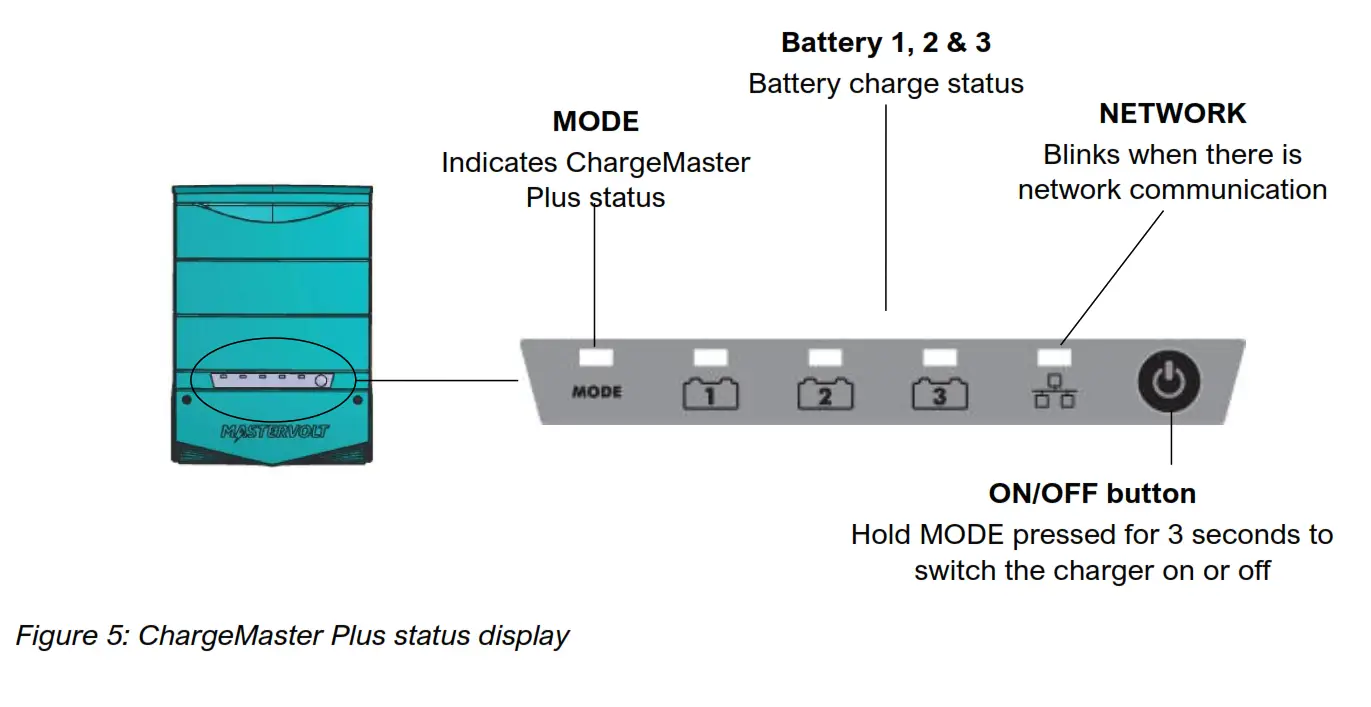
The status display has a 3-level menu. Menu navigation is done by shortly pressing the ON/OFF button. After each press the next menu level is shown. The MODE LED color indicates the level that is being shown.
| Menu | MODE LED color | Meaning |
| Level 1 | Green | Status menu |
| Level 2 | Orange | Output power menu |
| Level 3 | Red | Error menu |
Status
| LED | State | Meaning |
| MODE | Solid green | ChargeMaster Plus on |
| Solid red | ChargeMaster Plus stand-by | |
| Blink fast red | Error, navigate to the error menu | |
| Battery 1 | Blinking fast green | Battery in bulk stage |
| Blinking slow green | Battery absorption stage | |
| Solid green | Battery in the float stage | |
| Battery 2 | Blinking fast green | Battery in bulk stage |
| Blinking slow green | Battery absorption stage | |
| Solid green | Battery in the float stage | |
| Battery 3 | Blinking fast green | Battery in bulk stage |
| Blinking slow green | Battery absorption stage | |
| Solid green | Battery in the float stage | |
| Network | Blinking green | Network communication |
Output power
| LED | State | Meaning |
| MODE | Solid orange | Output power menu |
| Battery1 | Solid orange | Total output power 025% |
| Battery2 | Solid orange | Total output power 2650% |
| Battery3 | Solid orange | Total output power 5175% |
| Network | Solid orange | Total output power 76- 100% |
Error
| LED | State | Meaning | What to do |
| MODE | Blink fast red | Error menu | |
| Battery 1 | Blink fast red | Reverse polarity | Check battery connection |
| Battery 2 | Blink fast red | AC error | Check AC voltage/ frequency |
| Battery 3 | Blink fast red | DC error | Check battery voltage |
| Network | Blink fast red | Tempera- ture sense error | Check temperature sensor |
5.4 The 3-step+ charge process
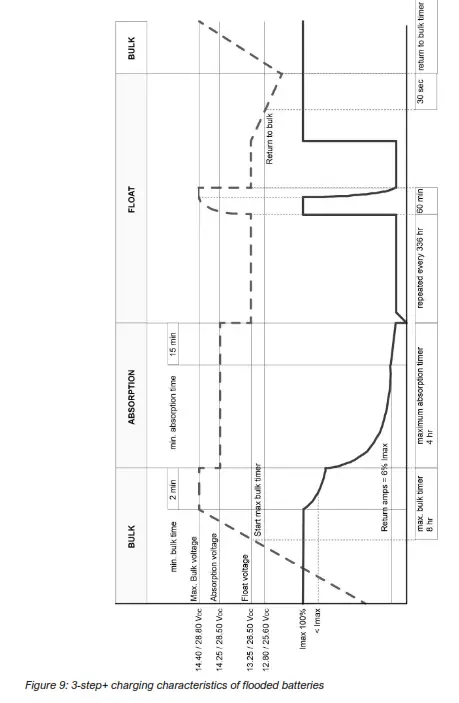
Battery charging is accomplished in three automatic stages: BULK, ABSORPTION, and FLOAT. The first step is the BULK phase, in which the output current of the charger is 100%, and the greater part of the capacity of the battery is rapidly charged. The current charges the batteries and gradually the voltage rises to the BULK voltage of 14.25V respectively 28.5V at 25°C/77°F.
The duration of this phase depends on the ratio of battery to charger capacity, and the battery state of charge.
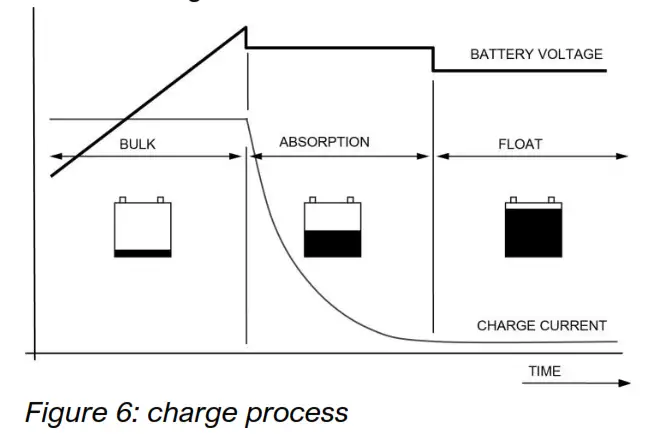
The BULK phase is followed by the ABSORPTION phase. Absorption charging starts when the voltage on the batteries has reached the BULK voltage and ends when the battery is completely full. Battery voltage remains constant at 14.25V/28.5V at 25°C/77°F throughout this stage, and the charge current depends on the degree to which the battery was initially discharged, the battery type, and the ambient temperature, etc. With a flooded battery, this stage lasts approx. 4h, with gel and AGM around 3h. Once the battery is 100% full, the ChargeMaster Plus automatically switches over to the FLOAT phase. In FLOAT, the ChargeMaster Plus switches to a stabilized 13.25V/26.5V (Flooded), 13.8V/27.6V (Gel/AGM), or 13.5V/27V (MLI) at 25°C/77°F.
Connected DC loads are powered directly by the charger. If the load exceeds the charger capacity, the required additional power comes from the battery, which will be progressively discharged until the charger automatically switches back to the bulk phase. Once consumption decreases, the charger goes back to the normal operation of the 3-step charge system.
As the ChargeMaster Plus is equipped with a 3step+ charge system, the batteries can also remain connected to the ChargeMaster Plus during winter. One hour every 14 days the
charger automatically switches to absorption to keep the battery running properly and prolong its life span. The three-step plus charge system is also safe for all the connected equipment. See also Figure 9 on page 31.
5.4.1 Charge voltages
| Bulk | Absorption | Float |
| AGM or 14.25 / | 14.25 / | 13.80 / |
| GEL 28.5 | 28.5 | 27.6 |
| Flooded 14.25 / | 14.25 / | 13.25 / |
| 28.5 | 28.5 | 26.5 |
| Lithium-ion 14.00 / | 14.00 / | 13.50 / |
| 28.0 | 28.0 | 27.0 |
5.4.2 Pre-float
The ChargeMaster Plus can automatically switch each individual output from absorption to pre float stage. Pre-float ensures batteries that are nearly full don’t receive the higher charge voltage needed in the absorption stage. This prevents over-charging, extending the lifespan of the batteries.
5.4.3 Temperature compensated charging
By installing the battery temperature sensor, the charge voltages are automatically adapted for deviating temperatures.
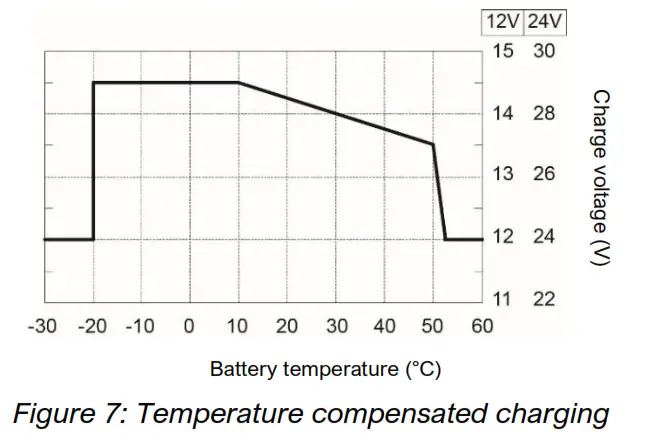
When the battery temperature is low, the charge voltage increases. On the other hand, when the battery temperature is high, the charge voltage is decreased. Overcharge and gassing are prevented this way. This will extend the life of your batteries.
5.4.4 Flat battery support
The ChargeMaster Plus automatically detects a flat battery and will initiate the flat battery charge curve described in the following table.
| UBat | Voltage | Output power |
| 12V | 0.00V — 2.50V | |
| 24V | 0.00V — 5.00V | 15%-30% of Lax |
| 12V | 2.50V — 8.00V | |
| 24V | 5.00V — 16.00V | 25% of !max |
| 12V | 8.00V — 10.00V | linear from 25% – |
| 24V | 16.00V — 20.00V | 100% of Lax |
| 12V | 10.00V — 14.25V | |
| 24V | 20.00V — 28.50V | 100% of Lax |
| 12V | >14.25 | |
| 24V | >28.50 | Limited by Pmax |
5.5 DC OUT
The ChargeMaster Plus is equipped with three full outputs; DC 1 OUT, DC 2 OUT, and DC 3 OUT. The total output current is divided over these three outputs. All batteries are charged with the same settings. See section 3.6 for connections.
5.6 Maintenance
No specific maintenance to the ChargeMaster Plus is required. Examine your electrical installation on a regular basis, at least once a year. Defects such as loose connections, damaged wiring, etc. must be corrected immediately. If necessary, use a soft clean cloth to clean the enclosure of the ChargeMaster Plus. Do not use any liquids or corrosive substances, such as solvents, alcohol, petrol, or abrasive components.
5.7 Storage
If it is necessary to put the ChargeMaster Plus out of operation, execute the following steps:
- Turn AC power off.
- Switch off the ChargeMaster Plus (see section 5.2).
- Remove the DC fuse(s) and disconnect the batteries.
- Switch the RCD/Breaker of the AC input to the OFF position and, if required, disconnect the AC mains.
- Open the connection compartment of the ChargeMaster Plus.
- Check with a suitable voltage meter whether the inputs and the outputs of the ChargeMaster Plus are voltage free.
- Disconnect all the wiring.
Now the ChargeMaster Plus can be remounted in a safe way. When not installed, store the ChargeMaster Plus in a dry and dust-free environment. To return to normal operation, after reinstallation, switch on the AC.
TROUBLESHOOTING
The ChargeMaster Plus is protected against overload, short circuit, overheating, and under and over-voltage. If a fault condition occurs, the LEDs indicate an error code. See section Status display for an explanation. CAUTION!
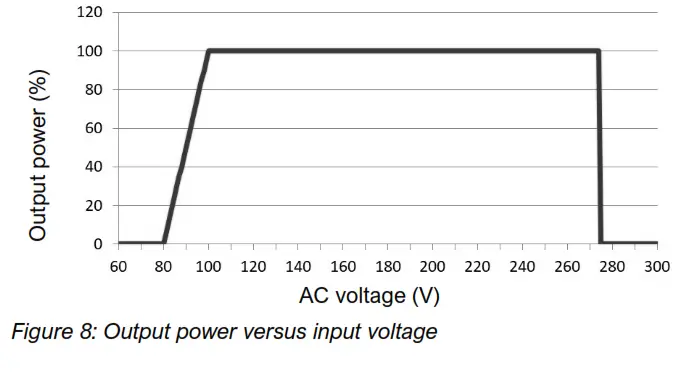
The ChargeMaster Plus is not protected against serious overvoltage (>275VAC) on the AC input.
If you cannot solve a problem using the fault-finding table, contact your supplier or Advanced Systems Group. Make sure you have the part and serial number at hand.
| Malfunction | Possible cause | What to do |
| No output voltage and/or current | No AC input | Check AC wiring, check the remote control panel |
| AC input voltage too low (< 75VAC) | Check input voltage, check generator | |
| AC input frequency out of range | Check input voltage, check generator | |
| Output voltage too low, charger supplies maximum current | Load connected to the batteries is larger than the charger can supply | Reduce load taken from the batteries |
| Batteries, are not 100% charged | Measure battery voltage. After some time this will be higher | |
| Wrong setting of the charge voltage | Check settings (see chapter 4) | |
| Charge current too low | Batteries are almost fully charged | Nothing, this is normal when the battery is almost fully charged |
| High ambient temperature | Nothing; if the ambient temperature is more than the set limit, the charge current is automatically reduced | |
| Low AC input voltage. At lower AC input voltages, the charge current is reduced | Check AC input voltage | |
| Batteries not fully charged | Charge current too low | See “Charge current too low” in this table |
| The current to load is too high | Reduce load taken from the batteries | |
| Charge time too short | Use a battery charger with a higher capacity | |
| Battery temperature too low | Use the battery temperature sensor | |
| Defective or old battery | Check battery and replace if necessary | |
| Wrong setting of the charge voltage | Check settings (see chapter 4) | |
| Batteries are discharged too fast | Battery capacity is reduced due to wastage or sulphation, stagnation | Charge and recharge a few times, this might help Check battery and replace if necessary |
| Batteries are too warm, gassing | Defective battery (short circuit in a cell) | Check battery and replace if necessary |
| Battery temperature too high | Use the battery temperature sensor | |
| Charge voltage too high | Check settings (see chapter 4) |
| Malfunction | Possible cause | What to do |
| Remote panel display shows no ChargeMaster Plus | Display is switched off | Switch on display, refer to display manual |
| Error in the wiring | Check the network cables | |
| No terminating device is placed at the ends of the network | A network needs a terminating device on both ends of the network, check if available | |
| Network is configured as a ring network | Ring networks are not allowed. Check the connections of the network. | |
| ChargeMaster Plus is not configured in CZone configuration file | Open CZone Configuration Tool and check. | |
| ChargeMaster Plus Dipswitch is not correct | Open CZone Configuration Tool and check with Force Dipswitch for Address. | |
| Slow or no MasterBus communication. | Error in the MasterBus wiring | Check the network cables |
| No MasterBus Terminator placed at the ends of the network | MasterBus needs a terminating device on both ends of the network. Check if connected | |
| MasterBus network is configured as a ring network or there are T- connections | Ring networks and T-connections are not allowed. Check the connections of the network |
TECHNICAL DATA
7.1 Specifications 12V models
| Model | 422354 121504 |
| Product code | 44310355 44310505 |
| Nominal input voltage | 120/240V 120/240V |
| Nominal input frequency | 50/60Hz 50/604b |
| Full load consumption | 600VA 850VA |
| Max_ AC input current (CI 230VAC) | 2.5A 3.5A |
| Max. AC input current (@) 120VAC)” | 5.0A 7.1A |
| Nominal output voltage | 14.25V 14.25V |
| Total charge current’ | 35A at 14.25V 50A at 14.25V |
| Number of battery outlets | 3 3 |
| Charge characteristic’ | logo, automatic, 3-step• |
| Charge voltage Bulk’ | 14.4V 14.4V |
| Charge voltage Absorption’ | 14.25V 14.25V |
| Charge voltage Float’ | 13.25V 1325V |
| Max absorption and max bulk timer* | 8 hours (start max. bulk timer at 13.2W) |
| Minimum absorption time’ | 15 min. 15 min. |
| Maximum ripple voltage on DC | 180mV pp 180mV pp |
| Battery type settings’ | Flooded (debult), GEL, AGM, Lithium-ion (MU). Constant voltage (13.25V) |
| Dimensions (mm) | 291x210x105 291 x210x105 |
| Dimensions (inch) | 11.5×8.3×4.1 11.5×83,&4.1 |
| Weight | 2,5 kg (5.5 Ibs) 2,5 kg (5.5 Ibs) |
| Recommended battery capacity | 70-300Ah 100A00Ah |
| Power factor regulations | z 0,98 a 0,98 |
| Temperature compensation | Battery temperature sensor and cable included. |
| Voltage compensation | Yes, by means of automatic compensation or MasterShunt |
| DC consumption | <2mA (MasterBus off) <2mA (MasterBus off) |
| Temperature range | -25°C (-13°F) to 80°C (1761) Derating icx.rt (0.596rF) from 40°C (104T) to 60°C (140°F) Derating 896PC (4.496PF) from 60°C (140°F) to 70°C (158°F) Communication available, 0% output power from 70’C (158T) to 80°C (176°F) |
| Cooing | Vario fan and natural cooling to ensure the optimized coating |
| Sound level | <45dBA / 1m |
| Protection degree | IP 23 IP 23 |
| CZone connectivity | Yes Yes |
| MasterBus connectivity | Yes Yes |
| Powering capabilities for MasterBus | Yes, when the charger is switched on and AC is available, it can power up to three non-powering devices. |
| Ignition protected | Yes, conforming to SAE J1171/ISO 8846 |
* Adjustable, see chapter 4 for settings.
** The input RCD/Fuse rating selection must be greater than 120% of the max input current (@ 120VAC) or in accordance with the requirements of national electrical regulations.
Specifications are subject to change without prior notice.
7.2 Specifications 24V models
| Model | 24/20-3 | 24/30-3 |
| Product code | 44320205 | 44320305 |
| Nominal input voltage | 120/240V | 120/240V |
| Nominal input frequency | 50/60Hz | 50/60Hz |
| Full load consumption | 700VA | 1000VA |
| Max. AC input current (@ 230VAC) | 2.8A | 4.2A |
| Max. AC input current (@ 120VAC)** | 5.6A | 8.6A |
| Nominal output voltage | 28.5V | 28.5V |
| Total charge current* | 20A at 28.5V | 30A at 28.5V |
| Number of battery outlets | 3 | 3 |
| Charge characteristic* | IUoUo, automatic, 3-step+ | |
| Charge voltage Bulk* | 28.8V | 28.8V |
| Charge voltage Absorption* | 28.5V | 28.5V |
| Charge voltage Float* | 26.5V | 26.5V |
| Max absorption and max. bulk timer* | 8 hours (start max. bulk timer at 26.5V) | |
| Minimum absorption time* | 15 min. | 15 min. |
| Maximum ripple voltage on DC | 300mV pp | 300mV pp |
| Battery type settings* | Flooded (default), GEL, AGM, Lithium-ion (MLI), Constant voltage (26.5V) | |
| Dimensions (mm) | 291×210×105 | 291×210×105 |
| Dimensions (inch) | 11.5×8.3×4.1 | 11.5×8.3×4.1 |
| Weight | 2,5 kg (5.5 lbs) | 2,5 kg (5.5 lbs) |
| Recommended battery capacity | 160-400Ah | 200-500Ah |
| Power factor regulations | ≥0,98 | ≥ 0,98 |
| Temperature compensation | Battery temperature sensor and cable included. | |
| Voltage compensation | Yes, by means of automatic compensation or MasterShunt | |
| DC consumption | <2mA (MasterBus off) | <2mA (MasterBus off) |
| Temperature range | –25°C (–13°F) to 80°C (176°F) Derating 1%/°C (0,5%/°F) from 40°C (104°F) to 60°C (140°F) Derating 8%/°C (4,4%/°F) from 60°C (140°F) to 70°C (158°F) Communication available, 0% output power from 70°C (158°F) to 80°C (176°F) | |
| Cooling | Vario fan and natural cooling to ensure optimized cooling | |
| Sound level | <45dBA / 1m | |
| Protection degree | IP 23 | IP 23 |
| CZone connectivity | Yes | Yes |
| MasterBus connectivity | Yes | Yes |
| Powering capabilities for MasterBus | Yes | Yes |
| When the charger is switched on and AC is available, it can power up to three non-powering devices. | ||
| Ignition protected | Yes, conforming to SAE J1171/ISO 8846 | |
* Adjustable, see chapter 4 for settings
** The input RCD/Fuse rating selection must be greater than 120% of the max input current (@ 120VAC) or in accordance with the requirements of national electrical regulations. Specifications are subject to change without prior notice.
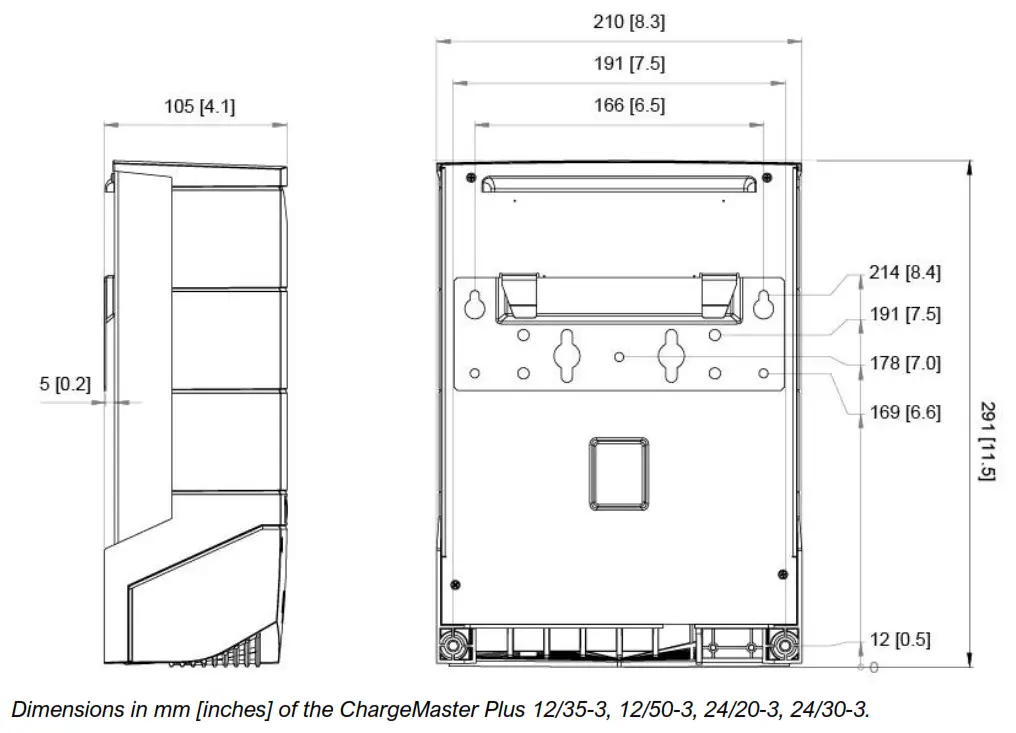
7.3 Dimensions
7.4 Characteristics
Copyright © 2021 Advanced Systems Group. All rights reserved.
Reproduction, transfer, distribution or storage of part or all of the contents in this document in any form without the prior written permission of Advanced Systems Group is prohibited.

| Europe, Middle East & Africa Customer Service T: +31 (0) 20 34 22 100 E: [email protected] Technical Support T: +31 (0) 20 34 22 100 E: [email protected] Location & Shipping Advanced Systems Group EMEASnijdersbergweg 93 1105 AN Amsterdam The Netherlands | Americas & Caribbean Customer Service T: +1 800 307 6702, Option 1 E: [email protected] Technical Support T: +1 800 307 6702, Option 2 E: [email protected] Location & Shipping Advanced Systems Group US N85 W12545 Westbrook Crossing Menomonee Falls, Wisconsin 53051 United States | Asia Pacific Customer Service T: +64 9 415 7261 Option 1 E: [email protected] Technical Support T: +64 9 415 7261 Option 3 E: [email protected] Location & Shipping Advanced Systems Group APAC 42 Apollo Drive Rosedale, Auckland 0632 New Zealand |
 Mastervolt - Innovative power systemsfor autonomous use