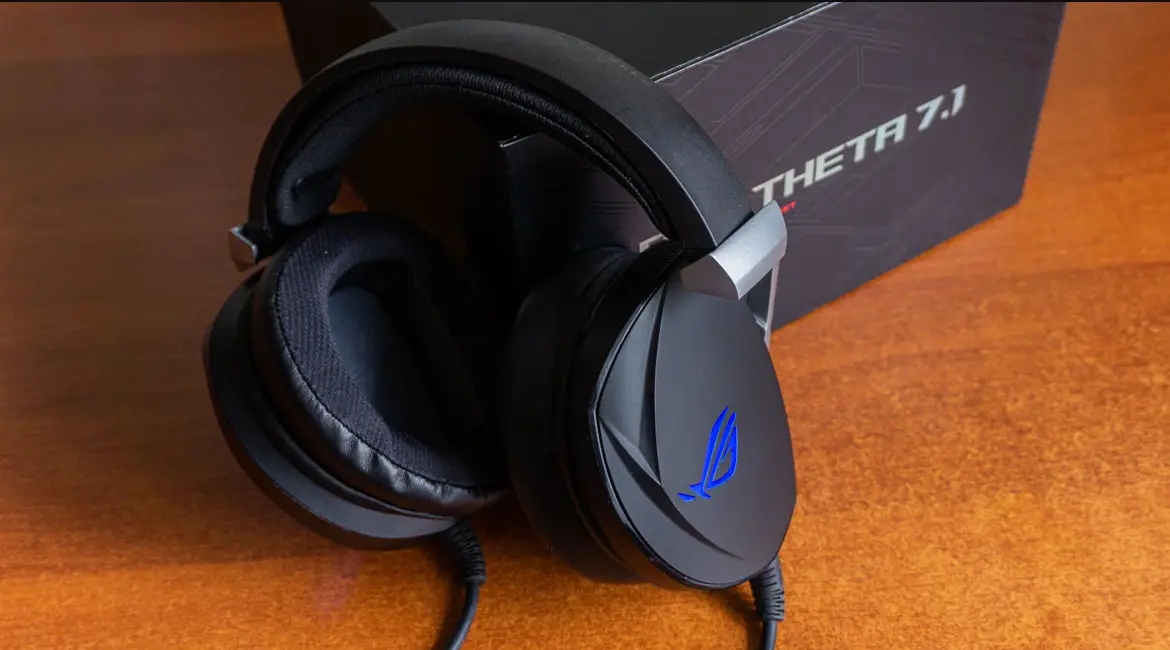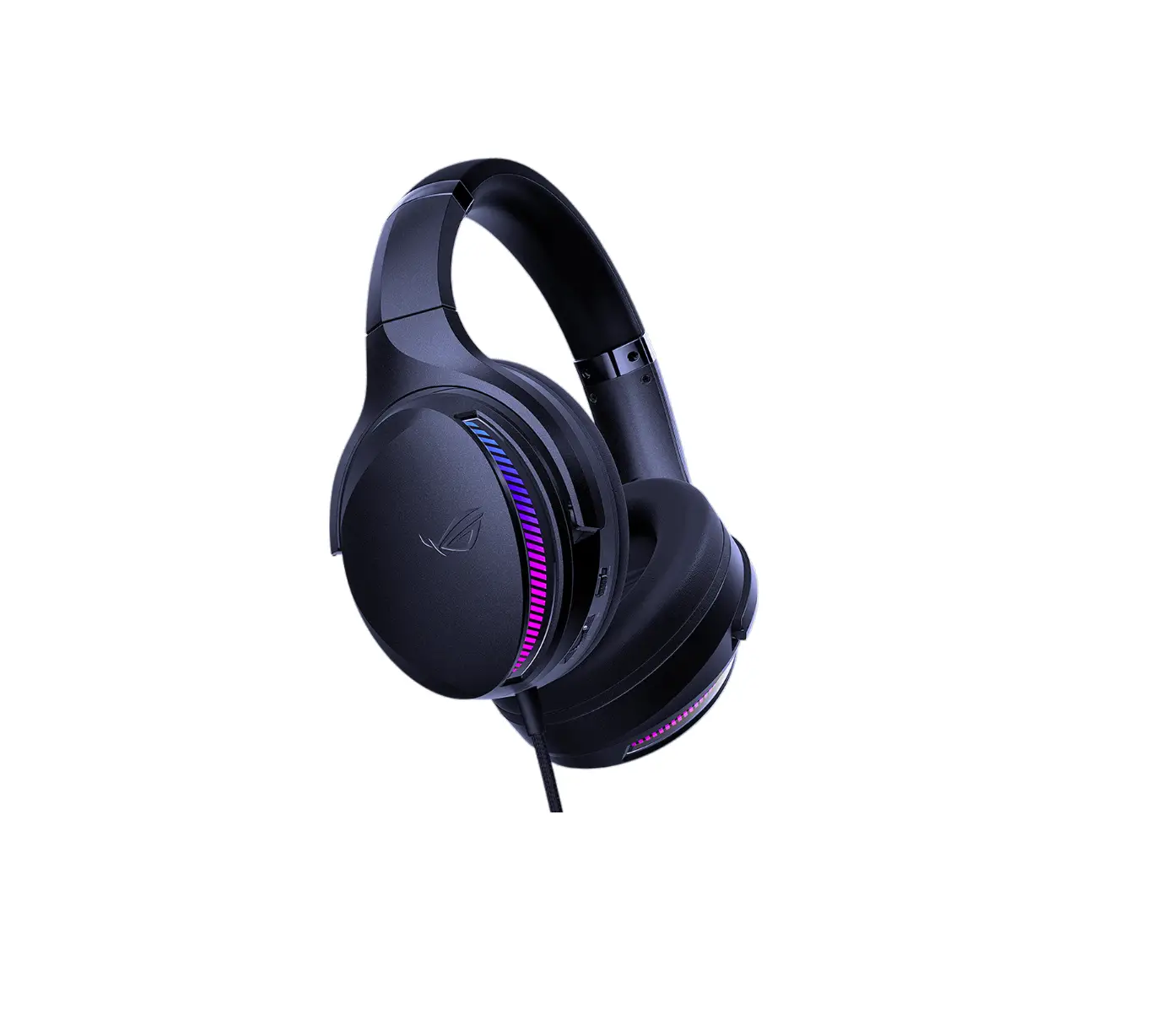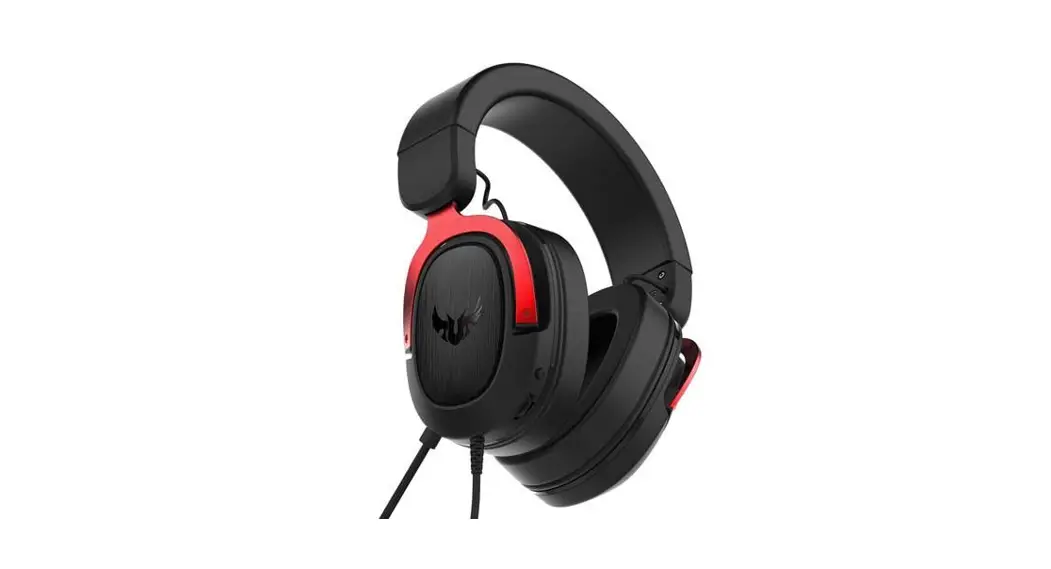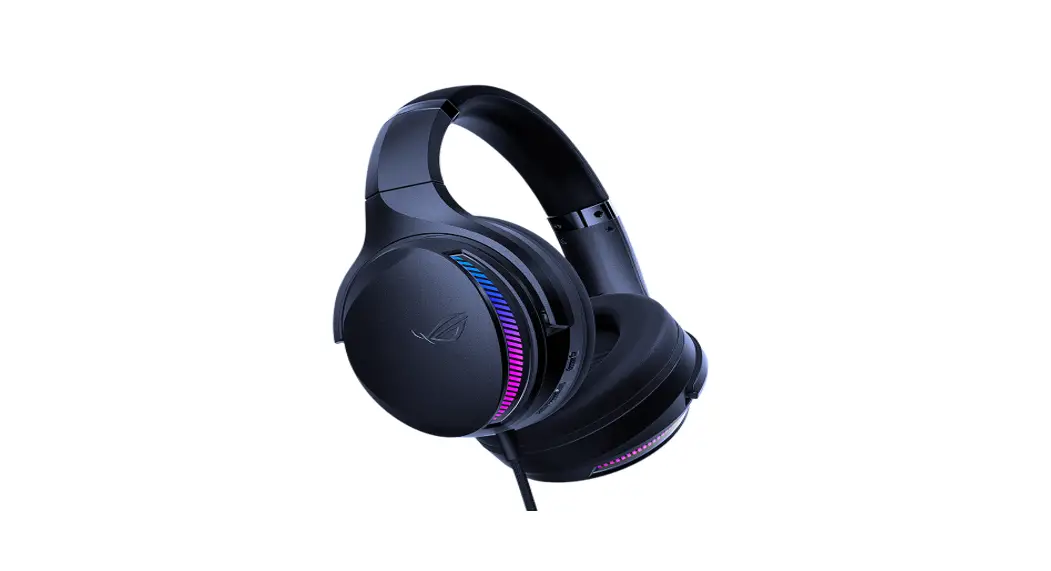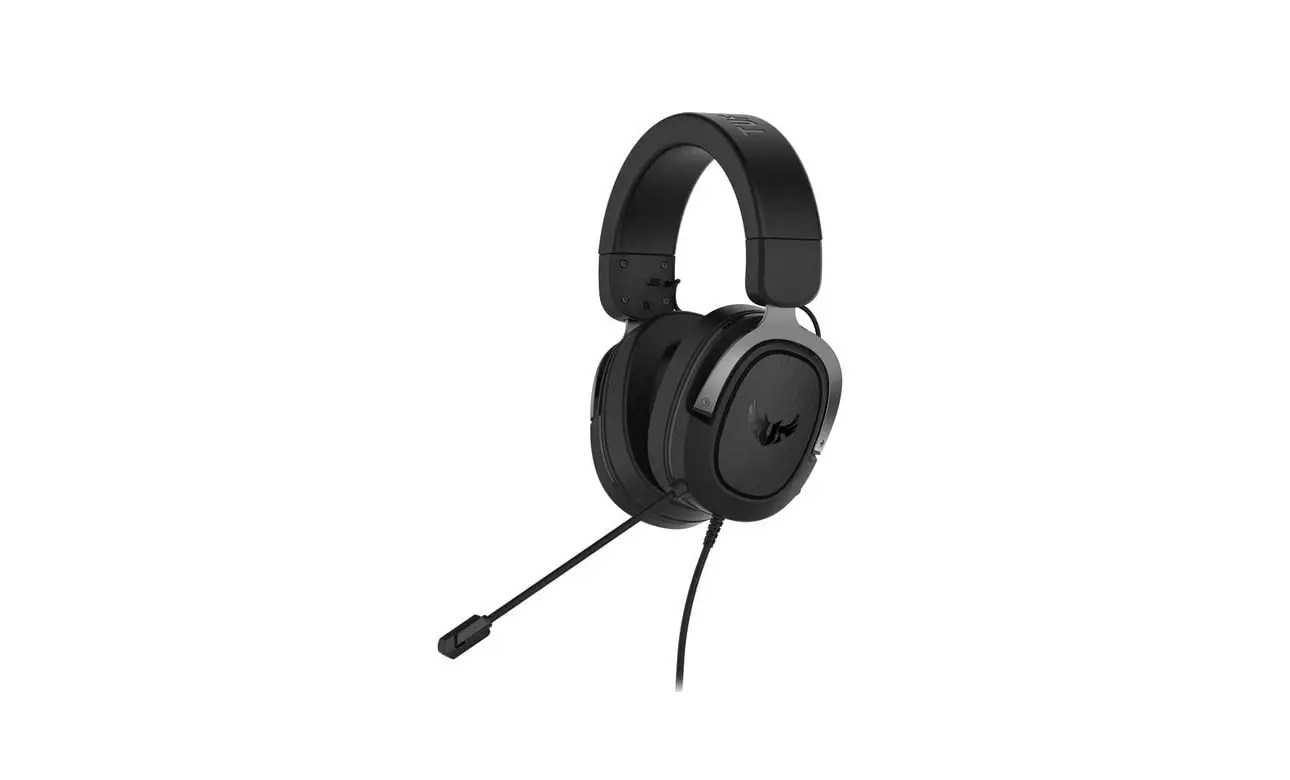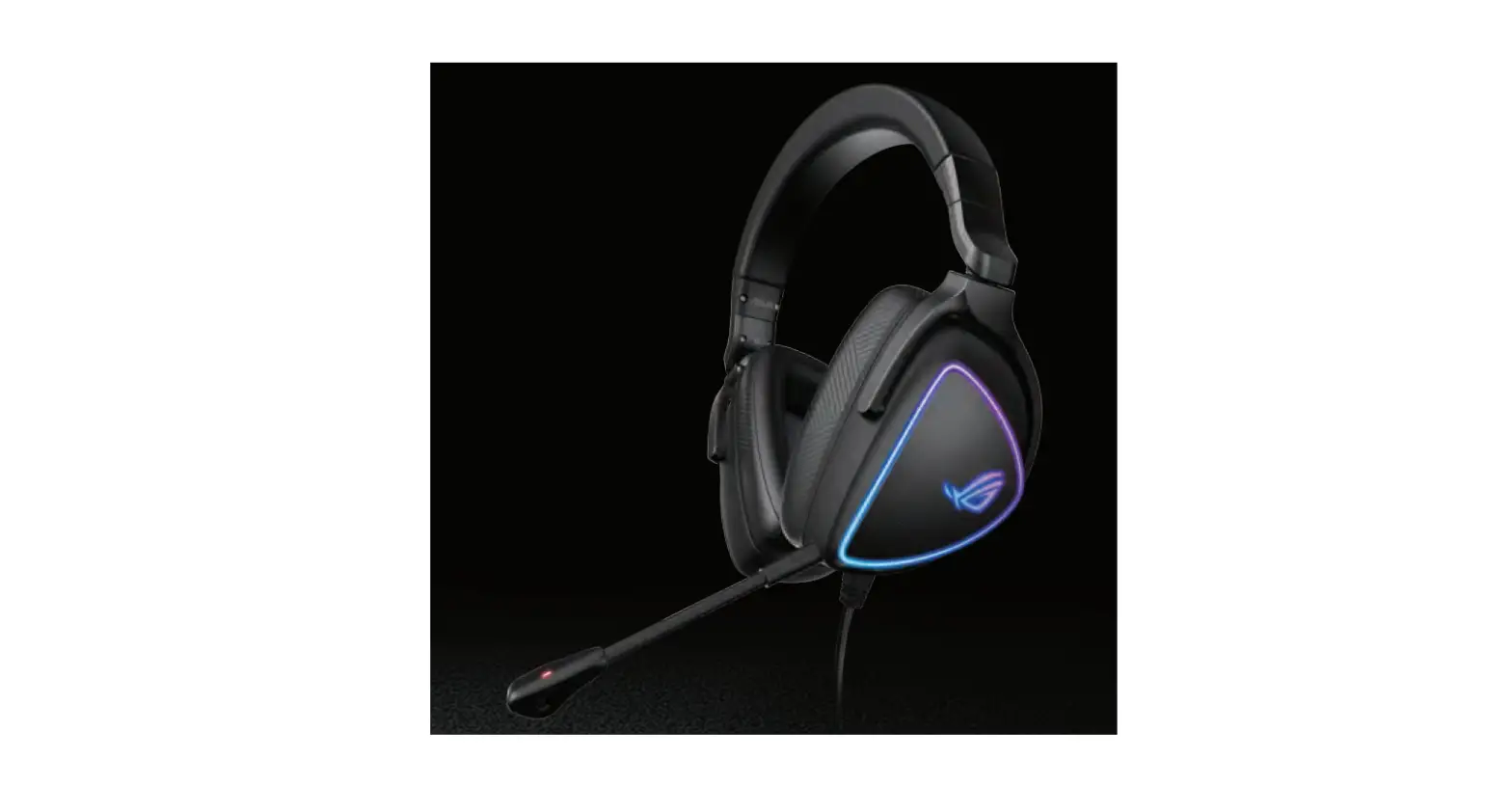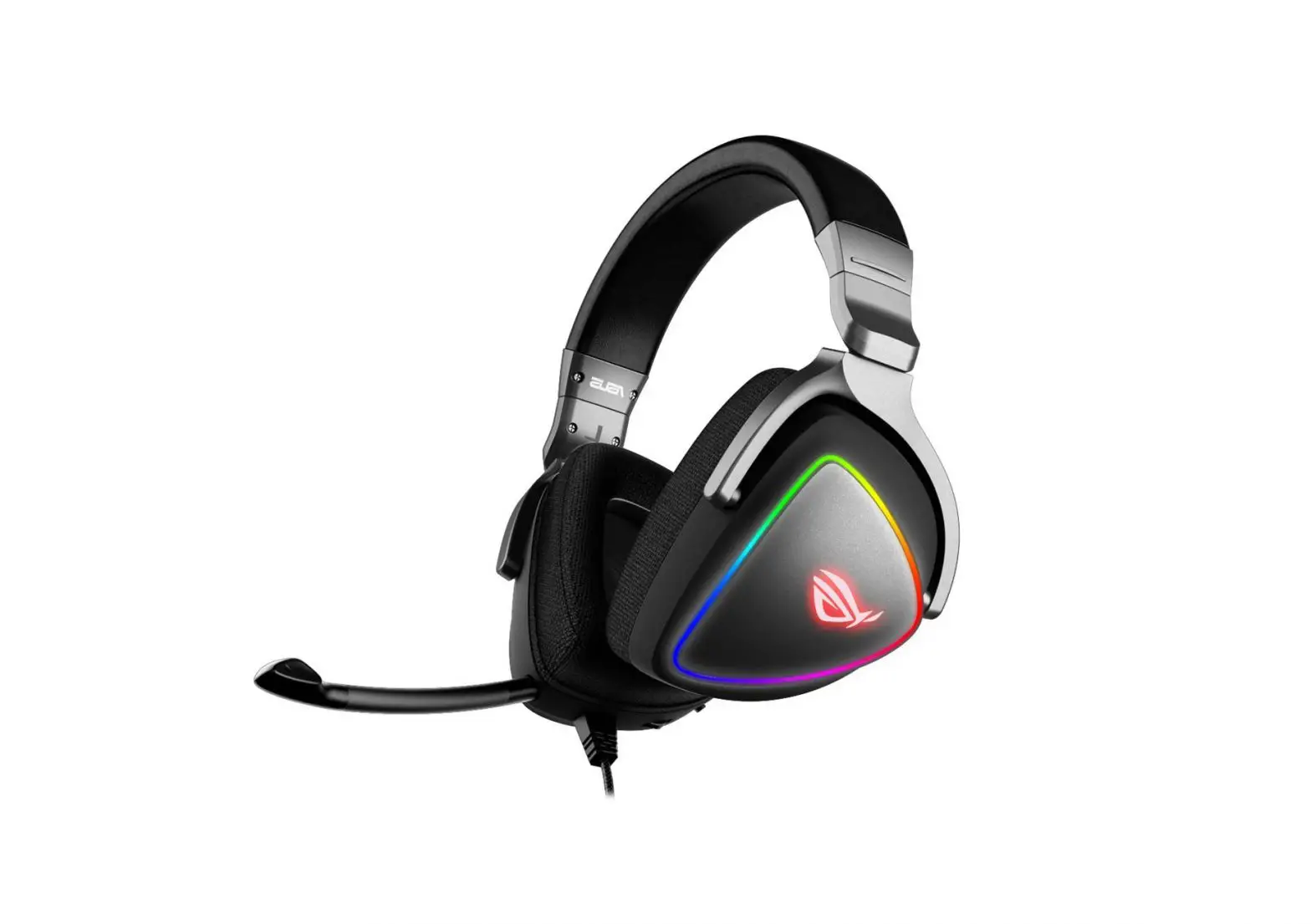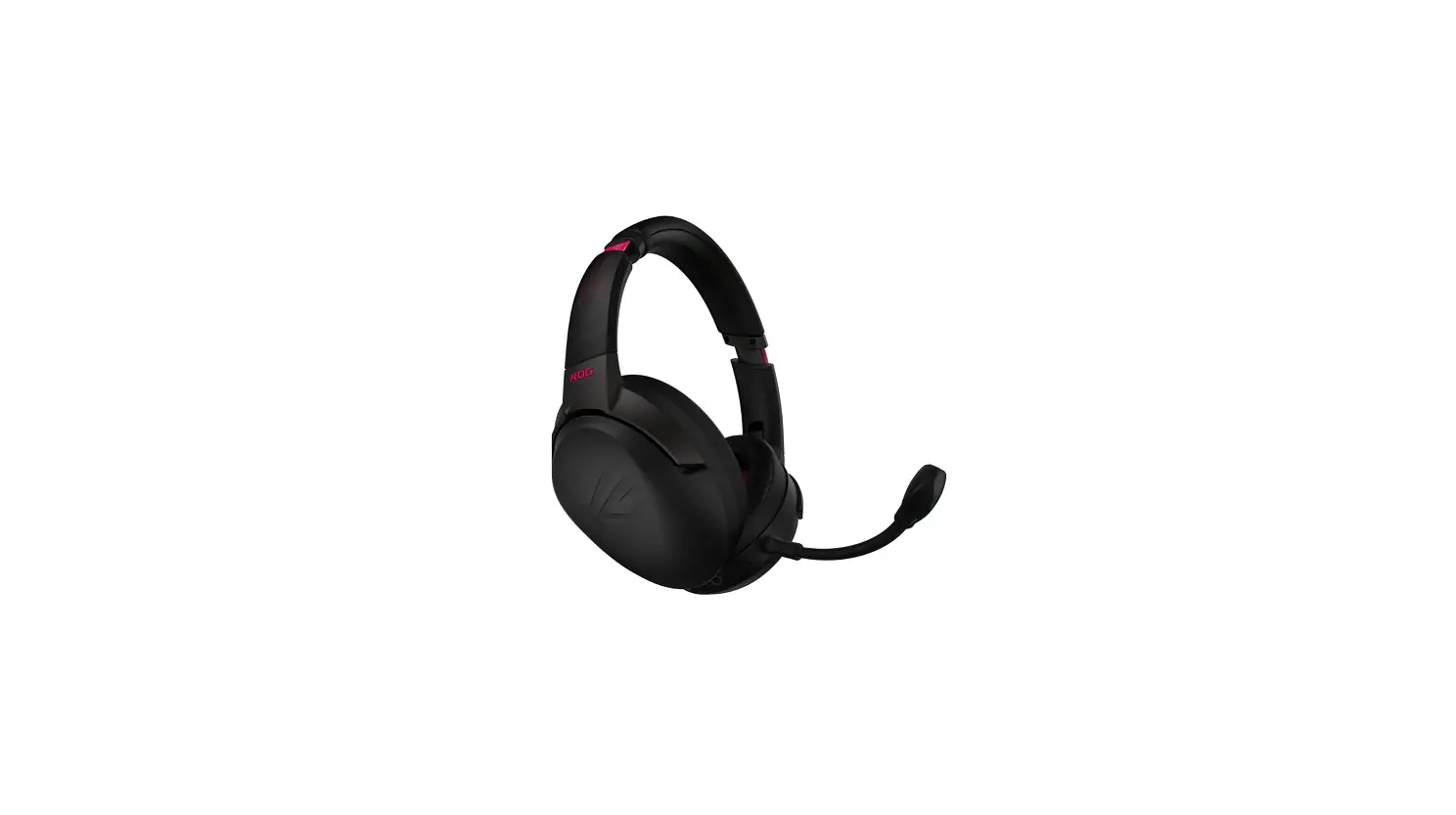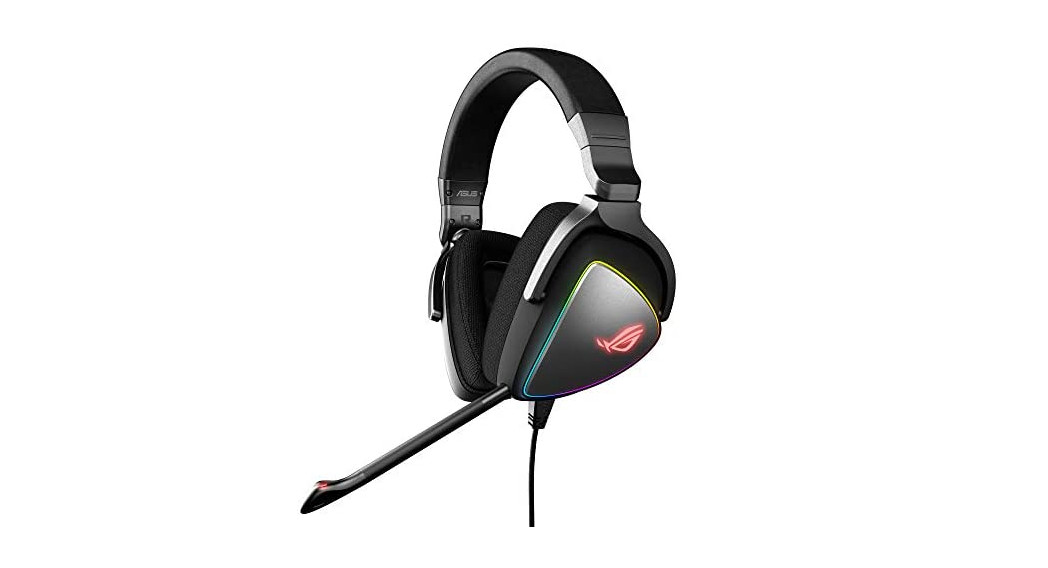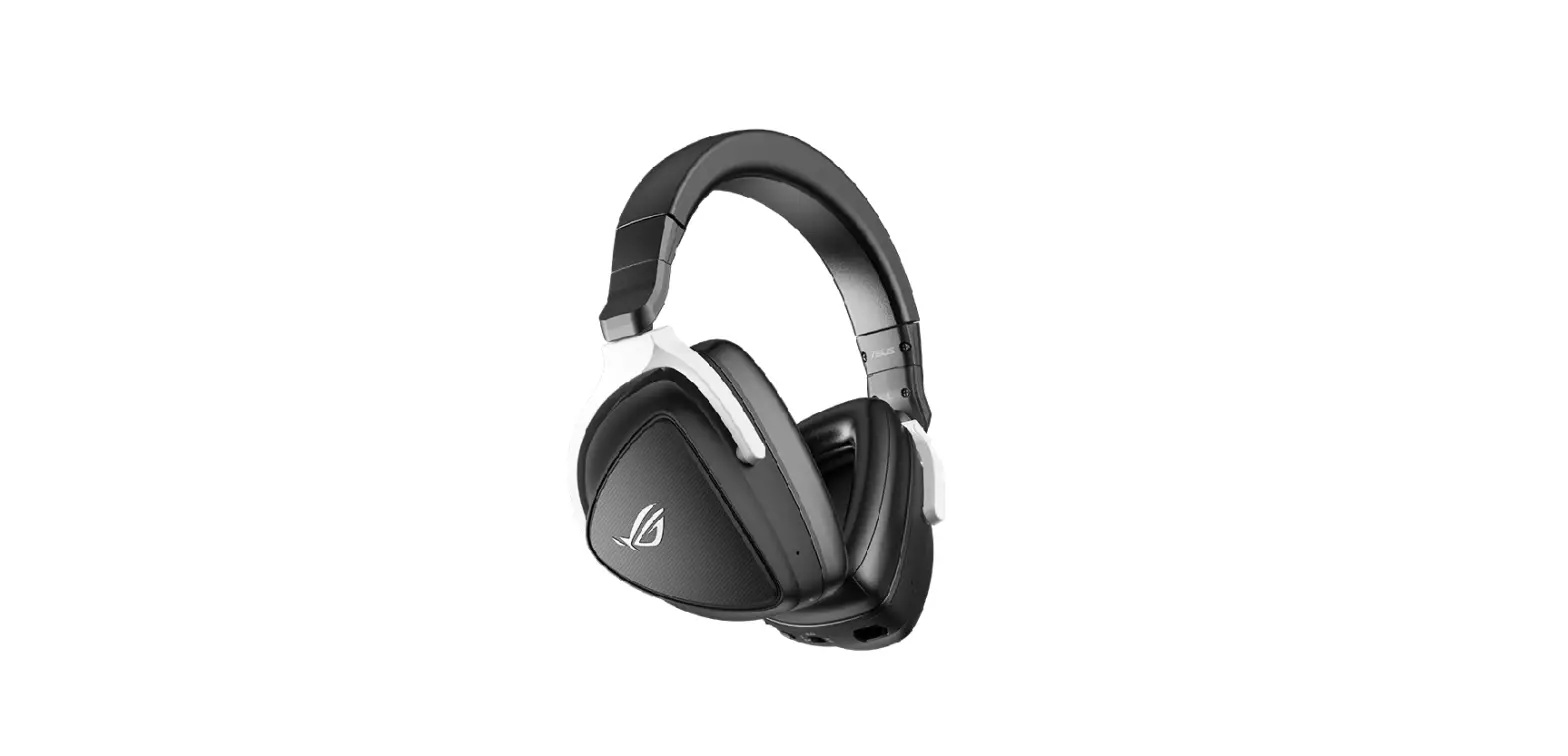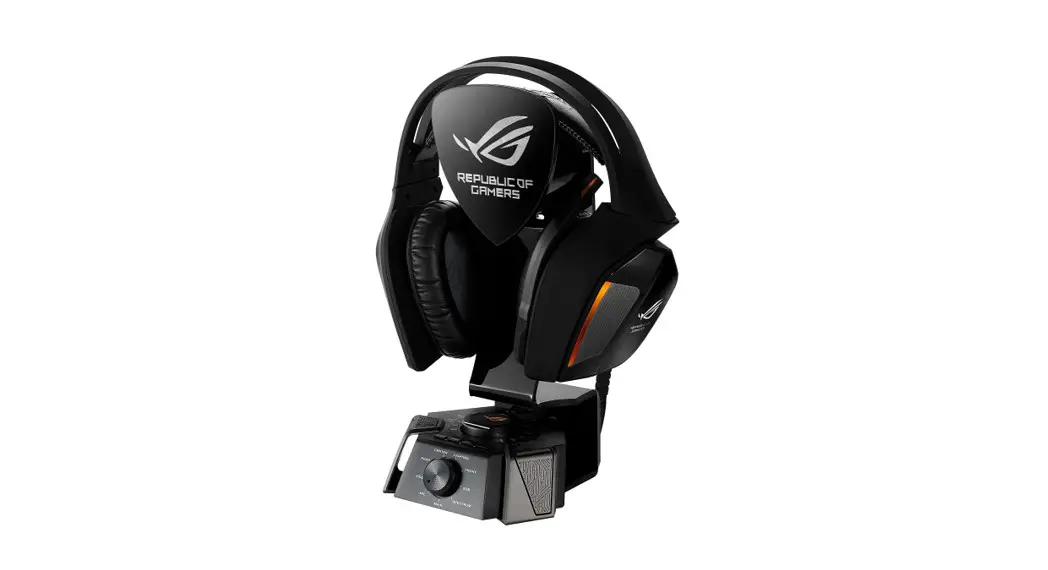

ROG Centurion
True 7.1 GamingHeadset
Quickstart Guide
Package contents
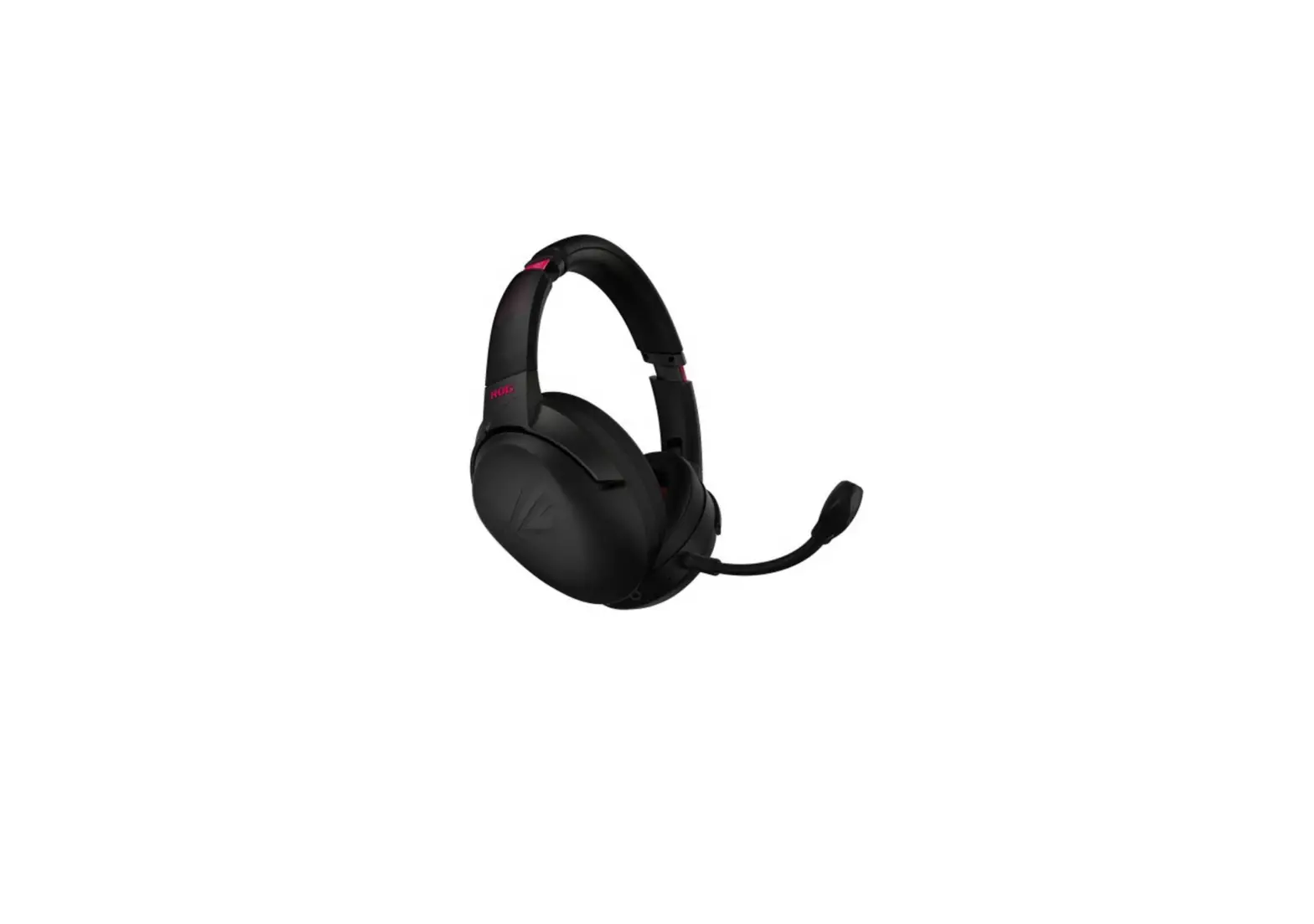
- ASUS ROG Centurion True 7.1 Gaming Headset
- ROG Centurion control box
- Quick Start Guide
- Ear cushions
- USB Y-cable
- HDMI Speaker cable
- Headset stand
Safety Guidelines
- If your device does not work properly and troubleshooting does not work, unplug the device and contact the ASUS Service Center for assistance. DO NOT attempt to service or fix the device yourself.
- DO NOT disassemble the device as doing so will void its warranty.
- Protect the cables from being stepped on or compressed, particularly at the point where it exits from the device.
- Keep the device away from liquid, humidity, or moisture. Operate the device only within the specific temperature range of 0°C (32°F) to 40°C (104°F).
Maintenance
ASUS ROG Centurion Gaming Headset requires minimum maintenance to keep it in optimum condition. We recommend that you unplug the device from the USB port and clean it once a month using a slightly wet soft cloth or cotton swab. DO NOT use soap or harsh cleaning agents.
Product Highlights
- True 7.1 surround with five pairs of neodymium magnet speakers for precise positioning and immersive game audio
- Adjustable individual audio channels
- ENC (Environmental Noise Cancellation) switch filters out 90% of environmental noise for clear in-game communications
- Ultra-comfortable ergonomic design for all head shapes/sizes
- Travel-friendly foldable design for on-the-go games
- Four Gaming Spectrum modes
- Hi-Fi ESS headphone amplifier for better audio performance
- Full audio control with Sonic Studio which provides more flexibility and more advanced features
Device Layout
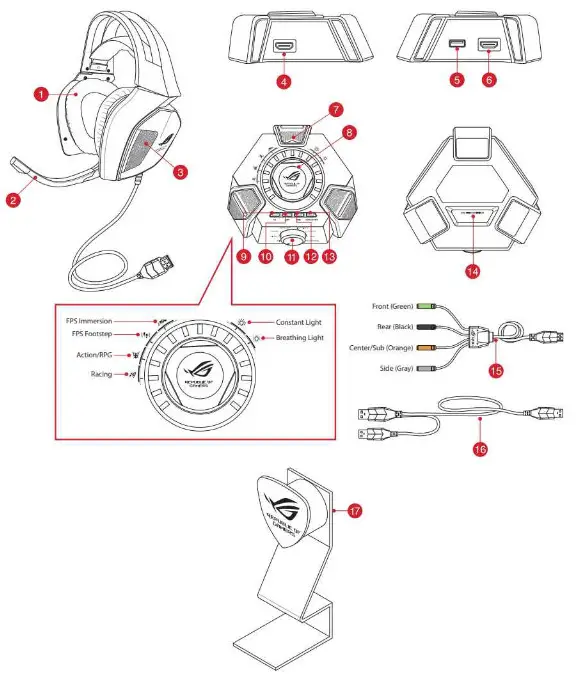
- True 7.1 Gaming Headset
- Retractable digital microphone boom
- Five pairs of neodymium magnet speakers
- HDMI headset port
- USB port
- HDMI speaker port
- ENC (Environmental Noise Cancellation) microphone
- Mode on/off switch and Mode parameter control•
- 1-channel / stereo switching button
- Headphone amplifier on/off
- Mode selector
- Quick microphone mute/unmute
- Headset/speaker switching button
- ENC (Environmental Noise Cancellation) on/off switch
- HDMI speaker cable
- USB Y-cable
- Kensington lock (hole at the back)
NOTE: * Refer to the table in the section Using the ROG Centurion Control Box for the functions of the Mode Selector and Mode On/Off Switch & Mode Parameter Control
Using the ROG Centurion Control Box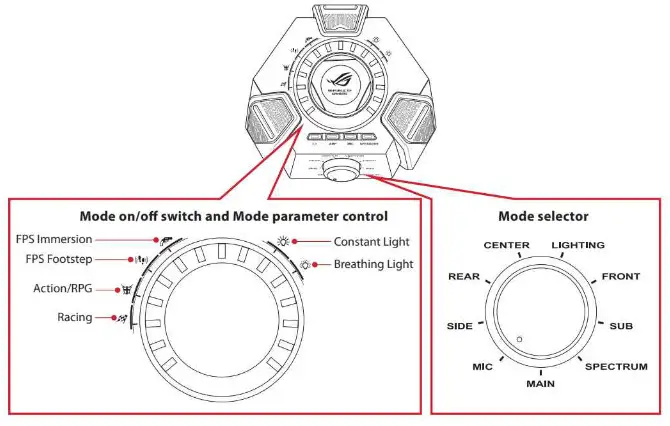
Below is the list of functions of the Mode Selector and Mode On/Off Switch & Mode Parameter Control:
| Mode Selector (Turn) | Mode On/Off Switch (Press) | Mode Parameter Control (Turn) |
| Main | Mute/Unmute the headset | Adjust the main listening volume |
| Center | Mute/Unmute the center channel | Adjust the center channel volume |
| Sub | Mute/Unmute the subchannel | Adjust the subchannel volume |
| Front | Mute/Unmute the front channels | Adjust the front channel volume |
| Rear | Mute/Unmute the rear channels | Adjust the rear channel volume |
| Side* | Mute/Unmute the side channels | Adjust the side channel volume |
| Mic | Mute/Unmute the headset microphone | Adjust the microphone volume |
| Spectrum | Turn on/off the spectrum presets | Select one of the spectra presets: • FPS immersion |
| Lighting | Tune on/off the headset lighting | Select between the lighting modes: • Constant light • Breathing light |
NOTE: Some contents may only have up to 5.1 (6 channels) and have no sound on the side channels.
Four quick-access buttons are also available for:
- Switching between 7.1-channel and stereo mode
- Turning on/off the headphone amplifier
- Muting/unmuting the microphone
- Switching between headset and speakers
Connecting your devices
- Connect the headset to the HDMI headset port of the ROG Centurion control box.
- Connect the single-USB end of the bundled USB Y-cable to the USB port on the ROG Centurion control box and the other end to your computer.
- Connect the microphone boom to the headset for two-way communication.
- Connecting your speakers:
a.Connect the HDMI connector of the bundled HDMI speaker cable to the ROG Centurion control box.
b.Connect the four colored jacks of the bundled HDMI speaker cable to the appropriate audio ports on your speakers. Refer to the color indications of the four colored jacks below.
- Green: Front
- Orange: Center / Sub
- Black: Rear
- Gray: Side
- Press the headset/speaker switching button to switch between headset and speakers.
Environmental Noise Cancellation (ENC)
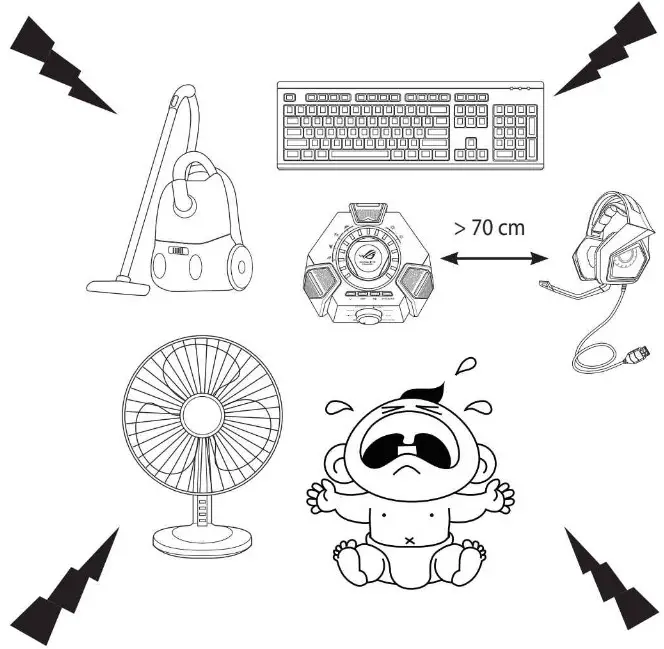
ENC reduces the unwanted environmental noise that your headset’s microphone picks up, ensuring clear and audible communication with other people. For the headset’s optimal performance, ensure that you are more than 70 cm away from the console box.
IMPORTANT! The ROG Centurion 7.1 Control Box is a plug-and-play audio device. Depending on how your computer Is configured, the 7.1 Control Box may or may not automatically be selected as the default audio device. Hence, ensure that you select the 7.1 Control Box as your default audio playback/recording device if there is no sound.